Getting started · เริ่มต้นใช้งาน
This chapter explains what Panya is, how to open an account and set up your first company, and how screens, keys and documents behave everywhere in the program. Read it once before you start. The later chapters assume you know what is here.
About Panya#
Panya is an online accounting program for Thai businesses. It runs in a web browser, so there is nothing to install. Your books are kept on Panya's servers and you can work on them from any computer. Panya covers the work a Thai SME's books need:
- purchasing and sales documents, with tax invoices;
- receipts and payments, with withholding tax;
- cash, bank and cheques;
- inventory;
- the general ledger and financial statements;
- the tax reports for ภ.พ.30, ภ.ง.ด.3, ภ.ง.ด.53, ภ.ง.ด.54 and ภ.พ.36.
When you post a document, Panya writes its journal entry, its stock movements and its tax records at the same moment. The general ledger, the sub-ledgers (customers, suppliers, stock) and the VAT and WHT reports therefore always agree with each other.
Organizations and companies#
Panya works on two levels.
| Level | ภาษาไทย | What it is |
|---|---|---|
| Organization | องค์กร | The customer that subscribes to Panya, such as your business group or your accounting firm. It holds the subscription (plan and billing), the users, and one or more companies. |
| Company | กิจการ | One set of books: one business with its own tax ID and branch. Each company has its own chart of accounts, accounting periods, document numbering, customers, suppliers, products, documents, ledger and tax reports. |
Companies never share data. A customer, product or account created in one company does not exist in any other, and no report adds companies together. An accounting firm usually keeps one organization with a company for each client. A business group usually keeps one organization with a company for each legal entity.
You sign in once with your email address. If you belong to several organizations, you can move between them without signing in again (see Choosing an organization and company).
Users and roles#
Everyone who uses Panya has their own user account: an email address and a password. The owners and admins of an organization invite people into it and give each person a role.
| Role | ภาษาไทย | Works in | In short |
|---|---|---|---|
| Owner | เจ้าของ | Every company of the organization | Everything, including the subscription, the full data export, other owners and support access. An organization always keeps at least one owner. |
| Admin | ผู้ดูแลองค์กร | Every company of the organization | Creates companies and manages accountants, staff and read-only users. Has full accounting access. Cannot change the subscription or export all data. |
| Accountant | นักบัญชี | Only the companies granted | Documents, journals, cancellations, closing periods and the year, company settings. Cannot reopen periods or post into closed ones. |
| Staff | พนักงานบันทึกข้อมูล | Only the companies granted | Enters and posts sales, purchases, receipts, payments and stock documents. Maintains customers, suppliers and products. |
| Read-only | ผู้ดูข้อมูล | Only the companies granted | Reads documents and reports, and exports them. |
Owners and admins can open every company in their organization automatically. Accountants, staff and read-only users see only the companies that an owner or admin has granted them. Each grant carries its own role, so one person can be an accountant in one company and read-only in another. Permissions lists exactly what each role may do. Inviting people and granting companies is described in Organization administration.
Plans and file storage#
Panya's accounting is free forever (ใช้ฟรีตลอดไป). Every organization has every module, from purchasing and sales to inventory and the tax reports, with no limit on companies, users or transactions, and can import and export its data for free. There is no trial and no end date, and signing up needs no credit card.
You pay only if you want more file storage for attachments, such as scanned tax invoices and receipts. The free plan has 100 MB for the whole organization. Storage plans of 10 GB, 50 GB, 200 GB and 1 TB start at ฿79 a month; paid yearly, a plan costs ten months. An owner chooses a storage plan on the organization's Plan & usage tab and pays by card or PromptPay; see Plan and usage. Panya AI is free for 20 requests a month; beyond that it uses prepaid AI credits (see AI credits). Panya may also limit the number of free users per organization; until it does, users are unlimited (see User licences).
The pricing section of the Panya website shows the free plan and the storage prices.
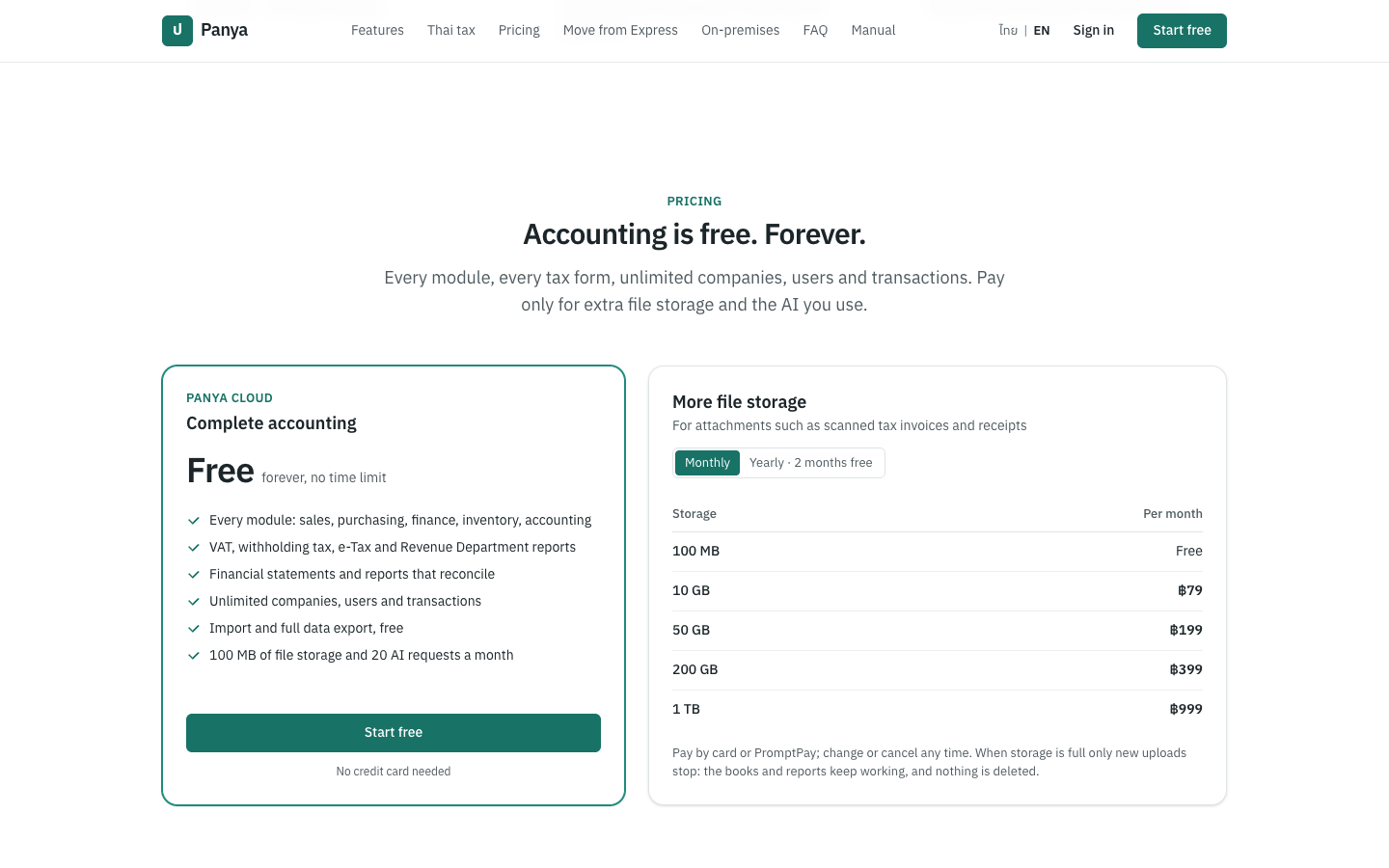
Its Panya AI section shows the credit packages and the table What a task costs: suggesting accounts for a document From 1 credit, answering a question or summarizing From 4 credits, reading an invoice or receipt From 3 credits a page, and a larger analysis By usage, estimate shown first. Under the table: A free request covers up to 10 credits of work. Larger requests are charged by use, never more than the estimate shown first.
Billing never locks your books. If a payment fails, or a storage plan is cancelled and its period ends, the organization goes back to the free 100 MB. If its files take more, only new attachments stop: documents, posting, reports and exports keep working, and nothing is deleted. An organization becomes read-only only when Panya operations suspend it. See Plan notices and read-only mode.
The main menu#
Inside a company, the menu on the left has seven numbered groups, in the same order as the top menus of Express.
| Menu | ภาษาไทย | Items | Chapter |
|---|---|---|---|
| 1 Purchasing | ซื้อ | Deposits paid (AE), Purchase requisitions (PR), Purchase orders (PO), Goods receipts (GN), Credit purchases (RR), Cash purchases (HP), Purchase returns (GR), Supplier debit notes (DP), Suppliers | Purchasing |
| 2 Sales | ขาย | Deposits received (AI), Quotations (QT), Sales orders (SO), Delivery notes (DO), Credit sales (IV), Cash sales (HS), Credit notes (SR), Debit notes (DN), Customers | Sales |
| 3 Finance | การเงิน | Billing notes (BN), Receipts (RE), Supplier billing (BR), Payments (PS), Customer refunds (RF), Supplier refunds (RP), Bank transfers (BT), Cheques, Cheque deposit slips (BQ), Bank reconciliation, Cash & bank accounts, PP.36 VAT | Finance |
| 4 Inventory | สินค้า | Products & services, Stock adjustments, Stock transfers, Stock on hand, Stock card, Warehouses | Inventory |
| 5 Accounting | บัญชี | Journal vouchers (JV), Journal entries, Chart of accounts, Opening balances, Periods & year end, FX revaluation | Accounting |
| 6 Reports | รายงาน | All reports, Trial balance, Profit & loss, Balance sheet, VAT reports, Integrity checks | Reports |
| 7 Setup | เริ่มระบบ | Company, Default accounts, VAT & WHT, Exchange rates, Document numbering, Units & categories, Users & roles, Audit log | Setup |
Work on the organization itself (members, invitations, plan, data export, support access) is done on the organization settings pages, not in the company menu. See Organization administration. The monthly routine and tax filing are collected in Month-end and tax filing.
Tips for Express users#
- The menu groups are numbered as in Express (1 ซื้อ to 7 เริ่มระบบ), and documents use the Express prefixes: IV, HS, SR, RE, RR, HP, GR, PS, JV and so on.
Entermoves to the next field,F9saves and posts, andEsccloses a window.- A document gets its number when you post it, not when you save it. A draft has no number, so deleting a draft never leaves a gap in your tax-invoice numbers.
- A posted document cannot be edited or deleted. To correct it, cancel it (Panya posts a reversing entry) or issue a credit note or debit note.
- One sign-in reaches every company you work on. There are no data files to copy or back up. An owner can export all of the organization's data at any time.
Signing up#
สมัครใช้งาน · Open: Start free on the Panya website
Open the Panya website in your browser. The page explains what Panya does and has the buttons to sign up or sign in.
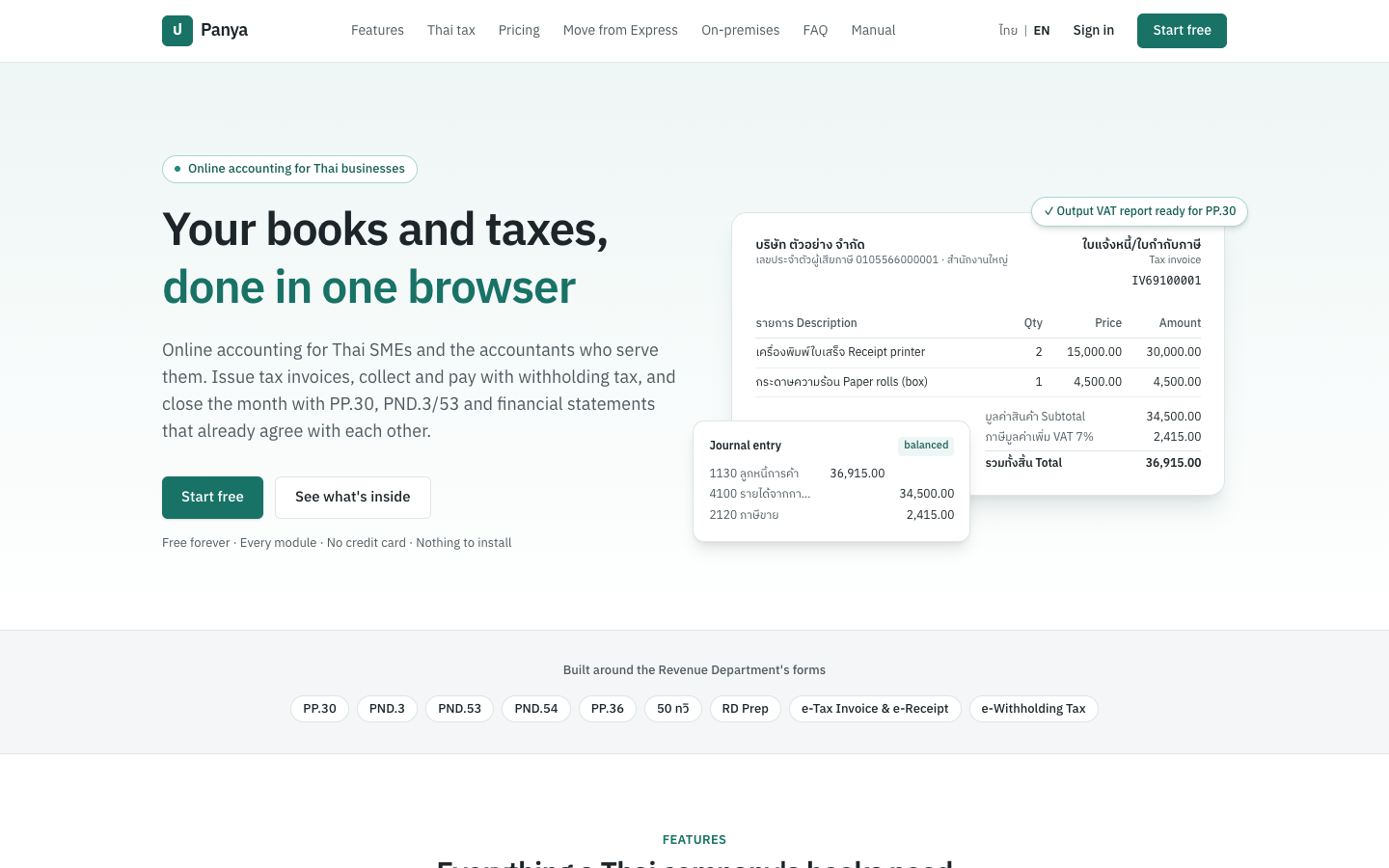
The bar at the top has Sign in and Start free. If you are already signed in on this browser, they are replaced by Open Panya →. The links in the middle of the bar jump to the features, the Thai tax forms supported, the prices, moving from Express, Panya On-premises and frequently asked questions. The Manual link opens this manual.
Click Start free to open the sign-up form. The button is in the bar, at the top of the page, on the free plan's box in the prices and at the bottom of the page.
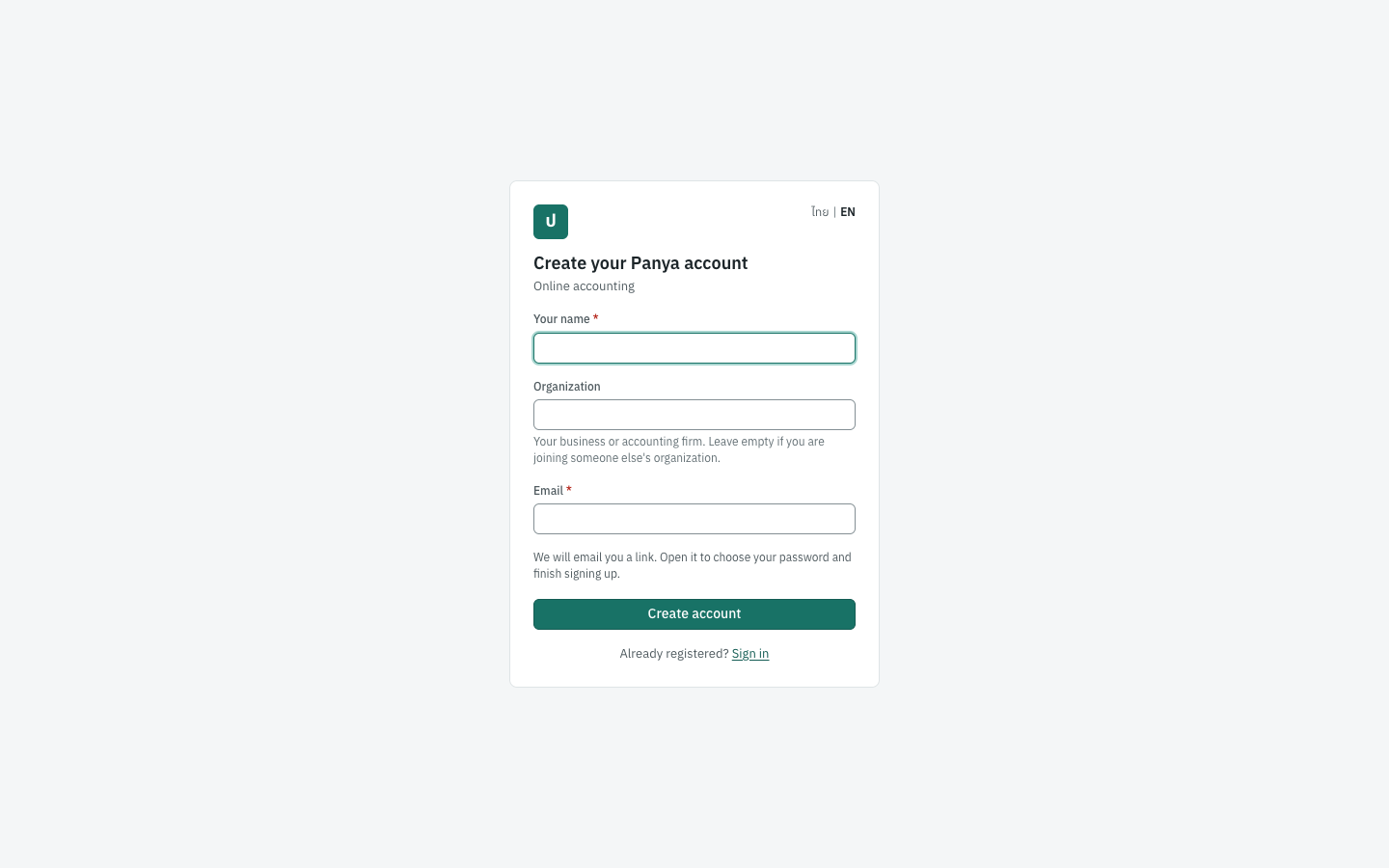
Fields#
| Field | ภาษาไทย | What to enter |
|---|---|---|
| Your name | ชื่อ-นามสกุล | Your own name, as your colleagues should see it. It appears as Posted by on documents and in the audit log. Required. |
| Organization | องค์กร | The name of your business or accounting firm, for example ตัวอย่าง กรุ๊ป. Panya creates a new organization with this name, on the free plan, with you as its owner, when you finish signing up from the confirmation email. Leave it empty if you are only joining an organization that has invited you. |
| อีเมล | Your email address. You sign in with it, and Panya sends confirmation and password-reset links to it. One address can have only one Panya account. Capital letters do not matter. | |
| Password | รหัสผ่าน | Not on this form. You choose it on the page the confirmation link opens, so only the owner of the address ever sets it. |
Creating your account#
- Click Start free on the website. The Create your Panya account page opens with the cursor in Your name.
- Type your name.
- Type the name of your organization, or leave Organization empty if you are waiting for an invitation.
- Type your email address.
- Click Create account, or press
Enter. - The page says Check your email: We sent a link to … Open it to choose your password and finish signing up. Open the email Confirm your email address to finish signing up for Panya and click its link.
- The Finish signing up page opens. Type a password of at least 10 characters in Choose a password and again in Repeat the password, then click Finish signing up (see Confirming your email address).
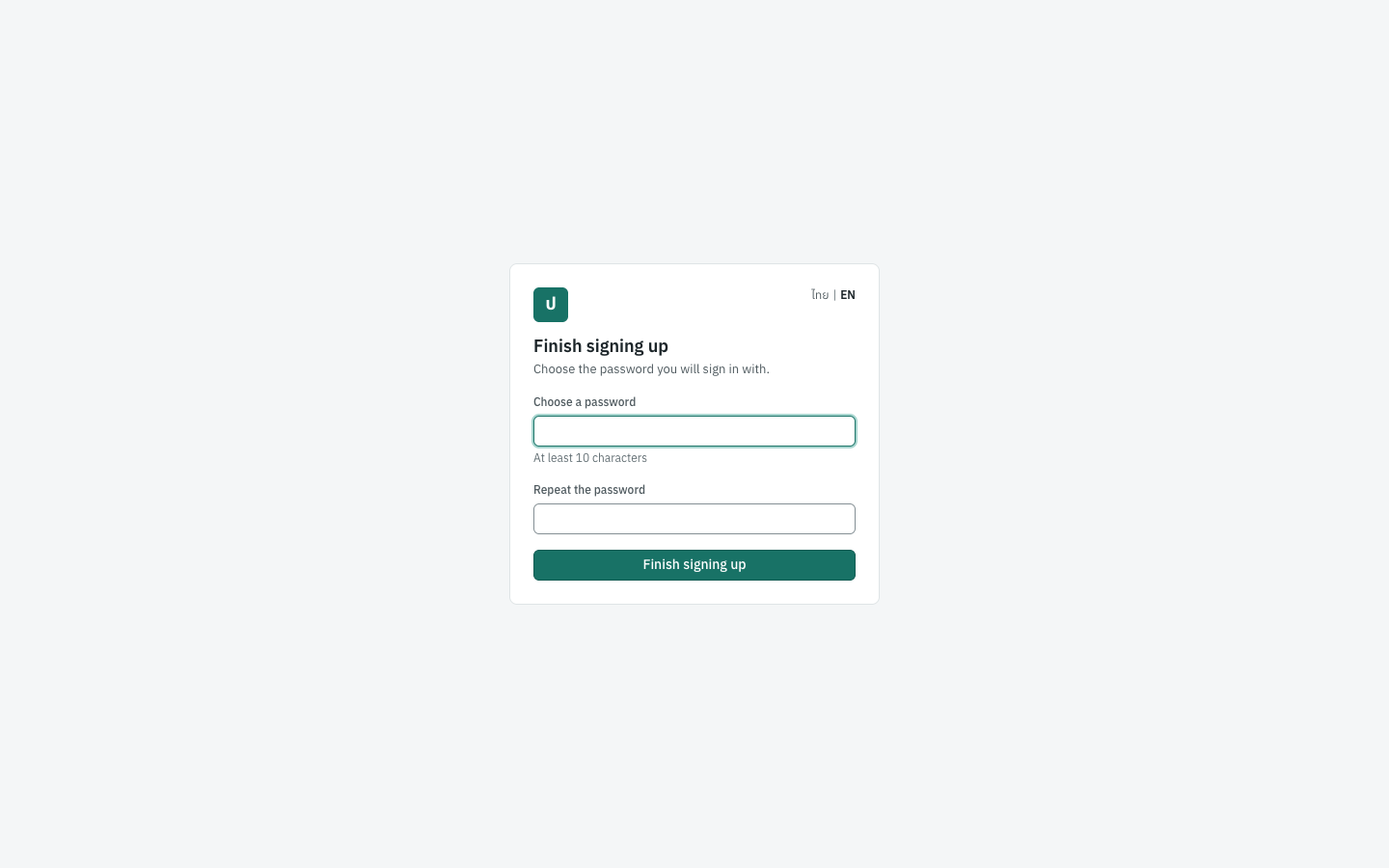
Panya signs you in. Where you go next depends on the Organization field:
- You entered an organization: Panya creates it and opens the New company form for it, so you can set up your first company at once. See Creating the first company.
- You left it empty: Panya opens the New organization page. If you are waiting for an invitation, you can leave this page and open the invitation link instead.
The email can take a minute to arrive. If you cannot find it, look in your spam or junk folder, or click Send the email again on the Check your email page (Sent again. Check your inbox (and spam folder).). Use another email address returns to the form; Sign in opens the sign-in page. You cannot sign in before you open the link: the account has no password until you choose it there. If the link is lost or has expired, sign up again with the same address, which sends a new one, or use Forgot your password? on the sign-in page: the reset link also finishes signing up.
Note: The Check your email page is the same whether or not the address already has a Panya account, so nobody can use the sign-up form to find out who uses Panya. If it has one, no second account is made and nothing in the account changes. Instead, the address receives the email You already have a Panya account: someone tried to sign up with it, with links to sign in and to choose a new password (see Forgotten password). Panya sends this email at most once an hour. And because the password is chosen on the emailed link, someone who signs up with an address that is not theirs never has a password for it.
Joining an organization by invitation#
When an owner or admin invites you, you receive an email with a link. The link opens a Join page that names the organization, the person who invited you and the role you will have, for example สมศรี ใจงาม invited [email protected] to join as Accountant. What the page asks for depends on your situation.
| Situation | What the page shows | What to do |
|---|---|---|
| The invited address has no Panya account yet | Email (filled in and locked), Your name, Choose a password (at least 10 characters) | Fill in your name and password and click Create account and join. The invitation came to this address, so there is no confirmation email: Panya signs you in and accepts the invitation at once. |
| The address already has an account, and you are not signed in | Sign in as … to accept | Click it, sign in. Panya brings you back to the invitation; click Accept invitation. |
| You are signed in with the invited address | Accept invitation | Click it. |
| You are signed in with a different address | A warning to sign out and sign in as the invited address | Click Sign out on any Panya page, then open the link again. |
The bottom of the page shows Valid until and the expiry date. An invitation is valid for 7 days. Accepting an invitation also confirms your email address.
If the invitation can no longer be used, the page says why:
- This invitation has already been accepted.
- This invitation was withdrawn by the organization.
- This invitation has expired. Ask the person who invited you to send a new one.
- Invitation not found — This link is not valid. It may have been replaced by a newer invitation. Use the most recent invitation email.
Messages#
| Message | What to do |
|---|---|
| an account with this email already exists | Shown on an invitation's Join page when the invited address has had an account made in the meantime. Sign in instead, or use Forgot your password? on the sign-in page. (The sign-up form never says this: see the note above.) |
| a valid email address is required | Check the email address for typing mistakes. |
| password must be at least 10 characters | On the Finish signing up page: choose a longer password. |
| The passwords do not match | On the Finish signing up page: type the same password in both fields. |
| name is required | Fill in Your name. |
| too many requests | Too many sign-ups, or too many Send the email again, were attempted from your network in a short time. Wait five minutes and try again. |
Asking for an On-premises quotation#
On-premises และบริการเสริม · Open: On-premises in the bar at the top of the Panya website
Panya On-premises runs Panya on your own servers. It has no fixed price: Panya quotes for what you need, based on the number of companies and users, your servers, installation and data migration, integrations, security requirements, and maintenance and support. The same section of the website, Panya on your own servers, lists the optional services for Panya Cloud, such as e-Tax Invoice and e-Receipt integration, onboarding and training. None of them is needed to use the accounting. To ask for a quotation, fill in the form next to the lists.
| Field | ภาษาไทย | What to enter |
|---|---|---|
| What is it about? | เรื่องที่สนใจ | Panya On-premises (the default), Services: onboarding, training, integrations, Help moving from Express, Enterprise AI or Something else |
| Your name | ชื่อผู้ติดต่อ | The person Panya should reply to. Required. |
| Company | บริษัท | Optional. |
| อีเมล | The address for the reply. Required. | |
| Phone | โทรศัพท์ | Optional. |
| About how many companies? / About how many users? | จำนวนกิจการโดยประมาณ / จำนวนผู้ใช้งานโดยประมาณ | Optional numbers. Not shown for Something else. |
| What do you need? | รายละเอียดที่ต้องการ | For On-premises, for example your servers, systems to integrate, security requirements and the support level you need. |
- Click On-premises in the bar at the top of the website.
- Choose the topic in What is it about?.
- Fill in your name and email, and the other fields as far as you can.
- Click Request a quotation. The button reads Sending… while the request is sent.
- The form is replaced by Thank you, we have your request and The Panya team will reply by email within two working days.
Panya uses these details only to reply about your quotation, as the note under the form says. The form does not create a Panya account.
| Message | What to do |
|---|---|
| Too many requests. Please wait a few minutes and try again. | Several requests were sent from your network in a short time. Wait a few minutes. |
| The request could not be sent. Check the email address and try again. | Correct the email address and click Request a quotation again. |
Confirming your email address#
ยืนยันอีเมล · Open: the link in the email Confirm your email address to finish signing up for Panya
Right after you sign up, Panya emails you a confirmation link. The link works for 3 days. Opening it finishes signing up: you choose your password, and Panya confirms the address, creates the organization you named and signs you in.
Until an address is confirmed, two things are switched off: inviting people, and emailing documents to customers. A new account is confirmed as it finishes signing up, so only an older account that was never confirmed works in Panya unconfirmed. On such an account, a blue banner at the top of every page says Confirm your email address. We sent a link to … Inviting people and emailing documents work once it is confirmed., followed by a Send the link again link.
To confirm your address:
- Open the email Confirm your email address to finish signing up for Panya and click the link.
- To finish signing up, the Finish signing up page asks for your password (Choose the password you will sign in with.). Type it in Choose a password and Repeat the password, and click Finish signing up. Panya signs you in and opens where you start (see Where Panya opens after you sign in).
- On an account that already has a password, the Confirm your email page says Thank you: … is confirmed. instead. Click Continue to Panya.
If the link has expired or was already used, the page says this confirmation link is invalid or has expired. If you had not finished signing up, sign up again with the same address: Panya sends you a new link. Otherwise sign in and click Send the link again in the blue banner. Panya replies Sent. Check your inbox (and spam folder). You can ask for a new link at most once a minute. If you ask sooner, the banner shows too many requests.
Note: Resetting your password from an emailed link, or accepting an invitation, also confirms your address. A reset also finishes a sign-up left unfinished: it sets the password and creates the organization.
Signing in and out#
เข้าสู่ระบบ · Open: Sign in on the Panya website
The sign-in page asks for your email address and password.
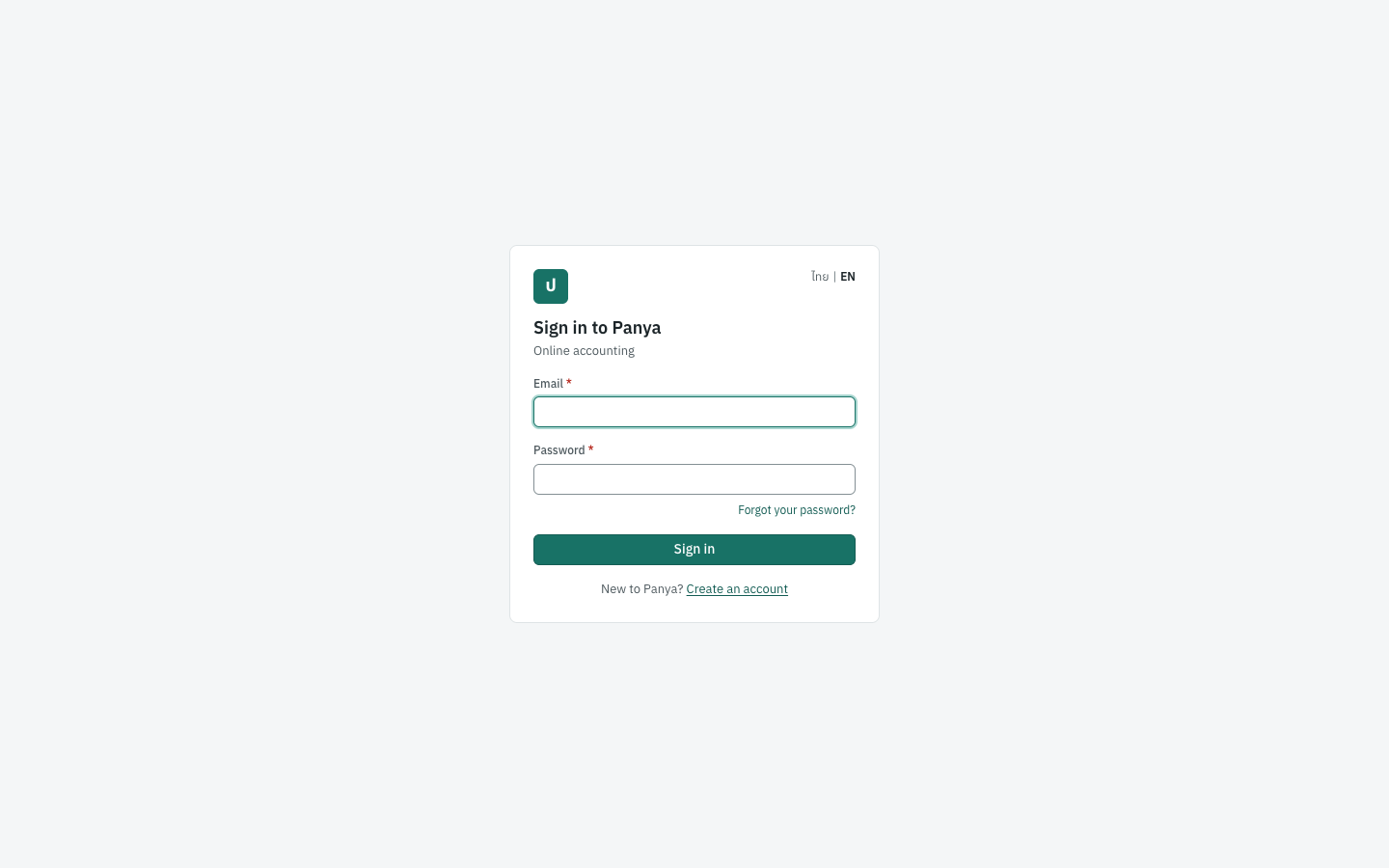
Signing in#
- Click Sign in at the top of the Panya website. The cursor is already in Email.
- Type your email address and your password.
- Click Sign in, or press
Enter.
Forgot your password? opens Forgotten password. Create an account opens the sign-up form.
A sign-in does not last forever. After a set time (normally 12 hours), Panya asks you to sign in again. If this happens while you are working, Panya shows the sign-in page and, after you sign in, returns you to the page you were on. A draft you had already saved is kept. Changes you had not yet saved are lost.
Where Panya opens after you sign in#
Panya remembers, in this browser, the organization and company you last worked in. After you sign in it opens:
- the company you last worked in, if you can still open it;
- otherwise, the only company of your organization, if it has just one;
- the New company form, if your organization has no company yet and you are its owner or admin;
- the organization's home page, if it has no company you can open and you are not its owner or admin;
- the New organization page, if you do not belong to any organization;
- otherwise the Organizations & companies page, where you choose (see Organizations and companies page).
Signing out#
Click Sign out at the right end of the bar at the top of the page. It is also on the Organizations & companies page and on your account page. Panya returns to the sign-in page.
Signing out ends your session in this browser only. Other computers or phones where you are signed in stay signed in. To sign them all out, change your password (see Changing your password).
Tip: On a shared computer, always sign out when you finish.
Messages#
| Message | What to do |
|---|---|
| Incorrect email or password | Check the email address and the password (Caps Lock, keyboard language). If you still cannot sign in, use Forgot your password?. |
| this account is disabled; contact Panya support | Panya has disabled your account's sign-in. Contact Panya support; see A disabled account. |
| too many requests | There were more than 10 attempts for this address from your network within five minutes. Wait five minutes and try again. |
Forgotten password#
ลืมรหัสผ่าน · Open: Forgot your password? on the sign-in page
Requesting a reset link#
- On the sign-in page, click Forgot your password?. The Reset your password page opens.
- Type your email address in Email.
- Click Send reset link.
- The page changes to Check your email: If … has a Panya account, we sent it a link to choose a new password. The link works once, for one hour.
Panya shows the same answer whether or not the address has an account. Nobody can use this page to find out who uses Panya. The email has the subject Reset your Panya password. Back to sign in returns to the sign-in page.
Choosing a new password#
- Open the email and click the link. The Choose a new password page opens.
- Type the new password (at least 10 characters) in New password.
- Type it again in Repeat the new password.
- Click Set password.
- The Password changed page says Your new password is set. For safety, every device that was signed in has been signed out. Click Sign in and sign in with the new password.
Setting a new password from the link also confirms your email address. Any other reset links you requested stop working.
Messages#
| Message | What to do |
|---|---|
| The passwords do not match | Type the same password in both boxes. |
| this reset link is invalid or has expired | The link was already used, or is more than an hour old. Click Request a new link in the message and start again. |
| password must be at least 10 characters | Choose a longer password. |
| too many requests | Wait five minutes before asking for another link. |
Your account#
บัญชีผู้ใช้ · Open: click your name in the bar at the top of any page
Your account page shows who you are signed in as, your screen language, the organizations you belong to, and the form to change your password.
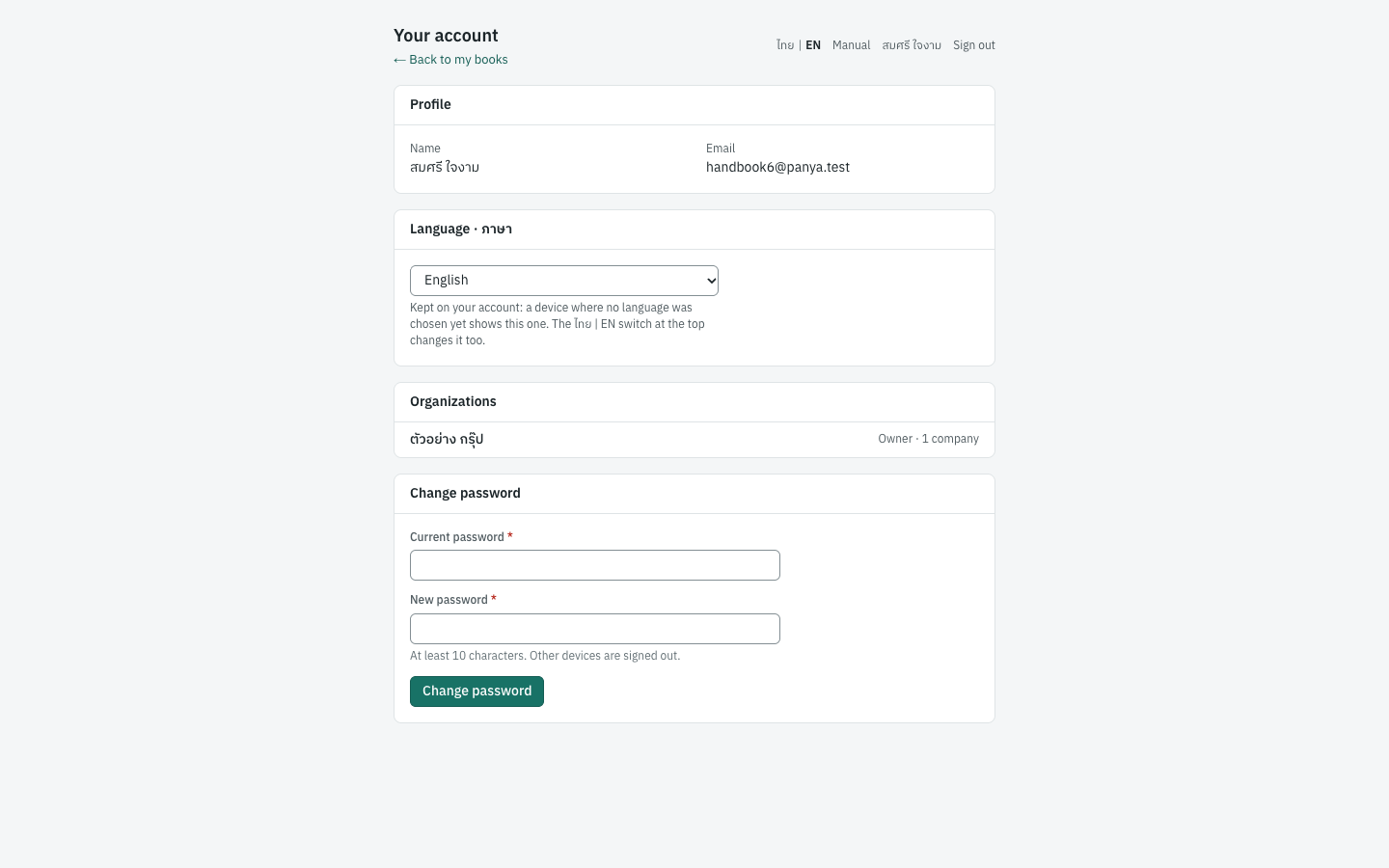
| Card | What it shows |
|---|---|
| Profile | Your Name and Email. They are shown for information; they cannot be changed on this page. |
| Language · ภาษา | The language of Panya's screens, ไทย (Thai) or English. See Choosing the screen language. |
| Organizations | Every organization you belong to, with your role there and the number of companies you can open in it, for example Owner · 1 company. Click an organization's name to open its settings. |
| Change password | The form described below. |
← Back to my books returns you to the company you last worked in (or wherever Panya would open after signing in).
Changing your password#
| Field | ภาษาไทย | What to enter |
|---|---|---|
| Current password | รหัสผ่านปัจจุบัน | The password you use now. Required. |
| New password | รหัสผ่านใหม่ | At least 10 characters. |
- Open your account page (click your name at the top right).
- Type your Current password and your New password.
- Click Change password.
- Panya shows Password changed. Other devices have been signed out. You stay signed in on this browser. Every other computer or phone must sign in again with the new password.
| Message | What to do |
|---|---|
| the current password is not correct | Type your present password again. If you have forgotten it, sign out and use Forgot your password?. |
| password must be at least 10 characters | Choose a longer new password. |
Creating an organization#
สร้างองค์กร · Open: New organization on the Organizations & companies page, or New organization… in the organization switcher
You need this page if you signed up without an organization name and now want your own organization, or if you need a second, separately billed subscription. You do not need a new organization for another company. One organization can hold any number of companies.
The page explains: An organization is your Panya subscription: it holds your companies, users and billing. Accounting is free forever, with every module and no limit on companies or users. An accounting firm usually keeps one organization with a company per client.
| Field | ภาษาไทย | What to enter |
|---|---|---|
| Organization name | ชื่อองค์กร | For example your business group or accounting firm, such as ตัวอย่าง กรุ๊ป. Required: Create organization stays disabled until you type a name. |
- Type the Organization name.
- Click Create organization (or press
Enter). - Panya creates the organization on the free plan, makes you its owner, and opens the New company form.
Cancel returns to the Organizations & companies page without creating anything.
Creating the first company#
สร้างกิจการ · Open: organization settings, Companies tab, New company
You can also reach this form from New company on the Organizations & companies page and from New company… in the company switcher. Only owners and admins can create companies. There is no limit on the number of companies.
The form sets up one set of books.
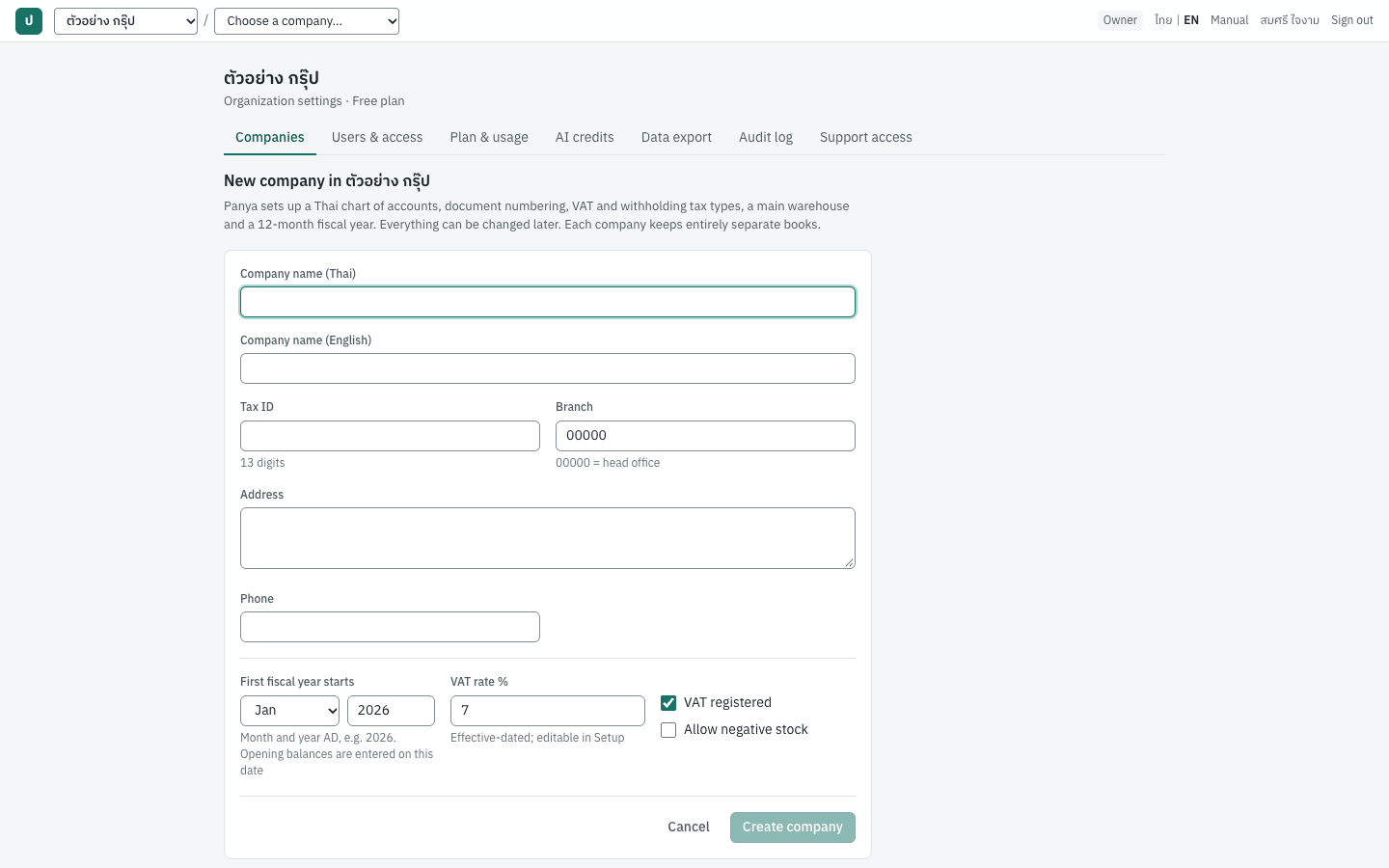
Fields#
| Field | ภาษาไทย | What to enter |
|---|---|---|
| Company name (Thai) | ชื่อกิจการ (ภาษาไทย) | The registered name exactly as it must appear on tax invoices, for example บริษัท ตัวอย่าง เทรดดิ้ง จำกัด. Required: Create company stays disabled until you type it. |
| Company name (English) | ชื่อกิจการ (ภาษาอังกฤษ) | Optional. Printed under the Thai name on documents, for example Example Trading Co., Ltd. |
| Tax ID | เลขประจำตัวผู้เสียภาษี | The 13-digit tax identification number, digits only, for example 0105566000001. You may leave it empty for now, but tax invoices and tax reports need it. |
| Branch | สาขา | The 5-digit branch number registered with the Revenue Department. Default 00000, which means head office (สำนักงานใหญ่). A branch is for example 00001. |
| Address | ที่อยู่ | The registered address, as it should print on documents. In this box, Enter starts a new line. |
| Phone | โทรศัพท์ | Optional. Printed on documents. |
| First fiscal year starts | เริ่มรอบบัญชีแรก | The month and the year of the first day of the first fiscal year that Panya opens. Default: January of the current year. Type the year in the Christian era, for example 2026; the hint says Month and year AD, e.g. 2026. Opening balances are entered on this date. The year must be within the last 20 years or next year. See below. |
| VAT rate % | อัตราภาษีมูลค่าเพิ่ม % | Default 7. Must be at least 0 and less than 100. Greyed out when VAT registered is not ticked. Later changes are made in Setup with an effective date. |
| VAT registered | จดทะเบียนภาษีมูลค่าเพิ่ม | Ticked by default. Untick it if the company is not registered for VAT: its documents then carry no VAT, and Panya refuses a document with VAT (the company is not VAT registered). |
| Allow negative stock | อนุญาตให้สินค้าติดลบ | Not ticked by default: Panya refuses to post a document that would take a product's quantity in a warehouse below zero. Tick it to allow stock to go negative. |
Everything except the first fiscal year can be changed later in Setup: the names, tax ID, branch, address and phone, VAT registration and negative stock in 7 Setup → Company, and the VAT rate in 7 Setup → VAT & WHT. The Setup company page also has fields that are not on this form, such as the branch name, the company email and the date display.
Choosing the first fiscal year#
The first fiscal year is the one choice on this form that cannot be undone. Panya opens a fiscal year of 12 monthly periods that starts on the first day of the month you choose. Later years are added one at a time after it, with Open next fiscal year in 5 Accounting → Periods & year end. An earlier year can never be added.
- Use the Christian-era year (ค.ศ.). For a fiscal year starting in January 2569, type
2026, not2569. If you type2569, the field shows 2569 BE is 2026 AD: enter 2026 and Create company stays disabled until you correct it. - Pick the year you start keeping books in Panya. Your opening balances (ยอดยกมา) are dated on the first day of this fiscal year. For example, if you move to Panya with balances brought forward from 31/12/2568, choose Jan and
2026. - Match the company's fiscal year. For a calendar-year company choose Jan. For a fiscal year from 1 April, choose Apr.
- Do not choose a start later than the first document you need to enter. Panya refuses any document dated before the first fiscal year.
How to bring in the opening balances is explained in Accounting.
Creating the company#
- Open the organization's settings and click New company on the Companies tab.
- Type the Company name (Thai), and the English name if you use one.
- Type the Tax ID and check the Branch.
- Type the Address and Phone.
- Choose the month and type the Christian-era year in First fiscal year starts.
- Check VAT registered and the VAT rate %, and decide on Allow negative stock.
- Click Create company.
Enter moves from field to field. It does not create the company, so you can move through the form with Enter safely. Panya sets up the books (see below) and opens the new company's dashboard. Cancel returns to the organization settings without creating anything.
What Panya sets up#
A new company starts with a complete working configuration, so you can post documents at once. Every item below can be changed afterwards in the Setup and Accounting menus.
Chart of accounts#
Panya creates a Thai SME chart of accounts (ผังบัญชี). Group accounts (หมวด) only total their sub-accounts and cannot be posted to. Control accounts are kept by the sub-ledgers: only customer, supplier and stock documents post to them, never a journal voucher. The right-hand column shows what Panya uses each account for by default (the default accounts, ผูกบัญชี).
| Code | ชื่อบัญชี | English name | Default use |
|---|---|---|---|
1000 | สินทรัพย์ | Assets | Group |
1100 | สินทรัพย์หมุนเวียน | Current assets | Group |
1110 | เงินสด | Cash on hand | Cash account; cash account CASH; Cash |
1111 | เงินสดย่อย | Petty cash | Cash account |
1115 | เช็ครับรอนำฝาก | Cheques on hand | Cheques received, not yet deposited |
1120 | เงินฝากธนาคาร - กระแสรายวัน | Bank - current account | Cash account; bank account BANK |
1121 | เงินฝากธนาคาร - ออมทรัพย์ | Bank - savings account | Cash account |
1130 | ลูกหนี้การค้า | Trade accounts receivable | Control account; Accounts receivable |
1131 | ปรับมูลค่าลูกหนี้สกุลเงินต่างประเทศ | Foreign receivables revaluation | Revaluation of foreign-currency receivables |
1135 | ลูกหนี้ส่งสินค้ายังไม่ออกใบแจ้งหนี้ | Delivered not invoiced | Delivered not invoiced |
1140 | สินค้าคงเหลือ | Inventory | Control account; Inventory |
1150 | ภาษีซื้อ | Input VAT | Input VAT |
1151 | ภาษีซื้อยังไม่ถึงกำหนด | Undue input VAT | Undue input VAT |
1152 | ภาษีซื้อ ภ.พ.36 รอใช้สิทธิ | PP.36 input VAT not yet claimed | PP.36 input VAT |
1160 | ภาษีเงินได้ถูกหัก ณ ที่จ่าย | Withholding tax receivable | WHT deducted by customers |
1170 | เงินจ่ายล่วงหน้าแก่ผู้ขาย | Advances to suppliers | Supplier advances |
1175 | เงินจ่ายมัดจำ | Deposits paid | Deposits paid to suppliers (AE) |
1180 | ค่าใช้จ่ายจ่ายล่วงหน้า | Prepaid expenses | |
1200 | สินทรัพย์ไม่หมุนเวียน | Non-current assets | Group |
1210 | อุปกรณ์สำนักงาน | Office equipment | |
1211 | ค่าเสื่อมราคาสะสม - อุปกรณ์สำนักงาน | Accumulated depreciation - office equipment | |
1220 | ยานพาหนะ | Vehicles | |
1221 | ค่าเสื่อมราคาสะสม - ยานพาหนะ | Accumulated depreciation - vehicles | |
2000 | หนี้สิน | Liabilities | Group |
2100 | หนี้สินหมุนเวียน | Current liabilities | Group |
2110 | เจ้าหนี้การค้า | Trade accounts payable | Control account; Accounts payable |
2111 | ปรับมูลค่าเจ้าหนี้สกุลเงินต่างประเทศ | Foreign payables revaluation | Revaluation of foreign-currency payables |
2115 | เช็คจ่ายรอตัดบัญชี | Cheques payable | Cheques issued, not yet cleared |
2120 | ภาษีขาย | Output VAT | Output VAT |
2121 | ภาษีขายรอเรียกเก็บ (ยังไม่ถึงกำหนด) | Undue output VAT | Undue output VAT |
2122 | ภาษีมูลค่าเพิ่มค้างจ่าย | VAT payable | |
2123 | ภาษีมูลค่าเพิ่ม ภ.พ.36 ค้างจ่าย | PP.36 VAT payable | PP.36 VAT payable |
2130 | ภาษีเงินได้หัก ณ ที่จ่ายค้างจ่าย | Withholding tax payable | WHT payable |
2140 | เงินรับล่วงหน้าจากลูกค้า | Customer advances | Customer advances |
2145 | เงินรับมัดจำ | Deposits received | Deposits received from customers (AI) |
2150 | ค่าใช้จ่ายค้างจ่าย | Accrued expenses | |
2160 | สินค้ารับแล้วรอใบแจ้งหนี้ | Goods received not invoiced | Goods received not invoiced |
2200 | หนี้สินไม่หมุนเวียน | Non-current liabilities | Group |
2210 | เงินกู้ยืมระยะยาว | Long-term loans | |
3000 | ส่วนของเจ้าของ | Equity | Group |
3100 | ทุนจดทะเบียน | Share capital | |
3200 | กำไร (ขาดทุน) สะสม | Retained earnings | Retained earnings (year-end closing) |
3900 | ยอดยกมาเพื่อปรับปรุง | Opening balance equity | Opening balance equity |
4000 | รายได้ | Revenue | Group |
4100 | รายได้จากการขายสินค้า | Sales of goods | Sales |
4110 | รับคืนสินค้าและส่วนลด | Sales returns and allowances | Sales returns & allowances |
4200 | รายได้จากการให้บริการ | Service revenue | |
4900 | รายได้อื่น | Other income | |
4910 | กำไร (ขาดทุน) จากอัตราแลกเปลี่ยน | Exchange gain (loss) | Exchange differences |
5000 | ค่าใช้จ่าย | Expenses | Group |
5100 | ต้นทุนขาย | Cost of sales | Group |
5110 | ต้นทุนขายสินค้า | Cost of goods sold | Cost of goods sold |
5120 | ผลต่างต้นทุนสินค้า | Inventory cost variance | Inventory cost variance |
5130 | สินค้าขาด/เกินจากการตรวจนับ | Inventory adjustments | Inventory adjustment |
5140 | ซื้อสินค้าและวัสดุสิ้นเปลือง | Purchases and supplies | Purchases / expenses |
5200 | ค่าใช้จ่ายในการขายและบริหาร | Selling and administrative expenses | Group |
5210 | เงินเดือนและค่าจ้าง | Salaries and wages | |
5220 | ค่าเช่า | Rent | |
5230 | ค่าสาธารณูปโภค | Utilities | |
5240 | ค่าธรรมเนียมธนาคาร | Bank charges | Bank charges |
5250 | ค่าโฆษณา | Advertising | |
5260 | ค่าขนส่ง | Freight and transport | |
5270 | ค่าธรรมเนียมวิชาชีพ | Professional fees | |
5280 | ค่าเสื่อมราคา | Depreciation | |
5290 | ค่าใช้จ่ายเบ็ดเตล็ด | Miscellaneous expenses | |
5291 | ภาษีซื้อที่ขอคืนไม่ได้ | Non-creditable VAT | Non-creditable VAT |
You add, rename and deactivate accounts in 5 Accounting → Chart of accounts, and change the default accounts in 7 Setup → Default accounts. A product or a product category can also name its own sales, purchase or stock accounts. See Setup and Accounting.
VAT rate#
Panya records the VAT rate you entered (7% by default) as the rate in force for every date. The rate carries a note that the reduced rate of 7% runs under Royal Decree No. 807 to 30/09/2570. When the rate changes, you do not overwrite it: in 7 Setup → VAT & WHT you add a new rate with the date it starts. Each document then uses the rate in force on its own date.
Withholding tax types#
Panya creates the common withholding tax types (ประเภทเงินได้ที่หัก ณ ที่จ่าย) with their rates and income types under section 40 of the Revenue Code:
| Code | ประเภท | English name | Rate | Income type |
|---|---|---|---|---|
SERVICE | ค่าบริการ | Services | 3% | 40(8) |
PROF | ค่าวิชาชีพอิสระ | Professional fees | 3% | 40(6) |
HIRE | ค่าจ้างทำของ | Hire of work | 3% | 40(7) |
RENT | ค่าเช่า | Rent | 5% | 40(5) |
ADVERT | ค่าโฆษณา | Advertising | 2% | 40(8) |
TRANSPORT | ค่าขนส่ง | Transport | 1% | 40(8) |
PROMO | รางวัลส่งเสริมการขาย | Sales promotion rewards | 3% | 40(8) |
PRIZE | รางวัลจากการประกวด/ชิงโชค | Prizes | 5% | 40(8) |
COMMISSION | ค่านายหน้า (นิติบุคคล) | Commission to companies | 3% | 40(2) |
INSURANCE | ค่าเบี้ยประกันวินาศภัย | Non-life insurance premiums | 1% | 40(8) |
INTEREST | ดอกเบี้ย (นิติบุคคล) | Interest to companies | 1% | 40(4)(a) |
DIVIDEND | เงินปันผล | Dividends | 10% | 40(4)(b) |
FOREIGN_FEE | ค่าบริการ/ค่าธรรมเนียม (ต่างประเทศ) | Fees to foreign companies | 15% | 40(2) |
FOREIGN_ROYALTY | ค่าสิทธิ (ต่างประเทศ) | Royalties to foreign companies | 15% | 40(3) |
FOREIGN_INTEREST | ดอกเบี้ย (ต่างประเทศ) | Interest to foreign companies | 15% | 40(4)(a) |
FOREIGN_DIVIDEND | เงินปันผล (ต่างประเทศ) | Dividends to foreign companies | 10% | 40(4)(b) |
The form a deduction is reported on (ภ.ง.ด.3 for individuals, ภ.ง.ด.53 for companies, ภ.ง.ด.54 for foreign companies) follows the supplier, not the WHT type. Panya also records the reduced 1% rate for payments made through the e-Withholding Tax system, in two periods: 01/01/2566 to 31/12/2568, and 01/01/2569 to 31/12/2570. Check every rate against the current Revenue Department rules before you use it. Rates are edited in 7 Setup → VAT & WHT.
Document numbering#
Every document type gets a number format with the Express prefix and the Buddhist-era year and month, for example IV69100001 for the first credit sale of October 2569. The full list is in Document numbers. Formats are changed in 7 Setup → Document numbering.
Fiscal year and periods#
Panya opens the first fiscal year with 12 monthly accounting periods, all open. Periods are named by month in the Christian era, 2026-01 to 2026-12, and the bar at the top of the page shows the current one, for example Period 2026-10. The fiscal year is named FY2026, or FY2026/2027 when it does not start in January.
Other starting records#
| Record | Created |
|---|---|
| Cash and bank accounts (บัญชีเงินสด/ธนาคาร) | CASH เงินสด, linked to account 1110; BANK เงินฝากธนาคาร - กระแสรายวัน, linked to account 1120. Add your real bank accounts in 3 Finance → Cash & bank accounts. |
| Warehouse (คลังสินค้า) | MAIN คลังสินค้าหลัก. Add more, such as SHOP, in 4 Inventory → Warehouses. |
| Units (หน่วยนับ) | PCS ชิ้น, BOX กล่อง, SET ชุด, KG กิโลกรัม, HR ชั่วโมง, JOB งาน |
| Product category (หมวดสินค้า) | GEN ทั่วไป |
No customers, suppliers or products are created. You add them yourself (see the next section).
Next steps#
After creating the company, work through Setup before you enter documents:
- 7 Setup → Company: check the details printed on documents, and add the branch name, email and date display.
- 7 Setup → Default accounts, VAT & WHT, Document numbering, Units & categories: adjust to your practice.
- 3 Finance → Cash & bank accounts: add your bank accounts.
- 2 Sales → Customers, 1 Purchasing → Suppliers, 4 Inventory → Products & services: enter or import your master data.
- 5 Accounting → Opening balances: bring in your balances on the first day of the fiscal year.
- Organization settings, Users & access: invite the people who will work in the company (see Organization administration).
Messages#
| Message | What to do |
|---|---|
| company name is required | Type the Thai company name. |
| tax ID must be 13 digits | Type the 13 digits of the tax ID without spaces or dashes, or leave the field empty. |
| branch code must be 5 digits (00000 = head office) | Type five digits, for example 00000 or 00001. |
| VAT rate must be between 0 and 100 | Correct the VAT rate. |
| The organization is suspended by Panya operations. Records remain available to read and export. | The organization is read-only (see Plan notices and read-only mode). Contact Panya support. |
Choosing an organization and company#
Organizations and companies page#
เลือกองค์กรและกิจการ · Open: All organizations… in the organization switcher
This page lists every organization you belong to, with the companies you can open in each.
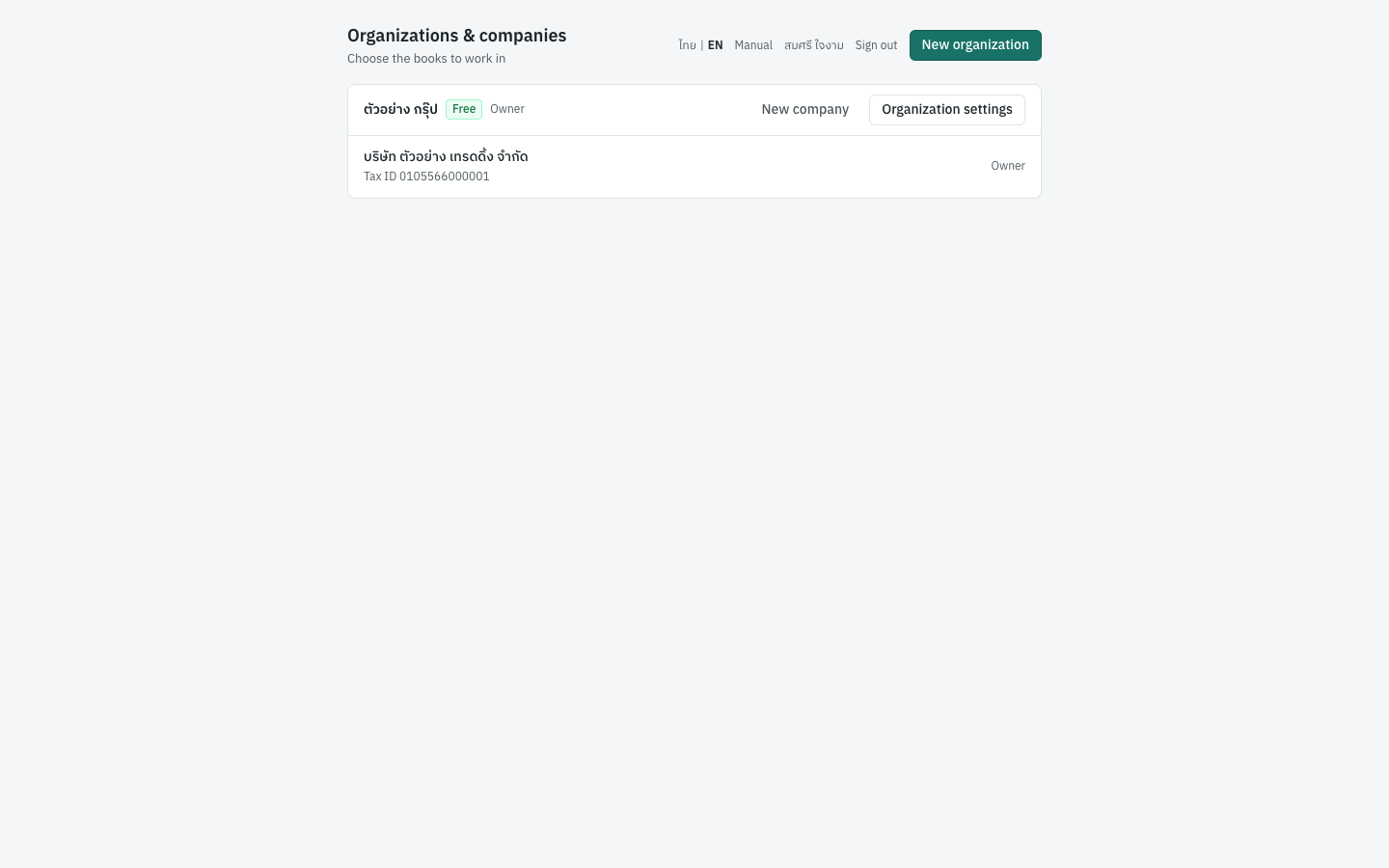
Each organization has its own box:
- Heading: the organization's name, a badge with its plan (Free, or a storage plan such as 10 GB), and your role there. The badge adds the status when the plan is not simply active, for example 10 GB · past due.
- New company (owners and admins only) opens the New company form.
- Organization settings opens the organization's home page (see the next section).
- Company lines: each company you can open, with its tax ID and your role in it. Click a line to open the company's dashboard.
If an organization has no company yet, the box says No companies yet. If it has companies but none has been granted to you, it says No company access yet. Ask an owner or admin of this organization to grant it. If you belong to no organization at all, the page says so and suggests you create one or ask an owner to add your address.
At the top right are your name, Sign out and New organization (see Creating an organization).
Organization settings home#
ตั้งค่าองค์กร · Open: Organization settings on the Organizations & companies page, or Organization settings… in the company switcher
Each organization has a home page with its settings. The first tab, Companies, is where you open or create companies.
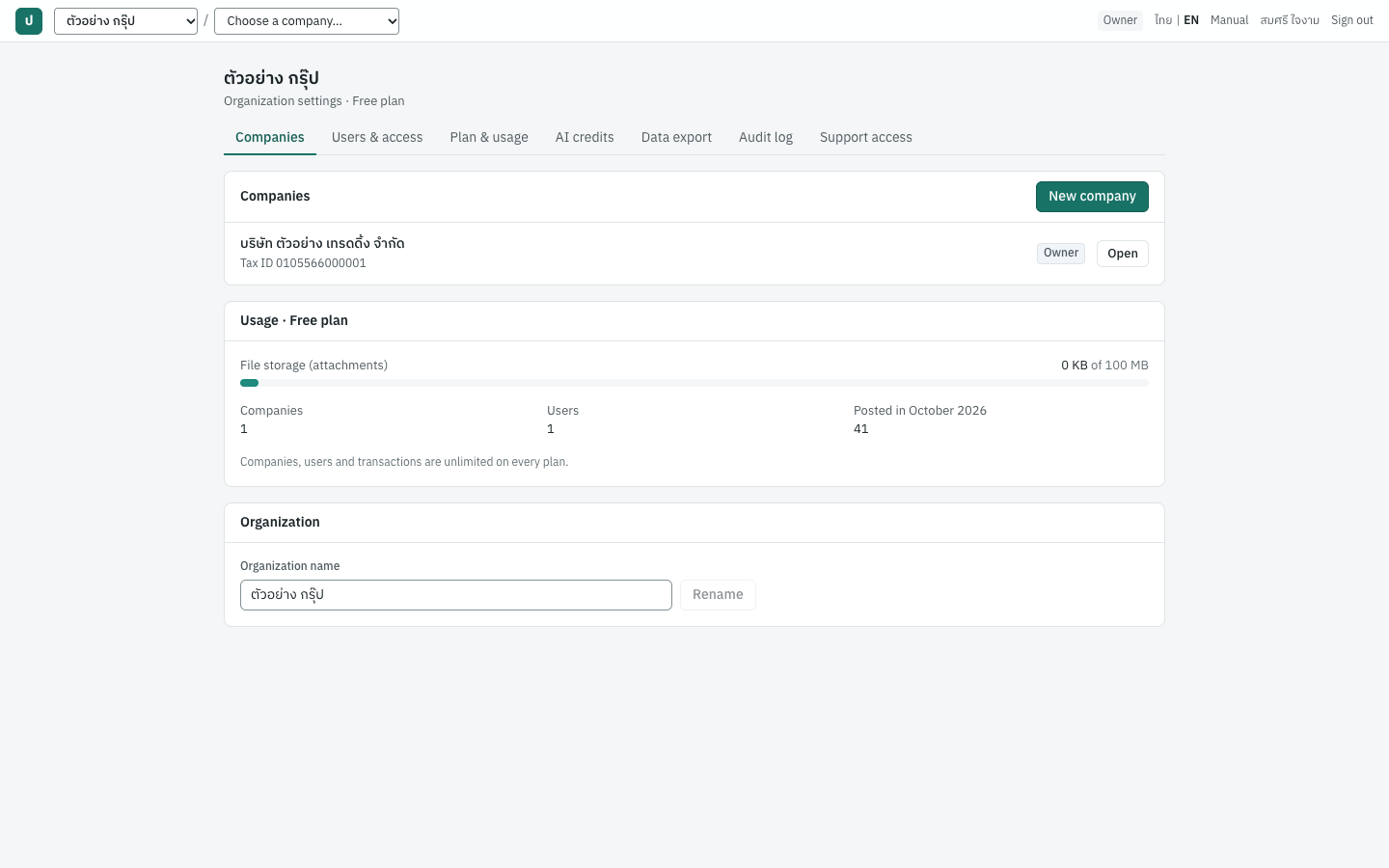
The tabs across the page are:
| Tab | ภาษาไทย | Who sees it |
|---|---|---|
| Companies | กิจการ | Everyone in the organization |
| Users & access | ผู้ใช้งาน | Everyone in the organization |
| Plan & usage | แพ็กเกจ | Everyone in the organization |
| AI credits | เครดิต AI | Everyone in the organization |
| Data export | ส่งออกข้อมูล | Owners |
| Audit log | ประวัติการใช้งาน | Owners and admins |
| Support access | ทีมสนับสนุน | Owners and admins |
The Companies tab has three boxes:
- Companies: each company you can open, with its tax ID, your role as a badge, and Open. Owners and admins also see New company.
- Usage · Free plan (with your plan's name): the file storage used against the plan's storage, for example File storage (attachments) 1 KB of 100 MB, and the number of companies, users and transactions posted this month, which have no limit.
- Organization (owners and admins): the Organization name with Rename.
The other tabs are described in Organization administration.
Switching organization or company#
The two drop-down lists at the left of the bar at the top of every page show whose books you are in, and let you move.
| List | Choices |
|---|---|
| Organization | Each organization you belong to; All organizations… opens the Organizations & companies page; New organization… opens the New organization page. |
| Company | Each company of this organization you can open; Organization settings… opens the organization's home page; New company… (owners and admins) opens the New company form. On organization pages the list starts with Choose a company…. |
Choosing another company opens that company's dashboard. Choosing another organization opens the company you last used there, or its only company. If neither applies, Panya opens the New company form (an organization without companies, for its owners and admins), the organization's home page, or the Organizations & companies page. Switching always reloads the whole page, so nothing from the previous company can stay on screen.
Tip: If you work for several clients, check the company name in the switcher before you enter a document. The company's name also shows at the top of the menu and as the dashboard's title.
The company screen#
Once a company is open, every page has the same frame: the bar along the top, the menu on the left and the work area in the middle. The dashboard is the first page you see.
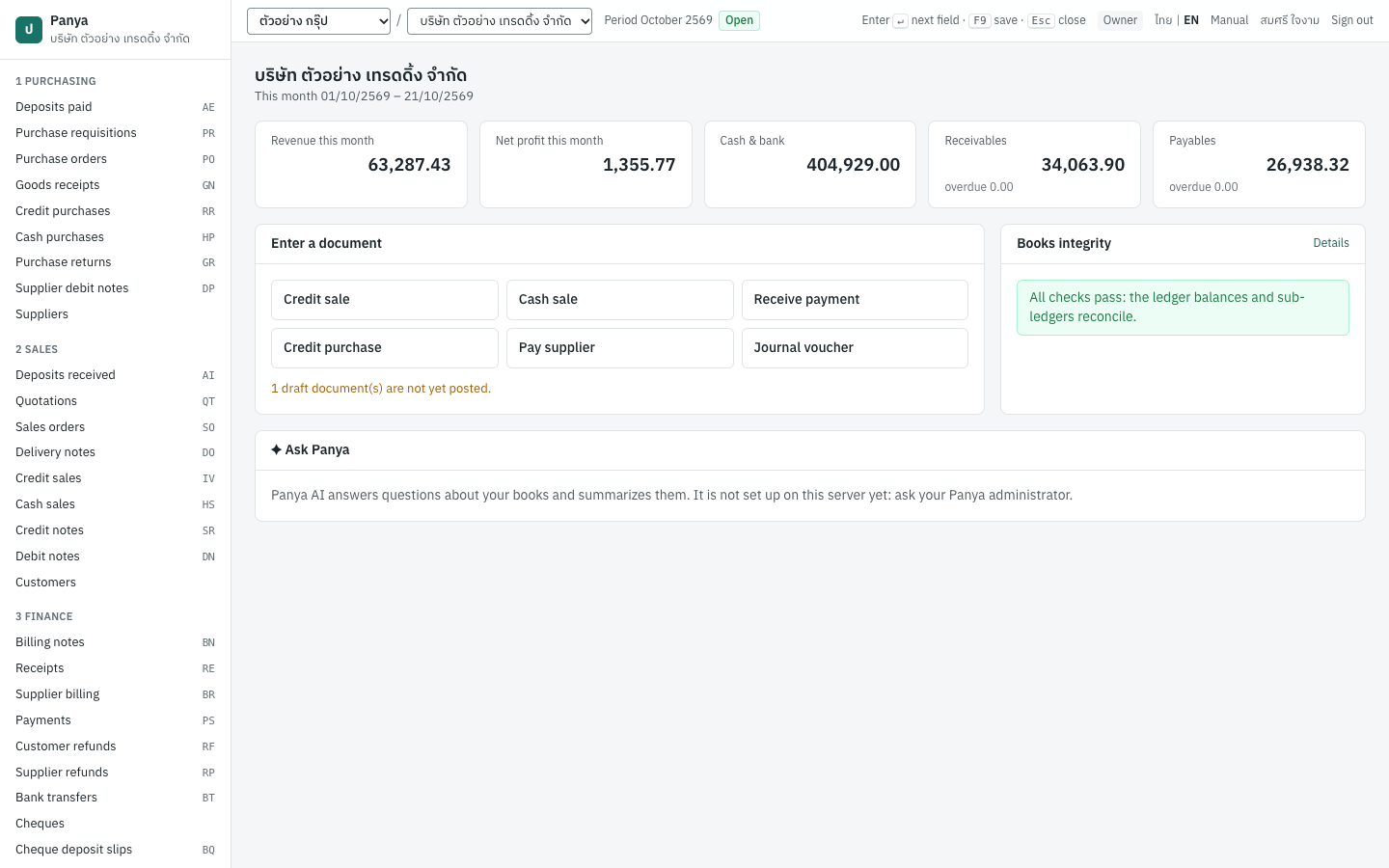
The context bar#
The bar along the top of every company page holds the following, from left to right.
| Part | What it shows or does |
|---|---|
| ☰ | On a narrow screen (tablet or phone) the menu is hidden; this button shows it. |
| Organization switcher | The organization you are in. See Switching organization or company. |
| Company switcher | The company you are in. |
| Period badge | The accounting period that contains today and its status, for example Period 2026-10 Open. A closed period shows Closed. If no period covers today, the bar shows No open period for today in amber: open the next fiscal year in 5 Accounting → Periods & year end before you enter today's documents. |
| Keyboard hint | Enter ↵ next field · F9 save · Esc close, a reminder of the main keys. It is shown on wide screens only. |
| Role | Your role in this company: Owner, Admin, Accountant, Staff or Read-only. |
| ไทย | EN | The screen language; the one in use is in bold. See Choosing the screen language. |
| Manual | Opens this manual in a new browser tab, in the screen language: this English edition on English screens, the Thai edition on Thai screens. |
| Your name | Opens Your account. |
| Sign out | Ends your session in this browser. |
Under the bar, banners appear when something needs your attention: the notices about the organization's plan (see Plan notices and read-only mode) and the request to confirm your email address.
The menu#
The menu on the left lists the seven groups described in The main menu. Each item shows its name, with its document code at the right, for example Credit sales IV.
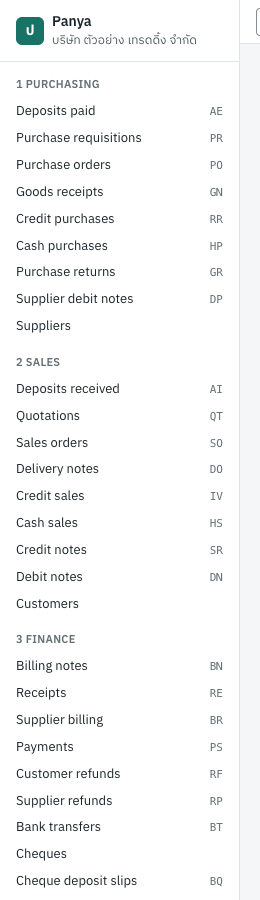
- The top of the menu shows Panya and the company's name. Click it to return to the dashboard (or press
Alt+H). - The page you are on is highlighted.
- 7 Setup → Audit log appears only to users who may change company settings.
- Other items appear to everyone with access to the company. A screen you may only read shows no buttons for new or changed records.
The dashboard#
หน้าหลัก · Open: click the company name at the top of the menu, or press Alt+H
The dashboard gives the state of the company at a glance. Its title is the company's name, and the line under it gives the dates the figures cover, for example This month 01/10/2569 – 17/10/2569 (the first of the month to today).
| Figure | ภาษาไทย | What it shows |
|---|---|---|
| Revenue this month | รายได้เดือนนี้ | The total of the revenue accounts (4xxx) from the first of the month to today. Sales returns and discounts are already deducted. |
| Net profit this month | กำไรสุทธิเดือนนี้ | Revenue less the expense accounts (5xxx) over the same days. Shown in red when it is a loss. Year-end closing entries are left out. |
| Cash & bank | เงินสดและเงินฝาก | Today's balance of every account marked as a cash account in the chart: 1110, 1111, 1120 and 1121 in the default chart. |
| Receivables | ลูกหนี้ | The total customers owe today. The line overdue under it is the part past its due date. |
| Payables | เจ้าหนี้ | The total owed to suppliers today, with the overdue part. |
The Enter a document box has six shortcuts to new documents: Credit sale, Cash sale, Receive payment, Credit purchase, Pay supplier and Journal voucher. Under them, a line such as 1 draft document(s) are not yet posted. warns that some documents are still drafts. This count covers sales and purchase documents, receipts, payments and journal vouchers. Drafts have no effect on the books or the figures above, so post or delete them before you close the month.
The Books integrity box runs Panya's cross-checks every time you open the dashboard. When everything agrees it says All checks pass: the ledger balances and sub-ledgers reconcile. Otherwise it lists each failing check, for example Stock valuation agrees with the inventory control account: red for an error, amber for a warning. Details opens 6 Reports → Integrity checks, explained in Reports.
At the bottom, the Ask Panya card answers questions about the books; see the next section.
Ask Panya#
ถาม Panya · Open: the ✦ Ask Panya card at the bottom of the dashboard
Ask Panya uses Panya AI to answer questions about the company's books in plain words and to write short summaries. It reads only this company's posted entries, and it never posts or changes anything. An answer is a help to understand the figures, not a figure for the books: check it against the reports before you act on it.
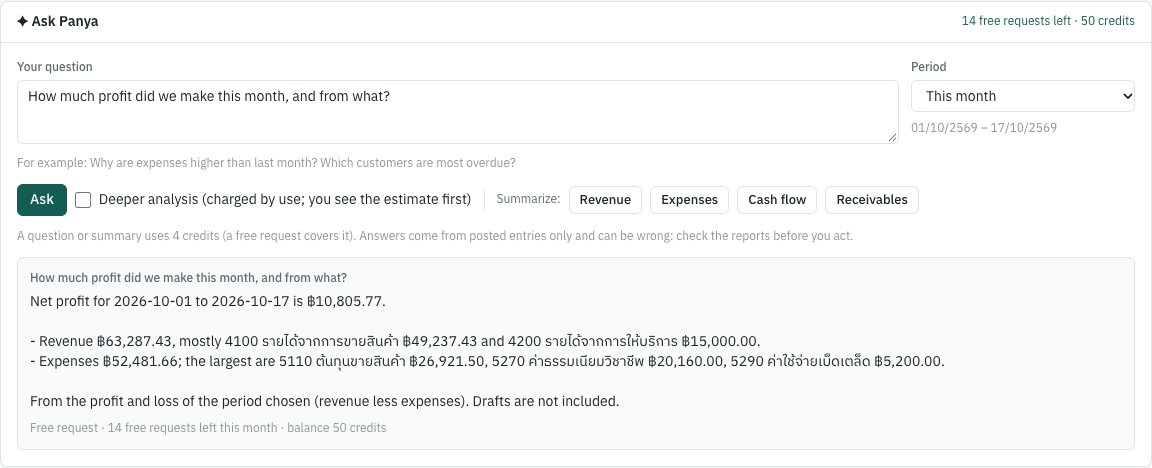
The link at the top right of the card shows what is left, for example 18 free requests left · 0 credits, and opens the organization's AI credits tab (see AI credits).
| Field | ภาษาไทย | What to enter |
|---|---|---|
| Your question | คำถาม | Up to 2,000 characters, for example Why are expenses higher than last month? or Which customers are most overdue? |
| Period | งวด | This month, Last month, This year to date (the default), Last year or Choose dates, which shows two date boxes. The dates are shown under the list. |
| Deeper analysis (charged by use; you see the estimate first) | วิเคราะห์เชิงลึก (คิดตามการใช้งาน แสดงประมาณการก่อน) | Tick for a longer analysis that reads the books in more detail. |
To ask a question:
- Type the question.
- Choose the Period.
- Tick Deeper analysis if you need one.
- Click Ask, or press
Ctrl+Enterin the question box. - The answer appears under the buttons, with the question as its title and a line on what it used, for example Free request · 17 free requests left this month · balance 0 credits.
For a quick summary of the period, click one of the buttons after Summarize:: Revenue, Expenses, Cash flow or Receivables. The answer's title is, for example, Summary: Revenue.
What it costs:
- A question or a summary costs from 4 credits: a larger one, over more of the books, can cost more, never more than its estimate. A free request covers up to 10 credits, so it covers an ordinary question whole, and every organization has 20 free requests a month. The line under the buttons says: A question or summary costs from 4 credits (a free request covers an ordinary one). Answers come from posted entries only and can be wrong: check the reports before you act.
- A deeper analysis is charged by what it uses, never more than its estimate; a free request covers its first 10 credits. When it may use more than 10 credits, Panya first opens Confirm the AI estimate: This request may use up to (n) credits. You are charged only what it actually uses, never more than the estimate. Click Run · up to (n) credits to go on, or Cancel to stop without any charge.
Everyone who can open the company can ask, whatever their role. Panya AI is not available to Panya support during a support session. If Panya AI is not set up on the server, the card says Panya AI answers questions about your books and summarizes them. It is not set up on this server yet: ask your Panya administrator.
Messages:
| Message | What to do |
|---|---|
| Type a question first. | Type the question, then click Ask. |
| Not enough AI credits: not enough AI credits: this request needs 4 credits and 0 are available; buy a credit package in Organization settings → AI credits | The month's free requests are used up and the balance is too low. Buy AI credits in the message opens the AI credits tab, where an owner buys a package. |
| Confirm the AI estimate | The request may use more than 10 credits: it runs only after you accept the estimate (see above). |
| the AI declined this request; nothing was charged | Panya AI would not answer this request. Ask in another way. |
| the AI service did not answer; nothing was charged | Try again in a moment. |
| this AI request is still running; try again in a moment | Wait for the answer to the request already sent. |
| Panya AI is not set up: The AI features need an API key on the server. Ask your Panya administrator to set it up. | Ask whoever runs your Panya installation. |
Working in Panya#
The rules in this section apply on every screen.
Choosing the screen language#
Panya shows its screens in Thai or in English. The switch ไทย | EN is near the right end of the bar at the top of every page, and at the top right of the sign-in, sign-up, password and invitation pages. The language in use is shown in bold.
- Click ไทย for Thai screens or EN for English screens. The page is drawn again in that language at once. If a form has changes you have not saved, Panya first asks Leave without saving? Your changes will be lost. (see Entry forms and the Enter key).
- Panya keeps the choice in this browser and, when you are signed in, on your user account. On another computer or phone where no language has been chosen yet, Panya uses your account's language once you sign in. The Language · ภาษา card on your account page makes the same choice.
- Until a language is chosen, Panya follows the browser's language: Thai for a browser set to Thai, English otherwise.
- The Panya website has its own ไทย | EN links at the top. Choosing one there also sets the screen language in that browser.
The language changes the menus, buttons, field names, lists and Panya's messages. It does not change the books:
- Printed and shared documents stay bilingual. Tax invoices, receipts, credit and debit notes, payment vouchers, 50 ทวิ certificates, billing notes, quotations, orders and statements of account always show Thai and English together, as Thai tax documents must be in Thai.
- Numbers stay the same. Document numbers, account codes, amounts and dates do not change with the language. Dates follow the company's Date display setting (see Dates and the Buddhist era).
- Your data stays as entered. Names of customers, products and accounts, memos and reasons appear as they were typed. The chart of accounts Panya creates has Thai account names.
The Manual link in the top bar opens this manual in the screen language. The ภาษาไทย link at the top of a manual page opens the same page of the Thai edition.
Entry forms and the Enter key#
Panya's forms are made for the keyboard, as in Express.
Entermoves to the next field. It does not save. In a box with several lines (an address, a memo)Enterstarts a new line instead.TabandShift+Tabmove forwards and backwards as in any program.- In the lines of a document,
Enteron the last field of the last line adds a new line (Enter on the last field adds a line). - A field with a red message under it, or a red box at the top of the form, explains why Panya could not save. Correct it and save again.
- Unsaved changes. While a document form has changes you have not saved, Panya asks Leave without saving? Your changes will be lost. before you follow a link to another page, switch company or organization, sign out or change the language. Click Cancel to stay on the form, or OK to leave without saving. Closing or reloading the browser tab asks the browser's own question.
Lookup fields#
Fields that choose a record (a customer, supplier, product, account, warehouse and so on) are lookup fields. They show the placeholder Code or name — Enter to list.
- Type part of a code or a name, for example
C00orลูกค้า. After a moment a list of matches opens under the field, showing each record's code and name, sometimes with a hint at the right (for an account, its type). - Move the highlight with
↓and↑. - Press
Enterto choose the highlighted record, or click it.
More ways to use a lookup field:
- Press
Enterin an empty field to list the first records without typing anything. - Type a whole code such as
C001and pressEnterat once. Panya picks that exact record even if the list has not caught up with your typing. - Press
Tabafter typing to choose the highlighted record and move on. - Press
Escto close the list without changing anything. - Clear the field to remove the record chosen.
Once a record is chosen, the field shows its code. Point at the field to see the code and the name together. When the list is closed, Enter moves to the next field as usual. If nothing matches, the list says No matches. Check the spelling, or create the record first.
Keyboard shortcuts#
| Key | Where | What it does |
|---|---|---|
Enter | Forms | Moves to the next field. |
Enter | Lookup field | With the list open: chooses the highlighted record. In an empty field: opens the list. |
Enter | Document lines | On the last field of the last line: adds a line. |
Enter | Lists | Opens the highlighted row (move to it with Tab). |
↓ ↑ | Lookup field | Opens the list and moves the highlight. |
Esc | Dialogs and lookup lists | Closes the dialog or the list without doing anything. Clicking outside a dialog also closes it. |
F9 | Document entry forms | Save & post. On quotations, orders and billing notes: Save & issue. On purchase requisitions: Submit for approval. Works only if your role may post. On 7 Setup → Company and Default accounts: Save. |
Ctrl+S (Windows) or ⌘S (Mac) | Document entry forms | Save draft. On 7 Setup → Company and Default accounts: Save. |
Alt+A | Lists of documents, customers, suppliers, products, warehouses, cash and bank accounts, the chart of accounts | Starts a new document or record (the New … button). |
Alt+P | A posted document, a report, a statement, a 50 ทวิ certificate | Prints (the Print / PDF button). |
Alt+H | Anywhere in a company | Returns to the dashboard. |
F2 | Amount fields of a journal voucher | Fills in the amount that balances the voucher. |
Buttons that have a shortcut show it on the button, for example Save & post F9 and Print / PDF Alt+P.
Note: Letter shortcuts (Alt+A, Alt+P, Alt+H, Ctrl+S) work whichever language the keyboard is typing. With the Thai layout, Alt+A (the key that types ฟ) still starts a new document and Ctrl+S (the key that types ห) still saves a draft, so there is no need to switch the keyboard to English. On a Mac, Alt is the Option key (⌥), and on many Mac keyboards F9 needs the fn key held down.
Lists#
Every menu item for documents opens a list. Document lists work alike; the credit sales list is the example here.
| Part | What it does |
|---|---|
| Title and New … button | The button (for example New invoice Alt+A) opens an empty form. It appears only if you may enter documents. |
| Search box | Search number, reference or customer… finds documents whose number, reference, or customer code or name contains what you type. The list updates as you type. |
| Status | All statuses, Draft, Posted or Cancelled. Lists of quotations and orders offer Open and Closed instead of Posted, and billing notes offer Open. |
| Date range | Two date boxes (from and to) that limit the list to documents dated in that range. Leave one empty for an open-ended range. |
| Open only | On invoices, debit notes and credit notes: shows only documents with an amount still outstanding (or credit still unused). |
| Columns | Number (drafts show (draft)), Date, Due (invoices), Customer or Supplier with code and name, Reference, Total, Outstanding or Unused credit where it applies, Status. |
| Paging | Lists show 50 documents per page, newest first. The bottom line shows the range and total, for example 1–50 of 132, with ‹ Prev, the page number such as 1 / 3, and Next ›. A short list shows only the count, for example 12 records. |
Click a row to open the document, or move to it with Tab and press Enter. A draft opens in its form so you can carry on; a posted or cancelled document opens on its posted document screen.
Dates and the Buddhist era#
Panya shows dates as day/month/year in the Buddhist era (พ.ศ.) by default: 5 October 2026 appears as 05/10/2569. To show Christian-era years instead, change Date display in 7 Setup → Company (see Setup). The setting applies to that company's screens and printouts.
The boxes where you type a date use your browser's own date control. Their appearance follows your computer's language and region settings, and most browsers show the Christian era. The cancel dialog below, for example, shows 05/10/2026 for the document dated 05/10/2569. Click the calendar icon to pick a day, or type the digits in the order the box shows. Whichever era the box uses, Panya stores the same day and shows it in your chosen era everywhere else.
Note: Messages from Panya that quote a date write it as year-month-day in the Christian era, for example accounting period for 2026-10-05 is closed.
Two more rules depend on the date:
- The period. A document can be posted only if its date falls in an open accounting period (see Accounting).
- The VAT rate. VAT uses the rate in force on the document date.
Amounts and quantities#
- Money is in baht with two decimals and thousands separators, for example
16,435.20. Panya calculates in exact decimals: it never loses or gains a satang through rounding. - You may type amounts with or without separators (
16435.2or16,435.20). - Quantities show up to four decimals, without trailing zeros (
12,2.5,0.125). - Printed tax invoices and receipts also give the total in Thai words, for example (หนึ่งหมื่นหกพันสี่ร้อยสามสิบห้าบาทยี่สิบสตางค์).
- Documents in a foreign currency show the currency amounts and their baht equivalents (see Sales and Purchasing).
Messages and notifications#
- A short notice appears for a few seconds after an action succeeds, for example IV69100001 cancelled or Link copied: it works for 30 days. A failed action shows its reason in red the same way.
- A form that cannot be saved shows the reason in a red box at the top. The messages come from Panya's checks and are shown in the screen language, for example accounting period for 2026-10-05 is closed on English screens. Each chapter lists the common ones and what to do.
- If you try something your role does not allow, the message is your role (staff) does not permit this action, with your own role in brackets. Usually you will not get this far, because Panya hides the buttons you may not use.
Document life cycle#
Documents that affect the books (sales, purchases, receipts, payments, deposits, refunds, bank transfers, stock documents and journal vouchers) pass through up to three states.
| Status | Badge | Number | Effect on the books | Can be changed |
|---|---|---|---|---|
| Draft | Draft (amber) | None: (draft) in lists | None | Yes; it can also be deleted |
| Posted | Posted (green) | Given at posting | Journal entry, stock movements, tax records | No |
| Cancelled | Cancelled (red) | Kept | Original entry plus a reversing entry | No |
Quotations, sales orders, purchase orders and billing notes are issued rather than posted, and purchase requisitions are submitted for approval. They create no journal entry; their own life cycles are described in Sales, Purchasing and Finance.
Drafts#
A draft is a document you have saved but not posted.
- Click Save draft (or press
Ctrl+S/⌘S) to keep the document as it is. - The form's title changes from New invoice to Edit invoice, and the line under it says number assigned when posted.
- A draft has no number and no effect on the ledger, stock, VAT reports or the dashboard figures. It appears in its list with (draft) and the Draft badge, and in the dashboard's draft warning.
- To carry on later, open it from its list.
- To throw it away, open it and click Delete draft, then confirm Delete this draft?. Deleting a draft uses up no number.
Use drafts for documents waiting for a check or an approval, or when you are interrupted.
Posting#
Posting makes the document final. In the document form:
- Save & post (
F9) saves and posts in one step. It appears only to roles that may post. - Preview journal saves the draft and shows the Posting preview: the exact journal entry, stock movements and tax records that posting would produce. Nothing is posted yet. Post now in the preview posts the document; Close returns to the form.
When you post, Panya checks the document and, in one step:
- gives it the next number;
- writes its journal entry;
- moves the stock and records the cost;
- writes the VAT and WHT records;
- marks it Posted, and records who posted it and when.
If any check fails, nothing is written and no number is used. The form keeps what you typed and shows the reason; a draft saved earlier stays a draft. Common reasons are a date outside the open periods, a missing customer or supplier, too little stock, and a company that is not VAT registered. There is no limit on the number of postings.
Why posted documents cannot be changed#
Once posted, a document and its journal entry are fixed. Panya has no Edit or Delete for posted documents, and no one can change them, whatever their role. There are three reasons:
- The tax invoice is a legal record. Once issued to the customer and reported in the VAT return, it must stay as issued.
- Numbers stay unbroken. Tax invoices must be numbered without gaps.
- The audit trail stays complete. Every figure in a report can be traced to the document and the person who posted it, and nothing can disappear.
To correct a posted document you have two ways:
- Cancel it and enter it again. Cancelling posts a reversing entry. The new document gets a new number. Use this for a document entered in error, preferably before it is reported.
- Issue an adjusting document: a credit note (ใบลดหนี้) or debit note (ใบเพิ่มหนี้) for sales, or a purchase return or supplier debit note for purchases. Use this when the customer already has the tax invoice or the VAT has been filed. This is the usual Thai practice. Check with your accountant if unsure.
Cancelling a posted document#
ยกเลิกเอกสาร · Open: Cancel document on the posted document
Only owners, admins and accountants can cancel. The button does not appear for staff or read-only users. The credit sales invoice IV69100001 is the example here.
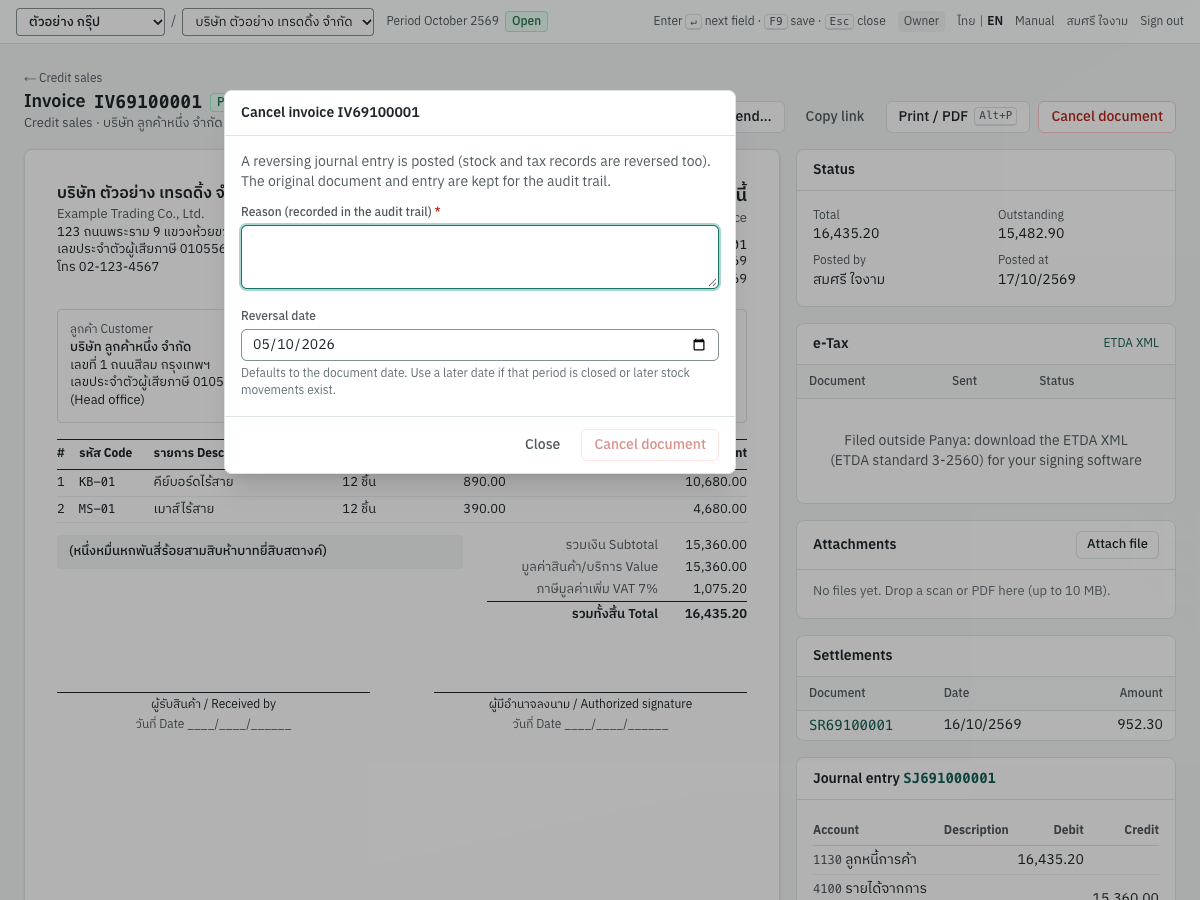
| Field | ภาษาไทย | What to enter |
|---|---|---|
| Reason (recorded in the audit trail) | เหตุผล (บันทึกไว้ในประวัติการใช้งาน) | Why the document is cancelled, for example ราคาผิด ออกใบใหม่ IV69100005. Required: the Cancel document button stays disabled until you type a reason. The reason is shown on the cancelled document and kept in the audit log. |
| Reversal date | วันที่กลับรายการ | The date of the reversing entry. Defaults to the document date. It cannot be earlier than the document date and must fall in an open period. Use a later date if the document's period is closed or if later stock movements exist. |
- Open the document from its list, for example 2 Sales → Credit sales, then
IV69100001. - Click Cancel document (the red button at the right of the buttons).
- Read the explanation in the dialog: A reversing journal entry is posted (stock and tax records are reversed too). The original document and entry are kept for the audit trail.
- Type the Reason.
- Check the Reversal date.
- Click Cancel document. Panya shows IV69100001 cancelled.
Close (or Esc) leaves the dialog without cancelling.
After cancelling, the document shows:
- the Cancelled badge;
- an amber box: Cancelled 17/10/2569: … The original entry is kept and a reversing entry was posted.;
- a Reversal card with the reversing journal entry under the original one.
Its printout is marked ยกเลิก · CANCELLED. The number is never used again, and the document stays in its list with the Cancelled status.
Important: The VAT reversal falls in the VAT month of the reversal date, not of the original document. If you cancel an October tax invoice with a November reversal date, October's ภ.พ.30 is unchanged and November's output VAT is reduced.
What cancelling records#
Cancelling never edits or deletes the original posting. It adds the opposite.
- Journal: a reversing entry dated on the reversal date, with every debit and credit of the original swapped.
- Stock: goods issued come back at their original cost, and goods received are taken out at their original value. If taking out a receipt would leave a product with a negative value, the difference goes to inventory cost variance (
5120) in the same entry. - Tax: negative VAT and WHT records dated on the reversal date.
- Settlements: if the cancelled document was a receipt, payment or credit note, the invoices it settled become outstanding again.
For example, if the credit sales invoice IV69100001 (see the example below) had no credit note against it and were cancelled with reversal date 20/10/2569, Panya would post:
| Account | Debit | Credit |
|---|---|---|
4100 รายได้จากการขายสินค้า | 15,360.00 | |
2120 ภาษีขาย | 1,075.20 | |
1130 ลูกหนี้การค้า | 16,435.20 | |
1140 สินค้าคงเหลือ | 6,144.00 | |
5110 ต้นทุนขายสินค้า | 6,144.00 | |
1140 สินค้าคงเหลือ | 2,396.67 | |
5110 ต้นทุนขายสินค้า | 2,396.67 | |
| Total | 24,975.87 | 24,975.87 |
Panya would also write an output VAT record of −1,075.20 on a base of −15,360.00 in October 2569, and return the 12 keyboards and 12 mice to stock at their original cost.
Messages when cancelling#
| Message | What to do |
|---|---|
| this document has receipts or credit notes; cancel those first | The invoice has been settled. Its Settlements card lists the receipts and credit notes, such as SR69100001 for IV69100001. Cancel those first, newest first, then cancel the invoice. |
| the delivery note is invoiced on IV…; cancel that first | Cancel the tax invoice made from this delivery note first. |
| the credit of this document was refunded on RF…; cancel the refund first | The credit of this credit note (or purchase return, RP…) was refunded. Cancel the refund first, so the money paid back is not left without its credit. |
| the cancellation date cannot be before the document date | Choose a reversal date on or after the document date. |
| accounting period for 2026-10-05 is closed | Choose a reversal date in an open period, or ask an owner or admin to reopen the period (see Accounting). |
| no accounting period covers 2026-10-05 | Open the fiscal year that contains the date in 5 Accounting → Periods & year end. |
| a cancelled document cannot be cancelled | The document is already cancelled. Refresh the page. |
| your role (staff) does not permit this action | Ask an accountant, admin or owner to cancel it. |
Document numbers#
How a number is built#
Panya numbers each document when you post it. The default formats follow Express: a two-letter prefix for the document type, the Buddhist-era year and month, and a running number. The first credit sale of October 2569 is IV69100001.
| Part | In IV69100001 | Meaning |
|---|---|---|
| Prefix | IV | The document type: credit sale (ขายเงินเชื่อ) |
| Year | 69 | The last two digits of the Buddhist-era year 2569 |
| Month | 10 | October |
| Running number | 0001 | The first document of this type in that month; it restarts at 0001 every month |
Things to know about numbers:
- The year and month come from the document's date, not from the day you post it. An invoice dated 30/09/2569 and posted on 2 October still gets a September number,
IV6909…. - Numbers follow the order of posting. Within a month, the next document posted gets the next number. If you want numbers and dates to run in the same order, post documents in date order.
- No gaps. A posting that fails gives back its number, and drafts have none. The tax invoices of a month therefore run without gaps.
- Never reused. A cancelled document keeps its number.
The format of every document type, and whether its running number restarts monthly, yearly or never, can be changed in 7 Setup → Document numbering (see Setup). A format can use the Buddhist-era year with two or four digits, the Christian-era year with two or four digits, the month, and a running number of any length.
Default formats#
| Document | ภาษาไทย | Format | First number in October 2569 | Restarts |
|---|---|---|---|---|
| Deposit paid | จ่ายเงินมัดจำ | AE + year + month + 4 digits | AE69100001 | Monthly |
| Purchase requisition | ใบขอซื้อ | PR + year + month + 4 digits | PR69100001 | Monthly |
| Purchase order | ใบสั่งซื้อ | PO + year + month + 4 digits | PO69100001 | Monthly |
| Goods receipt | ใบรับสินค้า | GN + year + month + 4 digits | GN69100001 | Monthly |
| Credit purchase | ซื้อเงินเชื่อ | RR + year + month + 4 digits | RR69100001 | Monthly |
| Cash purchase | ซื้อเงินสด | HP + year + month + 4 digits | HP69100001 | Monthly |
| Purchase return | ส่งคืนสินค้า | GR + year + month + 4 digits | GR69100001 | Monthly |
| Supplier debit note | ใบเพิ่มหนี้ผู้จำหน่าย | DP + year + month + 4 digits | DP69100001 | Monthly |
| Supplier opening balance | เจ้าหนี้ยกมา | AP + year + 5 digits | AP6900001 | Yearly |
| Deposit received | รับเงินมัดจำ | AI + year + month + 4 digits | AI69100001 | Monthly |
| Quotation | ใบเสนอราคา | QT + year + month + 4 digits | QT69100001 | Monthly |
| Sales order | ใบสั่งขาย | SO + year + month + 4 digits | SO69100001 | Monthly |
| Delivery note | ใบส่งของ | DO + year + month + 4 digits | DO69100001 | Monthly |
| Credit sale | ขายเงินเชื่อ | IV + year + month + 4 digits | IV69100001 | Monthly |
| Cash sale | ขายเงินสด | HS + year + month + 4 digits | HS69100001 | Monthly |
| Credit note | ลดหนี้ / รับคืน | SR + year + month + 4 digits | SR69100001 | Monthly |
| Debit note | ใบเพิ่มหนี้ | DN + year + month + 4 digits | DN69100001 | Monthly |
| Customer opening balance | ลูกหนี้ยกมา | AR + year + 5 digits | AR6900001 | Yearly |
| Billing note | ใบวางบิล | BN + year + month + 4 digits | BN69100001 | Monthly |
| Receipt | รับชำระหนี้ | RE + year + month + 4 digits | RE69100001 | Monthly |
| Supplier billing | ใบรับวางบิล | BR + year + month + 4 digits | BR69100001 | Monthly |
| Payment | จ่ายชำระหนี้ | PS + year + month + 4 digits | PS69100001 | Monthly |
| Customer refund | คืนเงินลูกค้า | RF + year + month + 4 digits | RF69100001 | Monthly |
| Supplier refund | รับเงินคืนจากผู้จำหน่าย | RP + year + month + 4 digits | RP69100001 | Monthly |
| Bank transfer | โอนเงิน | BT + year + month + 4 digits | BT69100001 | Monthly |
| Cheque deposit slip | ใบนำฝากเช็ค | BQ + year + month + 4 digits | BQ69100001 | Monthly |
| PP.36 filing | ภ.พ.36 | PT + year + month + 3 digits | PT6910001 | Monthly |
| Stock adjustment | ปรับปรุงสินค้า | AJ + year + month + 4 digits | AJ69100001 | Monthly |
| Stock opening balance | สินค้ายกมา | OS + year + 5 digits | OS6900001 | Yearly |
| Stock transfer | โอนย้ายสินค้า | TF + year + month + 4 digits | TF69100001 | Monthly |
| Journal voucher | บันทึกรายการบัญชี | JV + year + month + 4 digits | JV69100001 | Monthly |
| Opening balance voucher | บันทึกยอดยกมา | OB + year + 5 digits | OB6900001 | Yearly |
"Year" is the last two digits of the Buddhist-era year and "month" is two digits. "Yearly" restarts each calendar year.
Journal entry numbers#
Each posting's journal entry has its own number in the book (สมุดรายวัน) it belongs to. These numbers have five running digits.
| Book | ภาษาไทย | Format | Example |
|---|---|---|---|
| General journal | สมุดรายวันทั่วไป | GJ + year + month + 5 digits | GJ691000001 |
| Sales journal | สมุดรายวันขาย | SJ + year + month + 5 digits | SJ691000001 |
| Purchases journal | สมุดรายวันซื้อ | PJ + year + month + 5 digits | PJ691000001 |
| Receipts journal | สมุดรายวันรับเงิน | RJ + year + month + 5 digits | RJ691000001 |
| Payments journal | สมุดรายวันจ่ายเงิน | CJ + year + month + 5 digits | CJ691000001 |
| Inventory journal | สมุดรายวันสินค้า | IJ + year + month + 5 digits | IJ691000001 |
| Opening entries | สมุดรายวันยอดยกมา | OJ + year + 5 digits | OJ6900001 |
| Closing entries | สมุดรายวันปิดบัญชี | CL + year + 5 digits | CL6900001 |
The invoice IV69100001, for example, is recorded in the sales journal as SJ691000001. The entries are listed in 5 Accounting → Journal entries (see Accounting).
The posted document screen#
เอกสารที่ผ่านรายการแล้ว · Open: click a posted document in its list
Every posted document opens on a screen with the same layout. On the left is the document as it prints. On the right are cards with its status, files, settlements and journal entry. The credit sales invoice IV69100001 to C001 บริษัท ลูกค้าหนึ่ง จำกัด is the example.
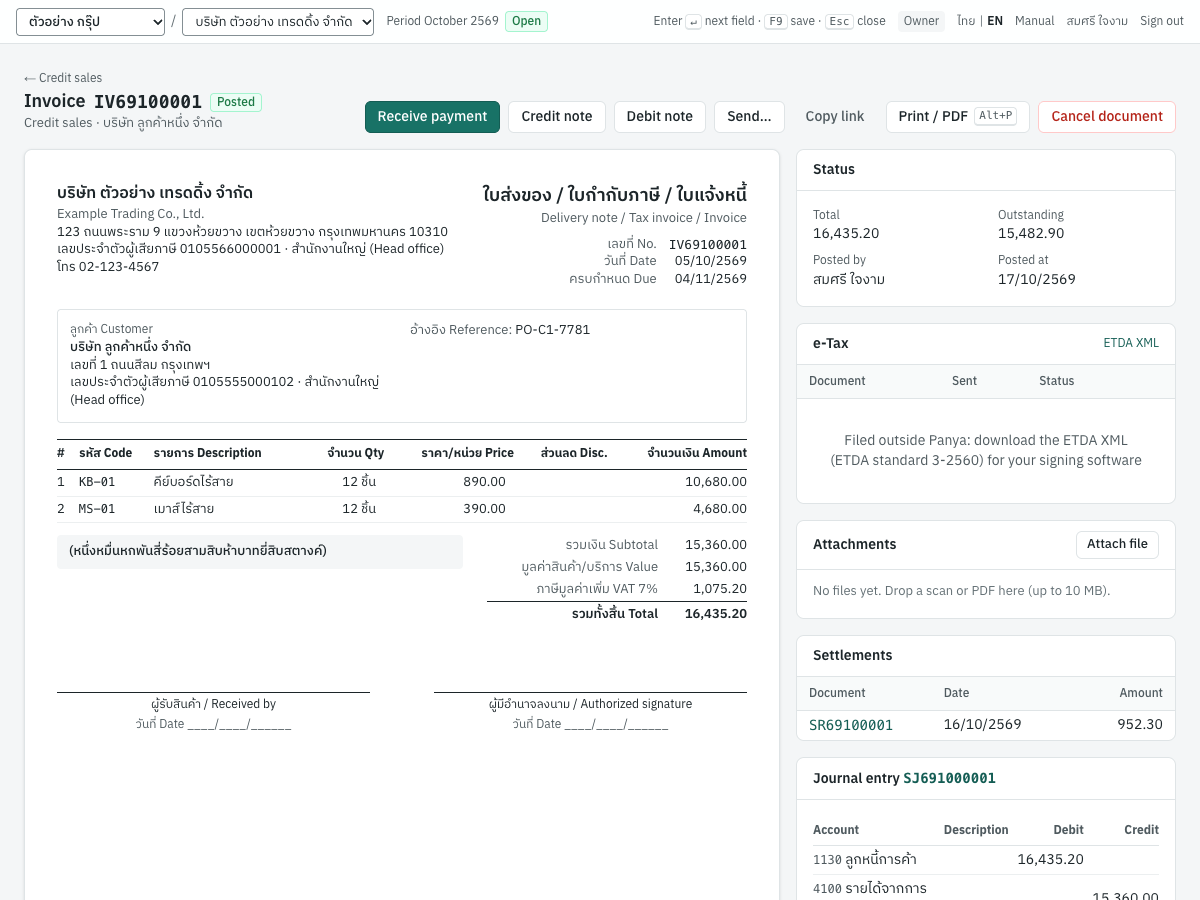
Header and buttons#
The header shows the way back to the list (← Credit sales), the document type and number (Invoice IV69100001), its status badge, and under it the document type and the customer: Credit sales · บริษัท ลูกค้าหนึ่ง จำกัด.
The buttons on the right depend on the document type, its state and your role. On a credit sales invoice:
| Button | Shown when | What it does |
|---|---|---|
| Receive payment | Something is still outstanding and you may enter documents | Opens a new receipt for this customer with this invoice selected (see Finance). |
| Credit note | The invoice is posted | Opens a new credit note against this invoice (see Sales). |
| Debit note | The invoice is posted | Opens a new debit note against this invoice. |
| Send… and Copy link | The document is posted and you may enter documents | See Sending documents by link. |
Print / PDF Alt+P | Always | See Printing and PDF. |
| Cancel document | The document is posted and you may cancel documents | See Cancelling a posted document. |
Other document types add their own buttons:
- Issue tax invoice on a delivery note; Enter supplier invoice on a goods receipt.
- Apply credit to invoices on a credit note with unused credit.
- e-Tax email on tax invoices when e-Tax Invoice by Email is switched on.
- Pay on a supplier invoice.
- 50 ทวิ certificate on a payment with withholding tax.
Each is described in its chapter.
Status card#
The Status card summarises the document. For IV69100001 it shows:
| Item | Example | Meaning |
|---|---|---|
| Total | 16,435.20 | The document total including VAT |
| Outstanding | 15,482.90 | What the customer still owes on it (on credit notes: Unused credit) |
| Posted by | สมศรี ใจงาม | The user who posted it |
| Posted at | 17/10/2569 | The day it was posted (which can differ from the document date, 05/10/2569) |
Documents in a foreign currency add the total and outstanding amount in that currency, and the exchange rate used. Other items appear when they apply, for example the VAT basis for services taxed on payment, deposits deducted, or the month in which purchase VAT is claimed.
Other cards#
- e-Tax: on VAT documents of a VAT-registered company, the e-Tax status and the ETDA XML download. See Sales.
- Attachments: scanned papers and other files attached to the document. See Attachments.
- Settlements: each receipt, payment or credit note that settled this document, with its date and amount. For
IV69100001it lists the credit noteSR69100001of 16/10/2569 for 952.30. Click a number to open that document. A settling document that is not posted (for example a cancelled one) shows its status, and no longer counts.
Journal entry and Reversal cards#
The Journal entry card shows the entry the posting wrote, with its number. Click the number to open the entry in 5 Accounting → Journal entries. The columns are Account (code and name), Description, Debit and Credit, with a Total line where debits equal credits. A cancelled document shows a second card, Reversal, with the reversing entry.
Here is the whole screen for IV69100001, with its journal entry.
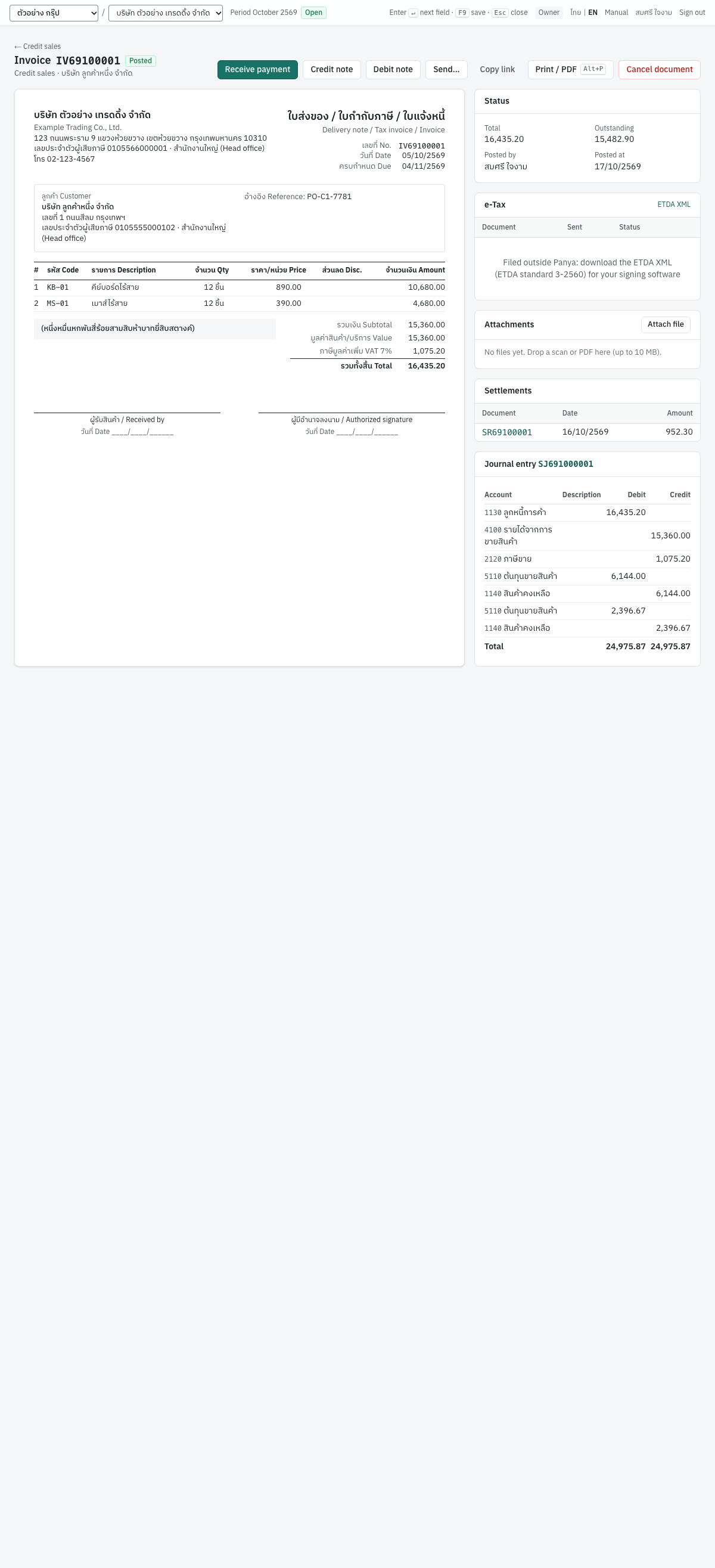
Example: what posting IV69100001 recorded#
The invoice is dated 05/10/2569 and sells 12 ชิ้น of KB-01 คีย์บอร์ดไร้สาย at 890.00 and 12 ชิ้น of MS-01 เมาส์ไร้สาย at 390.00. That gives 15,360.00 before VAT, VAT of 1,075.20 and a total of 16,435.20. Posting it recorded:
Journal entry SJ691000001 (sales journal), dated 05/10/2569
| Account | Debit | Credit |
|---|---|---|
1130 ลูกหนี้การค้า | 16,435.20 | |
4100 รายได้จากการขายสินค้า | 15,360.00 | |
2120 ภาษีขาย | 1,075.20 | |
5110 ต้นทุนขายสินค้า | 6,144.00 | |
1140 สินค้าคงเหลือ | 6,144.00 | |
5110 ต้นทุนขายสินค้า | 2,396.67 | |
1140 สินค้าคงเหลือ | 2,396.67 | |
| Total | 24,975.87 | 24,975.87 |
The first three lines record the sale. The last four record the cost of the goods sold, one pair for each stocked product, at its cost on the day.
Tax record: output VAT (ภาษีขาย) on a base of 15,360.00 with VAT 1,075.20, under tax invoice IV69100001 of 05/10/2569. It appears in the output VAT report (รายงานภาษีขาย) for October 2569 and so in that month's ภ.พ.30.
Stock: 12 keyboards and 12 mice issued from the warehouse on each line, at cost.
Sub-ledger: 16,435.20 owed by C001, due 04/11/2569. After the credit note SR69100001 for 952.30, 15,482.90 remains outstanding.
Each document chapter shows the entries for its own documents.
Printing and PDF#
พิมพ์เอกสาร · Open: Print / PDF on a posted document, or Alt+P
- Open the document and click Print / PDF (or press
Alt+P). - Your browser's print window opens, showing only the document: the menu, buttons and side cards are left out. The page is A4 with 12 mm margins.
- Choose a printer and print. For a PDF file, choose Save as PDF (or Microsoft Print to PDF on Windows) as the printer and save.
Printed tax documents carry the company's name, address, tax ID and branch; the customer's details; the lines; the totals in figures and in Thai words; and signature lines. They print in Thai and English, whatever the screen language. A cancelled document prints with ยกเลิก · CANCELLED under its title.
Reports, statements of account and 50 ทวิ certificates print the same way, with Alt+P or their own print button.
Tip: If the printout looks too small or cut off, check that the browser's paper size is A4 and the scale is 100%.
Sending documents by link#
ส่งเอกสาร · Open: Send… or Copy link on a posted document
Panya can email a customer or supplier a link to a document. The link opens a read-only copy of the document that the recipient can view and print without a Panya account. Each link works for 30 days and shows that one document only.
Which documents can be sent#
Send… and Copy link appear on these documents, for users who may enter documents:
- posted credit sales, cash sales, credit notes, debit notes and delivery notes;
- posted receipts and deposit receipts (deposits received);
- issued quotations, sales orders and purchase orders (not drafts or cancelled ones);
- issued billing notes;
- customers' statements of account.
Drafts can never be sent.
Sending by email#
You must have confirmed your own email address before you can send (see Confirming your email address).
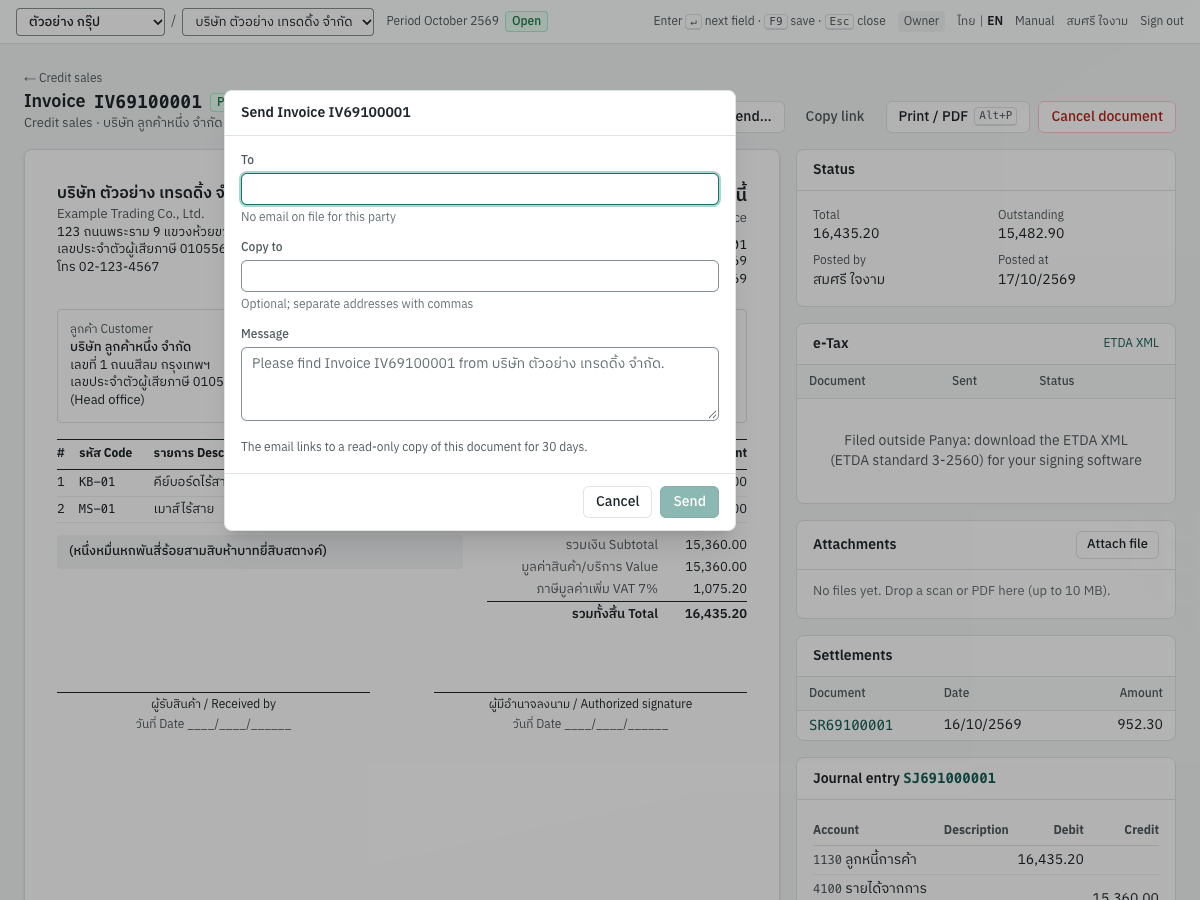
| Field | ภาษาไทย | What to enter |
|---|---|---|
| To | ถึง | The recipient's email address. Filled in from the customer's (or supplier's) email when it has one; otherwise the hint says No email on file for this party. Required: Send stays disabled until there is an address. |
| Copy to | สำเนาถึง | Optional. Up to 5 more addresses, separated by commas. |
| Message | ข้อความ | Optional. Your own message, which appears at the top of the email. The grey sample, for example Please find Invoice IV69100001 from บริษัท ตัวอย่าง เทรดดิ้ง จำกัด., is only a placeholder and is not sent. |
- Open the posted document and click Send….
- Check the To address, add copies and a message if needed.
- Click Send. Panya shows, for example, Invoice IV69100001 sent to ….
The email has the subject Invoice IV69100001 from บริษัท ตัวอย่าง เทรดดิ้ง จำกัด. It says, in English and Thai, that the company sent the document, and gives the link (valid for 30 days). When PDF files are available on your Panya service, it also gives a link to download the PDF. Cancel closes the dialog without sending. Panya records every sending in the audit log.
Tip: Store each customer's email on the customer record (see Sales) so the To box fills itself.
Copying a link#
Copy link creates a new link to the document and copies it, without sending any email. Panya confirms Link copied: it works for 30 days. Paste it into LINE, a chat or your own email.
What the recipient sees#
The link opens a page with the document's name and the company's name at the top, a Print button, and Download PDF where PDF files are available. Below is the document exactly as it prints, in Thai and English. The page's buttons follow the language of the recipient's browser. After 30 days the page says This link has expired or was withdrawn. Please ask the sender for a new one.
Note: Anyone who has the link can open that one document until the link expires, so send it only to the right person. Panya does not yet show a list of the links made for a document, so a link cannot be withdrawn from the document screen before it expires.
Messages#
| Message | What to do |
|---|---|
| confirm your email address first: use the link we sent you, or send it again from your account | Confirm your own address with the link from Panya, or click Send the link again in the blue banner. |
| a valid email address is required | Check the To and Copy to addresses. |
| at most 5 copies | Remove some Copy to addresses. |
| the message is too long | Shorten the message. |
| issue or post the document before sending it | The document is still a draft. Post or issue it first. |
Attachments#
ไฟล์แนบ · Open: the Attachments card on a document
You can keep the paper behind a transaction with the document: the supplier's tax invoice, a signed delivery note, a contract, a bank slip. Attachments are kept for the company, count towards the organization's file storage, and stay with the document permanently. The free plan has 100 MB of file storage for all the companies of the organization; an owner can choose a larger storage plan (see Plan and usage).
The Attachments card appears on the screen of a posted or cancelled document:
- sales and purchase documents of every kind;
- receipts, payments and deposits;
- quotations, orders and purchase requisitions;
- journal vouchers;
- stock adjustments and stock transfers.
To attach to a draft, save and post it first. Attachments are not part of the posted document, so you can add and remove them after posting.
Attaching a file#
- Open the document.
- Click Attach file in the Attachments card and choose one or more files. Or drag the files from your computer onto the card; the card is highlighted while you drag.
- Panya shows … attached (or 2 files attached), and the card's title shows the number of files, for example Attachments (2).
| Rule | Detail |
|---|---|
| File types | PDF, images (PNG, JPG/JPEG, WEBP, GIF, HEIC), Excel (XLSX, XLS), Word (DOCX, DOC), CSV and text (TXT) |
| Size | At most 10 MB per file |
| Who | Anyone who may enter documents. On journal vouchers, anyone who may post journals. Read-only users can open files but not add or remove them. |
Opening and removing files#
- Each file is listed with its name and size. Point at the size to see who attached it and when.
- Click the name to download the file.
- To remove a file, click ✕ at the end of its line and confirm Remove …?.
An empty card says No files yet. Drop a scan or PDF here (up to 10 MB).
When the file storage is full#
If a file would take the organization past its file storage, it is not attached. A red line at the top of the card shows the reason, for example file storage is full: 95.3 MB of 100 MB used; upgrade the storage plan or remove files to add more, with a Storage plans link to the organization's Plan & usage tab.
Only new attachments stop. You can still open and remove files, and enter, post, print and export as usual; nothing is deleted. To attach more, remove files you no longer need, or ask an owner to choose a larger storage plan.
Messages#
| Message | What to do |
|---|---|
| … is larger than 10 MB | Scan at a lower resolution or split the file. |
| only PDF, image, Excel, Word, CSV and text files can be attached | Save the file in one of these formats. |
| the file is not a valid .pdf file | The file's contents do not match its extension (the same message names other types). Open and save it again in the right format. |
| the file is empty | Choose the right file. |
| file storage is full: … of … used; upgrade the storage plan or remove files to add more | The organization's file storage is full (see above). Remove old files, or ask an owner to choose a larger storage plan. |
Permissions#
What you can do depends on your role. In a company, the role is your organization role for owners and admins, or the role in your grant for that company otherwise. See Users and roles.
What each role may do in a company#
| Action | Owner | Admin | Accountant | Staff | Read-only |
|---|---|---|---|---|---|
| View documents, customers, suppliers, products and reports | Yes | Yes | Yes | Yes | Yes |
| Export reports | Yes | Yes | Yes | Yes | Yes |
| Ask Panya questions and summaries | Yes | Yes | Yes | Yes | Yes |
| Fill a purchase or draft a journal voucher with Panya AI | Yes | Yes | Yes | Yes | No |
| Add and edit customers, suppliers, products and warehouses | Yes | Yes | Yes | Yes | No |
| Enter, save and delete drafts; send documents; attach files | Yes | Yes | Yes | Yes | No |
| Post sales, purchases, receipts, payments, deposits and stock documents | Yes | Yes | Yes | Yes | No |
| Approve or reject purchase requisitions | Yes | Yes | Yes | No | No |
| Post journal vouchers and opening balances | Yes | Yes | Yes | No | No |
| Cancel posted documents | Yes | Yes | Yes | No | No |
| Close periods and the fiscal year | Yes | Yes | Yes | No | No |
| Change company settings, chart of accounts, tax and numbering | Yes | Yes | Yes | No | No |
| Reopen closed periods and fiscal years | Yes | Yes | No | No | No |
| Post an adjustment into a closed period | Yes | Yes | No | No | No |
What each role may do in the organization#
| Action | Owner | Admin | Accountant | Staff | Read-only |
|---|---|---|---|---|---|
| See the organization, its companies, users, plan and file storage | Yes | Yes | Yes | Yes | Yes |
| Create companies and rename the organization | Yes | Yes | No | No | No |
| Invite people, change roles and grant companies | Yes | Yes, except owner and admin roles | No | No | No |
| Read the organization's audit log | Yes | Yes | No | No | No |
| Choose, pay for or cancel a storage plan | Yes | No | No | No | No |
| Buy AI credits | Yes | No | No | No | No |
| Buy user licences | Yes | No | No | No | No |
| Export all of the organization's data | Yes | No | No | No | No |
| Allow Panya support to read the books for a limited time | Yes | No | No | No | No |
How Panya applies permissions#
- Buttons are hidden. You do not see New …, Save & post, Cancel document, Send…, Attach file or editing buttons you may not use. Setup pages you may not change are shown read-only.
- Panya checks again on every action. If you try anyway (for example from an old browser tab after your role was changed), the action is refused with your role (…) does not permit this action.
- Read-only covers all companies alike. If Panya operations suspend the organization, every role, owners included, loses the right to change data until the suspension is lifted (see below). The plan never takes rights away: every plan has every module and report exports.
- Who has access. 7 Setup → Users & roles lists the people who can open the company, their role in it, and whether they reach it as an organization owner or admin or through a company grant. Owners and admins manage users from the organization's Users & access tab (see Organization administration).
Plan notices and read-only mode#
Billing never stops your bookkeeping. A failed payment or a storage plan that ends only takes the paid file storage away: the organization goes back to the free 100 MB, and the books, reports and exports keep working. Panya never deletes or changes accounting data because of the plan.
Subscription banners#
A banner under the bar at the top of the page tells you when the organization's plan needs attention. Each banner ends with a Subscription & plan link to the organization's Plan & usage tab.
| Banner | Meaning |
|---|---|
| Payment overdue · pay by 25/10/2569 to keep your storage plan; after that the free 100 MB applies. (amber) | A payment for the storage plan failed. An owner pays by the date shown, 7 days after the payment failed, to keep the plan's storage. After that date the organization has the free 100 MB until the payment arrives. Work goes on as usual either way. |
| The storage plan ends on 31/10/2569; then the free 100 MB applies. (amber) | An owner cancelled the storage plan. It runs to the end of the paid period; then the organization has the free 100 MB. An owner can still keep the plan on Plan & usage. |
| Read-only. … Viewing, printing and exports still work. (red) | The organization is suspended. New entries are blocked; the reason is given in the banner (see below). |
When the free 100 MB is less than the files already stored, new attachments stop until files are removed or a larger storage plan is chosen; see Attachments. Nothing else stops.
| Reason shown | What to do |
|---|---|
| The organization is suspended by Panya operations. Records remain available to read and export. | Contact Panya support. Paying or choosing a plan does not lift a suspension. |
What still works#
An organization becomes read-only only when Panya operations suspend it, for example in a case of abuse or under a legal order. In read-only mode, everyone can:
- sign in;
- open every company, document, list and report;
- print, and export reports;
- change their own password.
Owners can still export all of the organization's data.
Nothing can be created, changed, posted, cancelled, attached or sent. Panya hides the buttons for these actions. If one is tried, Panya refuses it with the reason from the table above. As soon as Panya lifts the suspension (see Organization administration), everything works again with all data as it was.
Where to go next#
- Setup · เริ่มระบบ: company details, default accounts, VAT and WHT, numbering, units, users.
- Purchasing and Sales: entering the day's documents.
- Finance: receipts, payments, cash, bank and cheques.
- Inventory: products, warehouses and stock.
- Accounting: journal vouchers, opening balances, periods and year end.
- Reports: financial statements, VAT and WHT reports, integrity checks.
- Organization administration: members, invitations, plan and file storage, export and support access.
- Month-end and tax filing: the checklist for closing a month and filing ภ.พ.30 and ภ.ง.ด.