Sales · ขาย
This chapter covers menu 2 Sales: customers, deposits received, quotations and sales orders, delivery notes, credit and cash sales, credit and debit notes, and how to send documents to customers, including e-Tax. Receiving payment (receipts), billing notes and customer refunds are in Finance.
The examples use the demo company บริษัท ตัวอย่าง เทรดดิ้ง จำกัด (tax ID 0105566000001, head office 00000) and its October 2026 (10/2569) documents.
Overview#
The Sales menu#
The menu lists the sales documents in the order you usually meet them, with the customer file at the end.
| Menu item | Thai | Code | What it records in the books |
|---|---|---|---|
| Deposits received | รับเงินมัดจำ | AI | Money and output VAT received before delivery |
| Quotations | ใบเสนอราคา | QT | Nothing: a commercial document only |
| Sales orders | ใบสั่งขาย | SO | Nothing: a commercial document only |
| Delivery notes | ใบส่งของ | DO | Revenue and stock out, before the tax invoice |
| Credit sales | ขายเงินเชื่อ | IV | Receivable, revenue, output VAT, stock out |
| Cash sales | ขายเงินสด | HS | Cash or bank, revenue, output VAT, stock out |
| Credit notes | ลดหนี้/รับคืน | SR | Less receivable, less revenue and VAT, stock back |
| Debit notes | ใบเพิ่มหนี้ | DN | More receivable, revenue and VAT |
| Customers | ลูกค้า | — | Nothing: the customer file |
How sales documents fit together#
Each sale starts at the document that suits it. You can skip the documents you do not need.
| Situation | Documents, in order |
|---|---|
| Goods leave with the tax invoice | Quotation (optional) → Sales order (optional) → Credit sale (IV) → Receipt (RE) |
| Goods leave first, tax invoice later in the same month | Sales order → Delivery note (DO) → Credit sale (IV) billing the delivery → Receipt |
| Customer pays a deposit before delivery | Deposit received (AI) → Credit sale with the deposit deducted → Receipt for the rest |
| Walk-in sale paid on the spot | Cash sale (HS) |
| Goods returned, or a price reduction | Credit note (SR), then a refund (RF) if the customer wants the money back |
| Extra charge on an earlier sale | Debit note (DN) → Receipt |
A billing note (ใบวางบิล, BN) can group open invoices and debit notes before you collect. Billing notes, receipts and refunds are described in Finance.
Drafts, posting and document numbers#
Every sales document has the same life cycle.
- Save draft (
⌘Son a Mac,Ctrl+Son Windows) keeps the document as a draft. A draft has no number, records nothing in the books, can be changed at any time and can be removed with Delete draft. Lists show it as (draft). - Save & post (
F9) checks the document, gives it the next number and records the journal entry, the stock movements and the tax records in one step. The button appears only for users allowed to post documents. - Preview journal saves the draft and shows exactly what posting would record: the journal entry, the stock movements at cost (Stock movements (at cost)) and the tax register lines. Nothing is posted and no number is used. Click Post now in the preview to post.
- A posted document cannot be edited. To correct it, cancel it (users with the right to reverse documents: accountants, administrators and owners) or issue a credit or debit note. See Users and roles.
- Quotations and sales orders are not posted. You Save & issue them instead; issuing numbers them and freezes them.
Numbers follow Express's prefixes with the Buddhist-era year and month: IV69100001 is the first credit sale of October 2569. The counter restarts every month. The formats can be changed in 7 Setup → Document numbering (see Setup).
Note: Express gives a document its number when you save it. Panya gives the number only when you post, so deleting a draft never leaves a gap in your tax invoice numbers.
Working with document lists#
The document lists (credit sales, cash sales, delivery notes, credit and debit notes) work the same way.
- Search finds a document by number, reference, customer code or customer name.
- All statuses narrows the list to Draft, Posted or Cancelled documents.
- The two date boxes limit the list to documents dated between them.
- Open only (credit sales, credit notes, debit notes) shows only documents with an outstanding balance, or credit notes with unused credit.
- The newest documents are at the top, 50 to a page. Click a row to open the document; a draft opens in its form.
Alt+Aopens a new document of the list's type.
Keyboard#
Panya is designed to be used from the keyboard, like Express.
| Key | What it does |
|---|---|
Enter | Moves to the next field. In an empty look-up field, opens the full list. On the last field of the last line, adds a line. |
↑ ↓ then Enter | Moves through a look-up list and picks the highlighted record |
Esc | Closes a look-up list or a dialog |
Alt+A | New document (or new customer) from a list |
F9 | Save & post (Save & issue on quotations and sales orders) |
⌘S / Ctrl+S | Save draft |
Alt+P | Print / PDF |
The customer and product fields are look-ups. Type part of a code or name, then pick from the list. The customer list shows each customer's outstanding balance (for example bal 15,803.90); the product list shows the quantity on hand of stocked items (on hand 12) or service. Inactive customers and products are not offered.
Customers#
ลูกค้า · Menu: 2 Sales → Customers
The customer file holds everyone you sell to. The name, address, tax ID and branch you enter here print on quotations, tax invoices, receipts and statements. You need a customer before you can enter any sales document, including a walk-in cash sale: create a general customer for walk-in sales.
The customer list#
The list shows every active customer with its balance.
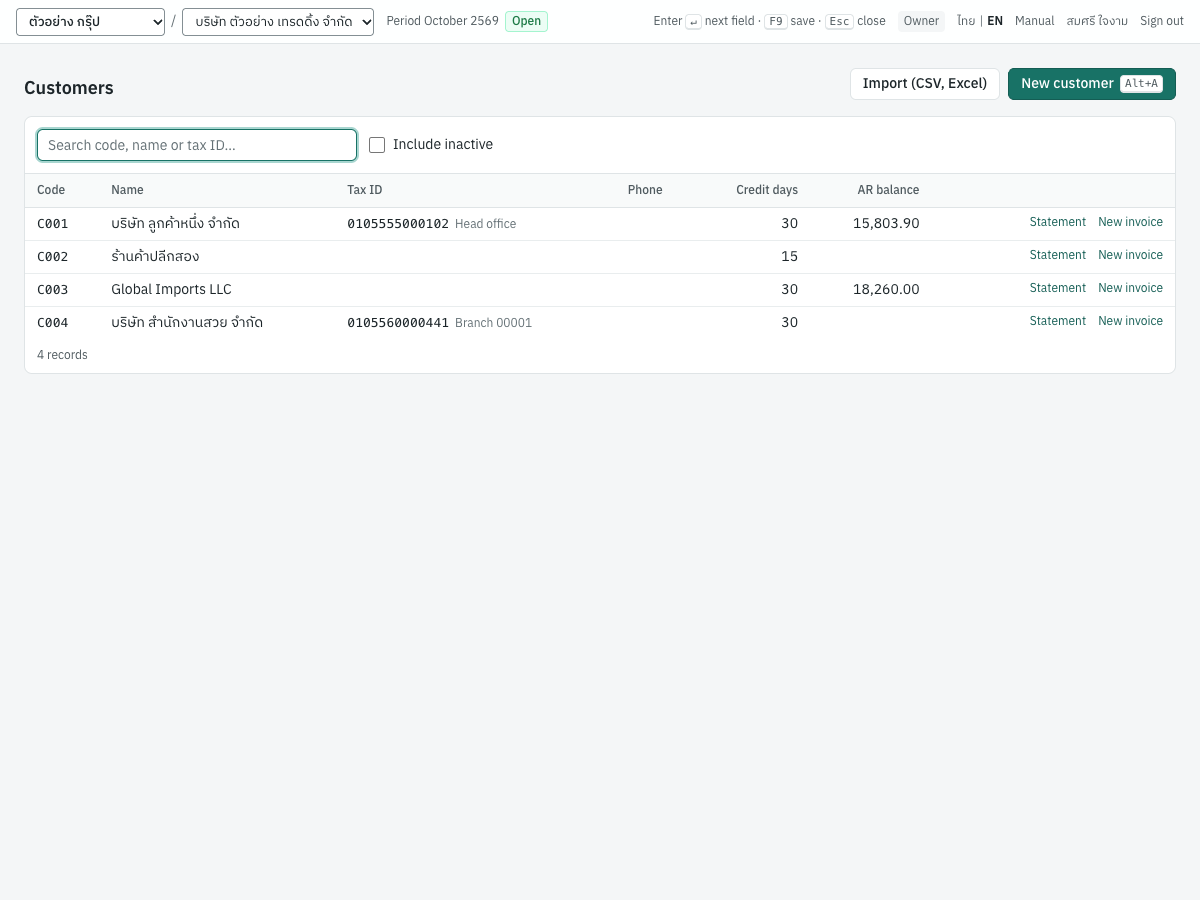
| Column | What it shows |
|---|---|
| Code | The customer code |
| Name | The name, with the contact person in grey after it |
| Tax ID | The tax ID, followed by Head office or Branch and the branch number, e.g. Branch 00001 |
| Phone | The phone number |
| Credit days | The customer's credit term in days |
| AR balance | What the customer owes now: the customer's balance on the receivable account 1130 (posted invoices, debit notes and opening balances, less receipts and credit notes). A negative balance, shown in red, means you owe the customer. Blank when zero. |
| Statement | Opens the customer's statement of account |
| New invoice | Opens a new credit sale with this customer already chosen (active customers only) |
Use the search box to find a customer by code, name or tax ID. Tick Include inactive to show deactivated customers as well; they appear dimmed with an Inactive badge. The list shows 50 customers to a page.
Click a row to open the customer. Users without the right to manage master data can see the list but cannot open or change customers.
Fields#
The customer dialog has the same fields for a new and an existing customer. An existing customer also shows its AR balance at the bottom.
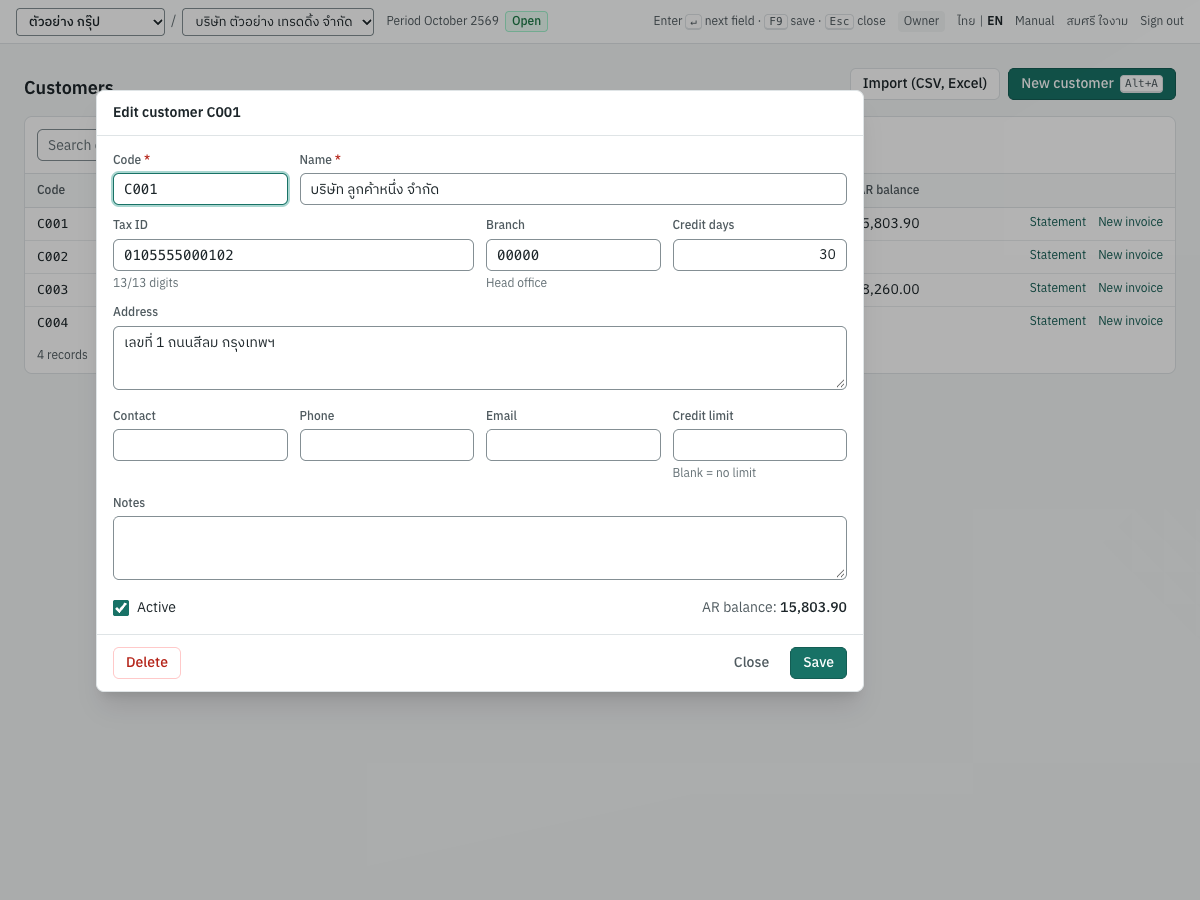
| Field | ภาษาไทย | What to enter |
|---|---|---|
| Code | รหัส | Required. A short unique code, e.g. C001. You cannot use a code that another customer already has. |
| Name | ชื่อ | Required. The full legal name as it must appear on tax invoices, e.g. บริษัท ลูกค้าหนึ่ง จำกัด. |
| Tax ID | เลขประจำตัวผู้เสียภาษี | The 13-digit tax ID. Spaces and dashes are ignored, and a counter shows how many digits you have typed (12/13 digits). Required on tax invoices to VAT-registered customers. Panya also checks the check digit; if it does not match you see The check digit does not match — please double-check the number. This is only a warning, because some older numbers do not follow the check digit, and you can still save. |
| Branch | สาขา | Five digits. 00000 means สำนักงานใหญ่ (head office); any other number prints as สาขาที่ followed by the number, e.g. 00001. |
| Credit days | เครดิต (วัน) | 0 to 3650. Default 0. An invoice's due date is its date plus these days unless you enter a due date. |
| Address | ที่อยู่ | The address as it should print, on several lines if you like. |
| Contact | ผู้ติดต่อ | The person you deal with. |
| Phone | โทรศัพท์ | The phone number. |
| อีเมล | The address documents are sent to. It is the default recipient in Send…, the recipient of e-Tax Invoice by Email, and the buyer's email in e-Tax files. | |
| Credit limit | วงเงิน | A positive amount, or blank for no limit. Panya keeps it with the customer for reference; it does not warn or stop you when an invoice takes the customer over the limit. |
| Notes | หมายเหตุ | Internal notes. They are not printed on documents. |
| Active | ใช้งาน | Ticked for a new customer. Untick it to stop using the customer (see below). |
Adding a customer#
- In 2 Sales → Customers, click New customer or press
Alt+A. - Enter the Code and Name. Press
Enterto move from field to field. - Enter the Tax ID and Branch for a VAT-registered customer, the Credit days, the Address and the Email.
- Click Save. Panya confirms Customer C005 saved and the customer appears in the list.
If a field is wrong, the dialog marks it and does not save: Required, Digits only, Tax ID must be 13 digits (12 entered), Branch must be 5 digits — 00000 = head office, 0 – 3650 days or Enter a positive number for the credit limit. A code that another customer already uses is refused: a customer with this code already exists.
Changing a customer#
Open the customer from the list, change the fields and click Save. Changes apply to drafts and to documents you post from now on. Posted documents keep the name, tax ID, branch and address the customer had when they were posted, so a tax invoice never changes after it is issued.
Deactivating and deleting a customer#
You can delete a customer only if no document uses it.
- Open the customer and click Delete, then confirm.
- If the customer has documents, Panya answers this record is in use by documents; deactivate it instead and offers Deactivate instead. Click it to untick Active and save.
An inactive customer keeps its documents, history and balance, but it is hidden from the look-ups and cannot be used on new documents. Panya refuses to save or post a document for an inactive customer (customer is inactive). Tick Active again to bring the customer back.
Importing customers from a file#
If you are moving from Express or a spreadsheet, you can load many customers at once. Express's customer list (รายละเอียดลูกค้า, under F12 พิมพ์รายงาน › 1 ลูกหนี้) works as it is, exported to Excel or printed to a CSV file.
- Export the list to an Excel or CSV file. The row of column names may come after the report's title rows.
- In 2 Sales → Customers, click Import (CSV, Excel).
- Choose the file. Panya shows its name and size.
- Click Import. When it finishes, Panya shows Imported 25 customers. and how many rows it read.
The file needs a code and a name column. These columns are optional: prefix, tax_id, branch, address, contact, phone, email, credit_days and credit_limit. Thai column names are accepted too, Express's among them: รหัสลูกค้า, คำนำหน้า, ชื่อลูกค้า, เลขประจำตัวผู้เสียภาษี, สาขา, ที่อยู่ (with ที่อยู่ 1 to 3 and รหัสไปรษณีย์ joined), ผู้ติดต่อ, โทรศัพท์, อีเมล, เครดิต and วงเงิน. Notes are not imported; add them in the dialog afterwards. Every accepted name is in Setup.
code,name,tax_id,branch,address,contact,phone,email,credit_days
C100,บริษัท ตัวอย่าง จำกัด,0105555000999,00000,99 ถนนสุขุมวิท กรุงเทพฯ 10110,คุณสมหญิง,02-111-2222,[email protected],30
C101,ร้านค้าตัวอย่าง,,,,,,,0
Panya checks the whole file before importing anything. If any row is wrong, nothing is imported and the message lists the problems by row, for example 2 row(s) rejected, nothing imported: row 3: tax ID must be 13 digits; row 5: code C001 already exists. The checks are:
- a code and a name are required on every row;
- a code may appear only once in the file, and not already exist in Panya;
tax_idmust have 13 digits; dashes and spaces are removed first;branchmust have 5 digits;0or สำนักงานใหญ่ is read as00000,1as00001;credit_daysmust be a whole number from 0 to 3650 (30or30 วัน);credit_limitmust be an amount.
Tip: You do not need to format tax IDs and branch numbers as text in Excel. When Excel has dropped the leading zero, the import puts it back: 105555000999 is read as 0105555000999, and a branch 0 as 00000.
Customer opening balances#
Invoices that were still unpaid when you started using Panya are entered as customer opening balances (ยอดยกมาลูกหนี้), one per open invoice, from 5 Accounting → Opening balances. They appear on the customer's statement and in AR aging like invoices. See Accounting.
Statement of account#
ใบแจ้งยอดค้างชำระ · Menu: 2 Sales → Customers, then Statement on the customer's row
The statement of account lists everything a customer still owes on a date, with how overdue each item is. Send it with your collection calls or attach it to a reminder.
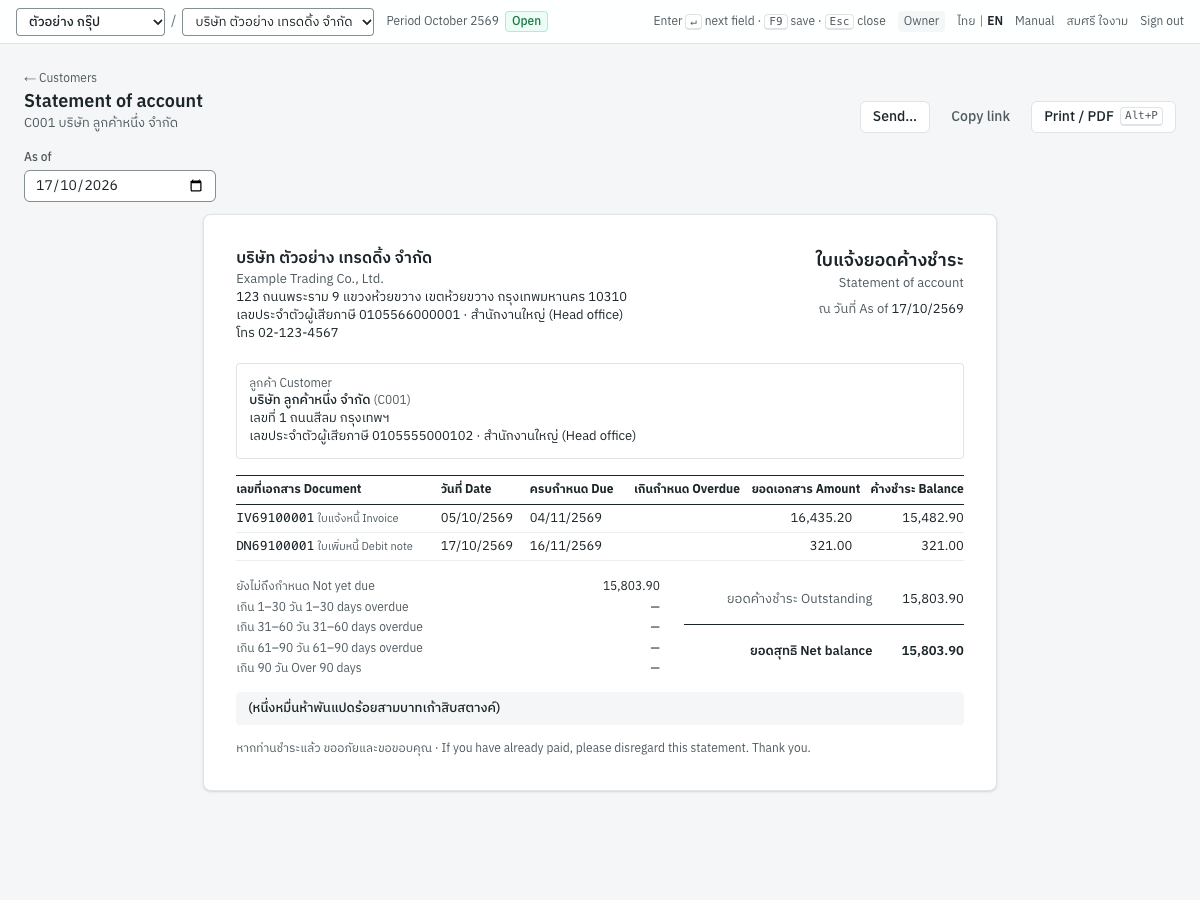
What the statement shows#
The As of date at the top decides what the statement includes. It starts at today; change it to see the position on another date, for example the end of last month. The printed statement shows:
- your company's name, address and tax ID, and the customer's name, code, address, tax ID and branch;
- one line for each open document on that date: invoices (ใบแจ้งหนี้ Invoice), debit notes (ใบเพิ่มหนี้ Debit note), opening balances (ยอดยกมา Opening), and credit notes with unused credit (ใบลดหนี้ Credit note) as negative amounts;
- for each line the document number, date, due date, the days overdue (blank if not yet due), the document's amount and its balance still open;
- the aging of the total: ยังไม่ถึงกำหนด Not yet due, เกิน 1–30 วัน, เกิน 31–60 วัน, เกิน 61–90 วัน and เกิน 90 วัน;
- the total outstanding, less the customer's advance still unapplied on the date, after what later receipts used and what was refunded (หักเงินรับล่วงหน้า Less advances), and the net balance in figures and in Thai words;
- a closing line: หากท่านชำระแล้ว ขออภัยและขอขอบคุณ · If you have already paid, please disregard this statement. Thank you.
In the example, C001 owes 15,803.90 on 17/10/2569: 15,482.90 left on IV69100001 after the credit note, and 321.00 on debit note DN69100001, all not yet due. Deposits received (AI) are not on the statement, because they are not deducted until the invoice.
Printing and sending a statement#
- Print / PDF (
Alt+P) prints the A4 statement; choose Save as PDF in the print dialog for a file. - Send… emails the customer a link to the statement. The link keeps the as-of date you chose.
- Copy link copies the same link to paste into LINE or your own email.
See Sending documents to customers for how links work.
Deposits received (AI)#
รับเงินมัดจำ (AI) · Menu: 2 Sales → Deposits received
Use a deposit received when a customer pays part of the price before you deliver the goods or perform the service, for example a 10,000.00 baht deposit on a signed contract.
Under the Revenue Code, money received before delivery of goods (s.78(1)) or before a service is performed (s.78/1) is the VAT tax point for that money. Panya therefore treats the deposit receipt as a tax invoice: posting it records the output VAT in the month you receive the money, and it prints as ใบรับเงินมัดจำ / ใบกำกับภาษี (Deposit receipt / Tax invoice). Later, when you issue the tax invoice for the whole sale, you deduct the deposit, and the invoice charges VAT only on the rest. The deposit receipt and the invoice together report the VAT on the full sale once.
The deposit list#
The list shows all deposits received, newest first.
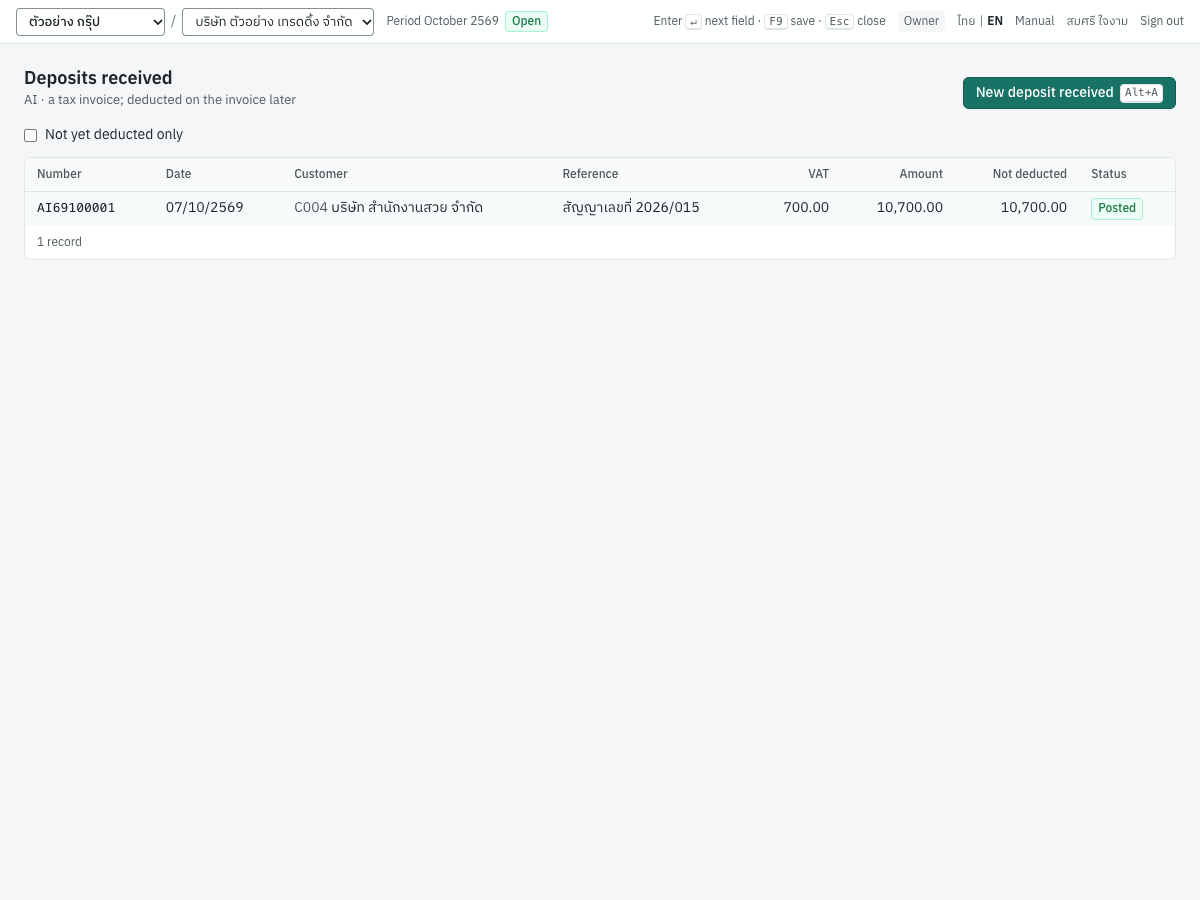
The columns are Number, Date, Customer, Reference, VAT, Amount (including VAT), Not deducted (what is left to deduct or refund) and Status. Tick Not yet deducted only to see the deposits still waiting for their invoice. Click New deposit received or press Alt+A to record a new one.
Fields#
The deposit form shows a summary on the right that splits the amount into value and VAT as you type.
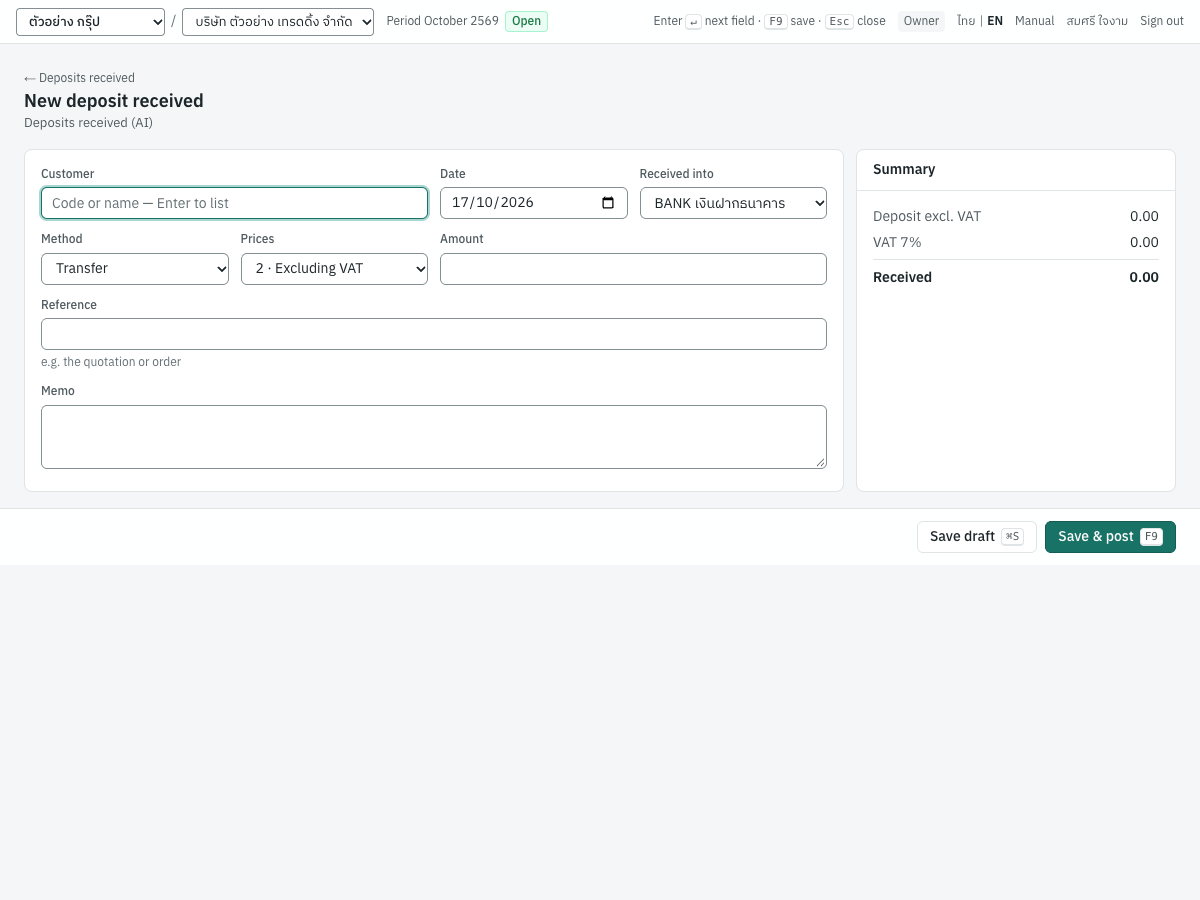
| Field | ภาษาไทย | What to enter |
|---|---|---|
| Customer | ลูกค้า | Required. The customer who paid. |
| Date | วันที่ | The day the money was received. It is the tax point and the VAT month. Default today. |
| Received into | รับเข้า | The cash or bank account that received the money. Defaults to the first active bank account (BANK in the demo). |
| Method | วิธีชำระ | Transfer (default), Cash, Card or Other. Deposits cannot be received by cheque. |
| Prices | ประเภทราคา | How the amount is entered: 2 · Excluding VAT (default), 1 · Including VAT or 0 · No VAT. Fixed at No VAT if the company is not VAT registered. A deposit cannot be zero-rated. |
| Amount | จำนวนเงินมัดจำ | Required, more than zero. With Excluding VAT, enter the value before VAT (10,000.00 gives VAT 700.00 and 10,700.00 received). With Including VAT, enter the money received (10,700.00). |
| Reference | อ้างอิง | What the deposit is for, e.g. the quotation, order or contract number (สัญญาเลขที่ 2026/015). It prints as เงินมัดจำ ตาม … |
| Memo | หมายเหตุ | Extra text printed under the description. |
The Summary panel shows Deposit excl. VAT, VAT 7% and Received. The VAT rate is the one in force on the deposit's date.
Recording a deposit#
- Open 2 Sales → Deposits received and click New deposit received (
Alt+A). - Choose the Customer, e.g. C004 บริษัท สำนักงานสวย จำกัด.
- Check the Date and choose Received into and Method.
- Choose Prices and enter the Amount: 10,000.00 excluding VAT.
- Enter the contract or order in Reference.
- Press
F9(Save & post). Panya numbers the deposit, e.g.AI69100001, and shows the deposit receipt.
What posting records#
The deposit is posted in the receipts book (entry numbers RJ…).
| Account | Debit | Credit |
|---|---|---|
1120 เงินฝากธนาคาร - กระแสรายวัน | 10,700.00 | |
2145 เงินรับมัดจำ | 10,000.00 | |
2120 ภาษีขาย | 700.00 |
- Tax record: output VAT with base 10,000.00 and VAT 700.00, dated 07/10/2569, under the customer's name, tax ID and branch. It appears in the October 2569 output VAT report (รายงานภาษีขาย). See Reports.
- Stock: none.
- Number:
AI{BB}{MM}{####}, e.g.AI69100001.
A deposit with no VAT posts only the money and 2145 เงินรับมัดจำ, and no tax record.
After posting#
The posted deposit shows the deposit receipt as it prints, and cards for what has been deducted, attachments and the journal entry.
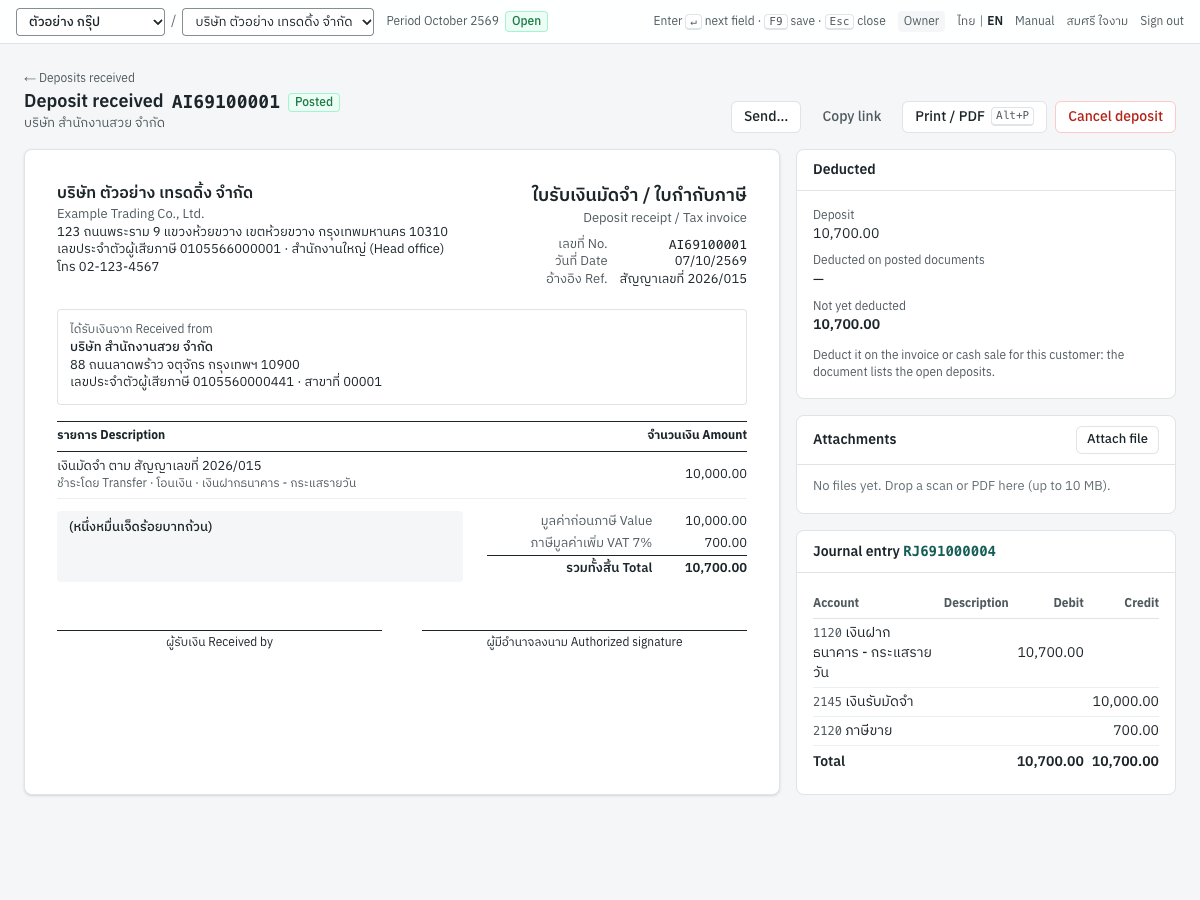
- Deducted shows the deposit, the amount deducted on posted documents, and what is Not yet deducted, with links to the invoices that deducted it.
- Send… and Copy link send the deposit receipt to the customer.
- Print / PDF (
Alt+P) prints it. Without VAT, the title is ใบรับเงินมัดจำ (Deposit receipt) only. - Attachments: attach the contract or the transfer slip (PDF, images, Office files, CSV or text; up to 10 MB each).
- Cancel deposit: see Cancelling a deposit.
Deducting a deposit on the invoice#
When you issue the credit sale (or cash sale) for the goods or service, deduct the deposit on it.
- Start the invoice for the same customer as usual (see Entering an invoice).
- When you choose the customer, the form shows a Deposits (AI) card listing the customer's posted deposits that are not fully deducted, with what is left of each.
- Tick the deposit. Panya fills in everything that is left. To deduct only part, overwrite the amount (amounts here include VAT).
- Check the totals: Less deposit shows the value deducted, and the Taxable amount, VAT and Total are reduced.
- Post the invoice.
Example: C004 paid deposit AI69100001 of 10,700.00 (10,000.00 + VAT 700.00). The invoice for the rest of sales order SO69100001 is KB-01 คีย์บอร์ดไร้สาย 4 × 890.00 and SV-INSTALL ค่าบริการติดตั้งระบบ 4 × 1,500.00, together 9,560.00 before VAT. The whole deposit is more than this invoice, so deduct 5,350.00 of it. The VAT part is 5,350.00 × 700.00 ÷ 10,700.00 = 350.00, and the value part 5,000.00.
| On the invoice | Amount |
|---|---|
| Subtotal | 9,560.00 |
| Less deposit | 5,000.00 |
| Taxable amount | 4,560.00 |
| VAT 7% | 319.20 |
| Total | 4,879.20 |
Posting the invoice records:
| Account | Debit | Credit |
|---|---|---|
1130 ลูกหนี้การค้า | 4,879.20 | |
2145 เงินรับมัดจำ | 5,000.00 | |
4100 รายได้จากการขายสินค้า | 3,560.00 | |
4200 รายได้จากการให้บริการ | 6,000.00 | |
2120 ภาษีขาย | 319.20 | |
5110 ต้นทุนขายสินค้า | cost of the 4 keyboards | |
1140 สินค้าคงเหลือ | cost of the 4 keyboards |
The invoice's output VAT record is 4,560.00 and 319.20: the 350.00 was already reported with the deposit. The printed invoice shows the line หักเงินมัดจำ Less deposit AI69100001 and the note ภาษีของเงินมัดจำ 350.00 บาท ออกใบกำกับภาษีแล้วตามใบรับเงินมัดจำ (the VAT on the deposit was invoiced on the deposit receipt). The 5,350.00 left on AI69100001 stays open for the next invoice.
Rules for deducting deposits:
- Only invoices and cash sales take deposits; delivery notes, credit notes, debit notes and opening balances do not.
- The deposit must be posted, belong to the same customer and not be dated after the invoice.
- A deposit with VAT can only be deducted on a document with VAT at the same rate. A deposit without VAT comes off the part of the invoice not subject to VAT.
- Deposits with and without VAT cannot be deducted on the same invoice.
- You cannot deduct more than is left of the deposit, or more than the invoice's value subject to VAT.
- Foreign currency invoices cannot deduct deposits, because deposits are in baht; the card does not appear on them.
- When the deduction uses up the deposit, Panya takes exactly the value and VAT left on it, so the deposit closes at zero.
Cancelling the invoice makes its deduction available again.
Refunding part of a deposit#
If the contract is reduced or cancelled, you can return all or part of what is left of a deposit with a customer refund in 3 Finance → Customer refunds (คืนเงินลูกค้า, RF).
- Click New refund and choose the customer.
- In Refund of, choose Deposit AI69100001 · 07/10/2569 (output VAT credited back). Panya fills in everything that is available.
- Change the Amount for a partial refund, choose Paid from, and post.
A refund of 2,140.00 from AI69100001 splits like a deduction: VAT 2,140.00 × 700.00 ÷ 10,700.00 = 140.00 and value 2,000.00.
| Account | Debit | Credit |
|---|---|---|
2145 เงินรับมัดจำ | 2,000.00 | |
2120 ภาษีขาย | 140.00 | |
1120 เงินฝากธนาคาร - กระแสรายวัน | 2,140.00 |
The refund writes a negative output VAT record (base −2,000.00, VAT −140.00) in the refund's month, under the refund number and the customer. You cannot refund more than is left: the message gives what is left, e.g. only 8560.00 of the deposit is left. Nor can the refund be dated before the deposit (the refund cannot be dated before AI69100001 (2026-10-07)). See Finance for the refund screen.
Cancelling a deposit#
Cancel deposit reverses the whole deposit: the money received, the deposits received balance and the output VAT. Use it for a deposit entered by mistake, or one returned in full before any of it was deducted.
- Open the deposit and click Cancel deposit.
- Enter the Reason (it is kept in the audit log) and the Reversal date. The date cannot be before the deposit's date.
- Click Cancel deposit.
Panya posts a reversing entry on the reversal date, and the output VAT comes off that month's VAT report. The deposit stays in the list as Cancelled.
You cannot cancel a deposit that a posted invoice deducts (the deposit is deducted on IV69100005; cancel that document first) or that was partly refunded (part of the deposit was refunded by RF69100001; cancel that refund first).
Note: The cancel dialog also mentions forfeited deposits. Cancelling reverses the money received as well, so if the customer forfeits the deposit and you keep the money, check with your accountant how to record it rather than cancelling.
Messages#
| Message | What to do |
|---|---|
| Choose a customer first | Pick the customer before saving. |
| Enter the deposit amount | Enter an amount greater than zero. |
| deposits are received or paid in cash, by transfer, card or other means (not by cheque) | Choose another method. |
| cash/bank account not found or inactive | Choose an active account in Received into. |
| deposit AI69100001 carries VAT at 7.0000%: deduct it on a document with the same VAT rate | The invoice is set to No VAT or another rate. Change Prices on the invoice. |
| only 5350.00 of deposit AI69100001 is left to deduct | Lower the amount deducted. |
| deposit AI69100001 is dated after this document | Date the invoice on or after the deposit. |
| the deposit deducted exceeds the document's value subject to VAT | Deduct less, as in the example above. |
Quotations (QT)#
ใบเสนอราคา (QT) · Menu: 2 Sales → Quotations
A quotation offers prices to a customer. It records nothing in the books. When the customer accepts, you convert it into a sales order, or deliver against it directly on an invoice.
The quotation list#
The list shows quotations with how much of each has been delivered.
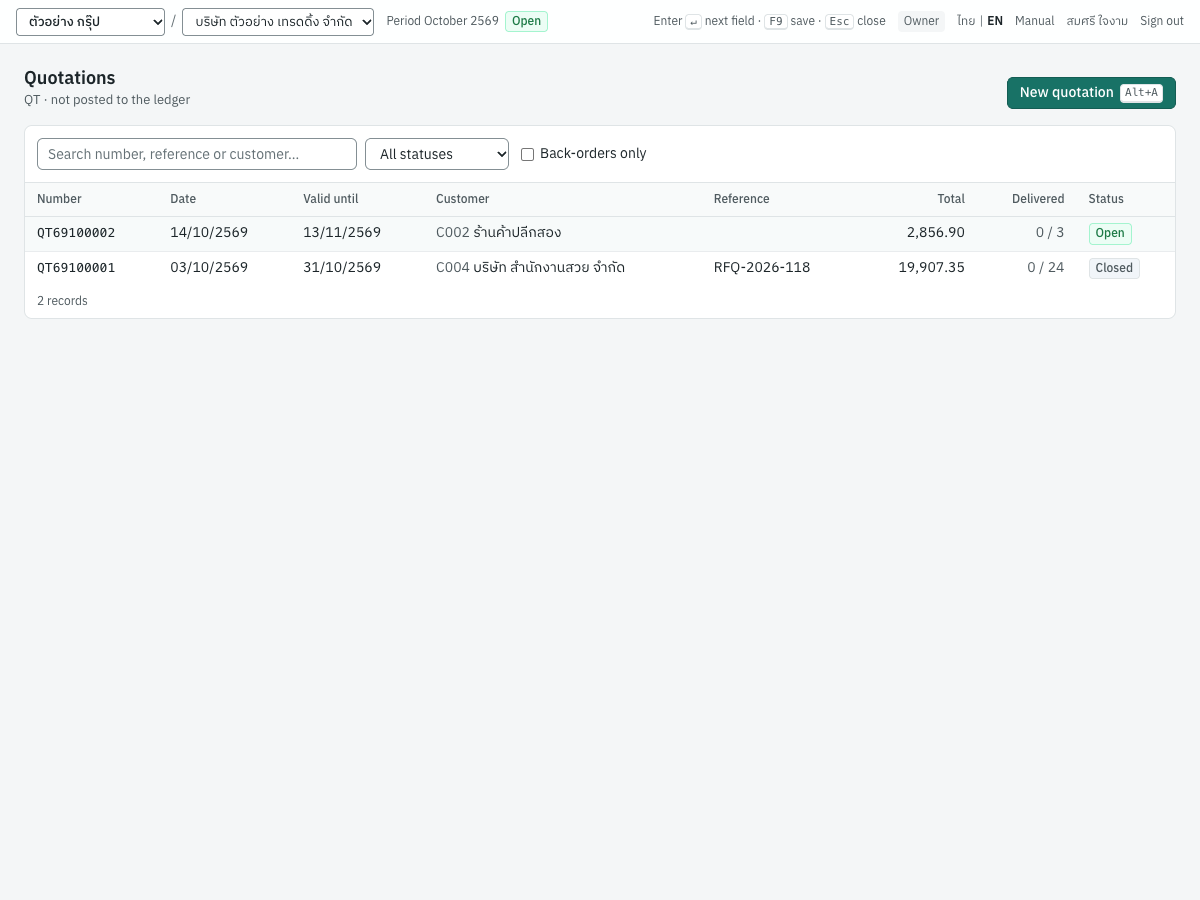
| Column | What it shows |
|---|---|
| Number | The quotation number, or (draft) |
| Date | The quotation date |
| Valid until | The last day the prices hold |
| Customer | Code and name |
| Reference | Your or the customer's reference, e.g. the customer's RFQ number |
| Total | Total including VAT |
| Delivered | Quantity delivered of quantity quoted, e.g. 0 / 3: green when all delivered, amber when partly |
| Status | Draft, Open (issued), Closed (accepted or declined) or Cancelled |
Search by number, reference or customer, filter by status, or tick Back-orders only to see open quotations with something not yet delivered. Click New quotation or press Alt+A to start one.
Fields#
Quotations and sales orders use the same form. Orders are always in baht and carry no warehouse.
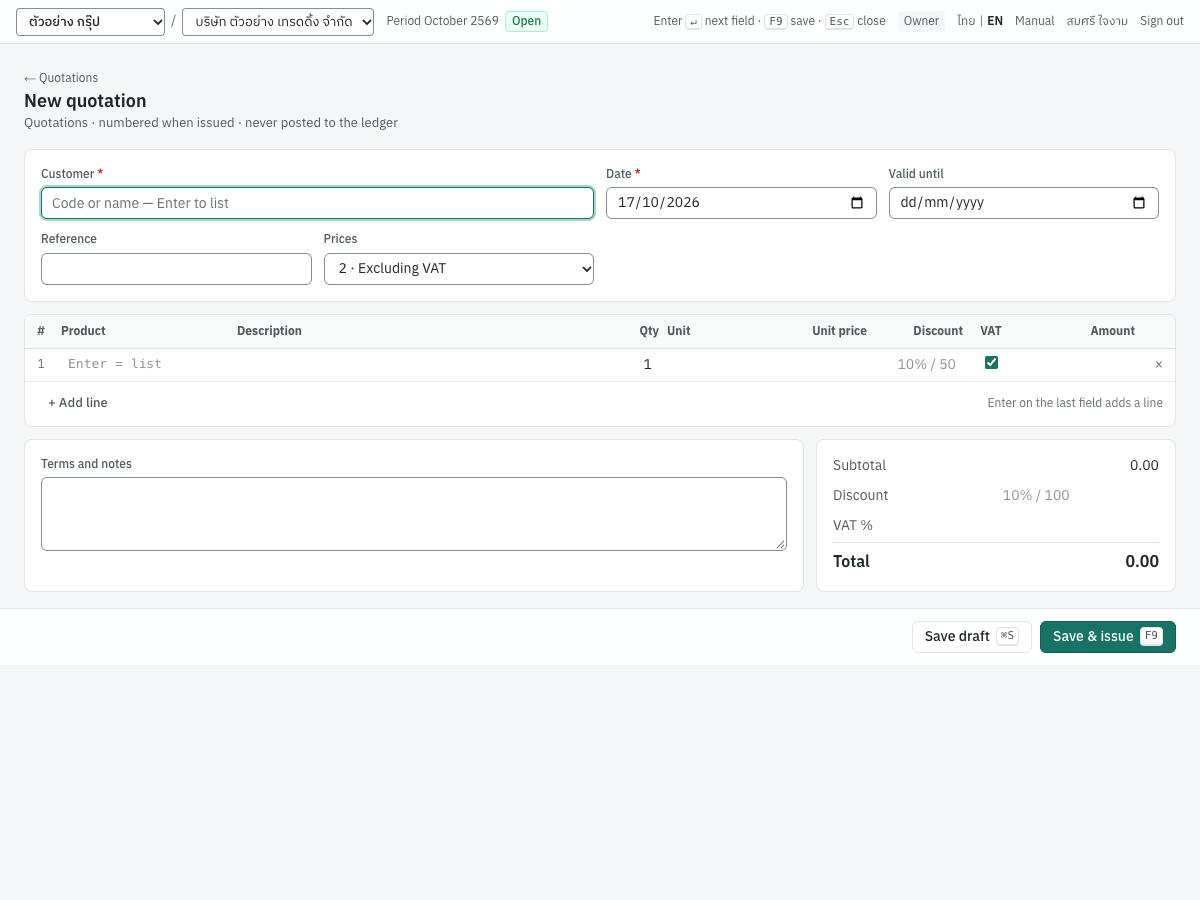
| Field | ภาษาไทย | What to enter |
|---|---|---|
| Customer | ลูกค้า | Required. |
| Date | วันที่ | The quotation date. Default today. |
| Valid until | ยืนราคาถึง | The last day the offer holds (on sales orders, Delivery date, in Thai กำหนดส่ง). Optional; it cannot be before the date. |
| Reference | อ้างอิง | Any reference, e.g. the customer's RFQ. On a sales order the hint suggests the customer's PO number. |
| Prices | ประเภทราคา | 2 · Excluding VAT (default), 1 · Including VAT, 0 · No VAT, or 0% · Zero-rated, e.g. export for exports (see Foreign currency invoices). |
| Product | รหัสสินค้า | Optional. Picking a product fills in its name, unit, selling price and VAT flag. |
| Description | รายละเอียด | Required on each line (taken from the product if you leave it). Lines with neither product nor description are ignored. |
| Qty | จำนวน | More than zero. Default 1. |
| Unit | หน่วยนับ | The unit printed, e.g. ชิ้น or ชั่วโมง. |
| Unit price | ราคาต่อหน่วย | Zero or more, up to 4 decimals. |
| Discount | ส่วนลด | A line discount: an amount (50), a percentage (10%) or steps (10%+5%). |
| VAT | ภาษี | Ticked when the line is subject to VAT. Untick for exempt lines. Hidden when Prices is No VAT. |
| Terms and notes | เงื่อนไข / หมายเหตุ | Payment terms, delivery and other conditions. Printed under the total as หมายเหตุ. On a sales order this field is Memo, in Thai หมายเหตุ. |
| Discount (total) | ส่วนลด | A discount on the whole document, e.g. 10% or 100. It is shared across the lines in proportion to their amounts. |
The totals panel shows Subtotal, Discount, VAT 7% and Total, calculated the same way the invoice will be.
Issuing a quotation#
- Open 2 Sales → Quotations and press
Alt+A. - Choose the customer, check the date and enter Valid until.
- Enter the lines. Press
Enterin the product field to list products; pressEnteron the last field of the last line to add a line, or click + Add line. Click × to remove a line. - Enter terms in Terms and notes.
- Press
F9(Save & issue). The quotation is numbered, e.g.QT69100001, and can no longer be changed. Save draft keeps it unnumbered and editable.
To change an issued quotation, mark it declined (or cancel it) and issue a new one.
After issuing#
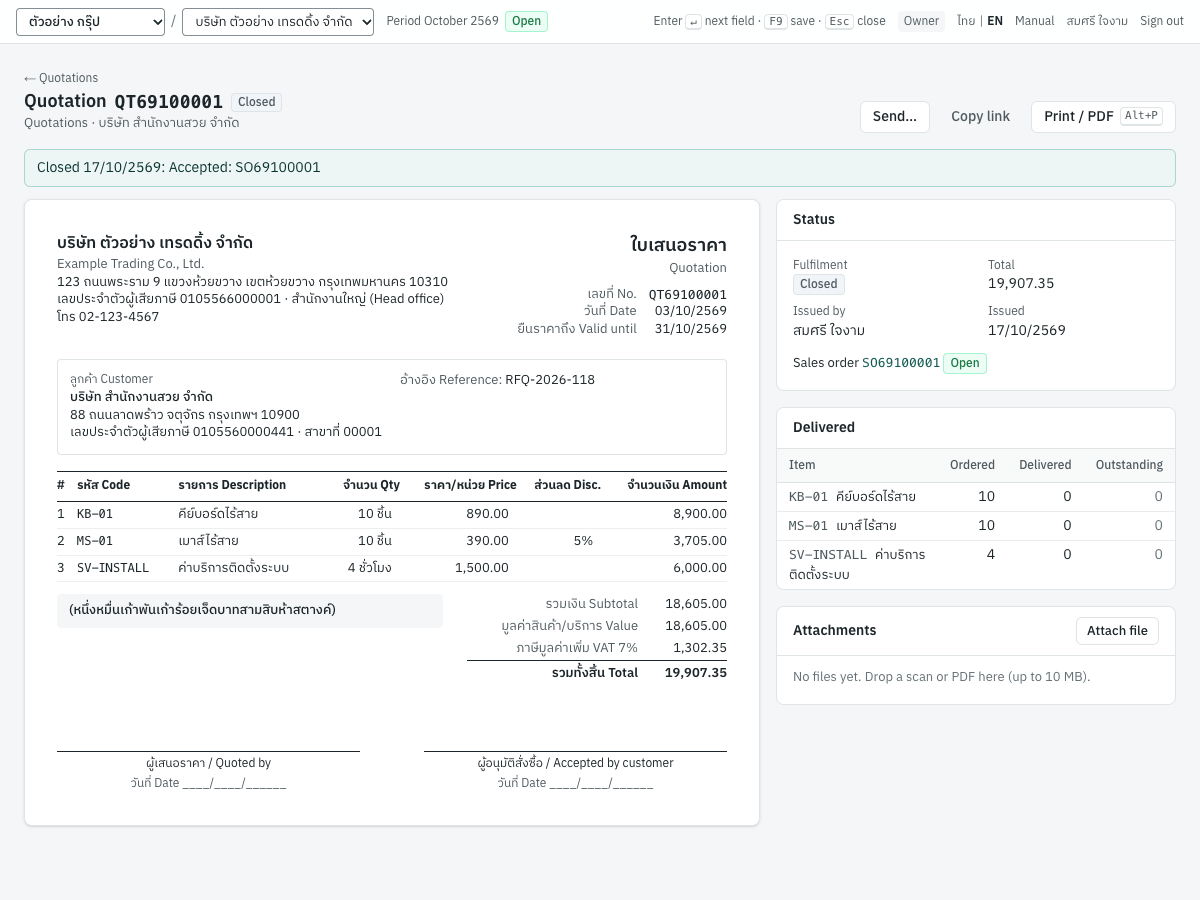
The issued quotation shows its printed layout, its status and what has been delivered against it.
- Convert to sales order turns the quotation into a sales order (below).
- Deliver on invoice and Cash sale start an invoice or cash sale with the quotation's outstanding lines, if you deliver without a sales order.
- Send…, Copy link and Print / PDF (
Alt+P): the print has signature lines for ผู้เสนอราคา / Quoted by and ผู้อนุมัติสั่งซื้อ / Accepted by customer. - Mark declined closes the quotation as not accepted, with a reason.
- Cancel cancels it, with a reason, while nothing has been delivered on it.
- The Status card shows the fulfilment, total, who issued it and when, and the sales order made from it. The Delivered card shows each line's quantity quoted, delivered and outstanding.
Once a quotation is closed (accepted or declined), nothing is outstanding on it any more and its Fulfilment badge reads Closed. On QT69100001 above, the goods are delivered on sales order SO69100001, not on the quotation.
Converting a quotation to a sales order#
- Open the open quotation and click Convert to sales order.
- Panya creates a draft sales order dated today with the same customer, lines, prices, discounts, reference and notes, and opens it. A note says From quotation QT69100001. Issuing this order marks the quotation as accepted.
- Enter the Delivery date, change anything you need (for example quantities the customer reduced) and press
F9(Save & issue).
When the order is issued, the quotation closes with the reason Accepted: SO69100001. Until then the quotation stays open.
Sales orders (SO)#
ใบสั่งขาย (SO) · Menu: 2 Sales → Sales orders
A sales order (ใบสั่งขาย / ใบจองสินค้า) confirms what the customer ordered. It records nothing in the books, but it tracks delivery: each invoice, cash sale or delivery note that delivers its lines reduces what is outstanding, so you always know the back-orders (ค้างส่ง).
The sales order list#
The list is the same as the quotation list, with Due (the delivery date) in place of Valid until.
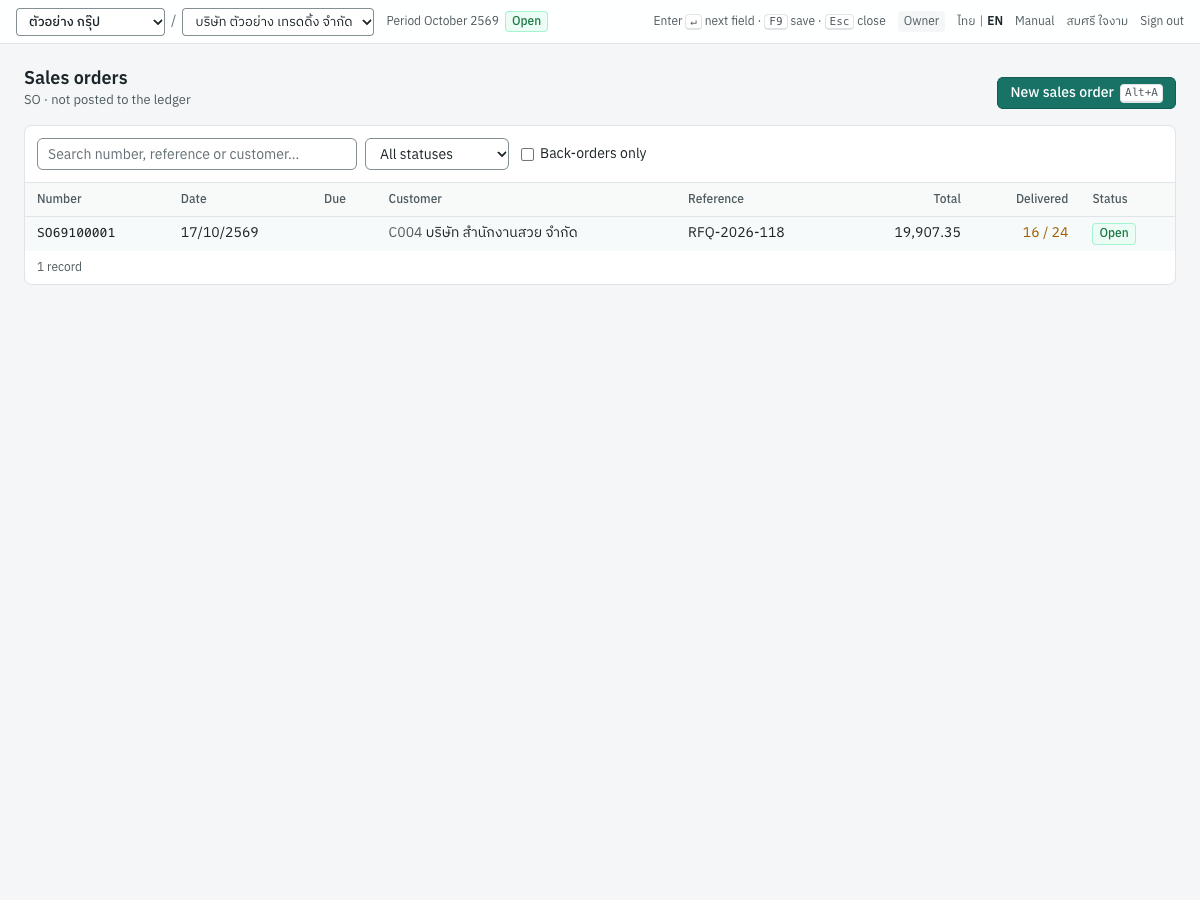
The Delivered column shows quantity delivered of quantity ordered, e.g. 16 / 24 in amber while partly delivered. Tick Back-orders only to list only open orders with something still to deliver.
Issuing a sales order#
Enter a sales order from a quotation (above), or directly:
- Open 2 Sales → Sales orders and press
Alt+A. - Choose the customer, enter the Delivery date and the customer's PO number in Reference.
- Enter the lines as on a quotation, and any Memo.
- Press
F9(Save & issue). The order is numbered, e.g.SO69100001.
Partial delivery and back-orders#
You deliver an order on a credit sale, a cash sale or a delivery note. Each can deliver all or part of each line, and several documents can deliver one order.
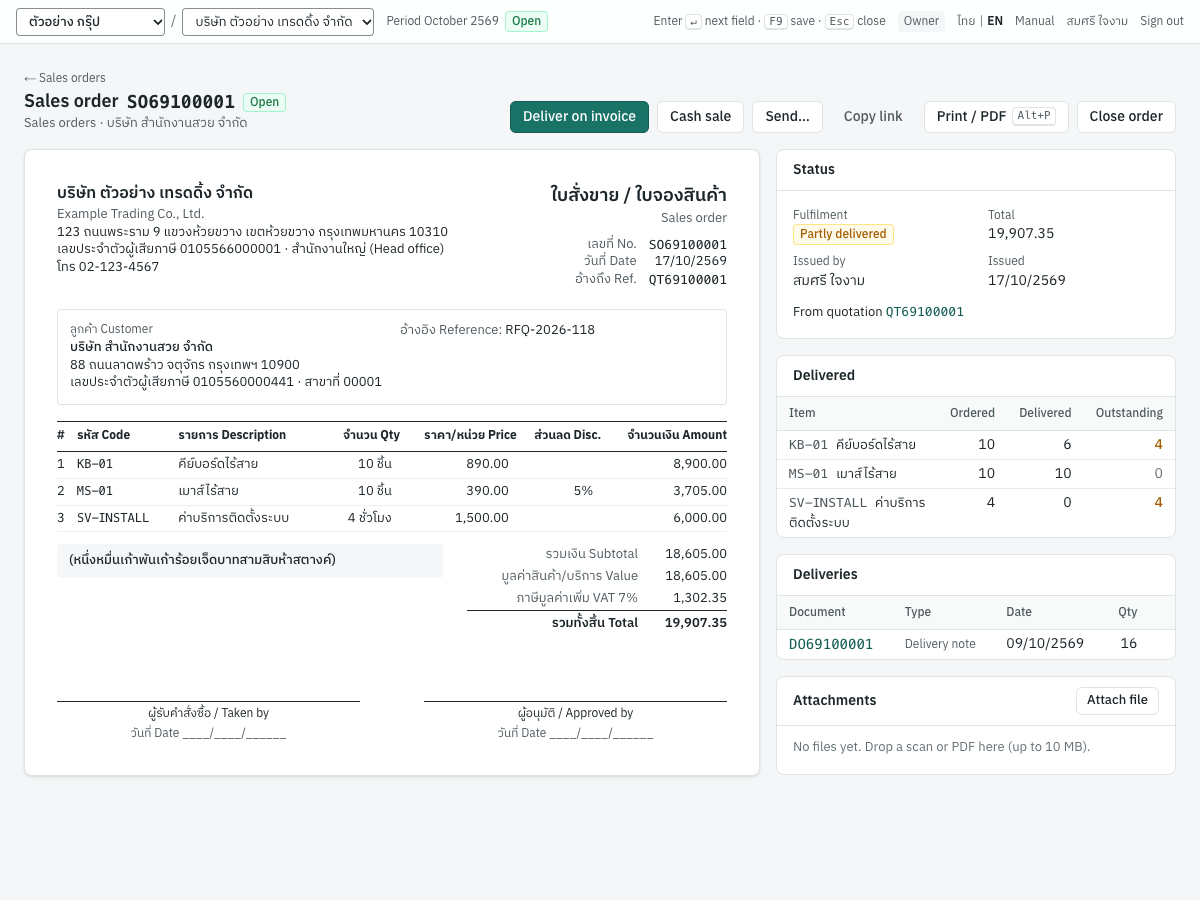
- Deliver on invoice opens a new credit sale with every outstanding line of the order and the order number as the reference. Cash sale does the same for a cash sale. Lower the quantities on the new document to deliver part.
- To deliver on a delivery note, open 2 Sales → Delivery notes → New delivery note, choose the customer and click + From quotations / sales orders… (see Picking lines from quotations and sales orders).
- The Delivered card shows each line's quantity ordered, delivered and outstanding (amber while something is left). Only posted documents count.
- The Deliveries card lists the documents that delivered the order, with their type, date and quantity.
- The Fulfilment badge reads Open (nothing delivered), Partly delivered, Complete (everything delivered) or Closed (closed before everything was delivered).
In the example, delivery note DO69100001 delivered 6 of the 10 keyboards and all 10 mice. Four keyboards and the four hours of installation are back-ordered.
Panya refuses to deliver more than is outstanding when you post: SO69100001 line 1 (คีย์บอร์ดไร้สาย): 4 outstanding, 5 on this document. If you cancel an invoice or delivery note that delivered an order, its quantity goes back onto the order. Credit notes for returned goods do not reopen the order, as in Express.
Closing an order short#
If the customer will not take the rest, close the order: Close order, enter the reason and click Close. What was delivered stays; the outstanding quantities are dropped and the order no longer appears in back-orders. A closed order cannot be delivered against.
Cancelling an order#
Cancel is available only while nothing has been delivered on the order. Enter the reason and click Cancel order. The order is kept for the record, marked Cancelled, and nothing can be delivered on it. Once anything has been delivered, Panya answers goods were already delivered or received on this order; close it instead.
Messages#
| Message | What to do |
|---|---|
| Choose a customer first | Pick the customer. |
| an order needs at least one line | Enter a line with a product or description. |
| line 2: quantity must be positive | Enter a quantity greater than zero. |
| line 2: price cannot be negative | Correct the price. |
| the due date cannot be before the order date | Correct Valid until or Delivery date. |
| SO69100001 line 1 (คีย์บอร์ดไร้สาย): 4 outstanding, 5 on this document | Lower the quantity on the delivering document. |
| SO69100001 is closed | The order was closed or cancelled after you started the document. Remove the link by deleting those lines and entering them again. |
| line 1: SO69100001 belongs to another customer | The delivering document's customer must be the order's customer. |
| the quotation is closed | Only open quotations can be converted. |
Delivery notes (DO)#
ใบส่งของ (DO) · Menu: 2 Sales → Delivery notes
Use a delivery note when the goods leave before you issue the tax invoice, for example when you deliver several times during the month and invoice the deliveries together. If the tax invoice goes with the goods, skip the delivery note: the credit sale itself prints as ใบส่งของ / ใบกำกับภาษี / ใบแจ้งหนี้.
Revenue at delivery#
The sale is recognised when the goods are delivered and control passes to the customer, at the agreed price excluding VAT. Posting a delivery note therefore records the revenue and takes the goods out of stock at once. There is no receivable yet and no VAT: nothing is due until the tax invoice, and the delivery note is not a tax invoice. The delivered value waits in account 1135 ลูกหนี้ส่งสินค้ายังไม่ออกใบแจ้งหนี้ (delivered not invoiced) until the tax invoice bills it.
The delivery note list#
The list has the same search, status and date filters as the invoice list.
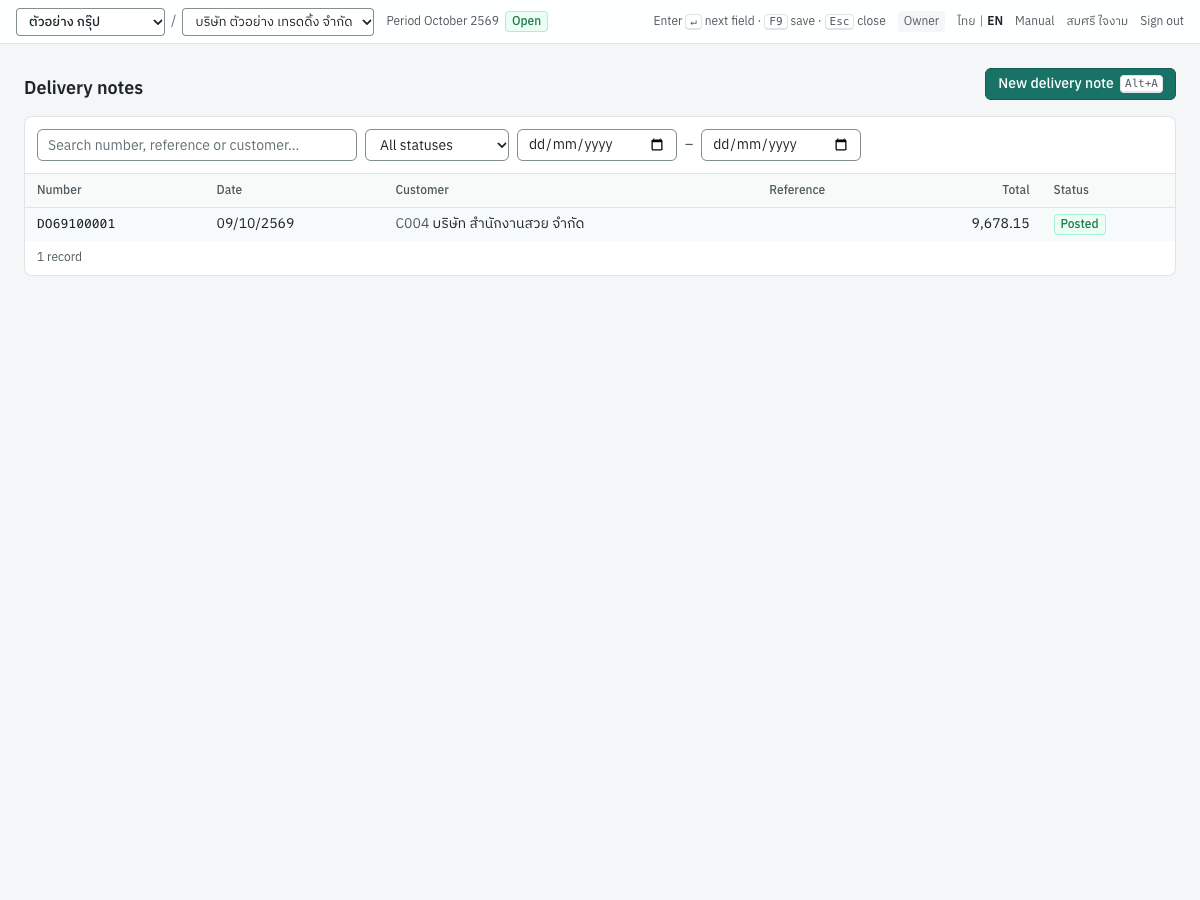
The columns are Number, Date, Customer, Reference, Total and Status. To see what is still to be invoiced, open the delivery note (its Status card shows Invoiced 0 of 16), or use + From delivery notes… on a new invoice, which lists every line not yet invoiced.
Entering a delivery note#
The delivery note uses the invoice form (see Invoice fields), without the due date, VAT-on-payment option, currency or deposits.
- Open 2 Sales → Delivery notes and press
Alt+A. - Choose the customer and the date of delivery.
- Enter the lines, or click + From quotations / sales orders… to deliver an order.
- Choose the Warehouse the goods leave from (shown when you have more than one).
- Press
F9(Save & post). The delivery note is numberedDO{BB}{MM}{####}, e.g.DO69100001.
The printed delivery note (ใบส่งของ / Delivery note) shows the prices, the VAT that the tax invoice will charge and a ผู้รับสินค้า / Received by signature line for the customer. The posted delivery note has Issue tax invoice, Send…, Copy link, Print / PDF and Cancel document.
What posting records#
The delivery note is posted in the sales book (entry numbers SJ…).
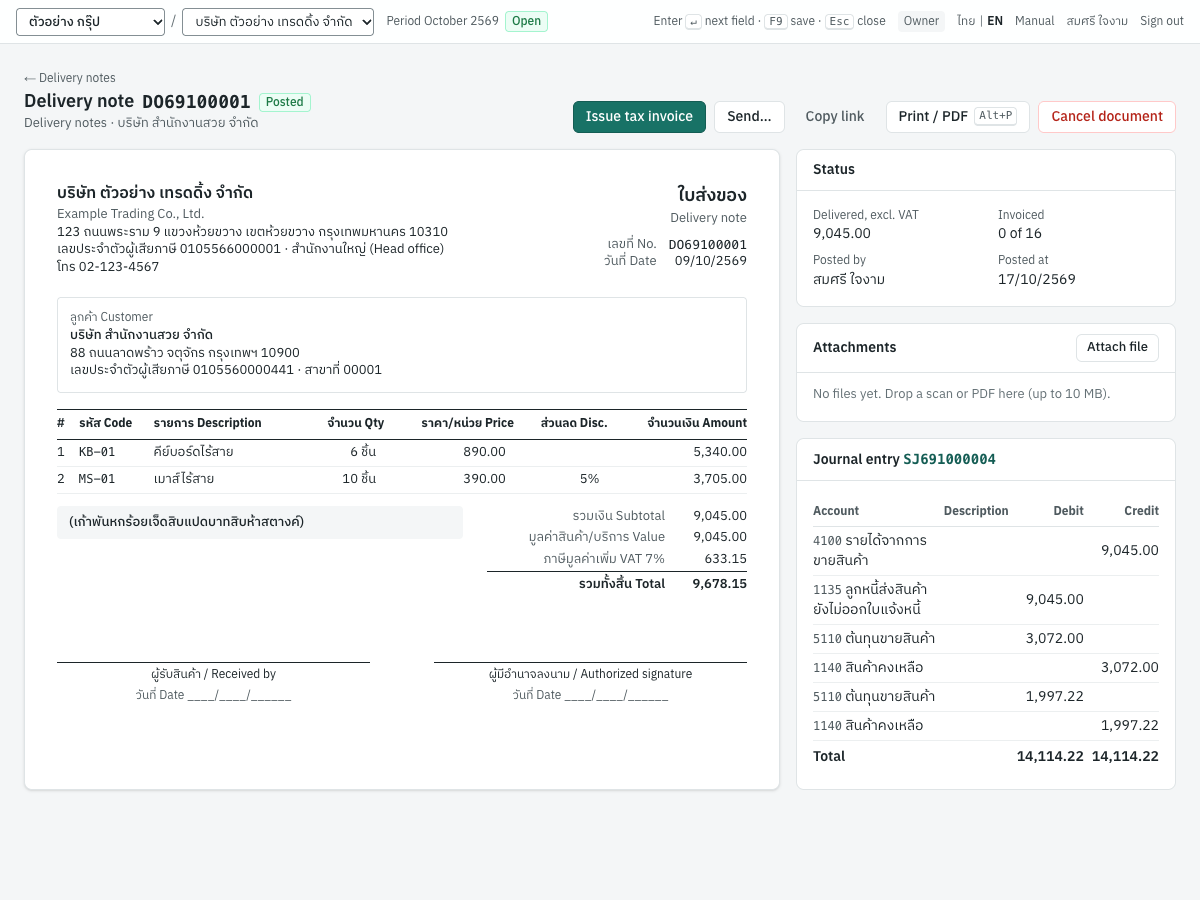
DO69100001 delivered KB-01 6 × 890.00 and MS-01 10 × 390.00 less 5%, 9,045.00 before VAT:
| Account | Debit | Credit |
|---|---|---|
1135 ลูกหนี้ส่งสินค้ายังไม่ออกใบแจ้งหนี้ | 9,045.00 | |
4100 รายได้จากการขายสินค้า | 9,045.00 | |
5110 ต้นทุนขายสินค้า | 3,072.00 | |
1140 สินค้าคงเหลือ | 3,072.00 | |
5110 ต้นทุนขายสินค้า | 1,997.22 | |
1140 สินค้าคงเหลือ | 1,997.22 |
- Stock: 6 keyboards and 10 mice leave warehouse MAIN at moving average cost.
- Tax records: none.
- Customer balance: unchanged; the customer owes nothing until the tax invoice.
The same-month VAT rule#
For goods, the delivery is the VAT tax point (s.78(1)). Panya therefore requires a tax invoice with VAT that bills a delivery note to be dated:
- in the same month as the delivery note, and
- not before the delivery note.
Otherwise posting stops with DO69100001 delivered the goods on 2026-10-09, the VAT tax point (s.78(1)): date the tax invoice in that month, or the invoice cannot be dated before DO69100001 (2026-10-09). An invoice with No VAT is not limited to the month.
Important: Issue the tax invoices for each month's deliveries before the month ends, so that the VAT is reported for the right month.
Billing delivery notes with the tax invoice#
- Open the delivery note and click Issue tax invoice. Panya opens a new credit sale with the delivery's lines still to be invoiced and the delivery number as the reference.
- Or start a new credit sale (or cash sale) for the customer and click + From delivery notes…. The dialog Invoice goods delivered lists every delivery line not yet invoiced: delivery note, item, price, quantity to invoice and This invoice. Tick the lines, change This invoice to bill part of a line, and click Add lines. You can bill several delivery notes on one invoice.
- The lines show ↳ DO69100001 under the description, and their product cannot be changed. You may change the quantity and the price.
- Date the invoice in the delivery's month and post it.
Billing DO69100001 in full records only the receivable and the VAT:
| Account | Debit | Credit |
|---|---|---|
1130 ลูกหนี้การค้า | 9,678.15 | |
1135 ลูกหนี้ส่งสินค้ายังไม่ออกใบแจ้งหนี้ | 9,045.00 | |
2120 ภาษีขาย | 633.15 |
- No stock moves again, because the goods left with the delivery note.
- If the invoice's price differs from the delivery note's, the difference goes to revenue (
4100). - Billing part of a line clears its share of the delivered value; the invoice that bills the rest clears exactly what is left.
- The output VAT record is written by the invoice, in its month.
After posting, the delivery note's Invoiced by card lists the invoices and quantities, and the invoice's Status card shows Bills delivery note DO69100001. You cannot invoice more than was delivered: DO69100001 line 1: 2 left to invoice, 3 on this document.
Cancelling a delivery note#
Cancel document works as for an invoice (see Cancelling an invoice): the revenue and stock movement are reversed on the reversal date, and any order quantity it delivered becomes outstanding again. A delivery note that a posted invoice bills cannot be cancelled: the delivery note is invoiced on IV69100005; cancel that first.
Credit sales (IV)#
ขายเงินเชื่อ (IV) · Menu: 2 Sales → Credit sales
A credit sale is the tax invoice for goods or services the customer pays for later. It prints as ใบส่งของ / ใบกำกับภาษี / ใบแจ้งหนี้ (Delivery note / Tax invoice / Invoice). An invoice without VAT, or from a company that is not VAT registered, prints as ใบส่งของ / ใบแจ้งหนี้ (Delivery note / Invoice), and a service invoice whose VAT falls due on payment prints as ใบแจ้งหนี้ (Invoice). Posting it records the receivable, the revenue, the output VAT and the cost of the goods that leave stock.
The invoice list#
The list shows invoices with what is still outstanding on each.
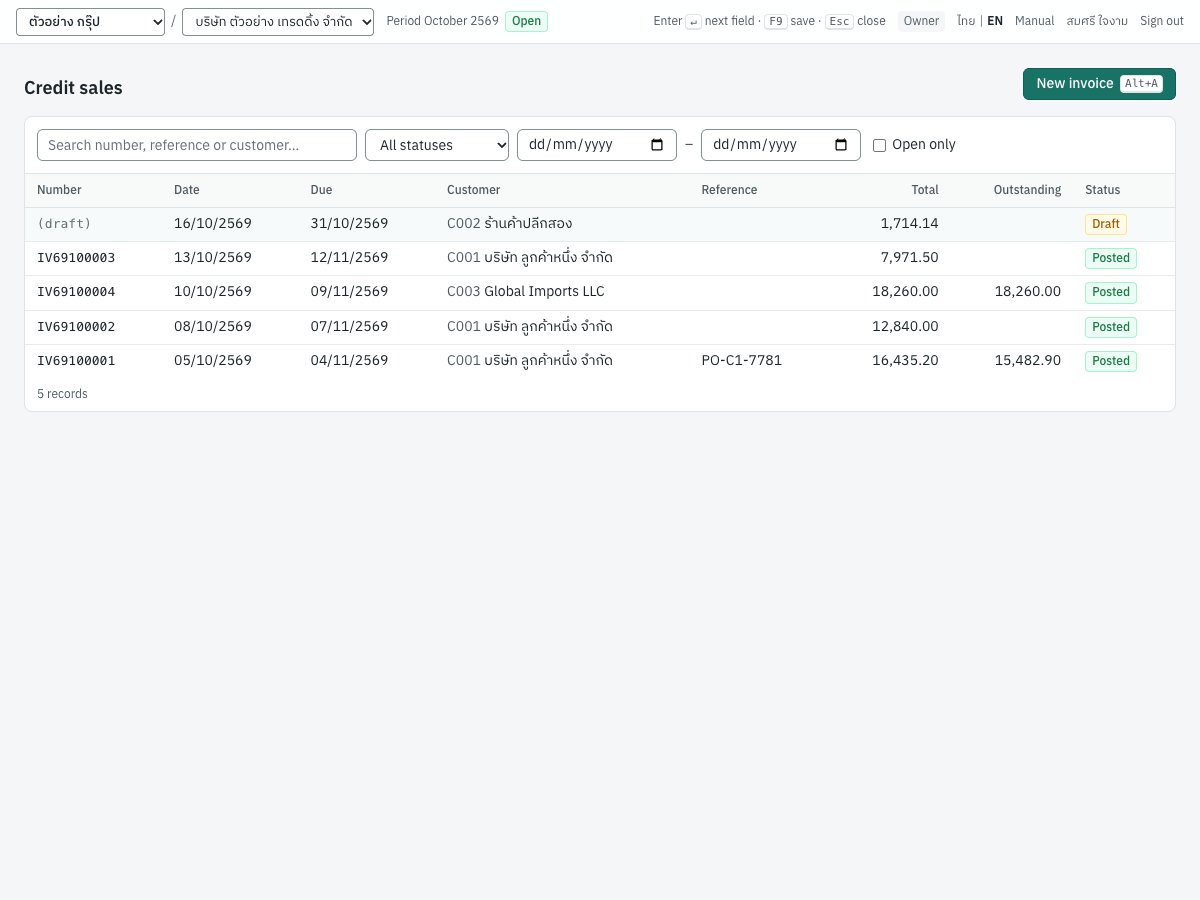
| Column | What it shows |
|---|---|
| Number | The invoice number, or (draft) |
| Date | The invoice date |
| Due | The due date |
| Customer | Code and name |
| Reference | The reference, e.g. the customer's PO |
| Total | Total including VAT |
| Outstanding | What the customer still owes on it (blank when settled) |
| Status | Draft, Posted or Cancelled |
Use the search, status filter, date range and Open only as described in Working with document lists. Click New invoice or press Alt+A to start an invoice. You can also start one from New invoice on the customer list, Deliver on invoice on a quotation or sales order, or Issue tax invoice on a delivery note.
Invoice fields#
The invoice form has a header, the lines, a memo and a totals panel.
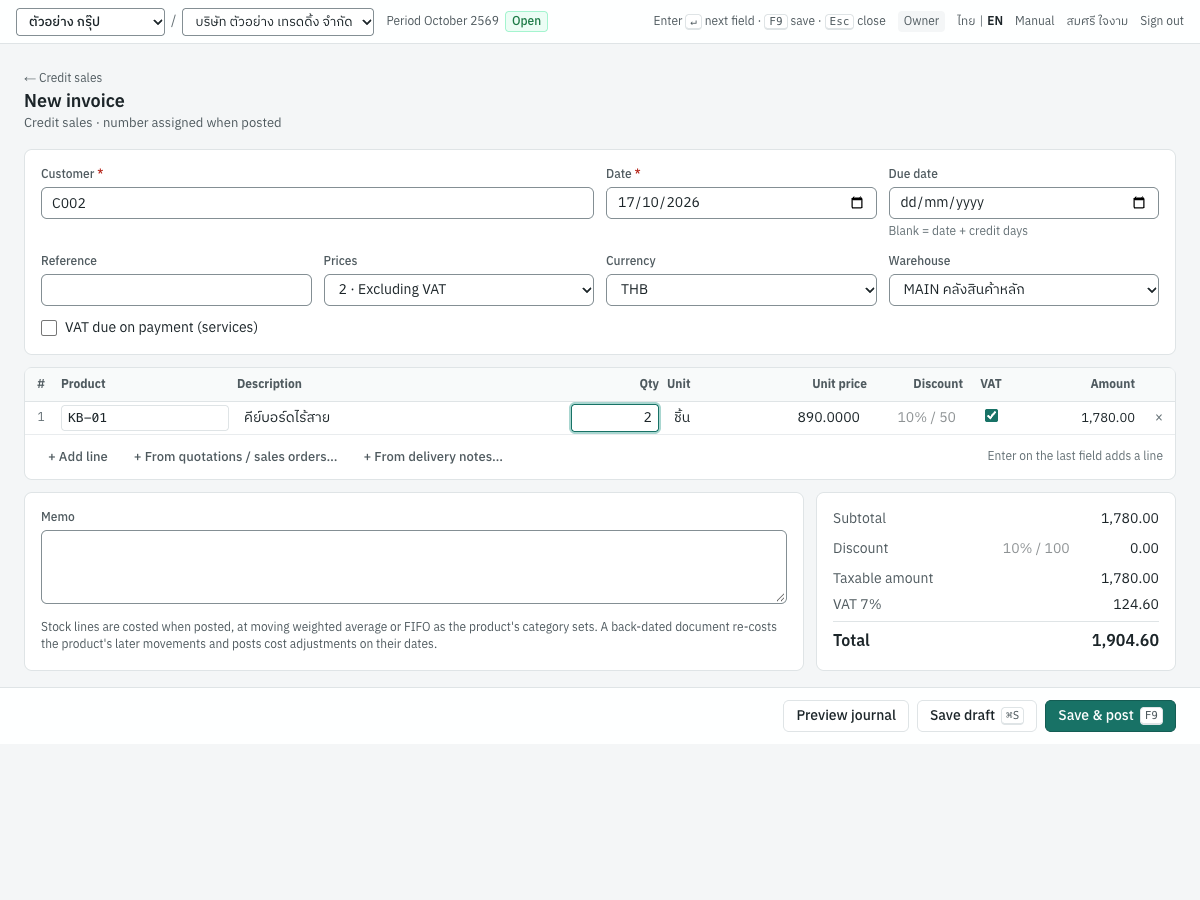
Header fields:
| Field | ภาษาไทย | What to enter |
|---|---|---|
| Customer | ลูกค้า | Required. The look-up shows each customer's balance. |
| Date | วันที่ | The invoice date: the VAT month and the posting date. Default today. It must fall in an open accounting period. |
| Due date | วันครบกำหนด | Leave blank to use the date plus the customer's credit days (C002's 15 days give 31/10/2569 for 16/10/2569). It cannot be before the date. |
| Reference | อ้างอิง | The customer's PO or your job number. Filled with the order or delivery note number when you start from one. Printed as อ้างอิง Reference. |
| Prices | ประเภทราคา | 2 · Excluding VAT: prices are before VAT and VAT is added (default). 1 · Including VAT: prices include VAT and the VAT is taken out of them. 0 · No VAT: no VAT at all, for sales outside VAT or exempt from it; they count as exempt sales on PP.30. 0% · Zero-rated, e.g. export: a tax invoice taxed at 0%, for exports (Revenue Code s.80/1); reported on PP.30 as sales at the 0% rate. Fixed at No VAT if the company is not VAT registered. |
| Currency | สกุลเงิน | THB, or a foreign currency that has rates in 7 Setup → Exchange rates. Shown only when such rates exist. See Foreign currency invoices. |
| Rate | อัตราแลกเปลี่ยน | Foreign currency only: the exchange rate, in baht per unit of the currency. |
| Warehouse | คลังสินค้า | The warehouse stocked goods leave from. Shown when you have more than one warehouse; defaults to the first active one (MAIN คลังสินค้าหลัก in the demo). |
| VAT due on payment | ภาษีขายรอเรียกเก็บ (งานบริการ) | Tick for services whose VAT falls due when the customer pays. Shown unless Prices is No VAT or zero-rated. See VAT due on payment. |
Line fields:
| Field | ภาษาไทย | What to enter |
|---|---|---|
| Product | รหัสสินค้า | Type a code or name, or press Enter to list products. Picking one fills in the description, unit, selling price and VAT flag. Leave it empty for a free-text line (charged to the default sales account). |
| Description | รายละเอียด | What prints on the invoice. You can change the product's name here, e.g. add a serial number. |
| Qty | จำนวน | More than zero, up to 4 decimals. Default 1. |
| Unit | หน่วยนับ | The unit printed after the quantity, e.g. ชิ้น. |
| Unit price | ราคาต่อหน่วย | The price per unit as set by Prices (before or including VAT), up to 4 decimals. |
| Discount | ส่วนลด | A line discount: an amount (50), a percentage (10%) or steps applied one after the other (10%+5%, 10%+20). |
| VAT | ภาษี | Ticked when the line is subject to VAT. Untick it for an exempt line; it then counts in the exempt amount. Hidden when Prices is No VAT. |
| Amount | จำนวนเงิน | Calculated: quantity × price less the line discount. |
Below the lines, + Add line adds a line, + From quotations / sales orders… and + From delivery notes… pick lines from those documents (they appear once a customer is chosen), and × at the end of a line removes it.
Below the lines on the left:
- Deposits (AI) appears when the customer has deposits not yet deducted. See Deducting a deposit on the invoice.
- Memo prints at the bottom of the invoice as หมายเหตุ. When the invoice has stocked goods, a note reminds you that they are costed when posted, at moving weighted average or FIFO as the product's category sets, and that a back-dated document re-costs the product's later movements.
The totals panel:
| Line | What it shows |
|---|---|
| Subtotal | The sum of the line amounts |
| Discount | Type a discount on the whole invoice (10% or 100); it is shared across the lines in proportion to their amounts |
| Less deposit | The value of the deposits deducted |
| Taxable amount | The value subject to VAT |
| Exempt amount | The value of lines without VAT, when there are any |
| VAT 7% | VAT at the rate in force on the invoice date |
| Total | What the customer owes |
VAT is calculated once on the invoice's taxable amount and rounded to the satang, then shared back over the lines. The totals on screen come from the same calculation posting uses, so they always agree with the posted invoice.
Entering an invoice#
- Open 2 Sales → Credit sales and press
Alt+A. - Choose the Customer (type C002, or press
Enterto list customers). - Check the Date. Leave Due date blank unless the customer has agreed a different date.
- Enter the customer's PO in Reference and check Prices and Warehouse.
- Enter the lines: product, quantity, and price or discount if they differ from the product's. Press
Enterto move along; on the last field of the last lineEnteradds a new line. - Enter a total Discount if any, and a Memo.
- Optional: click Preview journal to see the entry before posting.
- Press
F9(Save & post). Panya numbers the invoice, e.g.IV69100005, posts it and shows the posted invoice.
If you are not ready, press ⌘S / Ctrl+S to save a draft and post it later from the list.
Picking lines from quotations and sales orders#
- With the customer chosen, click + From quotations / sales orders….
- The dialog Deliver from orders lists the outstanding lines of the customer's open quotations and sales orders: order, item, price, outstanding quantity and This document.
- Tick the lines to deliver. This document starts at the full outstanding quantity; lower it to deliver part.
- Click Add lines. The lines arrive with the order's description, unit, price, discount and VAT flag, and show ↳ SO69100001 under the description. Their product cannot be changed.
The same button is on cash sales and delivery notes. A line can deliver an order or bill a delivery note, not both.
Picking lines from delivery notes#
See Billing delivery notes with the tax invoice.
VAT due on payment#
For services, VAT falls due when the customer pays (s.78/1), not when you invoice. Tick VAT due on payment (services) for such an invoice. As in Express, Panya ticks it for you when the first line of a new invoice is a service, while VAT applies; untick it if the service's VAT is due now.
With the box ticked:
- the invoice credits undue output VAT (
2121ภาษีขายรอเรียกเก็บ (ยังไม่ถึงกำหนด)) instead of output VAT, and writes no tax record; - it prints as ใบแจ้งหนี้ (Invoice), not as a tax invoice;
- each receipt moves its share of the VAT to output VAT (
2120), and the receipt becomes the tax invoice: its number and date are what the output VAT report shows (see Finance); - the invoice's Status card shows VAT basis: Due on payment and the Undue VAT still open;
- debit notes on the invoice follow the same basis, and credit notes reverse undue VAT first.
Example: IV69100002 of 08/10/2569 to C001 for SV-INSTALL ค่าบริการติดตั้งระบบ, 8 hours × 1,500.00:
| Account | Debit | Credit |
|---|---|---|
1130 ลูกหนี้การค้า | 12,840.00 | |
4200 รายได้จากการให้บริการ | 12,000.00 | |
2121 ภาษีขายรอเรียกเก็บ (ยังไม่ถึงกำหนด) | 840.00 |
When C001 paid on 15/10/2569, the receipt moved the 840.00 to 2120 ภาษีขาย and recorded the output VAT in October.
What posting records#
The invoice is posted in the sales book (entry numbers SJ…). The full view shows the journal entry under the invoice.
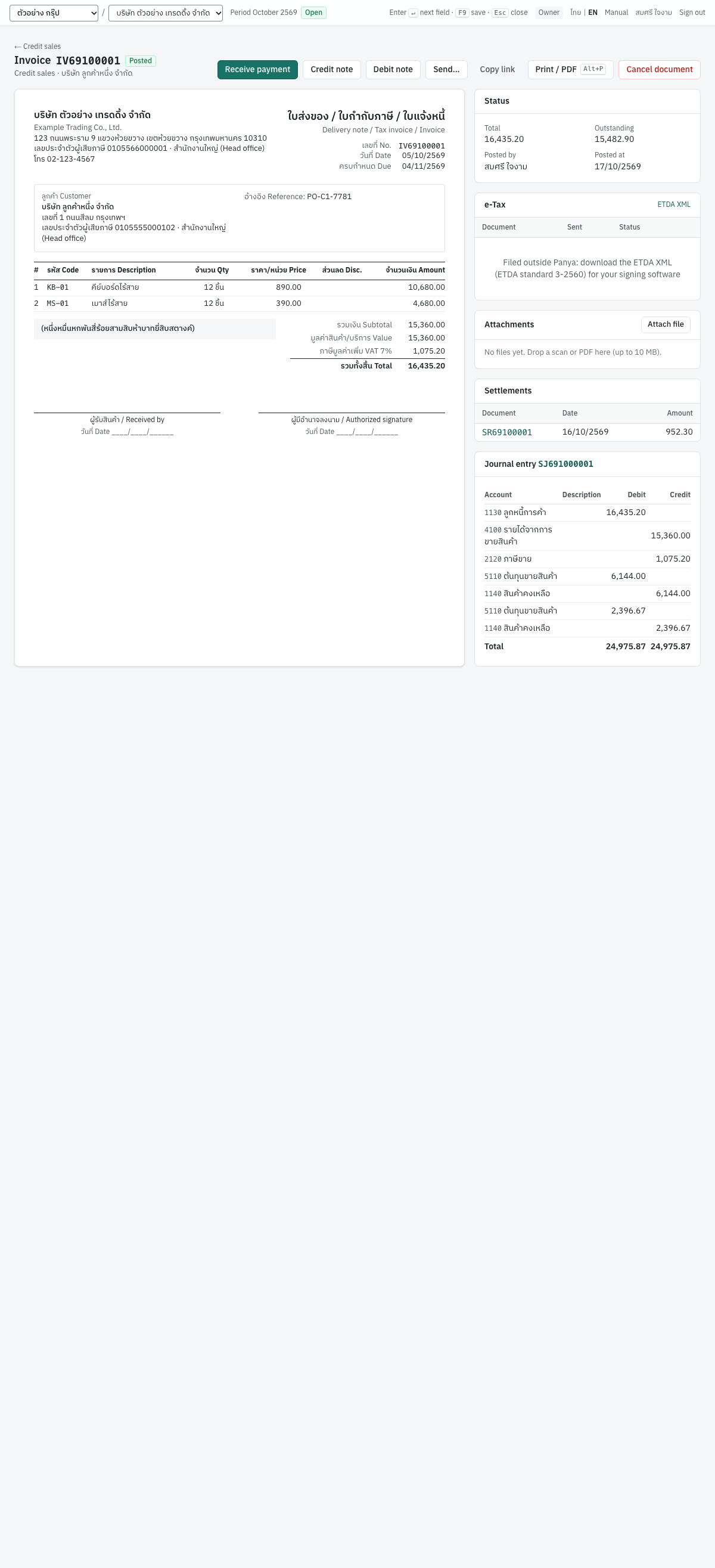
IV69100001 of 05/10/2569 to C001: KB-01 12 × 890.00 and MS-01 12 × 390.00, 15,360.00 before VAT.
| Account | Debit | Credit |
|---|---|---|
1130 ลูกหนี้การค้า | 16,435.20 | |
4100 รายได้จากการขายสินค้า | 15,360.00 | |
2120 ภาษีขาย | 1,075.20 | |
5110 ต้นทุนขายสินค้า | 6,144.00 | |
1140 สินค้าคงเหลือ | 6,144.00 | |
5110 ต้นทุนขายสินค้า | 2,396.67 | |
1140 สินค้าคงเหลือ | 2,396.67 |
- Receivable: the total is owed by the customer (account
1130, tracked by customer) and appears in AR aging and on the statement of account. - Revenue: each line goes to its product's sales account, else its product category's, else the default sales account
4100รายได้จากการขายสินค้า. SV-INSTALL is set up with4200รายได้จากการให้บริการ. See Inventory and Setup for these accounts. - Output VAT: a tax record with base 15,360.00 and VAT 1,075.20, dated 05/10/2569, under the customer's name, tax ID and branch as they were at posting. It appears in the October output VAT report (รายงานภาษีขาย) and the PP.30 summary. See Reports.
- Stock and cost: each stocked line leaves the warehouse at the moving average cost: Dr
5110ต้นทุนขายสินค้า, Cr1140สินค้าคงเหลือ. Services and non-stock items move no stock. Lines that bill a delivery note move no stock either. - Orders: lines picked from a sales order or quotation count as delivered.
- Number:
IV{BB}{MM}{####}.
If there is not enough stock in the warehouse, posting stops with a message giving the quantity on hand and the quantity requested, unless negative stock is allowed in 7 Setup → Company (see Inventory).
After posting#
The posted invoice shows the printed layout on the left and its status on the right.
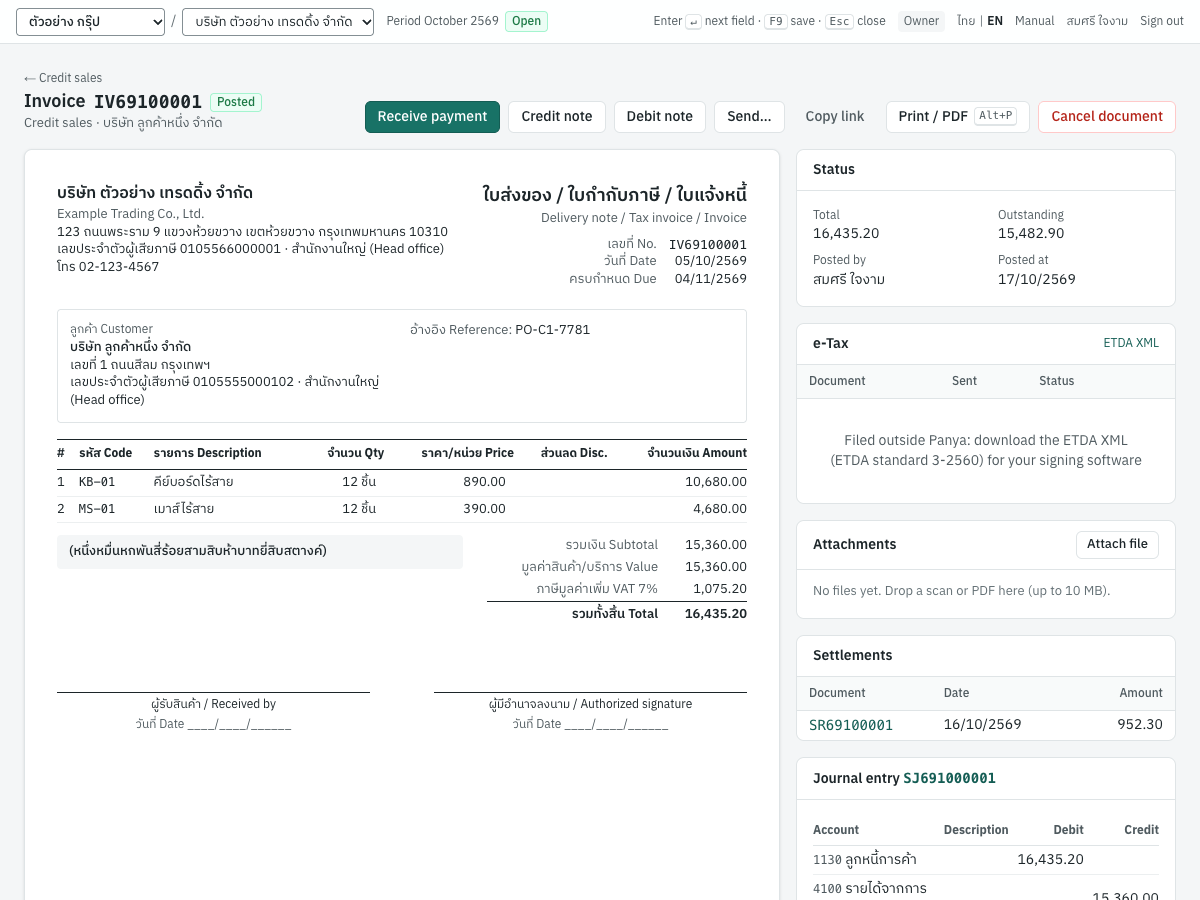
The buttons at the top:
- Receive payment opens a new receipt for this customer with the invoice selected (shown while something is outstanding). See Finance.
- Credit note starts a credit note on this invoice.
- Debit note starts a debit note on this invoice.
- Send… and Copy link send the invoice to the customer. See Sending documents to customers.
- e-Tax email prepares an e-Tax Invoice by Email (when the company uses it).
- Print / PDF (
Alt+P) prints the A4 invoice. - Cancel document cancels the invoice (see below).
The cards on the right:
- Status: total, outstanding, who posted it and when, the VAT basis and undue VAT for VAT-on-payment invoices, each deposit deducted, and the delivery notes it bills.
- e-Tax: the ETDA XML of the invoice, and its submissions to an e-Tax service provider (see e-Tax through a service provider at the end of this chapter).
- Attachments: drop or attach the customer's PO, a signed delivery copy or other files (PDF, images, Office files, CSV or text; up to 10 MB each). Click a file to download it, or the cross after it to remove it.
- Settlements: the receipts and credit notes that settled the invoice, with dates and amounts.
IV69100001was settled 952.30 by credit noteSR69100001. - Journal entry: the posted entry, with a link to it in the journal.
Cancelling an invoice#
A posted invoice is never edited or deleted. Cancelling it posts a reversing entry and keeps the original for the audit trail.
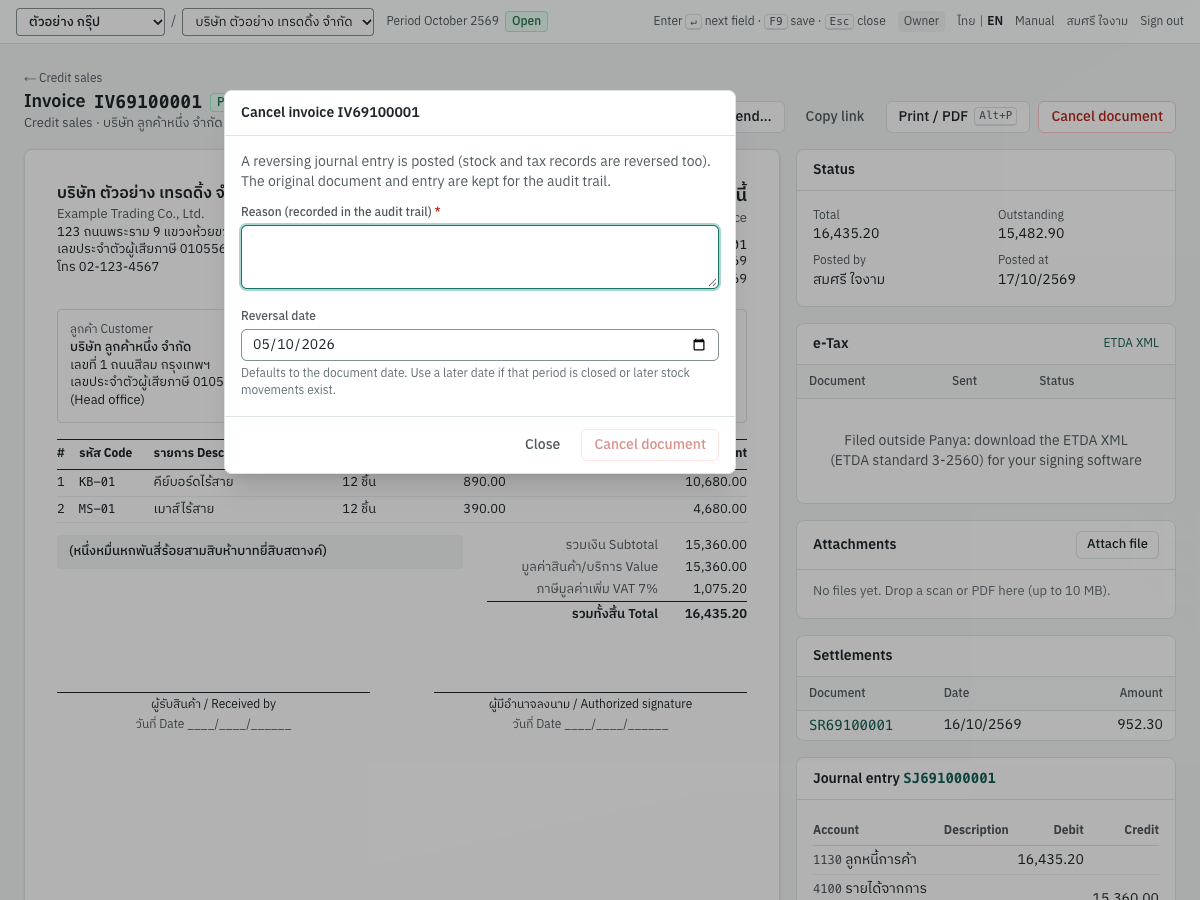
- Open the invoice and click Cancel document.
- Enter the Reason (recorded in the audit trail). It is required.
- Check the Reversal date. It starts at the invoice date; use a later date if the invoice's month is closed or later stock movements exist. It cannot be before the invoice date, and its period must be open.
- Click Cancel document.
Panya then:
- posts a reversing journal entry dated the reversal date;
- returns the stock at the cost it left with;
- writes negative output VAT records dated the reversal date, so the VAT comes off that month's report (cancel with the invoice's own date to correct the same month);
- releases any deposits deducted and puts any order quantities back as outstanding;
- marks the invoice Cancelled, with an alert showing the date and reason; the print shows ยกเลิก · CANCELLED.
You must first cancel the receipts, credit notes and debit notes on the invoice, including any credit note whose credit was applied to it: this document has receipts or credit notes; cancel those first. Then issue a new invoice with a new number if the sale stands.
Messages#
| Message | What to do |
|---|---|
| Choose a customer first | Pick the customer. |
| customer is inactive | Reactivate the customer in 2 Sales → Customers, or choose another. |
| a document needs at least one line | Enter a line. |
| line 1: description is required | Enter a description or pick a product. |
| line 1: quantity must be positive | Enter a quantity greater than zero. |
| line 1: product … is inactive / document contains an inactive product | Reactivate the product or remove the line. |
| invalid discount expression '…' | Use 50, 10% or 10%+5%. |
| discount 1000.00 exceeds amount 890.00 | The discount is larger than the line. |
| document total must be greater than zero | An invoice cannot be zero. |
| due date cannot be before the document date | Correct the due date. |
| the company is not VAT registered | Use Prices 0 · No VAT, or turn on VAT registration in 7 Setup → Company. |
| accounting period for … is closed | Date the invoice in an open month, or ask an accountant to reopen the period. See Month-end. |
| no accounting period covers … | The fiscal year for that date has not been created. See Accounting. |
| insufficient stock of KB-01 in warehouse MAIN: on hand 3, requested 5 | Check the warehouse and quantity, or receive the goods first. in all warehouses means the company as a whole holds too few. |
| this document has receipts or credit notes; cancel those first | Cancel the dependent documents, then the invoice. |
| the credit of this document was refunded on RF…; cancel the refund first | A credit note's credit was paid back to the customer. Cancel the customer refund, then the credit note. |
| the cancellation date cannot be before 2026-10-20, when RE69100002 was cancelled | A receipt or credit note of this invoice was cancelled on a later date. Cancel the invoice on that date or later. |
| account 2140 is kept by …; use those documents instead | A line's Account is a control account or an account that documents keep. Choose an ordinary revenue account. |
Foreign currency invoices#
ขายเงินเชื่อ สกุลเงินต่างประเทศ · Menu: 2 Sales → Credit sales (also cash sales)
Exporters can invoice in USD, EUR or another currency. The books stay in baht: Panya converts the invoice at its exchange rate and keeps the currency figures beside the baht ones.
Before you start#
Add the currency's rates in 7 Setup → Exchange rates: one row per date with the buying and selling rate, e.g. USD on 01/10/2569 buying 33.20, selling 33.60. The Currency field appears on invoices and cash sales once any rate exists. See Setup.
Entering a USD invoice#
- Start a new invoice and choose the customer, e.g. C003 Global Imports LLC.
- In Currency choose USD.
- Rate · THB per USD fills in with the latest buying rate on or before the invoice date (the hint says which date). Overwrite it if you use another rate; if there is no rate the hint says No rate on file for this date: enter it.
- Enter the prices in USD: the column reads Unit price (USD). Amount discounts are in USD; percentages stay percentages.
- Check the totals: Total (USD), and below it the baht equivalent at the rate (≈ THB at …).
- Post.
Deposits cannot be deducted on a foreign currency invoice, and quotations and sales orders are in baht only.
Note: Choose Prices 0% · Zero-rated, e.g. export for an export, as on the demo's IV69100004. The invoice is then a tax invoice at 0%: it appears in the output VAT report with VAT 0.00, prints a VAT 0% line, and counts as zero-rated sales (line 2) in the PP.30 summary. A credit note on it should be zero-rated too.
What posting records#
Everything is posted in baht at the invoice's rate. VAT, if any, is calculated in baht on the converted value.
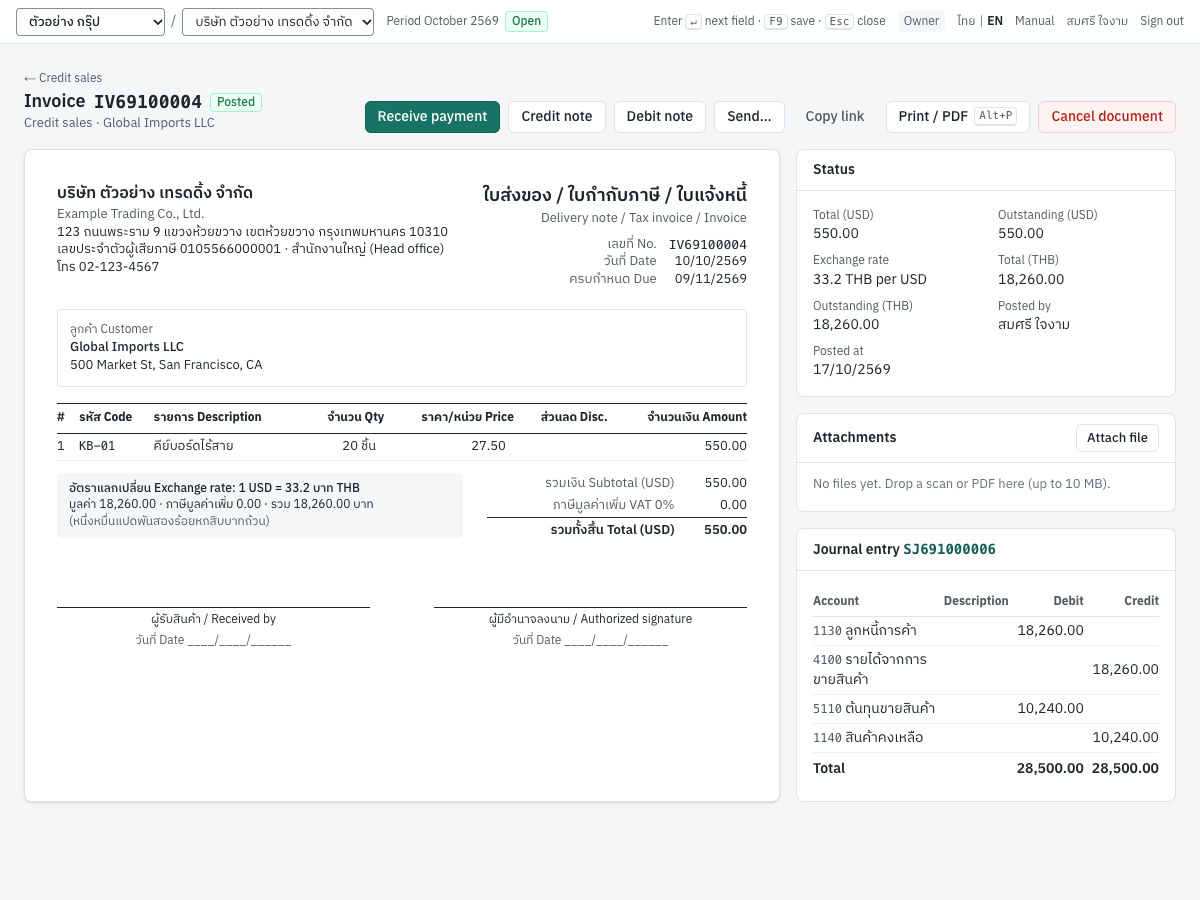
IV69100004 of 10/10/2569: KB-01 20 × USD 27.50 = USD 550.00, at 33.20 = 18,260.00 baht.
| Account | Debit | Credit |
|---|---|---|
1130 ลูกหนี้การค้า | 18,260.00 | |
4100 รายได้จากการขายสินค้า | 18,260.00 | |
5110 ต้นทุนขายสินค้า | 10,240.00 | |
1140 สินค้าคงเหลือ | 10,240.00 |
The Status card shows Total (USD), Outstanding (USD), Exchange rate (33.2 THB per USD), Total (THB) and Outstanding (THB).
The printed invoice#
The invoice prints in USD: prices, amounts, รวมเงิน Subtotal (USD) and รวมทั้งสิ้น Total (USD). A box on the left gives the exchange rate and the baht figures: อัตราแลกเปลี่ยน Exchange rate: 1 USD = 33.2 บาท THB, then มูลค่า (value), ภาษีมูลค่าเพิ่ม (VAT) and รวม (total) in baht, and the baht total in Thai words.
Settlement, notes and revaluation#
- Settle in the same currency. Receive the USD with a receipt in USD. The receipt clears the invoice at its baht carrying value and books the money at the receipt's rate; the difference is an exchange gain or loss in
4910กำไร (ขาดทุน) จากอัตราแลกเปลี่ยน. A baht receipt cannot settle a USD invoice. See Finance. - Credit and debit notes on a USD invoice are in USD at the invoice's rate; the rate field is read-only (USD, at the original document's rate). A USD credit note clears its share of the invoice's open baht, and all of it when it clears the last of the USD; any difference from the credit note's own baht figures is an exchange gain or loss in
4910in the credit note's entry. Credit left over on a USD credit note cannot be applied to other invoices or refunded. - Month-end revaluation. Open foreign currency invoices are restated at the period-end rate in 5 Accounting → FX revaluation. See Accounting and Month-end.
Cash sales (HS)#
ขายเงินสด (HS) · Menu: 2 Sales → Cash sales
A cash sale records a sale paid on the spot, in cash or into a bank account. It prints as ใบเสร็จรับเงิน / ใบกำกับภาษี (Receipt / Tax invoice), so the customer gets the receipt and the tax invoice in one document and no separate receipt is needed. Without VAT it prints as ใบเสร็จรับเงิน (Receipt) only.
The cash sale list#
The list has the same search, status and date filters as the invoice list.
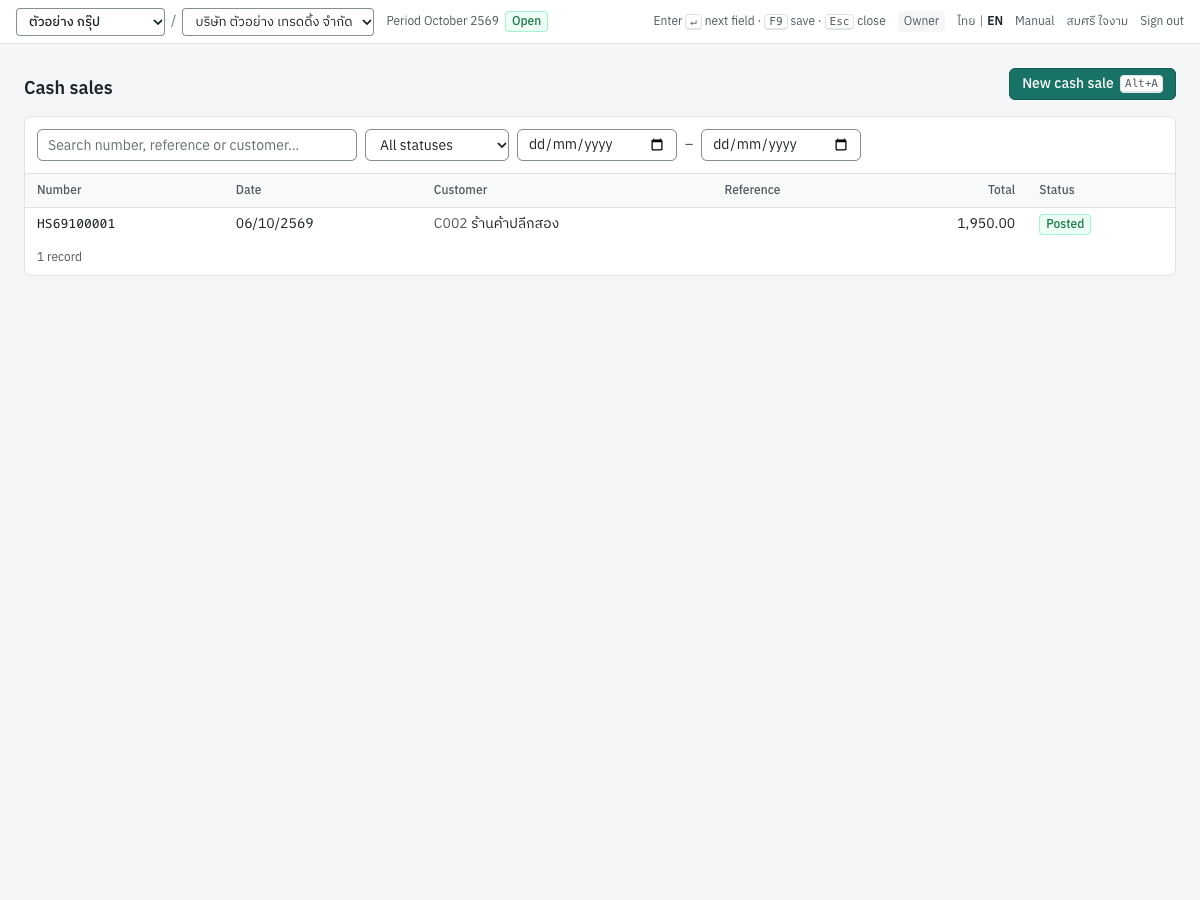
The columns are Number, Date, Customer, Reference, Total and Status. There is no due date or outstanding balance, because a cash sale is paid in full.
How a cash sale differs from an invoice#
A cash sale uses the invoice form (see Invoice fields), with these differences:
| Field | ภาษาไทย | What to enter |
|---|---|---|
| Received into | รับเงินเข้า | The cash or bank account that received the money. Defaults to the first active cash account (CASH in the demo, account 1110 เงินสด). |
| Due date | วันครบกำหนด | Not shown. |
| VAT due on payment | ภาษีขายรอเรียกเก็บ (งานบริการ) | Not shown: the customer has paid, so the VAT is due now. |
Everything else works as on an invoice: deposits can be deducted, lines can be picked from quotations, sales orders and delivery notes, and a cash sale can be in a foreign currency.
Entering a cash sale#
- Open 2 Sales → Cash sales and press
Alt+A. - Choose the customer and Received into.
- Enter the lines, e.g. MS-01 เมาส์ไร้สาย 5 × 390.00 with Prices 1 · Including VAT.
- Press
F9. The cash sale is numberedHS{BB}{MM}{####}, e.g.HS69100001.
What posting records#
A cash sale is posted in the receipts book (entry numbers RJ…). It is the same as an invoice, except that the money goes straight to the cash or bank account instead of the receivable.
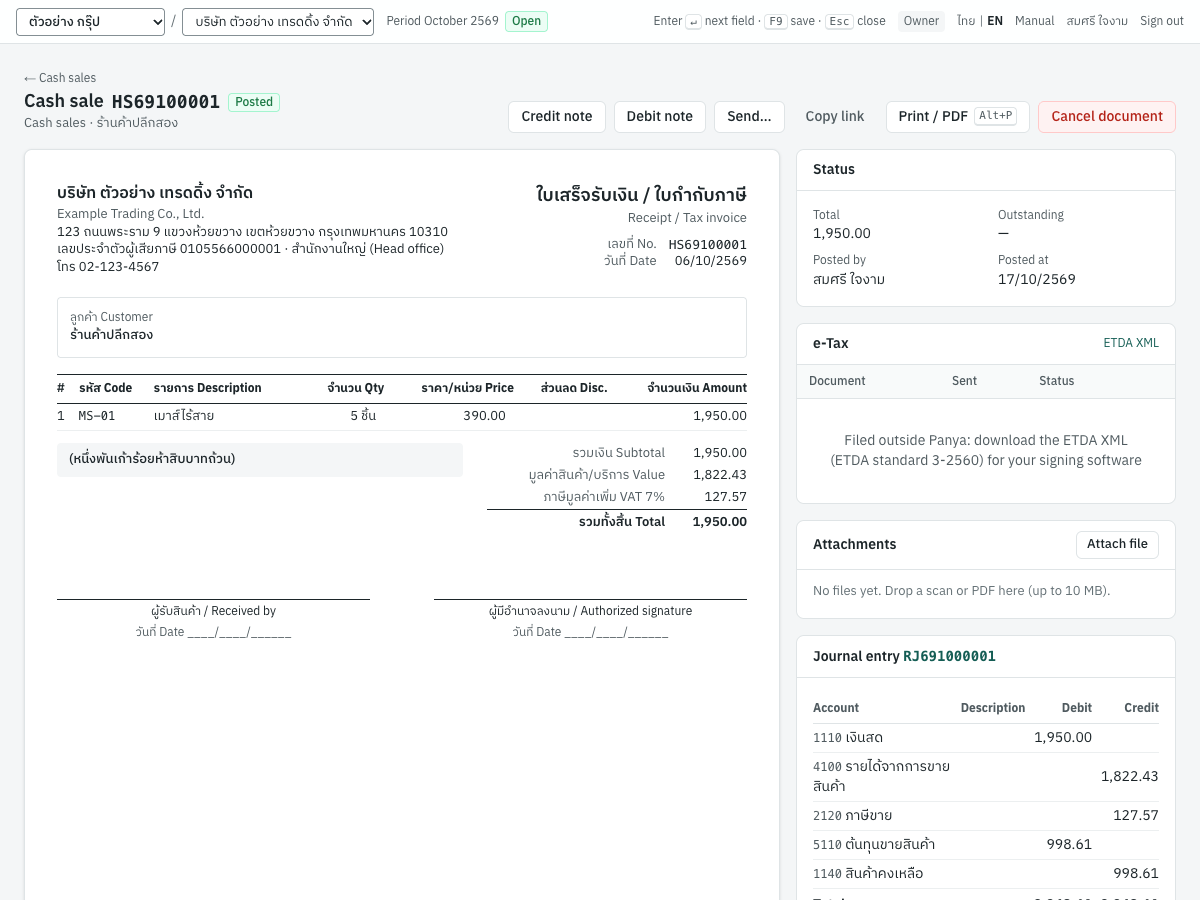
HS69100001 of 06/10/2569, 5 mice at 390.00 including VAT = 1,950.00:
| Account | Debit | Credit |
|---|---|---|
1110 เงินสด | 1,950.00 | |
4100 รายได้จากการขายสินค้า | 1,822.43 | |
2120 ภาษีขาย | 127.57 | |
5110 ต้นทุนขายสินค้า | 998.61 | |
1140 สินค้าคงเหลือ | 998.61 |
The output VAT record (base 1,822.43, VAT 127.57) is dated the cash sale's date.
After posting#
The buttons are the same as on an invoice, without Receive payment: Credit note, Debit note, Send…, Copy link, e-Tax email (if used), Print / PDF and Cancel document. A credit note on a cash sale leaves the customer with credit, which you refund with a customer refund or apply to the customer's invoices.
Credit notes (SR)#
ลดหนี้/รับคืน (SR) · Menu: 2 Sales → Credit notes
A credit note (ใบลดหนี้) reduces what a customer owes on an earlier invoice or cash sale: because goods were returned, or because the price is reduced (damaged goods, a missed discount, an overcharge). It prints as ใบลดหนี้ / ใบกำกับภาษี (Credit note / Tax invoice), or ใบลดหนี้ without VAT. As the Revenue Code requires (s.86/10), the print states the original tax invoice's number and date, its value, any earlier credit or debit notes on it, the correct value, the difference (this credit note) with its VAT, and the reason.
Returning goods or reducing the price#
The Goods are returned to stock box decides what the credit note does.
| Returning goods (ticked) | Reducing the price (unticked) | |
|---|---|---|
| When | The customer sends goods back | The goods stay with the customer |
| Lines | Lines from the original invoice, with the quantity returned | The original's lines edited to the amounts of the reduction, or your own lines such as ส่วนลดเพิ่มเติม |
| Stock | Comes back at the cost it left with | No stock movement |
| Revenue and VAT | Reduced | Reduced |
The box is ticked for you when the original invoice has stocked goods.
The credit note list#
The list shows each credit note and how much of its credit is still unused.
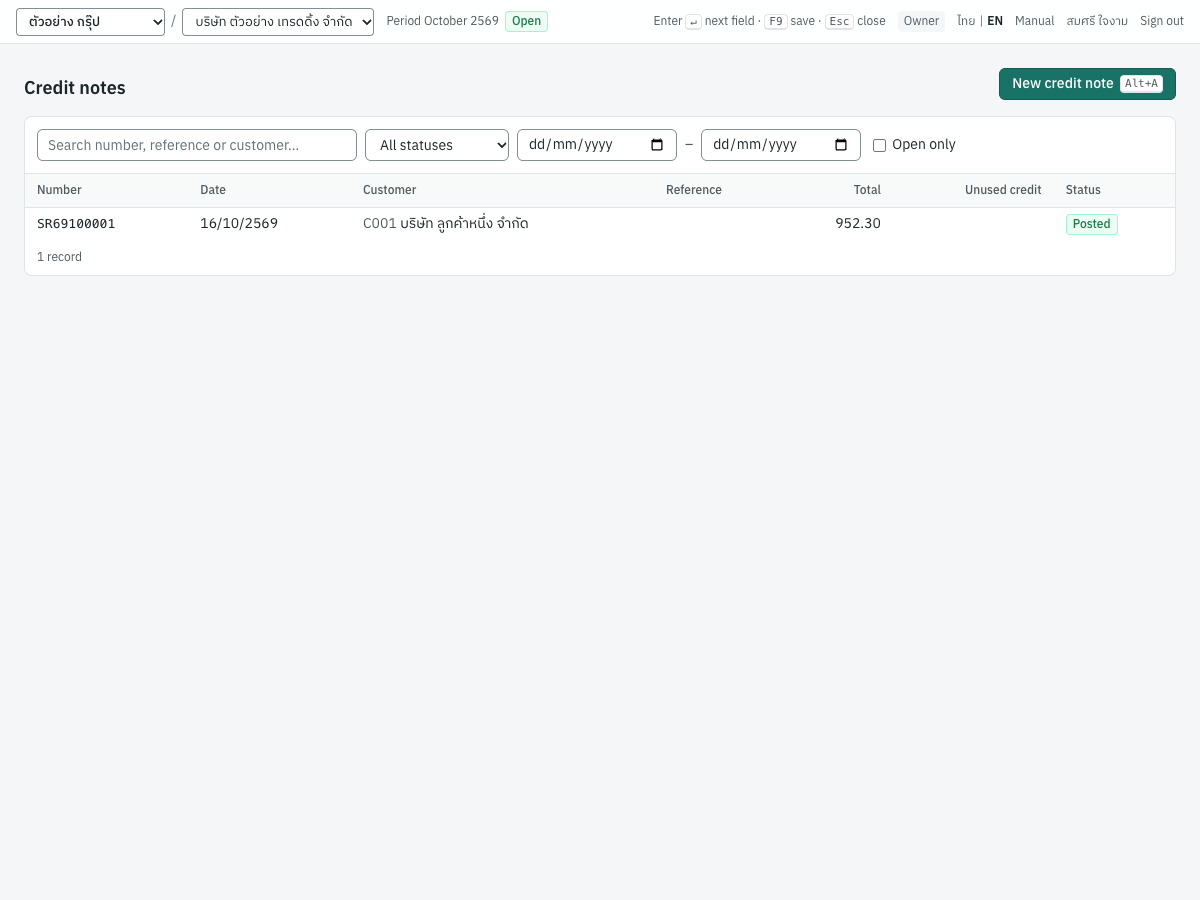
The columns are Number, Date, Customer, Reference, Total, Unused credit and Status. Tick Open only to see credit notes with unused credit.
Fields#
A credit note uses the invoice form with these fields at the top:
| Field | ภาษาไทย | What to enter |
|---|---|---|
| Original invoice | อ้างถึงใบกำกับภาษี | Required. The posted invoice or cash sale being credited. Type its number or press Enter to list them (the customer's own, if you chose the customer first). Choosing it fills in the customer, prices type, currency, warehouse and lines; the customer can then no longer be changed. The credit note always follows the original's VAT: its VAT rate (even if the rate has changed since), and whether it has VAT at all. Only Excluding VAT and Including VAT can be swapped. Each copied line keeps the original line's VAT flag. |
| Customer | ลูกค้า | Filled from the original invoice. |
| Date | วันที่ | The credit note date: the month its VAT reduction is reported. |
| Reference | อ้างอิง | Optional, e.g. the customer's return note. |
| Goods are returned to stock | รับคืนสินค้าเข้าคลัง | See above. |
| Lines | — | Copied from the original. Change the quantity (returns) or the price (reductions), and delete the lines that are not credited. Lines copied from the original keep their product. |
| Memo | หมายเหตุ | The reason for the credit note. It prints as เหตุผลในการลดหนี้ Reason; enter it, because a credit note must state its reason. |
Entering a credit note#
- Open the invoice (e.g.
IV69100001) and click Credit note. The original invoice is already chosen. Alternatively, open 2 Sales → Credit notes, pressAlt+Aand choose the Original invoice. - Tick or untick Goods are returned to stock.
- Edit the lines: for the damaged keyboard, keep the KB-01 line, set the quantity to 1 and delete the MS-01 line.
- Enter the reason in Memo: สินค้าชำรุด 1 ชิ้น.
- Press
F9. The credit note is numberedSR{BB}{MM}{####}, e.g.SR69100001.
When it is posted, the credit note settles the original invoice as far as the invoice is still open. Anything beyond that stays as Unused credit on the credit note.
What posting records#
A credit note is posted in the sales book (entry numbers SJ…).
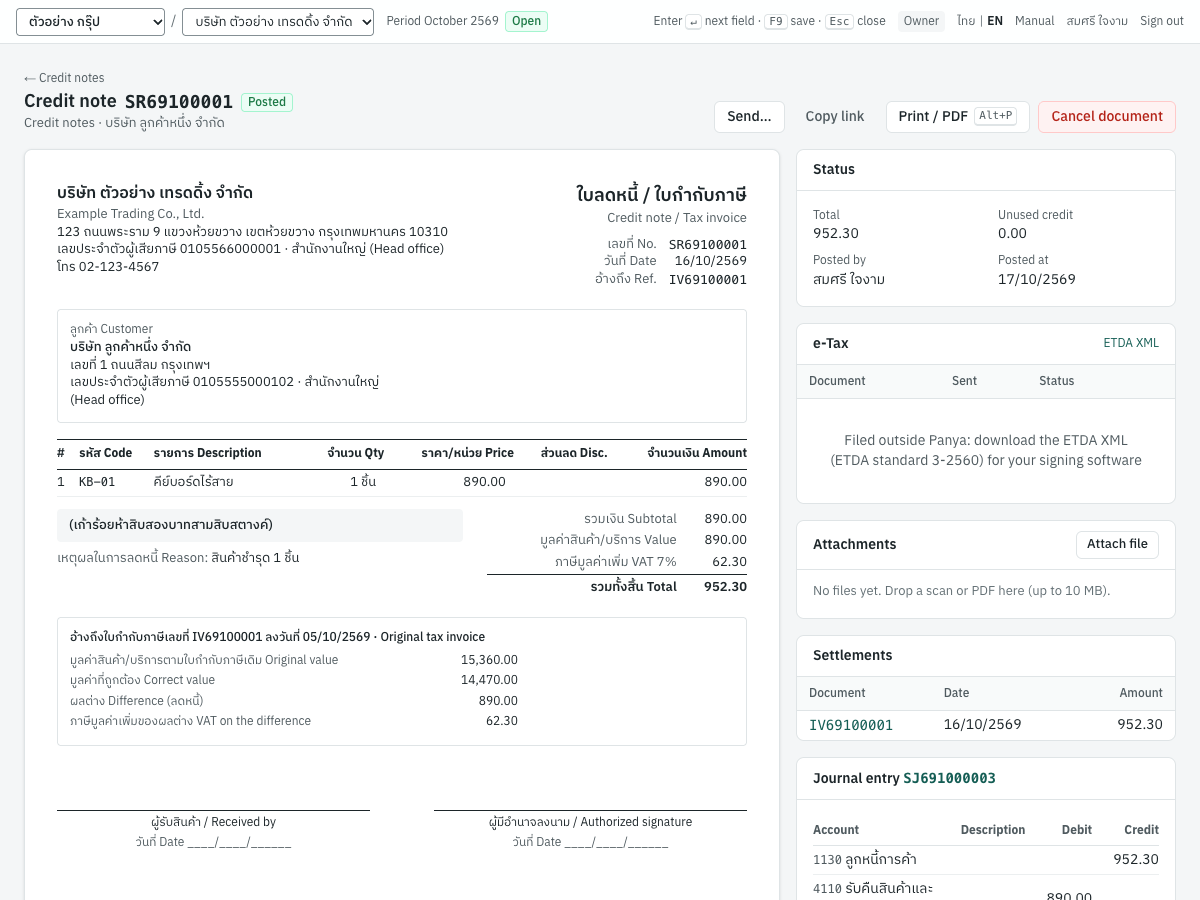
SR69100001 of 16/10/2569 credits 1 keyboard (890.00 + VAT 62.30) on IV69100001, with the goods returned:
| Account | Debit | Credit |
|---|---|---|
1130 ลูกหนี้การค้า | 952.30 | |
4110 รับคืนสินค้าและส่วนลด | 890.00 | |
2120 ภาษีขาย | 62.30 | |
1140 สินค้าคงเหลือ | 512.00 | |
5110 ต้นทุนขายสินค้า | 512.00 |
- Revenue: reduced through
4110รับคืนสินค้าและส่วนลด (sales returns and allowances). - VAT: a negative output VAT record (base −890.00, VAT −62.30) dated the credit note's date. If the original invoice had VAT due on payment, the credit note reduces its undue VAT (
2121) first, and only the rest is output VAT. - Stock: returned goods come back to the original line's warehouse at the cost they left with (here 512.00, a twelfth of the 6,144.00 cost of the 12 keyboards). A price reduction moves no stock and posts no cost lines.
- Settlement: 952.30 is applied to
IV69100001, leaving 15,482.90 outstanding. The Settlements card on both documents shows it.
Limits:
- The credit notes on an invoice cannot together exceed the invoice's total, nor its value subject to VAT, its VAT or its value not subject to VAT (deposits deducted on it included).
- The credit note that credits the last of the invoice's value subject to VAT takes exactly the VAT that is left, so the output VAT report nets to zero.
- You cannot return more of a line than was sold, less earlier returns. Lines of the same credit note on the same invoice line count together.
- Returned stocked goods must be on lines copied from the original invoice.
Applying credit to invoices#
When a credit note has unused credit, for example because its invoice was already paid, you can use the credit against the customer's other open invoices.
- Open the credit note and click Apply credit to invoices.
- Enter the Settlement date. It cannot be before the credit note or the invoices.
- The dialog lists the customer's open invoices and opening balances with what is outstanding. Enter the amount for each, or click Max.
- Check Applying and Credit left at the bottom, then click Apply.
Both sides are on the customer's receivable, so no journal entry is posted; the credit note and the invoices simply settle each other. Invoices with VAT due on payment cannot be settled this way (IV69100002 has VAT due on payment; settle it with a receipt or payment instead): settle those with a receipt. Nor can a baht credit settle a foreign currency invoice (IV69100004 is in a foreign currency: settle it in that currency).
Refunding credit#
To pay the customer back instead, use 3 Finance → Customer refunds and choose the credit note in Refund of. The refund debits 1130 ลูกหนี้การค้า and credits the cash or bank account. See Finance.
Cancelling a credit note#
Cancel document reverses the credit note on the reversal date: the receivable, revenue, VAT and any returned stock. The invoices it settled become open again.
Messages#
| Message | What to do |
|---|---|
| a credit note must reference a posted invoice or cash sale | Choose the original invoice. |
| the credit note customer must match the original document | Choose an invoice of this customer. |
| credit notes would total 17000.00 but the original document is 16435.20 | Reduce the credit. |
| this note credits 1000.00 of VAT, but only 1012.90 of the original document's VAT is left (or of value subject to VAT / of value not subject to VAT) | The credit notes would reduce more VAT, or more of the value with or without VAT, than the invoice charged. Reduce the credit, or put it on the lines with the right VAT flag. |
| the original document carries VAT: a note on it carries VAT at the original's rate | The credit note's prices type was set to No VAT on an invoice with VAT (or the other way round). Keep the original's prices type. |
| line 1: only 11 remain returnable | Lower the quantity returned. Lines of this credit note on the same invoice line count together. |
| line 2: returned goods must reference the original invoice line | Remove the added stocked line, or untick Goods are returned to stock. |
| foreign currency credit applies to its own invoice only: applying it elsewhere is not supported yet | Credit on a foreign currency note stays with its invoice. |
| cannot allocate … to IV…: outstanding balance is … | Apply no more than the invoice's outstanding amount. |
Debit notes (DN)#
ใบเพิ่มหนี้ (DN) · Menu: 2 Sales → Debit notes
A debit note (ใบเพิ่มหนี้) charges a customer more on an earlier invoice or cash sale, for example after a price increase, an undercharge or an extra charge such as express delivery (Revenue Code s.86/9). It prints as ใบเพิ่มหนี้ / ใบกำกับภาษี (Debit note / Tax invoice), or ใบเพิ่มหนี้ without VAT, and it never moves stock. Like a credit note, the print states the original tax invoice's number, date and value, any earlier notes, the correct value, the difference with its VAT, and the reason (the memo).
The debit note list#
The list works like the invoice list.
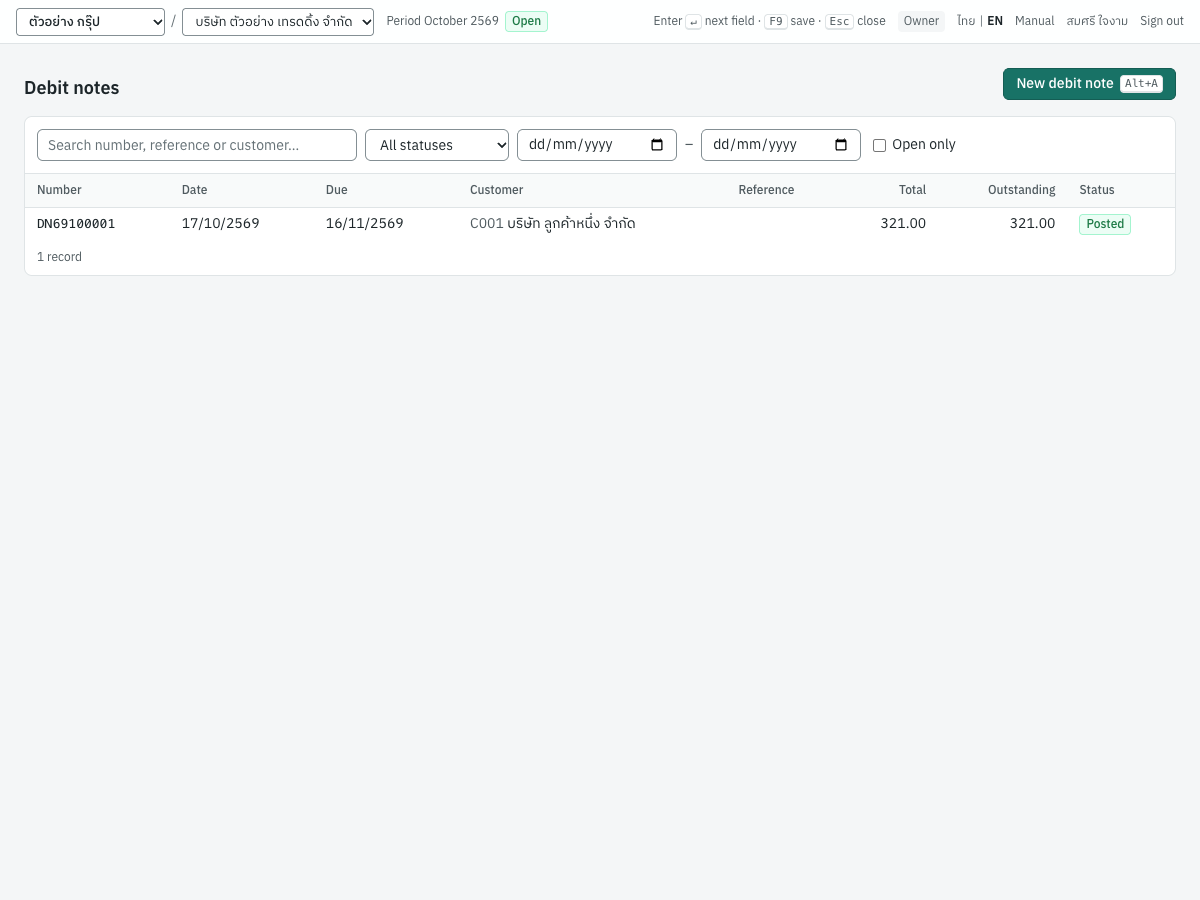
The columns are Number, Date, Due, Customer, Reference, Total, Outstanding and Status. Tick Open only to see unpaid debit notes.
Entering a debit note#
- Open the invoice or cash sale and click Debit note, or open 2 Sales → Debit notes, press
Alt+Aand choose the Original invoice (a posted invoice or cash sale). - The customer is filled from the original and locked. Unlike a credit note, the lines are not copied.
- Enter the new charges as lines, e.g. a free-text line ค่าขนส่งด่วน, quantity 1, price 300.00.
- Leave Due date blank for the date plus the customer's credit days, or enter one.
- Enter the reason in Memo, e.g. ค่าขนส่งเพิ่มเติม.
- Press
F9. The debit note is numberedDN{BB}{MM}{####}, e.g.DN69100001.
The debit note follows the original's VAT basis: its VAT rate, whether it has VAT at all (only Excluding VAT and Including VAT can be swapped), and VAT due on payment if the original had it. On a foreign currency invoice it is in the invoice's currency and rate.
What posting records#
A debit note is posted in the sales book (entry numbers SJ…).
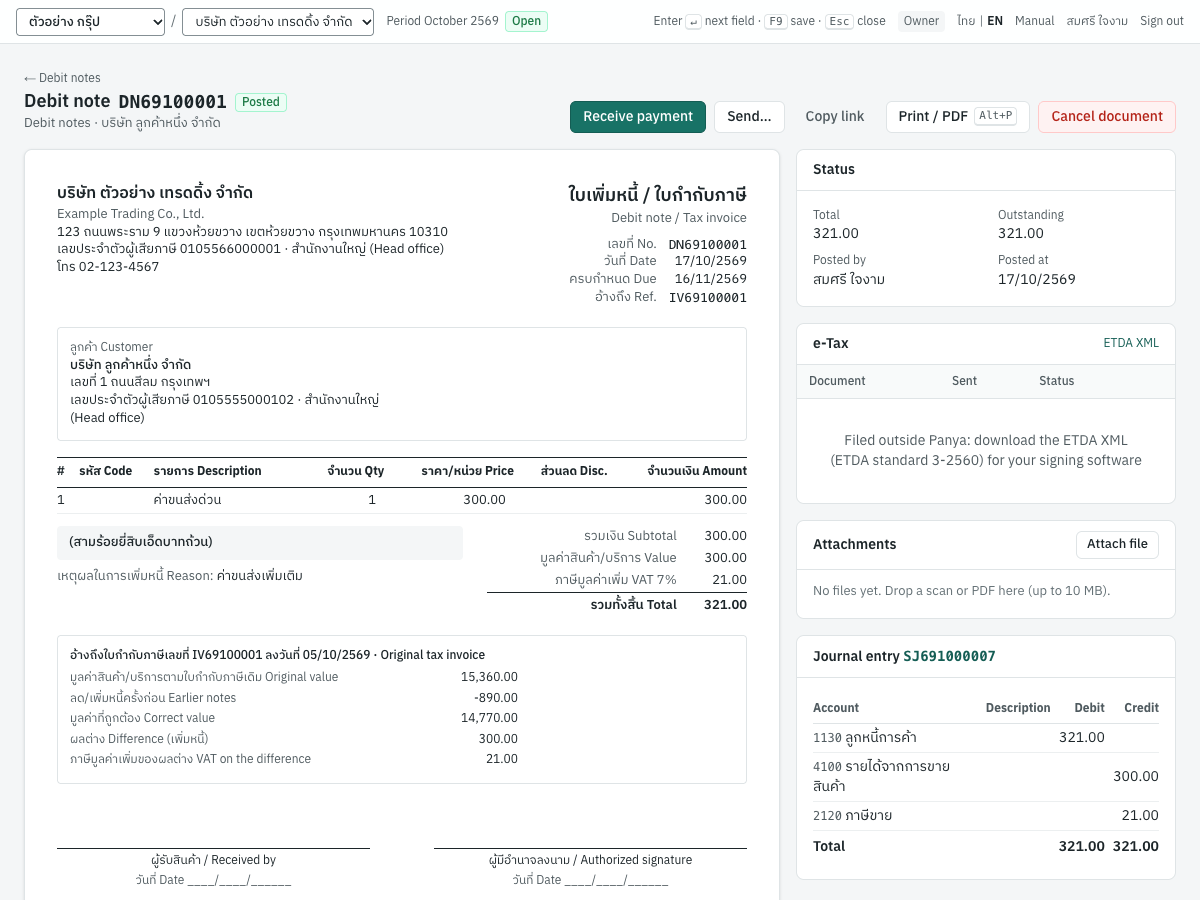
DN69100001 of 17/10/2569 on IV69100001, express delivery 300.00 + VAT 21.00:
| Account | Debit | Credit |
|---|---|---|
1130 ลูกหนี้การค้า | 321.00 | |
4100 รายได้จากการขายสินค้า | 300.00 | |
2120 ภาษีขาย | 21.00 |
- VAT: an output VAT record (base 300.00, VAT 21.00) dated 17/10/2569; with VAT due on payment, undue output VAT and no record until paid.
- Receivable: the debit note is a separate open item with its own due date (16/11/2569). It appears in AR aging, on the statement of account and in billing notes.
- Stock: none.
After posting#
Receive payment opens a receipt with the debit note selected. Send…, Copy link, e-Tax email, Print / PDF and Cancel document work as on an invoice. While a debit note on it is posted, the original invoice cannot be cancelled. Debit notes do not count toward the limit on credit notes.
Sending documents to customers#
You can send customers their documents without leaving Panya. Send… and Copy link appear on posted invoices, cash sales, delivery notes, credit notes and debit notes; on issued quotations and sales orders; on deposits received; on the statement of account; and, in Finance, on receipts and billing notes. Drafts cannot be sent (issue or post the document before sending it).
Sending by email#
Send… emails the customer a link to a read-only copy of the document.
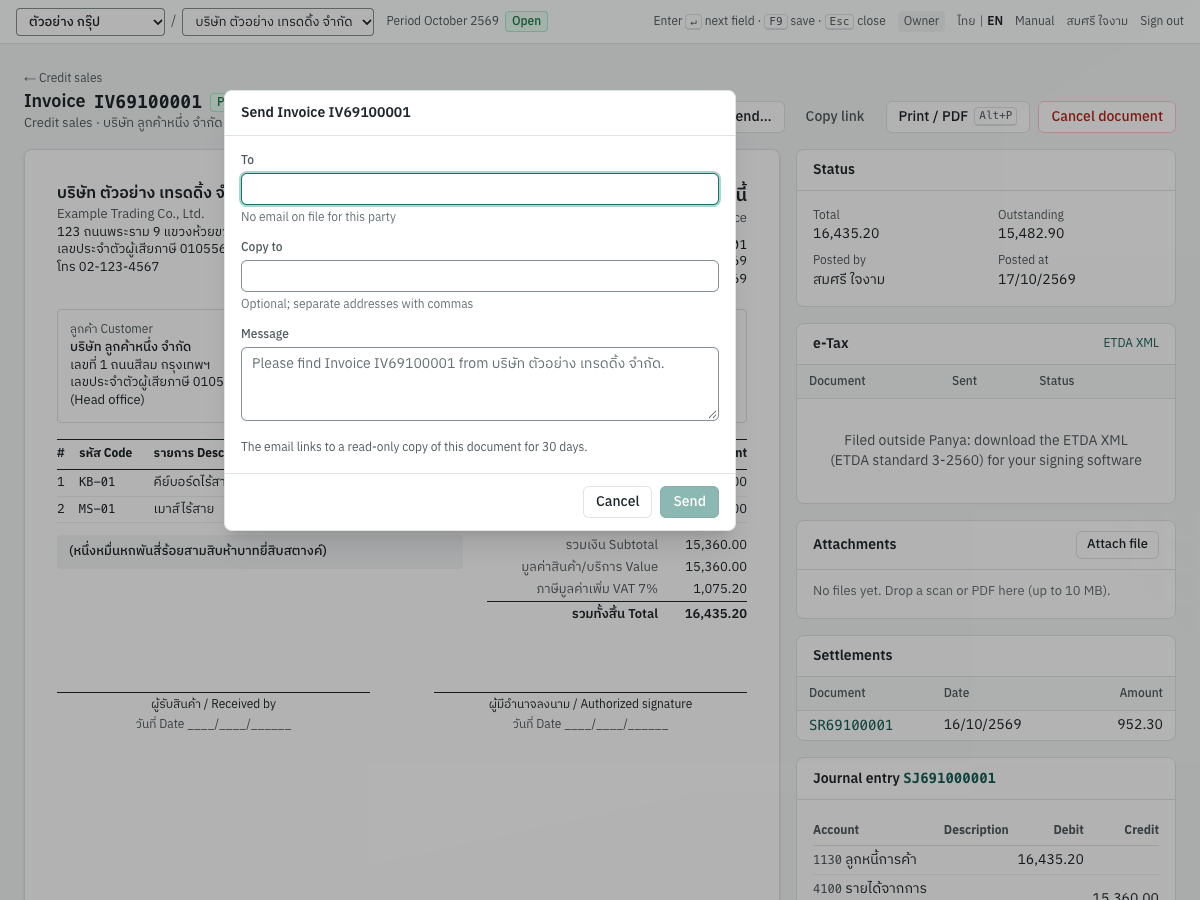
- Open the document and click Send….
- To starts with the customer's email. If the customer has none, the field is empty and the hint reads No email on file for this party: type the address, and add it to the customer for next time.
- Copy to: up to 5 more addresses, separated by commas.
- Message: optional text at the top of the email. If you leave it empty, the email carries only the standard text.
- Click Send. Panya confirms Invoice IV69100001 sent to ….
The email's subject is the document and your company, e.g. Tax invoice IV69100001 from บริษัท ตัวอย่าง เทรดดิ้ง จำกัด. The body, in English and Thai, links to the document; when your Panya service can produce PDF files, it also links to the PDF. The link works for 30 days.
You must have confirmed your own email address before you can send (confirm your email address first: use the link we sent you, or send it again from your account).
Copying a link#
Copy link creates the same 30-day link and copies it, so you can paste it into LINE, a chat or your own email. Panya confirms Link copied: it works for 30 days.
What the customer sees#
The link opens the document's print layout with your company's name, a Print button and, when available, Download PDF. The customer needs no Panya account and sees only that one document. Each link has its own unguessable address. An expired link shows This link has expired or was withdrawn. Please ask the sender for a new one. A statement link always shows the statement as of the date it was sent.
Printing and PDF#
Print / PDF (Alt+P) prints the A4 layout shown on screen. To make a PDF yourself, choose Save as PDF as the printer. Draft documents print with ร่าง · DRAFT (not valid), and cancelled ones with ยกเลิก · CANCELLED.
e-Tax Invoice by Email#
ใบกำกับภาษีอิเล็กทรอนิกส์ทางอีเมล · Turned on in 7 Setup → Company
e-Tax Invoice by Email is the Revenue Department's scheme for VAT-registered businesses with revenue up to 30 million baht a year that are approved for it. Each tax invoice, credit note or debit note is emailed as one PDF/A-3 file from the email address the company registered with the Revenue Department, to the buyer, with a copy to the time-stamp service [email protected]. The service stamps the file, returns it to you and the buyer, and forwards it to the Revenue Department.
Panya prepares everything; you send the email from your registered mailbox, because it must come from that address.
Turning it on#
- Open 7 Setup → Company.
- Tick e-Tax Invoice by Email (shown only for VAT-registered companies) and save. See Setup.
A company uses one e-Tax channel: ticking this unticks e-Tax through a service provider. The button also needs your Panya service to produce PDF/A-3 files; if it cannot, the button does not appear.
Sending a document#
The e-Tax email button appears on:
- posted credit sales and cash sales with VAT (code INV);
- posted credit notes with VAT (CRN);
- posted debit notes with VAT (DBN);
- cancelled credit sales and cash sales with VAT, to report the cancellation (CIV).
- Open the document and click e-Tax email.
- The dialog e-Tax Invoice by Email · IV69100001 lists the three steps and shows the Subject, To (the customer's email, or No email on the customer) and Cc [email protected].
- Click Download IV69100001.pdf (PDF/A-3) to save the file.
- Click Open in email app. Your email program opens with To, Cc and Subject filled in. Make sure it sends from the address registered with the Revenue Department. (Or click Copy beside the subject and paste it into a new email.)
- Attach only the downloaded file (at most 3 MB), send to the buyer only, and keep the Cc.
The stamped file comes back to you and the buyer. You can check it at validation.etax.teda.th. Panya records each preparation in the audit log.
Subject format#
The subject must be exactly [date][code][number], with the document date as day, month and Buddhist-era year (DDMMYYYY). Panya builds it for you:
| Document | Subject |
|---|---|
Invoice IV69100001 of 05/10/2569 | [05102569][INV][IV69100001] |
Credit note SR69100001 of 16/10/2569 | [16102569][CRN][SR69100001] |
Debit note DN69100001 of 17/10/2569 | [17102569][DBN][DN69100001] |
Cancelled invoice IV69100001 | [05102569][CIV][IV69100001], with the invoice's own date |
Deposit receipts (AI) are not sent by e-Tax email.
e-Tax through a service provider#
e-Tax Invoice & e-Receipt ผ่านผู้ให้บริการ · Turned on in 7 Setup → Company
Companies that issue e-Tax Invoice & e-Receipt (for example because they are above the by-email limit) send the Revenue Department XML files in the ETDA format ขมธอ. 3-2560, signed with the company's certificate. Most do it through a certified service provider, which holds the certificate, signs, files and archives the documents. Panya builds the XML; it never holds your certificate.
The e-Tax card and ETDA XML#
In a VAT-registered company, every posted tax document with VAT, and every cancelled tax invoice, shows an e-Tax card, whatever channel you use:
| Panya document | e-Tax document | Type code |
|---|---|---|
| Credit sale with VAT | ใบแจ้งหนี้/ใบกำกับภาษี | T02 |
| Cash sale with VAT | ใบเสร็จรับเงิน/ใบกำกับภาษี | T03 |
| Credit note with VAT | ใบลดหนี้ | 81 |
| Debit note with VAT | ใบเพิ่มหนี้ | 80 |
| Cancelled credit or cash sale with VAT | ใบแจ้งยกเลิก (number IV69100001-T07, dated the cancellation) | T07 |
Click ETDA XML on the card to download the document's unsigned XML. If you file outside Panya, the card reads Filed outside Panya: download the ETDA XML (ETDA standard 3-2560) for your signing software. Receipts have their own e-Tax documents; see Finance. Deposit receipts (AI) have no e-Tax document yet.
Sending and statuses#
When your Panya service is connected to a provider, turn on e-Tax Invoice & e-Receipt through the service provider in 7 Setup → Company (VAT-registered companies only; it unticks e-Tax by email). Then, for each document:
- Open the posted document. The e-Tax card reads Not sent yet.
- Click Send to e-Tax provider (users allowed to post documents). Panya confirms, e.g. IV69100001 sent to the e-Tax provider (pending).
- The card lists the submission: type code and number (e.g. T02 · IV69100001), the date sent, the status and the provider's message, and an XML link to the exact file sent.
- While the status is pending, click Refresh to ask the provider for news.
Posting does not send a document by itself: send each one when it is final.
| Status | Meaning | What to do |
|---|---|---|
| pending | The provider has the document and is processing it | Refresh later |
| accepted | Signed and filed | Nothing |
| rejected | The provider refused it; its message says why | Correct the cause, then send again |
| failed | Panya could not reach the provider; the error is shown | Send again |
A document can have only one pending or accepted submission of each type (IV69100001 is already with the provider (pending)). A cancelled tax invoice sends its T07 cancellation note in the same way.
If no provider is connected to your Panya service, the option in 7 Setup → Company cannot be ticked and says so; you can still download the ETDA XML from each document.