HR · บุคคล
The HR menu (9 HR) keeps your organisation and your people's records: departments and positions, who reports to whom, each employee's personal and contact details, the company's holidays and working hours, leave, attendance and overtime with their approval, and who in your organization may see them. Pay stays in 8 Payroll (see Payroll): nothing in HR shows a salary.
This chapter covers:
- who can see and change HR records, and how to give someone HR access;
- departments within departments, and positions;
- the employee's HR record, and adding an employee from HR;
- the org chart;
- the year's traditional holidays, their announcement and the substitute days off;
- shifts, work schedules and their weekly holidays, and one-day shift changes;
- leave: the leave types of the Labour Protection Act and your own, recording a request, approval by HR or the employee's manager, the employer's pay, cancellation, the leave calendar and the balances;
- attendance: clock entries from a time clock's file or entered by hand, lateness, early leaving and absence, overtime by the kinds the Act pays, and timesheets approved for payroll;
- what Panya does not do yet.
The HR menu#
The menu items appear in this order:
| Menu item | ภาษาไทย | Use it to |
|---|---|---|
| Employees | ทะเบียนพนักงาน | Keep each employee's HR record: personal details, employment dates, department, position, manager, contact details. |
| Leave requests | ใบลา | Record leave for an employee, approve or reject it, cancel it. |
| Leave calendar | ปฏิทินการลา | See who is on leave each day of a month. |
| Leave balances | สิทธิการลาคงเหลือ | See each employee's days left and taken in a year; adjust a balance. |
| Attendance | การมาทำงาน | See each employee's days of a period: on time, late, left early, absent, on leave, overtime. |
| Clock entries | บันทึกเวลาเข้าออก | Import the time clock's file, or enter a clocking by hand. |
| Overtime | การทำงานล่วงเวลา | Record overtime and holiday work with the employee's consent; approve it. |
| Timesheets | สรุปเวลาทำงาน | Build each pay period's timesheets and approve them for payroll. |
| Approvals | รออนุมัติ | Decide the leave and overtime waiting for you: everyone's for HR, their team's for a manager. |
| Org chart | ผังองค์กร | See who reports to whom, or the people of each department. |
| Departments & positions | แผนกและตำแหน่ง | Set up the departments (a department may be part of another) and the positions. |
| Company holidays | วันหยุดประจำปี | Choose and announce the year's traditional holidays; see the substitute days off. |
| Work schedules | ตารางเวลาทำงาน | Set up the shifts and the weekly schedules, and change a shift for one day. |
| Leave types | ประเภทการลา | Set your rules for the statutory leave and add your own types. |
| HR settings | ตั้งค่างานบุคคล | Choose the company's default work schedule and the minutes of grace for lateness, and whether employees clock in from self-service; see who has HR access, and give or remove it. |
Who can do what#
Employees' records are personal data. HR has five permissions of its own, apart from the accounting ones and from View payroll:
| Permission | ภาษาไทย | Allows |
|---|---|---|
| View HR | ดูข้อมูลงานบุคคล | Everyone's HR records: organisation, contact details, holidays, schedules, leave, attendance and overtime. Never the salaries. |
| Manage HR | จัดการงานบุคคล | Departments, positions and reporting lines, the HR records, company holidays, work schedules, leave types and balances. |
| Approve leave | อนุมัติการลา | Approving, rejecting and cancelling anyone's leave. |
| Record time | บันทึกเวลาทำงาน | Clock entries, leave and overtime requests on an employee's behalf, timesheets. |
| Approve time | อนุมัติเวลาทำงาน | Approving timesheets and overtime. |
Each role has some of them by itself:
| Action | Owner, Admin | Accountant | Staff, Read-only |
|---|---|---|---|
| See the HR records and the org chart | Yes | Yes | No |
| Add employees and change their HR records, departments and positions | Yes | No | No |
| Choose and announce holidays; set up shifts and work schedules | Yes | No | No |
| Change a shift for one day | Yes | Yes | No |
| Record leave on an employee's behalf | Yes | Yes | No |
| Approve, reject and cancel leave; change leave types and balances | Yes | No | No |
| Enter and import clock entries; record overtime; build timesheets | Yes | Yes | No |
| Approve overtime and timesheets | Yes | No | No |
| Give HR access | Yes | No | No |
Accountants see the HR records because payroll needs them. Staff and read-only users see nobody's personal data: for them 9 HR is not in the menu, an HR page opened from a link says You do not have access to HR., and the API refuses every HR request. Panya support sessions do not see HR either.
HR access#
To let a member run HR without seeing the books or the salaries, give them HR access for the company. It adds HR permissions only:
| HR access | ภาษาไทย | Adds |
|---|---|---|
| HR officer | เจ้าหน้าที่บุคคล | View HR, Record time, and the recruiting (see Recruiting) |
| HR manager | ผู้จัดการฝ่ายบุคคล | All five HR permissions, the recruiting and the performance reviews (see Performance reviews) |
An HR manager who is staff can add employees and change their HR records, but still does not see payroll: 8 Payroll stays out of their menu.
To give HR access:
- Make sure the person is a member with access to this company (7 Setup → Users & roles, managed in the organization's settings; see Organization administration).
- Open 9 HR → HR settings.
- In the person's row, choose HR officer or HR manager under HR access. The change is saved at once and the Can column shows what they may now do. Choose — None — to take it away.
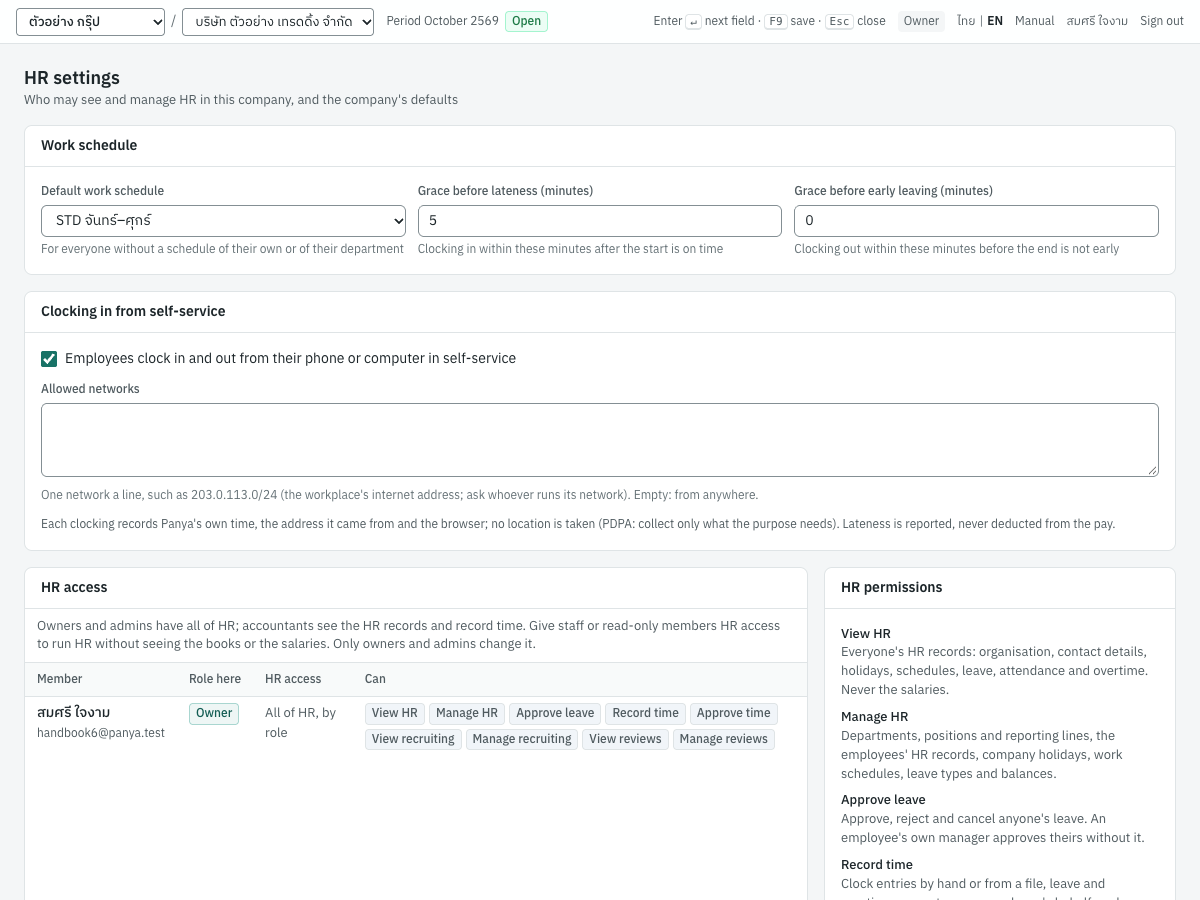
Only owners and admins of the organization change HR access. Owners and admins have all of HR by their role, so their rows say All of HR, by role.
The HR record of an employee can name the Panya member who is that employee. When that person is someone's manager, they approve that person's leave and overtime without the approval permissions, for as long as they are employed themselves. Nobody approves their own: Panya refuses a request of an employee whose HR record names the approver, or ever has, so taking oneself off one's record changes nothing (and only an owner or admin may). Panya knows an approver is the employee only through this link: keep every member who is an employee linked to their record.
Departments and positions#
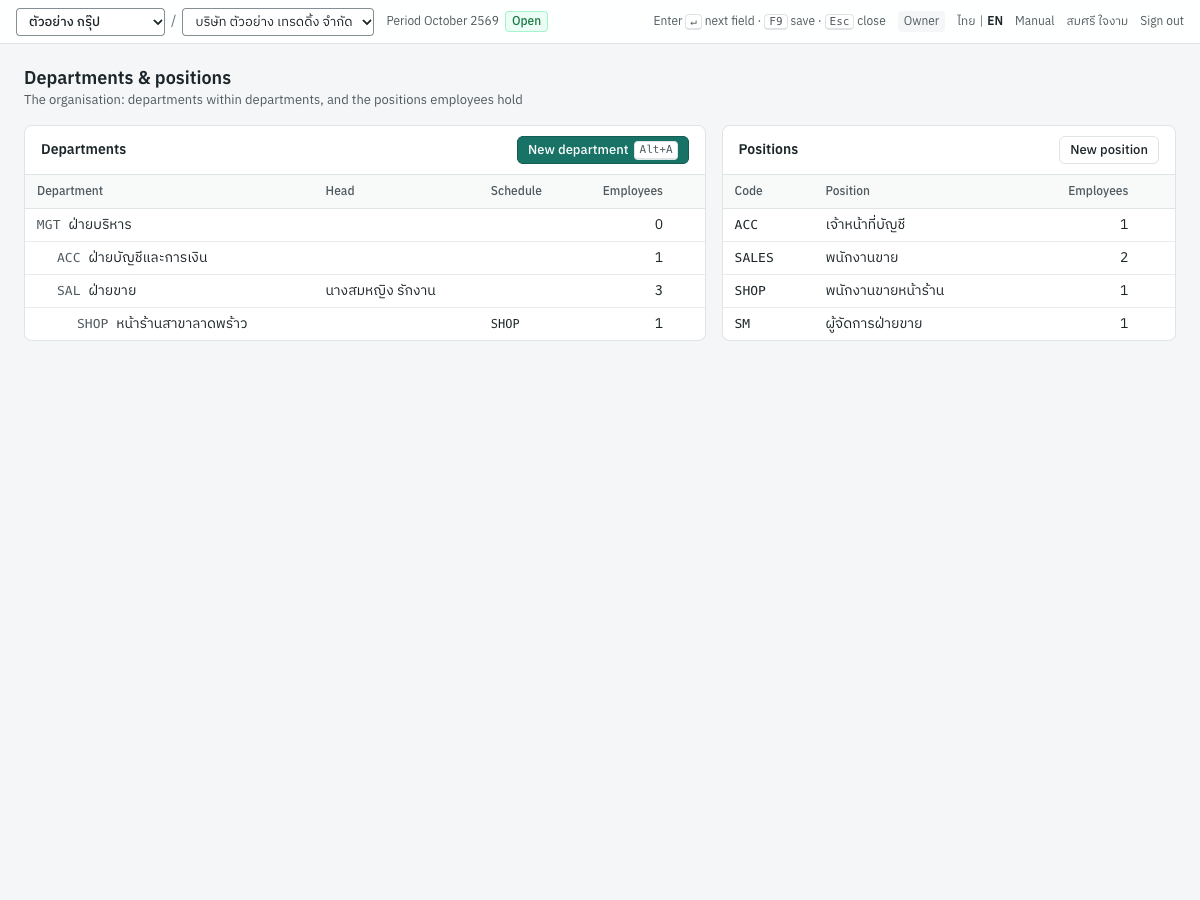
Open 9 HR → Departments & positions. Departments are on the left, positions on the right.
Departments#
A department may be part of another one, as deep as you need: a company, its divisions, their sections. The list shows them as a tree, each under the department it is part of, with its head and the number of active employees in the department itself.
To add one, click New department (Alt+A) and fill in:
| Field | ภาษาไทย | What it is |
|---|---|---|
| Code | รหัส | A short code, unique in the company, such as SAL. |
| Name | ชื่อแผนก | The name, as you write it in Thai. |
| Name in English | ชื่อภาษาอังกฤษ | Optional. |
| Part of | อยู่ภายใต้ | The department it belongs to; leave — Top level — for a department at the top. The list leaves out the department itself and its own sub-departments: a department cannot be inside itself. |
| Head of the department | หัวหน้าแผนก | An employee, shown on the org chart. |
| Active | ใช้งาน | Clear it for a department no longer used; it stays on the old records. |
Click a department to change it. Delete removes only an empty department: one with sub-departments or employees says so (the department has sub-departments: move or delete them first); move them first, or clear Active instead.
Positions#
Positions are the job titles your employees hold, such as Sales manager or Accounting officer: a code, a name, an English name and Active. Click New position to add one, or a position to change it. A position someone holds cannot be deleted.
Employees' HR records#
Open 9 HR → Employees. The list shows the active employees with their department, position, manager, start date and length of service; On probation marks those whose probation has not ended, and Member those linked to a Panya member. Search by code, name or nickname, and filter by department.
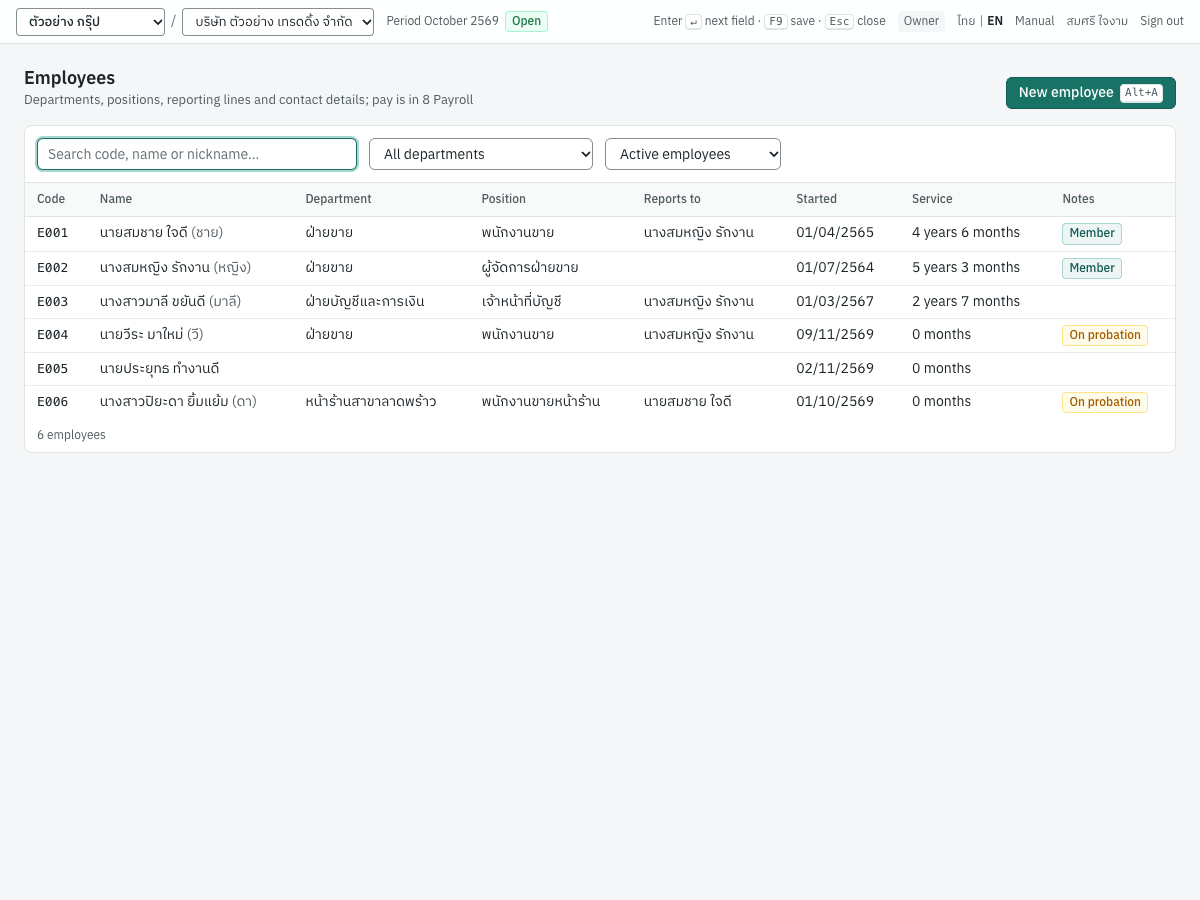
The employees are the same as in 8 Payroll → Employees: HR and payroll are two views of one record. HR keeps the personal and organisation details; payroll keeps the pay, social security, tax and allowances. The fields both show (code, name, ID number, address and the employment dates) can be changed in either.
The fields#
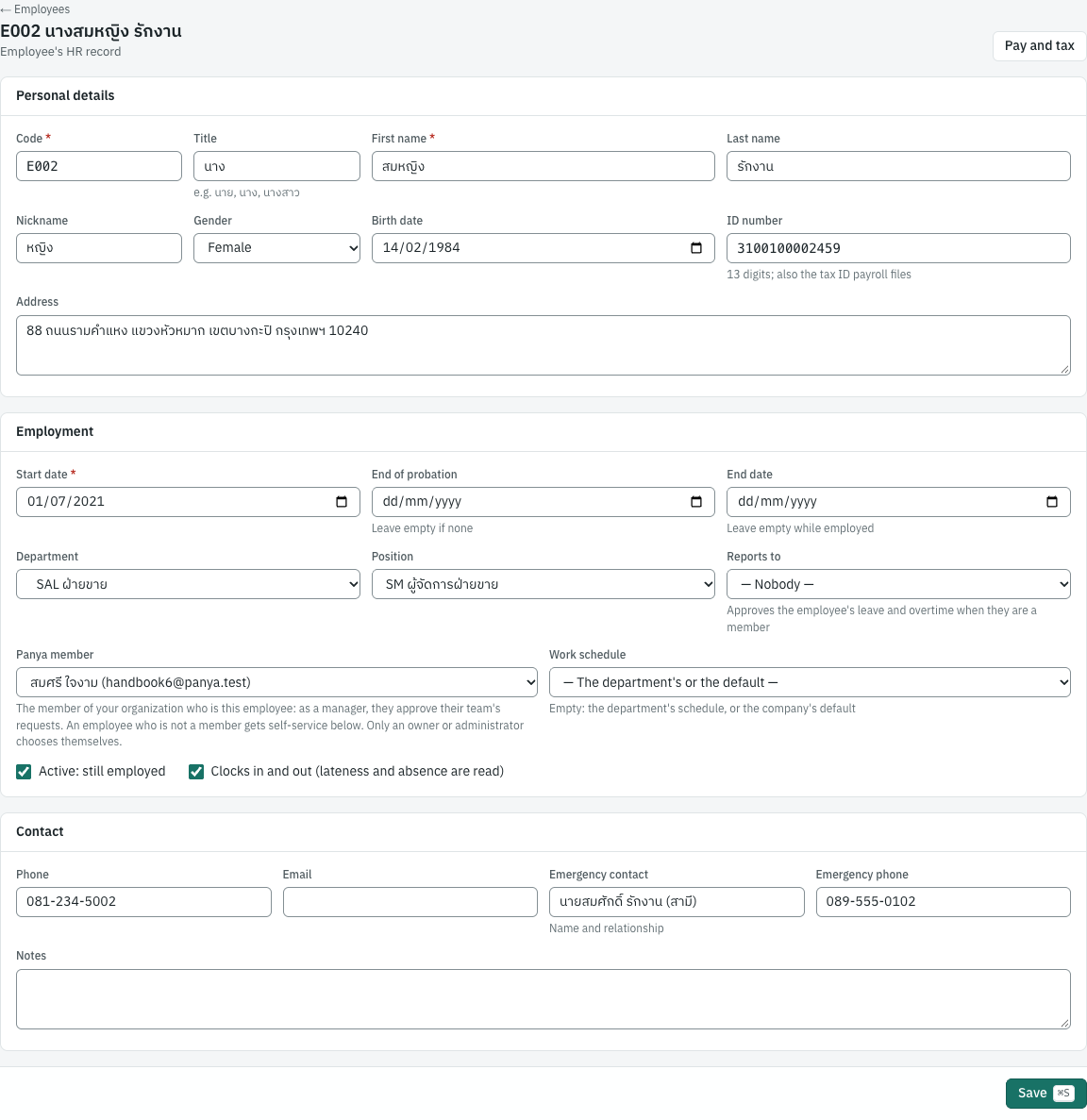
| Field | ภาษาไทย | What it is |
|---|---|---|
| Code, Title, First name, Last name | รหัสพนักงาน คำนำหน้าชื่อ ชื่อ นามสกุล | As in payroll. |
| Nickname | ชื่อเล่น | Shown with the name in the lists and the org chart. |
| Gender | เพศ | Optional. |
| Birth date | วันเกิด | Optional. The employee must be at least 15 on the start date: the Labour Protection Act (s.44) does not allow employing anyone younger, and Panya refuses the record. An employee under 18 is marked: no overtime, no work on holidays and no work from 22:00 to 06:00 (s.47, s.48). |
| ID number | เลขประจำตัวประชาชน | The 13-digit national ID, also the tax ID payroll files. |
| Address | ที่อยู่ | |
| Start date, End of probation, End date | วันที่เริ่มงาน วันสิ้นสุดการทดลองงาน วันที่พ้นสภาพ | The end of probation may not be before the start. |
| Department, Position | แผนก ตำแหน่ง | From Departments & positions. |
| Reports to | หัวหน้า (ผู้บังคับบัญชา) | The employee's manager: another employee. Nobody can report to themselves or to someone who reports to them, however indirectly. |
| Panya member | ผู้ใช้งานในระบบ | The member of your organization who is this employee. As a manager, they approve their team's leave, overtime and timesheets. One member is one employee at most. An employee with self-service shows their self-service user here (see Employee self-service). Choosing or changing it needs payroll access as well as Manage HR, since self-service opens the employee's pay to this user; only an owner or admin chooses themselves or takes themselves off; the owners are emailed when it changes. |
| Work schedule | ตารางเวลาทำงาน | The employee's own schedule; empty: their department's or the company's default (see Who works to which schedule). |
| Active | ใช้งาน | Clear it when the employee leaves (with the end date). |
| Clocks in and out | ลงเวลาเข้าออกงาน | Ticked: attendance reads the employee's clock entries for lateness and absence. Clear it for someone who does not clock (a manager, say): they count as present unless on leave. |
| Phone, Email, Emergency contact, Emergency phone, Notes | โทรศัพท์ อีเมล ผู้ติดต่อกรณีฉุกเฉิน โทรศัพท์กรณีฉุกเฉิน หมายเหตุ | Contact details. |
Owners, admins and accountants also see Pay and tax at the top of the record: it opens the employee in 8 Payroll.
The Labour Protection Act asks an employer of 10 or more employees to keep an employee register with each employee's name, sex, nationality, birth date, address, start date, position, wage and end date (s.112, s.113). The HR record holds all of them but the wage, which is in payroll.
Adding an employee#
- Open 9 HR → Employees and click New employee (
Alt+A). - Fill in the code, the name and the start date, then the rest you know.
- Click Save (
⌘SorF9).
A new employee starts with no pay: an owner, admin or accountant sets the salary, social security and tax in 8 Payroll → Employees before the next payroll run. Until then the employee appears in a payroll run with a salary of 0.
Self-service#
The Self-service card at the bottom of an HR record gives the employee an account of their own: they see their payslips, 50 ทวิ, leave and working time, ask for leave and overtime and clock in from their phone. Invite them by email, or link a member who is the employee; revoke it with a reason. See Employee self-service.
Org chart#
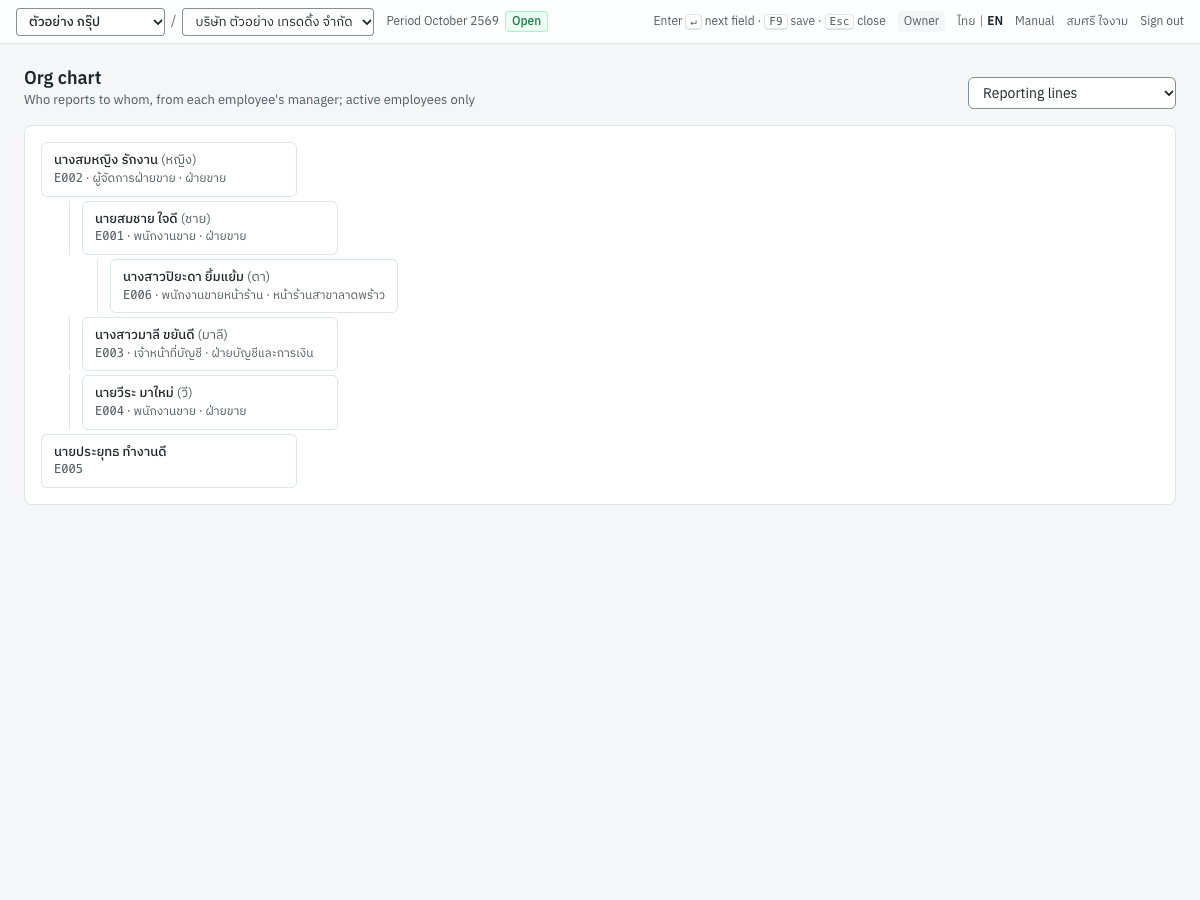
Open 9 HR → Org chart. Reporting lines shows each manager with the people who report to them indented below; someone with no manager, or whose manager has left, is at the top. By department shows each active department, its head and its people. Click a person to open their HR record. Only active employees are shown.
Company holidays#
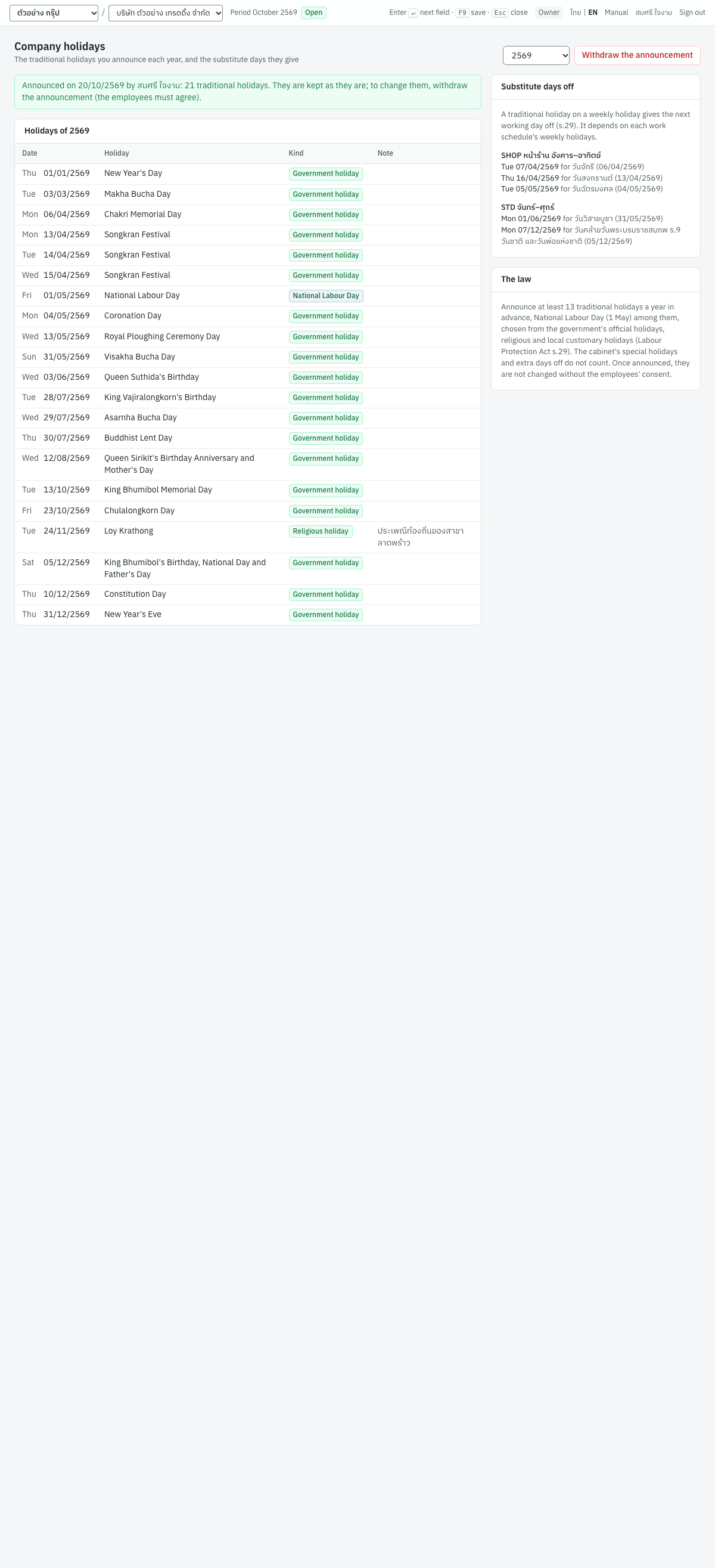
Open 9 HR → Company holidays. The Labour Protection Act (s.29) asks you to announce each year, in advance, at least 13 traditional holidays, National Labour Day (1 May) among them, chosen from the government's official holidays, religious holidays and local customary holidays. A traditional holiday that falls on an employee's weekly holiday gives them the next working day off instead.
Filling and announcing a year#
- Choose the year at the top.
- Click Fill from the government's holidays. Panya adds the government's official holidays of that year and National Labour Day. It leaves out the cabinet's special holidays (such as a day added to a long weekend): they bind government offices only and do not count toward the 13. Government holidays not chosen lists those you removed.
- Remove the days you do not give, and click Add holiday for a religious or local holiday you give instead, such as Loy Krathong. Each holiday has a kind:
| Kind | ภาษาไทย | Counts toward the 13 | Substitute day |
|---|---|---|---|
| Government holiday | วันหยุดราชการ | Yes | Yes |
| National Labour Day | วันแรงงานแห่งชาติ | Yes (1 May only) | Yes |
| Religious holiday | วันสำคัญทางศาสนา | Yes | Yes |
| Local custom | ประเพณีท้องถิ่น | Yes | Yes |
| Extra day off | วันหยุดเพิ่มของบริษัท | No | No |
- The box at the top says what is still missing (at least 13 traditional holidays a year … 12 chosen, or National Labour Day). When it says ready to announce, click Announce.
An announced year's holidays are part of the employment terms: the Department of Labour Protection and Welfare's view is that they cannot be changed without the employees' consent. Panya keeps them as they are. To change them, click Withdraw the announcement and say how the employees agreed; the reason is kept in the audit log.
Substitute days off#
The Substitute days off card lists, for each work schedule, the days its people get off because a traditional holiday fell on their weekly holiday: for a Monday-to-Friday schedule, Visakha Bucha on Sunday 31 May 2569 gives Monday 1 June. A Monday-to-Saturday schedule gets no substitute for a Saturday holiday, which is one of its working days. The substitute day is the next day that is a working day of the schedule and not another holiday; it cannot be moved to another day. An extra day off gets no substitute.
Work schedules#
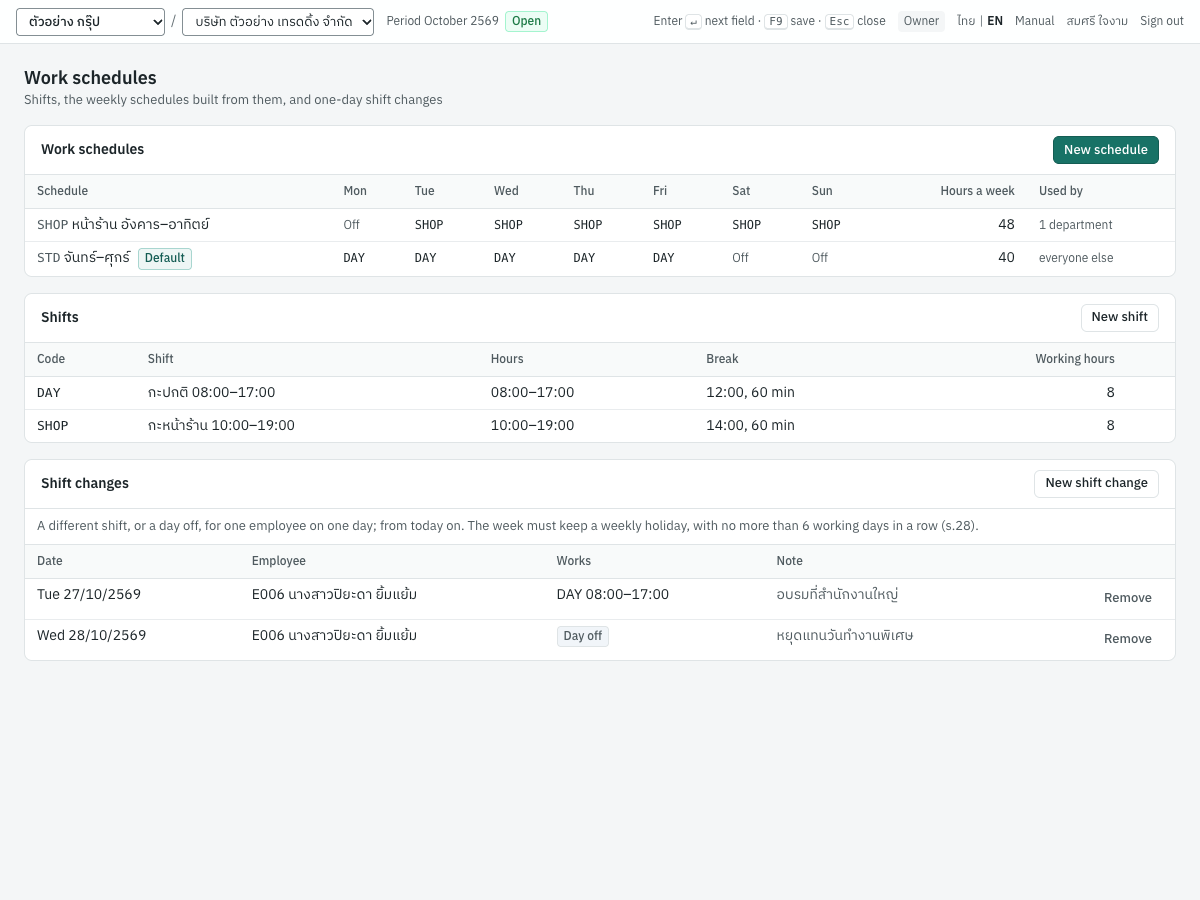
Open 9 HR → Work schedules. A shift is a day's working hours with its break; a work schedule gives each day of the week a shift, the days without one being the weekly holidays. Each company starts with the shift DAY (08:00–17:00, break 12:00 for 60 minutes) and the schedule STD, Monday to Friday.
Shifts#
Click New shift and fill in the code, the name, when it Starts and Ends (an end before the start runs past midnight: a night shift 22:00–06:00), and its break: when it starts and how many minutes. The working hours are the shift less its break. Panya refuses a shift with more than 9 working hours, or a break outside the shift.
Schedules#
Click New schedule, give it a code and a name, and choose each day's shift, or — Weekly holiday —. The Labour Protection Act's limits:
| Rule | Section | Panya |
|---|---|---|
| At least one weekly holiday a week, at most 6 days apart | s.28 | A schedule without a weekly holiday is refused. |
| Normal working time at most 8 hours a day, or 9 when the employees agree to move a shorter day's hours; at most 48 hours a week | s.23 | More than 9 hours a day or 48 a week is refused; a day of more than 8 hours is warned about. |
| Hazardous work: at most 7 hours a day and 42 a week, and no overtime or holiday work | s.23, s.31 | Tick Hazardous work: more is refused. |
| At least an hour's rest after at most 5 hours of work | s.27 | Warned about (the rest may be split by agreement, and continuous work is excepted). |
The warnings show under the list of schedules. Changing a shift that a schedule uses is refused if the schedule would break the limits.
Who works to which schedule#
An employee works to their own schedule (Work schedule on their HR record), or else to their department's (Work schedule in the department; a sub-department without one takes the department above it), or else to the company's default, chosen in 9 HR → HR settings. The default, a department's or an employee's schedule cannot be deleted; deactivate it instead.
Shift changes#
For one day, an employee may work another shift or have a day off: click New shift change, choose the employee, the date and the shift (or — Day off —). You need Record time (owners, admins, accountants, HR officers and managers). The change must keep the week's weekly holiday and no more than 6 working days in a row: in a six-day week, moving the day off to another day of the same week makes 7 in a row, which the law does not allow even with the employee's consent, so Panya refuses it (the change makes more than 6 working days in a row). An extra day off is always possible. The list shows the changes from today on; Remove undoes one.
Leave#
Open 9 HR → Leave requests. Panya records the leave your employees take, counts its days on their work schedule, works out which days the employer pays, and keeps each year's balance. Employees cannot yet ask for leave themselves: HR (or an accountant) records the request, and HR or the employee's manager approves it.
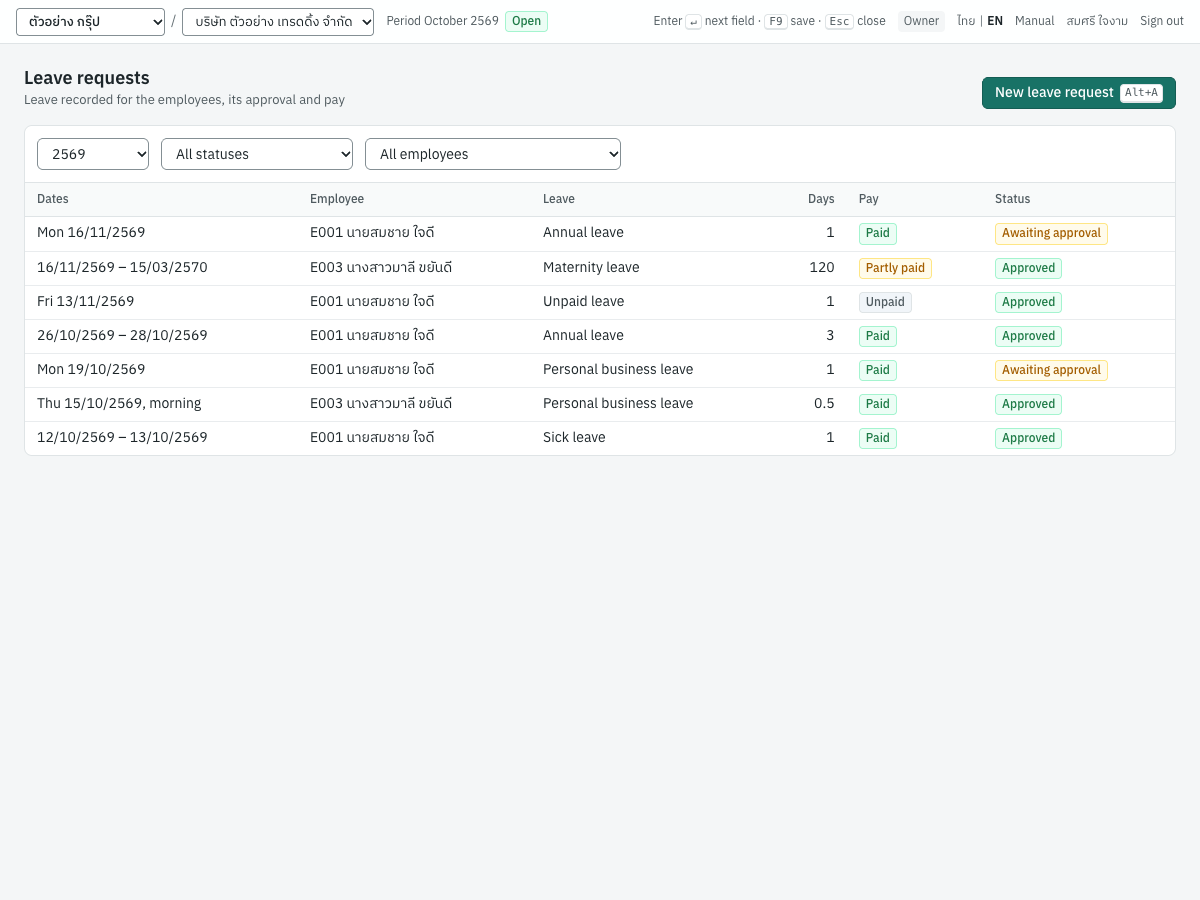
The list shows the year's requests, newest first, with their days, their pay and their status; filter it by status and employee.
Leave types#
9 HR → Leave types lists the leave of the Labour Protection Act, set to what the Act gives, and your company's own types. A statutory type always stays available; you may give more than the Act, never less: Panya refuses fewer days or less pay (this leave gives fewer days than the Labour Protection Act (s.30)).
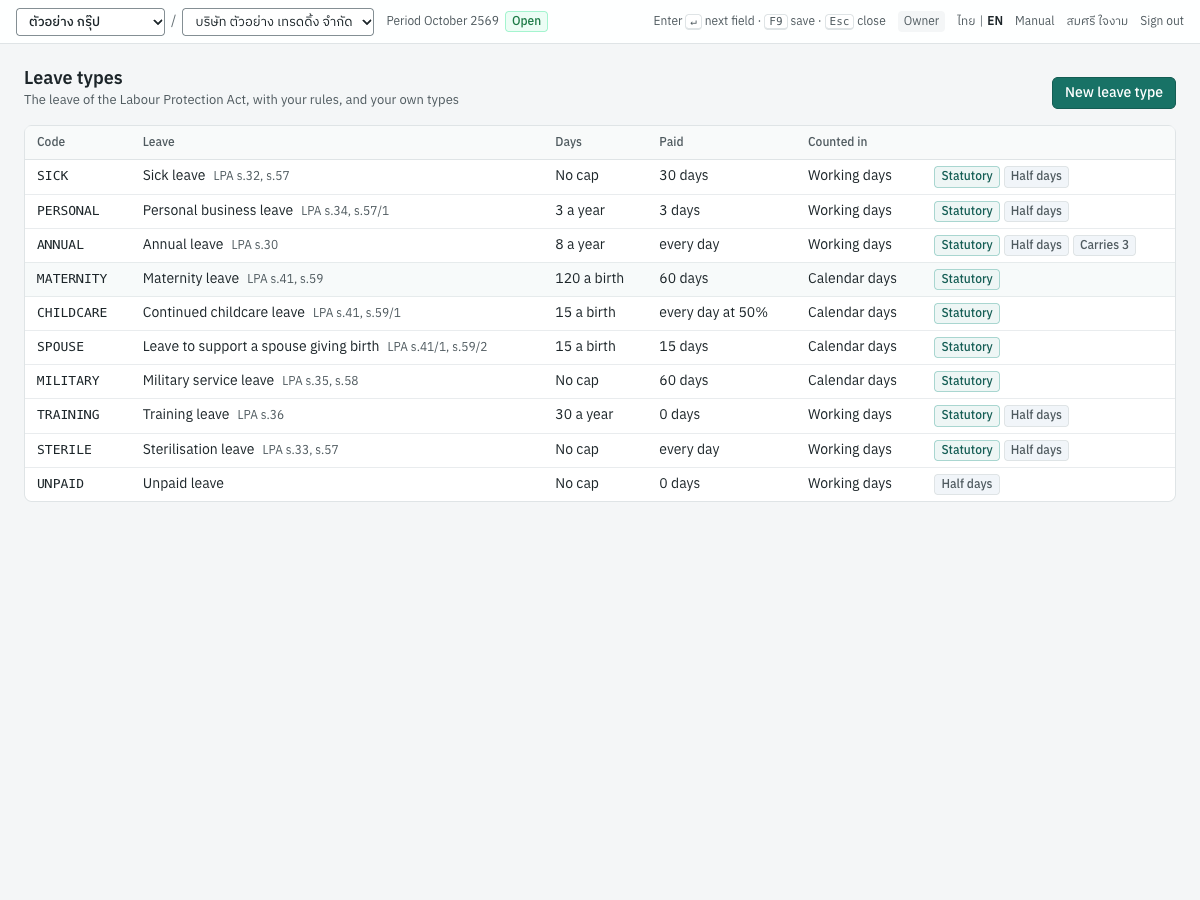
| Leave | ภาษาไทย | The Act gives at least | Counted in | The employer pays |
|---|---|---|---|---|
| Sick leave | ลาป่วย | As long as the employee is sick (s.32); a medical certificate may be asked for from 3 working days | Working days | 30 working days a year (s.57) |
| Personal business leave | ลากิจธุระอันจำเป็น | 3 working days a year (s.34) | Working days | 3 working days a year (s.57/1) |
| Annual leave | วันหยุดพักผ่อนประจำปี | 6 working days a year after a year of service (s.30) | Working days | Every day (s.56) |
| Maternity leave | ลาคลอดบุตร | 120 days a pregnancy, prenatal check-ups included (s.41) | Calendar days, holidays included | 60 days (s.59) |
| Continued childcare leave | ลาต่อเนื่องเพื่อเลี้ยงดูบุตร | 15 days after the mother's maternity leave, when the child has an illness at risk of complications, an abnormality or a disability, with a doctor's certificate (s.41) | Calendar days | Every day at 50% of the wage (s.59/1) |
| Supporting a spouse giving birth | ลาช่วยเหลือคู่สมรสคลอดบุตร | 15 days per birth, within 90 days of it (s.41/1) | Calendar days | 15 days (s.59/2) |
| Military service leave | ลาเพื่อรับราชการทหาร | As the call-up needs (s.35) | Calendar days | 60 days a year (s.58) |
| Training leave | ลาเพื่อฝึกอบรม | 30 days or 3 times a year; asked for 7 days ahead (s.36, Ministerial Regulation No. 5) | Working days | Nothing by law |
| Sterilisation leave | ลาเพื่อทำหมัน | As the doctor certifies (s.33) | Working days | Every day (s.57) |
Maternity leave became 120 days, 60 paid, and the childcare and spouse leave were added by the Labour Protection Act (No. 9) B.E. 2568, in force from 7 December 2568. Days counted in working days use up only the employee's working days: a weekly holiday or a traditional holiday inside the leave counts nothing (and is paid as a holiday). The quotas are per calendar year; maternity, childcare and spouse leave are per birth.
Each company also has Unpaid leave, a type of its own (no pay, no cap). Click New leave type for others, such as a birthday off. A type's fields:
| Field | ภาษาไทย | What it is |
|---|---|---|
| Days a year (a birth) | วันลาต่อปี (ต่อการคลอด) | The most days; empty: no cap. |
| Paid days | วันที่ได้ค่าจ้าง | The days the employer pays a year (a birth); empty: every day; 0: unpaid. |
| Pay rate % | อัตราค่าจ้าง (%) | The share of the wage paid on a paid day. |
| Counted in | นับวัน | Working days or calendar days (your own types). |
| Months of service first | ต้องทำงานมาแล้ว (เดือน) | Annual leave: 12. |
| Carried into next year, at most | ยกไปปีถัดไปได้ไม่เกิน | Annual leave's unused days, when agreed in advance (s.30). |
| A share before the service is complete | ให้สิทธิตามส่วน | Annual leave in the first year, by the months worked (the employer's choice, s.30). |
| Half days, by the hour | ลาครึ่งวัน ลาเป็นรายชั่วโมง | Whether requests may take part of a day. The Act says nothing: it is your rule. |
Recording a request#
- Click New leave request (
Alt+A). - Choose the Employee and the Leave; the hint under it says what the Act gives.
- For whole days, enter From and To; for a half day or hours (when the type allows them), choose How much and the date (and the times).
- For maternity, childcare or spouse leave, enter the Date of the birth (the expected date before it): the requests of one birth share its days.
- Add the Reason, tick A medical certificate was handed in for sick leave if you have it, and, if you approve leave yourself, Approve it now.
- Click Save.
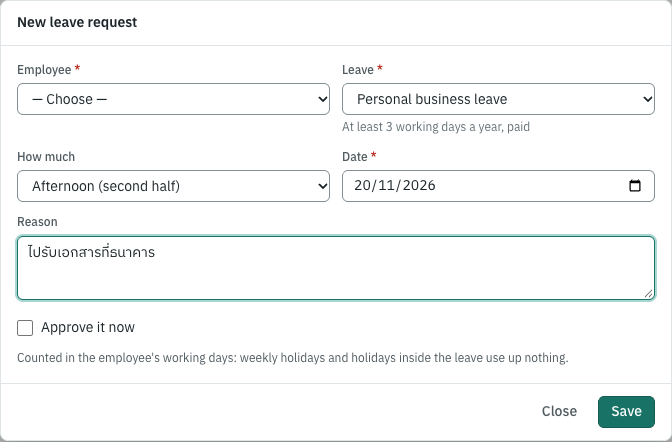
Panya checks the request: the dates within the employment, at least one working day (the leave falls on no working day of the employee), no more than a day of leave on any date (E001 already has leave on …), the type's days left (PERSONAL has 1 left in 2026 and the leave takes 2), annual leave only after the service needed (ANNUAL comes after 12 months of service (s.30): from …), spouse leave within 90 days of the birth, and childcare leave only after the employee's own maternity leave for that birth. It reminds you when the employer may ask for a medical certificate (sick leave of 3 working days or more) and when training leave was asked for less than 7 days ahead.
Approving, rejecting and cancelling#
Click a request to open it. It shows its days one by one, with the share the employer pays.
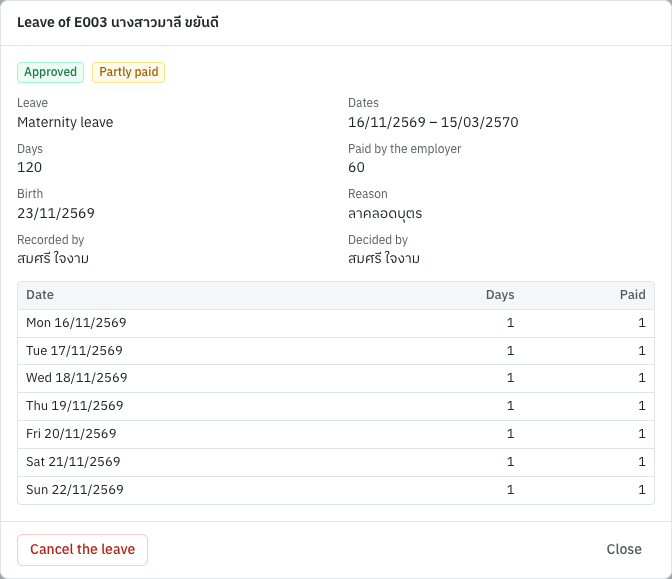
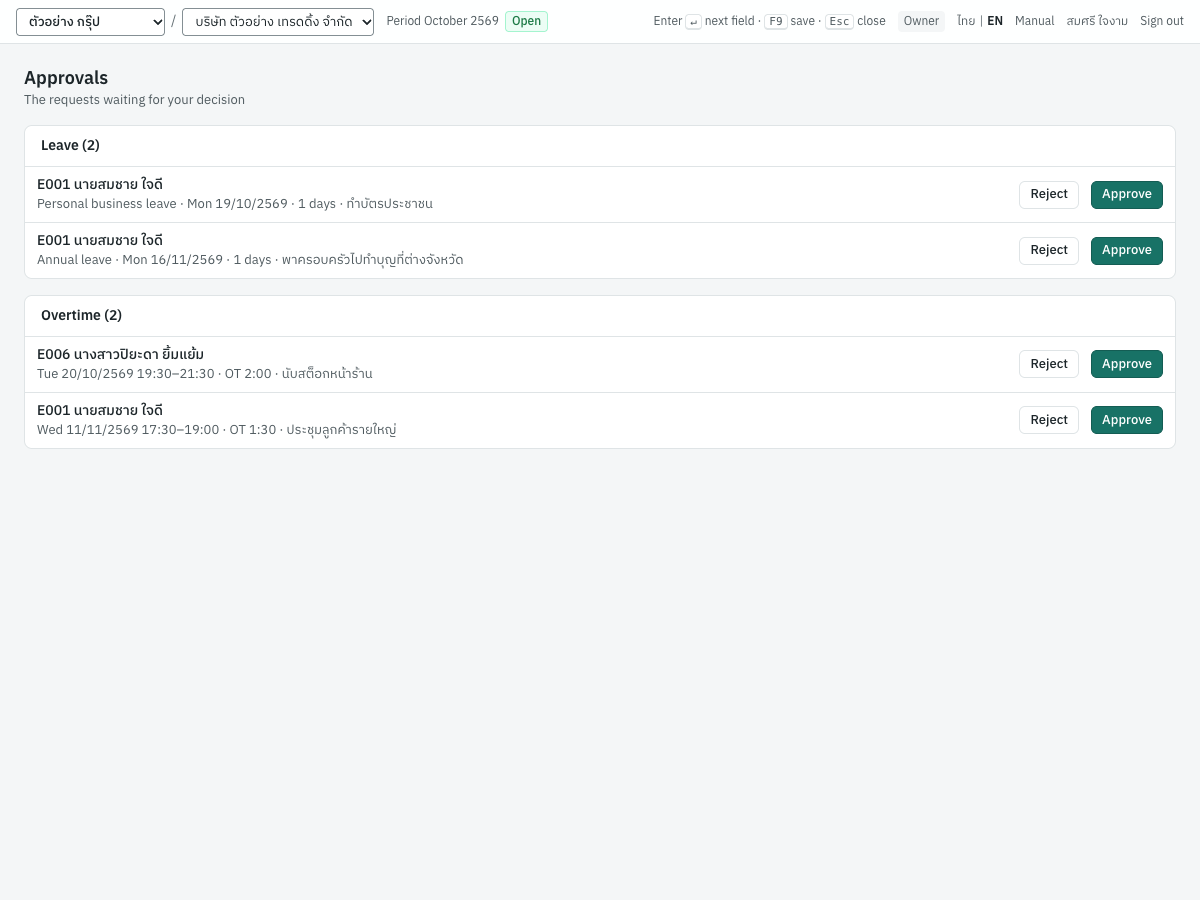
- Approve or Reject a pending request (with a note if you wish). Owners, admins and HR managers decide everyone's leave; an employee's manager decides theirs when the manager's HR record names their Panya member and the manager is still employed (after their end date, or once their record is inactive, the requests go to HR). Nobody decides their own, even after their HR record stops naming them.
- Cancel the leave cancels a pending or approved request, with a reason. Its days go back to the balance.
9 HR → Approvals lists the leave waiting for you. A manager without HR access sees only this page in 9 HR, with their team's requests, and approves or rejects them there.
Pay: paid, unpaid or partly paid#
Each leave day records the share the employer pays and at what rate. Over a type's quota (a year, or a birth), the approved leave is paid in date order until the paid days are used up; the rest is unpaid. A request is Paid, Unpaid or Partly paid accordingly: a maternity leave of 120 days is partly paid (60 days), a childcare leave is partly paid (every day at 50%). When a request is cancelled or rejected, the later requests are worked out again: a day that was unpaid may become paid.
The social security office's maternity benefit (a lump sum of 50% of the average wage for 90 days, paid by the SSO to an insured employee) is not part of the employer's pay: the days after the 60th are unpaid by the employer.
Payroll reads the approved leave and its pay: the days not paid come off the salary in the next payroll run (see Payroll → Leave, absence and overtime from HR).
The leave calendar#
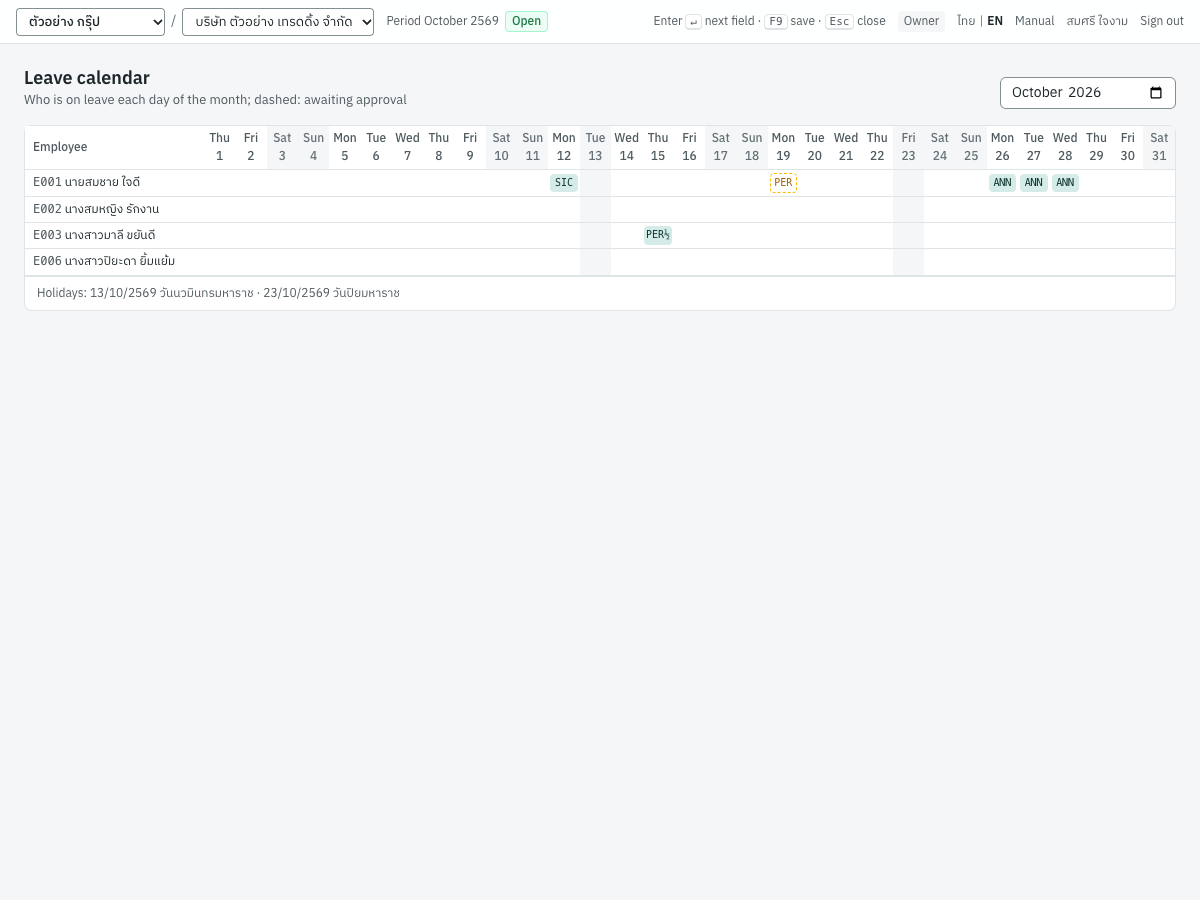
9 HR → Leave calendar shows a month: a row for each employee, a column for each day, the leave code on each leave day (dashed: awaiting approval), weekends and holidays shaded. Click a day of leave to open its request.
Balances#
9 HR → Leave balances shows each employee's year: for a type with a cap, the days left over the year's days (entitled, carried over and adjusted), with the days awaiting approval in brackets; for the others, the days taken. Hover a figure for its parts.
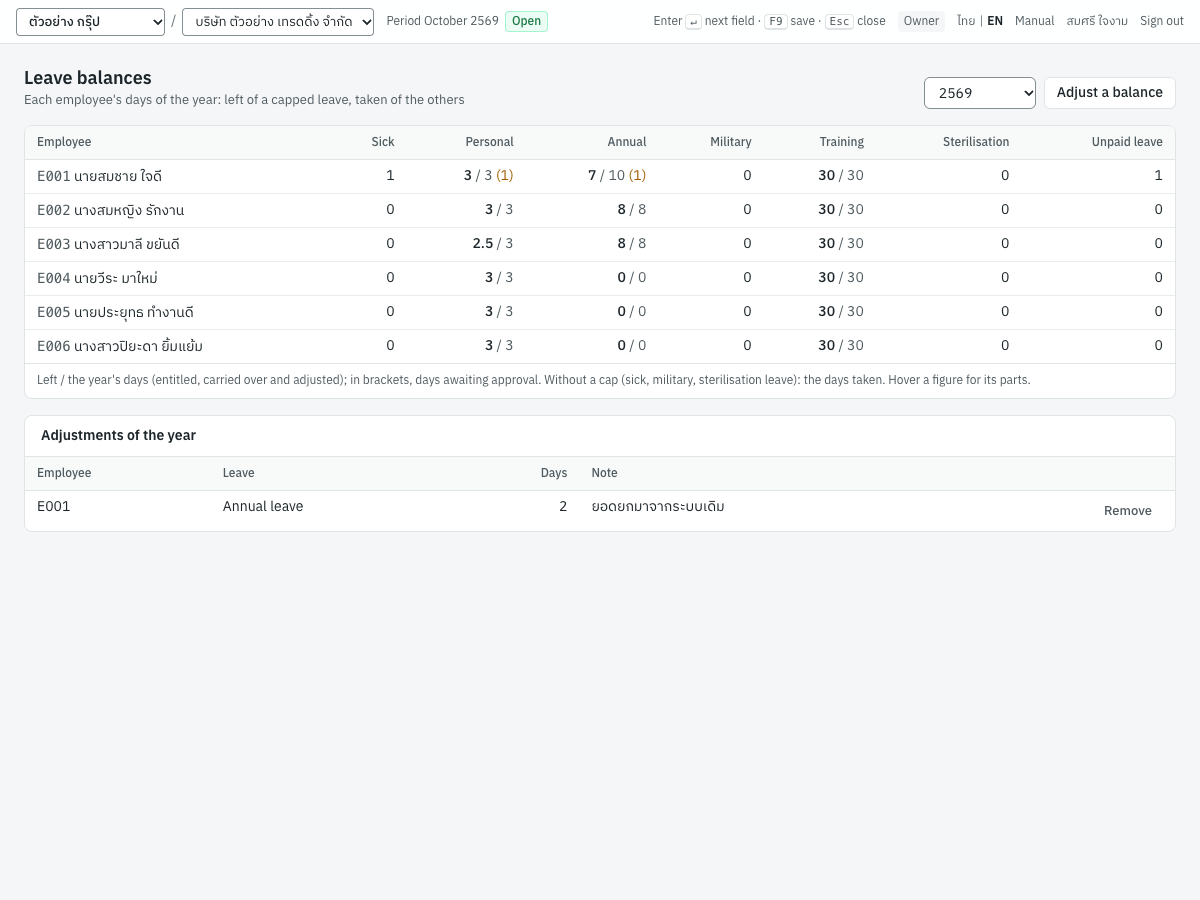
Annual leave is entitled from the year the employee completes the service needed and usable from that day. The unused days, up to the type's carry-over, move into the next year. Balances start in the year your company began keeping leave in Panya: earlier years carry nothing over. To bring an opening balance from another system, or correct one, click Adjust a balance: choose the employee, the leave and the days (negative to take days away) with a note.
Attendance and overtime#
Panya reads each employee's clock entries against their work schedule and their approved leave, records overtime and holiday work with the employee's consent by the kinds the Labour Protection Act pays, and keeps each pay period's timesheets, approved for payroll. Employees do not clock in Panya themselves yet: the entries come from your time clock's file, or HR enters them.
Clock entries#
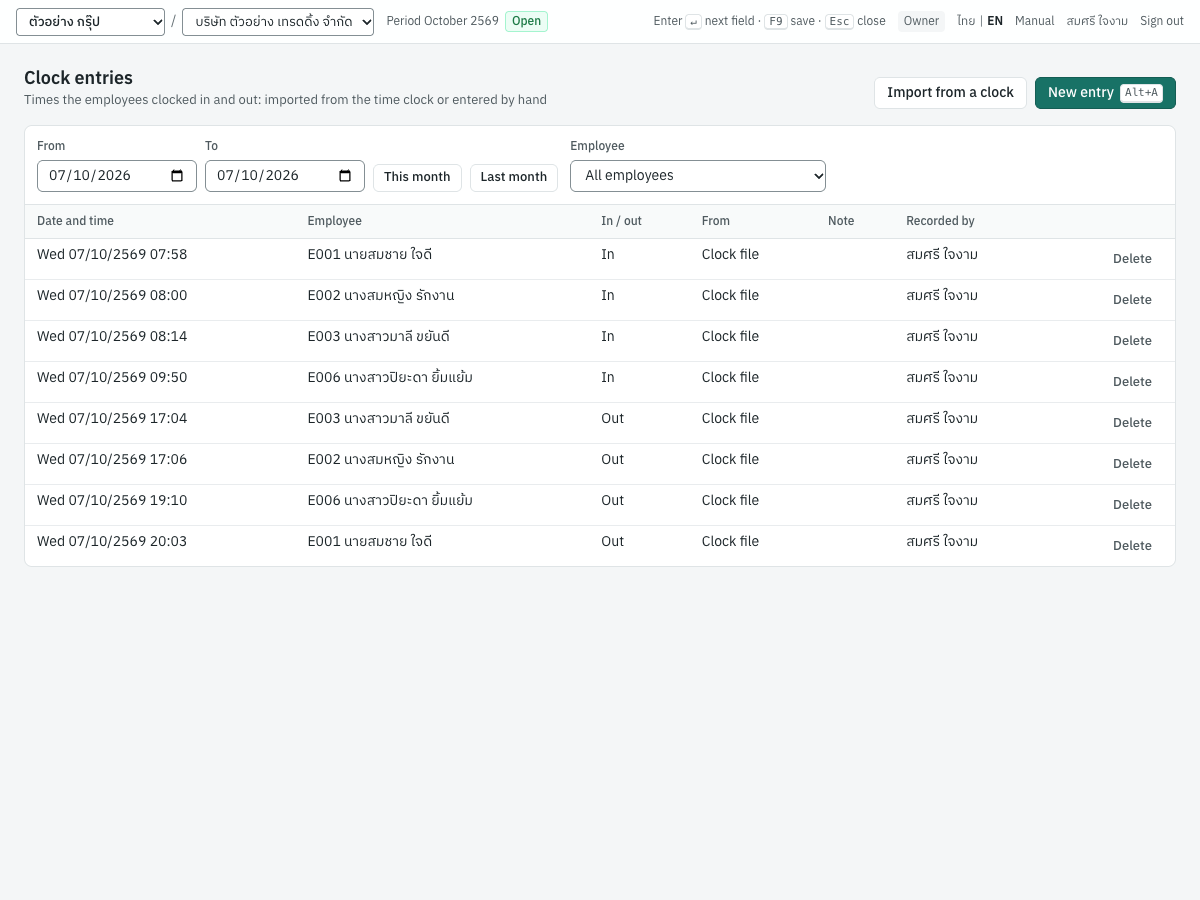
Open 9 HR → Clock entries. The list shows the entries of a period (this month by default), oldest first: when, whose, in or out, whether from the clock's file, entered by hand or clocked by the employee in Self-service (with the internet address it came from), and by whom. How employees clock in from their phone, and the networks it is allowed from, are in Employee self-service.
To import a time clock's file:
- Export the clockings from your time clock (a fingerprint or card clock) as CSV or Excel.
- Click Import from a clock and choose the file.
- Click Import.
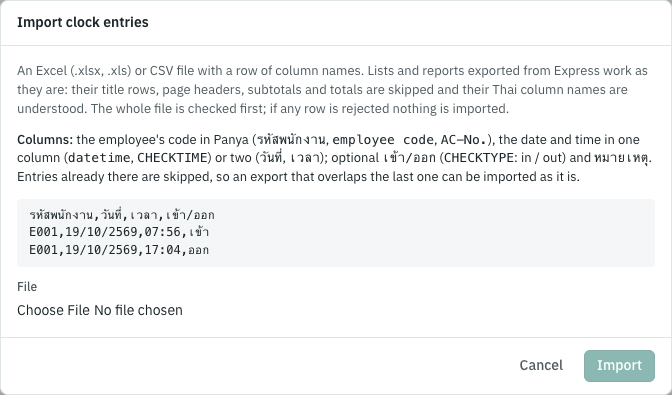
The file needs a row of column names, then a row per clocking:
| Column | Names Panya understands | What it holds |
|---|---|---|
| Employee | รหัสพนักงาน, employee code, code, AC-No. | The employee's code in Panya. If your clock numbers people differently, change the numbers to the codes first. |
| Date and time | datetime, CHECKTIME, วันที่และเวลา; or วันที่ / date and เวลา / time | 19/10/2569 08:05 or 2026-10-19 08:05; Buddhist-era years, Thai digits and Excel dates and times are read. |
| In / out | เข้า/ออก, CHECKTYPE, in/out | Optional: เข้า / in / I, ออก / out / O. |
| Note | หมายเหตุ, note | Optional. |
The whole file is checked first: if any row is wrong (no employee has the code 'X9'), nothing is imported and the rows are listed. An entry already in Panya (the same employee at the same time) is skipped, so a file that overlaps the last one can be imported as it is.
To enter one by hand (a forgotten clocking, a clock out of order), click New entry (Alt+A): the employee, the date, the time, In / out if you know it, and a note saying why. Delete removes an entry.
Which day an entry belongs to: the day whose shift it is nearest, within 6 hours before the shift starts or after it ends; on a day off, the calendar day. A night shift's clock-out at 06:00 belongs to the night before. When the clock does not say in or out, the day's first entry is the clock-in and its last the clock-out.
Attendance#
Open 9 HR → Attendance and choose the period (up to 62 days). Each employee's row shows the working days, the hours worked within the normal hours, the minutes late (and on how many days), the minutes of early leaving, the days absent, the days of leave and the approved overtime. Click an employee to see their days.
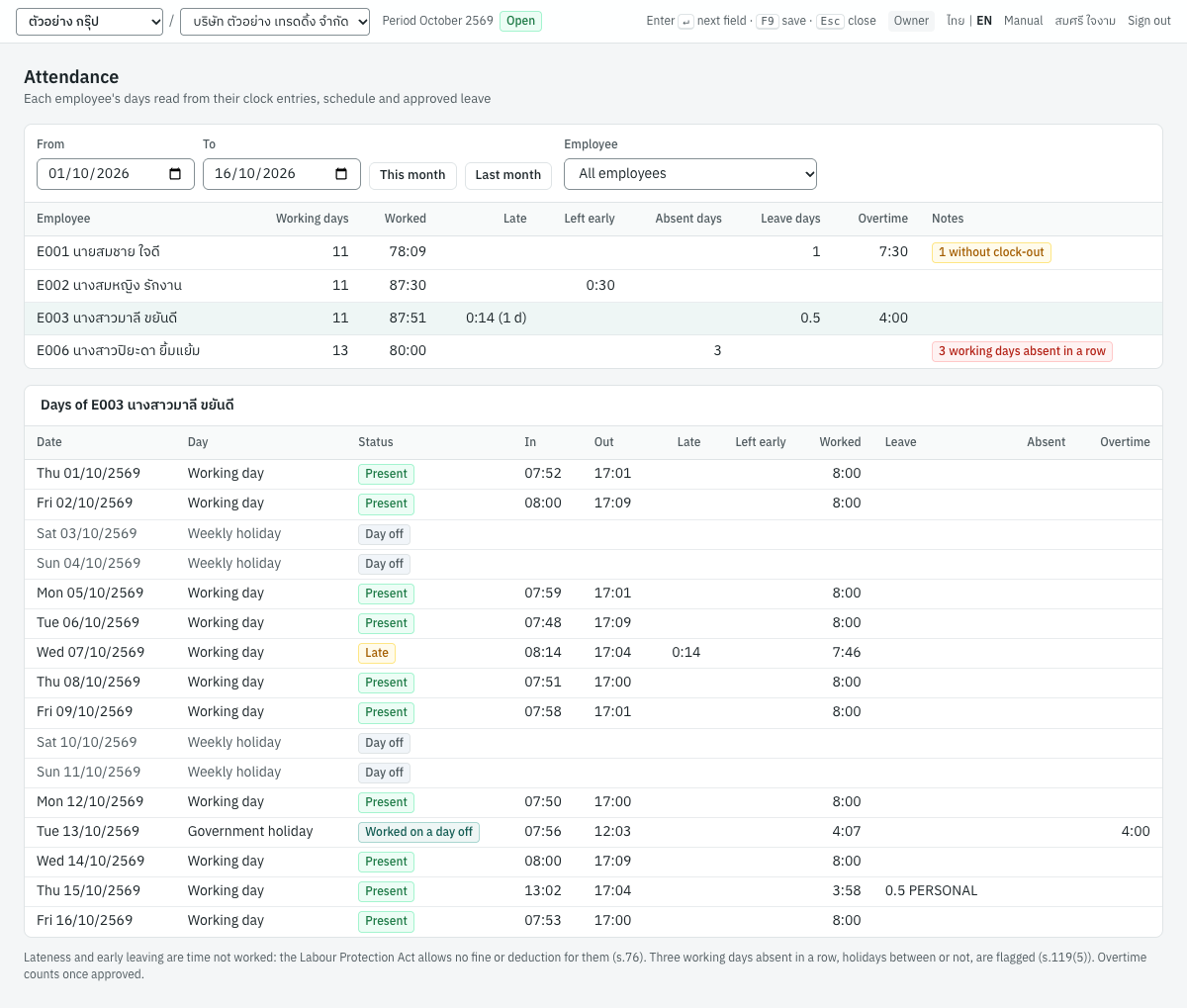
| Status | ภาษาไทย | When |
|---|---|---|
| Present | มาทำงาน | Clocked in on time (within the grace) and out. |
| Late | มาสาย | Clocked in after the start and the grace. |
| No clock-out | ไม่มีเวลาออก | Clocked in only: enter the missing clocking. |
| Absent | ขาดงาน | A working day without any clocking (the part not on leave). |
| On leave | ลา | A whole working day of approved leave. |
| Day off | วันหยุด | A weekly holiday, a holiday or a substitute day. |
| Worked on a day off | มาทำงานในวันหยุด | Clocked on a day off. It is paid as holiday work only through an approved overtime request. |
| Does not clock | ไม่ต้องลงเวลา | The employee's HR record has Clocks in and out cleared. |
How the minutes are read:
- Late is the working time from the shift's start to the clock-in, once the clock-in is past the start and the grace before lateness (9 HR → HR settings; 0 to 120 minutes). Left early is the same at the end, with the grace before early leaving. The break does not count.
- A half day of approved leave moves the expected start to the end of the break (the morning off) or the expected end to its start (the afternoon off); leave by the hour moves them past the hours. Pending leave does not count until it is approved.
- Lateness and early leaving are time not worked. The Labour Protection Act allows no fine or deduction for them (s.76): the employer may leave the time unpaid, by a work rule the employees accepted. Panya reports the minutes; it deducts nothing.
- 3 working days absent in a row, holidays between or not, are flagged: abandoning duty for 3 consecutive working days without a reasonable cause allows dismissal without severance pay (s.119(5)). Check the reason before acting on it.
Overtime#
Open 9 HR → Overtime. The list shows the period's requests with their minutes of each kind and their status.
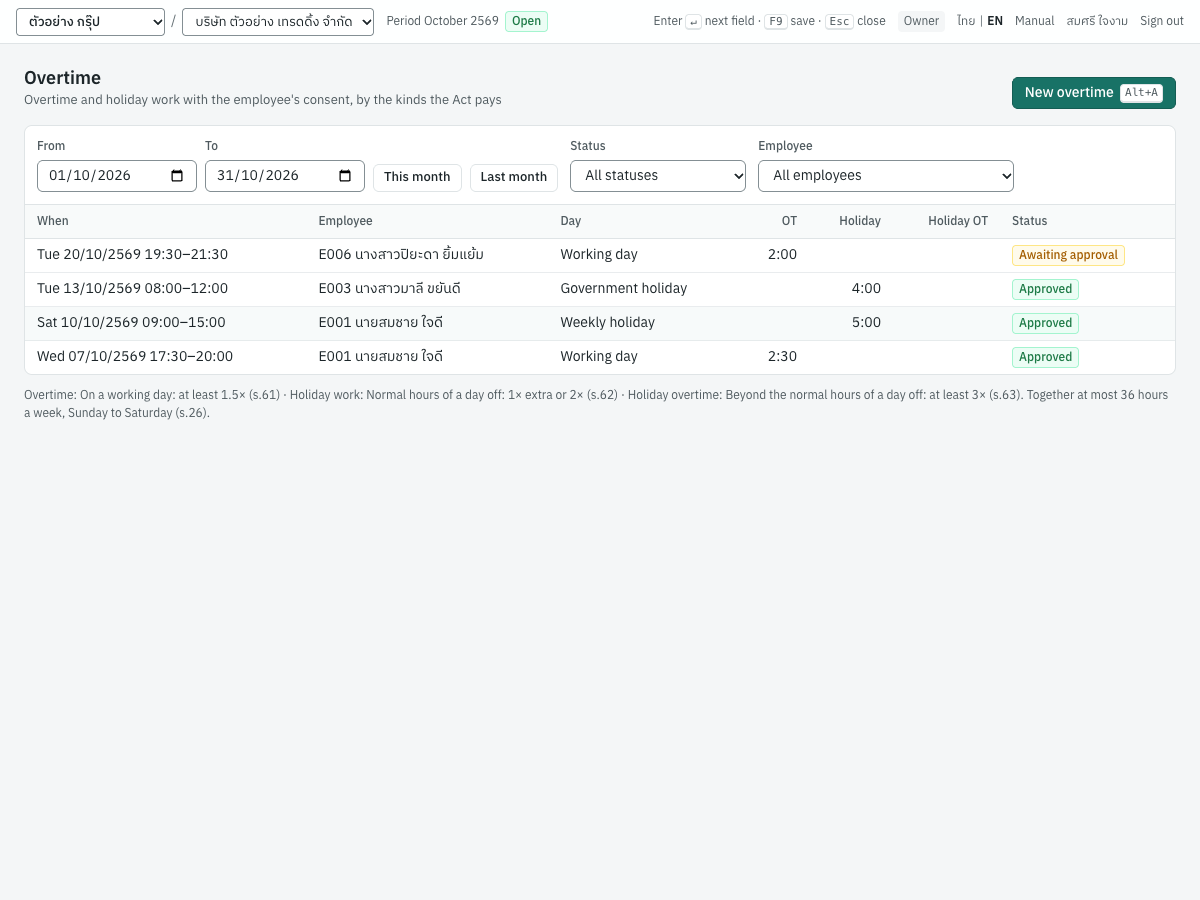
To record overtime:
- Click New overtime (
Alt+A). - Choose the employee and the Date the work belongs to, and the times: From time and To time (an end at or before the start is the next day's), and the Break taken during it.
- Add the reason and tick The employee agreed to this overtime beforehand. The Act allows overtime and holiday work only with the employee's consent given beforehand, each time (s.24, s.25); Panya does not record a request without it. For an employee with self-service, tick Ask the employee to consent in self-service instead: the request waits for their consent there (Waiting for the employee's consent), and they may decline it.
- If you approve overtime yourself, tick Approve it now. Click Save.
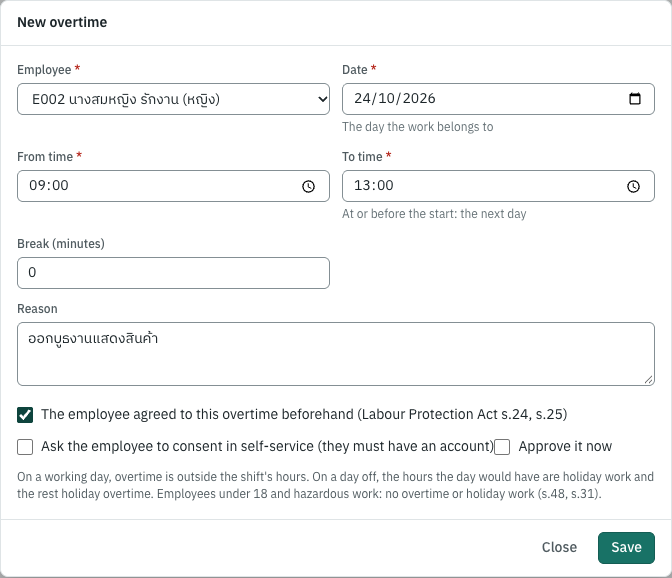
Panya splits the time by the kinds the Act pays differently, on the employee's own day:
| Kind | ภาษาไทย | When | The Act pays at least |
|---|---|---|---|
| Overtime | ทำงานล่วงเวลา | On a working day, outside the shift's hours | 1.5 × the hourly wage (s.61) |
| Holiday work | ทำงานในวันหยุด | On a day off (weekly holiday, traditional holiday, substitute day), within the hours the day would have | 1 × more for an employee paid for the holiday; 2 × for one who is not, such as a daily-paid employee on a weekly holiday (s.62, s.56) |
| Holiday overtime | ล่วงเวลาในวันหยุด | On a day off, beyond those hours | 3 × the hourly wage (s.63) |
The hours a day off would have are its shift's: on a weekly holiday, the schedule's usual shift. Saturday 08:00–20:00 with an hour's break, for a Monday-to-Friday 08:00–17:00 employee, is 8 hours of holiday work and 3 of holiday overtime.
Panya refuses:
- overtime inside the shift's normal hours (overtime on a working day is outside the shift's normal hours), or on a working day of whole-day leave;
- a request overlapping another of the employee's;
- an employee under 18 on that date (s.48), and an employee on a hazardous work schedule (s.31);
- approving overtime and holiday work beyond 36 hours a week, Sunday to Saturday, all kinds together (s.26 and Ministerial Regulation No. 3): the week from 2026-10-25 would have 37 hours of overtime and holiday work: at most 36. Recording one is refused when the approved ones already leave no room; when the pending ones would pass 36 hours, Panya says so.
It reminds you when overtime of 2 hours or more starts less than 20 minutes after the shift ends: the Act asks for 20 minutes' rest first (s.27), except for continuous work.
Click a request to approve, reject or cancel it, as for leave: owners, admins and HR managers decide everyone's; a manager decides their team's, in 9 HR → Approvals too, or in self-service. When approved, the request is split again on the day as it is then.
Timesheets#
A timesheet is an employee's days of a pay period with their totals. Once approved, it is what payroll reads for absence and lateness.
- Open 9 HR → Timesheets and choose the pay period (a month, or half of one; up to 62 days).
- Click Build timesheets: a draft for each employee employed in the period. A draft that overlaps the period is replaced; an employee whose approved timesheet overlaps it is skipped.
- Click a timesheet to check its days. Read again reads them anew after you correct an entry or decide a request.
- Click Approve, or Approve N drafts for all of the period's drafts.
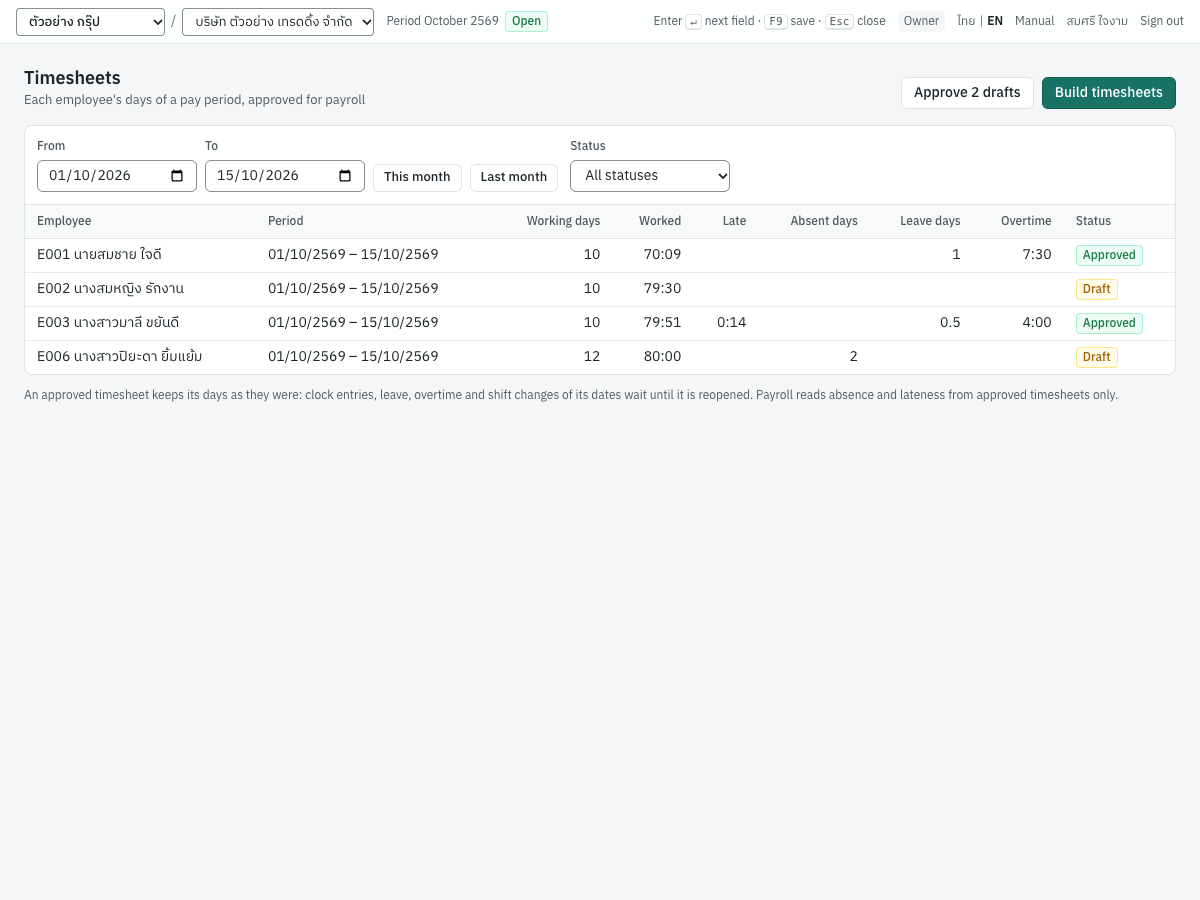
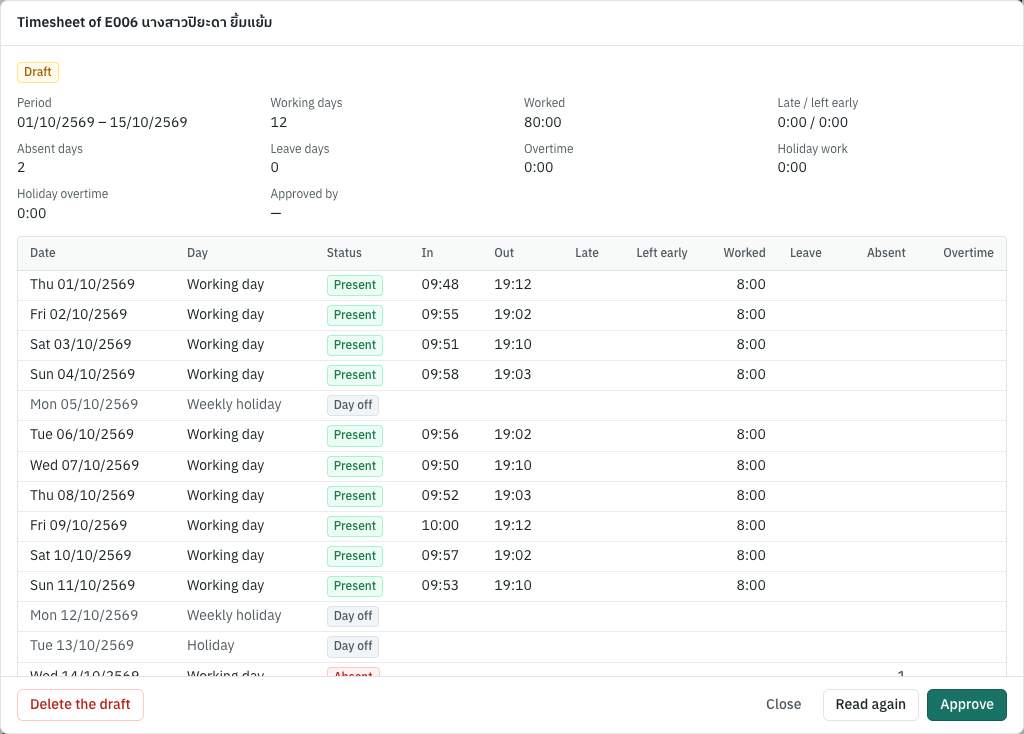
Approval is refused while leave or overtime of the period is still pending (E001 has leave or overtime of the period still pending: decide it first), and nobody approves their own timesheet. Approving reads the days once more, so the timesheet is as the attendance was at that moment.
An approved timesheet holds its dates: adding or deleting a clock entry, approving or cancelling leave, approving or cancelling overtime and changing a shift on those dates are refused (the timesheet of E001 from 2026-10-01 to 2026-10-15 is approved: reopen it first). To change one, click Reopen and give a reason; approve it again afterwards. A draft can be deleted.
An employer of 10 or more employees keeps payment documents showing at least the working days and hours (s.114, kept 2 years, s.115): the timesheets hold them.
What payroll reads#
Panya keeps the approved leave, the approved overtime by kind and the approved timesheets ready for payroll: for each employee and pay period, the leave days paid and unpaid, the minutes of overtime, of holiday work (on weekly holidays and on traditional holidays apart, since an employee not paid for weekly holidays gets 2 ×) and of holiday overtime, and from approved timesheets only the days absent and the minutes late and early, with how many of the period's days they cover. 8 Payroll reads them for each run, from the approved records only, and shows each line's breakdown with links back to them (see Payroll → Leave, absence and overtime from HR): the days not paid come off the salary (absent days of employees paid by the month only when your work rules say so), the overtime and holiday work are paid at the Act's multiples, and lateness is reported, never deducted. Decide what is pending and approve the timesheets before the run, or save its draft again afterwards: the draft reads HR anew; a posted run keeps what it paid.
What Panya does not do yet#
- The notices for employees under 18 (to the labour inspector within 15 days of the start and 7 days of the end, s.45) are not filed by Panya.
- Pregnancy is not recorded, so Panya does not stop overtime or night work for a pregnant employee (s.39/1): check it yourself.
- An employee belongs to one department and has one manager.
- Weekly holidays accumulated over up to four weeks (hotels, transport, remote areas, s.28) and the holiday arrangements of work that cannot stop on traditional holidays (MR No. 4) are not modelled: such schedules need a weekly holiday every week.
- Substitute days follow each schedule's week; a shift change does not move them.
- Employees ask for leave and overtime and clock in themselves only with self-service (Employee self-service).
- Overtime for emergency or continuous work (s.24 para 2), which falls outside the 36 hours a week, is not told apart: every approved request counts toward the 36.
- A clock entry missing its clock-out leaves the day's worked time unknown: enter the missing entry by hand before approving the timesheet.
- Annual leave is not paid out on leaving (s.67) by Panya: the balances show the days left.