Finance · การเงิน
The Finance menu (3 Finance) is where money moves. Here you collect from customers and pay suppliers against the invoices recorded in Sales and Purchasing. You also withhold tax and print the 50 ทวิ certificate, move money between your own accounts, follow cheques until they clear, reconcile the bank statement, and pay the VAT on services bought from abroad (ภ.พ.36).
Every posted receipt, payment, refund and transfer makes its own journal entry, and its own VAT and withholding tax records where it has them. Those records feed the VAT and WHT reports described in Reports.
The Finance menu#
The menu items appear in this order:
| Menu item | ภาษาไทย | Code | Use it to |
|---|---|---|---|
| Billing notes | ใบวางบิล | BN | Group a customer's open invoices into a billing note with an agreed payment date. Not posted. |
| Receipts | รับชำระหนี้ | RE | Record money received from a customer against invoices, with the tax the customer withheld, bank charges and advances. |
| Supplier billing | ใบรับวางบิล | BR | Record a supplier's billing of its open invoices. Not posted. |
| Payments | จ่ายชำระหนี้ | PS | Pay suppliers, withhold tax, print the payment voucher and the 50 ทวิ certificate. |
| Customer refunds | คืนเงินลูกค้า | RF | Pay back a customer's advance, unused credit or deposit. |
| Supplier refunds | รับเงินคืนจากผู้จำหน่าย | RP | Record money a supplier pays back to you. |
| Bank transfers | โอนเงิน | BT | Move money between your own cash and bank accounts, for example to deposit cash at the bank. |
| Cheques | ทะเบียนเช็ค | — | Follow cheques received and issued until they clear or come back. |
| Cheque deposit slips | ใบนำฝากเช็ค | BQ | Deposit several received cheques together and clear them as one bank line. |
| Bank reconciliation | กระทบยอดธนาคาร | — | Import the bank statement and match it to the books. |
| Cash & bank accounts | เงินสด/ธนาคาร | — | Set up the cash and bank accounts that money is received into and paid from. |
| PP.36 VAT | ภ.พ.36 ภาษีบริการต่างประเทศ | PT | Pay the VAT self-assessed on services from foreign suppliers, and claim it as input VAT. |
You can also start a receipt or payment without opening the menu:
- Receive payment on a posted customer invoice, debit note or opening balance that is still open (see Sales), and Pay on a supplier's.
- Receive payment on an issued billing note, and Pay on an issued supplier billing.
- The Receive payment and Pay supplier quick actions on the dashboard.
How finance documents work#
Draft, post and cancel#
Receipts, payments, refunds and bank transfers follow the same life cycle:
- Save draft (
Ctrl+S, or⌘Son a Mac) keeps the document without a number. A draft posts nothing and does not change any balance. Lists show it as (draft) in the Number column, and opening it from the list opens the form again so you can carry on. Delete draft removes a draft for good. - Save & post (
F9) numbers the document, posts its journal entry and writes its tax records. A posted document can no longer be edited. - Cancel reverses a posted document. Panya posts a reversing entry on the reversal date you choose, reverses its tax records and, for a receipt or payment, opens the settled invoices again. The original document and its entry are kept for the audit trail and print as ยกเลิก · CANCELLED. Posted documents are never deleted.
Billing notes and cheque deposit slips post nothing. A billing note is issued or cancelled. A deposit slip is cleared or cancelled.
The cancel dialog asks for a Reason (recorded in the audit trail), which is required. Most cancel dialogs also ask for a Reversal date. It defaults to the document date. Use a later date when that period is closed. The reversal date cannot be earlier than the document date.
Document numbers#
A document gets its number when it is posted (or issued), from the document date. The default formats use the Buddhist-era year and month, so RE69100001 is the first receipt of October 2569:
| Document | Default format | Example |
|---|---|---|
| Billing note | BN{BB}{MM}{####} | BN69100001 |
| Receipt | RE{BB}{MM}{####} | RE69100002 |
| Supplier billing | BR{BB}{MM}{####} | BR69100001 |
| Payment | PS{BB}{MM}{####} | PS69100002 |
| Customer refund | RF{BB}{MM}{####} | RF69100001 |
| Supplier refund | RP{BB}{MM}{####} | RP69100001 |
| Bank transfer | BT{BB}{MM}{####} | BT69100001 |
| Cheque deposit slip | BQ{BB}{MM}{####} | BQ69100001 |
| PP.36 filing | PT{BB}{MM}{###} | PT6911001 |
You can change the formats in 7 Setup → Document numbering (see Setup).
Each posting goes to a journal book with its own entry numbers. Receipts, supplier refunds, cleared received cheques and cleared deposit slips go to the receipts book (RJ…). Payments, customer refunds, cleared issued cheques and PP.36 filings go to the payments book (CJ…). Bank transfers and bank items booked from a statement go to the general journal (GJ…).
Who can do what#
| Action | Staff | Accountant, Admin, Owner | Read-only |
|---|---|---|---|
| View and print documents | Yes | Yes | Yes |
| Enter, save and post receipts, payments, refunds, transfers | Yes | Yes | No |
| Issue and cancel billing notes, send documents | Yes | Yes | No |
| Clear cheques, make and clear deposit slips, record PP.36 payments, reconcile statements | Yes | Yes | No |
| Cancel posted documents, record returned cheques, cancel PP.36 filings | No | Yes | No |
| Book a bank item from a statement | No | Yes | No |
| Set up cash and bank accounts | No | Yes | No |
Buttons for actions you are not allowed to do are not shown.
Keyboard#
| Key | Does |
|---|---|
Alt+A | New document, on a list screen |
Enter | Next field. In an empty Customer or Supplier field it opens the full list. |
↑ ↓ then Enter | Pick from the customer or supplier list. Esc closes the list. |
Ctrl+S / ⌘S | Save draft |
F9 | Save & post (Save & issue on a billing note) |
Alt+P | Print / PDF on a document page |
Date fields use your browser's date picker, so they may show the Christian-era year (for example 17/10/2026). Lists, document pages and printouts show Buddhist-era dates (17/10/2569).
Closed periods#
A document cannot be posted, and a reversal cannot be dated, in a closed accounting period. Panya shows a message like accounting period for 2026-09-30 is closed. Use a date in an open period, or ask whoever manages periods (see Accounting and Month-end).
Billing notes (BN)#
ใบวางบิล · Menu: 3 Finance → Billing notes
A billing note lists a customer's open invoices, debit notes and opening balances, with the date you have agreed the customer will pay (วันนัดชำระ). You print it or send it to the customer for collection. It posts nothing. Issuing gives it a number and records the open amount of each document at that moment.
A document can be on only one issued billing note at a time. When the customer pays, Receive payment on the billing note opens a receipt with its documents already ticked.
The billing note list#
The list shows the newest billing notes first. In the demo company, BN69100001 bills two invoices of บริษัท ลูกค้าหนึ่ง จำกัด, one of which has since been paid:
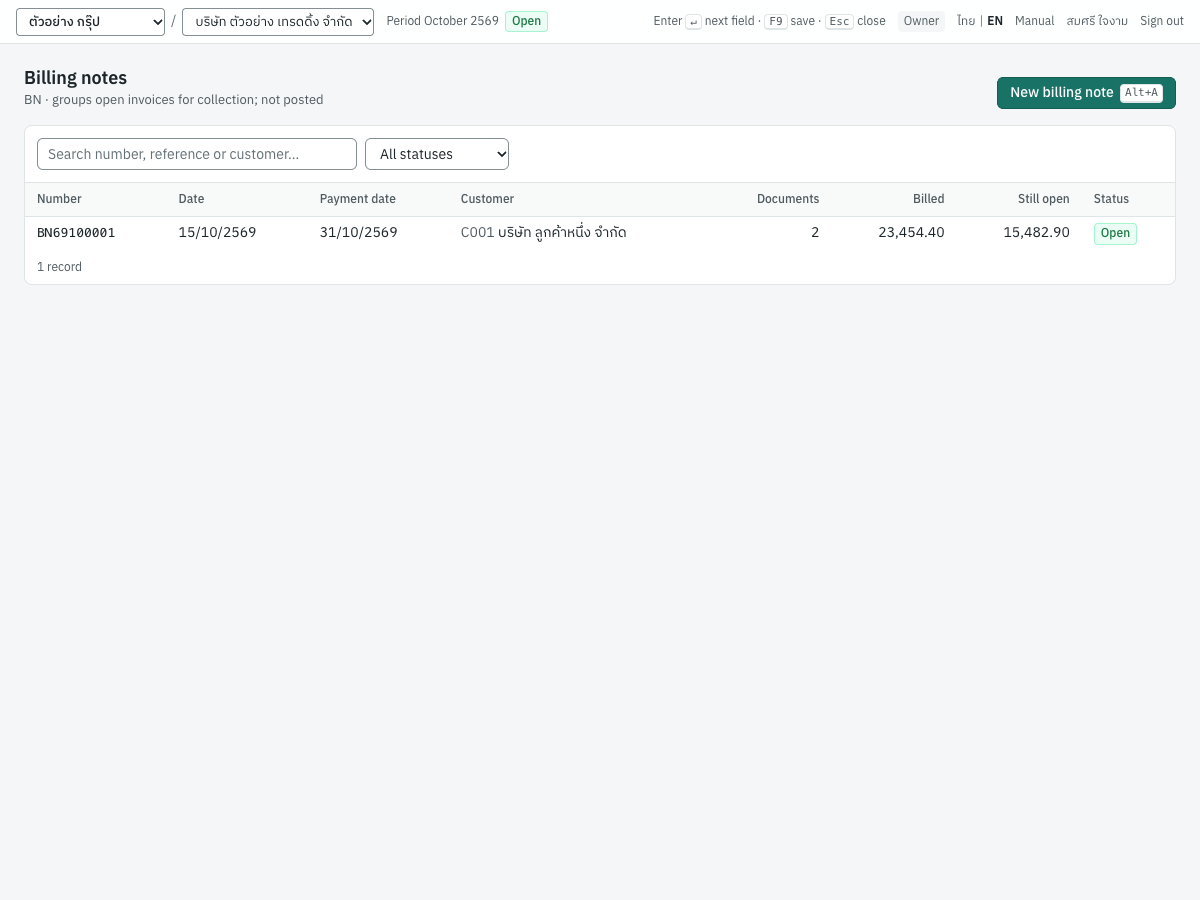
| Column | Shows |
|---|---|
| Number | The BN number, or (draft) |
| Date | The billing date |
| Payment date | The agreed payment date |
| Customer | Code and name |
| Documents | How many documents are on the note |
| Billed | Total billed when issued |
| Still open | What is still unpaid of those documents now (issued notes only) |
| Status | Draft, Open (issued) or Cancelled |
Type in the search box to find a number, reference, customer code or name. The status filter offers All statuses, Draft, Issued and Cancelled. Click a row to open it. New billing note (Alt+A) starts a new one.
Fields#
| Field | ภาษาไทย | What to enter |
|---|---|---|
| Customer | ลูกค้า | The customer to bill. Type a code or name, press Enter to pick. Choosing a customer lists their open documents. Required. |
| Date | วันที่วางบิล | The billing date. Defaults to today. |
| Payment date | วันนัดชำระ | The date the customer has agreed to pay. Optional; cannot be before the billing date. Printed as นัดชำระ. |
| Reference | อ้างอิง | Optional, printed on the note. |
| Memo | หมายเหตุ | Optional, printed at the bottom as หมายเหตุ. |
| Open documents | เอกสารค้างชำระ | The customer's posted invoices, debit notes and opening balances that still have an open amount and are not on another issued billing note, by due date. Every document is ticked; untick those you do not want to bill. The card shows the total of the ticked documents. |
The open documents table has the columns Document, Type, Date, Due, Amount (the document total) and Open (what is still unpaid). If nothing is listed, the message reads Nothing open that is not already on another billing note.
Issuing a billing note#
- Open 3 Finance → Billing notes and click New billing note (
Alt+A). - In Customer, type the code, for example
C001, and pressEnter. - Check the Date and enter the Payment date agreed with the customer.
- Untick any document you do not want on this note. Check the Total.
- Add a Reference or Memo if you need them.
- Click Save & issue (
F9). To finish later, click Save draft (Ctrl+S) instead.
What issuing records#
Issuing posts nothing: no journal entry, no tax records, and no change to the customer's balance. It does three things:
- It gives the note its number, for example
BN69100001. - It records each document's open amount on that day as its Billed amount, and the total.
- It holds the documents: none of them can go on another billing note until this one is cancelled.
An issued note can no longer be changed. To bill differently, cancel it and issue a new one.
The billing note page#
The page shows the printable billing note on the left, and the collection progress on the right:
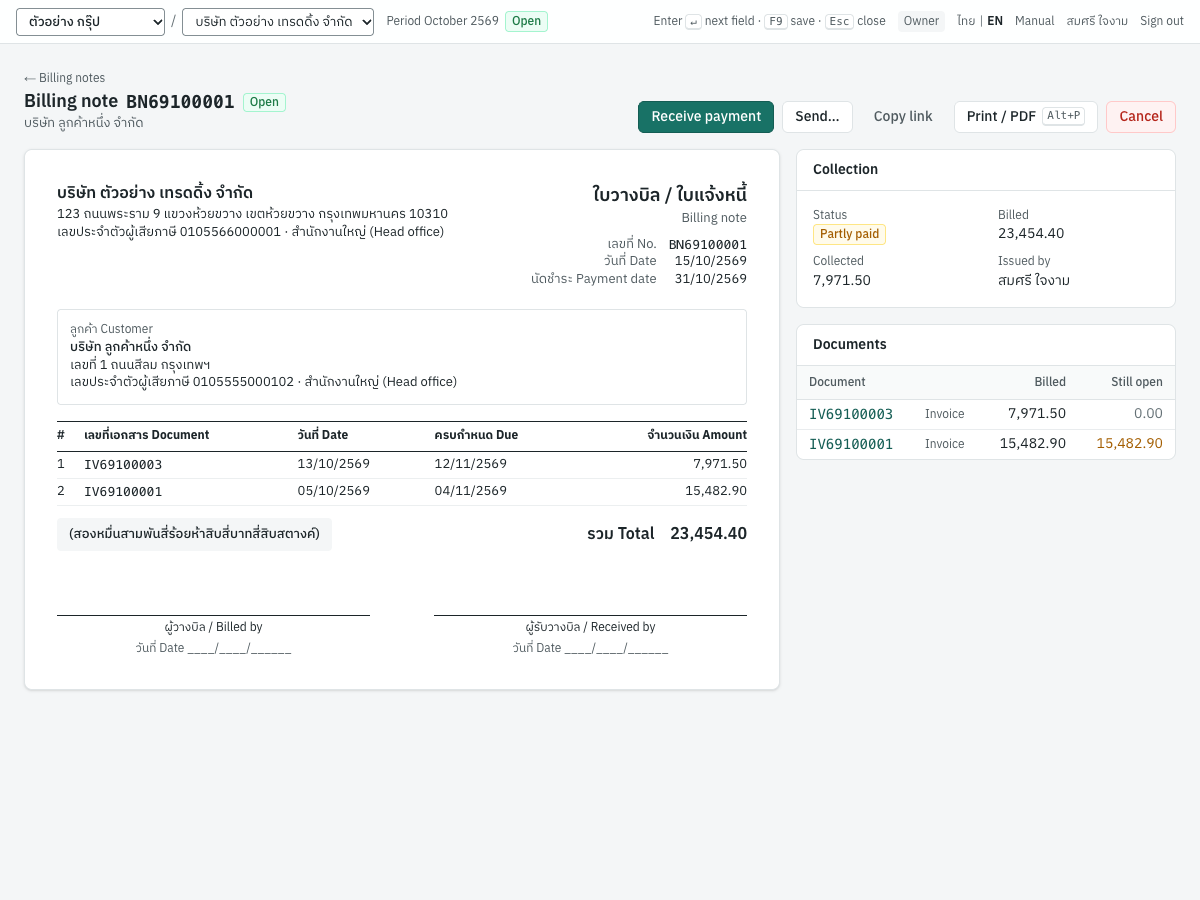
The buttons at the top are:
- Receive payment: opens a new receipt for this note (shown while something is still open).
- Send… and Copy link: email the note, or copy a link to a read-only copy that works for 30 days.
- Print / PDF (
Alt+P): print, or save as PDF from the print dialog. - Cancel: withdraw the note.
The Collection card shows:
| Field | Shows |
|---|---|
| Status | Awaiting payment, Partly paid, Paid in full or Cancelled |
| Billed | The total billed |
| Collected | Billed less what is still open, that is what has been paid or credited since |
| Issued by | The user who issued the note |
The Documents card lists each document (click to open it) with its type, the amount billed and what is Still open.
The printed note is titled ใบวางบิล / ใบแจ้งหนี้ · Billing note. It shows your company's name, address and tax ID with the branch, the number, date and payment date. Below that come the customer's name, address and tax ID, then the documents (number, date, due date, amount), the total in figures and in Thai words, the memo, and signature lines for ผู้วางบิล / Billed by and ผู้รับวางบิล / Received by.
Receiving payment from a billing note#
- Open the billing note and click Receive payment.
- A new receipt opens for the customer. Every document on the note that is still open is ticked for its full open amount, and Memo reads Per billing note and the billing note number, for example Per billing note BN69100001 (on the Thai screen, ตามใบวางบิล BN69100001). The memo is printed on the receipt.
- Adjust the amounts if the customer paid only part, enter any withholding tax, and post the receipt as described in Recording a receipt.
Tip: If the customer withheld tax, enter the number of the customer's 50 ทวิ certificate in Reference. The reference becomes the document number of the withholding tax record.
Cancelling a billing note#
Click Cancel, enter the reason and confirm Cancel billing note. The note shows as cancelled with the reason, and its documents can go on a new billing note. Nothing is posted or reversed. Only issued notes can be cancelled; a draft is deleted with Delete draft instead.
Messages#
| Message | What to do |
|---|---|
choose at least one document to bill | Tick at least one document. |
the payment date cannot be before the billing date | Correct the payment date. |
IV69100001 is already settled | The document was paid in full after you started the note. Untick it. |
IV69100001 is already on billing note BN69100001 | Cancel that note first, or leave the document off. |
only issued billing notes can be cancelled | A draft cannot be cancelled; delete it. |
Receipts (RE)#
รับชำระหนี้ · Menu: 3 Finance → Receipts
A receipt records money received from a customer. It settles one or more open invoices, debit notes or opening balances, fully or in part. On the same receipt you record:
- the withholding tax the customer deducted (ภาษีถูกหัก ณ ที่จ่าย), with one or more income types;
- bank charges the bank kept;
- an earlier advance of the customer used to settle the documents;
- any money received beyond what the documents need, which becomes a customer advance.
When the receipt settles a service invoice whose VAT falls due on payment, the printed receipt is also the tax invoice (ใบเสร็จรับเงิน/ใบกำกับภาษี).
The receipt list#
The list shows the newest receipts first:
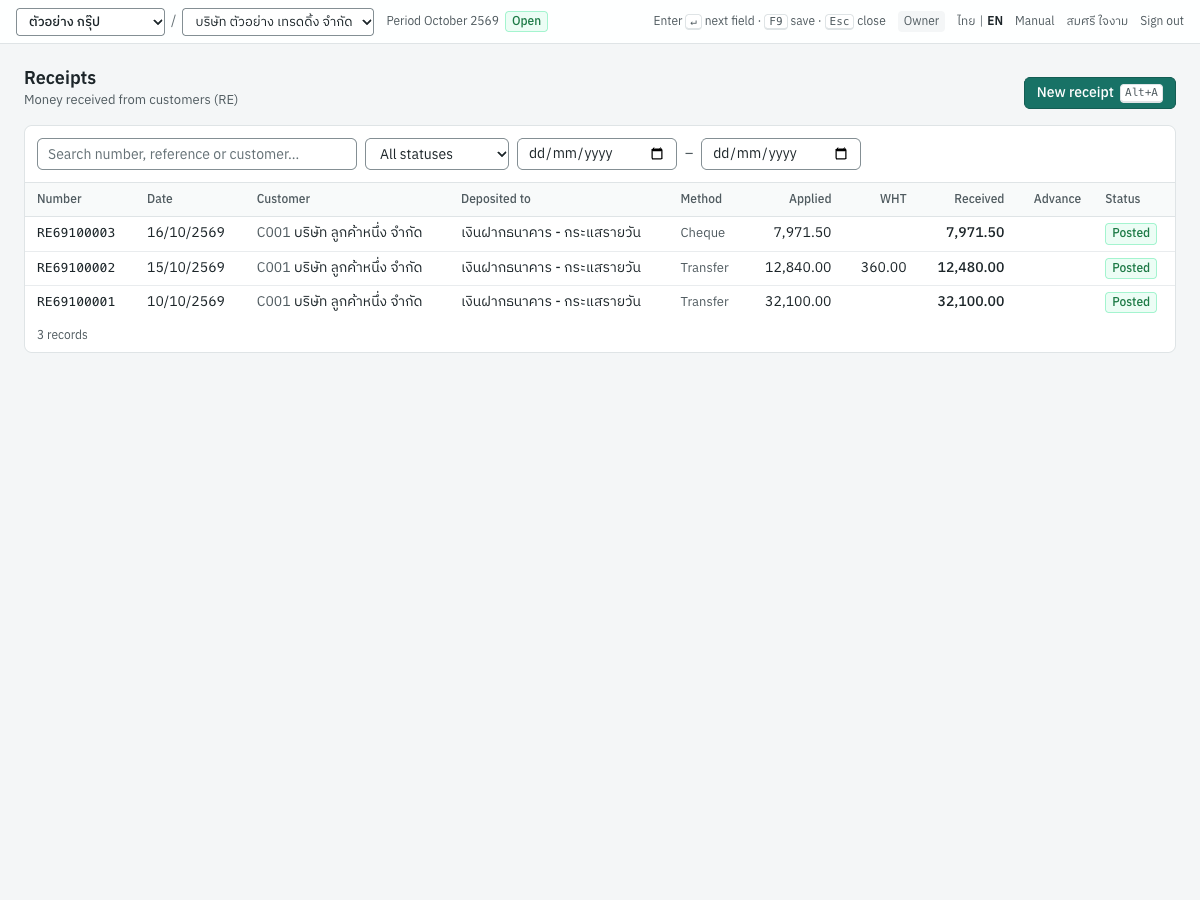
| Column | Shows |
|---|---|
| Number | The RE number, or (draft) |
| Date | The receipt date |
| Customer | Code and name |
| Deposited to | The cash or bank account |
| Method | Cash, Transfer, Cheque, Card or Other |
| Applied | The total applied to documents |
| WHT | Withholding tax deducted by the customer |
| Received | The money received |
| Advance | An advance created by the receipt, in amber |
| Status | Draft, Posted or Cancelled |
All amounts in the list are in baht. Search by number, reference, customer code or name. Filter by status (All statuses, Draft, Posted, Cancelled) and by a date range. The list shows 50 receipts per page. New receipt (Alt+A) opens the form.
The receipt form#
The form has a header, the customer's open documents, the withholding tax card, a memo and a summary. Here a receipt from บริษัท ลูกค้าหนึ่ง จำกัด settles invoice IV69100001; a debit note DN69100001 is also open but not ticked:
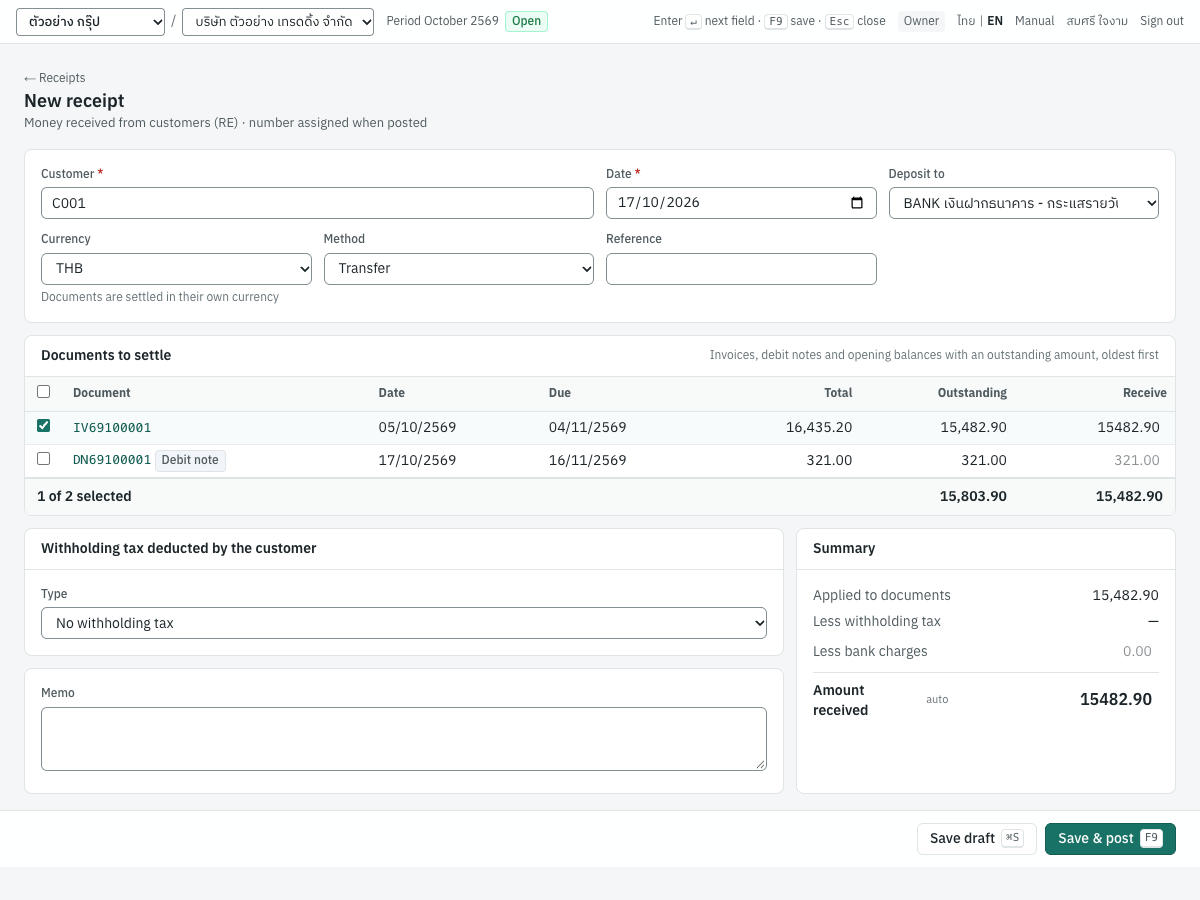
Header fields#
| Field | ภาษาไทย | What to enter |
|---|---|---|
| Customer | ลูกค้า | Type the code or name and press Enter to pick; Enter on an empty field lists every customer, with each one's balance. Required. Changing the customer clears the ticked documents, the currency and any extra withholding lines. |
| Date | วันที่ | The day the money was received. Defaults to today. It sets the period, the month of the receipt number, the tax point of VAT falling due and the exchange rate looked up. It cannot be before the date of a document it settles. |
| Deposit to | นำฝากเข้า | The active cash or bank account receiving the money. Defaults to the first active bank account. |
| Currency | สกุลเงิน | Shown when the customer has open documents in a foreign currency, or when exchange rates are on file. Defaults to THB. Only documents in the chosen currency are listed (Documents are settled in their own currency). Changing it clears the ticked documents, the advance used and the WHT type. See Foreign currency receipts. |
| Rate · THB per USD | อัตราแลกเปลี่ยน · บาทต่อ USD | Shown for a foreign currency. Defaults to the latest buying rate on or before the date; the hint shows which (Buying rate of 2026-10-16). With no rate on file the hint says No rate on file: enter it. Type to use another rate. |
| Method | วิธีชำระ | Cash, Transfer, Cheque, Card or Other. Defaults to Cash when Deposit to is a cash account, otherwise Transfer. Printed on the receipt in both languages, for example Transfer · โอนเงิน. |
| Cheque no. | เลขที่เช็ค | Shown for Cheque. The cheque number. |
| Cheque date | ลงวันที่ | Shown for Cheque. The date written on the cheque. |
| Drawn on bank | ธนาคาร | Shown for Cheque. The customer's bank, for example ธนาคารกรุงเทพ. |
| Reference | อ้างอิง | Optional, printed as อ้างอิง Ref. When you choose a withholding tax type, the hint asks for the customer's 50 ทวิ certificate number here: the reference becomes the document number of the withholding tax record. |
Documents to settle#
The Documents to settle card lists the customer's posted invoices, debit notes and opening balances with an outstanding amount, oldest first. Credit notes are not listed: a credit note reduces the invoice it was issued against, spare credit is applied to other invoices with Apply credit to invoices on the credit note (see Sales), and what is left can be paid back with a customer refund.
| Column | ภาษาไทย | Shows or takes |
|---|---|---|
| Tick box | — | Tick to receive the full outstanding amount. The box in the header ticks or unticks every row. |
| Document | เลขที่ | The number; click to open it in a new tab. Badges mark a Debit note, an Opening balance and an invoice with VAT on payment. |
| Date | วันที่ | The document date |
| Due | ครบกำหนด | The due date, in red when overdue |
| Total | รวมทั้งสิ้น | The document total |
| Outstanding | คงค้าง | What is still open |
| Receive | รับชำระ | The amount applied. A ticked row takes the full outstanding; type a smaller amount for a partial payment. Typing in an unticked row ticks it. An amount above the outstanding turns red and cannot be posted. |
The footer shows how many documents are selected, the total outstanding and the total applied. If the customer has nothing open, the card says so: saving without documents records the whole amount as an advance.
When a ticked invoice has its VAT due on payment, a note under the table reads: VAT on IV69100002 becomes due with this payment — the printed receipt is the tax invoice (Receipt / Tax invoice).
Withholding tax deducted by the customer#
The card Withholding tax deducted by the customer records the tax the customer withheld from the payment. It is not shown for a foreign currency receipt.
| Field | ภาษาไทย | What to enter |
|---|---|---|
| Type | ประเภทเงินได้ | No withholding tax, or the income type the customer withheld under, shown as code, name and rate, for example SERVICE ค่าบริการ — 3%. Types are set up in 7 Setup → VAT & WHT (see Setup). |
| Base | ฐานภาษี | Marked auto: the value before VAT of the amounts applied. For each document, Panya takes the amount applied × (total − VAT) ÷ total. When there are further income types, this line takes the rest after their bases. Type a different base if the customer's certificate shows one; ↺ auto puts the computed value back. |
| Rate % | อัตรา % | The type's rate (or the e-WHT rate, see below). You can type another rate. |
| Tax | ภาษี | Base × rate. Type the amount on the customer's certificate if it differs by rounding; the hint then shows the computed amount. |
| + Another income type | + เพิ่มประเภทเงินได้ | Adds a line with its own Type, Base and Tax (the hint shows its rate). Remove deletes the line. |
| The customer paid through e-Withholding Tax (e-WHT) | ลูกค้าชำระผ่านระบบ e-Withholding Tax (e-WHT) | Tick when the customer paid through its bank's e-WHT service. The rate drops to the e-WHT rate in force (1% in 2569) and the method changes to Transfer. Greyed out when no e-WHT rate applies on the date. |
Summary#
The Summary card works out the money received:
| Line | ภาษาไทย | What it is |
|---|---|---|
| Applied to documents | ตัดชำระ | The total of the Receive column |
| Less withholding tax | หัก ณ ที่จ่าย | The total tax withheld |
| Less bank charges | หักค่าธรรมเนียมธนาคาร | Type any charges the bank deducted from the money, for example an interbank transfer fee you bear. |
| Less advance used | หักเงินรับล่วงหน้า | Shown when the customer has an unused advance. Click the … available link to use as much as the documents need, or type an amount. |
| Amount received | รับเงินสุทธิ | Marked auto: applied less tax, charges and advance used. If the money that actually arrived differs, type it: more money creates an advance, less shows a Short by warning and cannot be saved. ↺ auto puts the computed value back. |
| Advance | เงินรับล่วงหน้า | Shown in amber when the money is more than needed: The remainder is recorded as a customer advance. |
The Memo field below the withholding tax card takes a note printed on the receipt.
Recording a receipt#
- Open 3 Finance → Receipts and click New receipt (
Alt+A), or click Receive payment on the invoice or billing note. - In Customer, type the code, for example
C001, and pressEnter. The customer's open documents appear. - Check the Date (the day the money arrived) and the Deposit to account.
- Choose the Method. For a cheque, fill in the cheque number, date and bank.
- Tick the documents being paid. For a partial payment, type the amount in Receive.
- If the customer withheld tax, choose the Type, check the Base and Tax against the customer's 50 ทวิ, and enter the certificate number in Reference.
- Enter any bank charges, and any advance used.
- Compare Amount received with the money in the bank statement. If it differs, type the actual amount.
- Add a Memo if needed.
- Click Save & post (
F9). The receipt gets its number and opens on its page.
Partial payments, advances and overpayments#
- Partial payment. Type the amount paid in the Receive column. The document stays open for the rest and appears again on the next receipt.
- Overpayment. Type the actual money in Amount received. The excess is recorded as a customer advance (2140 เงินรับล่วงหน้าจากลูกค้า) and shown in the Advance column of the list.
- Money before an invoice. Choose a customer with no open documents (or tick none) and type the Amount received. The whole amount becomes an advance. A receipt advance carries no VAT. When the customer pays a deposit that needs a tax invoice, use Deposits received (AI) in Sales instead.
- Using an advance. When the customer has an unused advance, the summary shows Less advance used with the amount available. Click it to use as much as the documents need. A receipt that uses an advance must use all of the amount entered on it, and cannot also create a new advance. Drafts do not reserve an advance: it is checked when you post. An advance can be used only from the day it was received, and only as far as later documents have not already used or refunded it.
- Refunding an advance. Pay it back with a customer refund.
For example, ร้านค้าปลีกสอง (C002) transfers 5,000.00 before ordering. You post a receipt with no documents: the 5,000.00 becomes an advance. When its invoice of 3,000.00 is posted, the next receipt ticks that invoice and uses 3,000.00 of the advance, with Amount received 0.00. The remaining 2,000.00 stays as an advance.
Withholding tax with several income types#
A customer may withhold under more than one income type on one payment, for example 3% on a service and 5% on rent. Choose the first type, then click + Another income type for each further type and enter its Base. The first line's base is worked out automatically as the rest of the value before VAT. Each line gets its own withholding tax record, with its own type code. The receipt's view and printout show one deduction row per type.
e-Withholding Tax (e-WHT)#
When a customer pays through its bank's e-Withholding Tax service, the bank withholds at the reduced e-WHT rate and remits it, and the Revenue Department's e-WHT system replaces the paper 50 ทวิ. Tick The customer paid through e-Withholding Tax (e-WHT). The rate of each line whose WHT type withholds 5%, 3% or 2% drops to the e-WHT rate in force on the date (1% for 2569); other rates, such as 1% or 10%, stay as they are. The method becomes Transfer. The receipt posts like any receipt with tax withheld, and its details show WHT via e-WHT: Withheld through the customer's bank.
VAT on services falling due#
A service invoice can be marked VAT due on payment (services) when it is entered (see Sales). Its output VAT is then held as undue VAT (2121 ภาษีขายรอเรียกเก็บ) until the customer pays, as the Revenue Code sets the tax point for services at payment. The invoice prints as ใบแจ้งหนี้.
The receipt that settles it does the rest:
- The VAT due is moved from 2121 to 2120 ภาษีขาย, and an output VAT record is written with the receipt's date and the receipt number as the tax invoice number. It appears in the output VAT report and on the ภ.พ.30 of the receipt's month.
- For a partial payment, the VAT due is the remaining undue VAT × amount applied ÷ amount outstanding, rounded to satang. The payment that clears the invoice takes all the VAT left, so no satang is left over.
- The printed receipt is titled ใบเสร็จรับเงิน / ใบกำกับภาษี · Receipt / Tax invoice. It shows a VAT column, the value before VAT and the VAT of this payment, and a line ภาษีมูลค่าเพิ่ม (รวมอยู่แล้ว) VAT incl.
- The Documents settled card shows the VAT that fell due in its VAT due column.
Receipts by cheque#
Choose Cheque as the method and fill in the cheque fields. What posting does depends on the Cheque clearing setting (see Cheques):
- Cheque clearing off: the receipt debits the Deposit to account like a transfer.
- Cheque clearing on: the receipt debits 1115 เช็ครับรอนำฝาก instead of the bank, and the cheque waits in the cheque register until you record it as cleared or returned. The Deposit to account is the account it clears into, unless you put it on a deposit slip.
The printed receipt adds: การชำระด้วยเช็คจะสมบูรณ์เมื่อเรียกเก็บเงินได้แล้ว · Payment by cheque is valid only once the cheque has cleared.
What posting records#
Posting a receipt numbers it (for example RE69100002) and posts one entry in the receipts book. With the default chart of accounts:
| Account | Debit | Credit |
|---|---|---|
| 1120 เงินฝากธนาคาร - กระแสรายวัน (the Deposit to account; 1115 เช็ครับรอนำฝาก for a cheque with clearing on) | Amount received | |
| 1160 ภาษีเงินได้ถูกหัก ณ ที่จ่าย | Tax withheld | |
| 5240 ค่าธรรมเนียมธนาคาร | Bank charges | |
| 2140 เงินรับล่วงหน้าจากลูกค้า | Advance used | |
| 1130 ลูกหนี้การค้า | Total applied | |
| 2140 เงินรับล่วงหน้าจากลูกค้า | New advance | |
| 2121 ภาษีขายรอเรียกเก็บ (ยังไม่ถึงกำหนด) | VAT falling due | |
| 2120 ภาษีขาย | VAT falling due | |
| 4910 กำไร (ขาดทุน) จากอัตราแลกเปลี่ยน (foreign currency only) | Exchange loss | Exchange gain |
For example, RE69100002 settles the service invoice IV69100002 (12,000.00 + VAT 840.00 = 12,840.00, VAT due on payment). The customer withheld 3% of 12,000.00 = 360.00 and transferred 12,480.00:
| Account | Debit | Credit |
|---|---|---|
| 1120 เงินฝากธนาคาร - กระแสรายวัน | 12,480.00 | |
| 1160 ภาษีเงินได้ถูกหัก ณ ที่จ่าย | 360.00 | |
| 1130 ลูกหนี้การค้า | 12,840.00 | |
| 2121 ภาษีขายรอเรียกเก็บ (ยังไม่ถึงกำหนด) | 840.00 | |
| 2120 ภาษีขาย | 840.00 |
Posting also writes these tax records:
- Output VAT, one per service invoice whose VAT falls due: dated the receipt date, numbered with the receipt number, with the base and VAT of this payment.
- Withholding tax deducted, one per income type: the base, rate and tax, numbered with the Reference (the customer's 50 ทวิ number) or, when Reference is empty, the receipt number. These records make up the Deducted by customers tab of the withholding tax report (see Reports), the tax you can credit against your corporate income tax.
The settled documents' outstanding amounts go down by the amounts applied. A receipt has no effect on stock.
The receipt page#
A posted receipt opens on its page. The printable receipt is on the left; details, attachments, the settled documents and the journal entry are on the right:
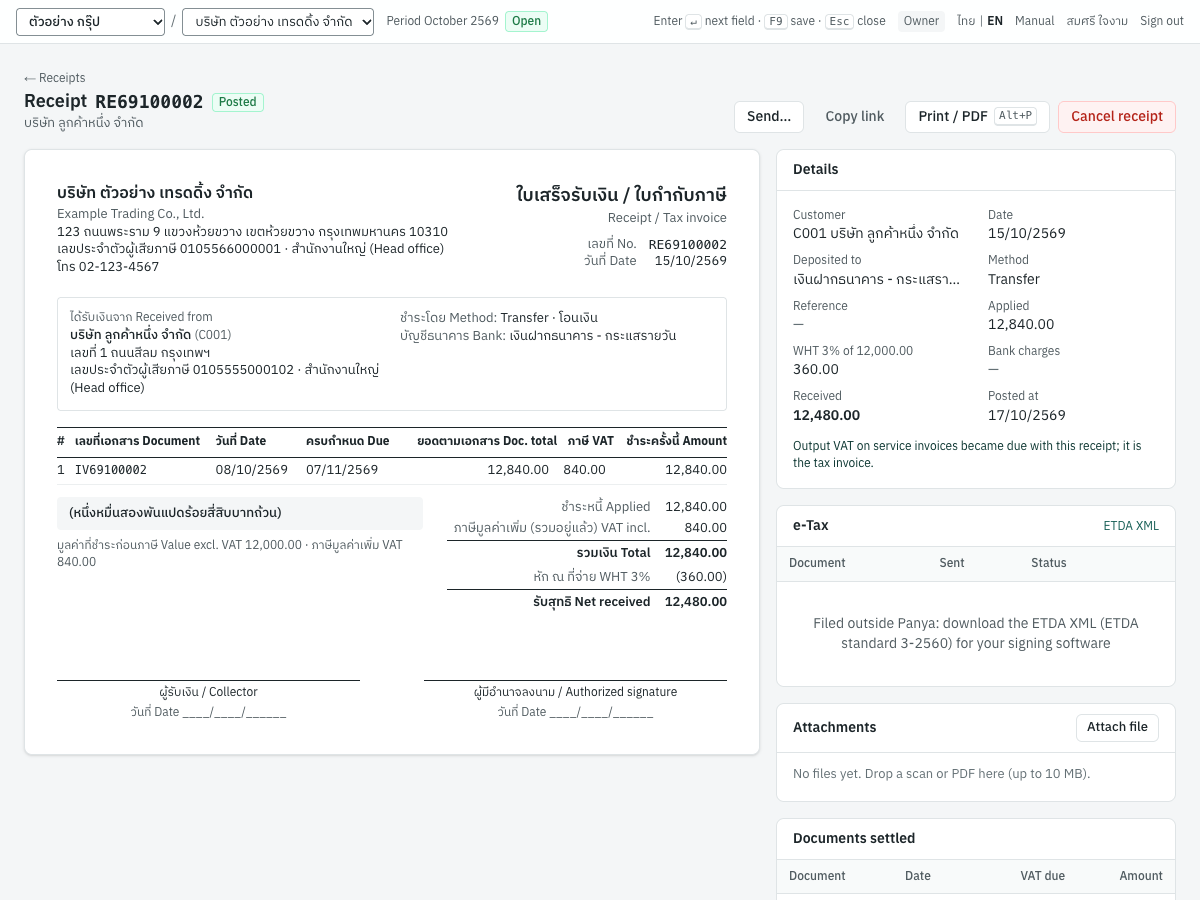
The buttons at the top are:
- Send… and Copy link: email the receipt to the customer (the customer's email address is filled in; you can add copies and a message), or copy a link to a read-only copy that works for 30 days.
- Print / PDF (
Alt+P). - Cancel receipt: see Cancelling a receipt.
The Details card shows the customer, date, the account deposited to, the method, the cheque number and date, the reference, the amount applied, the withholding tax (rate and base, or one row per income type), bank charges, the amount received, any advance created or used, and when it was posted. For a cheque with clearing on it also shows the cheque's status: waiting to clear, cleared with the date, or returned by the bank. A note under the details tells you when output VAT fell due with the receipt.
The other cards are:
- e-Tax, for a VAT-registered company: the receipt's ETDA XML file, and the e-Tax submission status (see Sales).
- Attachments: attach scans or PDFs up to 10 MB, for example the customer's transfer slip or 50 ทวิ.
- Documents settled: each document with its date, the VAT that fell due and the amount applied. A receipt with no documents shows No documents — the whole amount is an advance.
- Journal entry: the posted entry, with a link to it. After cancellation, a Reversal card shows the reversing entry.
The printed receipt is titled ใบเสร็จรับเงิน · Receipt, or ใบเสร็จรับเงิน / ใบกำกับภาษี · Receipt / Tax invoice when VAT fell due with it. It shows:
- your company's name (Thai and English), address, tax ID and branch, and phone;
- the receipt number, date and reference;
- ได้รับเงินจาก Received from: the customer's name and code, address, tax ID and branch;
- the method and account, and the cheque details;
- the documents paid (number, date, due date, document total, VAT when it is a tax invoice, amount paid this time);
- the total in Thai words;
- the totals: ชำระหนี้ Applied, รับล่วงหน้า Advance, VAT included, รวมเงิน Total, then the deductions (หัก ณ ที่จ่าย WHT per type, ค่าธรรมเนียม bank charges, หักเงินรับล่วงหน้า advance applied) and รับสุทธิ Net received;
- signature lines for ผู้รับเงิน / Collector and ผู้มีอำนาจลงนาม / Authorized signature.
A receipt with no documents prints its memo (or รับ/จ่ายล่วงหน้า · Advance) as the only line.
Foreign currency receipts#
An invoice in a foreign currency is settled by a receipt in the same currency (see Sales for foreign currency invoices). The ledger stays in baht: the receipt clears each invoice at the baht value it was booked at, books the money at the receipt's rate, and posts the difference as a realised exchange gain or loss.
To receive a foreign currency payment:
- Choose the customer, for example
C003Global Imports LLC. - Set Currency to the invoice's currency, for example
USD. Only USD documents are listed and the amounts are in USD. - Check the Rate · THB per USD. It defaults to the buying rate on file for the date (set up in 7 Setup → Exchange rates, see Setup). Type the rate your bank actually used if you prefer.
- Tick the invoices and enter the amounts in USD.
- Enter in Less bank charges any fee the banks kept, in USD. The invoice is settled for the money plus the fee.
- Check the Amount received in USD.
- Post.
The summary also shows, in baht:
| Line | What it is |
|---|---|
| In THB at 33.45 (with the receipt's rate) | The money received × the rate |
| Clears in THB (booked rates) | The baht value of the invoices being cleared, at their own rates |
| Exchange gain (est.) or Exchange loss (est.) | The difference, posted to 4910 |
The estimate is confirmed at posting, when the invoices' open baht values are taken again.
For example, invoice IV69100004 to Global Imports LLC is USD 550.00 booked at 33.20, that is 18,260.00 baht. The customer pays in full; the banks keep USD 15.00 and USD 535.00 arrives, received at a rate of 33.45:
| Account | Debit | Credit |
|---|---|---|
| 1120 เงินฝากธนาคาร - กระแสรายวัน (535.00 × 33.45) | 17,895.75 | |
| 5240 ค่าธรรมเนียมธนาคาร (15.00 × 33.45) | 501.75 | |
| 1130 ลูกหนี้การค้า | 18,260.00 | |
| 4910 กำไร (ขาดทุน) จากอัตราแลกเปลี่ยน | 137.50 |
Rules for foreign currency receipts:
- A receipt settles documents of one currency only, and a baht receipt cannot settle a foreign currency document.
- A foreign currency receipt takes no withholding tax and no e-WHT.
- Foreign advances. If more money arrives than the invoices need, the rest becomes an advance in that currency, carried in baht at the receipt's rate. A later receipt in the same currency can use it: Less advance used then shows the advance available in that currency. It is used at its share of the baht carried, and the difference is an exchange gain or loss. A baht receipt cannot use a foreign currency advance. To pay it back, see Customer refunds (RF).
- The receipt page shows the amount, bank charges, advance and advance used in the currency, the exchange rate, and the exchange gain or loss.
- The printed receipt is in the currency. The documents table shows each invoice's total and the amount received in USD, with a มูลค่าบาท Booked THB column for the baht it clears. The totals are in USD: ชำระหนี้ Applied, รวมเงิน Total, the bank charges and advance applied, and รับสุทธิ Net received. A box beside the totals gives the exchange rate, the net received and bank charges in baht, the baht cleared at the invoices' own rates (Applied at booked rates), the exchange gain or loss, and the baht received in Thai words. For the example above: Net received 17,895.75 · Bank charges 501.75 บาท; Applied at booked rates 18,260.00 · Exchange gain 137.50 บาท.
- Open foreign currency invoices are revalued at the period end with FX revaluation (see Accounting).
Cancelling a receipt#
Use cancellation when a receipt was posted by mistake, for example to the wrong customer or with the wrong amount:
- Open the receipt and click Cancel receipt.
- Enter the Reason and check the Reversal date.
- Click Cancel receipt in the dialog.
Panya posts a reversing entry on the reversal date, reverses the VAT and withholding tax records, and opens the settled documents again. The page then shows Cancelled …: reason. The original entry is kept and a reversing entry was posted; the settled documents are open again. Enter a new receipt if needed.
You cannot cancel a receipt when:
- its cheque has cleared: record the cheque as returned in the cheque register instead;
- the advance it created has since been used or refunded: cancel those documents first.
Tip: A receipt whose cheque is still waiting to clear can be cancelled as usual. The cheque leaves the cheque register, and leaves its deposit slip if the slip has not cleared; the slip keeps its other cheques.
Messages#
| Message | What to do |
|---|---|
Choose a customer first | Pick the customer. |
Set up a cash or bank account first (Finance → Cash & bank accounts) | Create a cash or bank account; see Cash and bank accounts. |
Tick at least one document or enter an amount | Tick a document, or type the amount received for an advance. |
The amounts applied exceed the amount received plus WHT and charges by … | Reduce the amounts in the Receive column, or correct the amount received. |
Choose the income type of every withholding tax line | Choose a type on each extra line, or remove it. |
cannot allocate … to IV69100001: outstanding balance is … | The amount is more than is open (perhaps another receipt was posted meanwhile). Lower it. |
an advance used must be applied in full; reduce it to what the documents need | Lower Less advance used, or click the available link to fill it correctly. |
only … of advance is available | Another document used the advance, or the advance was received after this receipt's date. Lower the amount used, or date the receipt later. |
IV69100005 is dated 2026-10-20, after this document: it can be settled only on or after that date | A receipt or payment cannot be dated before a document it settles. Date it on or after that document. |
no e-WHT rate applies on … / withholding line 1: e-WHT withholds at most 1% | Untick e-WHT, or correct the rate: through e-WHT a 5%, 3% or 2% type withholds at most the e-WHT rate. |
e-WHT payments are bank transfers | Set the method to Transfer. |
IV69100004 is in a foreign currency: settle it with a receipt or payment in that currency | Set Currency to the invoice's currency. |
a foreign currency receipt takes no withholding tax | Remove the withholding tax. |
no USD rate on or before …: add it in Setup or enter the rate | Type the rate, or add it in Setup → Exchange rates. |
the cheque has cleared; record it as returned by the bank instead | Use Returned… in the cheque register. |
part of this document's advance was already applied or refunded; cancel those first | Cancel the later receipt or refund first. |
Supplier billing (BR)#
ใบรับวางบิล · Menu: 3 Finance → Supplier billing
When a supplier bills you (วางบิล), record it as a supplier billing. It lists the supplier's open invoices, debit notes and opening balances with the date you have agreed to pay, and keeps the supplier's billing note number. Like a customer billing note, it posts nothing: it is a record for planning and following payments. Pay on an issued supplier billing opens a payment with its documents already ticked.
The list works like the billing note list, with a Supplier column:
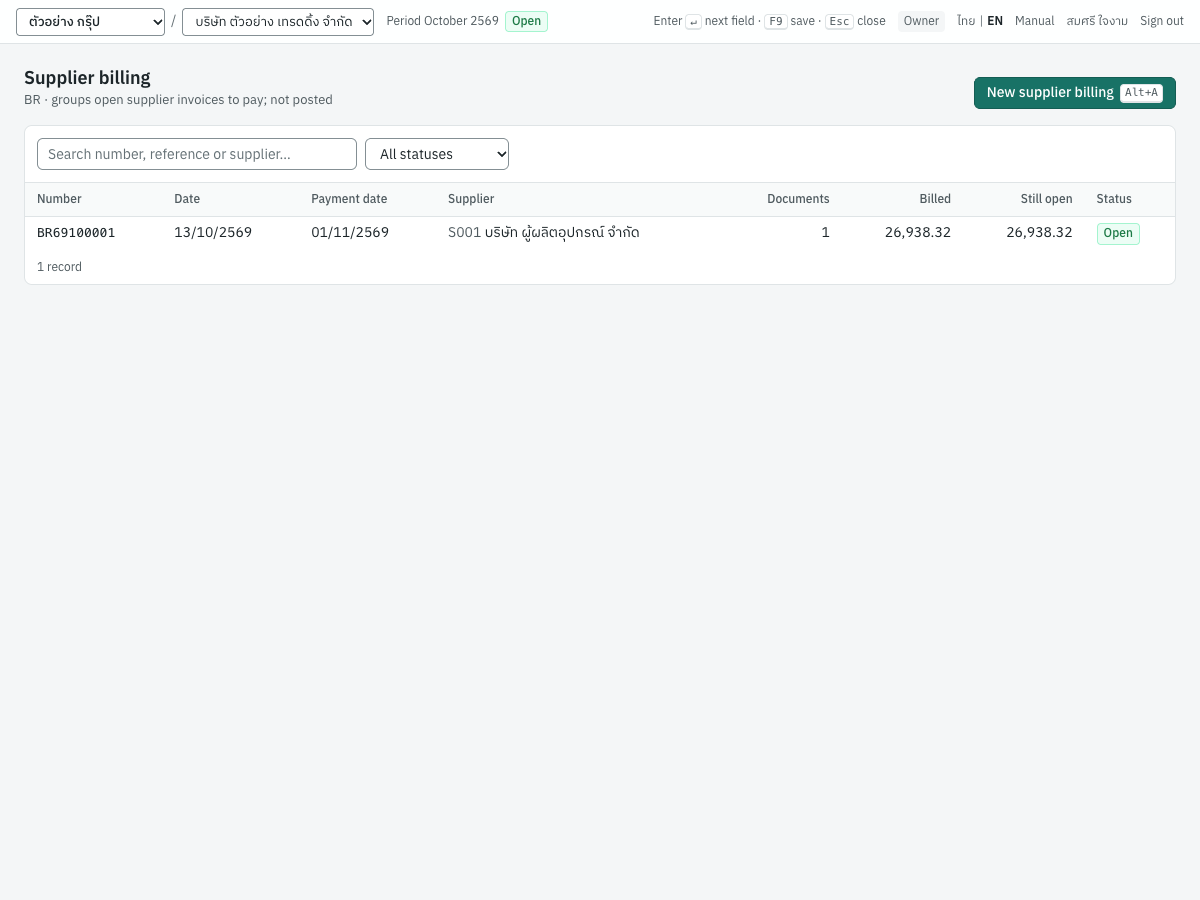
Fields#
| Field | ภาษาไทย | What to enter |
|---|---|---|
| Supplier | ผู้จำหน่าย | The supplier who billed you. Choosing it lists its open documents. Required. |
| Date | วันที่วางบิล | The date the billing was received. Defaults to today. |
| Payment date | วันนัดชำระ | The date you will pay. Optional; cannot be before the billing date. |
| Reference | อ้างอิง | The supplier's billing note number (the hint says so), for example BL-26-1013. |
| Memo | หมายเหตุ | Optional. |
| Open documents | เอกสารค้างชำระ | The supplier's posted invoices, debit notes and opening balances still open and not on another issued supplier billing. All are ticked; untick those not on the supplier's billing. |
Recording a supplier billing#
- Open 3 Finance → Supplier billing and click New supplier billing (
Alt+A). - Choose the Supplier, for example
S001. - Enter the Date you received the billing, the agreed Payment date, and the supplier's billing number in Reference.
- Untick the documents that are not on the supplier's billing, and check that the Total agrees with it.
- Click Save & issue (
F9).
Issuing numbers it (for example BR69100001), records each document's open amount, and holds the documents so they cannot go on another supplier billing. Nothing is posted.
The supplier billing page#
The page shows the printable record and its payment progress:
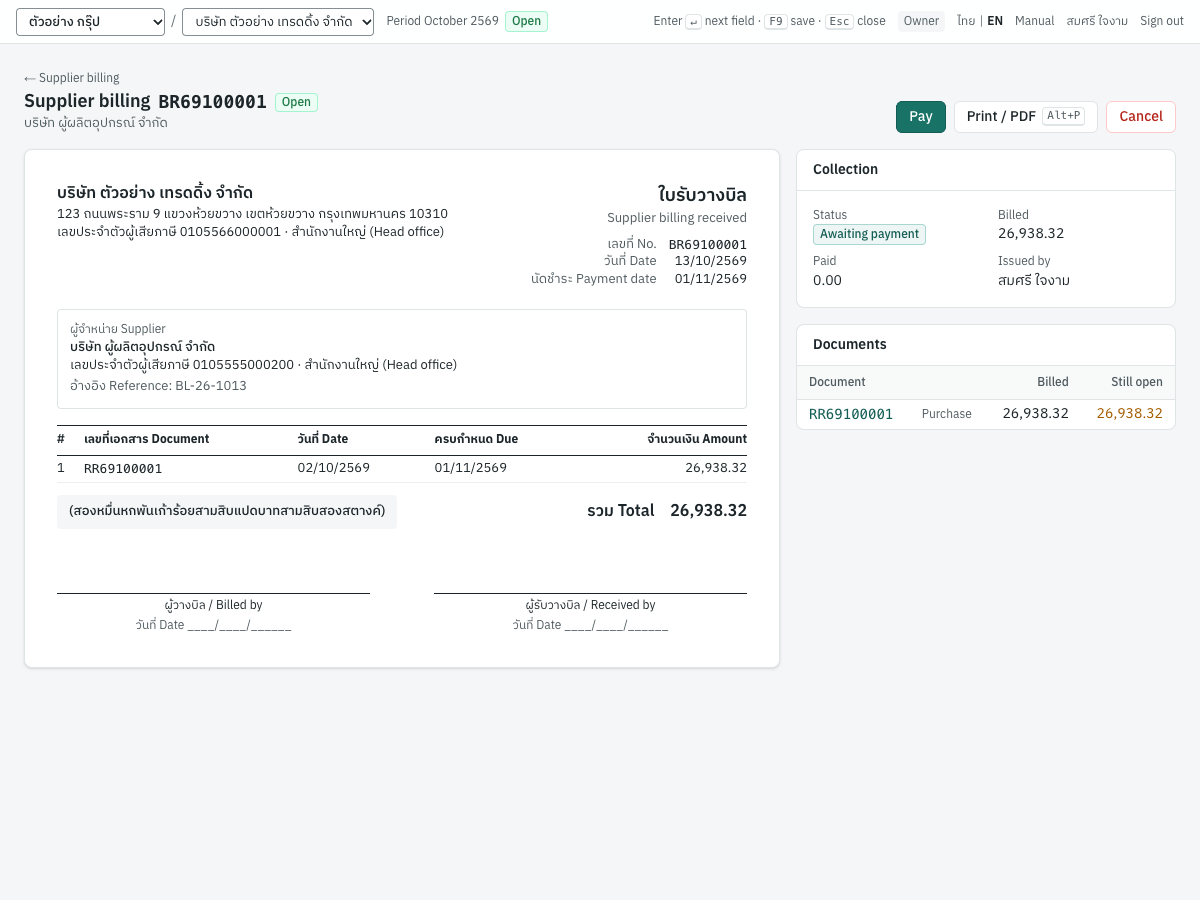
- Pay opens a new payment to the supplier with every document still open ticked for its full amount, and Per supplier billing and the BR number in the memo (on the Thai screen, ตามใบรับวางบิล and the number).
- Print / PDF (
Alt+P) prints it, titled ใบรับวางบิล · Supplier billing received, with the supplier's reference. - Cancel withdraws it; its documents can go on a new supplier billing. Nothing is posted or reversed.
The Collection card shows the status (Awaiting payment, Partly paid, Paid in full, Cancelled), the amount billed, the amount Paid since, and who issued it. The Documents card lists each document with what was billed and what is still open.
Tip: After Pay, enter the supplier's receipt or tax invoice number in the payment's Supplier receipt / tax invoice no. For service invoices whose input VAT is claimable on payment, that number becomes the tax invoice number of the input VAT record, and the payment cannot be posted without it.
The messages are the same as for billing notes.
Payments (PS)#
จ่ายชำระหนี้ · Menu: 3 Finance → Payments
A payment records money paid to a supplier. It settles one or more open invoices, debit notes or opening balances, fully or in part. On the same payment you record:
- the withholding tax you deduct (หักภาษี ณ ที่จ่าย), with one or more income types, filed on ภ.ง.ด.3, ภ.ง.ด.53 or ภ.ง.ด.54 according to the supplier;
- whether you pay through e-Withholding Tax;
- an earlier advance to the supplier used to settle the documents;
- any money paid beyond what the documents need, which becomes an advance to the supplier;
- the supplier's receipt or tax invoice number, when paying service invoices whose input VAT becomes claimable on payment;
- for a foreign supplier, the VAT you self-assess on imported services (ภ.พ.36).
After posting you print the payment voucher (ใบสำคัญจ่าย) and the withholding tax certificate (50 ทวิ).
The payment list#
The list shows the newest payments first. In the demo company, PS69100003 pays Cloudsoft Inc. in USD:
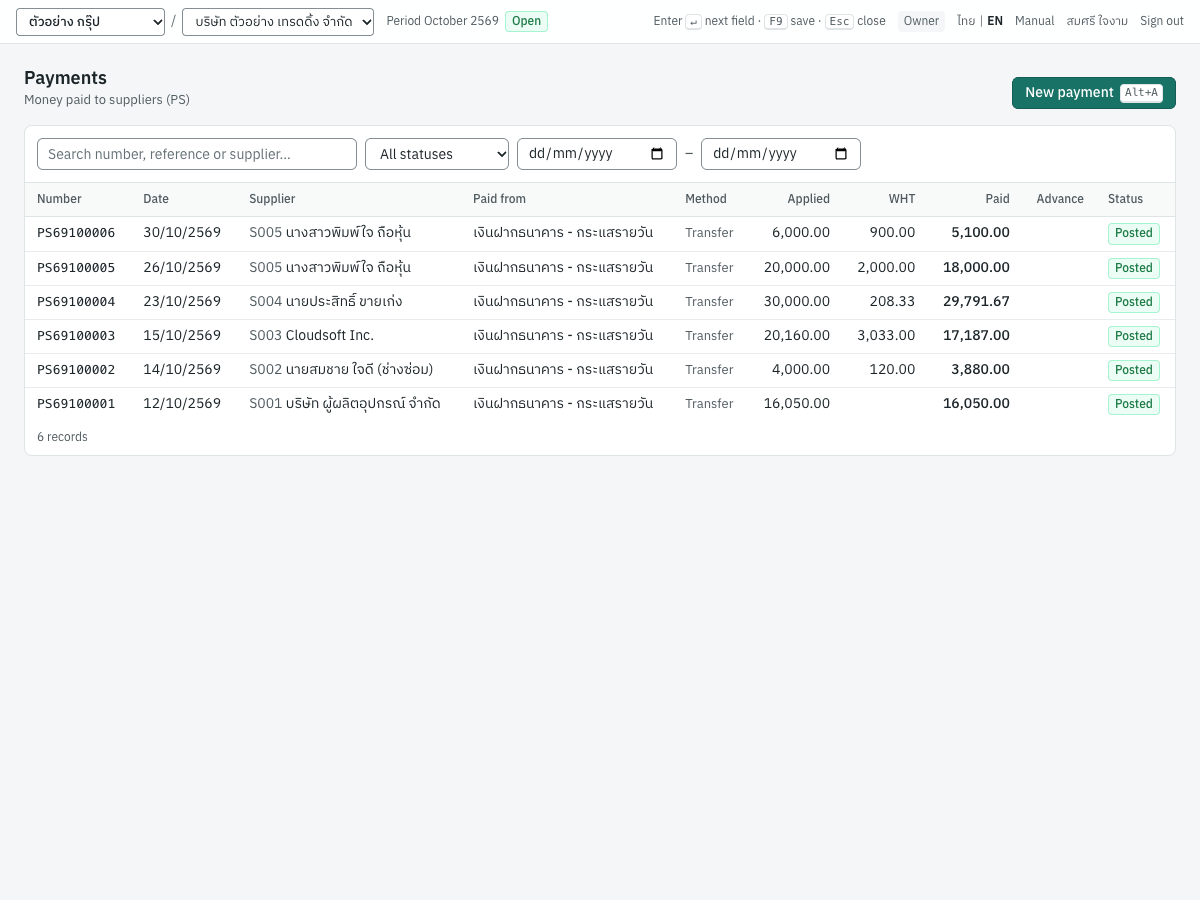
The columns are the same as the receipt list, with Supplier, Paid from and Paid. All amounts are in baht. Search by number, reference, supplier code or name, and filter by status and date range. New payment (Alt+A) opens the form.
The payment form#
The payment form has the same layout as the receipt form. Here it pays RR69100001 of บริษัท ผู้ผลิตอุปกรณ์ จำกัด in full:
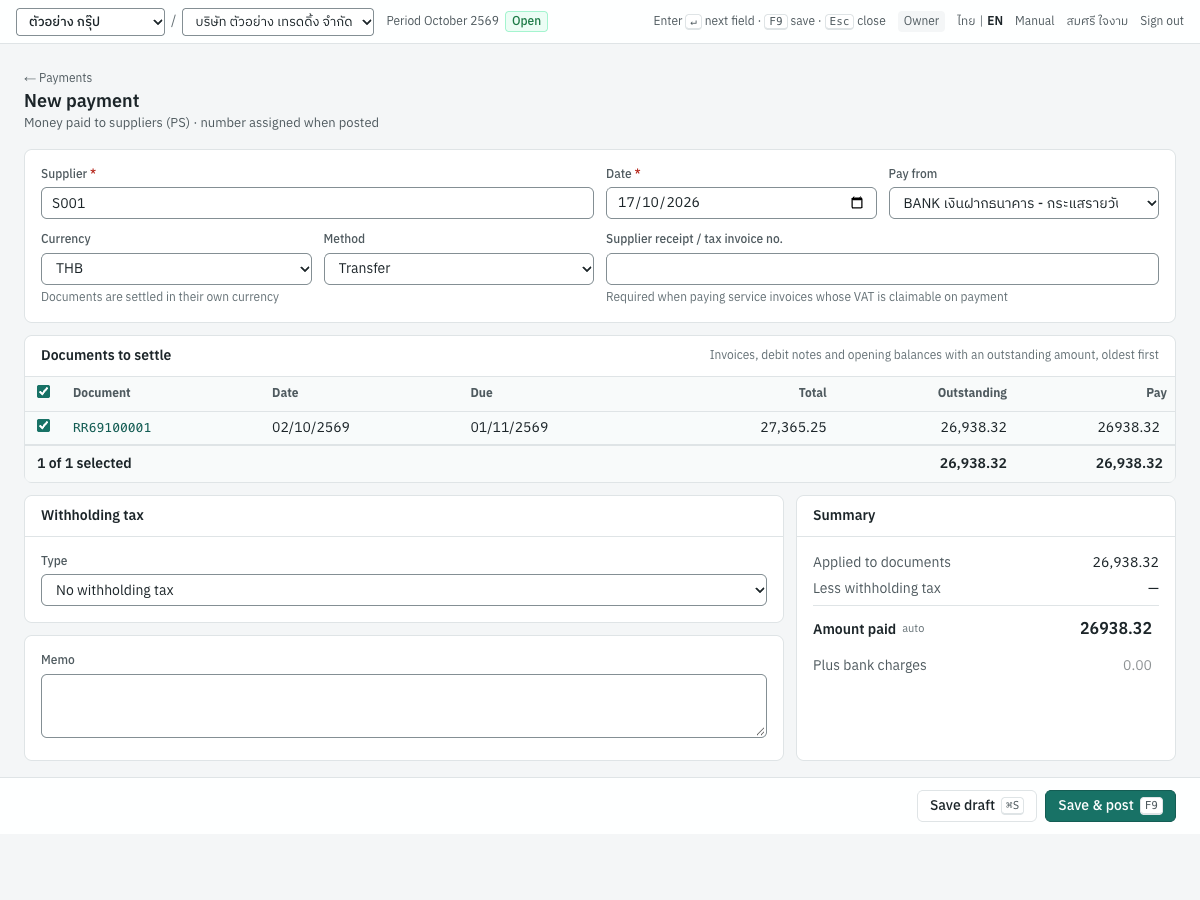
Header fields#
| Field | ภาษาไทย | What to enter |
|---|---|---|
| Supplier | ผู้จำหน่าย | Type the code or name and press Enter. Required. Choosing the supplier lists its open documents and fills in its Default WHT type from the supplier record (see Purchasing). |
| Date | วันที่ | The day you pay. Defaults to today. It cannot be before the date of a document it settles. |
| Pay from | จ่ายจาก | The active cash or bank account paying. Defaults to the first active bank account. |
| Currency | สกุลเงิน | As on receipts: shown when the supplier has foreign currency documents or rates are on file. Changing it clears the ticked documents and the advance used. |
| Rate · THB per USD | อัตราแลกเปลี่ยน · บาทต่อ USD | Shown for a foreign currency. Defaults to the latest selling rate on or before the date. |
| Method | วิธีชำระ | Cash, Transfer, Cheque, Card or Other. Defaults to Cash for a cash account, otherwise Transfer. |
| Cheque no. | เลขที่เช็ค | Shown for Cheque. Your cheque number. |
| Cheque date | ลงวันที่ | Shown for Cheque. The date on your cheque. |
| Supplier receipt / tax invoice no. | เลขที่ใบเสร็จ/ใบกำกับ | The number of the receipt or tax invoice the supplier gives you for this payment. Required when you pay a service invoice whose input VAT is claimable on payment: the field then turns red and names those invoices. Printed as อ้างอิง Ref. |
The Documents to settle grid works exactly as on receipts, with a Pay column. Supplier credit (a purchase return, GR) is not listed: it reduces the invoice it was issued against, spare credit is applied to other invoices with Apply credit to invoices on the return (see Purchasing), and what is left can be collected with a supplier refund.
Withholding tax#
The Withholding tax card has the same fields as on receipts: Type, Base, Rate %, Tax, and + Another income type. For a foreign supplier its title adds (PND.54). For a type computed at the progressive rates, Rate % reads progressive and cannot be edited; the hint under it shows the effective rate once the tax is computed. The card also has:
| Field | ภาษาไทย | What to enter |
|---|---|---|
| Pay through e-Withholding Tax (e-WHT) | จ่ายผ่านระบบ e-Withholding Tax (e-WHT) | Tick when you pay through your bank's e-WHT service. The bank withholds at the e-WHT rate with the transfer and remits it. Not shown for a foreign supplier or a foreign currency payment. |
| Certificate no. | เลขที่หนังสือรับรอง (50 ทวิ) | The number to print on the 50 ทวิ. Leave it blank to use the payment number (the hint says Blank = the payment number). Not shown with e-WHT or for a foreign supplier. |
| Payments per year | จำนวนคราวที่จ่ายต่อปี | Shown when the type is computed Progressive, annualised (PND.1): how many times a year you pay this payee this income, 1 by default. The hint explains the computation; see Withholding tax on PND.1 and PND.2. |
Under the summary, a note tells you which return the tax goes on:
- an individual supplier (บุคคลธรรมดา): WHT is filed on PND.3 (individual); print the 50 ทวิ certificate after posting.
- an individual paid s.40(1)/(2) income: WHT is filed on PND.1 (individual, s.40(1)/(2) income) by the 7th of next month; print the 50 ทวิ certificate after posting.
- an individual paid s.40(3)/(4) income: the same note with PND.2 (individual, s.40(3)/(4) income);
- a juristic person (นิติบุคคล): the same note with PND.53 (juristic person);
- a foreign company: WHT is filed on PND.54 (foreign company) by the 7th of next month; there is no 50 ทวิ — give the supplier a copy of the filed form.
The supplier's entity type on the supplier record and the income type of each WHT type decide the form: an individual's s.40(1)/(2) income goes on PND.1, s.40(3)/(4) income on PND.2 and other income on PND.3 (see Withholding tax on PND.1 and PND.2 and Entity type and withholding tax in Purchasing). All the lines of one payment must belong to the same return; when they do not, the card warns These lines are filed on different returns (PND.1, PND.3): pay them separately and posting is refused.
Summary#
| Line | ภาษาไทย | What it is |
|---|---|---|
| Applied to documents | ตัดชำระ | The total of the Pay column |
| Less withholding tax | หัก ณ ที่จ่าย | The total tax withheld |
| Less advance used | หักเงินจ่ายล่วงหน้า | Shown when you have an unused advance with the supplier; click the … available link to use it. |
| Amount paid | จ่ายเงินสุทธิ | Marked auto: applied less tax and advance used. Type the actual amount if it differs: more creates an advance to the supplier, less cannot be saved. |
| Plus bank charges | บวกค่าธรรมเนียมธนาคาร | Your bank's fee for this payment (for example a transfer fee), in baht. It is paid on top of the amount paid: the supplier still receives the amount paid, and the fee goes to 5240 ค่าธรรมเนียมธนาคาร. |
| Total from the account (THB) | ตัดบัญชีรวม (THB) | Shown with bank charges: the amount paid (in baht) plus the charges, which is what leaves the Pay from account. |
| Advance | เงินจ่ายล่วงหน้า | Shown in amber when you pay more than the documents need. |
| PP.36 VAT (self-assessed, THB) | ภ.พ.36 ภาษีที่เสียแทน (บาท) | For a foreign supplier with PP.36 ticked. |
For example, paying a 1,070.00 bill by transfer with a 25.00 transfer fee: Amount paid 1,070.00, Plus bank charges 25.00, Total from the account (THB) 1,095.00. The entry is Dr 2110 1,070.00 and Dr 5240 25.00, Cr 1120 1,095.00. A fee the bank charges later, apart from any payment, is booked from the bank statement (see Booking bank fees and interest).
Paying a supplier#
- Open 3 Finance → Payments and click New payment (
Alt+A), or click Pay on the purchase invoice or supplier billing. - In Supplier, type the code, for example
S002, and pressEnter. Its open documents appear, and its default withholding type is chosen. - Check the Date, Pay from account and Method. For a cheque, enter the cheque number and date.
- Tick the documents being paid; type a smaller amount in Pay for a partial payment.
- Check the withholding tax Type, Base and Tax. Add another income type if the payment covers more than one.
- If you pay through e-WHT, tick it. Otherwise leave Certificate no. blank to use the payment number, or type your own certificate number.
- If a ticked invoice has the VAT on payment badge, enter the supplier's receipt or tax invoice number in Supplier receipt / tax invoice no.
- Check Amount paid against the transfer you make.
- Click Save & post (
F9). - Click 50 ทวิ certificate on the payment page and print it.
For example, นายสมชาย ใจดี (ช่างซ่อม) (S002) is an individual whose default type is SERVICE ค่าบริการ — 3%. Paying his invoice RR69100002 of 4,000.00 withholds 120.00, so Amount paid is 3,880.00, filed on ภ.ง.ด.3.
Withholding tax with several income types#
Suppose S002 bills 6,000.00: repairs of 4,000.00 and equipment rent of 2,000.00, with no VAT. Tick the invoice; the first line is SERVICE, 3%. Click + Another income type, choose RENT ค่าเช่า — 5% and type a Base of 2,000.00: its tax is 100.00. The first line's base becomes the rest, 4,000.00, with tax 120.00. The total withheld is 220.00 and Amount paid is 5,780.00.
Each line gets its own withholding tax record under the same certificate number. The 50 ทวิ adds the lines up by the row of the form they belong to.
Withholding tax on PND.1 and PND.2#
Tax withheld from an individual (บุคคลธรรมดา) on s.40(1)/(2) income is filed on ภ.ง.ด.1, and on s.40(3)/(4) income on ภ.ง.ด.2. The return follows the supplier's entity type and the WHT type's income type, as for ภ.ง.ด.3. Four delivered types cover the usual cases:
| Type | Income | Computation | Return |
|---|---|---|---|
COMMISSION_IND ค่านายหน้า (บุคคลธรรมดา) | 40(2) commissions, brokerage, fees for a position | Progressive, annualised (s.50(1)) | ภ.ง.ด.1, item 4 |
ROYALTY_IND ค่าลิขสิทธิ์ (บุคคลธรรมดา) | 40(3) royalties, copyright, goodwill | Progressive on each payment (s.50(2)) | ภ.ง.ด.2, item 1 |
INTEREST_IND ดอกเบี้ย (บุคคลธรรมดา) | 40(4)(a) interest on loans | Flat 15% | ภ.ง.ด.2, item 2 |
DIVIDEND เงินปันผล | 40(4)(b) dividends and profit shares | Flat 10% | ภ.ง.ด.2, item 3 |
Salaries and wages (40(1)) are paid through payroll runs (see Payroll), which work out each employee's tax with their allowances and list it on the same ภ.ง.ด.1; this section covers the s.40(1)/(2) income you pay through payments, such as a sales agent's commission.
How the tax is computed. A flat type withholds its rate of the base, as always. A progressive type has no rate: the server computes the tax from the personal income tax scale (0% up to 150,000, 5% to 300,000, 10% to 500,000, 15% to 750,000, 20% to 1,000,000, 25% to 2,000,000, 30% to 5,000,000, 35% above) while you type, and the Tax field shows the result; Rate % reads progressive and the hint under it gives the effective rate. You can still overtype the tax and click ↺ auto to go back to the computed figure.
- Progressive on each payment (ภ.ง.ด.2, s.50(2)): the scale is applied to the gross amount of each payment, with no expense deduction and no allowances. A royalty of 500,000.00 withholds 27,500.00 (150,000 at 0%, the next 150,000 at 5% = 7,500, the next 200,000 at 10% = 20,000), an effective rate of 5.5%.
- Progressive, annualised (ภ.ง.ด.1, s.50(1)): the payment is multiplied by Payments per year to stand for a year's income; 50% expenses (at most 100,000) and the 60,000 personal allowance are deducted; the scale gives the year's tax, which is divided back by the payments per year. A commission of 1,000,000.00 paid once (payments per year 1): 1,000,000 − 100,000 − 60,000 = 840,000 → 7,500 + 20,000 + 37,500 + 18,000 = 83,000.00, an effective rate of 8.3%. A fee of 100,000.00 a month (12 payments a year): 1,200,000 − 160,000 = 1,040,000 → 125,000 a year → 10,416.67 a month. When the computation comes to 0 (a commission of 50,000.00 paid once: 50,000 − 25,000 − 60,000 is below zero), the payment posts with no withholding record and is not on the month's ภ.ง.ด.1. The payee still belongs on the annual ภ.ง.ด.1ก, which lists every payee: the PND.1ก tab takes the payment from its withholding line, with the income and a tax of 0 (see 08-reports.md).
- Dividends withhold 10% (10,000.00 → 1,000.00) and interest 15% (10,000.00 → 1,500.00), as flat rates.
- A type whose Payee is a Thai resident is unticked (a payee in Thailand for fewer than 180 days of the year) withholds 15% of s.40(1)–(4) income whatever its computation; its ภ.ง.ด.1 lines go on item 5 (40(2) มิได้อยู่ในประเทศไทย). The attachment has no item for s.40(1) paid to a non-resident, so such a payment is refused: use a s.40(2) type or file that tax outside Panya.
Payments per year is a whole number, 1 by default, kept on the withholding line. Set it to how many times a year you pay this payee this income: 12 for a monthly retainer, 1 for a one-off commission. The law leaves the estimate to the payer. Panya rounds each payment's tax to satang and does not adjust the year's last payment for the remainder of the division; that remains the payer's job.
One return per payment. All the withholding lines of a payment must belong to the same return. A commission (ภ.ง.ด.1) and a repair (ภ.ง.ด.3) to the same person are two payments: the card warns These lines are filed on different returns (PND.1, PND.3): pay them separately, and posting is refused with withholding lines are filed on different returns (PND.1 and PND.3): pay them separately. e-WHT does not change the tax of these lines, as the reduced e-WHT rate applies to 5%, 3% and 2% types only.
On the payment page the Details card shows WHT return: PND.1 (or PND.2), the certificate number and, for a progressive line, Computation: progressive, 12 payments a year or progressive on each payment. The 50 ทวิ certificate ticks ภ.ง.ด.1ก for a ภ.ง.ด.1 payment (the annual summary on which the payee's income is reported) and ภ.ง.ด.2 for a ภ.ง.ด.2 payment, and puts the income on rows 1 to 4 of its table: row 1 for 40(1), row 2 for 40(2), row 3 for 40(3), row 4 (ก) for interest and 4 (ข) for dividends (the dividend tax-credit sub-items of row 4 (ข) are not filled in).
Numbering and the RD Prep file. On the ภ.ง.ด.1 and ภ.ง.ด.2 attachments the sequence numbers (ลำดับที่) run per income type (ประเภทเงินได้), items 1 to 5, one line per withholding line; the certificate shows the line's number and the report's Income code column shows its item. The PND.1 and PND.2 tabs of the withholding tax report offer the RD Prep files PND1_256910.txt and PND2_256910.txt; see Reports.
The annual summaries ภ.ง.ด.1ก and ภ.ง.ด.2ก are prepared on the PND.1ก and PND.2ก tabs of the withholding tax report (see 08-reports.md).
Through payments, Panya does not apply ภ.ง.ด.1 items 2 (40(1) withheld at 3% with Revenue Department approval) and 3 (payments on leaving employment), allowances the payee claims on ล.ย.01 (only the 60,000 personal allowance is taken), or the year-end adjustment of the remainder. For employees, payroll runs do all of these (see Payroll).
e-Withholding Tax payments#
When you pay through your bank's e-WHT service, the bank deducts the tax with the transfer at the reduced rate (1% for 2569) and remits it to the Revenue Department:
- Tick Pay through e-Withholding Tax (e-WHT). The method changes to Transfer, and the rate of each line whose WHT type withholds 5%, 3% or 2% drops to the e-WHT rate. The e-WHT regulations lower only those three rates: other rates, such as 1% for transport or 10% for dividends, stay as they are.
- Certificate no. disappears: there is no 50 ทวิ for this payment.
- Post. The bank account is credited with the money paid plus the tax, because the bank takes both; nothing is left in 2130 ภาษีเงินได้หัก ณ ที่จ่ายค้างจ่าย.
For example, paying an invoice of 10,700.00 (10,000.00 + VAT 700.00) for a service through e-WHT withholds 1% of 10,000.00 = 100.00. Amount paid is 10,600.00 and the bank line is 10,700.00.
The tax record is kept for the withholding tax report, marked e-WHT. e-WHT payments are left out of the RD Prep file and the 50 ทวิ numbering, because the bank has filed them. The payment page shows WHT via e-WHT: Remitted by the bank with the transfer · no 50 ทวิ. Do not use e-WHT for payees that are not eligible, such as foundations and associations.
Paying service invoices: the supplier's tax invoice#
A supplier's service invoice can be marked Input VAT claimable on payment (services) when it is entered (see Purchasing). Its VAT is held as undue input VAT (1151 ภาษีซื้อยังไม่ถึงกำหนด) until you pay, because the supplier issues the tax invoice only when it is paid.
When you pay such an invoice:
- The invoice shows a VAT on payment badge in the grid.
- Supplier receipt / tax invoice no. becomes required. Enter the number on the receipt/tax invoice the supplier issues for this payment.
- Posting moves the VAT due from 1151 to 1150 ภาษีซื้อ and writes an input VAT record dated the payment date, numbered with the supplier's receipt/tax invoice number. It is claimed on the ภ.พ.30 of the payment's month.
- A partial payment makes the same share of the VAT claimable; the last payment takes the rest.
- The payment page notes Input VAT on service purchases became claimable with this payment, and the VAT due column of Documents settled shows the amount.
What posting records#
Posting numbers the payment (for example PS69100002) and posts one entry in the payments book:
| Account | Debit | Credit |
|---|---|---|
| 2110 เจ้าหนี้การค้า | Total applied | |
| 1170 เงินจ่ายล่วงหน้าแก่ผู้ขาย | New advance | |
| 5240 ค่าธรรมเนียมธนาคาร | Bank charges | |
| 1120 เงินฝากธนาคาร - กระแสรายวัน (the Pay from account; 2115 เช็คจ่ายรอตัดบัญชี for a cheque with clearing on) | Amount paid plus bank charges (plus the tax with e-WHT) | |
| 1170 เงินจ่ายล่วงหน้าแก่ผู้ขาย | Advance used | |
| 2130 ภาษีเงินได้หัก ณ ที่จ่ายค้างจ่าย | Tax withheld (not with e-WHT) | |
| 1150 ภาษีซื้อ | VAT becoming claimable | |
| 1151 ภาษีซื้อยังไม่ถึงกำหนด | VAT becoming claimable | |
| 4910 กำไร (ขาดทุน) จากอัตราแลกเปลี่ยน (foreign currency only) | Exchange loss | Exchange gain |
| 1152 ภาษีซื้อ ภ.พ.36 รอใช้สิทธิ (PP.36 only) | PP.36 VAT | |
| 2123 ภาษีมูลค่าเพิ่ม ภ.พ.36 ค้างจ่าย (PP.36 only) | PP.36 VAT |
For PS69100002, the entry is:
| Account | Debit | Credit |
|---|---|---|
| 2110 เจ้าหนี้การค้า | 4,000.00 | |
| 1120 เงินฝากธนาคาร - กระแสรายวัน | 3,880.00 | |
| 2130 ภาษีเงินได้หัก ณ ที่จ่ายค้างจ่าย | 120.00 |
Posting also writes these tax records:
- Withholding tax withheld, one per income type, with the base, rate and tax, the certificate number, and the form: ภ.ง.ด.1 or ภ.ง.ด.2 for an individual's s.40(1)–(4) income (with the item of the attachment, ประเภทเงินได้ 1–5), ภ.ง.ด.3 for an individual's other income, ภ.ง.ด.53 for a juristic person, ภ.ง.ด.54 for a foreign company. A progressive line records its effective rate and the payments per year. These records make up the withholding tax report and the RD Prep files (see Reports).
- Input VAT, one per service invoice whose VAT becomes claimable, as described above.
PP.36 VAT writes no tax record at payment: it becomes input VAT only when you pay it to the Revenue Department (see PP.36 VAT). A payment has no effect on stock.
The payment page#
A posted payment opens on its page. The payment voucher is on the left; details, attachments, the settled documents and the journal entry are on the right:
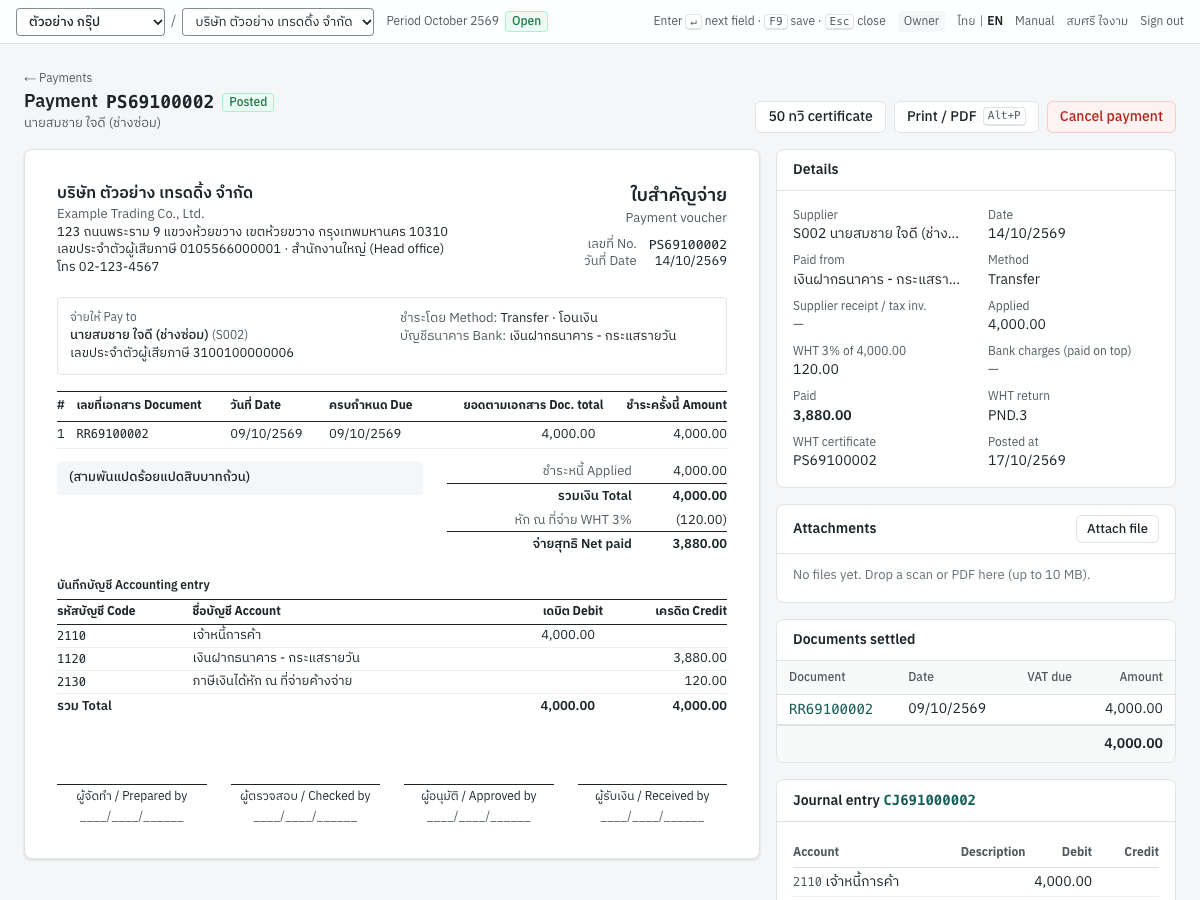
The buttons at the top are:
- 50 ทวิ certificate: shown when tax was withheld, except with e-WHT or for a foreign supplier. See Withholding tax certificate.
- Print / PDF (
Alt+P): prints the payment voucher. - Cancel payment.
The Details card shows the supplier, date, account paid from, method, the supplier's receipt or tax invoice number, the amount applied, the withholding tax, the amount paid, the bank charges paid on top, any advance, the cheque status, and when it was posted. It also shows the WHT certificate number, or WHT via e-WHT, or WHT return PND.54 · no 50 ทวิ. The Attachments, Documents settled and Journal entry cards work as on receipts.
The payment voucher is titled ใบสำคัญจ่าย · Payment voucher. It shows:
- your company's details, the payment number, date and reference;
- จ่ายให้ Pay to: the supplier's name, code, address and tax ID, and the method and account;
- the documents paid;
- the amount paid in Thai words;
- the totals: ชำระหนี้ Applied, จ่ายล่วงหน้า Advance, รวมเงิน Total, the deductions (advance applied, WHT per type) and จ่ายสุทธิ Net paid; with bank charges, also บวก ค่าธรรมเนียมธนาคาร Bank charges and รวมตัดบัญชี Total from the account;
- the accounting entry (บันทึกบัญชี Accounting entry), with account codes, names, debits and credits;
- four signature lines: ผู้จัดทำ / Prepared by, ผู้ตรวจสอบ / Checked by, ผู้อนุมัติ / Approved by and ผู้รับเงิน / Received by.
Withholding tax certificate#
50 ทวิ certificate on the payment page opens the withholding tax certificate (หนังสือรับรองการหักภาษี ณ ที่จ่าย ตามมาตรา 50 ทวิ แห่งประมวลรัษฎากร), laid out like the Revenue Department's form:
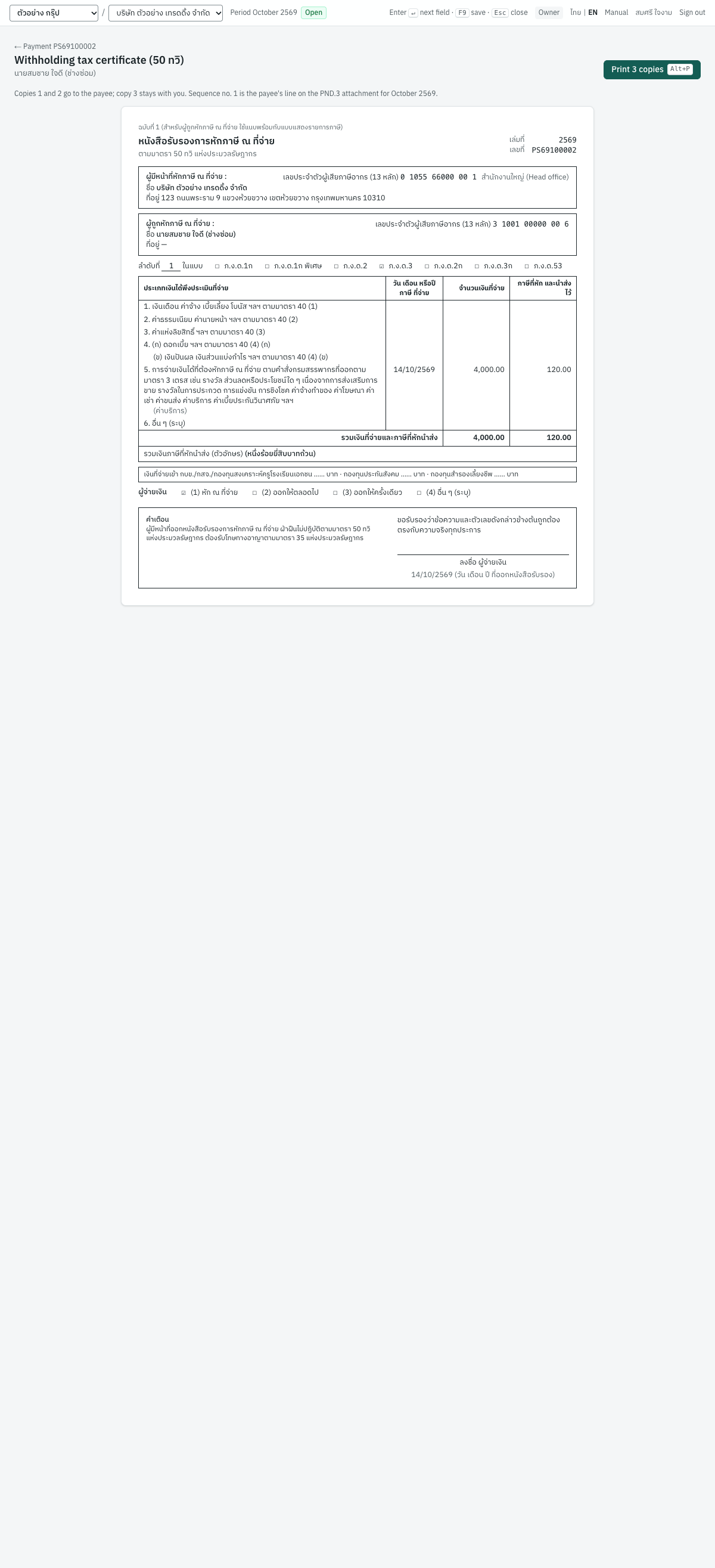
The screen shows copy 1. Print 3 copies (Alt+P) prints three, each on its own page:
- ฉบับที่ 1: for the payee to attach to its tax return;
- ฉบับที่ 2: for the payee to keep;
- ฉบับที่ 3: for you to keep.
What each part of the certificate shows:
| Part | Comes from |
|---|---|
| เล่มที่ | The Buddhist-era year of the payment, for example 2569 |
| เลขที่ | The payment's Certificate no., or the payment number when it was left blank |
| ผู้มีหน้าที่หักภาษี ณ ที่จ่าย | Your company's name, address, 13-digit tax ID and branch, from 7 Setup → Company |
| ผู้ถูกหักภาษี ณ ที่จ่าย | The supplier's name, address, tax ID and branch, from the supplier record |
| ลำดับที่ ... ในแบบ | The payment's line number on that month's ภ.ง.ด.1, ภ.ง.ด.2, ภ.ง.ด.3 or ภ.ง.ด.53 attachment, and the form ticked (ภ.ง.ด.1ก for a ภ.ง.ด.1 payment: the annual summary on which the payee's income is reported). The page explains it, for example Sequence no. 1 is the payee's line on the PND.3 attachment for 2026-10. |
| Income rows 1 to 6 | Each withholding line goes on the row of its income type: 40(1) to 40(4) on rows 1 to 4, 40(5) to 40(8) (rent, services, hire of work, professional fees, advertising, transport, prizes) on row 5 with the type names in brackets, anything else on row 6. Lines on the same row are added up. |
| วัน เดือน หรือปีภาษี ที่จ่าย | The payment date |
| จำนวนเงินที่จ่าย / ภาษีที่หัก | The base and tax of each row, the totals, and the tax in Thai words |
| ผู้จ่ายเงิน | (1) หัก ณ ที่จ่าย is ticked |
| Signature | ลงชื่อ ผู้จ่ายเงิน, dated the payment date |
The line numbers (ลำดับที่) follow the order of the month's ภ.ง.ด.3 or ภ.ง.ด.53 attachment, by date, and are the row numbers of the RD Prep file. A row holds up to three withholding lines: a payment with one to three lines takes one row, one with four to six lines takes two, and the next payment's number follows on. e-WHT payments and payments cancelled within their month are not counted. On ภ.ง.ด.1 and ภ.ง.ด.2 the numbers run per income type (ประเภทเงินได้) of the attachment, one row per withholding line (see Withholding tax on PND.1 and PND.2).
If the payment was cancelled, the page warns The payment was cancelled: this certificate is void.
Tip: The payee's address prints from the supplier record. Fill it in before printing; otherwise the certificate shows ที่อยู่ —.
Paying foreign suppliers#
A supplier with entity type Foreign company is a company abroad with no business in Thailand, for example S003 Cloudsoft Inc. (US). Paying it involves two Thai taxes:
- Withholding tax on ภ.ง.ด.54. Fees, royalties, interest, dividends and rent paid abroad are subject to withholding, at 15% (10% for dividends) or a lower treaty rate. New companies come with the withholding types
FOREIGN_FEE,FOREIGN_ROYALTY,FOREIGN_INTEREST(15%) andFOREIGN_DIVIDEND(10%); add a treaty rate in 7 Setup → VAT & WHT. File ภ.ง.ด.54 by the 7th of the next month (the 15th online). There is no 50 ทวิ: give the supplier a copy of the filed ภ.ง.ด.54 and its receipt. - VAT on imported services, ภ.พ.36. For a service performed abroad and used in Thailand, you self-assess 7% VAT on the full price, including any tax withheld. Pay it with ภ.พ.36 by the same deadline. A VAT-registered company then claims it as input VAT in the month it is paid.
The payment form changes for a foreign supplier:
- The withholding tax card is titled Withholding tax (PND.54), and has no e-WHT or certificate number.
- A card VAT on imported services · PP.36 appears, with Self-assess 7% VAT on this payment (PP.36) ticked. Untick it for imported goods, whose VAT is paid to Customs.
- With PP.36 ticked, Base in THB defaults to the money paid plus the tax withheld, in baht (marked auto; you can type another base). VAT 7% shows the tax.
When the invoice is in a foreign currency, enter the withholding tax in that currency too. Each line is converted at the payment's rate, and the invoice is settled for the money plus the tax.
The demo payment PS69100003 pays Cloudsoft's invoice RR69100003 of USD 600.00, booked at 33.60 (20,160.00 baht). It withholds FOREIGN_FEE 15% of USD 600.00 = USD 90.00, pays USD 510.00 at 33.70, and self-assesses PP.36:
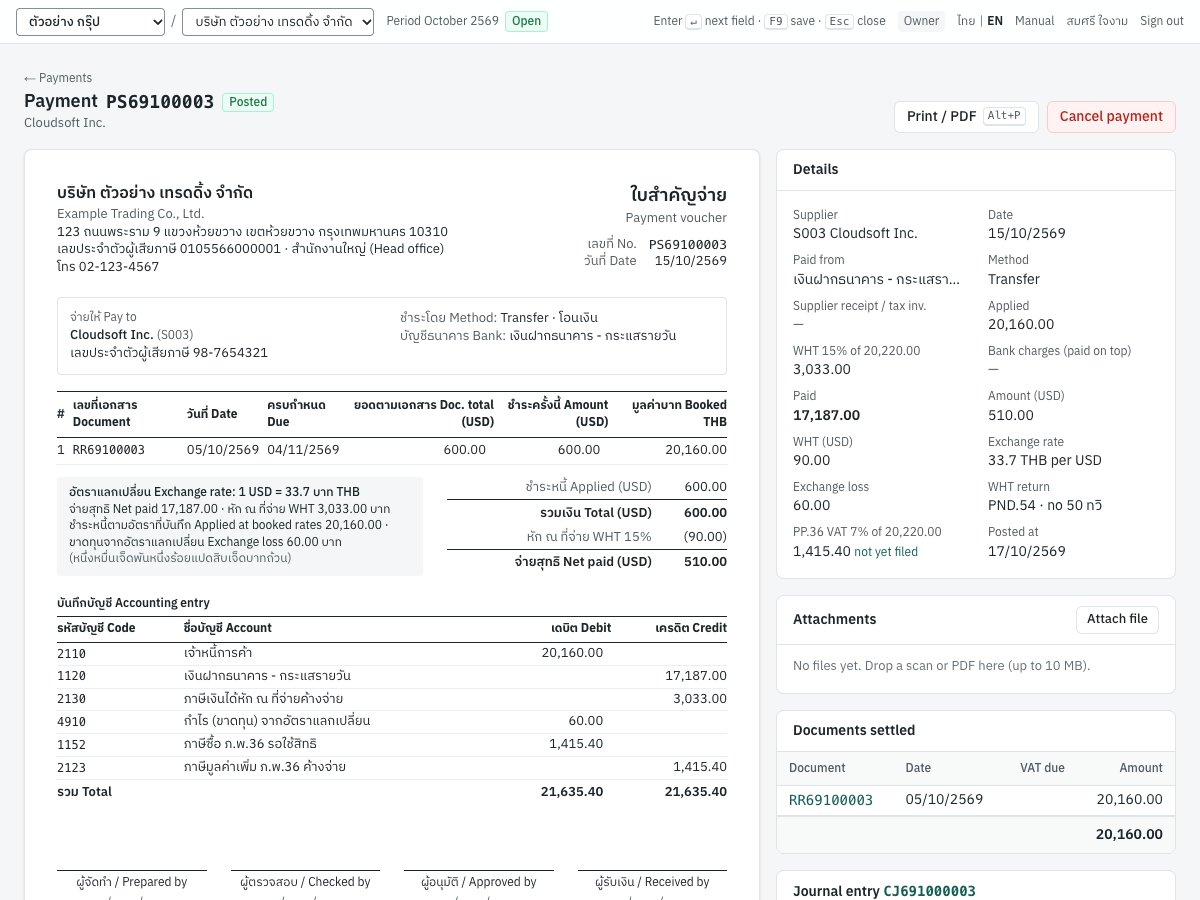
| Account | Debit | Credit |
|---|---|---|
| 2110 เจ้าหนี้การค้า | 20,160.00 | |
| 1120 เงินฝากธนาคาร - กระแสรายวัน (510.00 × 33.70) | 17,187.00 | |
| 2130 ภาษีเงินได้หัก ณ ที่จ่ายค้างจ่าย (90.00 × 33.70) | 3,033.00 | |
| 4910 กำไร (ขาดทุน) จากอัตราแลกเปลี่ยน | 60.00 | |
| 1152 ภาษีซื้อ ภ.พ.36 รอใช้สิทธิ | 1,415.40 | |
| 2123 ภาษีมูลค่าเพิ่ม ภ.พ.36 ค้างจ่าย | 1,415.40 |
The PP.36 base is 17,187.00 + 3,033.00 = 20,220.00, and the VAT is 7% of it, 1,415.40. The exchange loss is the 20,160.00 cleared less the 20,220.00 paid and withheld.
The Details card shows the amounts in USD, the rate, the exchange loss, WHT return PND.54 · no 50 ทวิ, and the PP.36 VAT with its status: not yet filed links to the PP.36 page, and after filing it shows paid on with the filing number. The withholding tax appears under the PND.54 tab of the withholding tax report, with the supplier's foreign tax ID (see Reports).
The printed voucher is in USD: the documents table shows RR69100003 at USD 600.00 with its booked 20,160.00 baht, and the totals read ชำระหนี้ Applied (USD) 600.00, หัก ณ ที่จ่าย WHT 15% (90.00) and จ่ายสุทธิ Net paid (USD) 510.00. The box beside them gives the rate, จ่ายสุทธิ Net paid 17,187.00 · หัก ณ ที่จ่าย WHT 3,033.00 บาท, Applied at booked rates 20,160.00 · Exchange loss 60.00 บาท, and the baht paid in Thai words.
Other rules for foreign currency payments are the same as for foreign currency receipts: one currency per payment, and an overpayment becomes an advance in that currency.
Cancelling a payment#
Click Cancel payment, enter the reason and reversal date, and confirm. Panya posts the reversing entry, reverses the withholding tax and VAT records, and opens the settled documents again. A printed 50 ทวิ becomes void.
You cannot cancel a payment when:
- its PP.36 VAT has been filed: cancel the PP.36 filing first;
- its cheque has cleared: record it as returned in the cheque register;
- the advance it created has since been used or refunded.
A payment whose cheque is still waiting to clear can be cancelled as usual: the cheque leaves the cheque register.
Messages#
| Message | What to do |
|---|---|
Enter the supplier's receipt / tax invoice number to claim the input VAT that becomes due on this payment / enter the supplier's receipt / tax invoice number to claim the input VAT | Fill in Supplier receipt / tax invoice no. |
withholding line 2: choose the withholding tax type for the certificate | Choose the income type of that line. |
e-WHT is for payees in Thailand: tax withheld from a foreign supplier is filed on PND.54 | Untick e-WHT. |
e-WHT is for payments in baht | Untick e-WHT for a foreign currency payment. |
PP.36 VAT applies to services bought from a foreign supplier | Only a foreign supplier takes PP.36. Check the supplier's entity type. |
the PP.36 base must be greater than zero | Correct the base, or click ↺ auto. |
RR69100003: only 600 USD is open | Lower the amount applied. |
withholding lines are filed on different returns (PND.1 and PND.3): pay them separately | The lines of one payment belong to different returns (the message names them). Remove the lines of one return and pay them in a separate payment; see Withholding tax on PND.1 and PND.2. |
withholding line 1: the number of payments a year must be at least 1 | Payments per year is 0 or empty. Enter a whole number of at least 1. |
this payment's PP.36 VAT was paid on PT6911001: cancel that filing first | Cancel the filing on the PP.36 page. |
The messages listed for receipts also apply to payments.
Customer refunds (RF)#
คืนเงินลูกค้า · Menu: 3 Finance → Customer refunds
A customer refund records money you pay back to a customer. You can refund:
- an unused advance, created by a receipt that brought more money than the invoices needed;
- the unused credit of a credit note (SR): what is left of it after reducing its invoice and any credit applied to other invoices;
- an unused deposit (รับเงินมัดจำ, AI). Its VAT is credited back.
The refund list#
The list shows the newest refunds first:
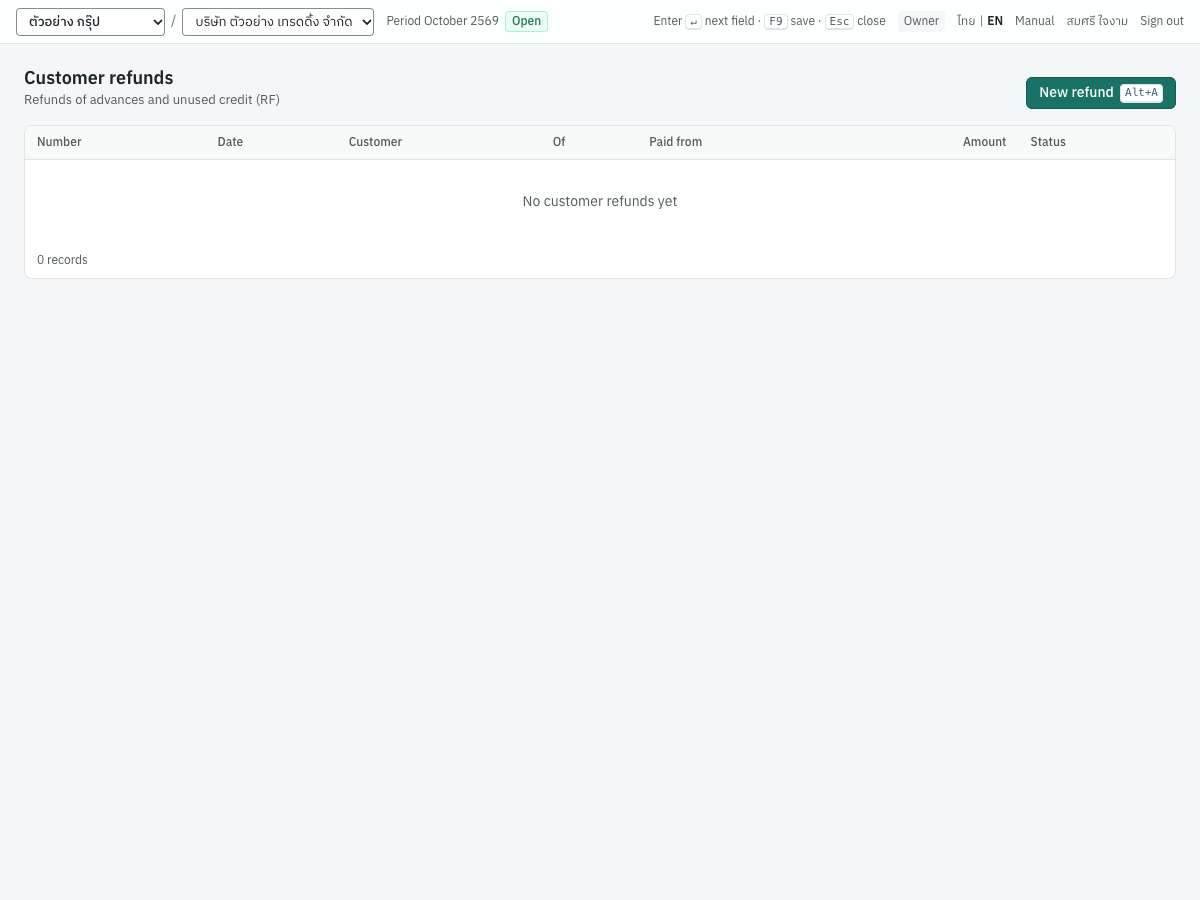
| Column | Shows |
|---|---|
| Number | The RF number, or (draft) |
| Date | The refund date |
| Customer | Code and name |
| Of | Advance, or the number of the credit note or deposit refunded |
| Paid from | The cash or bank account |
| Amount | The amount in baht |
| Status | Draft, Posted or Cancelled |
New refund (Alt+A) opens the form.
Fields#
The form is a single card:
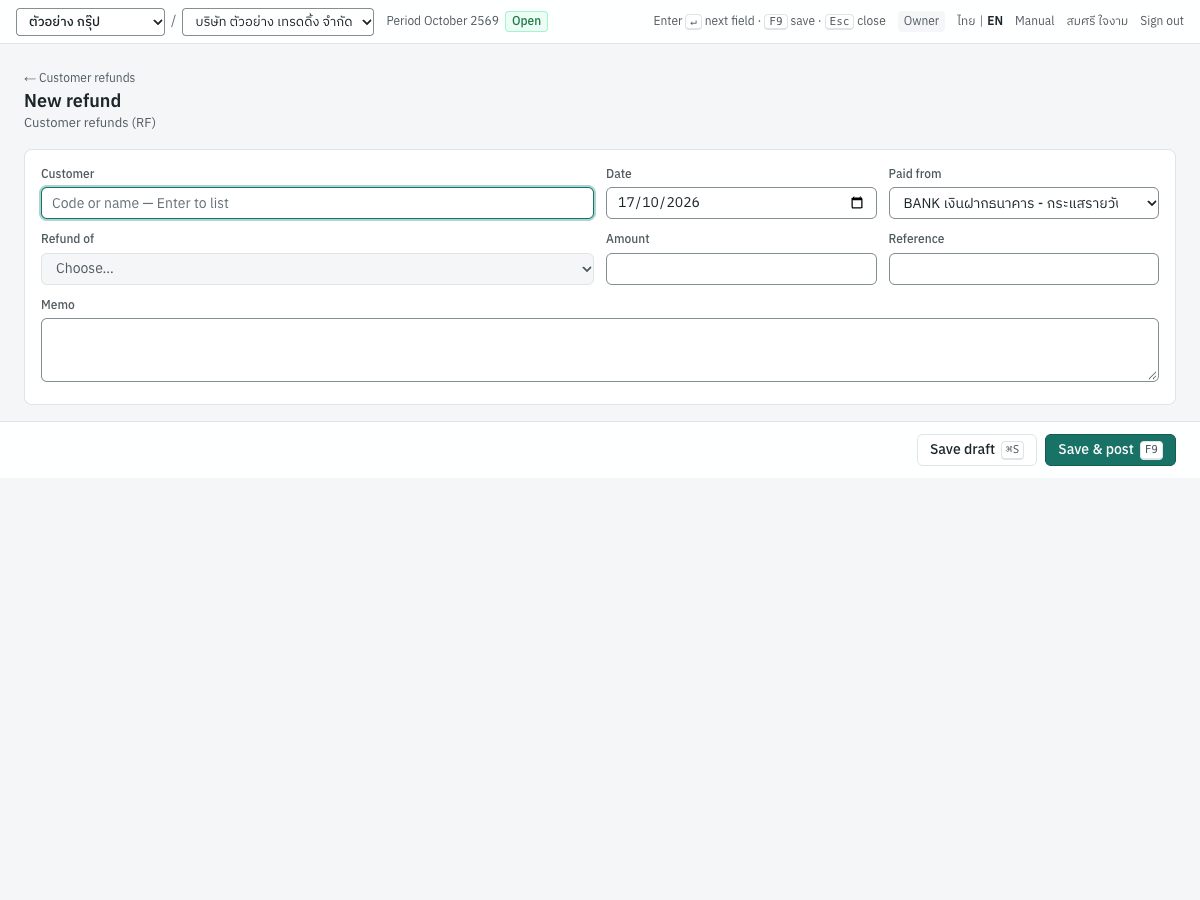
| Field | ภาษาไทย | What to enter |
|---|---|---|
| Customer | ลูกค้า | The customer you pay back. Required. Choosing the customer fills the Refund of list. |
| Date | วันที่ | The refund date. Defaults to today. A refund of a credit note cannot be dated before the credit note, nor a refund of a deposit before the deposit. |
| Paid from | จ่ายจาก | The cash or bank account paying. Defaults to the first active bank account. |
| Refund of | คืนจาก | What you are refunding, each with the amount available: Advance; Advance in USD (carried at … THB) for a foreign currency advance; a credit note SR… with its date; or Deposit AI… (output VAT credited back). If the customer has nothing to refund, the hint says so. |
| Amount | จำนวนเงิน | Filled with the full amount available when you choose; type less for a partial refund. For a foreign currency advance it is in that currency. |
| Rate · THB per USD | อัตราแลกเปลี่ยน · บาทต่อ USD | Shown for a foreign currency advance. Defaults to the selling rate on file for the date. |
| Reference | อ้างอิง | Optional, for example your transfer reference. |
| Memo | หมายเหตุ | Optional. |
Refunding a customer#
- Open 3 Finance → Customer refunds and click New refund (
Alt+A). - Choose the Customer.
- Check the Date and Paid from account.
- In Refund of, choose the advance, credit note or deposit.
- Check the Amount, and the rate for a foreign currency advance.
- Click Save & post (
F9).
What posting records#
Posting numbers the refund (for example RF69100001) and posts one entry in the payments book:
| Refund of | Account | Debit | Credit |
|---|---|---|---|
| Advance | 2140 เงินรับล่วงหน้าจากลูกค้า | Amount | |
| 1120 เงินฝากธนาคาร - กระแสรายวัน (Paid from) | Amount | ||
| Credit note | 1130 ลูกหนี้การค้า | Amount | |
| 1120 (Paid from) | Amount | ||
| Deposit | 2145 เงินรับมัดจำ | Amount before VAT | |
| 2120 ภาษีขาย | VAT | ||
| 1120 (Paid from) | Amount |
- Deposit. A refund of the whole remaining deposit takes all its remaining base and VAT. A partial refund takes the VAT share amount × deposit VAT ÷ deposit total, rounded. Panya writes a negative output VAT record, dated the refund date and numbered with the refund number, so the VAT is credited back on that month's ภ.พ.30. The refund page shows Output VAT credited.
- Foreign currency advance. The advance is released at the baht value it is carried at, the money is converted at the refund's rate, and the difference goes to 4910 กำไร (ขาดทุน) จากอัตราแลกเปลี่ยน. For example, a USD 50.00 advance of Global Imports LLC carried at 1,672.50 baht, refunded at 33.85: Dr 2140 1,672.50 and Dr 4910 20.00, Cr 1120 1,692.50.
- A refund cannot be more than what is available. Only an advance can be refunded in a foreign currency: unused credit and deposits are refunded in baht.
The refund page shows the details (customer, date, what was refunded, account, amount, the foreign amount, rate and exchange difference, reference, memo), the journal entry and, after cancellation, the reversal. There is no printed form for a refund.
Cancelling a refund#
Click Cancel refund, enter the reason and reversal date, and confirm. The reversing entry is posted, a deposit refund's VAT record is reversed, and the advance, credit or deposit becomes available again.
Messages#
| Message | What to do |
|---|---|
Choose what to refund | Choose an item in Refund of. |
only … of advance is available / only … USD of advance is available | Another document used the advance. Lower the amount. |
only … of the credit is unused | Lower the amount. |
the refund cannot be dated before SR69100001 (2026-10-16) | Date the refund on or after the credit note (or purchase return, or deposit). |
only … of the deposit is left | Part of the deposit was deducted on invoices. Lower the amount. |
the amount must be positive, in satang | Enter an amount above zero with at most two decimals. |
only an advance is refunded in a foreign currency | Credit and deposits are refunded in baht. |
Supplier refunds (RP)#
รับเงินคืนจากผู้จำหน่าย · Menu: 3 Finance → Supplier refunds
A supplier refund records money a supplier pays back to you. It works exactly like a customer refund, from the supplier's side:
- Supplier replaces Customer, and Received into replaces Paid from.
- Refund of offers your unused advance to the supplier (Advance, or in a foreign currency), the unused credit of a purchase return (GR), or an unused deposit paid (จ่ายเงินมัดจำ, AE).
- A foreign currency advance is refunded at the buying rate.
- New supplier refund (
Alt+A) opens the form. The list's Of column shows Advance or the GR or AE number.
Posting numbers it (for example RP69100001) and posts one entry in the receipts book:
| Refund of | Account | Debit | Credit |
|---|---|---|---|
| Advance | 1120 เงินฝากธนาคาร - กระแสรายวัน (Received into) | Amount | |
| 1170 เงินจ่ายล่วงหน้าแก่ผู้ขาย | Amount | ||
| Purchase return | 1120 (Received into) | Amount | |
| 2110 เจ้าหนี้การค้า | Amount | ||
| Deposit | 1120 (Received into) | Amount | |
| 1175 เงินจ่ายมัดจำ | Amount before VAT | ||
| 1150 ภาษีซื้อ | VAT |
A deposit refund writes a negative input VAT record, so the input VAT you claimed on the deposit is reversed on that month's ภ.พ.30; the page shows Input VAT reversed. For a foreign currency advance, the difference between the money and the baht carried goes to 4910. The rules and messages are the same as for customer refunds.
Bank transfers (BT)#
โอนเงิน · Menu: 3 Finance → Bank transfers
A bank transfer moves money between two of your own cash and bank accounts: depositing cash at the bank (ฝากเงินสด), withdrawing cash, or moving money between bank accounts. Bank charges taken by the bank can be recorded on the same document.
The transfer list#
The list shows the newest transfers first:
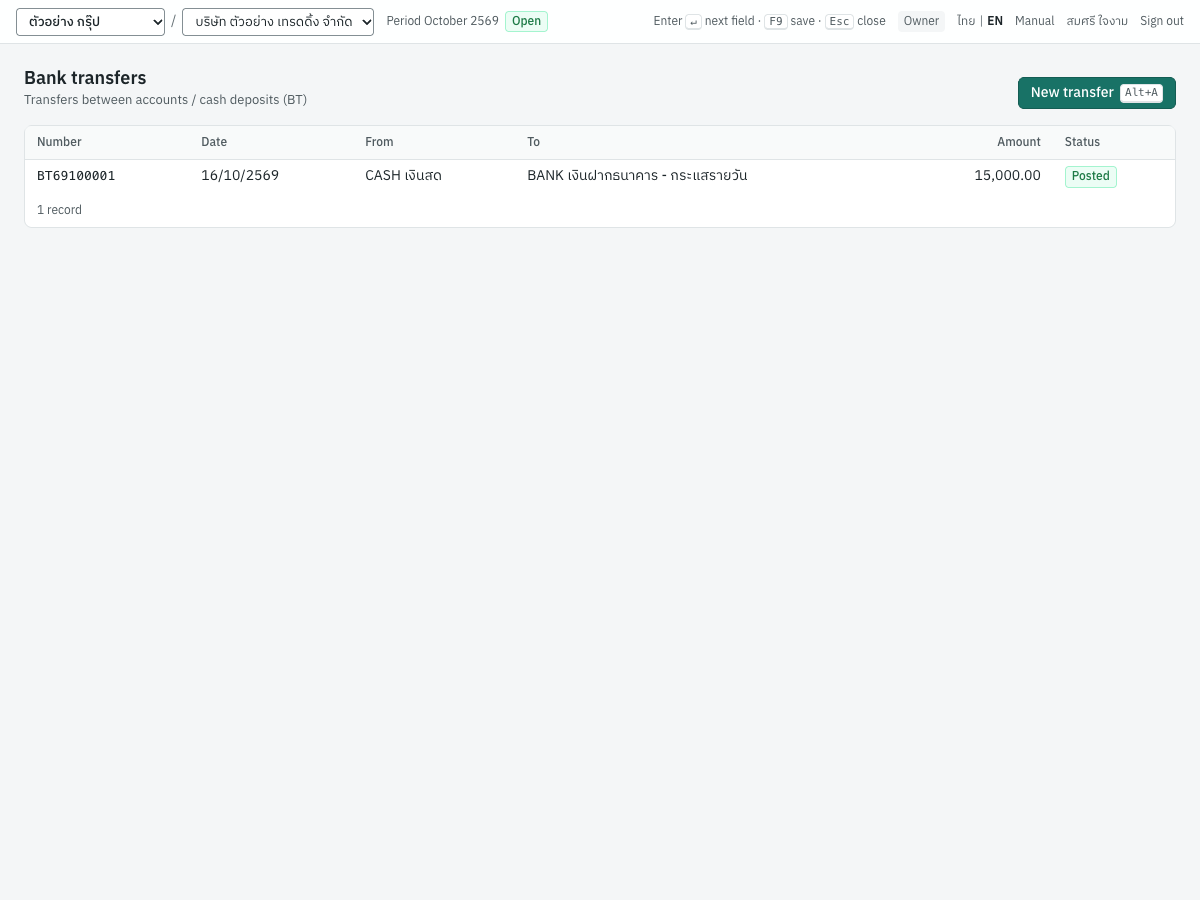
The columns are Number, Date, From, To, Amount and Status. New transfer (Alt+A) opens the form.
Fields#
| Field | ภาษาไทย | What to enter |
|---|---|---|
| From | จากบัญชี | The account the money leaves. Defaults to the first active cash account. |
| To | เข้าบัญชี | The account the money goes into; it must be another account. Defaults to the first active bank account. |
| Date | วันที่ | The transfer date. Defaults to today. |
| Amount | จำนวนเงิน | The amount arriving in the To account. Required, above zero. |
| Bank charges | ค่าธรรมเนียม | Any fee, taken from the From account on top of the amount (the hint says Taken from the source account). Optional. |
| Reference | อ้างอิง | Optional, for example the deposit slip or transfer number. |
| Memo | หมายเหตุ | Optional, for example นำเงินสดฝากธนาคาร. |
Recording a transfer#
- Open 3 Finance → Bank transfers and click New transfer (
Alt+A). - Check From and To.
- Enter the Date, the Amount and any Bank charges.
- Add a Reference or Memo.
- Click Save & post (
F9), or Save draft (Ctrl+S). The transfer form has no Delete draft button.
What posting records#
Posting numbers the transfer (for example BT69100001) and posts one entry in the general journal:
| Account | Debit | Credit |
|---|---|---|
| The To account | Amount | |
| 5240 ค่าธรรมเนียมธนาคาร | Bank charges | |
| The From account | Amount + bank charges |
For example, BT69100001 deposits 15,000.00 of cash at the bank:
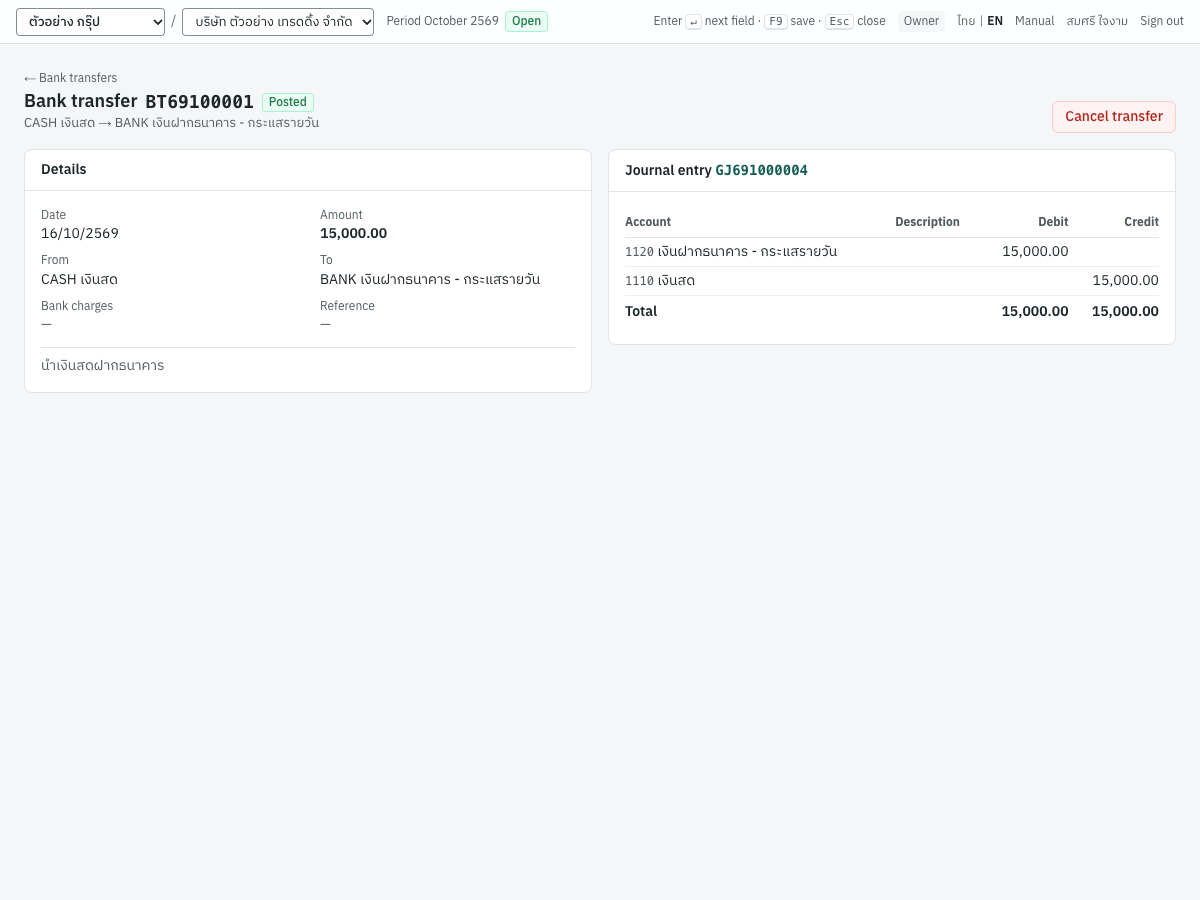
| Account | Debit | Credit |
|---|---|---|
| 1120 เงินฝากธนาคาร - กระแสรายวัน | 15,000.00 | |
| 1110 เงินสด | 15,000.00 |
If you also had a savings account linked to 1121 เงินฝากธนาคาร - ออมทรัพย์, a transfer of 50,000.00 to it with a 25.00 fee would post Dr 1121 50,000.00, Dr 5240 25.00 and Cr 1120 50,025.00.
The transfer page shows the details, the journal entry and, after cancellation, the reversal. Cancel transfer asks for a reason and reversal date and posts a reversing entry.
Messages#
| Message | What to do |
|---|---|
enter a positive amount (and charges) in satang | Enter an amount above zero, with at most two decimals. |
choose two different accounts | From and To must be different accounts. |
both cash/bank accounts must exist and be active | Reactivate the account, or choose another. |
Cheques#
ทะเบียนเช็ค · Menu: 3 Finance → Cheques
The cheque register follows cheques received from customers (เช็ครับ) and cheques issued to suppliers (เช็คจ่าย) from the day you record them until the bank clears them or returns them.
The cheque clearing setting#
The register works when Cheque clearing is ticked in 7 Setup → Company (see Setup). Turning it on creates the two clearing accounts if your chart does not have them.
| Cheque clearing off | Cheque clearing on | |
|---|---|---|
| Receipt by cheque | Debits the bank at once | Debits 1115 เช็ครับรอนำฝาก, waiting to clear |
| Payment by cheque | Credits the bank at once | Credits 2115 เช็คจ่ายรอตัดบัญชี, waiting to clear |
| When the bank clears it | Nothing more to do | Record it as cleared: the bank account moves on the clearing date |
| Cheque register | Shows a notice that cheque clearing is off | Lists the cheques |
You cannot turn the setting off while cheques are still waiting to clear: the message says how many are pending. Clear or return them first. With the setting on, the balance of 1115 equals the received cheques waiting to clear, and the balance of 2115 equals the issued cheques waiting to clear.
The cheque register#
The register has two tabs, Received and Issued:
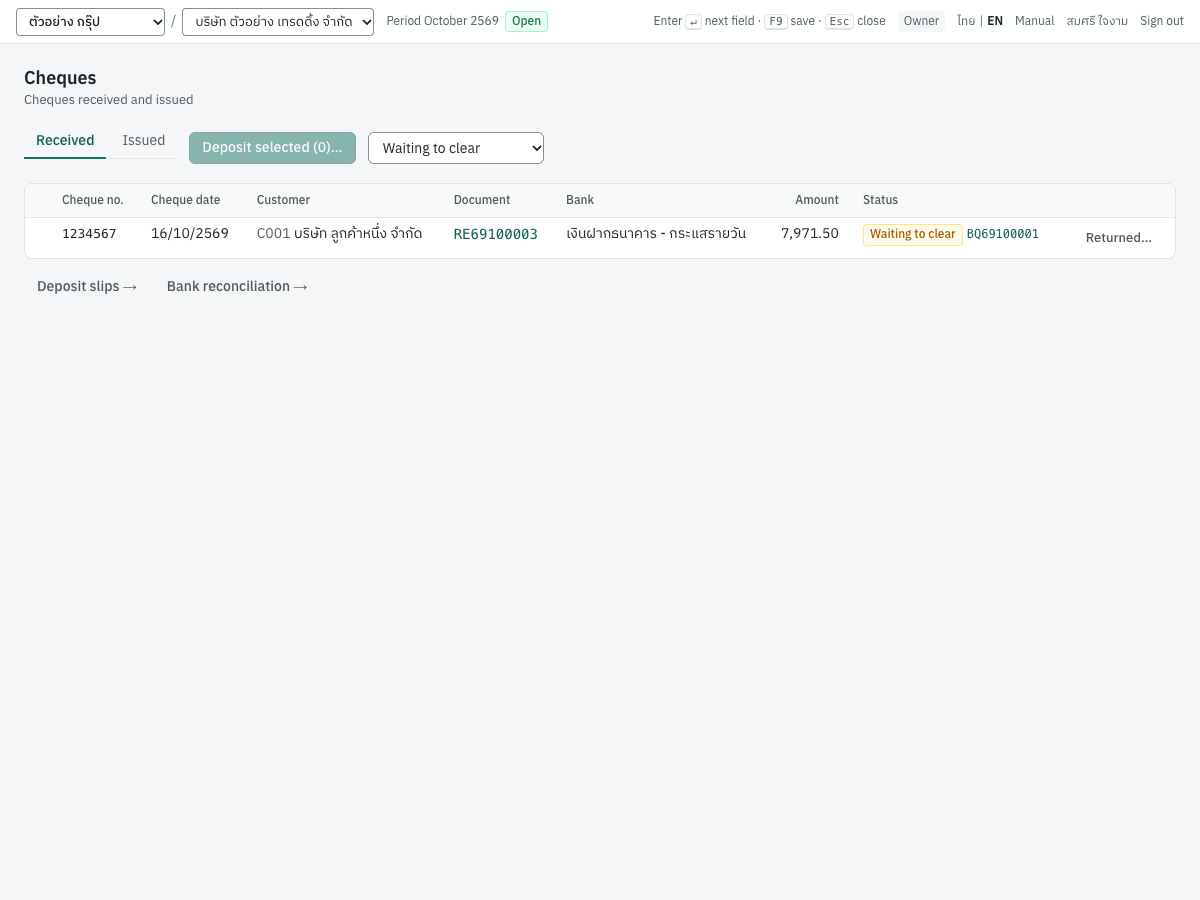
| Column | Shows |
|---|---|
| Tick box | Received tab only: tick cheques to put on a deposit slip. Only cheques waiting to clear and not yet on a slip can be ticked. |
| Cheque no. | The cheque number |
| Cheque date | The date on the cheque |
| Customer / Supplier | Code and name |
| Document | The receipt or payment; click to open it |
| Bank | The receipt's Deposit to or the payment's Pay from account |
| Amount | The cheque amount |
| Status | Waiting to clear, Cleared (with the date) or Returned, and the deposit slip number if it is on one |
| Actions | Cleared… for a cheque waiting to clear that is not on a deposit slip; Returned… for any cheque not already returned |
The status filter shows Waiting to clear first; choose Cleared, Returned or All to see the others. Cheques are listed by cheque date. Deposit selected (n)… puts the ticked received cheques on a deposit slip (see Cheque deposit slips (BQ)). The links Deposit slips → and Bank reconciliation → at the bottom open those screens.
In the screenshot, cheque 1234567 of บริษัท ลูกค้าหนึ่ง จำกัด is on deposit slip BQ69100001, so it has no tick box and no Cleared… button: it clears with the slip.
Clearing a cheque#
When the bank statement shows the cheque has cleared:
- In the register, find the cheque on the right tab and click Cleared….
- Enter the Clearing date, the date on the bank statement. It cannot be before the receipt or payment date.
- Click Record clearing.
The entry is dated the clearing date:
| Cheque | Account | Debit | Credit |
|---|---|---|---|
| Received | 1120 (the receipt's Deposit to account) | Amount | |
| 1115 เช็ครับรอนำฝาก | Amount | ||
| Issued | 2115 เช็คจ่ายรอตัดบัญชี | Amount | |
| 1120 (the payment's Pay from account) | Amount |
Received cheques clear in the receipts book; issued cheques in the payments book. The receipt or payment shows the cheque as cleared with the date.
Returned cheques#
When the bank returns a cheque (เช็คคืน):
- Click Returned… on the cheque.
- Enter the Reason and the Reversal date, the day the bank returned the cheque (it defaults to today).
- Click Record returned cheque.
Panya then:
- reverses the clearing, if the cheque had cleared on its own;
- for a received cheque that cleared on a deposit slip, posts Dr 1115 เช็ครับรอนำฝาก / Cr bank for that cheque only, leaving the slip's entry and its other cheques as they are;
- cancels the receipt or payment with a reversing entry and reverses its tax records, so the invoices it settled are open again.
The cheque's status becomes Returned, and the receipt or payment shows as cancelled, returned by the bank. Ask the customer for a new payment and record a new receipt. Book any fee the bank charges for the returned cheque from the bank statement.
A cheque that has cleared cannot be cancelled from its receipt or payment. Use Returned… instead. A cheque still waiting to clear goes with its receipt or payment when that is cancelled as usual: it leaves the register, and its deposit slip too if the slip has not cleared.
Cheque deposit slips (BQ)#
ใบนำฝากเช็ค · Menu: 3 Finance → Cheque deposit slips
When you take several received cheques to the bank together, the bank credits them as one line on the statement. A deposit slip groups those cheques and clears them together, with any charges the bank keeps, so the books show the same single line. A slip has no entry of its own until it clears. Issued cheques have no slips.
The deposit slip list#
The list shows each slip:
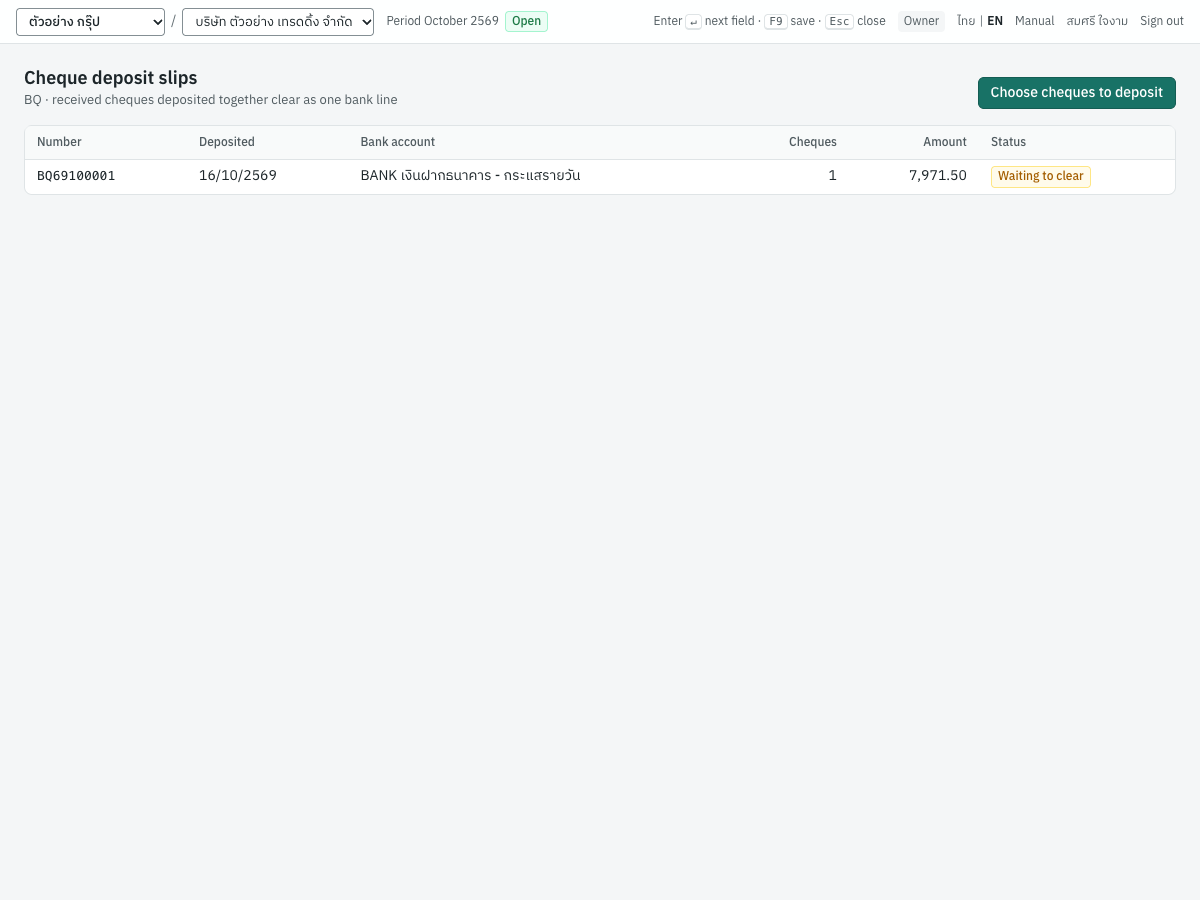
The columns are Number, Deposited (the date), Bank account, Cheques (how many), Amount and Status (Waiting to clear, Cleared with the date, or Cancelled). Choose cheques to deposit opens the cheque register, where slips are made.
Making a deposit slip#
- Open 3 Finance → Cheques, on the Received tab, with the filter on Waiting to clear.
- Tick the cheques you are depositing.
- Click Deposit selected (n)…. The dialog shows how many cheques and their total.
- Choose Deposited into (an active bank account) and the Deposit date.
- Click Record deposit slip. The new slip opens, numbered for example
BQ69100001.
A cheque cannot go on a slip dated before its receipt, and cannot be on two slips. Once a cheque is on a slip it can no longer be cleared on its own.
The deposit slip page#
The slip prints as ใบนำฝากเช็ค · Cheque deposit slip, with your company's details, the slip number, deposit date and account, and each cheque's number, date, customer, receipt and amount, with the total:
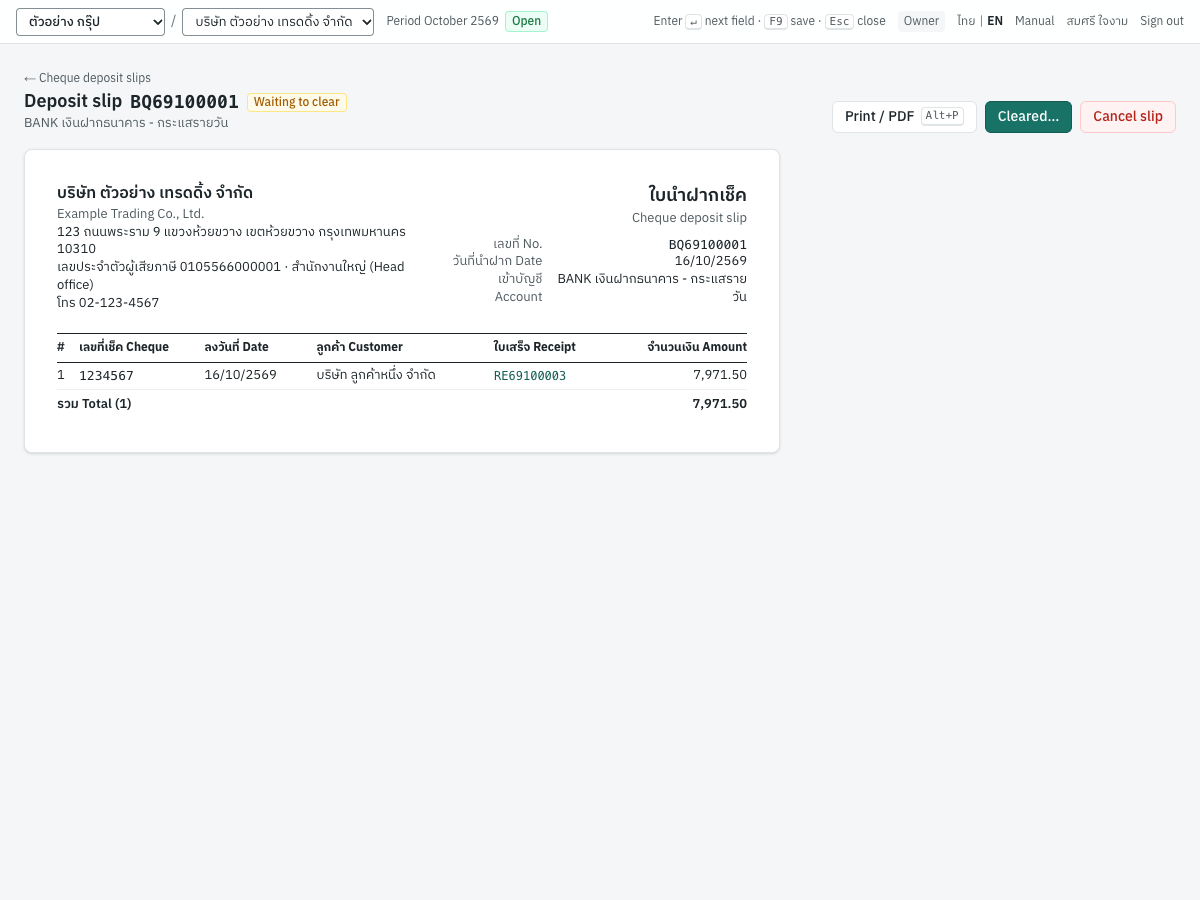
- Print / PDF (
Alt+P) prints it. - Cleared… records that the bank credited the slip.
- Cancel slip withdraws a slip that has not cleared: its cheques go back to the register to be deposited again. Nothing is posted.
A returned cheque stays on the slip, struck through, and no longer counts in its total.
Clearing a deposit slip#
When the deposit appears on the bank statement:
- Open the slip and click Cleared….
- Enter the Clearing date. It cannot be before the deposit date.
- Enter the Bank charges the bank kept, excluding VAT, if any.
- If the bank issued a tax invoice for its charges, enter the VAT on charges (the 7% button works it out), the Bank's tax invoice no. and the Tax invoice date (it defaults to the clearing date).
- Check the line The bank credits …: it should equal the amount on the statement.
- Click Record clearing.
Every cheque on the slip that is still waiting clears in one entry in the receipts book:
| Account | Debit | Credit |
|---|---|---|
| 1120 เงินฝากธนาคาร - กระแสรายวัน (the slip's account) | What the bank credits | |
| 5240 ค่าธรรมเนียมธนาคาร | Bank charges | |
| 1150 ภาษีซื้อ | VAT on charges | |
| 1115 เช็ครับรอนำฝาก (one line per cheque, by customer) | Each cheque |
For example, if BQ69100001 (one cheque of 7,971.50) clears with charges of 10.00 plus VAT 0.70, the bank line is 7,960.80: Dr 1120 7,960.80, Dr 5240 10.00, Dr 1150 0.70, Cr 1115 7,971.50.
The VAT on charges becomes an input VAT record numbered with the bank's tax invoice number and dated its date, under the bank's name, tax ID and branch from the bank account. The slip then shows a Cleared card (one bank line of …, as on the statement, and the charges) and the clearing entry.
Messages#
| Message | What to do |
|---|---|
the cheque on RE69100003 is already on a deposit slip | Leave it off, or cancel the other slip. |
the cheque on RE69100003 was received after the deposit date | Correct the deposit date. |
cheques are deposited into an active bank account | Choose a bank account, not a cash account. |
the cheque is on deposit slip BQ69100001: clear the slip | Clear the slip instead of the single cheque. |
enter the bank's tax invoice number and date to claim the VAT on its charges | Fill in the tax invoice fields, or leave VAT at zero. |
enter the bank's tax ID on the bank account to claim the VAT on its charges | Add the bank's tax ID in Cash & bank accounts. The dialog warns you about this before you save. |
the company is not VAT registered and cannot claim the VAT on bank charges | Enter the charges including VAT as bank charges. |
bank charges must be less than the slip total | Correct the charges. |
Bank reconciliation#
กระทบยอดเงินฝากธนาคาร · Menu: 3 Finance → Bank reconciliation
Bank reconciliation compares your bank account in the books with the bank's statement. You import the statement as a CSV file, and Panya matches each statement line to an entry on the bank's account. You then book what the bank did that you have not recorded yet (fees, interest), and explain any difference:
Balance per bank statement = balance in the books − book items not on the statement + statement items not in the books
When every line is matched and nothing is left unexplained, you mark the statement as reconciled.
The statement list#
The list shows the imported statements, newest first:
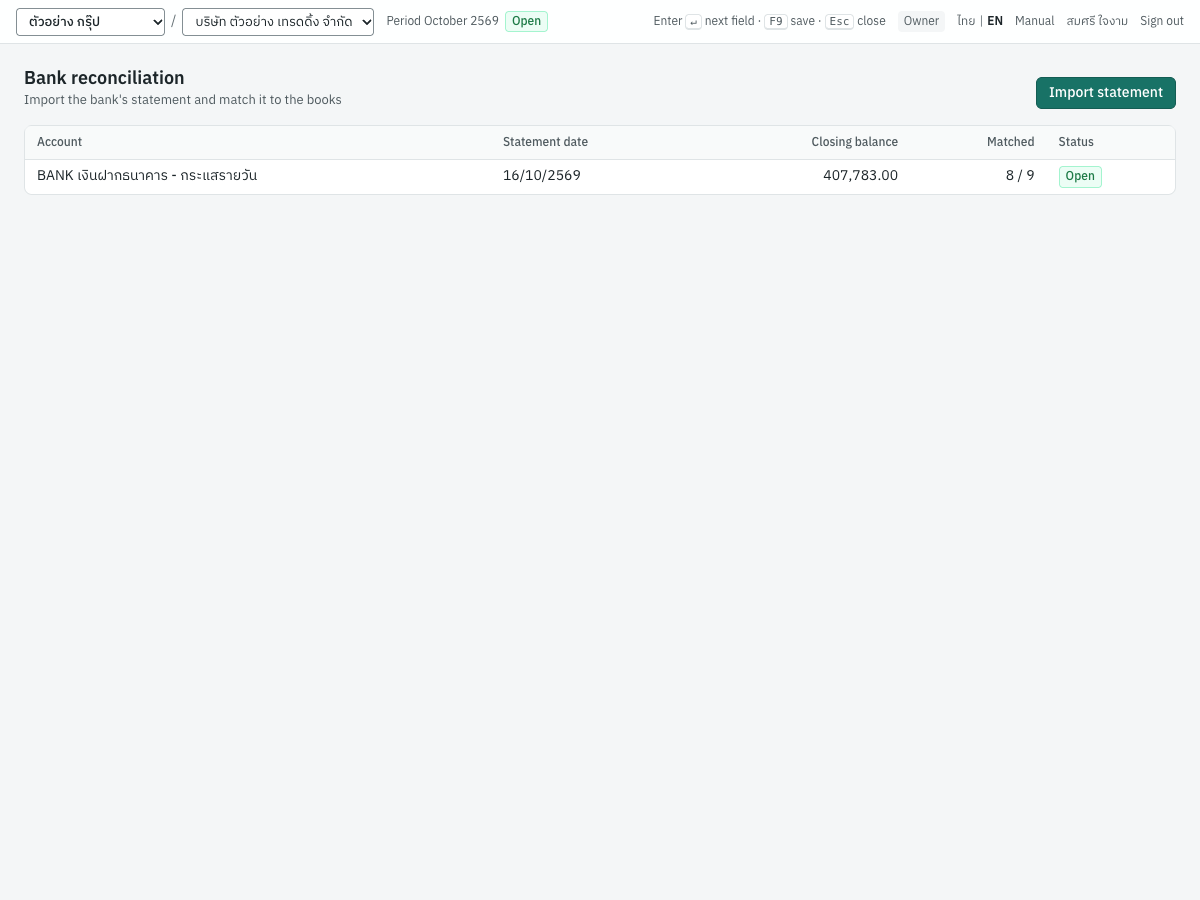
The columns are Account, Statement date, Closing balance, Matched (lines matched of all lines) and Status (Open, or Posted once reconciled). Click a statement to open it.
Importing a statement#
- Download the statement from your bank's internet banking as a CSV file (see The statement file).
- Click Import statement.
- Choose the Bank account (active bank accounts only).
- Enter the Statement date, the last day the file covers. No line in the file may be later.
- Enter the Closing balance on the statement, the bank's balance on that date. Import stays greyed out until you enter it.
- Choose the Statement file.
- Click Import. Panya reports how many lines were imported and how many matched automatically, and opens the statement.
The statement file#
The file must be a CSV with a header row. Panya finds the columns by their header names, in English or Thai. Other columns, such as the running balance, are ignored.
| Column | Header names recognised | Content |
|---|---|---|
| Date (required) | date, วันที่ | 2026-10-16, or day/month/year such as 16/10/2569 or 16/10/2026. Buddhist-era years are converted; two-digit years are read as 20xx. /, - or . can separate the parts. |
| Description | description, details, รายการ, รายละเอียด | Text. A blank description shows as (no description). |
| Reference | reference, ref, cheque, เลขที่ | Optional, for example a cheque number. |
| Amount | amount, จำนวนเงิน | Signed: positive for money in, negative for money out. (30.00) in brackets is negative. |
| Withdrawal and Deposit | withdrawal, debit, ถอน and deposit, credit, ฝาก | Used when there is no Amount column: one column for money out, one for money in. |
Commas and spaces in amounts are ignored. Amounts may have at most two decimals. Blank rows and rows with a zero amount are skipped.
The demo statement for October 2569 has Thai headers and separate withdrawal and deposit columns:
วันที่,รายการ,ถอน,ฝาก,คงเหลือ
07/10/2569,รับโอน มัดจำ บจ.สำนักงานสวย,,"10,700.00","390,700.00"
08/10/2569,โอนออก มัดจำ บจ.ผู้ผลิตอุปกรณ์,"5,350.00",,"385,350.00"
10/10/2569,รับโอน บจ.ลูกค้าหนึ่ง,,"32,100.00","417,450.00"
12/10/2569,โอนออก บจ.ผู้ผลิตอุปกรณ์,"16,050.00",,"401,400.00"
14/10/2569,โอนออก นายสมชาย,"3,880.00",,"397,520.00"
15/10/2569,รับโอน บจ.ลูกค้าหนึ่ง,,"12,480.00","410,000.00"
15/10/2569,โอนออกต่างประเทศ Cloudsoft,"17,187.00",,"392,813.00"
16/10/2569,ฝากเงินสด,,"15,000.00","407,813.00"
16/10/2569,ค่าธรรมเนียมรายเดือน,30.00,,"407,783.00"
A file with a single signed amount column also works:
Date,Description,Reference,Amount
2026-10-30,Interest,,12.50
2026-10-31,Monthly fee,,(30.00)
Tip: Keep the header names short and distinct, such as วันที่, รายการ, ถอน, ฝาก. Panya takes the first column whose header contains a recognised word, so a header like วันที่ทำรายการ could be taken for the description column as well as the date.
The statement page#
The statement page has the reconciliation summary at the top, the statement lines on the left, and the book items not on the statement on the right:
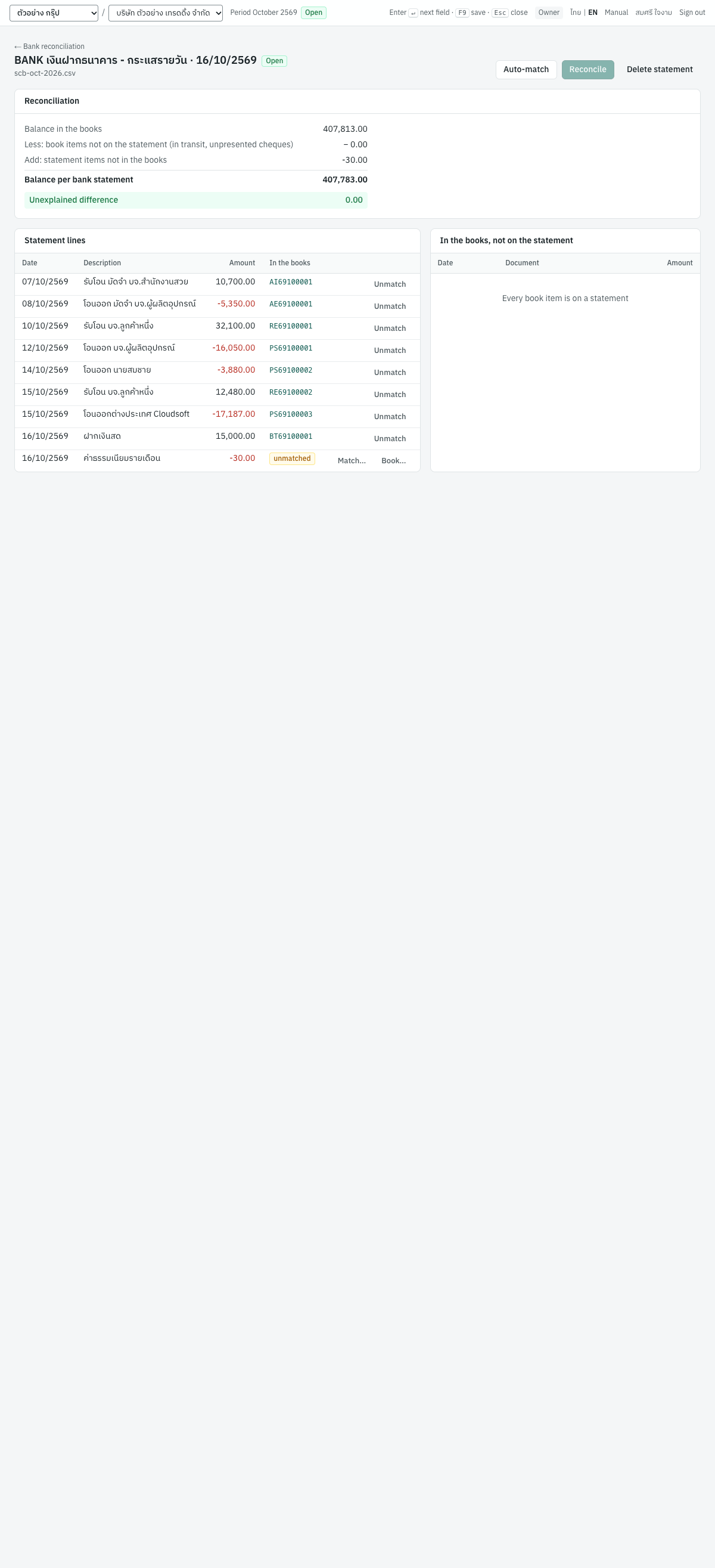
The buttons at the top are Auto-match, Reconcile and Delete statement (while the statement is open), and Reopen (once it is reconciled).
Statement lines shows each line's Date, Description (with the reference), Amount (money out in red) and In the books: the document number of the matched entry (click to open the entry), or an unmatched badge. Each line has Unmatch, or Match… and Book… when it is unmatched.
In the books, not on the statement lists the bank account's entries up to the statement date that are not matched to any statement line: deposits in transit and cheques not yet presented. Each shows its date, document number and amount. When there are none it reads Every book item is on a statement.
Matching#
- Auto-match matches each unmatched line to an entry on the bank account of exactly the same amount, dated within 7 days of it, closest date first. It also runs on import.
- Match… on an unmatched line lists the book items of exactly the same amount; click one to match it. If none is waiting, the dialog says so: book the line instead, or check the amount.
- Unmatch releases a wrong match, so the line and the entry are free again.
Each statement line matches one entry line, and each entry line can be matched to only one statement line.
A cheque received with cheque clearing on is not in the bank account until it clears. Clear it (or its deposit slip) on the date the bank shows, and the clearing entry then matches the statement line.
Booking bank fees and interest#
Some lines are not in the books yet: monthly fees, interest, charges on a returned cheque. Book them from the statement:
- Click Book… on the line.
- The dialog says whether this is money out of the bank (e.g. bank charges) or into it (e.g. interest), and the date the entry will have.
- Choose the Account, for example
5240 ค่าธรรมเนียมธนาคารfor a fee, or an interest income account. Control accounts (receivables, payables, inventory), cash and bank accounts, groups and inactive accounts are not offered. - Edit the Description if needed; it defaults to the statement's description.
- Click Book and match.
Panya posts a general journal entry on the statement line's date and matches it to the line:
| Line | Account | Debit | Credit |
|---|---|---|---|
| Money out | The chosen account | Amount | |
| The bank account | Amount | ||
| Money in | The bank account | Amount | |
| The chosen account | Amount |
The entry's document number is ST with the Buddhist-era year and month, for example ST256910. In the demo, booking the monthly fee of 30.00 to 5240 posts Dr 5240 30.00, Cr 1120 30.00. Booking writes no VAT record. Only users allowed to post journal vouchers see Book….
The reconciliation summary#
The Reconciliation card explains the statement:
| Line | What it is |
|---|---|
| Balance in the books | The bank account's balance in the ledger on the statement date |
| Less: book items not on the statement (in transit, unpresented cheques) | The total of the book items listed on the right |
| Add: statement items not in the books | The total of the unmatched statement lines |
| Balance per bank statement | The closing balance you entered on import |
| Unexplained difference | What is left: green at 0.00, red otherwise |
In the demo, the books show 407,813.00, nothing is in transit, and the fee of −30.00 is not in the books: 407,813.00 − 0.00 + (−30.00) = 407,783.00, the statement's closing balance. The difference is 0.00, but the fee line is still unmatched, so Reconcile stays greyed out until it is booked.
An unexplained difference usually means an entry recorded with the wrong amount or date, a transaction missing from the books or the file, or a wrong closing balance.
Reconciling and reopening#
Reconcile is available when every statement line is matched or booked and the unexplained difference is 0.00. Its tooltip says what is missing. Reconciling closes the statement: its matches can no longer be changed, and its status becomes Posted in the list.
Reopen opens a reconciled statement again, for example to correct a match. Reconcile it again when you are done.
Deleting a statement#
If you imported the wrong file, the wrong account or the wrong closing balance, click Delete statement on the open statement and confirm Delete this statement? Its lines and matches are removed; entries booked from it (bank fees, interest) stay in the books. Panya returns to the statement list with Statement deleted; import the right file again. A reconciled statement must be reopened first (only statements that are not reconciled can be deleted). Entries you booked from the deleted statement's lines are ordinary ledger entries: match them on the new statement, or reverse them with a journal voucher if they were wrong.
Reconciliation cut-off#
When you start using Panya with a bank account that was reconciled in your previous system, set Reconcile from on the bank account to the first day you reconcile in Panya. In the demo company it is 01/10/2569. Entries before that date:
- still count in the balance in the books;
- are treated as already reconciled, so they are not listed as book items not on the statement;
- cannot be matched (the ledger line is before the account's reconciliation cut-off).
Once a statement of the account is reconciled, you can move the cut-off date only after reopening it.
Messages#
| Message | What to do |
|---|---|
Choose the statement file (CSV) | Choose the file. |
no date column | Add a header row with a date column. |
the file needs an amount column, or withdrawal and deposit columns | Check the header names. |
row 5: invalid date / row 5: invalid amount | Fix that row of the file (row 1 is the header). |
row 5: amount has more than 2 decimals | Round the amount in the file. |
the file has transactions after the statement date | Use a later statement date, or remove the lines. |
no transactions found in the file | The file has only a header or zero amounts. |
amounts differ: statement …, ledger … | Match an entry of the same amount, or book the line. |
that ledger line is already matched to another statement line | Unmatch it there first. |
match or book every statement line first | Deal with the unmatched lines. |
the statement differs from the books by … | Find the unexplained difference. |
the statement is reconciled; reopen it first | Click Reopen. |
only statements that are not reconciled can be deleted | Reopen the statement, then delete it. |
receivable, payable and inventory accounts are kept by their documents | Book to another account; settle invoices with receipts or payments. |
Cash and bank accounts#
เงินสด/ธนาคาร · Menu: 3 Finance → Cash & bank accounts
Cash and bank accounts are where receipts are deposited and payments are made from. Each is linked to a cash or bank account in the chart of accounts, which is the account posting uses. Set them up before you enter receipts, payments, cash sales or cash purchases.
The demo company has two accounts:
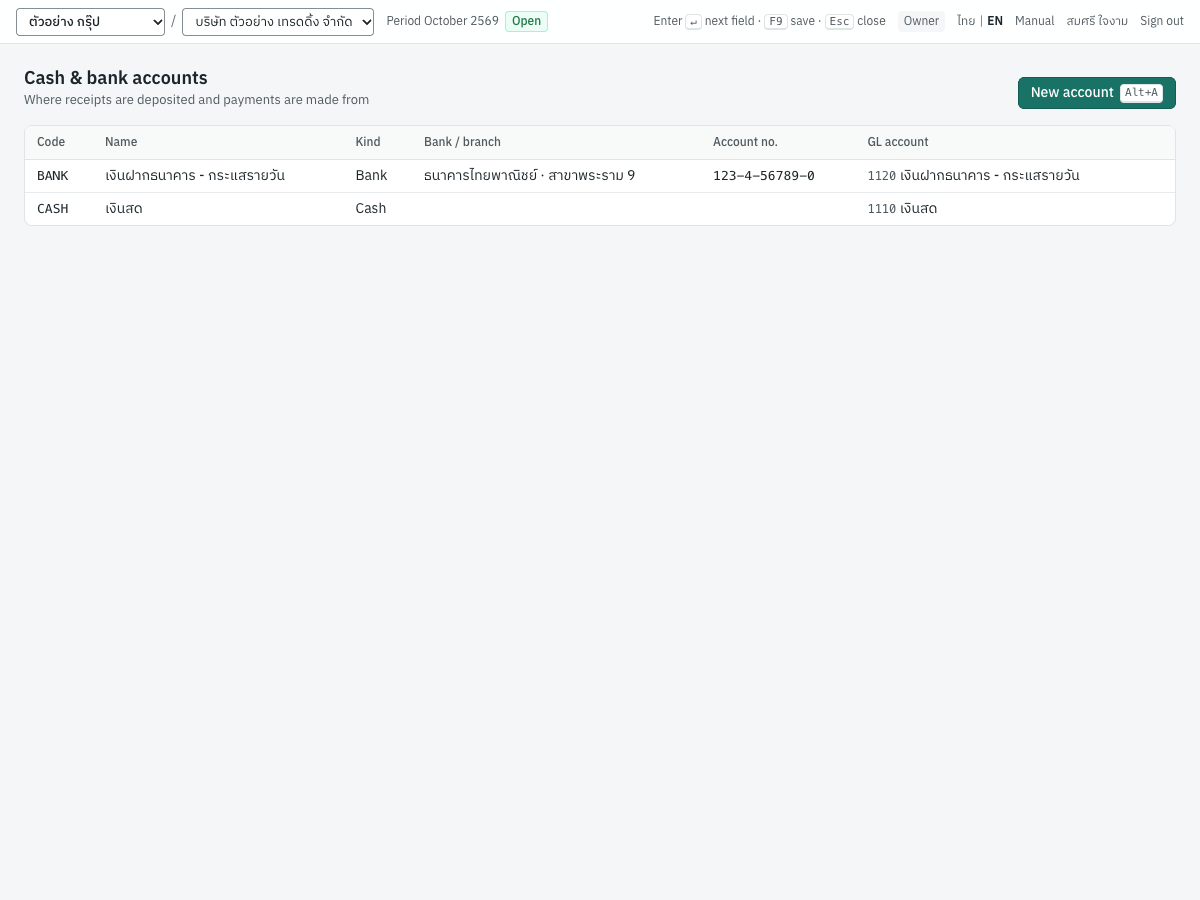
| Column | Shows |
|---|---|
| Code | The account's code, for example BANK |
| Name | Its name, as shown in lists and printed on receipts and vouchers |
| Kind | Bank or Cash |
| Bank / branch | The bank and branch |
| Account no. | The bank account number |
| GL account | The chart of accounts account it posts to, for example 1120 เงินฝากธนาคาร - กระแสรายวัน |
| (badge) | Inactive for an account no longer used; the row is greyed |
Click a row to edit an account, or New account (Alt+A) to add one. Only users who manage settings (Accountant, Admin, Owner) can do so.
Fields#
| Field | ภาษาไทย | What to enter |
|---|---|---|
| Code | รหัส | A short code, for example BANK or KBANK-SAV. Required. Accounts are listed by code, and the first active bank account by code is the default on receipts, payments and refunds. |
| Kind | ประเภท | Bank account or Cash. Defaults to Bank account. Only bank accounts can take deposit slips and statements. |
| Name | ชื่อ | The account's name, for example เงินฝากธนาคาร - กระแสรายวัน. Required. |
| Bank | ธนาคาร | Bank accounts only. The bank, for example ธนาคารไทยพาณิชย์. Also used as the bank's name on input VAT records for its charges. |
| Branch | สาขา | Bank accounts only. The branch, for example สาขาพระราม 9. |
| Account no. | เลขที่บัญชี | Bank accounts only. For example 123-4-56789-0. |
| Bank's tax ID | เลขประจำตัวผู้เสียภาษีของธนาคาร | Bank accounts only, optional: 13 digits. Needed to claim the VAT on bank charges when a deposit slip clears. |
| Bank's tax branch | สาขาที่ออกใบกำกับ | Bank accounts only, optional: 5 digits, 00000 for head office. The branch on the bank's tax invoices. |
| Reconcile from | เริ่มกระทบยอด | Bank accounts only, optional. The reconciliation cut-off: entries before this date count as already reconciled. See Reconciliation cut-off. |
| GL account | ผังบัญชี | The account in the chart of accounts, chosen from postable accounts flagged as cash/bank (1110, 1111, 1120 and 1121 in the default chart). If none is offered, flag an account as cash/bank in the chart of accounts first (see Accounting). Required. |
| Active | ใช้งาน | Untick to stop using the account. Inactive accounts are not offered on new documents but stay on old ones. |
Adding an account#
- Click New account (
Alt+A). - Enter the Code, choose the Kind and enter the Name.
- For a bank account, enter the bank, branch and account number, and the bank's tax ID and branch if you will claim VAT on its charges.
- Choose the GL account.
- Click Save.
Accounts cannot be deleted. Untick Active for an account you no longer use.
Tip: Give each bank account its own GL account (for example 1120 for the current account and 1121 for savings). Reconciliation works on the GL account, so two bank accounts sharing one GL account cannot be reconciled separately. Do not change the GL account of an account that already has postings: add a new account and make the old one inactive.
Messages#
| Message | What to do |
|---|---|
Code and name are required | Fill in both. |
Choose the GL cash/bank account | Choose the GL account. |
tax ID must be 13 digits | Correct the bank's tax ID. |
branch code must be 5 digits (00000 = head office) | Correct the bank's tax branch. |
the GL account must be a postable cash/bank account | Choose an account flagged as cash/bank that is not a group. |
the account has reconciled statements; reopen them before moving the reconciliation cut-off | Reopen the reconciled statements first. |
PP.36 VAT#
ภ.พ.36 ภาษีมูลค่าเพิ่มจากการจ่ายค่าบริการให้ผู้ประกอบการต่างประเทศ (มาตรา 83/6) · Menu: 3 Finance → PP.36 VAT
When you pay a foreign supplier for a service used in Thailand, you self-assess the VAT on the payment (see Paying foreign suppliers). The payment records the VAT as owed (2123) and as input VAT not yet claimed (1152). This page lists each month's payments with PP.36 VAT, and records paying it to the Revenue Department.
- Due date. File and pay ภ.พ.36 by the 7th of the month after the payment, or the 15th through e-Filing. A date on a Saturday, a Sunday or a public holiday moves to the next working day, and the page says so (see Holidays).
- Claim. A VAT-registered company claims the VAT paid as input VAT in the month it is paid: the Revenue Department's receipt serves as the tax invoice. A company that is not VAT registered carries it as a cost, in 5291 ภาษีซื้อที่ขอคืนไม่ได้.
The monthly list#
The page opens on the month just ended (the not yet filed link on a payment opens the payment's month). Change it with the Tax period selector or the ‹ and › buttons. Next to it, the page shows the due dates and how the VAT will be claimed:
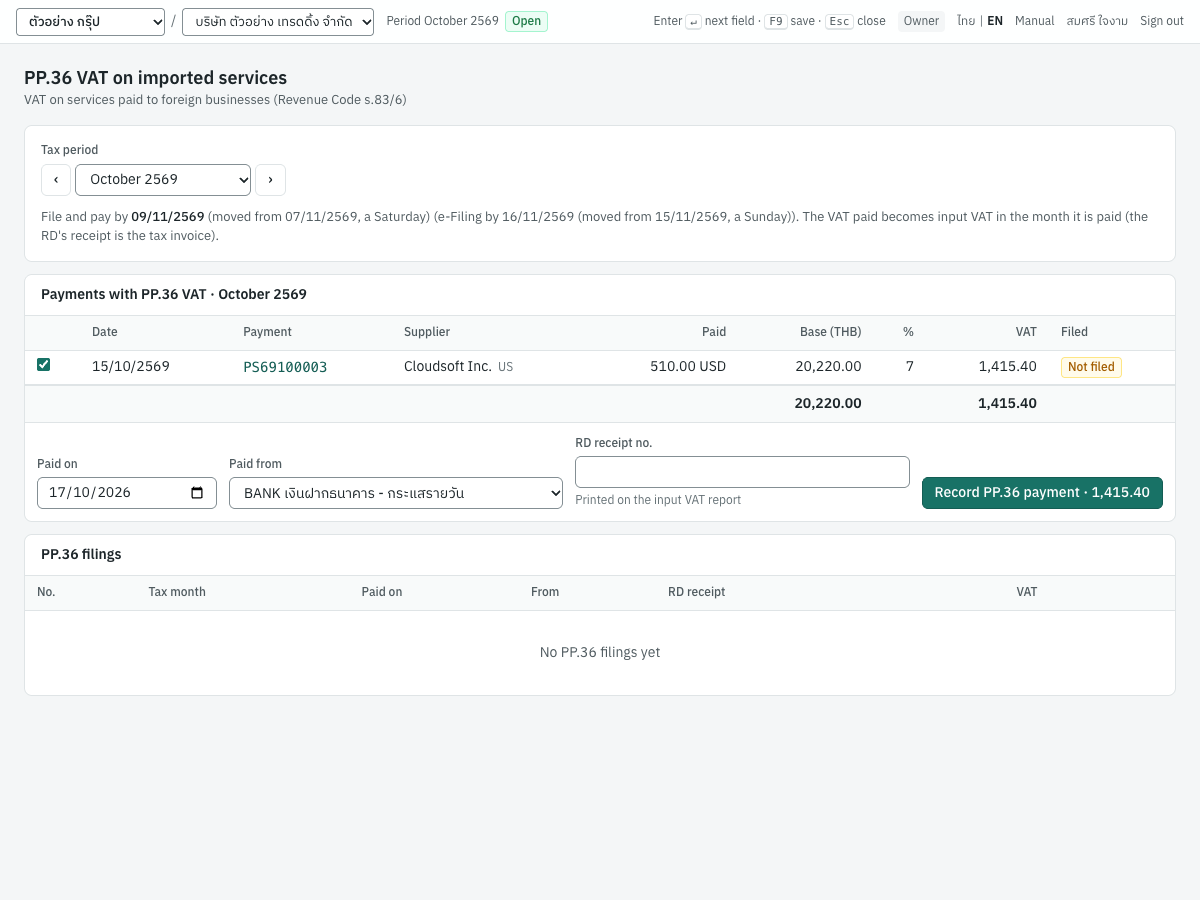
Payments with PP.36 VAT lists the month's posted payments that self-assessed VAT:
| Column | Shows |
|---|---|
| Tick box | For payments not yet filed: ticked payments go on the filing |
| Date | The payment date |
| Payment | The payment number; click to open it |
| Supplier | The supplier and its country |
| Paid | The amount and currency paid, for a foreign currency payment |
| Base (THB) | The PP.36 base |
| % | The VAT rate |
| VAT | The PP.36 VAT |
| Filed | The filing number, or Not filed |
The footer totals the base and VAT. When every payment of the month is filed, the page says so.
Recording the PP.36 payment#
After you file ภ.พ.36 and pay the tax:
- Open 3 Finance → PP.36 VAT and choose the month of the payments.
- Untick any payment you are not filing now. By default every unfiled payment is ticked.
- Enter Paid on, the day you paid the tax. It cannot be before the last payment on the filing.
- Choose Paid from, the account that paid.
- Enter the RD receipt no., the number on the Revenue Department's receipt. It is printed on the input VAT report as the tax invoice number.
- Click Record PP.36 payment (the button shows the total VAT).
The filing is numbered, for example PT6911001 for one paid in November 2569, and listed under PP.36 filings. Its payments show the filing number, and their payment pages show paid on that number.
What a filing records#
One entry in the payments book, dated the day paid. For a VAT-registered company:
| Account | Debit | Credit |
|---|---|---|
| 2123 ภาษีมูลค่าเพิ่ม ภ.พ.36 ค้างจ่าย | VAT paid | |
| 1120 เงินฝากธนาคาร - กระแสรายวัน (Paid from) | VAT paid | |
| 1150 ภาษีซื้อ | VAT paid | |
| 1152 ภาษีซื้อ ภ.พ.36 รอใช้สิทธิ | VAT paid |
For PS69100003, a filing paid on 07/11/2569 posts Dr 2123 1,415.40, Cr 1120 1,415.40, Dr 1150 1,415.40 and Cr 1152 1,415.40.
Each payment on the filing also gets an input VAT record, dated the day paid and numbered with the RD receipt number (or the filing number if you left it blank), under the supplier's name and foreign tax ID. The VAT therefore appears in the input VAT report and on the ภ.พ.30 of the month you paid it (November 2569 in the example), not the month of the payment to the supplier.
A company that is not VAT registered debits 5291 ภาษีซื้อที่ขอคืนไม่ได้ instead of 1150, and no input VAT record is written. The filings list shows Input VAT or Expensed for each filing.
The balances of 1152 and 2123 always equal the PP.36 VAT of posted payments not yet filed.
The filings list#
PP.36 filings shows every filing: No., Tax month, Paid on, From (the account), RD receipt, Input VAT or Expensed, VAT and status. Entry opens the journal entry. Cancel cancels a filing.
Cancelling a filing#
Cancel a filing recorded with the wrong payments, date or account:
- Click Cancel on the filing.
- Enter the reason and the reversal date (it defaults to the day paid).
- Click Cancel filing.
The filing's entry and its input VAT records are reversed, and its payments become Not filed again, ready for a new filing. A payment on a posted filing cannot be cancelled until the filing is cancelled.
Messages#
| Message | What to do |
|---|---|
Tick at least one payment | Tick the payments to file. |
the tax is paid after the payments: file on or after … | Use a later Paid on date. |
no unfiled PP.36 VAT in 2026-10 | Everything in the month is already filed. |
the PP.36 VAT of PS69100003 is already filed | Someone filed it meanwhile; reload the page. |
accounting period for … is closed | Use a Paid on date in an open period. |