Inventory · สินค้า
This chapter covers menu 4 Inventory: the products and services you buy and sell, how Panya values stock and posts cost of goods sold, the stock documents (adjustments, opening stock and transfers), and the screens that show what is in stock. Purchases and sales move stock too; those documents are explained in Purchasing and Sales, and this chapter explains only their effect on stock and cost.
The Inventory menu#
สินค้า · Menu: 4 Inventory
| Menu item | ภาษาไทย | What it is for | Document code |
|---|---|---|---|
| Products & services | สินค้า/บริการ | The list of everything you buy and sell, with prices, kind, accounts and the current stock and average cost | — |
| Stock adjustments | ปรับปรุงสินค้า | Stock count differences, damage, loss and samples; also opening stock | AJ, OS |
| Stock transfers | โอนย้ายสินค้า | Moving quantities from one warehouse to another | TF |
| Stock on hand | สินค้าคงเหลือ | Quantity of each product in each warehouse on any date | — |
| Stock card | บัตรสินค้า | Every movement of one product with running quantity and value | — |
| Warehouses | คลังสินค้า | The places where you keep stock | — |
Inventory is included in every Panya plan, like every other module (see Organization administration).
What each role can do in this menu:
| Task | Read-only | Staff | Accountant | Admin, Owner |
|---|---|---|---|---|
| View products, stock on hand, stock cards and stock documents | Yes | Yes | Yes | Yes |
| Add and edit products, warehouses, units and categories | No | Yes | Yes | Yes |
| Save and post stock adjustments and transfers | No | Yes | Yes | Yes |
| Enter and post opening stock | No | No | Yes | Yes |
| Cancel a posted adjustment or transfer | No | No | Yes | Yes |
Products and services#
สินค้า/บริการ · Menu: 4 Inventory → Products & services
Every line you sell or buy by code is a product: stocked goods, goods you do not keep in stock, and services. A product carries the default price, unit, VAT flag and accounts that Panya fills in when you pick it on a quotation, order, invoice or purchase. For a stocked item it also shows the quantity on hand, the average cost and the stock value.
Products are master data, like customers and suppliers. Set them up before you enter documents, either one by one or by importing an Excel or CSV file, such as Express's item list (see Importing products from a file). The units and categories they use are kept in 7 Setup → Units & categories; see Setup.
The product list#
The list shows active products in code order, 50 to a page.
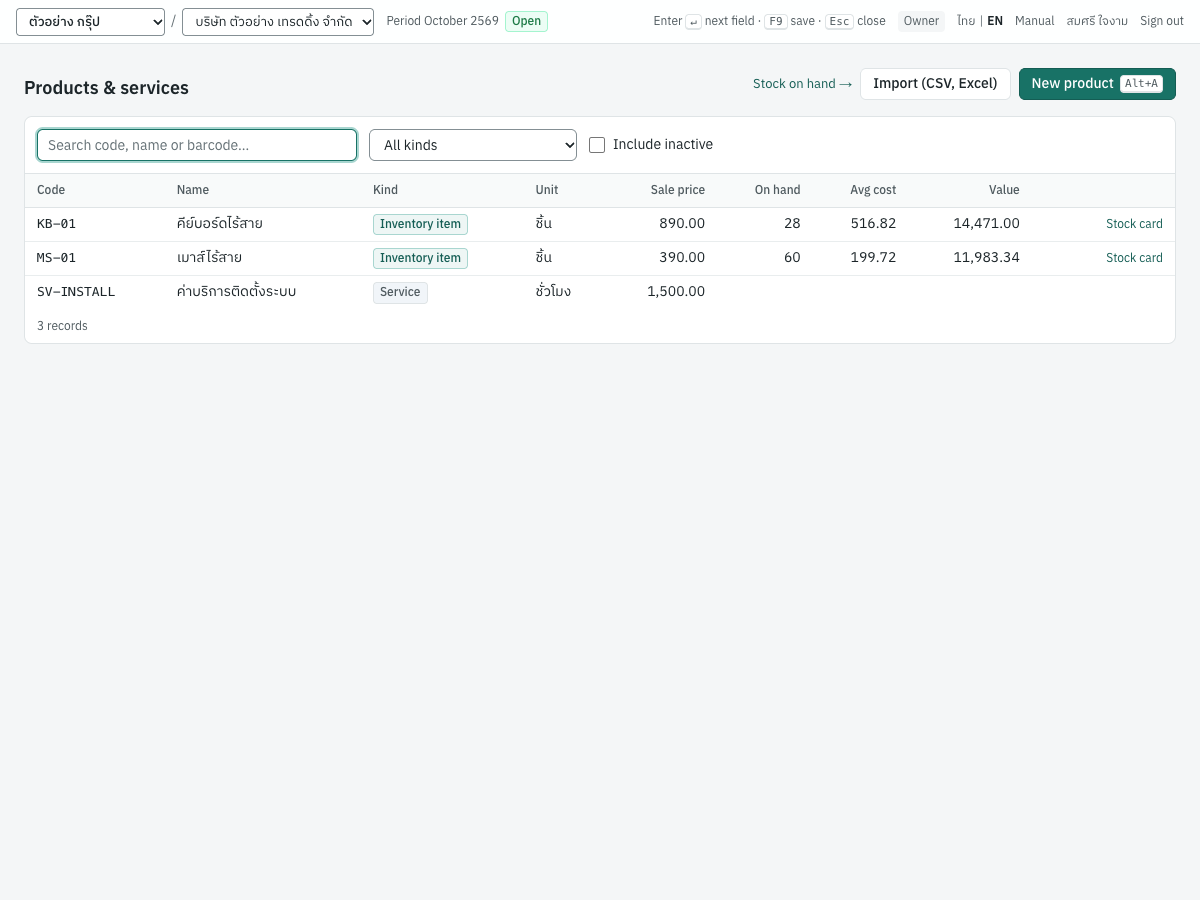
| Column | What it shows |
|---|---|
| Code | The product code (SKU) |
| Name | The name, followed in grey by the category name when the product has one |
| Kind | Inventory item, Non-stock item or Service |
| Unit | The unit of measure, e.g. ชิ้น, ชั่วโมง |
| Sale price | The default selling price; blank when zero |
| On hand | Inventory items only: quantity in all warehouses together; red when negative |
| Avg cost | Inventory items only: stock value divided by quantity on hand |
| Value | Inventory items only: the stock value (cost) of the quantity on hand |
| (flags) | Reorder when an active inventory item's quantity on hand is at or below its reorder level (hover to see the level); Inactive for deactivated products |
| Stock card | Inventory items only: opens the product's stock card |
In the demonstration company, KB-01 คีย์บอร์ดไร้สาย has 28 ชิ้น on hand at an average cost of 516.82, worth 14,471.00. SV-INSTALL ค่าบริการติดตั้งระบบ is a service, so it shows no stock.
To find products:
- Search code, name or barcode — type part of a code or name, or the full barcode (a barcode must match exactly, so you can scan it into the box).
- All kinds — show only inventory items, non-stock items or services.
- Include inactive — also list deactivated products (shown faded).
Other buttons on the page:
- Stock on hand → opens Stock on hand.
- Import (CSV, Excel) imports products from an Excel or CSV file.
- New product (
Alt+A) opens an empty product form.
Click a row to open the product. You need the Manage master data permission (Staff and above) to open, add or import products.
Item kinds#
The Kind decides whether Panya keeps stock for the product and which accounts its lines post to.
| Kind | ภาษาไทย | Stock | Purchase lines post to | Sales lines post to | Cost of goods sold |
|---|---|---|---|---|---|
| Inventory item | สินค้าคงคลัง | Quantity tracked per warehouse; cost tracked by moving average or FIFO | Inventory account (1140) | Sales account (4100) | Posted when the goods leave stock (5110 / 1140) |
| Non-stock item | สินค้าไม่นับสต็อก | None | Purchases / expense account (5140) | Sales account (4100) | None |
| Service | บริการ | None | Purchases / expense account (5140) | Sales account (4100) | None |
The account codes are the company defaults of the standard chart; a category or the product itself can name other accounts (see Which accounts are used).
A service behaves like a non-stock item in the books, with one difference on a credit sale (IV) or credit purchase (RR): when the first line of a new document is a service and the document has VAT, Panya ticks VAT due on payment (services) on a sale, or Input VAT claimable on payment (services) on a purchase, unless you have already changed that box yourself. Withholding tax is not set on the product; you deduct it when you receive or pay, see Finance.
Only inventory items can be used on stock adjustments, opening stock and transfers, and only they appear on the stock screens.
Fields#
Click New product (Alt+A) or click a product in the list. The form title is New product or Edit product followed by the code.
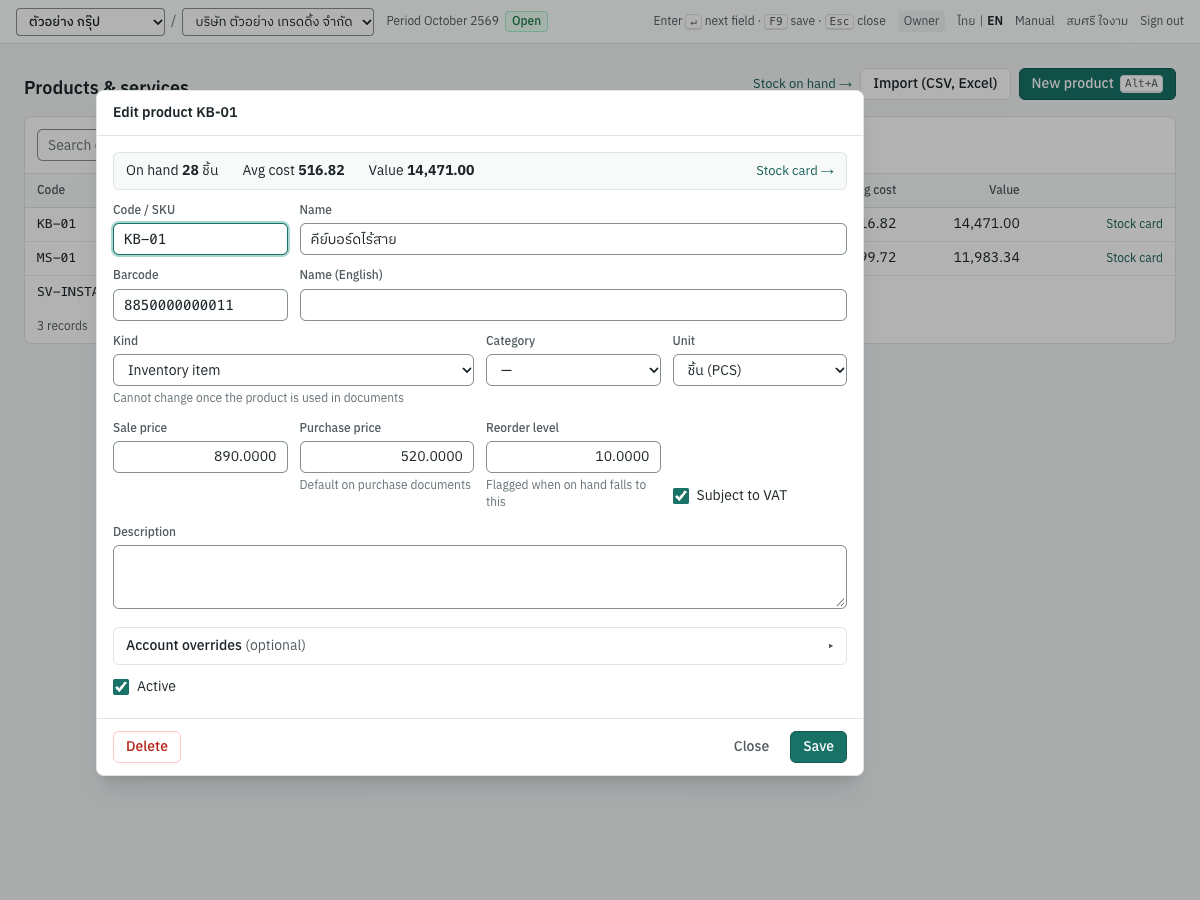
For an existing inventory item, a strip at the top shows On hand, Avg cost and Value, with a Stock card → link.
| Field | ภาษาไทย | What to enter |
|---|---|---|
| Code / SKU | รหัสสินค้า | Required. The code you type on documents, e.g. KB-01. It must be unique in the company. |
| Name | ชื่อสินค้า | Required. Becomes the line description when you pick the product on a document; you can still change the description on the line. |
| Barcode | บาร์โค้ด | Optional. Must be unique in the company. Searching for the exact barcode finds the product in the list and in the product look-up on documents. |
| Name (English) | ชื่อภาษาอังกฤษ | Optional. An English name kept with the product. |
| Kind | ประเภท | Inventory item (default), Non-stock item or Service; see Item kinds. Once the product is used in a document or has stock movements, the kind cannot change. |
| Category | หมวดสินค้า | Optional. The product category decides the costing method (moving average or FIFO) and can supply default accounts. — means no category: moving average and the company default accounts. |
| Unit | หน่วยนับ | Optional. Chosen from the units list, e.g. ชิ้น (PCS), ชั่วโมง (HR). Copied to document lines. |
| Sale price | ราคาขาย | The default unit price on quotations, sales orders and sales documents. A positive number; blank means 0. Up to 4 decimal places are kept. |
| Purchase price | ราคาซื้อ | The default unit price on purchase orders and purchase documents (and on purchase requisitions when it is not zero). A positive number; blank means 0. |
| Reorder level | จุดสั่งซื้อ | Inventory items only. When the total quantity on hand falls to this level or below, the product shows Reorder in the list and appears on the reorder report. Leave blank for no reorder check. |
| Subject to VAT | มีภาษี | Ticked by default. Sets the VAT box of a document line when you pick the product; you can change it on the line. Untick for VAT-exempt goods and services. |
| Description | รายละเอียด | Optional notes about the product. |
| Account overrides | ผูกบัญชีเฉพาะสินค้า | Optional. Click the bar to open it. See Account overrides. |
| Active | ใช้งาน | Ticked by default. Untick to stop using the product: it disappears from look-ups and from the list (unless Include inactive is ticked), and new documents refuse it. Existing documents and stock are not affected. |
You can type amounts with or without thousands separators. A price or reorder level that is not a positive number shows "Enter a positive number" under the field when you save.
Account overrides#
Most companies leave these blank and let the company default accounts (7 Setup → Default accounts) or the category's accounts apply. Use an override when one product must post somewhere else, for example a product sold as service revenue 4200 instead of 4100.
The section shows only the accounts that apply to the product's kind. Each box is blank by default; the blank choice says where the posting goes instead: "Category default — …" when the category names an account, otherwise "Company default".
| Override | ภาษาไทย | For kinds | Accounts you can choose | Used for |
|---|---|---|---|---|
| Sales | บัญชีขาย | All | Revenue accounts that are not control accounts | Revenue on sales lines |
| Purchases / expense | บัญชีซื้อ | Non-stock item, Service | Expense or asset accounts that are not control accounts | The debit on purchase lines |
| Inventory | บัญชีสินค้าคงเหลือ | Inventory item | Inventory control accounts | Stock value |
| Cost of sales | ต้นทุนขาย | Inventory item | Expense accounts that are not control accounts | Cost of goods sold |
If you change the kind, overrides that do not apply to the new kind are cleared when you save.
Adding a product#
- Open 4 Inventory → Products & services and press
Alt+A(or click New product). - Type the Code / SKU and press
Enterto move to Name.Entermoves from field to field. - Enter the barcode and English name if you use them.
- Choose the Kind. For goods you keep and count, choose Inventory item.
- Choose the Category and Unit.
- Enter the Sale price and Purchase price.
- For an inventory item, enter the Reorder level if you want reorder warnings.
- Untick Subject to VAT if the product is VAT-exempt.
- Open Account overrides only if this product must post to accounts other than its category's or the company's.
- Click Save. Panya shows "Product KB-01 saved" and closes the form. Press
Escor click Close to leave without saving.
A new inventory item has no stock. Its stock starts with opening stock, a purchase or goods receipt, or a stock adjustment.
Changing, deactivating and deleting a product#
Open the product, change the fields and click Save. Changes apply to documents you enter from then on; posted documents keep what they recorded. Two changes are refused once a product has history:
- The Kind cannot change after the product appears on a sales or purchase document or has stock movements.
- The Category cannot change to a category with a different costing method after the product has stock movements.
To remove a product, open it and click Delete, then confirm. A product with stock movements or used on documents cannot be deleted; Panya shows the reason and a Deactivate instead button, which unticks Active and saves.
Importing products from a file#
Use Import (CSV, Excel) on the product list to bring in a product list from Express or another program. Express's item list (4.4 รายละเอียดสินค้า, under F12 พิมพ์รายงาน › 4 สินค้าคงคลัง) works as it is. Import Express's service items (4.4 รายละเอียดสินค้าบริการ) as a second file with a kind column set to service.
- Export the list to an Excel or CSV file.
- Click Import (CSV, Excel), choose the file and click Import.
- Panya checks every row first. If any row is wrong, nothing is imported and the message lists the rows and problems (up to 20). Fix the file and import again.
- When all rows are accepted, Panya shows "Imported N products." and how many rows it read.
| Column | Also accepted as header | Required | What to put |
|---|---|---|---|
code | sku, รหัส, รหัสสินค้า, รหัสสินค้า/บริการ | Yes | Product code; must not exist yet and must not repeat in the file |
name | ชื่อ, ชื่อสินค้า, ชื่อสินค้า/บริการ | Yes | Product name |
name_en | english name, ชื่อภาษาอังกฤษ | No | English name |
kind | item_kind, type, ประเภท | No | inventory (also stock, สินค้า, or blank), non_inventory (also non stock, ไม่นับสต็อก), service (also บริการ, สินค้าบริการ) |
barcode | บาร์โค้ด | No | Barcode |
unit | หน่วย, หน่วยนับ, หน่วยย่อย | No | The code or name of a unit, e.g. PCS or ชิ้น. A unit that does not exist yet is created; check it afterwards in 7 Setup → Units & categories |
sale_price | price, ราคาขาย, ราคาขาย 1 | No | Sale price, not negative, up to 4 decimals |
purchase_price | cost, ราคาซื้อ, ราคาทุน, ราคาทุนมาตรฐาน | No | Purchase price, not negative |
vatable | vat, ภาษี, ประเภทภาษี | No | no, n, false, 0, ไม่มี, ยกเว้น or exempt for VAT-exempt (Express's VAT type 0); anything else, or blank, means subject to VAT |
reorder_level | reorder, จุดสั่งซื้อ | No | Reorder level, not negative |
The example shown in the import window:
code,name,kind,unit,sale_price,purchase_price
KB-02,คีย์บอร์ด,inventory,PCS,890,520
SV-02,ค่าบริการ,service,HR,1500,
The import does not set categories or account overrides; open the products afterwards to set them. It does not bring in quantities either: enter what you have in stock as opening stock. See Setup for every accepted column name.
Messages#
| Message | What to do |
|---|---|
| Required (under Code or Name) | Enter the code and name. |
| a product with this code already exists / a product with this barcode already exists | The code or the barcode is already used by another product. Choose another, or find the existing product with Include inactive ticked. |
| prices must not be negative | Enter zero or a positive price. |
| the item kind of a product used in documents cannot change | Create a new product with the right kind and deactivate this one. |
| this product has stock movements: it cannot move to a group with another costing method | Choose a category with the same costing method. |
| this product has stock movements; deactivate it instead | Click Deactivate instead. |
| this record is in use by documents; deactivate it instead | Click Deactivate instead. |
| row N: code K already exists (import) | Remove the row or change the code; codes must be new and must not repeat in the file. |
| row N: unknown kind 'X' (import) | Use inventory, non_inventory or service, or the Thai สินค้า, ไม่นับสต็อก or บริการ. |
How cost is calculated#
Panya keeps a perpetual inventory: every document that moves stock is valued and posted to the general ledger when you post it, so the inventory account always equals the value of the stock on the stock cards. Cost is calculated per product, company-wide: quantities are kept per warehouse, but a product has one cost for the whole company. Moving stock between warehouses therefore never changes its value.
Each product category uses one of two costing methods:
- Moving weighted average — the default.
- FIFO — first in, first out.
A product without a category uses moving average.
Moving weighted average#
Panya keeps, for each product, the total quantity on hand and the total value of that stock. The average cost is value ÷ quantity.
- A receipt adds its quantity and its cost:
- purchases (RR, HP) and goods receipts (GN) at their net amount after discounts, excluding VAT that you can claim (non-creditable VAT becomes part of the cost);
- stock adjustments and opening stock at the unit cost you enter (an adjustment without a cost comes in at the current average);
- goods returned by a customer on a credit note (SR) at the cost at which they left.
- An issue (a sale, a delivery note, an adjustment out, a purchase return) takes quantity × value ÷ quantity on hand, rounded to the satang. The issue that empties the stock takes all the remaining value, so rounding differences never build up.
- A purchase return (GR) leaves at the current average cost. The difference between that and the supplier's credit goes to Inventory cost variance
5120ผลต่างต้นทุนสินค้า. - A transfer moves quantity only.
KB-01 คีย์บอร์ดไร้สาย in the demonstration company shows how the average moves:
| Date | Document | In | Out | Value | Balance qty | Balance value | Average |
|---|---|---|---|---|---|---|---|
| 01/01/2569 | OS6900001 opening stock | 20 | 10,000.00 | 20 | 10,000.00 | 500.00 | |
| 02/10/2569 | RR69100001 credit purchase | 30 | 15,600.00 | 50 | 25,600.00 | 512.00 | |
| 05/10/2569 | IV69100001 credit sale | 12 | -6,144.00 | 38 | 19,456.00 | 512.00 | |
| 09/10/2569 | DO69100001 delivery note | 6 | -3,072.00 | 32 | 16,384.00 | 512.00 | |
| 10/10/2569 | IV69100004 credit sale | 20 | -10,240.00 | 12 | 6,144.00 | 512.00 | |
| 11/10/2569 | GN69100001 goods receipt | 20 | 10,400.00 | 32 | 16,544.00 | 517.00 |
Issues do not change the average; only receipts at a different cost do. The current average is shown on the product, the stock card and the inventory valuation report.
FIFO#
For a product in a FIFO category, each receipt forms a cost layer (its quantity and value). Issues take from the oldest layers first; an issue that takes part of a layer takes the same share of its value.
- A cancelled sale or other issue brings its goods back, at the cost they left with, as the oldest layer, so they go out first again.
- Goods a customer returns on a credit note come back at their original issue cost as the newest layer.
- A purchase return takes from the oldest layers; the difference from the supplier's credit goes to
5120. - A transfer moves quantity only.
- FIFO stock can never go below zero, whatever the company's negative-stock setting, because there would be no layer to cost the issue from.
- A purchase (or any receipt) can be cancelled only while its own layer still holds all its goods. Otherwise Panya refuses with "the goods of this receipt have already been issued (FIFO); return them to the supplier instead" — record a purchase return instead.
Choosing the method for a category#
The costing method belongs to the product category: 7 Setup → Units & categories, then New category or Edit on a category (see Setup). The field is Stock costing:
- Moving weighted average
- FIFO
The Costing column of the categories list shows Average or FIFO. A new company starts with one category, GEN ทั่วไป, using moving average. Choose the method before the category's products have any stock movements: after that the method is fixed ("products in this group already have stock movements; the costing method cannot change"), and a product with movements cannot move to a category with the other method.
Which accounts are used#
For every line, Panya takes each account from the first place that names one:
- the product's own account override;
- the product's category (7 Setup → Units & categories);
- the company default (7 Setup → Default accounts, groups Inventory & COGS and Sales & purchases).
| Account | Company default in the standard chart | Used for |
|---|---|---|
| Inventory | 1140 สินค้าคงเหลือ | Stock value of inventory items |
| Cost of goods sold | 5110 ต้นทุนขายสินค้า | Cost of stock sold or delivered |
| Inventory cost variance | 5120 ผลต่างต้นทุนสินค้า | Rounding, purchase-return and negative-stock differences |
| Inventory adjustment | 5130 สินค้าขาด/เกินจากการตรวจนับ | Default offset for stock adjustments |
| Goods received not invoiced | 2160 สินค้ารับแล้วรอใบแจ้งหนี้ | Goods receipts (GN) awaiting the supplier's invoice |
| Sales | 4100 รายได้จากการขายสินค้า | Revenue |
| Purchases / expenses | 5140 ซื้อสินค้าและวัสดุสิ้นเปลือง | Purchase lines of non-stock items and services |
| Opening balance equity | 3900 ยอดยกมาเพื่อปรับปรุง | Opening stock |
Important: The inventory account must be an inventory control account (like 1140). The inventory valuation report and the integrity checks compare the stock value with the balance of the inventory control accounts, so stock posted to an ordinary asset account would not reconcile.
When cost of goods sold is posted#
Cost of goods sold is posted at the moment the goods leave stock, in the same journal entry as the document. The table shows the stock effect of each document for inventory-item lines, with the default accounts.
| Document | Stock effect | Journal for the stock |
|---|---|---|
| Credit sale (IV), cash sale (HS) | Out of the document's warehouse at cost | Dr 5110 / Cr 1140 |
| Delivery note (DO) | Out at the delivery | Dr 5110 / Cr 1140. The invoice that later bills the delivery note moves no stock and posts no cost. |
| Credit note (SR) that returns goods | Back in at the cost they left with | Dr 1140 / Cr 5110 |
| Sales debit note (DN) | None | — |
| Goods receipt (GN) | In at the agreed price excluding VAT | Dr 1140 / Cr 2160 |
| Credit purchase (RR), cash purchase (HP) | In at the net cost | Dr 1140 / Cr 2110 (or the cash or bank account). A purchase that bills a goods receipt moves no stock; the difference from the receipt goes to 5120. |
| Purchase return (GR) | Out at the current cost | Cr 1140 at cost; the difference from the supplier's credit to 5120 |
| Supplier debit note (DP) | Not allowed for inventory items | Enter extra cost against an account instead |
| Stock adjustment (AJ) | In or out | 1140 against 5130 or the offset account you choose |
| Opening stock (OS) | In | Dr 1140 / Cr 3900 |
| Stock transfer (TF) | Between warehouses | No journal entry |
Non-stock items and services never post cost of goods sold. The sales and purchase documents themselves are explained in Sales and Purchasing.
Negative stock#
The company setting Negative stock in 7 Setup → Company decides what happens when a document would take more out of a warehouse than it holds:
- Block (recommended, the default) — posting is refused when an issue would take the product's quantity below zero, either in that warehouse or for the company as a whole. Panya shows a message such as "insufficient stock of KB-01 in warehouse MAIN: on hand 3, requested 5", or in all warehouses when the company as a whole holds too few.
- Allow — the issue is posted. The part beyond what is on hand is costed at the last receipt cost. When the next receipt arrives, Panya revalues the remaining quantity at the incoming cost and posts the difference to Inventory cost variance
5120.
FIFO products never go below zero, whichever option you choose.
Note: The insufficient-stock message names the product and the warehouse by their codes. Compare the on hand and requested figures with your lines, and check Stock on hand for the warehouse of the document.
Back-dated documents#
A stock document is back-dated when its date is earlier than the latest stock movement of one of its products, for example a purchase invoice dated 11/10/2569 entered after a sale dated 13/10/2569 was posted. Panya accepts it and recalculates instead of editing posted documents:
- The back-dated document is costed on the product's quantity and value as of its own date. It is placed after any other movements of that same date.
- Panya then replays every later movement of the product in date order:
- issues (sales, delivery notes, adjustments out, purchase returns) are re-priced at the new average or from the new FIFO layers;
- receipts keep their cost; only a negative-stock variance can change;
- transfers move as they were posted;
- cancellations follow the movement they reverse.
- Each later movement whose cost changes gets a Cost recalculated line on the stock card, with quantity 0 and the change in value.
- For each re-priced document and date, Panya posts a cost adjustment journal entry dated on that document's date (general journal, numbered
GJ…, memo "cost recalculated document (back-dated document)"). Inventory moves by the change in value; the other side goes to the account that took the cost: cost of goods sold for a sale or delivery, the offset account for an adjustment, cost variance for a purchase return.
The stock card of KB-01 shows an example. IV69100003 (13/10/2569, 5 ชิ้น) was first posted at 512.00 a unit, 2,560.00. Then GN69100001 (dated 11/10/2569) and IV69100004 (dated 10/10/2569) were entered, both dated before it. Each changed the average at 13/10/2569 and re-priced the sale: two Cost recalculated lines of -15.38 and -9.62. The sale now costs 2,585.00 (5 × 517.00), and the two cost adjustment entries each posted Dr 5110 / Cr 1140 on 13/10/2569.
A back-dated document is refused:
- when the recalculated path would leave stock short for a later movement and negative stock is not allowed: "dated …, this leaves product KB-01 short for stock movements posted after it: …";
- when a later movement that must be re-priced is in a closed period.
Note: A credit note returns goods at the recalculated cost of its sale. A credit note that was posted before its sale was re-priced keeps the cost it was posted with.
Cancelling stock documents#
Panya never edits a posted document. Cancelling one (with the reverse documents permission and a reason) reverses its stock movements and its journal entry:
- goods that went out come back at the cost they left with;
- goods that came in are removed at their own value; if that empties the product or would leave a negative value, the leftover is posted to
5120in the reversing entry; - the document's cost adjustment entries, if any, are reversed too.
The cancellation date defaults to the document date. It must be in an open period and cannot be earlier than the latest stock movement of the document's products: Panya refuses with "product KB-01 already has stock movements up to … ; date this on or after it". Choose a later date in that case. Cancelling goods that have since been sold or moved is refused with an insufficient-stock message; record a new adjustment, return or transfer instead.
Stock adjustments (AJ)#
ปรับปรุงสินค้า · Menu: 4 Inventory → Stock adjustments
A stock adjustment changes the quantity of products in one warehouse without a purchase or sale: differences found in a stock count, damaged or lost goods, samples given away, goods found. Each line adds (+) or removes (−) stock. The value is posted between the inventory account and an offset account, by default 5130 สินค้าขาด/เกินจากการตรวจนับ.
The same menu holds Opening stock (OS), which records what you have on hand when you start using Panya.
The adjustment list#
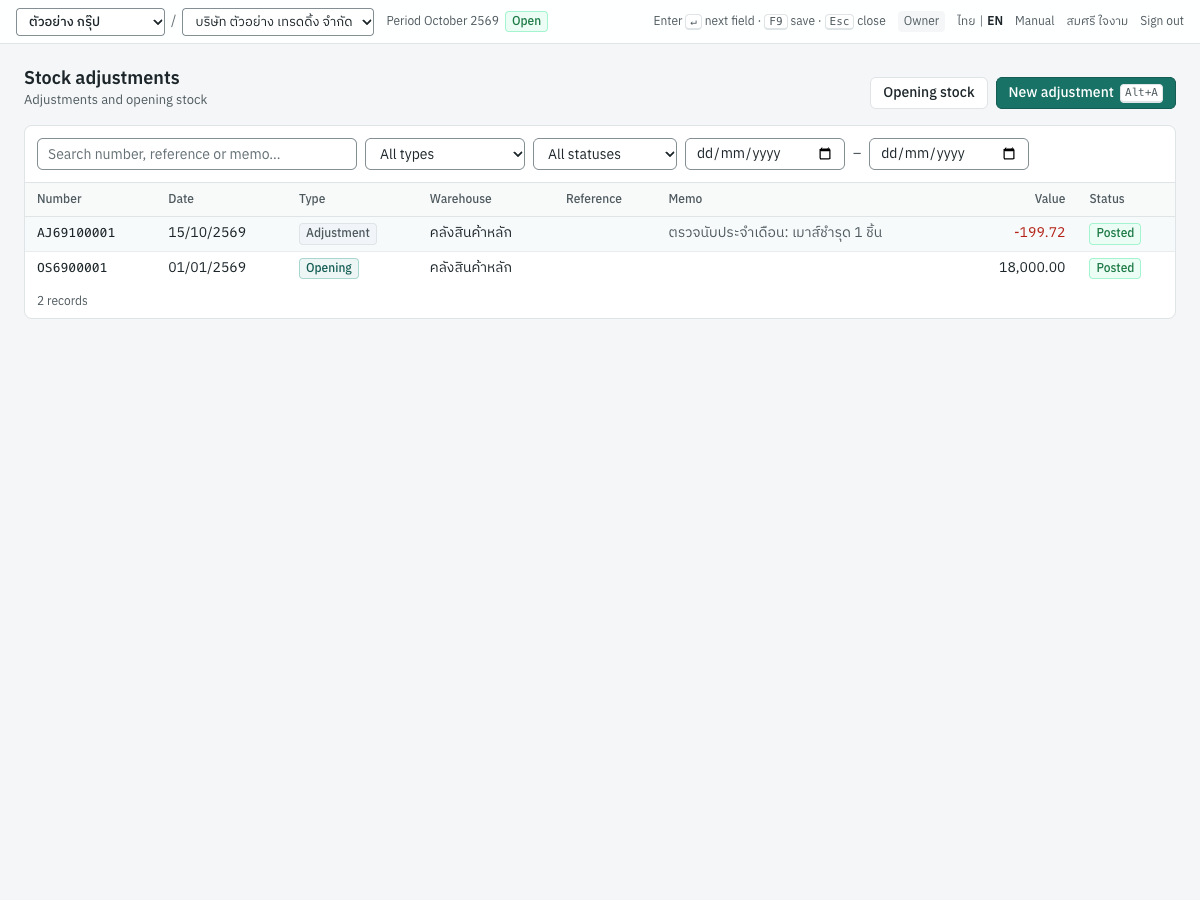
| Column | What it shows |
|---|---|
| Number | The document number, or (draft) for a draft |
| Date | Document date |
| Type | Adjustment or Opening |
| Warehouse | The warehouse adjusted |
| Reference | Your reference, e.g. a count sheet number |
| Memo | The memo (first line) |
| Value | The total value posted; red when negative (stock removed); — for drafts |
| Status | Draft, Posted or Cancelled |
The newest documents come first, with drafts at the top of each date. Filter the list with:
- Search number, reference or memo…
- All types — Adjustments or Opening stock.
- All statuses — Draft, Posted or Cancelled.
- The two date boxes — from and to.
Click a row to open it; a draft opens in the form so you can continue. The buttons at the top:
- Opening stock opens a new opening stock document (shown only if you may post journals).
- New adjustment (
Alt+A) opens a new stock adjustment.
Fields#
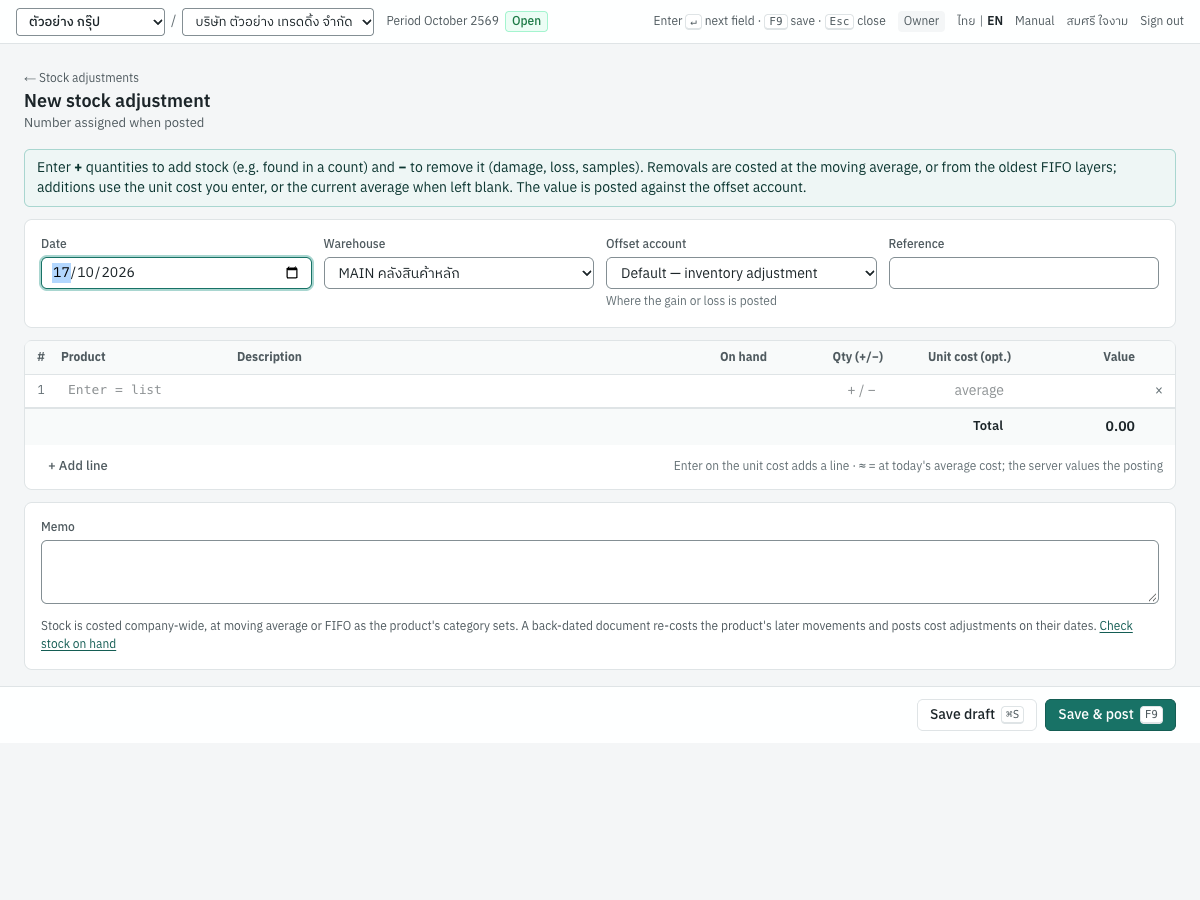
Header:
| Field | ภาษาไทย | What to enter |
|---|---|---|
| Date | วันที่ | Defaults to today. Must be in an open accounting period when you post. An earlier date than the products' latest movements makes the adjustment back-dated. |
| Warehouse | คลัง | Defaults to the first active warehouse. One adjustment covers one warehouse; inactive warehouses are not offered. |
| Offset account | บัญชีคู่ | Where the gain or loss is posted. Blank means Default — inventory adjustment (5130). You can choose any account that is not a control account, e.g. 5250 ค่าโฆษณา for samples given to customers. |
| Reference | อ้างอิง | Optional, e.g. the count sheet number. |
| Memo | หมายเหตุ | Optional explanation, shown on the document and in the list. |
Lines:
| Column | ภาษาไทย | What to enter |
|---|---|---|
| Product | รหัสสินค้า | An inventory item. Type the code or part of the name, or press Enter in the empty box to list all. The look-up shows each product's company-wide quantity on hand. |
| Description | รายละเอียด | Filled with the product name; change it if you want. |
| On hand | คงเหลือ | Quantity in the selected warehouse today (hover to see the quantity after this line). For your information only. |
| Qty (+/−) | จำนวน (+/−) | Required, not zero. A positive number adds stock; a negative number (-1) removes it. Up to 4 decimal places. |
| Unit cost (opt.) | ทุน/หน่วย (ถ้ามี) | Additions only: the cost per unit of the stock added. Leave blank to use the current average (shown as the placeholder, e.g. avg 516.82). Disabled for removals, which are always costed at the current cost. |
| Value | มูลค่า | An estimate of the line value. ≈ means it is at today's average; Panya calculates the actual value when it posts. |
The footer shows Total, or Estimated total when any line is estimated. The × at the end of a line removes it.
Entering a stock count adjustment#
- Open 4 Inventory → Stock adjustments and press
Alt+A. - Check the Date and choose the Warehouse.
- Leave Offset account blank to post to
5130, or choose another account. - Enter a Reference if you have one, and press
Enterto reach the first line. - In Product, type the code (e.g.
MS-01) and pressEnterto pick it. - In Qty (+/−), type the difference:
-1for one missing or damaged unit,2for two units found. - For an addition, type the Unit cost, or leave it blank to use the average.
- Press
Enteron the unit cost of the last line to add another line. Repeat for each product. - Type a Memo, e.g. "ตรวจนับประจำเดือน: เมาส์ชำรุด 1 ชิ้น".
- Press
F9(Save & post) to post, or⌘S/Ctrl+S(Save draft) to keep it as a draft without a number or any effect on stock.
When it posts, Panya assigns the number, shows "Posted AJ69100001" and opens the posted document.
Tip: Before a count adjustment, open Stock on hand with the count date and the warehouse, and enter only the differences between the count and that list.
Adding stock with and without a unit cost#
- With a unit cost — the stock comes in at that cost and changes the average like a purchase. Use this for goods received without a purchase document, at a cost you know.
- Without a unit cost — the stock comes in at the current average, so the average does not change. Use this for goods found in a count. If the product has no stock (and so no average), Panya uses the cost of its last receipt; a product that has never been received comes in at zero cost, and the adjustment then posts no journal entry. Enter a unit cost in that case.
Removals are always valued at the current cost (moving average, or the oldest FIFO layers).
What posting records#
Panya numbers the adjustment AJ + Buddhist year + month + a running number, e.g. AJ69100001 for the first adjustment of October 2569 (the format can be changed in 7 Setup → Document numbering). It posts one journal entry in the inventory journal, numbered IJ…, and one stock movement per line. There are no VAT or withholding tax records.
The adjustment AJ69100001 dated 15/10/2569 removed one damaged MS-01 เมาส์ไร้สาย from คลังสินค้าหลัก at the average cost of 199.72:
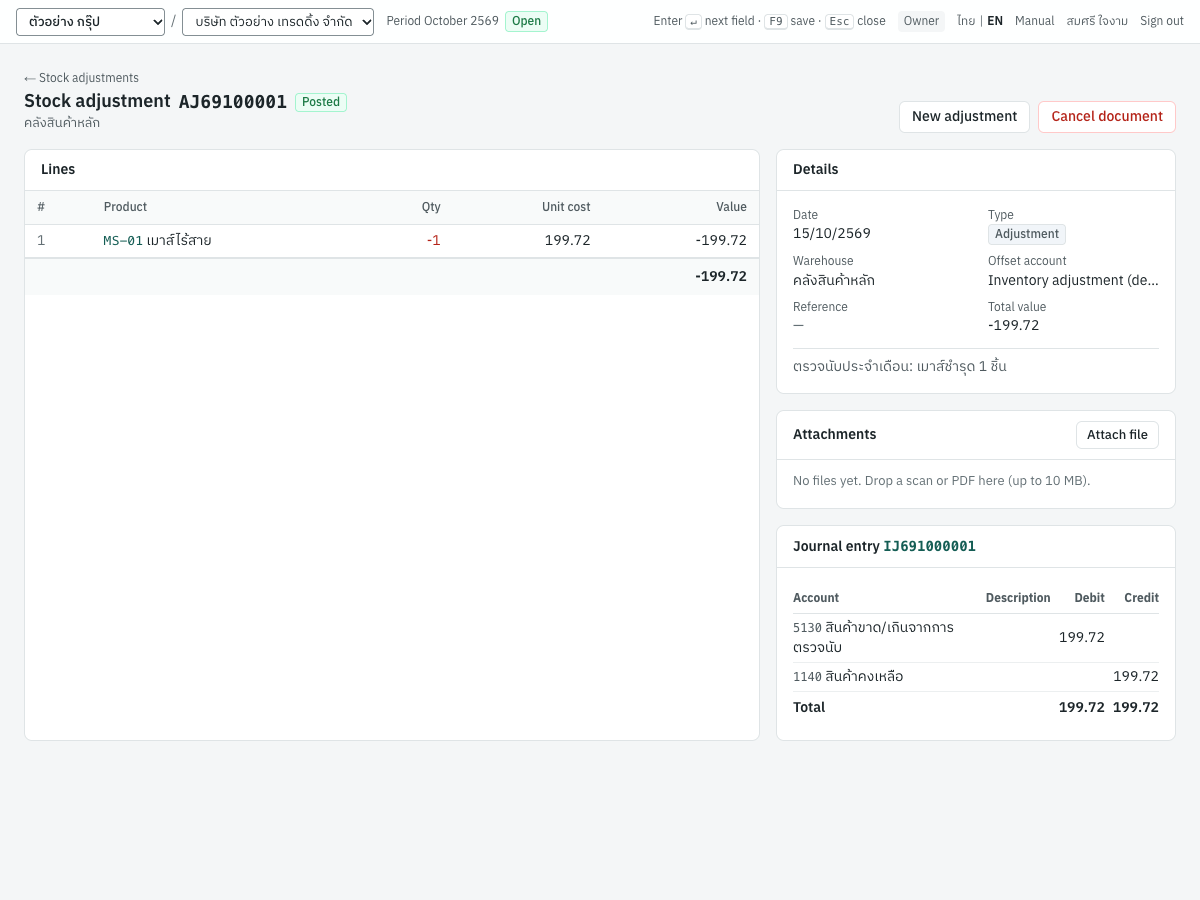
| Account | Debit | Credit |
|---|---|---|
5130 สินค้าขาด/เกินจากการตรวจนับ | 199.72 | |
1140 สินค้าคงเหลือ | 199.72 |
For an addition, the entry is the other way round. Two KB-01 found in a count without a unit cost, at the average of 516.8214:
| Account | Debit | Credit |
|---|---|---|
1140 สินค้าคงเหลือ | 1,033.64 | |
5130 สินค้าขาด/เกินจากการตรวจนับ | 1,033.64 |
If you chose an offset account, it replaces 5130. If the product's quantity was negative before an addition (only possible when negative stock is allowed), part of the cost goes to 5120 as a cost variance. After posting, each line shows its actual unit cost and value.
After posting#
The posted document shows:
- Lines — product (the code links to its stock card), quantity in green (+) or red (−), unit cost and value, with the total.
- Details — date, type, warehouse, offset account ("Inventory adjustment (default)" when you left it blank), reference, total value and memo.
- Attachments — click Attach file or drop a scan or PDF (up to 10 MB), e.g. the signed count sheet.
- Journal entry — the entry number (click it to open the entry) and its lines. When the adjustment had no value, the page says "No journal entry: the adjustment had no value."
Buttons: New adjustment starts another one; Cancel document cancels it (see below). A posted adjustment cannot be edited.
Cancelling an adjustment#
- Open the posted adjustment and click Cancel document.
- Enter the Reason (recorded in the audit trail). It is required.
- Check the Reversal date. It defaults to the document date; it cannot be earlier, and it must be in an open period and not before later movements of the same products.
- Click Cancel document.
Panya reverses the stock movements, posts a reversing journal entry (shown in a Reversal card) and marks the document Cancelled: "Cancelled: reason. The stock movements were reversed and a reversing journal entry was posted; the original document is kept for the audit trail." See Cancelling stock documents for how the values are reversed. Cancelling an addition whose stock has since been used is refused; record a new adjustment instead.
To delete a draft, open it and click Delete draft. Only drafts can be deleted.
Messages#
| Message | What to do |
|---|---|
| Choose a warehouse | Choose the warehouse, or create one in 4 Inventory → Warehouses. |
| Add at least one product line | Enter at least one product and quantity. |
| Line N: choose a product | The line has a quantity but no product. |
| Line N: enter a quantity (+ to add, − to remove) | Enter a quantity other than zero. |
| Line N: the unit cost must be a positive number | Correct the unit cost, or leave it blank. |
| KB-01 is not an inventory item | Only inventory items can be adjusted. |
| insufficient stock of … in warehouse …: on hand …, requested … | The removal is more than the warehouse holds. Check the quantity, or the date if the stock arrived later. See Negative stock. |
| accounting period for … is closed / no accounting period covers … | Use a date in an open period; see Accounting. |
| dated …, this leaves product … short for stock movements posted after it | The back-dated adjustment would leave later documents without stock. Date it later. |
| account mapping '…' is not configured for this company | Set the missing account in 7 Setup → Default accounts. |
| a posted adjustment cannot be edited | Cancel it and enter a new one. |
| only drafts can be deleted | Cancel a posted adjustment instead. |
| this adjustment cannot be reversed without a cost variance entry | The adjustment had no journal entry but its reversal needs one. Enter a new adjustment instead of cancelling. |
Opening stock (OS)#
สินค้ายกมา · Menu: 4 Inventory → Stock adjustments → Opening stock, or 5 Accounting → Opening balances → New opening stock
Opening stock records the quantity and cost of what you have on hand when you start using Panya, per warehouse. It starts the product's cost (moving average or FIFO layer) and posts the stock value against Opening balance equity 3900, which balances against your other opening balances. The whole opening-balance procedure, including the general ledger openings and customer and supplier openings, is in Setup.
You need the journal-posting permission (Accountant, Admin or Owner) to enter opening stock. Without it the form shows "Opening stock needs the journal-posting permission."
Entering opening stock#
The form is the stock adjustment form with these differences:
- The title is New opening stock, and an information box explains what opening stock records.
- There is no Offset account: opening stock always posts to opening balance equity.
- The reference is labelled Reference (e.g. count sheet).
- Qty must be positive.
- Unit cost is required on every line.
- Click Opening stock on the stock adjustments list.
- Set the Date on or before your go-live date, normally the first day of your first fiscal year in Panya. The date must be in an open period.
- Choose the Warehouse. Enter a separate opening stock document for each warehouse.
- For each product, enter the Qty and Unit cost from your closing stock count and valuation.
- Check the Total against the inventory balance in your previous books.
- Press
F9to post, or⌘S/Ctrl+Sto save a draft.
Messages specific to opening stock: "Line N: opening stock quantities must be positive" and "Line N: opening stock needs a unit cost".
What posting records#
Opening stock is numbered OS + Buddhist year + a running number for the year, e.g. OS6900001. It posts a journal entry in the opening journal (numbered OJ…). The demonstration company's OS6900001, dated 01/01/2569 in คลังสินค้าหลัก, is worth 18,000.00, of which KB-01 is 20 × 500.00 = 10,000.00:
| Account | Debit | Credit |
|---|---|---|
1140 สินค้าคงเหลือ | 18,000.00 | |
3900 ยอดยกมาเพื่อปรับปรุง | 18,000.00 |
The stock card shows it as an Adjustment receipt. You can attach files and cancel an opening stock document like any adjustment.
Importing opening stock from a file#
For many products, use 5 Accounting → Opening balances → Import stock (CSV, Excel) instead. Enter the Opening date (the first day of your first fiscal year in Panya) and choose an Excel or CSV file with these columns. Express's stock on hand (4.2 สินค้าคงเหลือ) works as it is, also when it is grouped by warehouse: the warehouse in each group's heading applies to the products under it.
| Column | Also accepted as header | What to put |
|---|---|---|
product | code, sku, รหัสสินค้า, รหัส | Code of an active inventory item |
warehouse | คลัง, รหัสคลัง, คลังสินค้า | Warehouse code, or the group heading; blank for the first active warehouse in code order |
qty | quantity, จำนวนคงเหลือ, คงเหลือ, จำนวน | Quantity, greater than zero |
unit_cost | cost, ต้นทุนต่อหน่วย, ราคาทุนต่อหน่วย, ต้นทุนเฉลี่ย | Cost per unit |
value | amount, มูลค่า, มูลค่าคงเหลือ | Total value; when both a unit cost and a value are given, the value is used |
product,warehouse,qty,unit_cost
MS-01,MAIN,120,250
KB-02,,40,180.50
A product may appear once per warehouse. The whole file is checked first; if any row is wrong nothing is posted. Panya posts one opening stock document per warehouse, with the reference "Imported opening stock", and reports the total value and the number of documents. See Setup.
Stock transfers (TF)#
โอนย้ายสินค้า · Menu: 4 Inventory → Stock transfers
A stock transfer moves quantities of products from one warehouse to another, for example from the main store to a shop. Because cost is company-wide, a transfer does not change the value of stock and posts no journal entry. It only changes where the stock is.
The transfer list#
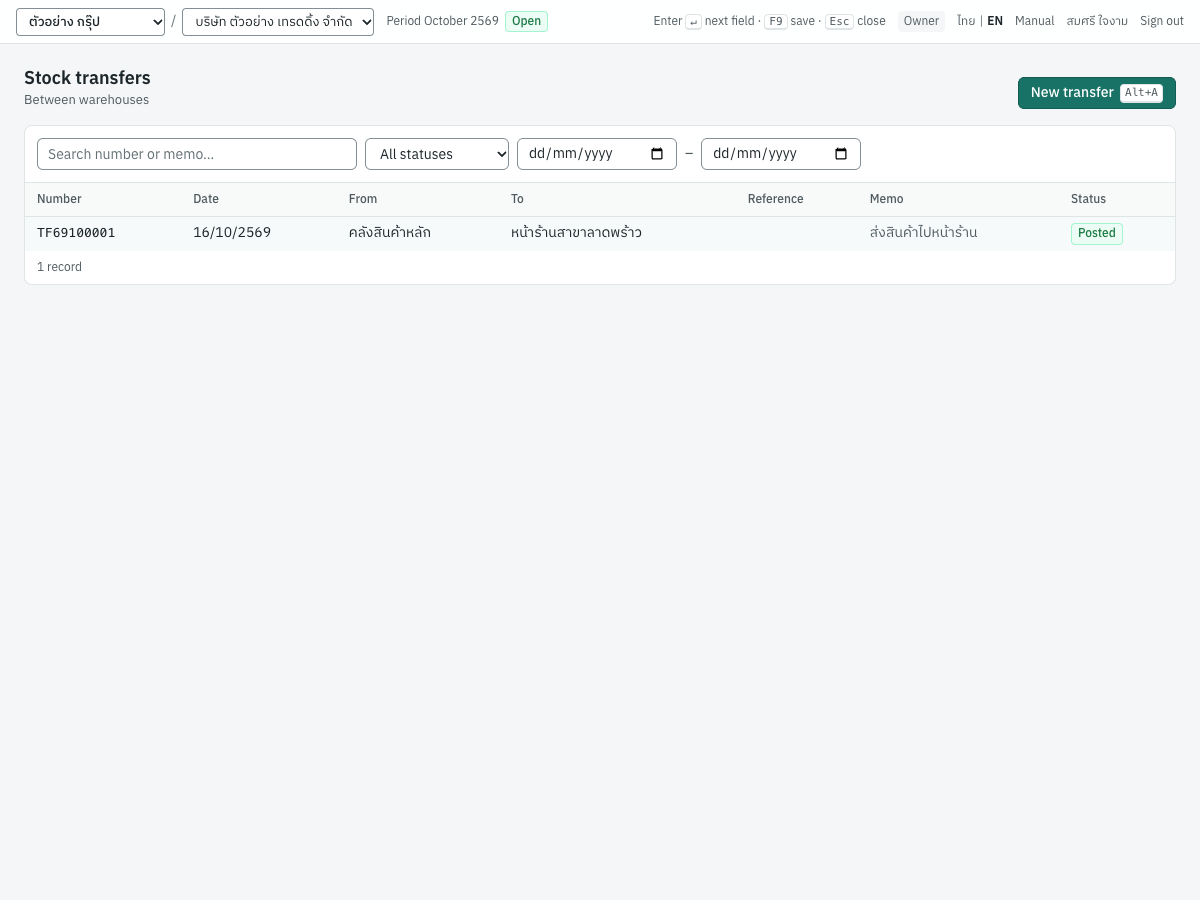
| Column | What it shows |
|---|---|
| Number | The transfer number, or (draft) |
| Date | Document date |
| From | The source warehouse |
| To | The destination warehouse |
| Reference | Your reference |
| Memo | The memo |
| Status | Draft, Posted or Cancelled |
Filter with Search number or memo…, All statuses and the from–to dates. Click a row to open the transfer. New transfer (Alt+A) starts a new one.
Fields#
| Field | ภาษาไทย | What to enter |
|---|---|---|
| Date | วันที่ | Defaults to today; must be in an open period when you post. |
| From warehouse | จากคลัง | The warehouse the goods leave. Defaults to the first active warehouse. |
| To warehouse | ไปคลัง | The warehouse that receives them. Defaults to the next active warehouse; must differ from the source ("Must differ from the source"). |
| Reference | อ้างอิง | Optional. |
| Product | รหัสสินค้า | An inventory item; Enter in the empty box lists them. |
| Description | รายละเอียด | Filled with the product name. |
| At source | ที่ต้นทาง | Quantity in the source warehouse today; red when your quantity is more than this. |
| At destination | ที่ปลายทาง | Quantity in the destination warehouse today. |
| Qty | จำนวน | Required, greater than zero. |
| Memo | หมายเหตุ | Optional. |
You need at least two active warehouses. With fewer, the form shows "You need at least two active warehouses to transfer stock." with a Set up warehouses link, and the save buttons are disabled.
Transferring stock#
- Open 4 Inventory → Stock transfers and press
Alt+A. - Check the Date, and choose From warehouse and To warehouse.
- On each line, pick the Product and type the Qty. Watch At source: a red figure means the source does not have enough today.
- Press
Enteron the quantity of the last line to add another line. - Type a Memo, e.g. "ส่งสินค้าไปหน้าร้าน".
- Press
F9(Save & post), or⌘S/Ctrl+Sto save a draft.
What posting records#
The transfer is numbered TF + Buddhist year + month + a running number, e.g. TF69100001. For each line Panya records two stock movements: out of the source warehouse and into the destination warehouse, with the same quantity and the same value at the current cost. Nothing is posted to the general ledger, and there are no tax records.
The transfer TF69100001 dated 16/10/2569 moved 5 KB-01 and 10 MS-01 from คลังสินค้าหลัก (MAIN) to หน้าร้านสาขาลาดพร้าว (SHOP):
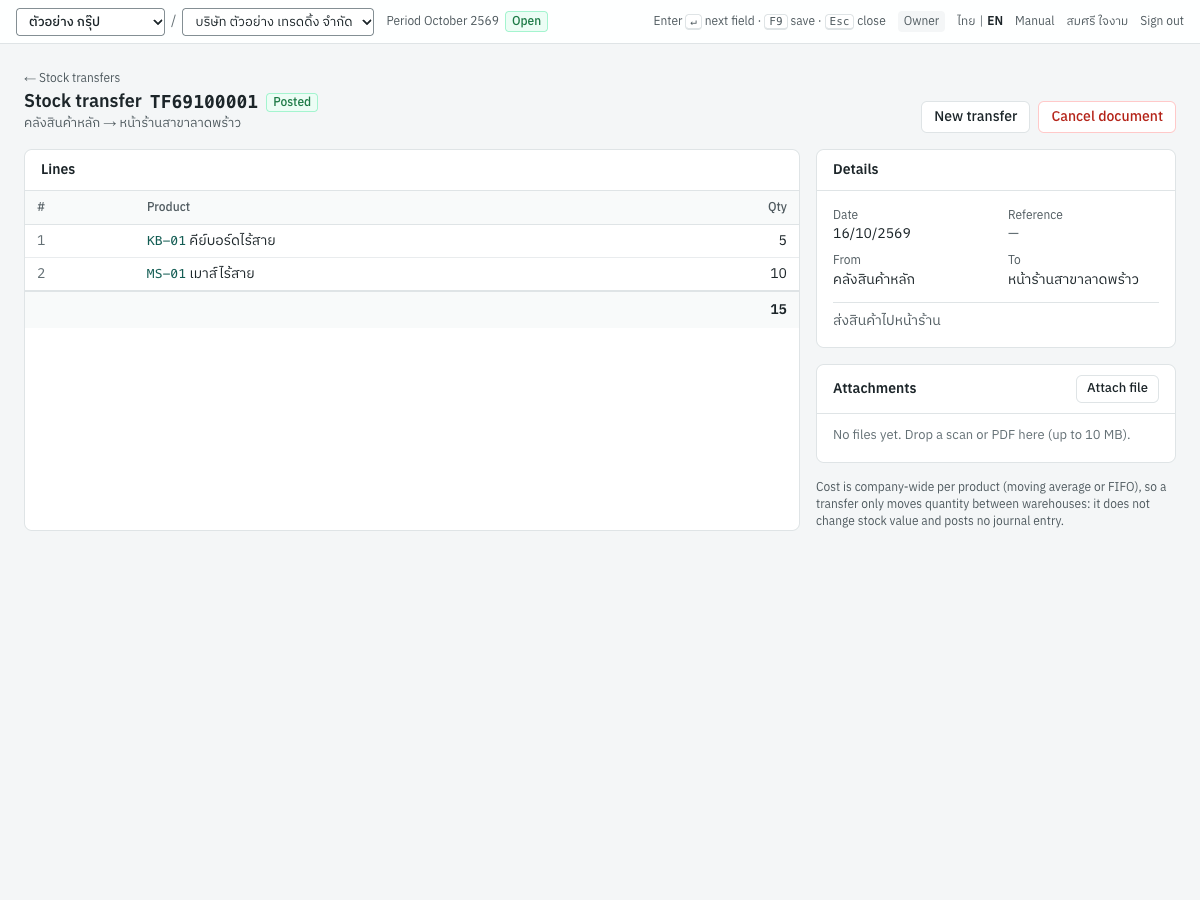
On the stock card of KB-01, it appears as 5 out of MAIN and 5 into SHOP, both at 516.82 a unit (2,584.11). The company-wide balance stays 28 units worth 14,471.00.
The posted transfer shows its lines with the total quantity, the Details (date, reference, from, to, memo) and Attachments. New transfer starts another one.
Cancelling a transfer#
Open the posted transfer, click Cancel document, enter the reason and the Reversal date, and confirm. The quantities move back to the source warehouse and the transfer is marked Cancelled: "Cancelled: reason. The quantities were moved back; the original document is kept for the audit trail."
If the goods have since been sold or moved on from the destination, the cancellation is refused. Enter a new transfer in the other direction instead. The reversal date cannot be before the transfer's date, nor before a later movement of its products. Cancelling moves quantities only: the products' cost does not change.
Messages#
| Message | What to do |
|---|---|
| Choose both warehouses / Choose two different warehouses | Choose a different destination. |
| Add at least one product line / Line N: choose a product | Complete the lines. |
| Line N: enter a positive quantity | Quantities must be greater than zero. |
| only inventory items can be transferred | Remove non-stock items and services. |
| insufficient stock of … in warehouse …: on hand …, requested … | The source warehouse does not hold that much on the transfer date. |
| the cancellation date cannot be before the document date | A transfer is cancelled on or after its own date. Choose a later reversal date. |
Stock on hand#
สินค้าคงเหลือ · Menu: 4 Inventory → Stock on hand
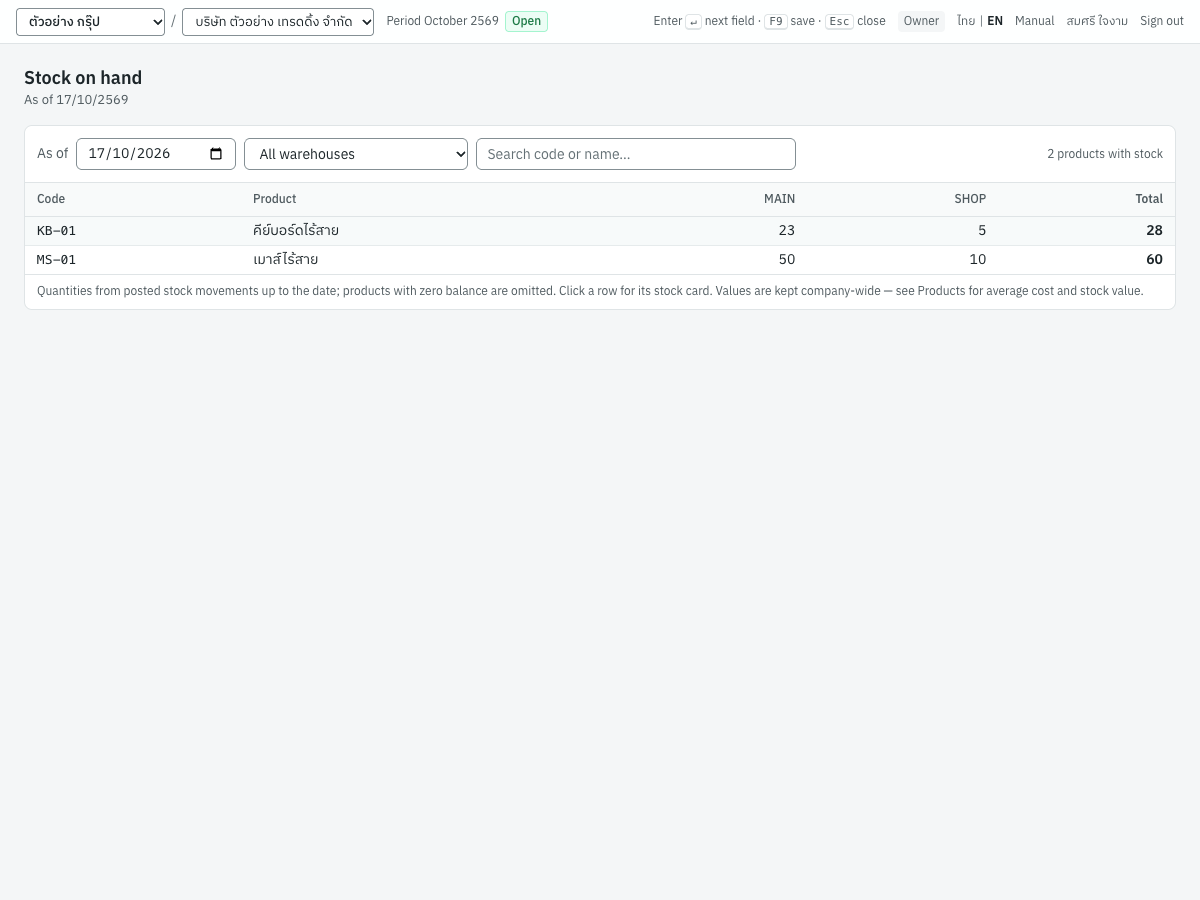
Stock on hand shows the quantity of each inventory item in each warehouse on a date, from posted stock movements. Use it before a stock count, to see what a shop holds, or to check stock on a past date. It also opens from Stock on hand → on the product list and from the Stock on hand link of each warehouse.
Filters:
- As of — defaults to today. Movements up to and including this date are counted.
- All warehouses or one warehouse.
- Search code or name…
The table has Code, Product, one column per warehouse that holds stock (headed by the warehouse code; hover for its name), and Total when more than one warehouse is shown. Negative quantities are red. Products with zero stock everywhere are left out; the count of products with stock is shown on the right.
Click a row to open the product's stock card (for the chosen warehouse, if you picked one).
Stock on hand shows quantities only, because value is kept company-wide. For average cost and value, see the product list or the inventory valuation report.
Stock card#
บัตรสินค้า · Menu: 4 Inventory → Stock card
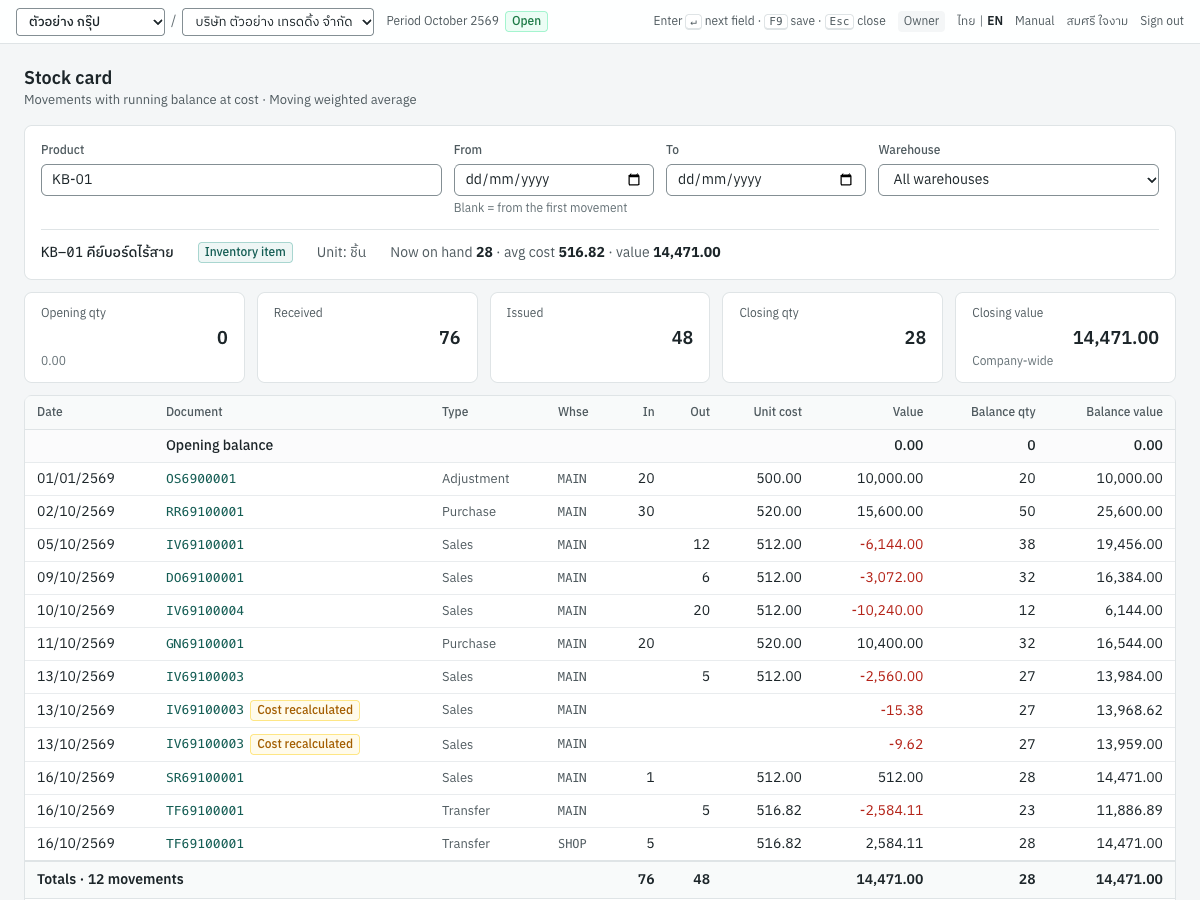
The stock card lists every stock movement of one product, with the running quantity and value, like a perpetual inventory ledger card. Open it from the menu, from Stock card on the product list or product form, by clicking a row of Stock on hand, or by clicking a product code on a stock document.
Choosing what to show#
| Filter | ภาษาไทย | What to enter |
|---|---|---|
| Product | สินค้า | Required. An inventory item; type the code or name, or press Enter to list. |
| From | ตั้งแต่วันที่ | Optional. Blank shows everything from the first movement. With a date, movements before it are summed into the opening balance. |
| To | ถึงวันที่ | Optional. Movements after it are left out. |
| Warehouse | คลัง | All warehouses or one warehouse. |
The page address keeps your choices, so you can bookmark a stock card or send the link to a colleague.
Below the filters, Panya shows the product code and name, its kind, its unit, and Now on hand · avg cost · value for the whole company today.
Reading the stock card#
The five boxes summarise the selection:
| Box | What it shows |
|---|---|
| Opening qty | Quantity before the From date, with its value underneath (zero when From is blank) |
| Received | Total quantity in during the range |
| Issued | Total quantity out during the range |
| Closing qty | Opening plus received minus issued |
| Closing value | Value at the end of the range; marked Company-wide, or MAIN only (the warehouse code) when one warehouse is chosen |
With All warehouses, a transfer counts in both Received and Issued (it goes out of one warehouse and into another), so those two totals include transfers; the closing quantity is not affected. In the KB-01 example, Received 76 and Issued 48 each include the 5 units of TF69100001.
The table has one row per movement, in date order, starting with Opening balance and ending with Totals:
| Column | What it shows |
|---|---|
| Date | Movement date |
| Document | The document number; click it to open the document. A Reversal badge marks the movement that cancelled a document (shown in grey); a Cost recalculated badge marks a cost recalculation |
| Type | Sales (invoices, cash sales, delivery notes, credit notes), Purchase (purchases, goods receipts, returns), Adjustment (adjustments and opening stock) or Transfer |
| Whse | Warehouse code |
| In / Out | Quantity in or out |
| Unit cost | The cost per unit of the movement |
| Value | The value of the movement; negative (red) for issues |
| Whse qty | Only when a warehouse is chosen: the running quantity in that warehouse |
| Balance qty | Running quantity for the whole company after the movement |
| Balance value | Running value for the whole company after the movement |
A Cost recalculated row has no quantity and no unit cost. It follows the movement it re-prices, and its value is the change in that movement's cost; a movement re-priced more than once has one such row per recalculation.
When you choose one warehouse, the balance columns are headed (all) and still show the company-wide balance, because cost is company-wide; use Whse qty for the warehouse's own quantity. A transfer appears as two rows, out of one warehouse and into the other, at the same unit cost.
The KB-01 card above shows the opening stock OS6900001, purchases RR69100001 and GN69100001, sales IV69100001, IV69100003, IV69100004 and delivery DO69100001, the two cost recalculations of IV69100003 (explained in Back-dated documents), the credit note SR69100001 returning one unit at its sale cost of 512.00, and the transfer TF69100001. It ends with 28 units worth 14,471.00, the same as the product list and the inventory valuation report.
Warehouses#
คลังสินค้า · Menu: 4 Inventory → Warehouses
Warehouses are the places where you keep stock: a store, a branch, a shop. Panya tracks the quantity of each product in each warehouse. Every new company starts with one warehouse, MAIN คลังสินค้าหลัก. Add more if you keep stock in several places; the demonstration company also has SHOP หน้าร้านสาขาลาดพร้าว.
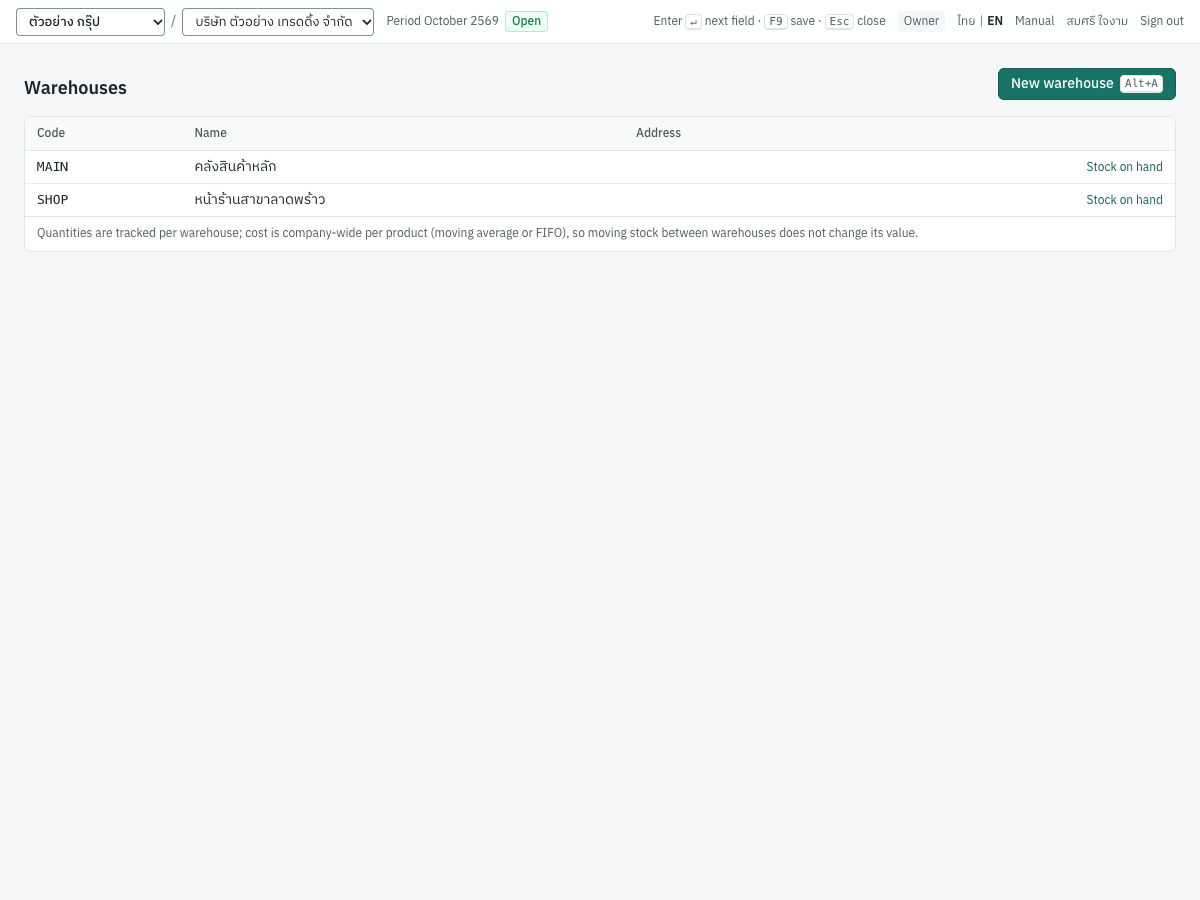
The list shows Code, Name, Address, an Inactive badge for deactivated warehouses, and a Stock on hand link that opens Stock on hand for that warehouse. Click a row to edit; New warehouse (Alt+A) adds one.
When a company has more than one warehouse, sales and purchase documents show a Warehouse field, defaulting to the first active warehouse; the stock lines of the document move in that warehouse.
Fields#
| Field | ภาษาไทย | What to enter |
|---|---|---|
| Code | รหัส | Required, unique. A short code such as SHOP; it heads the column in Stock on hand and is used in the opening stock CSV. |
| Name | ชื่อคลัง | Required. |
| Address | ที่ตั้ง | Optional. |
| Active | ใช้งาน | Ticked by default. An inactive warehouse is no longer offered on stock adjustments and transfers. |
Click Save. If the code or name is missing, Panya shows "Code and name are required".
To remove a warehouse, open it and click Delete. A warehouse used by documents cannot be deleted; Panya shows "this record is in use by documents; deactivate it instead" with a Deactivate instead button. Move any remaining stock out with a transfer before you deactivate a warehouse.
Inventory reports#
Two reports in 6 Reports → All reports, group Inventory, read the stock data. They are described in full in Reports.
Inventory valuation#
Inventory valuation lists each product's quantity, average cost and value on a date, for all warehouses or one. It compares the total with the balance of the inventory control accounts in the general ledger and shows reconciled when they agree. In the demonstration company the stock is worth 26,454.34, the same as account 1140.
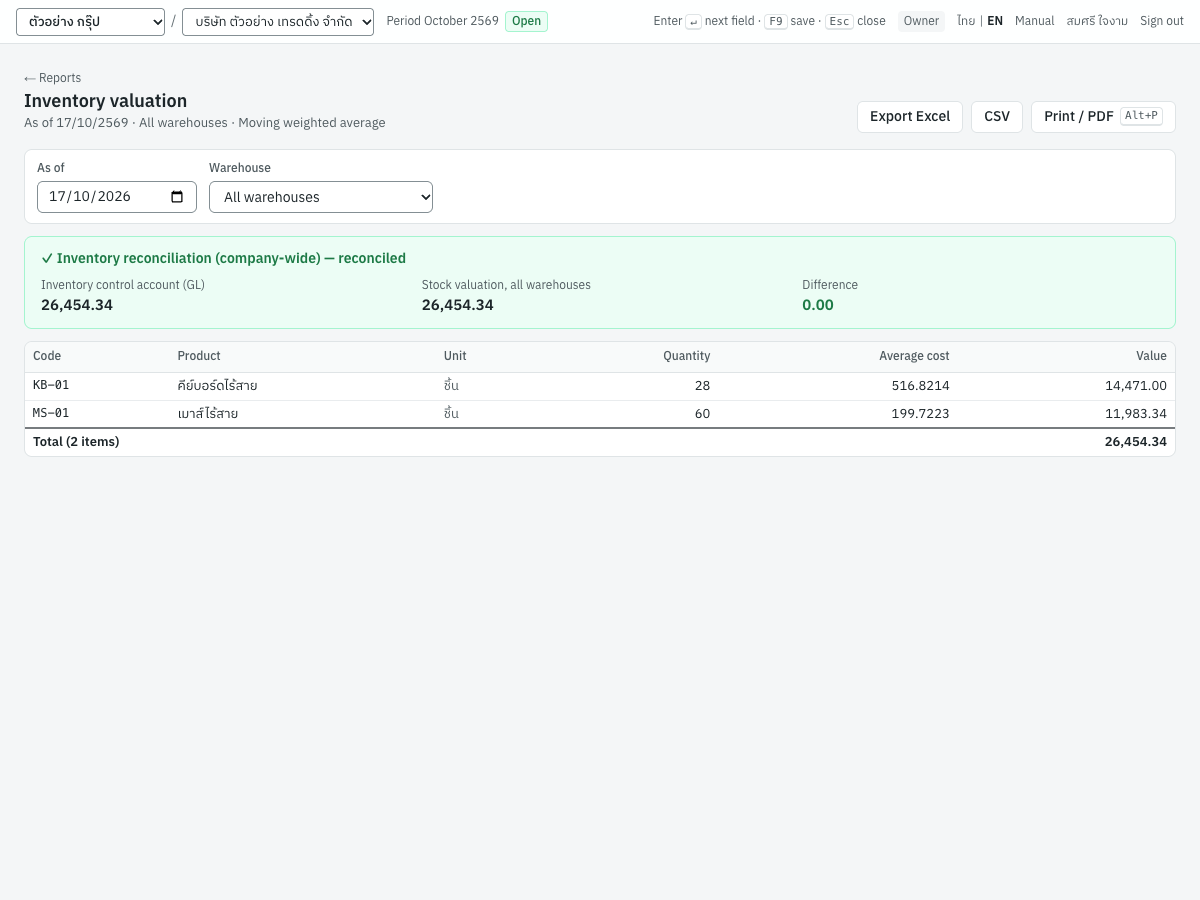
For one warehouse, a product's value is its quantity in that warehouse at the company-wide average cost. The reconciliation is always company-wide.
Reorder report#
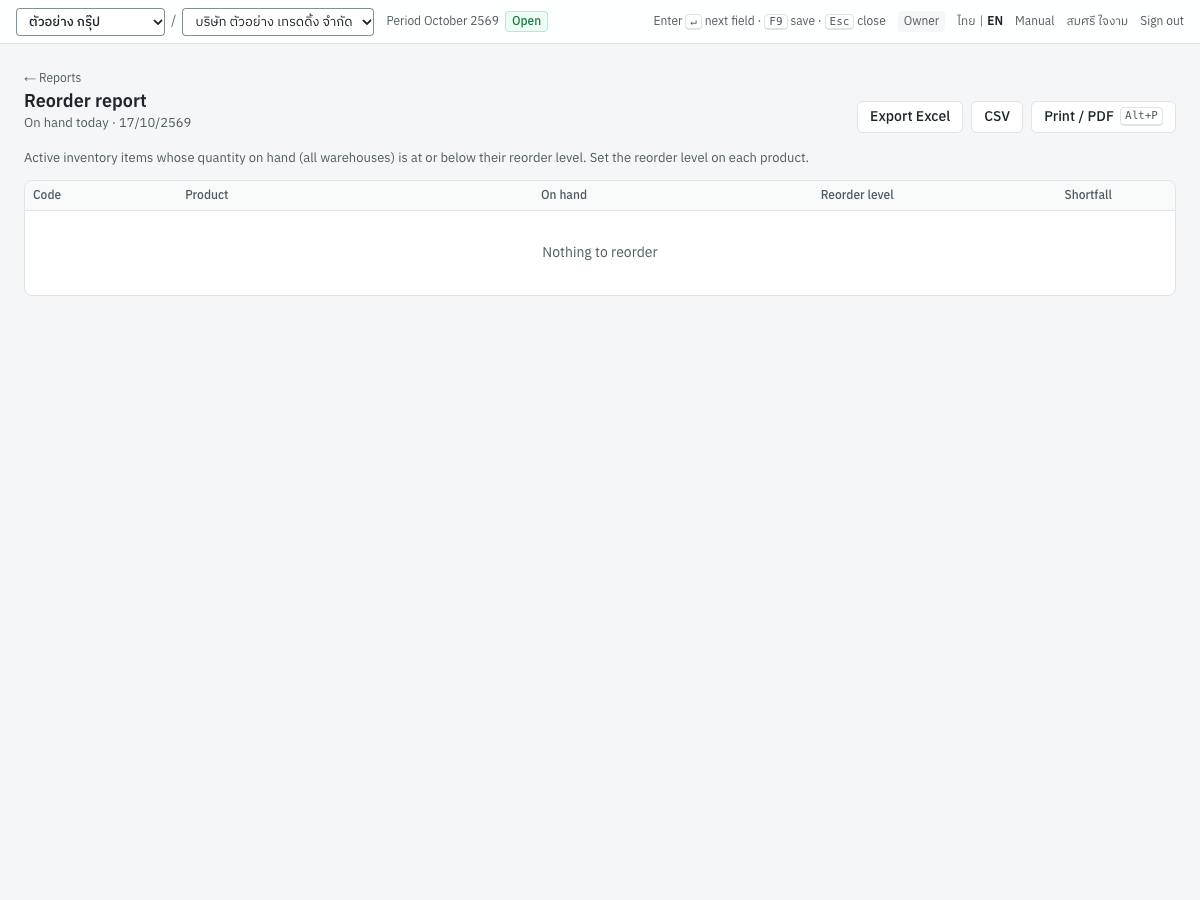
Reorder report lists active inventory items whose quantity on hand in all warehouses is at or below their Reorder level, with the shortfall. Products without a reorder level are not checked. In the demonstration company nothing needs reordering.
At month end, also run 6 Reports → Integrity checks, which confirms that the stock value agrees with the inventory account; see Month-end and tax filing.