Purchasing · ซื้อ
Menu 1 Purchasing holds everything you buy: the suppliers you buy from, deposits you pay before delivery, the requisitions and orders that come before a purchase, goods received ahead of the supplier's invoice, credit and cash purchases, and the returns and debit notes that correct them. Paying suppliers, supplier billing notes (ใบรับวางบิล), withholding tax and PP.36 are in Finance.
The menu follows the order of Express's menu 1 ซื้อ:
| Menu item | ภาษาไทย | Code | Posts to the ledger | Section |
|---|---|---|---|---|
| Deposits paid | จ่ายเงินมัดจำ | AE | Yes | Deposits paid (AE) |
| Purchase requisitions | ใบขอซื้อ | PR | No | Purchase requisitions (PR) |
| Purchase orders | ใบสั่งซื้อ | PO | No | Purchase orders (PO) |
| Goods receipts | ใบรับสินค้า | GN | Yes: stock and goods received not invoiced | Goods receipts (GN) |
| Credit purchases | ซื้อเงินเชื่อ | RR | Yes | Credit purchases (RR) |
| Cash purchases | ซื้อเงินสด | HP | Yes | Cash purchases (HP) |
| Purchase returns | ส่งคืนสินค้า | GR | Yes | Purchase returns (GR) |
| Supplier debit notes | ใบเพิ่มหนี้ | DP | Yes | Supplier debit notes (DP) |
| Suppliers | ผู้จำหน่าย | — | No: master data | Suppliers |
Suppliers is the last item on the menu, but every purchasing document needs one, so this chapter explains it first and then follows the menu.
How the purchasing documents fit together#
Pick the documents that match how you buy. You never need all of them.
| Situation | Documents, in order |
|---|---|
| The goods and the supplier's tax invoice arrive together, and you pay later | Credit purchase (RR), then a payment (PS) |
| You pay on the spot, in cash or by transfer | Cash purchase (HP) |
| Purchases need approval first | Requisition (PR), approved, then a purchase order (PO), then a credit or cash purchase, then a payment |
| The goods arrive before the supplier's invoice | Goods receipt (GN), then a credit purchase that invoices it, then a payment |
| The supplier asks for a deposit before it delivers | Deposit paid (AE), then a credit or cash purchase that deducts it |
| You send goods back, or the supplier gives a price reduction | Purchase return (GR) on the original purchase |
| The supplier charges more on an earlier purchase | Supplier debit note (DP) on the original purchase, then a payment |
Requisitions and purchase orders are commercial documents: they never touch the ledger, stock or tax. Every other document in this menu posts a journal entry when you post it.
Working with purchase documents#
Every purchase document goes through the same states:
| Status | Meaning |
|---|---|
| Draft | Saved but not posted. It has no number yet (the list shows (draft)), it is not in the books or the tax reports, and you can change or delete it |
| Posted | In the books. Panya gives it the next number, for example RR69100001, posts the journal entry, stock movements and tax records, and freezes it |
| Cancelled | Reversed by a reversing entry on a date you choose. The document and its original entry stay for the audit trail |
Requisitions and purchase orders use their own statuses, explained in their sections.
The keys are the same on every purchase screen:
| Key | Where | What it does |
|---|---|---|
Alt+A | A document list, or the supplier list | Starts a new document or supplier |
Enter | A form | Moves to the next field. On the last field of the last line it adds a line |
Ctrl+S (⌘S on a Mac) | A document form | Save draft |
F9 | A document form | Save & post (purchase orders: Save & issue; requisitions: Submit for approval) |
Alt+P | A posted document, an issued order or a submitted requisition | Print / PDF |
Esc | A dialog or a look-up list | Closes it |
In a look-up field (supplier, product, account), type part of a code or name and choose from the list with the arrow keys and Enter. Press Enter in an empty look-up to list everything. The supplier look-up shows each supplier's balance, and the product look-up shows the quantity on hand of stocked products.
Note: Date fields use your browser's date picker, which usually shows the Christian era (for example 17/10/2026). Lists, document screens and printouts show the Buddhist era (17/10/2569).
What you may do depends on your role (see Organization administration):
| Action | Owner, Admin | Accountant | Staff | Read-only |
|---|---|---|---|---|
| Add and edit suppliers | Yes | Yes | Yes | No |
| Enter drafts, issue purchase orders, submit requisitions | Yes | Yes | Yes | No |
| Post documents | Yes | Yes | Yes | No |
| Close or cancel purchase orders and requisitions | Yes | Yes | Yes | No |
| Approve or reject requisitions | Yes | Yes | No | No |
| Cancel posted documents and deposits | Yes | Yes | No | No |
Suppliers#
ผู้จำหน่าย · Menu: 1 Purchasing → Suppliers
A supplier (ผู้จำหน่าย, เจ้าหนี้) is anyone you buy from: a company, a self-employed person, or a company abroad. The supplier record holds:
- the name, tax ID and branch that appear in the input tax report (รายงานภาษีซื้อ) and on withholding tax forms;
- the entity type, which decides which withholding tax form (ภ.ง.ด.53, ภ.ง.ด.3 or ภ.ง.ด.54) a payment is reported on;
- the credit days that set the due date of credit purchases;
- the withholding tax type pre-filled when you pay the supplier.
Note: A posted document keeps the supplier's name, tax ID, branch and address as they were on the day it was posted. Correcting the supplier later does not change documents already posted.
The supplier list#
The list shows every active supplier, sorted by code.
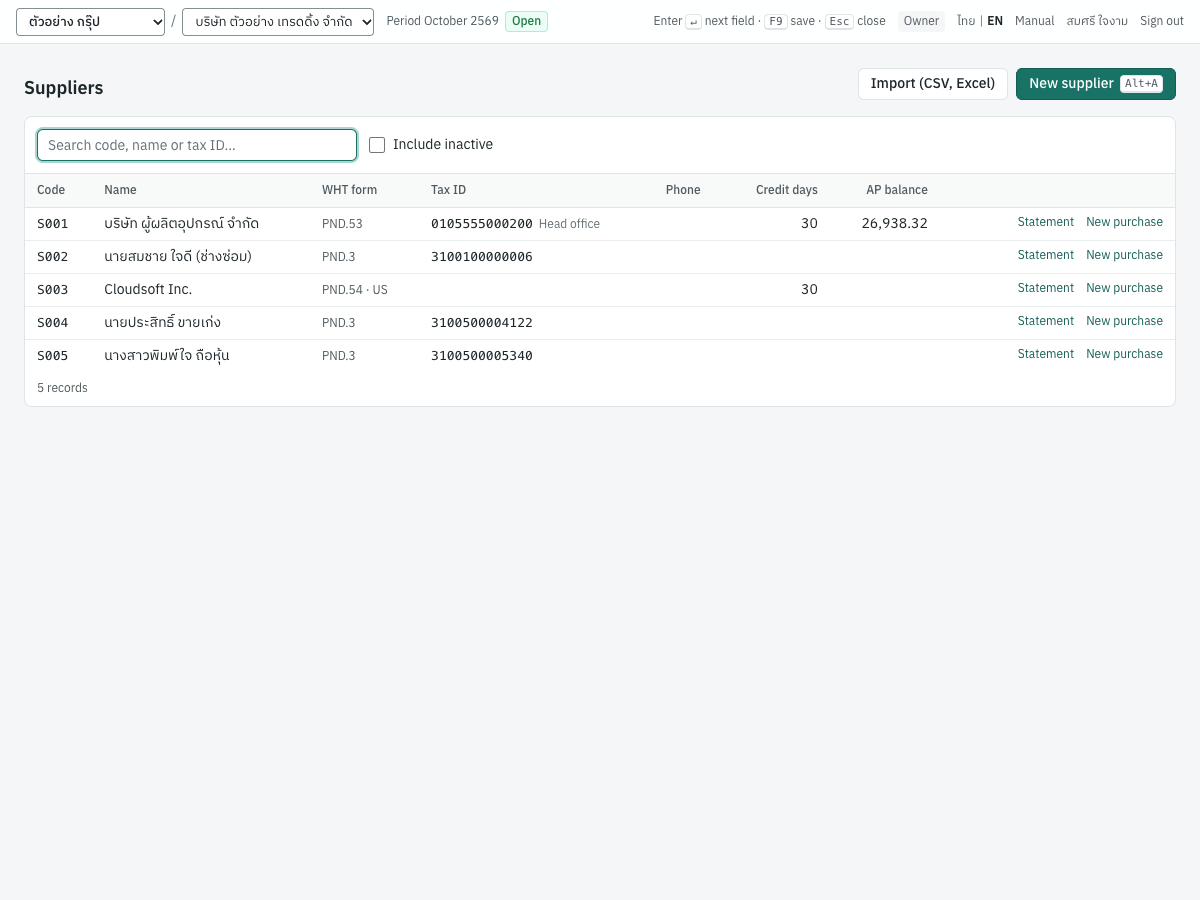
| Column | What it shows |
|---|---|
| Code | The supplier's code |
| Name | The name, with the contact person after it in grey |
| WHT form | The withholding tax form that follows from the entity type: PND.53, PND.3, or PND.54 with the country (for example PND.54 · US) |
| Tax ID | The tax ID and branch (Head office, or Branch and the branch number) |
| Phone | The phone number |
| Credit days | The supplier's credit term; blank when 0 |
| AP balance | What you owe the supplier: the supplier's balance on the trade payables control account. A negative balance is shown in red |
| (links) | Statement and New purchase |
- Search code, name or tax ID… filters the list as you type.
- Include inactive adds deactivated suppliers. They are shown faded, with an Inactive badge.
- Click a row to open the supplier for editing.
- Statement opens the accounts payable aging report (รายงานอายุเจ้าหนี้) as of today for that supplier only, with its open documents listed. Show all suppliers shows the rest. See Reports.
- New purchase opens a new credit purchase with this supplier already chosen. It is shown only for active suppliers.
- Import (CSV, Excel) imports suppliers from an Excel or CSV file, such as Express's supplier list. See Importing suppliers from a file.
The AP balance counts only the trade payables account. Deposits paid and advances paid to the supplier are not in it.
Adding or editing a supplier#
- Press New supplier (
Alt+A). To change a supplier, click its row. - Enter the Code and Name.
- Choose the Entity type. For a foreign company, also enter the Country and, if you have it, the Foreign tax ID.
- Choose the Default WHT type if you withhold tax when you pay this supplier.
- Enter the Tax ID and Branch, the Credit days, and the contact details.
- Press Save. Panya confirms Supplier S001 saved.
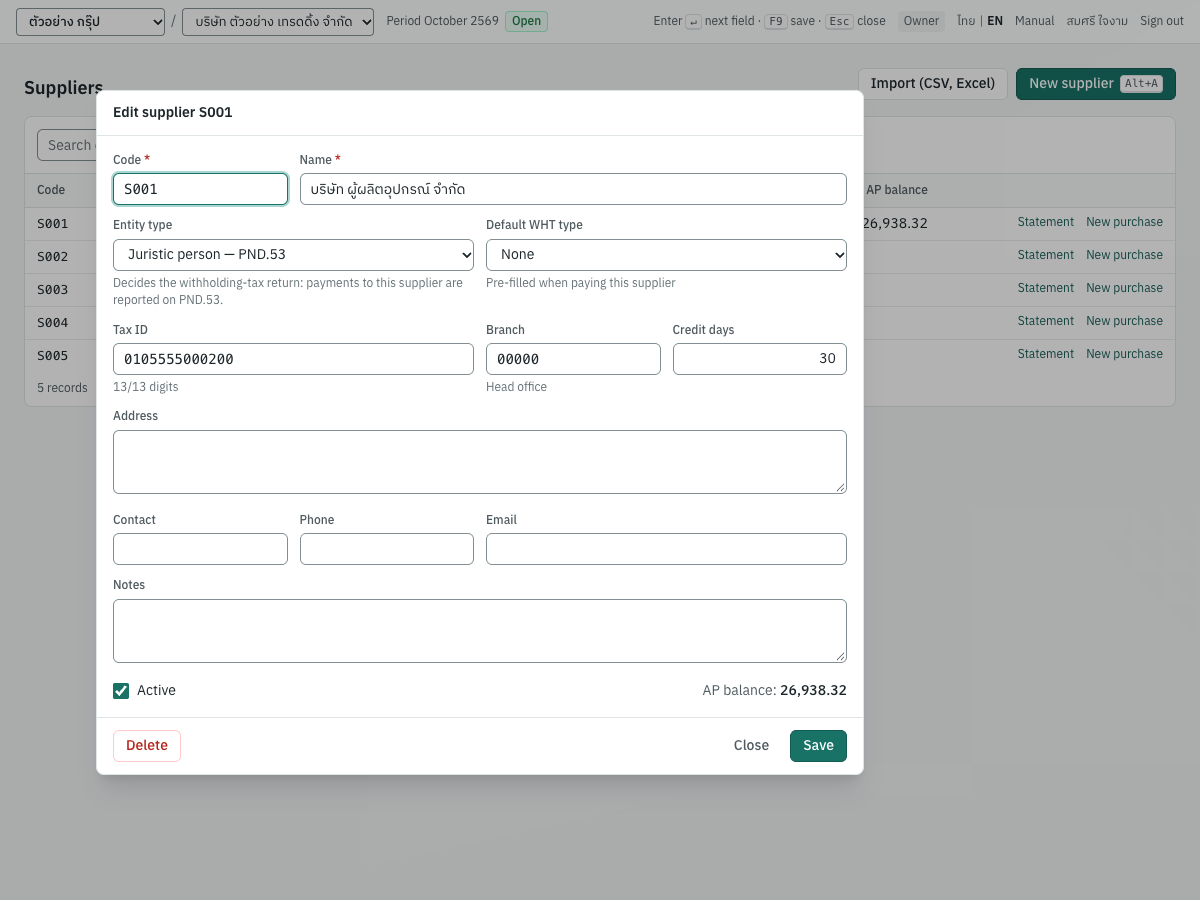
The dialog below edits supplier S001. The tax ID shows the check-digit warning, explained in the field table.
Fields#
| Field | ภาษาไทย | What to enter |
|---|---|---|
| Code | รหัส | Required. Your own short code, for example S001. It must be unique in the company, and it is what you type in look-ups |
| Name | ชื่อ | Required. The name as on the supplier's tax invoices, for example บริษัท ผู้ผลิตอุปกรณ์ จำกัด. It appears in the input tax report and on withholding tax forms |
| Entity type | ประเภทผู้จำหน่าย | Juristic person — PND.53 (the default), Individual — PND.3 or Foreign company — PND.54. The hint under the field names the withholding tax form. See Entity type and withholding tax |
| Country | ประเทศ | Foreign companies only, and required for them: the two-letter ISO code, for example US, SG or JP. TH is refused |
| Foreign tax ID | เลขผู้เสียภาษีต่างประเทศ | Foreign companies only, optional: the tax number printed on its invoices, for example 98-7654321. It is shown on ภ.ง.ด.54 in place of a Thai tax ID |
| Default WHT type | ภาษีหัก ณ ที่จ่าย | Optional. One of the active withholding tax types from 7 Setup → VAT & WHT, shown as code, name and rate, for example SERVICE ค่าบริการ (3%). It is pre-filled when you pay this supplier, and you can still change it on the payment. None pre-fills nothing |
| Tax ID | เลขประจำตัวผู้เสียภาษี | The 13-digit tax ID. Spaces and dashes are ignored. While you type, the hint counts the digits (12/13 digits). If the last digit does not match the check digit, Panya warns The check digit does not match — please double-check the number. but still saves it, because some older IDs do not follow the rule |
| Branch | สาขา | Five digits. 00000 is the head office (สำนักงานใหญ่); 00001 is branch 1. Leave it blank if the supplier has no branch number |
| Credit days | เครดิต (วัน) | 0 to 3650. The due date of a credit purchase or debit note is its date plus these days, unless you enter a due date on the document. Default 0 |
| Address | ที่อยู่ | Printed on purchase orders and purchase documents |
| Contact | ผู้ติดต่อ | The person you deal with. Shown next to the name in the list |
| Phone | โทรศัพท์ | The phone number |
| อีเมล | Pre-filled as the recipient when you send a purchase order with Send… | |
| Notes | หมายเหตุ | Anything for your own use |
| Active | ใช้งาน | Ticked for new suppliers. Untick to deactivate: Inactive records are hidden from look-ups but keep their history and balances. |
When you edit a supplier, the dialog also shows its AP balance next to the Active box.
Entity type and withholding tax#
Withholding tax is deducted when you pay, not when you record the purchase. When a payment withholds tax, Panya files it on the form that matches the supplier's entity type at the time of the payment and the income type of the WHT type:
| Entity type | ภาษาไทย | Withholding tax form | Typical suppliers |
|---|---|---|---|
| Juristic person | นิติบุคคล | ภ.ง.ด.53 (PND.53) | Companies and partnerships in Thailand, such as S001 บริษัท ผู้ผลิตอุปกรณ์ จำกัด |
| Individual | บุคคลธรรมดา | ภ.ง.ด.3 (PND.3) for s.40(5)–(8) income (rent, services, hire of work, professional fees and the like); ภ.ง.ด.1 (PND.1) for s.40(1)/(2) income and ภ.ง.ด.2 (PND.2) for s.40(3)/(4) income | Self-employed people, such as S002 นายสมชาย ใจดี, a repairman paid with 3% withheld |
| Foreign company | นิติบุคคลต่างประเทศ | ภ.ง.ด.54 (PND.54) | Companies abroad with no business in Thailand, such as S003 Cloudsoft Inc. |
Income of s.40(1)/(2) paid to an individual (commissions, brokerage, fees for a position; salaries go through payroll runs) is filed on ภ.ง.ด.1 (PND.1), and s.40(3)/(4) income (royalties, interest, dividends) on ภ.ง.ด.2 (PND.2). Panya prepares both: it computes the tax as the law says (the progressive personal income tax rates under s.50(1) for PND.1 and for royalties on PND.2, 10% on dividends, 15% on interest), lists the payment on the PND.1 or PND.2 tab of the withholding tax report with its RD Prep file, and prints the 50 ทวิ. Use the WHT types made for individuals, COMMISSION_IND, ROYALTY_IND, INTEREST_IND and DIVIDEND (see Withholding tax on PND.1 and PND.2). One payment is filed on one return: a commission (PND.1) and a repair (PND.3) to the same person are paid separately. Juristic persons are always on ภ.ง.ด.53 and foreign companies on ภ.ง.ด.54, whatever the income.
The withholding certificate (50 ทวิ), the RD Prep files and the monthly returns are explained in Finance and Reports.
Foreign suppliers#
Choose Foreign company — PND.54 for a company abroad that does not carry on business in Thailand, for example a software or cloud service bought online. The dialog then asks for the country and the foreign tax ID, and explains the two Thai taxes that apply.
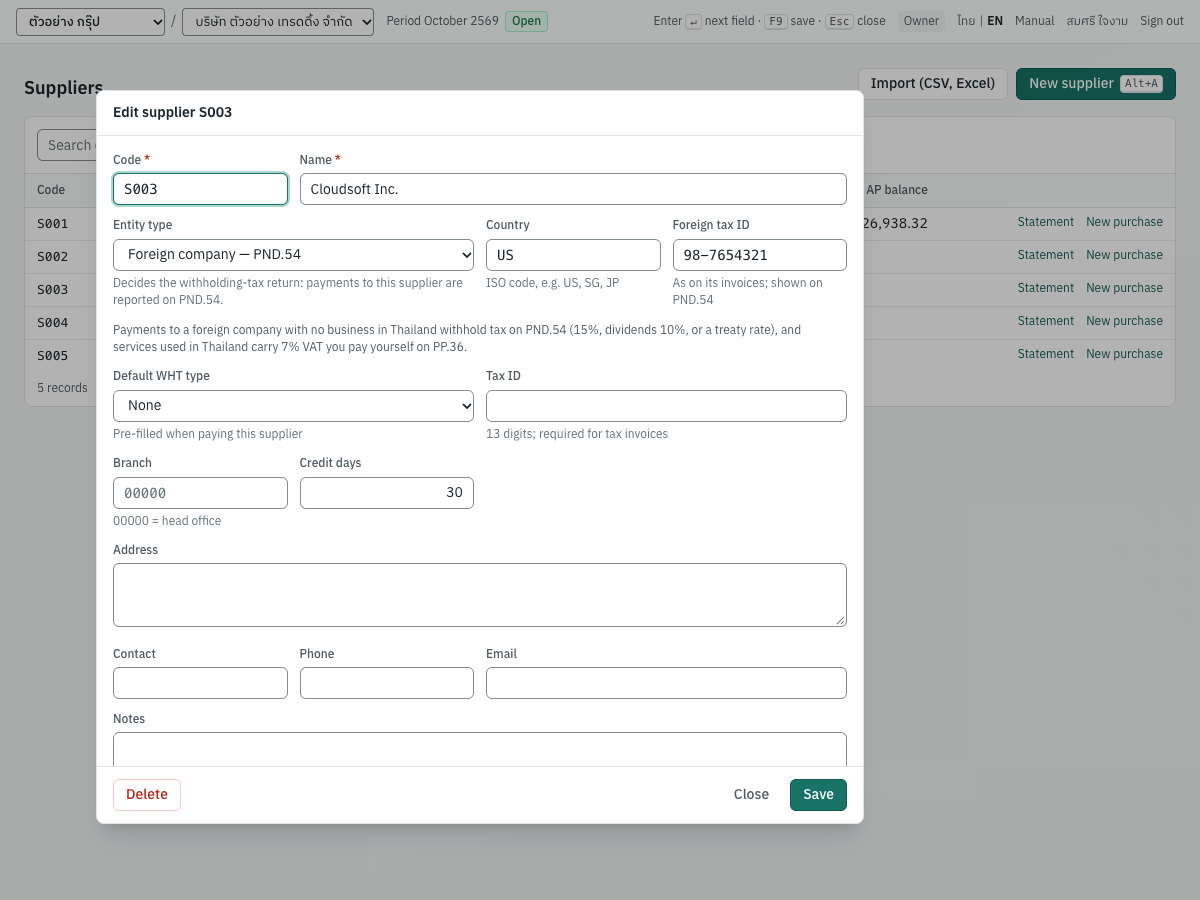
The note in the dialog reads: Payments to a foreign company with no business in Thailand withhold tax on PND.54 (15%, dividends 10%, or a treaty rate), and services used in Thailand carry 7% VAT you pay yourself on PP.36. In practice:
- Record the supplier's invoice as a credit purchase with Prices set to 0 · No VAT, because a foreign invoice carries no Thai VAT. If the invoice is in a foreign currency, enter it in that currency (see Foreign currency purchases).
- Pay it with a payment (PS). The payment withholds the PND.54 tax and can self-assess the PP.36 VAT. Both are explained in Finance.
A foreign supplier usually has no Thai tax ID or branch; leave those fields blank.
Balance and statement#
The AP balance is the supplier's balance on the trade payables control account (2110 เจ้าหนี้การค้า in the default chart). It rises with credit purchases, debit notes and opening balances, and falls with payments and returns. To see the documents behind it, use Statement, which opens the AP aging report.
Deactivating and deleting#
- Deactivate a supplier you no longer buy from: untick Active and save. Its documents and balance stay. You cannot save or post a document for an inactive supplier (supplier is inactive).
- Delete removes a supplier that has never been used. Press Delete in the dialog and confirm. If the supplier is on any document, Panya refuses with this record is in use by documents; deactivate it instead and offers a Deactivate instead button.
Importing suppliers from a file#
Use Import (CSV, Excel) to bring in a supplier list from Express, Excel or another program. Express's supplier list (รายละเอียดผู้จำหน่าย, under F12 พิมพ์รายงาน › 2 เจ้าหนี้) works as it is, exported to Excel or printed to a CSV file.
- Export the list to an Excel or CSV file.
- In 1 Purchasing → Suppliers, press Import (CSV, Excel).
- Choose the file. Panya shows its name and size.
- Press Import. Panya confirms Imported 25 suppliers. and says what it read, for example Read 25 rows, below the column names on row 4; 6 other rows (titles, page headers, totals) were skipped.
The dialog shows this example:
code,name,tax_id,branch,credit_days,type
S100,บริษัท ตัวอย่าง จำกัด,0105555000999,00000,30,juristic
| Column | Also accepted as | Rules |
|---|---|---|
code | รหัส, รหัสผู้จำหน่าย, รหัสเจ้าหนี้ | Required. A code that already exists in the company, or appears twice in the file, is rejected |
prefix | คำนำหน้า | Optional. Express keeps it apart from the name; it is joined to it: บริษัท and ตัวอย่าง จำกัด become บริษัท ตัวอย่าง จำกัด |
name | ชื่อ, ชื่อผู้จำหน่าย | Required |
tax_id | tax id, เลขประจำตัวผู้เสียภาษี | Optional; 13 digits. Dashes and spaces are removed, and a 12-digit ID that lost its leading 0 in Excel gets it back |
branch | branch_code, สาขา, สาขาที่ | Optional; 5 digits. 0 or สำนักงานใหญ่ is 00000, and 1 is 00001 |
address | ที่อยู่, ที่อยู่ 1 to ที่อยู่ 3, รหัสไปรษณีย์ | Optional; several address columns are joined |
contact | contact_name, ผู้ติดต่อ | Optional |
phone | โทรศัพท์, เบอร์โทร | Optional |
email | อีเมล | Optional |
credit_days | credit days, เครดิต | Optional; 0 to 3650 (30 or 30 วัน), blank = 0 |
type | entity_type, ประเภท, หมวดภาษีหัก ณ ที่จ่าย | Optional. juristic, company, นิติบุคคล or Express's S53 for a juristic person; individual, person, บุคคลธรรมดา or S03 for an individual. When blank, the supplier is an individual if the prefix is a personal title such as นาย, นาง, นางสาว or คุณ, or if its 13-digit tax ID does not start with 0; otherwise juristic |
The whole file is checked first. If any row is wrong, nothing is imported and Panya lists the rows, for example 2 row(s) rejected, nothing imported: row 3: tax ID must be 13 digits; row 7: code S001 already exists. Correct the file and import it again. Every accepted column name and rule is in Setup.
Note: The import does not set the default WHT type or the notes, and it cannot create foreign suppliers. Add those in the supplier dialog after the import. Check the type of each imported supplier: it decides between ภ.ง.ด.3 and ภ.ง.ด.53.
Messages#
| Message | Why | What to do |
|---|---|---|
| Required under Code or Name | The field is empty | Fill it in |
| Tax ID must be 13 digits (12 entered) | The tax ID is too short or too long | Check the number on the supplier's tax invoice |
| Branch must be 5 digits — 00000 = head office | The branch is not five digits | Enter 00000 for a head office, or the five-digit branch number |
| 0 – 3650 days | Credit days are negative, not a whole number, or too large | Enter a number of days from 0 to 3650 |
| Two letters, e.g. US / A foreign country | The country of a foreign supplier is missing, not two letters, or TH | Enter the two-letter code of the supplier's country |
| a supplier with this code already exists | Another supplier already has this code | Choose another code |
| this record is in use by documents; deactivate it instead | You tried to delete a supplier that has documents | Press Deactivate instead |
Deposits paid (AE)#
จ่ายเงินมัดจำ · Menu: 1 Purchasing → Deposits paid
A deposit paid (เงินมัดจำ) is money you pay a supplier before it delivers the goods or performs the service, for example a deposit on a special production order. Paying before delivery is the VAT tax point for that part of the price (ประมวลรัษฎากร มาตรา 78(1) and 78/1), so the supplier issues you a tax invoice for the deposit, and you claim its input VAT in the month of that tax invoice. When the goods arrive, the supplier's final invoice deducts the deposit and charges VAT on the rest only.
Use a deposit paid when the supplier gives you a tax invoice for the money. To pay a supplier ahead without VAT, for example an overpayment you will use later, record an advance on a payment instead (see Finance).
The list#
The list shows deposits paid, newest first.
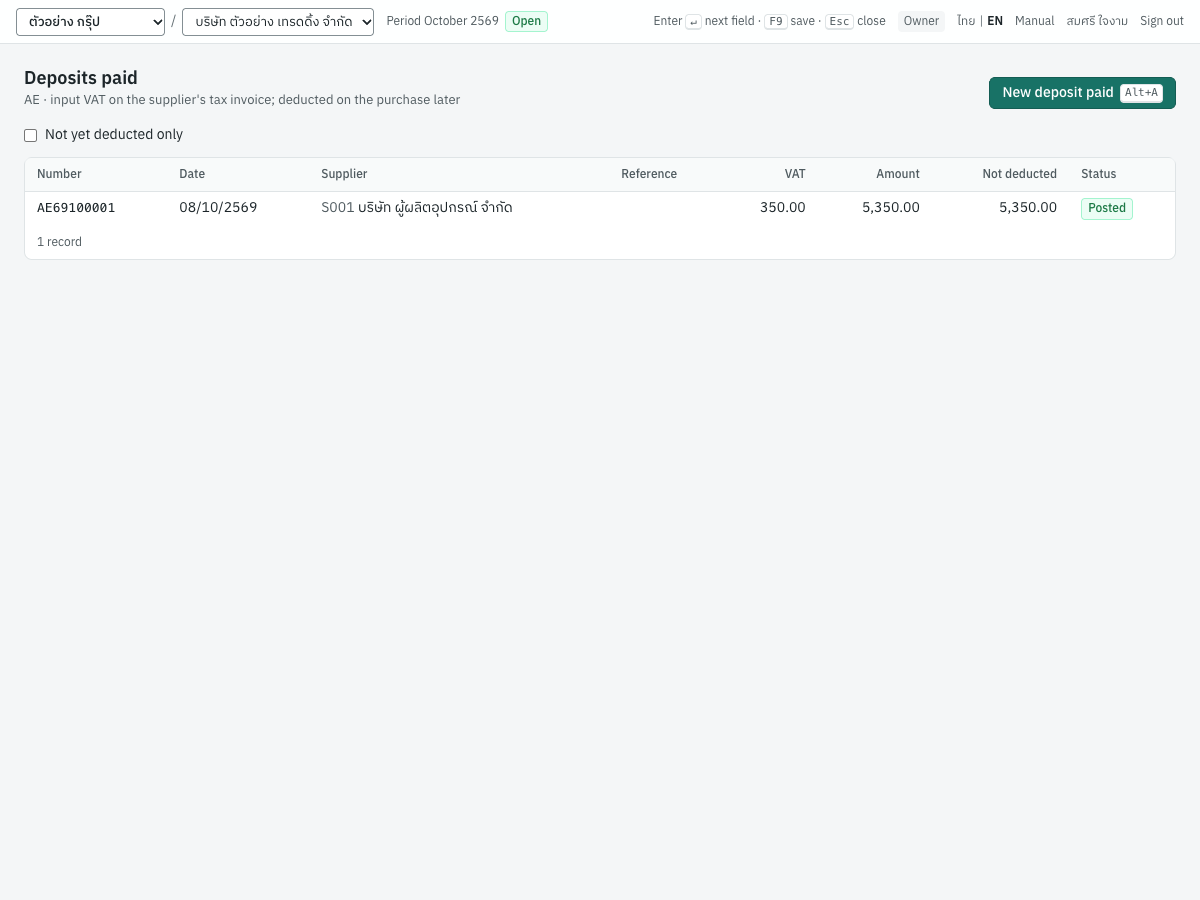
| Column | What it shows |
|---|---|
| Number | AE69100001, or (draft) |
| Date | The date you paid |
| Supplier | Code and name |
| Reference | Your reference, for example the order |
| VAT | The deposit's VAT |
| Amount | The amount paid, including VAT |
| Not deducted | What is left to deduct on purchases (posted deposits only) |
| Status | Draft, Posted or Cancelled |
Tick Not yet deducted only to see only posted deposits with something left. Click a row to open the deposit.
Entering a deposit paid#
- Press New deposit paid (
Alt+A). - Choose the Supplier.
- Check the Date, choose the account the money was Paid from and the Method.
- Choose how the amount is entered in Prices, and type the Amount. The Summary card shows the value excluding VAT, the VAT and the amount paid.
- Enter the Supplier tax invoice no. and the Supplier document date from the supplier's tax invoice for the deposit.
- Add a Reference and a Memo if useful.
- Press Save & post (
F9), or Save draft (Ctrl+S) to post later.
| Field | ภาษาไทย | What to enter |
|---|---|---|
| Supplier | ผู้จำหน่าย | Required. An active supplier |
| Date | วันที่ | The day you paid. Defaults to today |
| Paid from | จ่ายจาก | The cash or bank account the money left. Defaults to the first active bank account, for example BANK |
| Method | วิธีชำระ | Transfer (default), Cash, Card or Other. Deposits cannot be paid by cheque |
| Prices | ประเภทราคา | 2 · Excluding VAT (default): the amount is before VAT, and VAT is added. 1 · Including VAT: the amount includes VAT. 0 · No VAT: no VAT. A company that is not VAT-registered always uses No VAT |
| Amount | จำนวนเงินมัดจำ | Required, greater than zero, at most two decimals |
| Supplier tax invoice no. | เลขที่ใบกำกับภาษีของผู้จำหน่าย | The number of the supplier's tax invoice for the deposit. Required to post a deposit with VAT |
| Supplier document date | วันที่เอกสารของผู้จำหน่าย | The date of that tax invoice. The input VAT is claimed in its month; blank = the deposit date |
| Reference | อ้างอิง | For example the quotation or order the deposit is for |
| Memo | หมายเหตุ | Any note. It is shown on the deposit's screen |
With Excluding VAT and an amount of 5,000.00, the summary shows a deposit of 5,000.00, VAT 7% of 350.00 and 5,350.00 paid. With Including VAT and 5,350.00, it shows the same three figures.
What posting records#
Posting gives the deposit the next AE number (AE69100001 for the first in October 2569) and posts this entry in the payments book. For AE69100001, 5,000.00 plus VAT paid by transfer:
| Account | Debit | Credit |
|---|---|---|
1175 เงินจ่ายมัดจำ (Deposits paid) | 5,000.00 | |
1150 ภาษีซื้อ (Input VAT) | 350.00 | |
1120 เงินฝากธนาคาร - กระแสรายวัน | 5,350.00 |
- Input VAT: an input VAT record of base 5,000.00 and VAT 350.00 under the supplier's tax invoice number (
RC-26-0412) and date. It appears in the input tax report of the tax invoice's month. - A deposit with No VAT posts only the deposit and the cash or bank lines, with no tax record.
- The accounts come from 7 Setup → Default accounts. See Setup.
The deposit's screen#
A posted deposit shows its details, what has been deducted, and its journal entry.
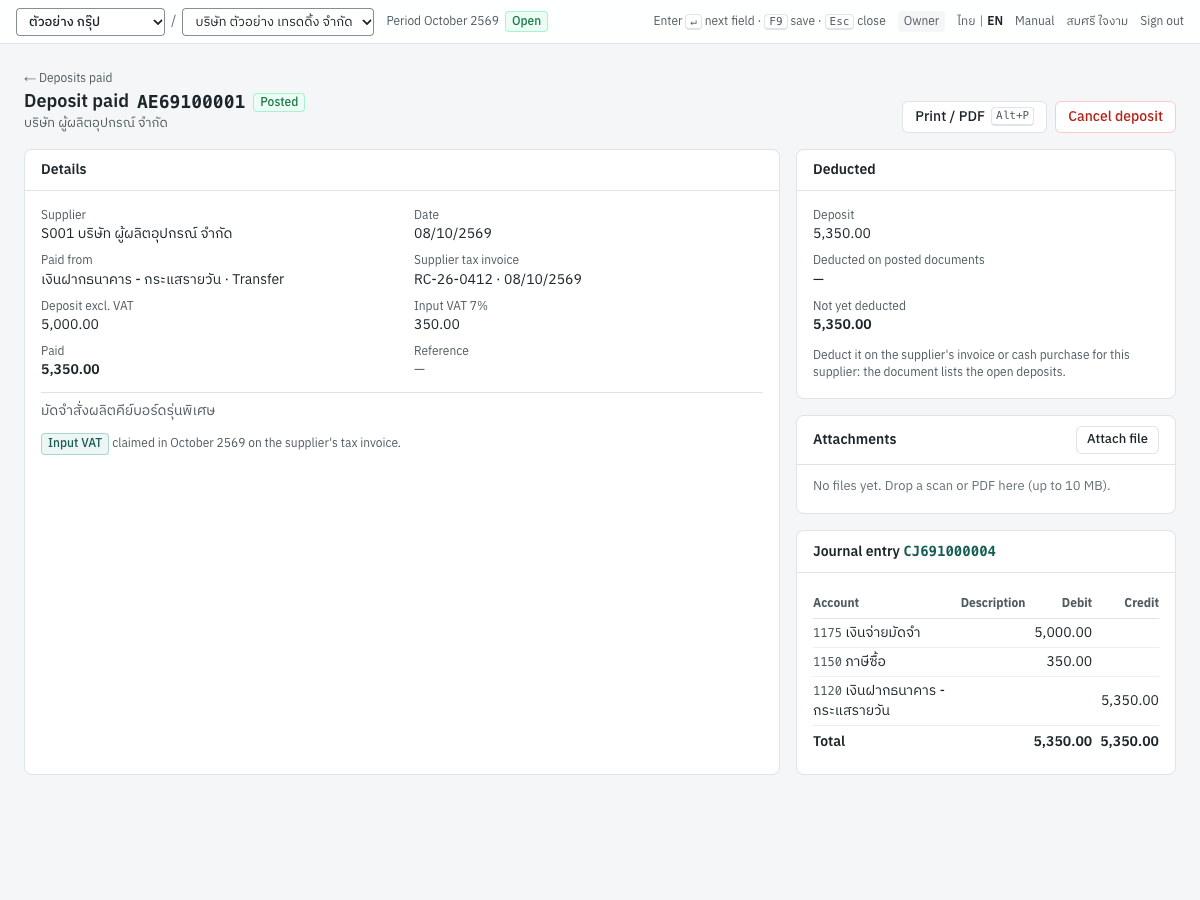
- Details: the supplier, date, the account and method it was paid from, the supplier's tax invoice, the value excluding VAT, the input VAT, the amount paid, the reference and the memo. A line under it says in which month the input VAT is claimed.
- Deducted: the deposit, the amount Deducted on posted documents, and what is Not yet deducted, with links to the purchases that deducted it.
- Attachments: attach a scan of the supplier's tax invoice (PDF or image, up to 10 MB).
- Journal entry: the entry posted, with a link to it.
- Print / PDF (
Alt+P) prints the deposit's details for your file.
Deducting the deposit on a purchase#
When the supplier invoices the goods, deduct the deposit on that credit purchase or cash purchase:
- Enter the purchase for the same supplier (see Credit purchases (RR)). Once you choose the supplier, the Deposits (AE) card lists its posted deposits that still have something left.
- Tick the deposit. The amount box fills with everything that is left, including VAT. To deduct only part, type the amount including VAT.
- The totals show Less deposit and the VAT on the rest only. The card reminds you: The deposit was already taxed when paid: VAT here is on the rest only.
- Enter the rest of the purchase as usual and post it.
For example, S001 delivers 10 × KB-01 at 520.00 (5,200.00 plus VAT) and deducts all of AE69100001 (5,350.00 including 350.00 VAT). The supplier's tax invoice shows 5,200.00, less the deposit of 5,000.00, VAT 14.00 on the remaining 200.00, and 214.00 to pay. The purchase posts:
| Account | Debit | Credit |
|---|---|---|
1140 สินค้าคงเหลือ (Inventory) | 5,200.00 | |
1150 ภาษีซื้อ (Input VAT) | 14.00 | |
2110 เจ้าหนี้การค้า (S001) | 214.00 | |
1175 เงินจ่ายมัดจำ | 5,000.00 |
The input VAT record of the purchase is base 200.00 and VAT 14.00. With the 350.00 claimed on the deposit, the full 364.00 has been claimed once.
Rules for deducting:
- A partial deduction splits pro rata: VAT = amount × deposit VAT ÷ deposit total. Deducting all that is left takes exactly the remaining value and VAT.
- A deposit with VAT can only be deducted on a purchase with VAT at the same rate. A deposit without VAT comes off the part of the purchase that is not subject to VAT.
- Deposits with and without VAT cannot be deducted on the same purchase.
- The deposit must be posted, belong to the same supplier, and not be dated after the purchase.
- Only credit purchases and cash purchases in THB deduct deposits. Goods receipts, returns, debit notes and foreign currency purchases do not.
- A purchase marked non-creditable input VAT cannot deduct a deposit whose input VAT was claimed.
- The deposit is used only when the purchase is posted. Cancelling the purchase makes the deduction available again.
The purchase's screen lists the deposit in its Status card, and its printout shows the deposit deducted and a note that the deposit's VAT was invoiced separately.
Refunding a deposit#
If the order falls through and the supplier returns all or part of a deposit, record a supplier refund in 3 Finance → Supplier refunds, choosing Deposit AE… (input VAT reversed) as what is refunded. The refund reverses the share of the deposit and its input VAT in the refund's month. See Finance.
Cancelling a deposit#
Cancel deposit reverses a deposit that nothing has deducted, for example one entered by mistake. Give a reason and a date (on or after the deposit date). Panya posts a reversing entry and reverses the input VAT in the month of the cancellation date.
- A deposit deducted on a posted purchase cannot be cancelled: cancel the purchase first.
- A deposit with a posted refund cannot be cancelled: cancel the refund first.
Important: Cancelling a deposit paid puts the money back into the cash or bank account it was paid from. If the supplier keeps the deposit, do not cancel it; ask your accountant to record the loss with a journal voucher (see Accounting).
Messages#
| Message | Why | What to do |
|---|---|---|
| Choose a supplier first / Enter the deposit amount | The supplier or the amount is missing | Fill them in |
| the amount must be positive, in satang | The amount is zero, negative or has more than two decimals | Correct the amount |
| deposits are received or paid in cash, by transfer, card or other means (not by cheque) | Deposits cannot be paid by cheque | Choose another method |
| enter the supplier's tax invoice number to claim the input VAT on the deposit | A deposit with VAT needs the supplier's tax invoice | Enter the Supplier tax invoice no. |
| the deposit is deducted on RR…; cancel that document first | A posted purchase uses the deposit | Cancel that purchase first, or leave the deposit |
| part of the deposit was refunded by RP…; cancel that refund first | A posted refund uses the deposit | Cancel the refund first |
| only … of deposit AE… is left to deduct | The purchase deducts more than is left | Reduce the amount deducted |
| deposit AE… carries VAT at 7%: deduct it on a document with the same VAT rate | The purchase has no VAT, or a different rate | Deduct it on a purchase with VAT, or refund it |
| deposit AE… is dated after this document | The deposit is later than the purchase | Check the dates |
| the deposit deducted exceeds the document's value subject to VAT | The purchase is smaller than the deposit | Deduct only part of the deposit |
Purchase requisitions (PR)#
ใบขอซื้อ · Menu: 1 Purchasing → Purchase requisitions
A purchase requisition is an internal request to buy, approved before anyone orders. A staff member lists what is needed and why; an owner, administrator or accountant approves or rejects it; purchase orders are then raised from the approved lines, one supplier at a time. Requisitions are not posted to the ledger and have no effect on stock or tax.
A requisition goes through these states:
| Status | Meaning | What can be done |
|---|---|---|
| Draft | Saved, not numbered, can be changed | Edit, Delete draft, Submit for approval |
| Awaiting approval | Submitted: numbered (PR69100001) and frozen | Approve or Reject (approvers only), Cancel |
| Approved | Purchase orders can be raised from it | Raise purchase order…, Close, Cancel while nothing is ordered |
| Rejected | Not approved; the reason is shown | Nothing. Enter a new requisition if needed |
| Closed | Nothing more will be ordered | Nothing |
| Cancelled | Withdrawn | Nothing |
The list#
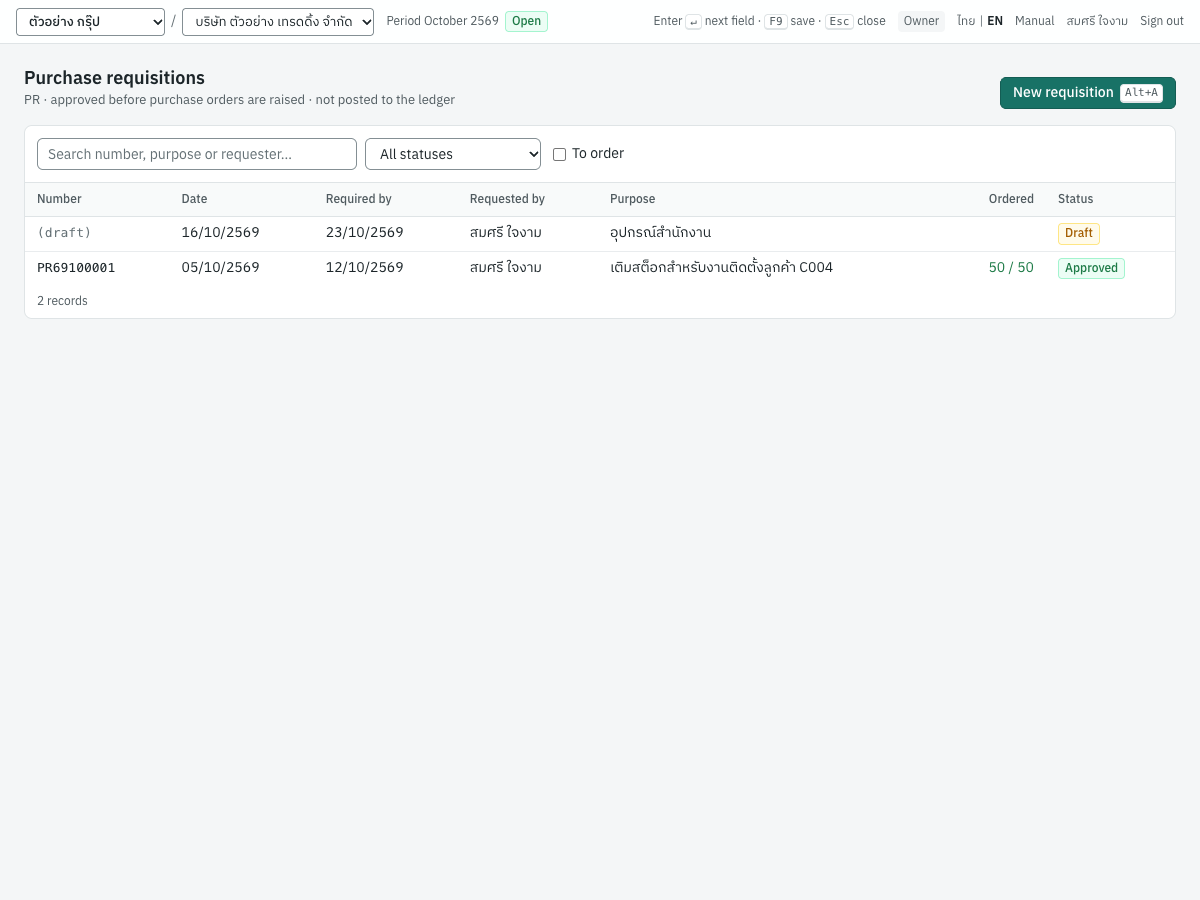
| Column | What it shows |
|---|---|
| Number | PR69100001, or (draft) |
| Date | The requisition date |
| Required by | When the goods are needed |
| Requested by | The user who entered it |
| Purpose | Why the goods are needed |
| Ordered | For approved and closed requisitions: the quantity on purchase orders over the quantity requested, for example 50 / 50. Green when fully ordered, amber when partly ordered |
| Status | Draft, Awaiting approval, Approved, Rejected, Closed or Cancelled |
- Search number, purpose or requester… filters the list.
- The status box shows one status at a time.
- To order shows approved requisitions with something left to order.
Entering a requisition#
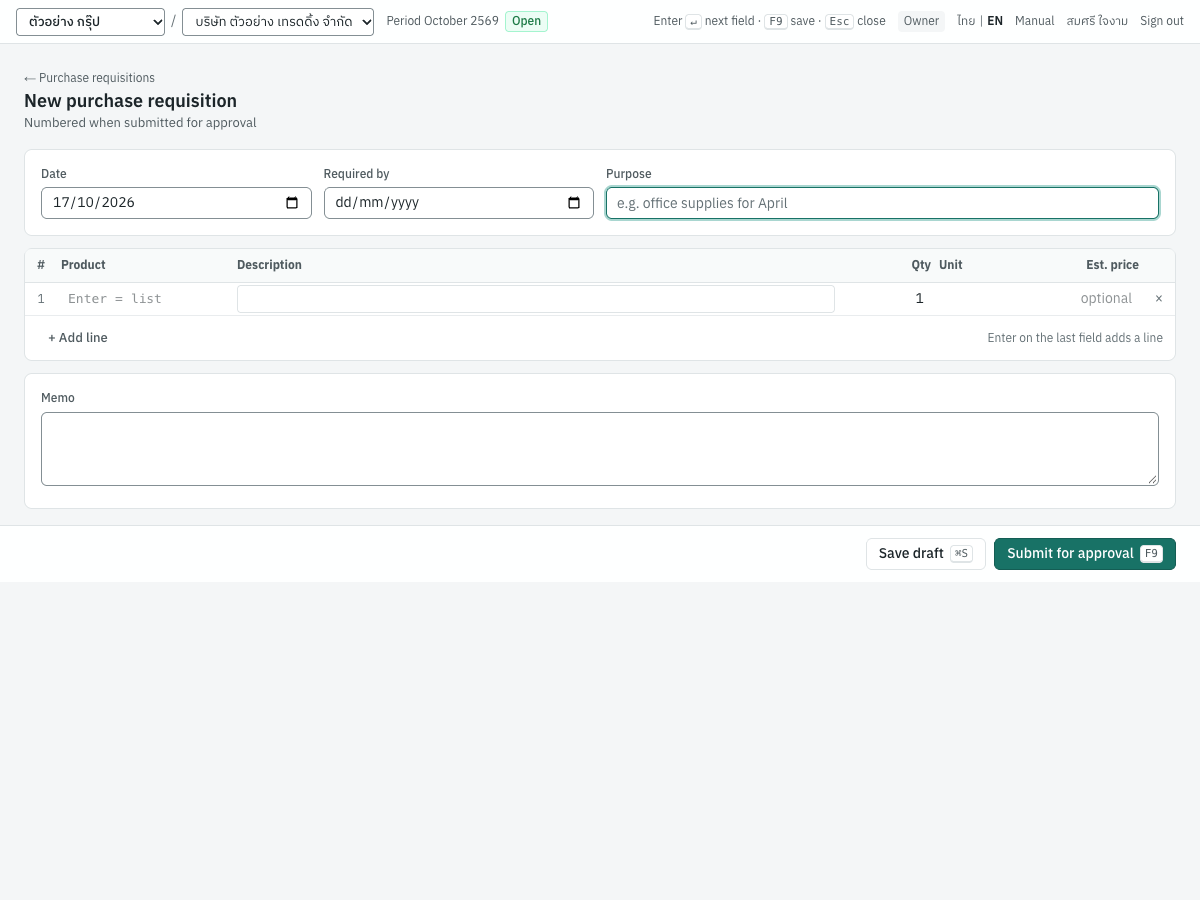
- Press New requisition (
Alt+A). - Check the Date, enter Required by and the Purpose.
- On each line, choose a Product or type a Description, then the Qty, and an Est. price if you know it.
- Add a Memo if useful.
- Press Submit for approval (
F9). Panya numbers the requisition and it waits for approval. Save draft (Ctrl+S) keeps it unnumbered for later.
| Field | ภาษาไทย | What to enter |
|---|---|---|
| Date | วันที่ | The requisition date. Defaults to today |
| Required by | ต้องการภายใน | Optional. Not earlier than the date |
| Purpose | วัตถุประสงค์ | Optional. For example เติมสต็อกสำหรับงานติดตั้งลูกค้า C004 |
| Product | รหัสสินค้า | Optional. Choosing a product fills the description, unit and estimated price (the product's purchase price, if it has one) |
| Description | รายละเอียด | Required when there is no product, for example กระดาษ A4 80 แกรม |
| Qty | จำนวน | Greater than zero. Defaults to 1 |
| Unit | หน่วยนับ | Filled from the product; type one for a free-text line, for example รีม |
| Est. price | ราคาประมาณ | Optional estimate, not negative. It becomes the price on the purchase order |
| Memo | หมายเหตุ | Any note. It is printed |
A line with neither a product nor a description is ignored. Up to 500 lines are allowed. Press Enter on the Est. price of the last line to add a line, and × to remove one.
Approving or rejecting#
Owners, administrators and accountants see Approve and Reject on a requisition awaiting approval. Other users see Waiting for an owner, administrator or accountant to approve it.
- Approve approves it at once. The approver's name is printed in the ผู้อนุมัติ / Approved by box.
- Reject asks for a reason. The requester sees it on the requisition: Rejected by … : …. Nothing can be ordered on a rejected requisition.
Note: Panya does not stop the user who entered a requisition from approving it, if their role allows approval. If you want two people involved, give requesters the Staff role.
Raising a purchase order#
An approved requisition shows what has been ordered from it.
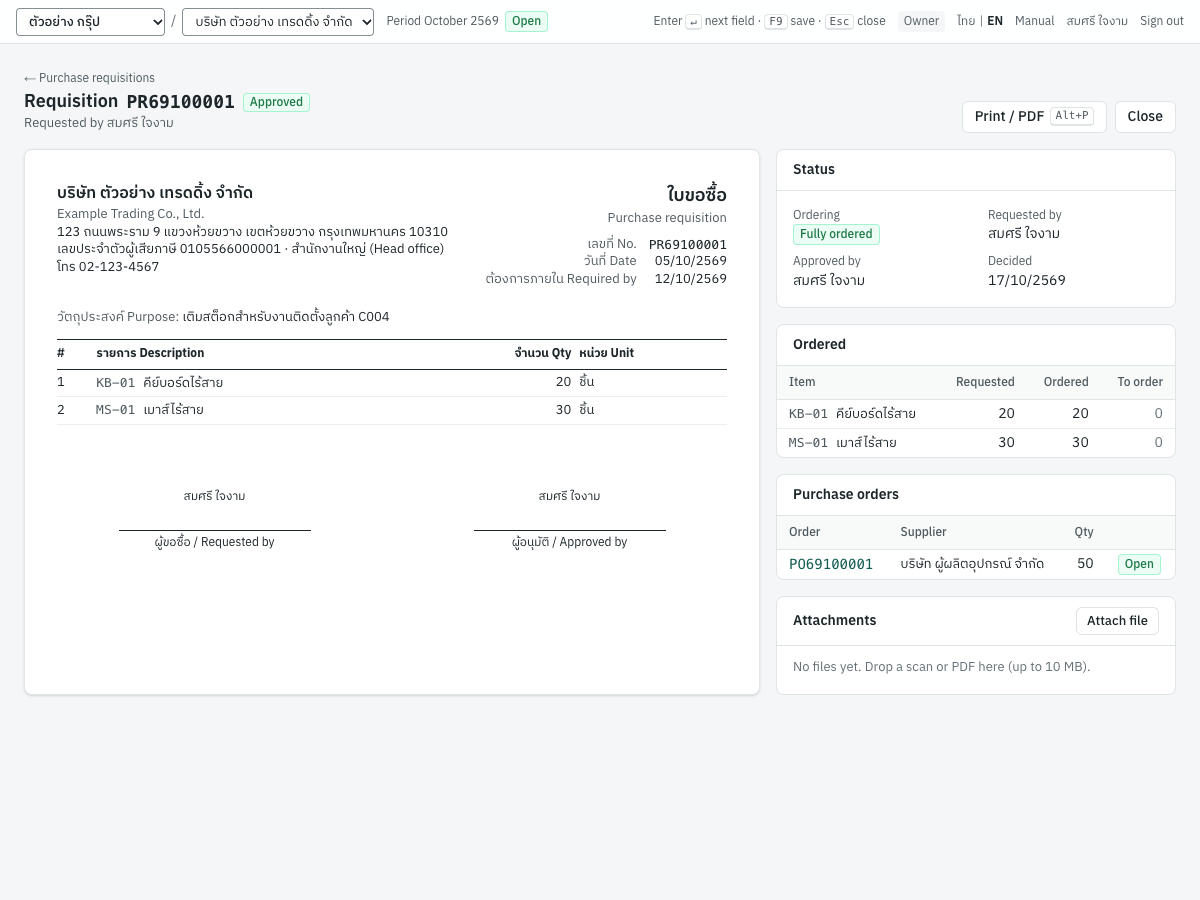
- The Status card shows the Ordering state (Approved, not ordered, Partly ordered or Fully ordered), who requested and approved it, and when it was decided.
- Ordered shows, per line, the quantity requested, ordered and still to order.
- Purchase orders lists the orders raised from it, with supplier, quantity and status.
To order:
- Press Raise purchase order….
- Choose the Supplier.
- Check the quantities in This order. They start at what is left to order. Clear a line to leave it for another supplier.
- Press Create draft order. Panya creates a draft purchase order dated today, with the requisition number as its reference, and opens it.
- Check the prices, the delivery date and the VAT, then press Save & issue (see Purchase orders (PO)).
The order's lines start at the requisition's estimated price, or the product's purchase price when there is no estimate. Each line keeps its link to the requisition line, so its product cannot change. Repeat for other suppliers until everything is ordered.
The quantity ordered counts every purchase order that is not cancelled, including drafts, so the same line is not ordered twice. Deleting a draft order or cancelling an order puts its quantities back.
Closing and cancelling#
- Close an approved requisition when nothing more will be ordered on it. Give a reason. Whatever is still to order is dropped; purchase orders already raised stay.
- Cancel a requisition awaiting approval, or an approved one with nothing ordered. Give a reason. The requisition is kept for the record but nothing can be ordered on it.
Print / PDF (Alt+P) prints the requisition (ใบขอซื้อ) with the requester's and approver's names in the signature boxes.
Messages#
| Message | Why | What to do |
|---|---|---|
| a requisition needs at least one line | No line has a product or a description | Add a line |
| the required date cannot be before the requisition date | Required by is earlier than Date | Correct the dates |
| line 2: description is required | A line has a quantity but no product or description | Enter a description |
| line 1: quantity must be positive / line 1: price cannot be negative | A quantity is zero or negative, or a price is negative | Correct the line |
| a submitted requisition cannot be edited | Submitted requisitions are frozen | Cancel it and enter a new one |
| purchase orders were raised from this requisition; close it instead | You tried to cancel a requisition with orders, drafts included | Close it, or delete or cancel the orders first |
| Choose the supplier / Choose at least one line to order | The order dialog has no supplier or no quantity | Fill them in |
| nothing is left to order on this requisition | Every line is already ordered | Nothing to do |
Purchase orders (PO)#
ใบสั่งซื้อ · Menu: 1 Purchasing → Purchase orders
A purchase order is your order to a supplier: what you buy, at what price, and when it should arrive. It is a commercial document only: it posts nothing to the ledger, stock or tax. Panya tracks how much of each line has been received by the goods receipts, credit purchases and cash purchases that point at it, so you always know what is still awaiting receipt (ค้างรับ).
A purchase order is Draft (unnumbered, editable), Open (issued, numbered PO69100001 and frozen), Closed (nothing more will be received) or Cancelled.
The list#
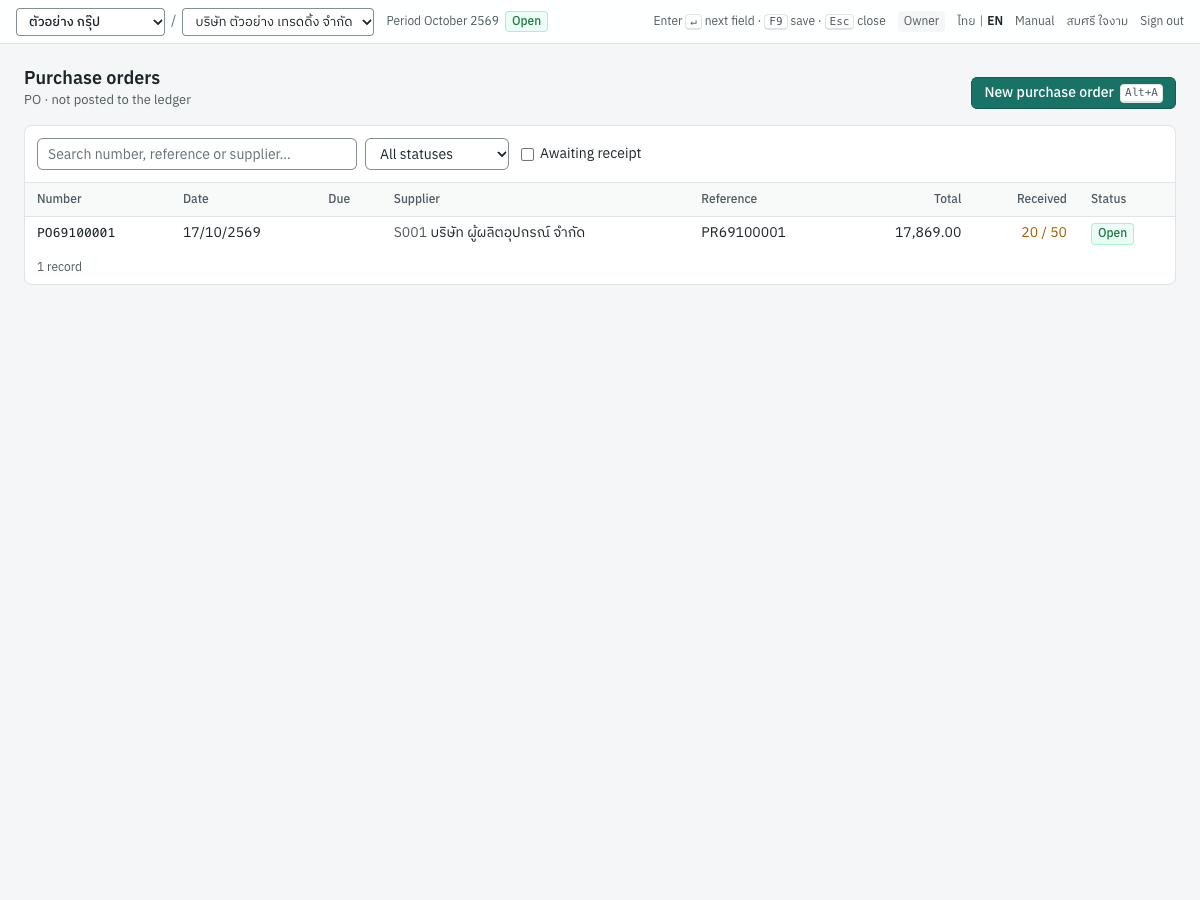
| Column | What it shows |
|---|---|
| Number | PO69100001, or (draft) |
| Date | The order date |
| Due | The delivery date (กำหนดรับ) |
| Supplier | Code and name |
| Reference | For example the requisition number |
| Total | The order total, including VAT |
| Received | The quantity received over the quantity ordered, for example 20 / 50. Green when all received, amber when partly received |
| Status | Draft, Open, Closed or Cancelled |
- Search number, reference or supplier… filters the list.
- The status box shows one status at a time.
- Awaiting receipt shows open orders with something still to receive: your list of back-orders from suppliers.
Issuing a purchase order#
- Press New purchase order (
Alt+A), or raise one from a requisition. - Choose the Supplier and check the Date. Enter the Delivery date and a Reference if useful.
- Choose how prices are entered in Prices.
- Enter the lines: Product (or a description), Qty, Unit price, and a Discount if any. Untick VAT on a line that is exempt.
- Enter a document Discount under the subtotal, and a Memo, if needed.
- Press Save & issue (
F9). Panya gives the order the nextPOnumber and freezes it. Save draft (Ctrl+S) keeps it as a draft.
| Field | ภาษาไทย | What to enter |
|---|---|---|
| Supplier | ผู้จำหน่าย | Required. An active supplier |
| Date | วันที่ | The order date. Defaults to today |
| Delivery date | กำหนดรับ | Optional; not before the order date. Shown as Due in the list |
| Reference | อ้างอิง | Optional. Orders raised from a requisition carry its number |
| Prices | ประเภทราคา | 2 · Excluding VAT (default for VAT-registered companies), 1 · Including VAT or 0 · No VAT |
| Product | รหัสสินค้า | Choosing a product fills the description, unit, unit price (its purchase price) and VAT flag |
| Description | รายละเอียด | Required when there is no product |
| Qty | จำนวน | Greater than zero |
| Unit | หน่วยนับ | The unit, filled from the product |
| Unit price | ราคาต่อหน่วย | Not negative; up to four decimals |
| Discount | ส่วนลด | Per line: an amount (50), a percentage (10%) or successive percentages (10%+5%) |
| VAT | ภาษี | Ticked when the line is subject to VAT. Hidden with No VAT |
| Discount (under the subtotal) | ส่วนลด | A discount on the whole order, as an amount or a percentage. It is spread over the lines in proportion |
| Memo | หมายเหตุ | Printed on the order |
The Amount column and the totals (subtotal, discount, VAT, total) are calculated as you type, exactly as they will be on the purchase. When the order came from a requisition, a note at the top says so: Raised from requisition PR69100001. Lines keep their link to it; a line's product cannot change.
The purchase order's screen#
An issued order shows the printable order and what has been received against it.
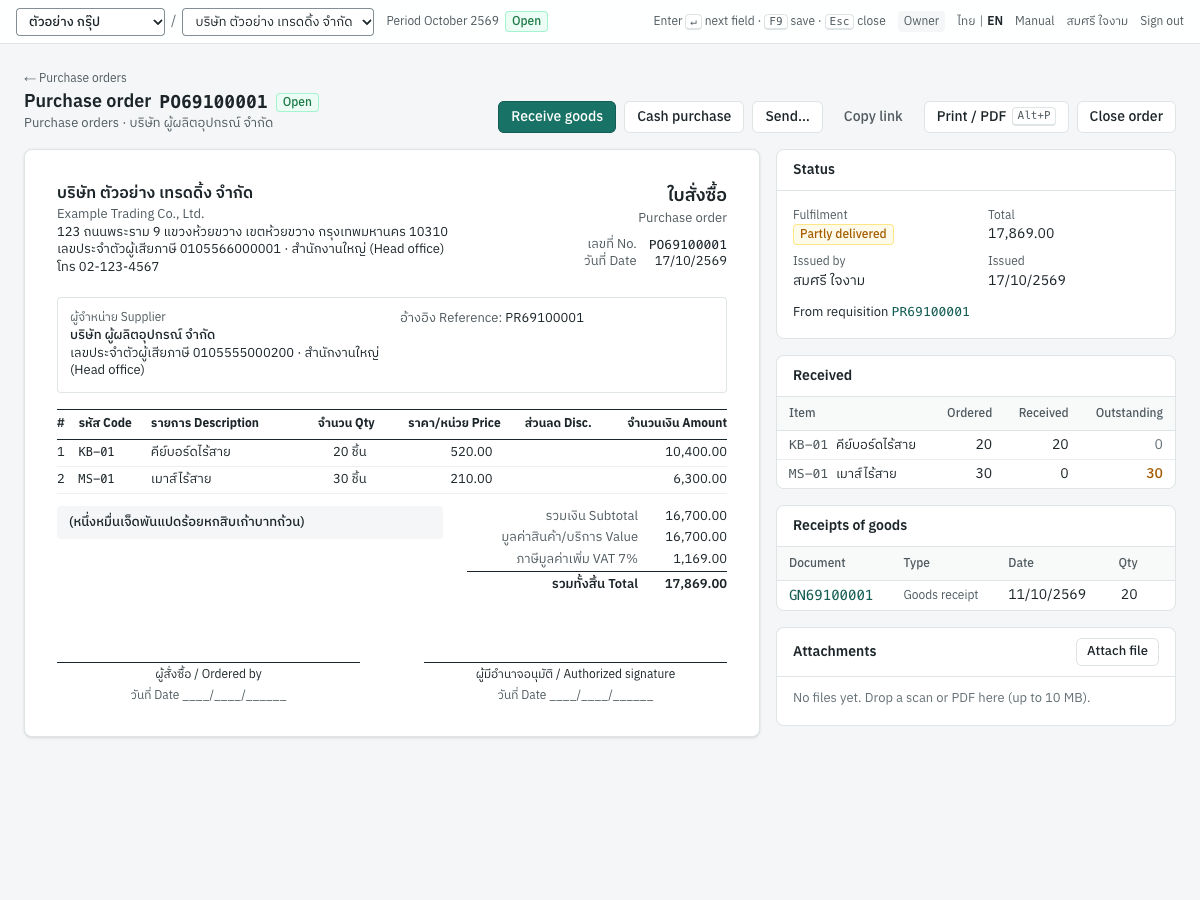
- The Status card shows the Fulfilment badge (Open when nothing has been received, Partly delivered when some has, Complete when everything has, or Closed / Cancelled), the total, who issued it and when, and a link to the requisition it came from.
- Received shows each line's quantity ordered, received and outstanding. Outstanding quantities are in amber.
- Receipts of goods lists the goods receipts, credit purchases and cash purchases that received against the order, with their dates and quantities.
- Attachments keeps files with the order, such as the supplier's quotation.
The buttons at the top:
| Button | What it does |
|---|---|
| Receive goods | Opens a new credit purchase for the supplier with the order's outstanding lines. Use it when the goods and the supplier's tax invoice arrive together |
| Cash purchase | Opens a new cash purchase with the outstanding lines |
| Send… | Emails the supplier a link to a read-only copy of the order, valid for 30 days. Enter the recipient (To, pre-filled with the supplier's email), Copy to and a Message |
| Copy link | Copies that link, to send it another way (Link copied: it works for 30 days) |
| Print / PDF | Prints the order (ใบสั่งซื้อ) with ผู้สั่งซื้อ / Ordered by and ผู้มีอำนาจอนุมัติ / Authorized signature boxes |
| Close order | Closes the order short; see below |
| Cancel | Cancels an order on which nothing has been received |
Receive goods and Cash purchase are shown only while the order is open and something is outstanding.
Receiving goods against the order#
Received quantities come only from posted purchase documents that point at the order's lines. There are three ways:
| When | How |
|---|---|
| The goods arrive with the supplier's tax invoice | Press Receive goods on the order, or on a new credit purchase press + From purchase orders… |
| You pay on the spot | Press Cash purchase on the order, or on a new cash purchase press + From purchase orders… |
| The goods arrive before the invoice | On a new goods receipt, choose the supplier and press + From purchase orders…. The supplier's invoice is entered later from the goods receipt (see Goods receipts (GN)) |
+ From purchase orders… opens Receive against purchase orders, which lists every open order line of the supplier with something outstanding:
- Tick the lines that arrived.
- In This document, change the quantity if only part arrived. It starts at the outstanding quantity.
- Press Add 2 lines. The lines are added with the order's price, discount and VAT flag, and with ↳ PO69100001 under the description. If the document has no reference yet, the order numbers become its reference.
The product of a line taken from an order cannot be changed. You can change the quantity and price.
Partial receipts and back-orders. Receive only what arrived. The rest stays outstanding on the order, appears under Awaiting receipt in the list, and can be received on a later document. When everything has arrived the order shows Complete.
Posting refuses to receive more than is outstanding, for example PO69100001 line 2 (เมาส์ไร้สาย): 30 outstanding, 40 on this document. Enter the extra on a separate line without the order link if the supplier really sent more.
Cancelling a document that received against an order puts its quantity back on the order. Returning goods with a purchase return does not.
Closing an order short#
When the supplier will not deliver the rest, press Close order and give a reason. Outstanding quantities are dropped; what was already delivered or received stays. The order leaves the Awaiting receipt list and nothing more can be received on it.
Cancelling an order#
Cancel is offered only while nothing has been received. Give a reason. The order is kept for the record but nothing can be delivered or received on it. If something has been received, close the order instead.
Messages#
| Message | Why | What to do |
|---|---|---|
| Choose a supplier first | No supplier is chosen | Choose one |
| an order needs at least one line | No line has a product or a description | Add a line |
| the due date cannot be before the order date | The delivery date is earlier than the order date | Correct it |
| line 1: quantity must be positive / line 1: price cannot be negative | A line's quantity or price is wrong | Correct the line |
| line 1: the product differs from PR69100001 | You changed the product on a line raised from a requisition | Put the product back, or delete the line and add a new one |
| an open order cannot be edited | Issued orders are frozen | Close or cancel it and issue a new one |
| goods were already delivered or received on this order; close it instead | You tried to cancel an order with receipts | Use Close order |
| PO69100001 line 2 (…): 30 outstanding, 40 on this document | A purchase receives more than is outstanding | Reduce the quantity |
| line 1: PO69100001 is closed | The order was closed or cancelled after the lines were picked | Remove the order link (delete the line and add it again without the order) |
Goods receipts (GN)#
ใบรับสินค้า (รอใบแจ้งหนี้) · Menu: 1 Purchasing → Goods receipts
Use a goods receipt when the goods arrive before the supplier's tax invoice, for example with only a delivery note (ใบส่งของ). The receipt puts the goods into stock at once at the agreed price excluding VAT, so you can sell them, and records the liability in goods received not invoiced (สินค้ารับแล้วรอใบแจ้งหนี้). It has no input VAT and nothing is payable yet. When the supplier's invoice arrives, you enter it as a credit purchase (or cash purchase) that invoices the receipt line by line.
If the goods and the invoice arrive together, skip the goods receipt and enter a credit purchase directly.
The list#
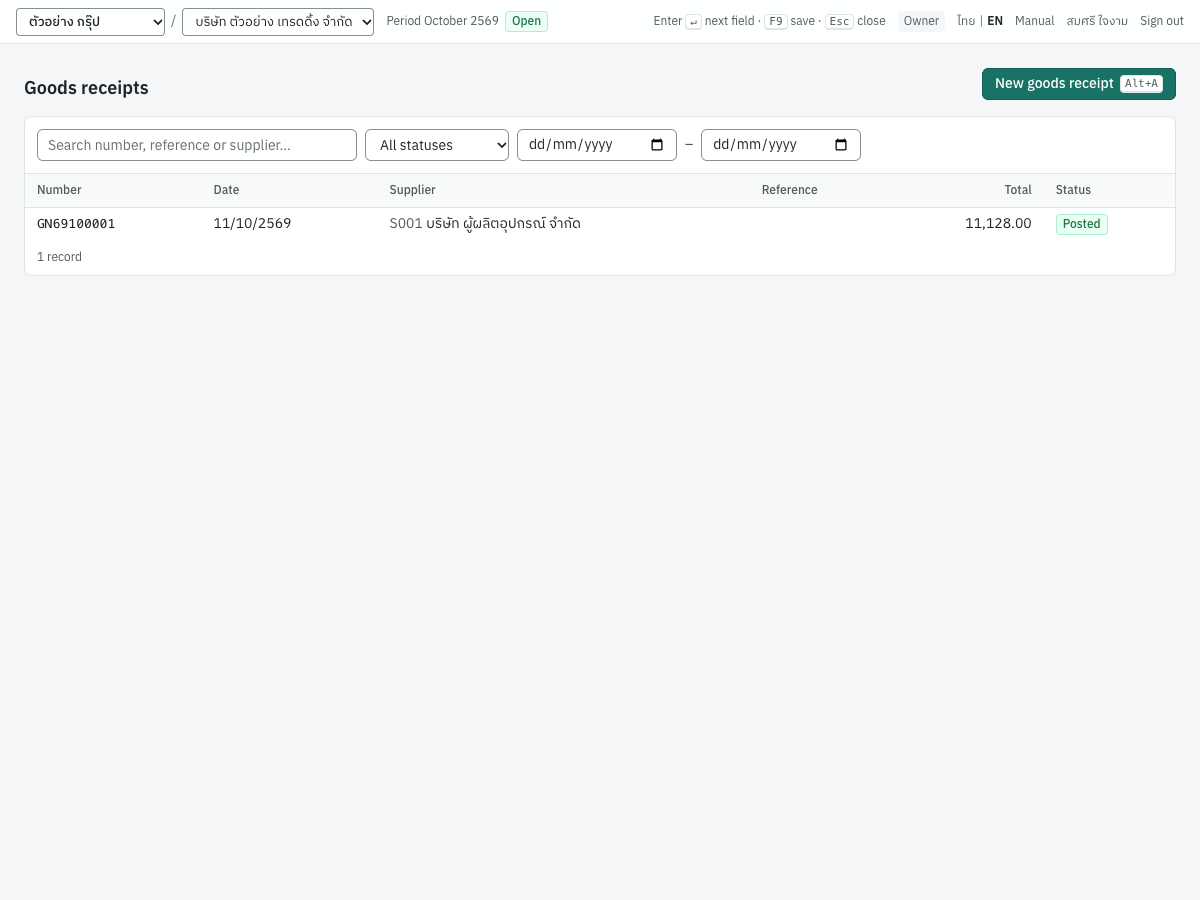
| Column | What it shows |
|---|---|
| Number | GN69100001, or (draft) |
| Date | The date the goods were received |
| Supplier | Code and name |
| Reference | Your reference |
| Total | The receipt's total at its prices, including VAT, for reference. The receipt itself posts only the value excluding VAT |
| Status | Draft, Posted or Cancelled |
Filter by Search number, reference or supplier…, status and a date range (from – to).
Entering a goods receipt#
- Press New goods receipt (
Alt+A). - Choose the Supplier and check the Date.
- Enter the supplier's delivery note number in Supplier delivery note no. and its date in Supplier document date (both optional).
- Choose the Warehouse the goods went into, if you have more than one.
- Enter the lines, or press + From purchase orders… to take them from the supplier's open orders. Use the agreed price.
- Press Save & post (
F9).
The fields are those of a credit purchase (see The purchase form), with these differences:
| Field | What is different |
|---|---|
| Supplier delivery note no. | Optional. The hint reminds you: VAT is claimed on the supplier's invoice |
| Prices | Decides whether the prices you type include VAT. The receipt is posted at the value excluding VAT either way |
| Due date, currency, deposits | Not on a goods receipt |
| Input VAT options | Not on a goods receipt: VAT is handled on the invoice |
Lines can be stocked products, which go into stock, or non-stock products, services and free-text lines, which are expensed to their account.
What posting records#
Posting gives the receipt the next GN number and posts an entry in the purchases book. For GN69100001, 20 × KB-01 at 520.00 received into MAIN:
| Account | Debit | Credit |
|---|---|---|
1140 สินค้าคงเหลือ (Inventory) | 10,400.00 | |
2160 สินค้ารับแล้วรอใบแจ้งหนี้ (Goods received not invoiced, S001) | 10,400.00 |
- Stock: 20 units of KB-01 into MAIN at 520.00 each; the product's average cost is updated.
- Non-stock lines debit their account (the line's account, else the product's or category's purchase account, else
5140) instead of inventory. - Tax: none. The input VAT is recorded on the supplier's invoice.
- Accounts payable: none until the invoice is posted.
Invoicing a goods receipt#
A posted receipt shows how much of it has been invoiced.
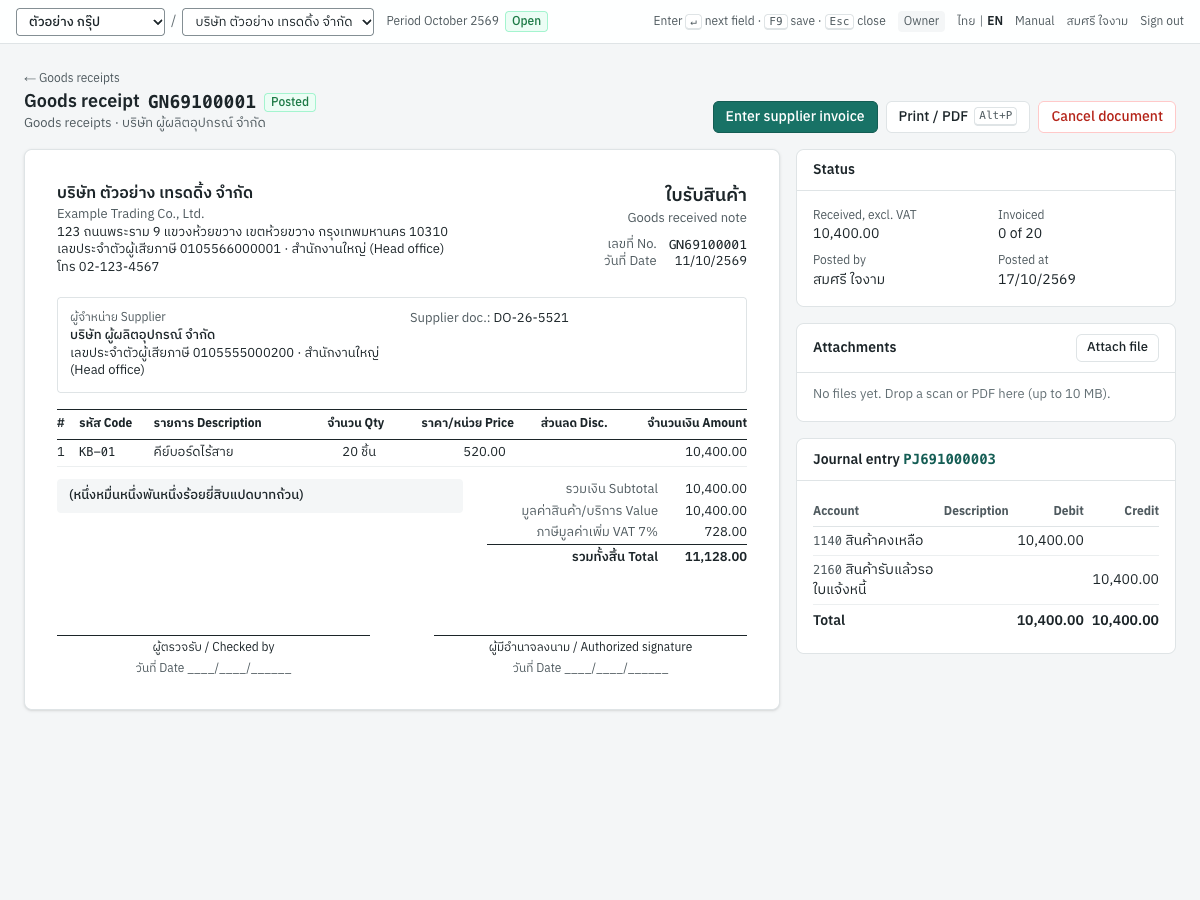
- The Status card shows the value Received, excl. VAT and Invoiced 0 of 20.
- Invoiced by lists the purchases that invoiced it, once there are any.
- Enter supplier invoice is shown while something is left to invoice.
To enter the supplier's invoice:
- Press Enter supplier invoice on the receipt. Panya opens a new credit purchase for the supplier, with the receipt's lines still to invoice, the receipt's warehouse and price type, and the receipt number as the reference. Each line shows ↳ GN69100001 under its description.
- Enter the Supplier tax invoice no. and Supplier document date.
- Change the quantities if the invoice covers only part of the receipt, and the prices if the supplier invoiced a different price.
- Post it.
You can also start from 1 Purchasing → Credit purchases (or Cash purchases): choose the supplier and press + From goods receipts…. The dialog Invoice goods received lists every line of the supplier's posted receipts still to invoice, with its price and the quantity To invoice. Tick the lines, set the quantity in This invoice, and press Add (the button counts the lines, for example Add 2 lines). It reminds you: The goods are already in stock at the receipt's price. Enter the supplier's price on the invoice: any difference goes to cost variance. One purchase can invoice lines of several receipts.
A line that invoices a receipt line moves no stock: the goods are already in. It clears the goods received not invoiced instead. For example, S001 invoices the 20 keyboards at 525.00 instead of 520.00 (10,500.00 plus VAT 735.00):
| Account | Debit | Credit |
|---|---|---|
2160 สินค้ารับแล้วรอใบแจ้งหนี้ | 10,400.00 | |
5120 ผลต่างต้นทุนสินค้า (Inventory cost variance) | 100.00 | |
1150 ภาษีซื้อ (Input VAT) | 735.00 | |
2110 เจ้าหนี้การค้า (S001) | 11,235.00 |
- The stock stays at the receipt's value; the price difference goes to cost variance. A lower invoice price credits
5120instead. - An invoice for part of a receipt line clears the same share of its value: 12 of the 20 keyboards clear 10,400.00 × 12 ÷ 20 = 6,240.00. The invoice that takes the rest clears exactly what is left, so
2160returns to zero. - The input VAT, its tax record and the payable are recorded as on any credit purchase.
- A line cannot invoice both an order and a receipt: the order was already received by the goods receipt.
The receipt then shows Invoiced 20 of 20, and the purchase's Status card links back with Invoices goods receipt GN69100001.
Cancelling a goods receipt#
A receipt that no posted purchase invoices can be cancelled: its stock and its accrual are reversed. Once a posted purchase invoices it, Panya refuses with the goods receipt is invoiced on RR…; cancel that first. Cancelling that purchase makes its quantities open to invoice again.
Goods received but not yet invoiced at month-end stay in 2160. The integrity checks compare that account with the receipts still to invoice (see Reports).
Messages#
| Message | Why | What to do |
|---|---|---|
| GN69100001 line 1: 8 left to invoice, 10 on this document | A purchase invoices more than is left on the receipt line | Reduce the quantity; invoice any extra on a separate line |
| line 1: GN69100001 is cancelled | The receipt was cancelled after its lines were picked | Delete the line |
| line 1: the product differs from GN69100001 | The product on a line taken from a receipt was changed | Delete the line and pick it again |
| line 1: a line invoices either an order or a goods receipt, not both | A line points at both | Pick the line from the receipt only |
Credit purchases (RR)#
ซื้อเงินเชื่อ · Menu: 1 Purchasing → Credit purchases
A credit purchase records the supplier's tax invoice (ใบกำกับภาษี) for goods or services you will pay for later. Posting it receives stocked goods into stock (unless a goods receipt already did), records the expense, claims the input VAT, and records what you owe the supplier. You then pay it with a payment (PS) in Finance, where withholding tax is deducted.
The list#
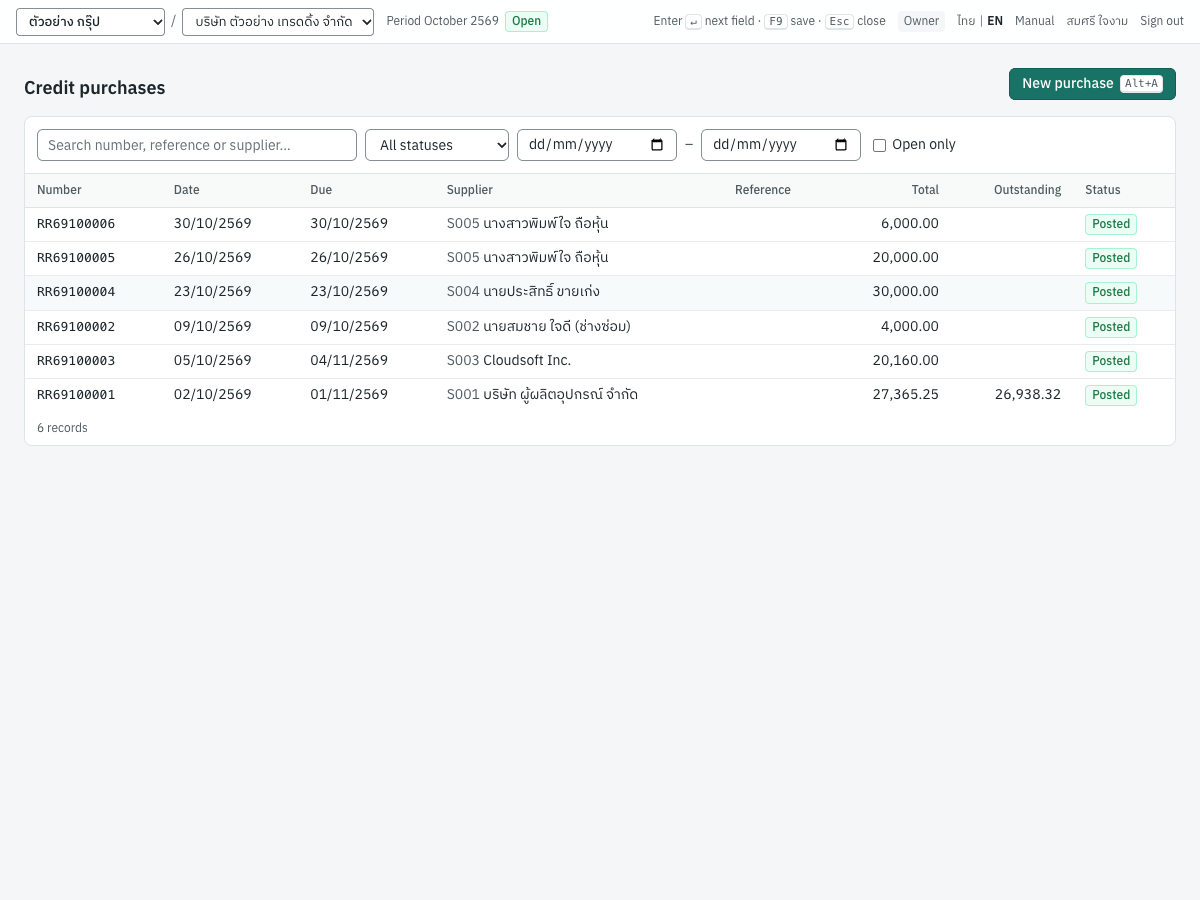
| Column | What it shows |
|---|---|
| Number | RR69100001, or (draft) |
| Date | The purchase date |
| Due | The due date |
| Supplier | Code and name |
| Reference | Your reference |
| Total | The total, including VAT |
| Outstanding | What is still unpaid; blank when paid in full |
| Status | Draft, Posted or Cancelled |
- Search number, reference or supplier… searches the purchase number, the reference and the supplier's code or name. It does not search the supplier's tax invoice number.
- The status box, and the date range (from – to), narrow the list.
- Open only shows posted purchases with something still to pay.
- Click a row to open the purchase. A draft opens in the form.
In the demonstration company, RR69100001 has been partly settled by a return, and RR69100002 and RR69100003 have been paid.
The purchase form#
Press New purchase (Alt+A). The screenshot shows a new purchase from S001. Because S001 has a deposit paid that is not yet deducted, the Deposits card lists it.
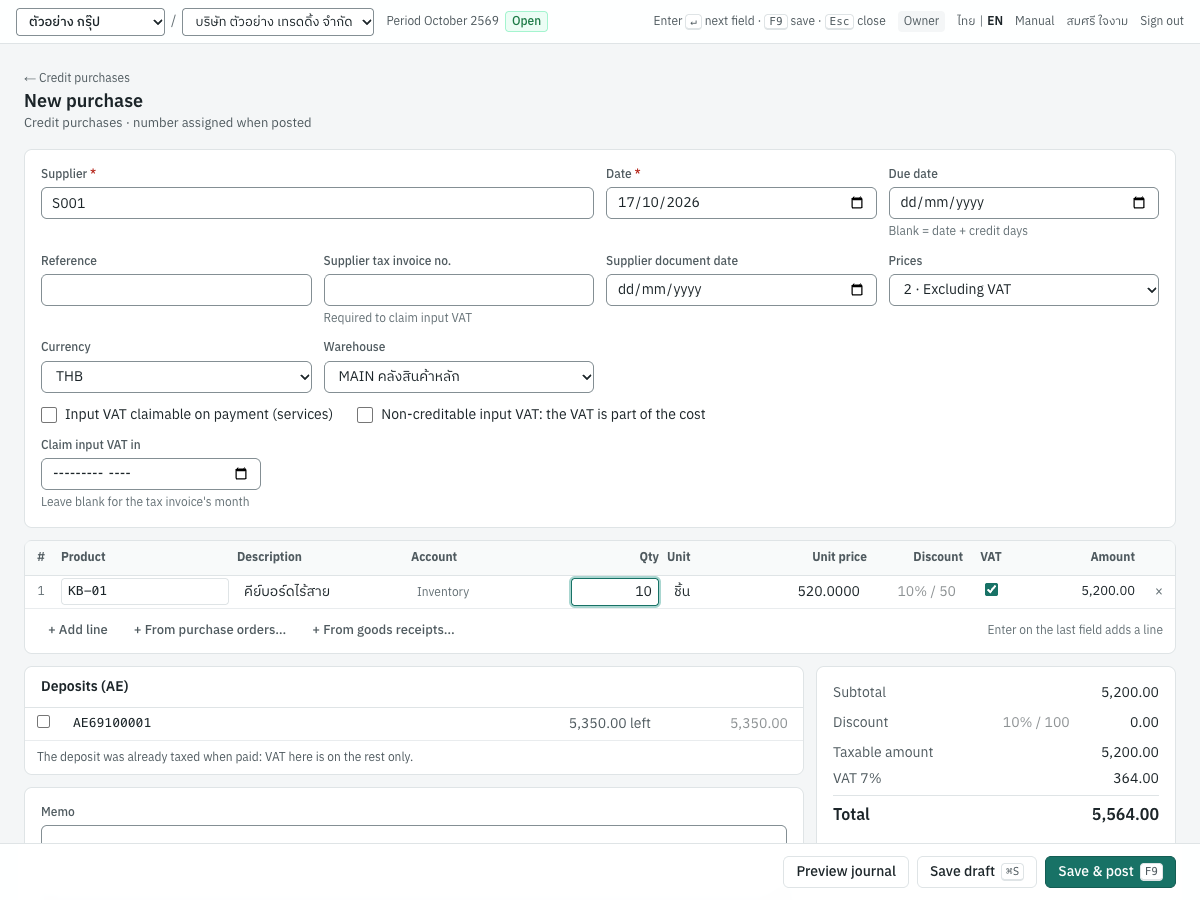
The form has a header, the lines, and the deposits, memo and totals below them.
Header fields#
| Field | ภาษาไทย | What to enter |
|---|---|---|
| Supplier | ผู้จำหน่าย | Required. An active supplier. Type its code or name; the list shows each supplier's balance |
| Date | วันที่ | The date of the purchase in your books. Defaults to today. It must be in an open period |
| Due date | วันครบกำหนด | When it must be paid. Blank = date + credit days of the supplier. Not before the date |
| Reference | อ้างอิง | Your reference, for example the order. Filled with the order or receipt numbers when you pick lines from them |
| Supplier tax invoice no. | เลขที่ใบกำกับภาษีผู้จำหน่าย | The number on the supplier's tax invoice, for example IV2610-0101. Required to claim input VAT: a purchase with input VAT cannot be posted without it. It is the document number in the input tax report. If the same number is already on another posted purchase, debit note or deposit paid of this supplier, posting asks whether this is a different invoice (see Messages) |
| Supplier document date | วันที่เอกสารผู้จำหน่าย | The date on the supplier's tax invoice. The input VAT is claimed in its month unless you choose a claim month. Blank = the purchase date |
| Prices | ประเภทราคา | 2 · Excluding VAT, 1 · Including VAT or 0 · No VAT. See Prices and VAT. Locked to No VAT when the company is not VAT-registered |
| Currency | สกุลเงิน | THB, or another currency that has exchange rates in 7 Setup → Exchange rates. Shown only when such rates exist. See Foreign currency purchases |
| Rate · THB per USD | อัตราแลกเปลี่ยน · บาทต่อ USD | Foreign currency only: the exchange rate, filled from the rate table |
| Warehouse | คลังสินค้า | The warehouse that receives stocked goods. Shown only when the company has more than one warehouse; otherwise the only warehouse is used. Defaults to the first active warehouse, for example MAIN คลังสินค้าหลัก |
| Input VAT claimable on payment (services) | ภาษีซื้อยังไม่ถึงกำหนด (งานบริการ) | For services whose VAT is due only when you pay. See Input VAT claimable on payment |
| Non-creditable input VAT: the VAT is part of the cost | ภาษีซื้อต้องห้าม: ภาษีรวมเป็นต้นทุน | Tick when the VAT cannot be claimed and becomes part of the cost. See Non-creditable input VAT |
| Claim input VAT in | เดือนที่ใช้สิทธิภาษีซื้อ | Optional month in which to claim the input VAT. Leave blank for the tax invoice's month. See Claiming input VAT in a later month |
The two VAT checkboxes and the claim month are shown only when Prices is not No VAT.
Line fields#
| Column | What to enter |
|---|---|
| # | The line number |
| Product | A product or service. Choosing one fills the description, unit, unit price (its purchase price) and VAT flag. Leave it blank for a free-text line |
| Description | Filled from the product; change it if you like. Required on a line without a product |
| Account | For a stocked product, Inventory (not editable). For any other line, the account to debit; blank (default) uses the product's purchase account, else its category's, else 5140 ซื้อสินค้าและวัสดุสิ้นเปลือง. The list offers active posting accounts that are not control accounts |
| Qty | Greater than zero, up to four decimals. Defaults to 1 |
| Unit | Filled from the product |
| Unit price | Not negative, up to four decimals. In a foreign currency, the price in that currency |
| Discount | An amount (50), a percentage (10%) or successive percentages (10%+5%) |
| VAT | Ticked when the line is subject to VAT; untick for an exempt line. Hidden with No VAT |
| Amount | Quantity × price less the line discount, calculated as you type |
| × | Removes the line |
Under the lines, + Add line adds a line, and once a supplier is chosen + From purchase orders… and + From goods receipts… pick lines from the supplier's open orders and receipts. Pressing Enter on the last field of the last line also adds a line. A line with neither a product nor a description is ignored. Up to 500 lines are allowed.
Deposits, memo and totals#
- Deposits (AE) lists the supplier's posted deposits paid with something left, with the amount left and a box for the amount to deduct. See Deducting the deposit on a purchase.
- Memo is printed on the purchase. When the purchase has stocked lines, a note under it explains that stock lines are costed when posted, at moving weighted average or FIFO as the product's category sets, and that a back-dated document re-costs the product's later movements and posts cost adjustments on their dates.
- The totals card shows Subtotal, a document Discount (type
10%or100; it is spread over the lines in proportion), Less deposit, Taxable amount, Exempt amount (when some lines are exempt), VAT 7% and Total. For a foreign currency purchase it also shows the total converted to THB.
The totals are calculated by the same rules Panya uses when it posts, so what you see is what will be posted.
The buttons at the bottom:
| Button | What it does |
|---|---|
| Delete draft | Deletes a saved draft, after you confirm |
| Preview journal | Saves the draft and shows the exact journal entry, stock movements and tax records posting would produce, without posting. Post now in the preview posts it |
Save draft (Ctrl+S) | Saves without posting. Drafts have no number and are not in the books |
Save & post (F9) | Saves and posts. Shown only to users who may post |
Entering a credit purchase#
- Open 1 Purchasing → Credit purchases and press New purchase (
Alt+A). From a supplier's row, New purchase opens the form with the supplier chosen. - Choose the Supplier.
- Check the Date. Leave Due date blank to use the supplier's credit days.
- Enter the Supplier tax invoice no. and Supplier document date from the supplier's tax invoice.
- Choose Prices to match the way the supplier's invoice shows them.
- Enter the lines, or pick them with + From purchase orders… or + From goods receipts….
- Tick a deposit to deduct, if the supplier's invoice deducts one.
- Compare Total and the VAT with the supplier's tax invoice.
- Press Preview journal to check the entry if you wish, then Save & post (
F9).
Panya opens the posted purchase. Attach a scan of the supplier's tax invoice in Attachments.
Filling a purchase from a document (AI)#
กรอกจากเอกสาร (AI) · Open: ✦ Fill from document (AI) at the top right of a new purchase
Panya AI can read the supplier's tax invoice or receipt and fill the purchase form from it. The result is only a draft in the form. Nothing is saved or posted until you have checked it and saved it yourself, as if you had typed it.
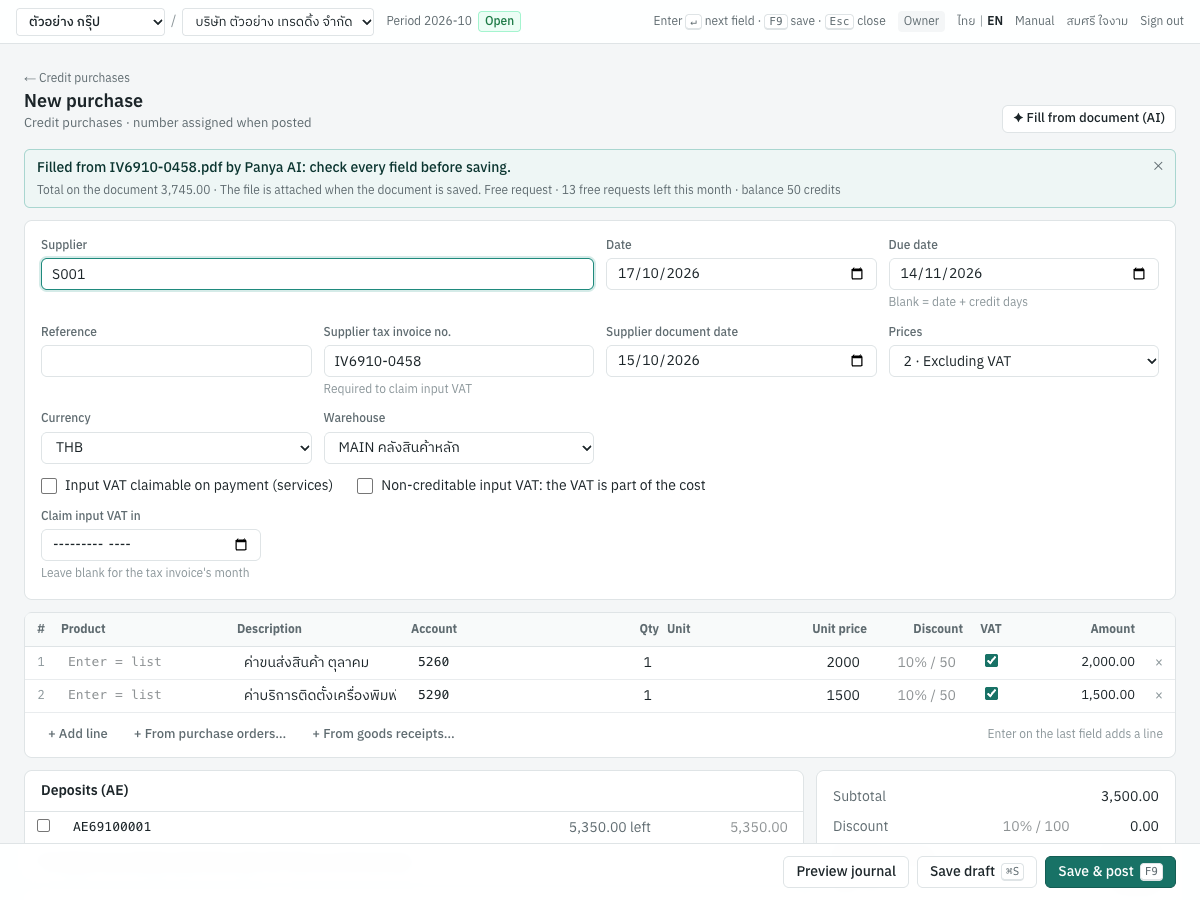
The button is on a new credit purchase, cash purchase or goods receipt. It is not on returns, supplier debit notes or opening balances, nor on a purchase started from a purchase order or a goods receipt. It is hidden when Panya AI is not set up, or when you may not enter documents.
- Open a new purchase, for example 1 Purchasing → Credit purchases → New purchase.
- Click ✦ Fill from document (AI) and choose the file: a PDF, JPG or PNG of up to 10 MB and 20 pages.
- Panya AI reads it. A document that may use more than 10 credits (more than 3 pages) asks you to confirm the estimate first: Run · up to (n) credits goes on, Cancel stops without any charge.
- Panya fills the form:
- Supplier, when the supplier on the document is in your supplier list (found by its tax ID or its name);
- Supplier tax invoice no., Supplier document date and, on a credit purchase, Due date;
- Prices (excluding VAT, including VAT or no VAT), in a VAT-registered company;
- the lines: the product when it matches one of yours, the description, quantity, unit, unit price and account.
The Date stays as it was: it is the date of the purchase in your books.
- A blue note above the form says Filled from (file name) by Panya AI: check every field before saving. It lists anything to fix, the total on the document, The file is attached when the document is saved. and what was used, for example Free request · 19 free requests left this month · balance 0 credits. ✕ closes the note.
- Check every field against the document: the supplier, the numbers and dates, each line and its account, the VAT and the Total. Correct anything that is wrong.
- Save or post as usual with Save draft, Preview journal or Save & post. When the purchase is saved for the first time, Panya attaches the file to it; you find it in Attachments.
The note can list:
| Note | What to do |
|---|---|
| Supplier on the document: (name), tax ID (number). It is not in your supplier list: choose it or create it first. | Choose the supplier in Supplier, or add it in 1 Purchasing → Suppliers first |
| Line 2: account … cannot be used here; choose another. | Choose an account for the line |
| No lines were read from the document. | Enter the lines yourself |
Reading a document costs from 3 credits a page: a long or complex document can cost more, by what it uses, never more than the estimate. A free request covers up to 10 credits, so a document that needs no confirmation, such as a one-page invoice, costs nothing while the organization has free requests left. See AI credits.
Prices and VAT#
Prices decides how the unit prices are read:
| Prices | The unit price is | VAT |
|---|---|---|
| 2 · Excluding VAT | Before VAT | Added: 7% of the taxable amount |
| 1 · Including VAT | Including VAT | Taken out: VAT = taxable lines × 7 ÷ 107; for 1,070.00 the VAT is 70.00 and the value 1,000.00 |
| 0 · No VAT | The price | None. Use it for suppliers that are not VAT-registered, such as S002, and for foreign suppliers |
VAT is calculated once on the document's taxable amount and rounded to the satang, then spread back over the lines; it is not rounded line by line. Lines with VAT unticked form the exempt amount. The VAT rate is the rate in force on the purchase date (7 Setup → VAT & WHT).
Product lines and account lines#
A credit purchase can mix three kinds of lines:
| Line | What posting does |
|---|---|
| A stocked product (inventory), such as KB-01 | Receives the quantity into the warehouse and debits the inventory account (the product's, else its category's, else 1140) with the line's value excluding VAT |
| A non-stock product or a service, such as SV-INSTALL | Debits the line's account, else the product's purchase account (บัญชีซื้อ), else its category's, else 5140 |
| A free-text line, such as ค่าซ่อมเครื่องปรับอากาศ | Debits the line's account, else 5140 |
Choose the Account for expense lines so they land in the right expense: for example 5260 ค่าขนส่ง for freight, or 5290 ค่าใช้จ่ายเบ็ดเตล็ด for sundry supplies. Purchases of equipment can go to an asset account such as 1210 อุปกรณ์สำนักงาน.
Stocked lines need a warehouse. The line's value, including any document discount and any non-creditable VAT, becomes the stock's cost, and the product's moving average cost is updated. A purchase dated before the product's later movements re-costs those movements (see Inventory).
Input VAT claimable on payment#
For some services the VAT tax point is the payment, not the invoice: the supplier issues its tax invoice (often a receipt / tax invoice) only when you pay. Tick Input VAT claimable on payment (services) for such a purchase.
- Posting debits
1151ภาษีซื้อยังไม่ถึงกำหนด (Undue input VAT) instead of1150, and writes no input VAT record yet. The purchase's Status card shows VAT basis: Due on payment and the Undue VAT. - When you pay, the payment moves the VAT paid for to
1150and records the input VAT in the payment's month. Enter the supplier's tax invoice or receipt number in the payment's Supplier receipt / tax invoice no. See Finance. - A return or debit note on the purchase follows the same treatment.
- Pay it with a payment: Apply credit to invoices on another return cannot settle it. A return on the purchase itself is still applied to it automatically.
When the first line of a new credit purchase is a service, Panya ticks this box for you, as Express asks for the VAT basis. Untick it if the supplier's tax invoice is dated now.
For example, a 10,000.00 maintenance service plus VAT on credit posts:
| Account | Debit | Credit |
|---|---|---|
5290 ค่าใช้จ่ายเบ็ดเตล็ด | 10,000.00 | |
1151 ภาษีซื้อยังไม่ถึงกำหนด (Undue input VAT) | 700.00 | |
2110 เจ้าหนี้การค้า | 10,700.00 |
Non-creditable input VAT#
Tick Non-creditable input VAT: the VAT is part of the cost when the VAT on the invoice cannot be claimed (มาตรา 82/5), for example VAT on entertainment, or a tax invoice that lacks the required details.
- The VAT is added to each line's cost: the expense or stock is debited with the value plus its VAT.
- There is no input VAT line, no input VAT record, and no supplier tax invoice number is required.
- It cannot be combined with claimable on payment or a claim month; ticking it clears them.
- The purchase's Status card shows Input VAT: Non-creditable (cost). Returns and debit notes on it follow the original.
For example, a 1,000.00 expense plus 70.00 non-creditable VAT on credit posts Dr 5290 1,070.00 / Cr 2110 1,070.00.
Claiming input VAT in a later month#
The input VAT is normally recorded in the month of the supplier's tax invoice date. The law (มาตรา 82/3) lets you claim it in a later month, for example when the tax invoice arrives after you filed that month's ภ.พ.30. Choose the month in Claim input VAT in:
- The input VAT record is dated the first day of that month, so it appears in that month's input tax report and ภ.พ.30. The journal entry keeps the purchase date.
- The month cannot be before the tax invoice's month, or more than three years after the tax invoice date.
- More than six months late, the form warns: 7 months after the tax invoice. Claims beyond 6 months need a reason the Revenue Department accepts (s.82/3).
- It is not available with claimable on payment (claimed in the payment's month) or non-creditable VAT.
The purchase's Status card shows VAT claimed in with the month.
Important: If the supplier's tax invoice is dated in a month whose ภ.พ.30 you have already filed, choose the current month in Claim input VAT in. Otherwise the input VAT is recorded in the tax invoice's month and changes a report you have already filed.
Picking lines from purchase orders and goods receipts#
- + From purchase orders… adds lines from the supplier's open purchase orders, and the purchase then counts as receiving them. See Receiving goods against the order.
- + From goods receipts… adds lines from the supplier's goods receipts still to invoice. Those lines move no stock. See Invoicing a goods receipt.
On a line taken from an order or a receipt, the product cannot be changed; the order or receipt number is shown under the description.
Foreign currency purchases#
A credit or cash purchase can be in a foreign currency, for example the USD invoice of S003 Cloudsoft Inc.:
- Choose the Currency, for example USD. The field appears once the currency has a rate in 7 Setup → Exchange rates.
- The Rate · THB per USD fills with the selling rate on or before the purchase date (Selling rate of 2026-10-01). Type the rate if you use another one. Without a rate on file, enter it: No rate on file for this date: enter it.
- Enter the prices in USD. The Unit price column shows Unit price (USD), the total shows Total (USD), and a line below it shows the total in THB at the rate.
- A foreign supplier's invoice has no Thai VAT: choose 0 · No VAT.
The ledger is in THB: the purchase is booked at the rate. RR69100003, USD 600.00 for a year of cloud backup at 33.60, posts:
| Account | Debit | Credit |
|---|---|---|
5270 ค่าธรรมเนียมวิชาชีพ | 20,160.00 | |
2110 เจ้าหนี้การค้า (S003) | 20,160.00 |
- The purchase's Status card shows the total and outstanding in USD and in THB, and the rate. The printout shows the amounts in USD with the rate and the THB amounts.
- Pay it in USD with a payment in Finance. The difference between the purchase's rate and the payment's rate is posted as an exchange gain or loss (
4910). - Open foreign currency purchases are revalued at month-end in 5 Accounting → FX revaluation (see Accounting).
- A foreign currency purchase cannot deduct deposits, which are in THB. Its returns and debit notes are in the same currency at the same rate.
What posting records#
Posting gives the purchase the next RR number (RR69100001 is the first of October 2569), and posts one entry in the purchases book (PJ). For RR69100001, 30 × KB-01 at 520.00 and 50 × MS-01 at 210.00 less 5%, with VAT, from S001:
| Account | Debit | Credit |
|---|---|---|
1140 สินค้าคงเหลือ (KB-01) | 15,600.00 | |
1140 สินค้าคงเหลือ (MS-01) | 9,975.00 | |
1150 ภาษีซื้อ (Input VAT) | 1,790.25 | |
2110 เจ้าหนี้การค้า (S001) | 27,365.25 |
- Stock: 30 KB-01 and 50 MS-01 into MAIN, at 520.00 and 199.50 each; the average costs are updated.
- Input VAT: a tax record of base 25,575.00 and VAT 1,790.25, numbered with the supplier's tax invoice
IV2610-0101and dated 02/10/2569, with the supplier's name, tax ID0105555000200and branch สำนักงานใหญ่. It is listed in the input tax report (รายงานภาษีซื้อ) of October 2569. See Reports. - Payable: the supplier's balance and the AP aging report include 27,365.25, due 01/11/2569.
How the entry changes with the options:
| Situation | Effect on the entry |
|---|---|
| Non-stock or service line | Debits the line's expense or asset account instead of inventory |
| Input VAT claimable on payment | Debits 1151 instead of 1150; no tax record until the payment |
| Non-creditable input VAT | The VAT is added to the stock or expense lines; no VAT line or tax record |
| Claim month chosen | The tax record is dated the first day of that month |
| Deposit deducted | Credits 1175 with the deposit's value; the VAT and the payable are on the rest only |
| Line invoicing a goods receipt | Debits 2160 with the value it clears, and the price difference to 5120; no stock moves |
| Stock was negative before the purchase | Part of the value may go to 5120 to re-base the remaining quantity on the new cost |
| No VAT | No VAT line and no tax record |
The purchase's screen#
A posted purchase shows the printable document on the left and its status, settlements and journal entry on the right.
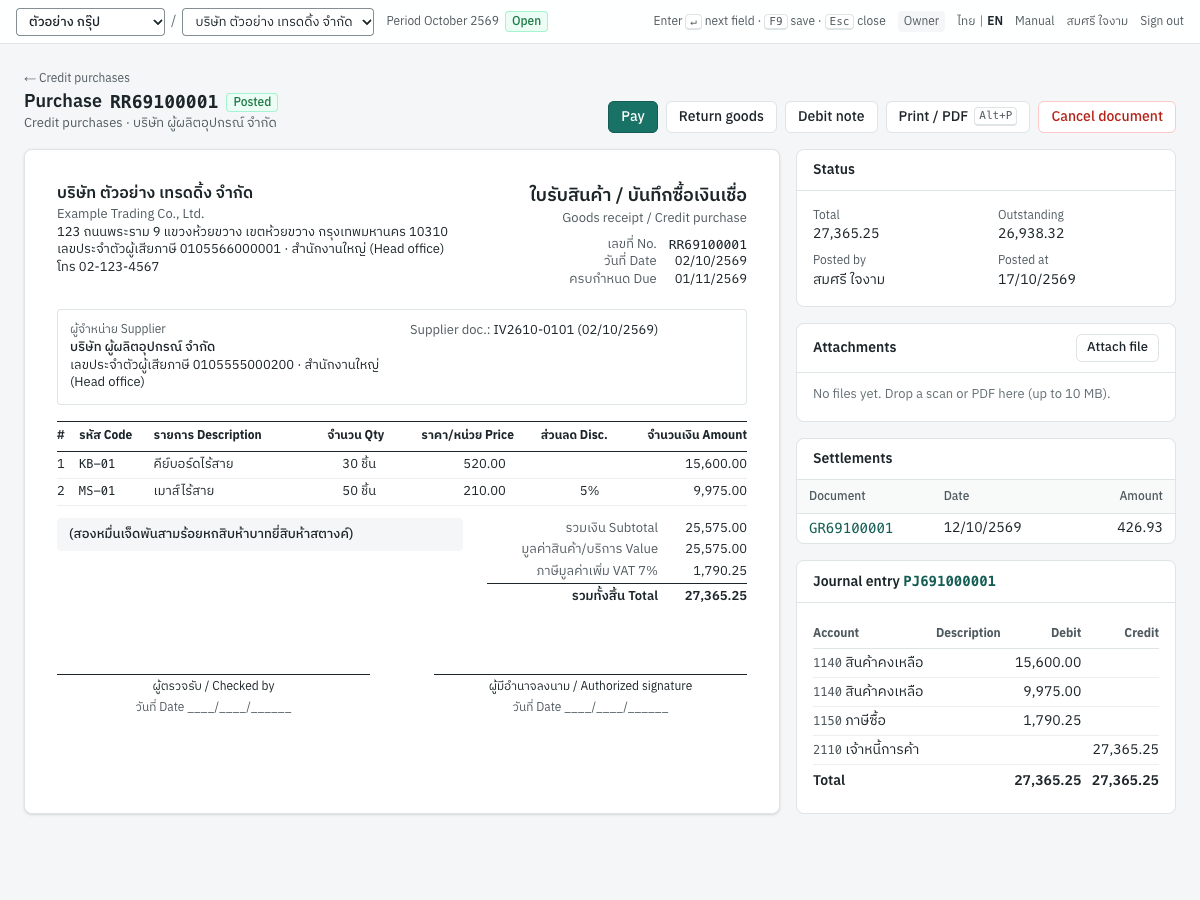
- The document is printed as ใบรับสินค้า / บันทึกซื้อเงินเชื่อ (Goods receipt / Credit purchase), with your company, the supplier, the supplier's document number and date, the lines and totals, the amount in Thai words, and ผู้ตรวจรับ / Checked by and ผู้มีอำนาจลงนาม / Authorized signature boxes.
- Status: the total and the outstanding amount, who posted it and when, and any VAT basis, non-creditable VAT, deposits deducted, claim month and goods receipts invoiced.
- Attachments: files kept with the purchase.
- Settlements: the payments and returns that settled it, with dates and amounts. RR69100001 shows the return GR69100001 of 426.93.
- Journal entry: the entry posted, with a link to it; after a cancellation, also the Reversal.
The buttons at the top:
| Button | What it does |
|---|---|
| Pay | Opens a new payment (PS) for the supplier with this purchase selected and the supplier's default WHT type filled in. Shown while something is outstanding |
| Return goods | Opens a new purchase return on this purchase. See Purchase returns (GR) |
| Debit note | Opens a new supplier debit note on this purchase. See Supplier debit notes (DP) |
Print / PDF (Alt+P) | Prints the document, or saves it as PDF from the print dialog |
| Cancel document | Cancels the purchase; see below |
Paying the purchase#
A credit purchase is settled by:
- a payment (PS, จ่ายชำระหนี้), which can withhold tax and use a cheque, and settle several purchases at once. Use Pay on the purchase, or 3 Finance → Payments;
- a purchase return on it, which is applied automatically;
- the unused credit of a return on another purchase, with Apply credit to invoices on that return.
To record the supplier's billing note (ใบวางบิล) before paying, use 3 Finance → Supplier billing. All of these are in Finance.
Cancelling a credit purchase#
Cancel a posted purchase that should not have been posted, for example one entered twice. To correct the amount of a genuine purchase, use a return or a debit note instead.
- Press Cancel document.
- Enter the Reason (recorded in the audit trail).
- Check the Reversal date. It defaults to the purchase date; use a later date if that period is closed or the products have later stock movements.
- Press Cancel document.
Panya posts a reversing entry on that date, removes the stock that was received, and reverses the input VAT in the month of that date. The purchase shows Cancelled with the reason, and its original entry stays. Purchase orders, goods receipts and deposits it used become open again.
A purchase with posted payments or returns cannot be cancelled: this document has payments or returns; cancel those first.
Messages#
| Message | Why | What to do |
|---|---|---|
| Choose a supplier first | No supplier is chosen | Choose one |
| a document needs at least one line / document has no lines | No line has a product or a description | Add a line |
| line 2: description is required | A free-text line has no description | Enter a description |
| line 1: quantity must be positive | A quantity is zero or negative | Correct it |
| line 1: unit price has more than 4 decimal places | Too many decimals | Round the price |
| invalid discount expression '…' / discount … exceeds amount … | The discount cannot be read, or is larger than the line | Enter an amount such as 50 or a percentage such as 10% |
| due date cannot be before the document date | The due date is too early | Correct it, or leave it blank |
| enter the supplier's tax invoice (or credit note) number to claim input VAT | The purchase has input VAT but no supplier document number | Enter the Supplier tax invoice no. |
| the claim month cannot be before the tax invoice's month | The claim month is too early | Choose the invoice's month or later |
| input VAT cannot be claimed more than 3 years after the tax invoice date (s.82/3) | The claim month is too late | Choose an earlier month; VAT this late cannot be claimed |
| input VAT claimable on payment is claimed in the payment's month | A claim month was set with VAT on payment | Clear one of them |
| the claim month 2026-09 is closed: choose an open month to claim the input VAT | The chosen claim month is a closed period | Choose an open month. Without a claim month, input VAT dated in a closed month is claimed in the month the purchase is posted |
| the supplier's tax invoice IV2610-0101 is already recorded on RR69100001; post it again only if it is a different invoice, then Is this a different invoice? Post it anyway? | This supplier's tax invoice number is already on another posted credit purchase, cash purchase, debit note or deposit paid. Recording one invoice twice would claim its input VAT twice | Choose Cancel and check the earlier document. Choose OK only for a different invoice that shares the number; the confirmation is recorded in the audit log |
| account 1130 is a receivable control account; use the corresponding documents instead / account 2140 is kept by …; use those documents instead | A line's Account is a control account, or an account that documents keep (advances, deposits, cheques, undue VAT, goods received not invoiced) | Choose an ordinary expense or asset account. Line accounts follow the same rules as journal vouchers: an active posting account that no document keeps |
| line 1: choose a warehouse | A stocked line has no warehouse | Choose the Warehouse |
| supplier is inactive / document contains an inactive product | The supplier or a product was deactivated | Reactivate it, or choose another |
| the company is not VAT registered | VAT was chosen in a company that is not registered | Use 0 · No VAT |
| accounting period for … is closed | The date is in a closed month | Date it in an open month, or reopen the month |
| Enter the USD exchange rate (THB per USD) / no USD rate on or before …: add it in Setup or enter the rate | A foreign currency purchase has no rate | Type the rate, or add it in 7 Setup → Exchange rates |
| deposits are in THB: a foreign currency document cannot deduct them | A deposit was ticked on a foreign currency purchase | Untick the deposit |
| this document has payments or returns; cancel those first | Something settles the purchase | Cancel the payment or return first |
| the credit of this document was refunded on RP…; cancel the refund first | The supplier paid back the credit of this return | Cancel the supplier refund, then the return |
| the cancellation date cannot be before the document date | The reversal date is too early | Choose the purchase date or later |
| the cancellation date cannot be before 2026-10-20, when PS69100003 was cancelled | A payment or return of this purchase was cancelled on a later date | Choose that date or later, so the purchase is not reversed before what settled it |
| a posted document cannot be edited | Posted purchases are frozen | Cancel it, or correct it with a return or debit note |
Messages of ✦ Fill from document (AI):
| Message | Why | What to do |
|---|---|---|
| (file name) is larger than 10 MB | The file is too large to read | Scan at a lower resolution, or keep only the invoice's pages |
| only PDF, JPG and PNG files can be read | Another kind of file was chosen | Save or scan the document as PDF, JPG or PNG |
| a document for AI reading may have at most 20 pages | The file is too long | Keep only the invoice's pages |
| Not enough AI credits: not enough AI credits: this request needs … credits and … are available; buy a credit package in Organization settings → AI credits | No free request is left and the balance is too low | Ask an owner to buy credits (Buy AI credits in the message), or enter the purchase yourself |
| Confirm the AI estimate | Reading the document may use more than 10 credits | Run · up to … credits, or Cancel to stop without any charge |
| the AI declined this request; nothing was charged | Panya AI would not read this file | Enter the purchase yourself |
| the AI service did not answer; nothing was charged | The AI service did not respond | Try again in a moment |
| Panya AI is not set up | The server has no AI set up | Ask whoever runs your Panya installation |
For messages about orders, receipts and deposits, see their sections above.
Cash purchases (HP)#
ซื้อเงินสด · Menu: 1 Purchasing → Cash purchases
A cash purchase records a purchase paid on the spot, in cash or by transfer, with the supplier's tax invoice or receipt / tax invoice. It is a credit purchase and its payment in one document: nothing is left owing.
Use a credit purchase and a payment instead when you withhold tax, pay by cheque, or pay later: a cash purchase has no withholding tax.
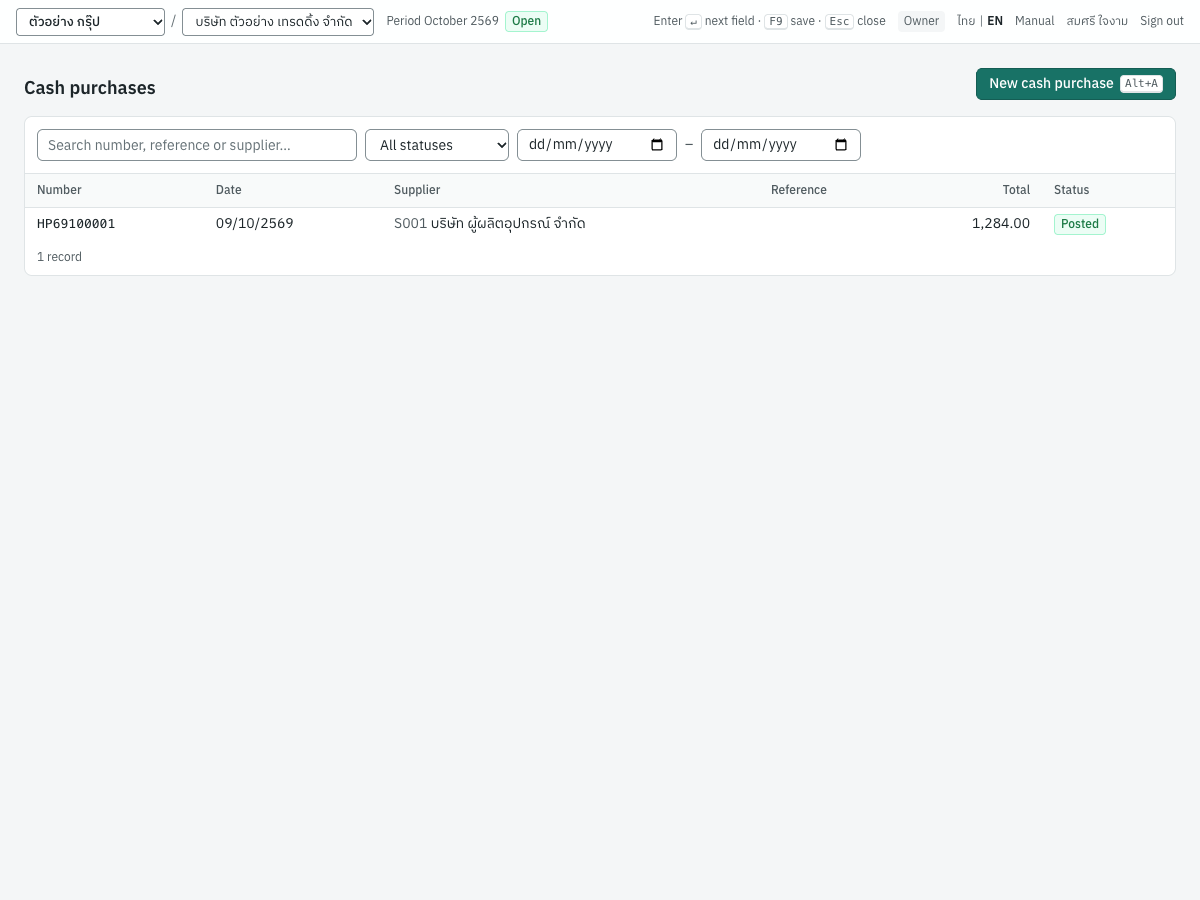
The list has the columns Number, Date, Supplier, Reference, Total and Status, with the same search, status and date filters as credit purchases.
Entering a cash purchase#
Press New cash purchase (Alt+A). The form is the credit purchase form (see The purchase form), with these differences:
| Field | What is different |
|---|---|
| Paid from | Required: the cash or bank account the money left. Defaults to the first active cash account, for example CASH เงินสด |
| Due date | Not on a cash purchase |
| Input VAT claimable on payment | Not offered: the purchase is paid at once |
Everything else works as on a credit purchase: product and account lines, prices including or excluding VAT, discounts, non-creditable VAT, a later claim month, a foreign currency, deposits deducted, lines picked from purchase orders (Cash purchase on an order) and goods receipts, and ✦ Fill from document (AI) (see Filling a purchase from a document (AI)).
What posting records#
Posting gives the next HP number and posts an entry in the payments book (CJ). For HP69100001, office supplies of 1,200.00 plus VAT paid in cash to S001:
| Account | Debit | Credit |
|---|---|---|
5290 ค่าใช้จ่ายเบ็ดเตล็ด | 1,200.00 | |
1150 ภาษีซื้อ (Input VAT) | 84.00 | |
1110 เงินสด | 1,284.00 |
The input VAT record is numbered with the supplier's document HS-88120 and dated 09/10/2569. Stocked lines go into stock exactly as on a credit purchase. A deposit deducted is credited to 1175, and only the rest leaves the cash account.
The cash purchase's screen#
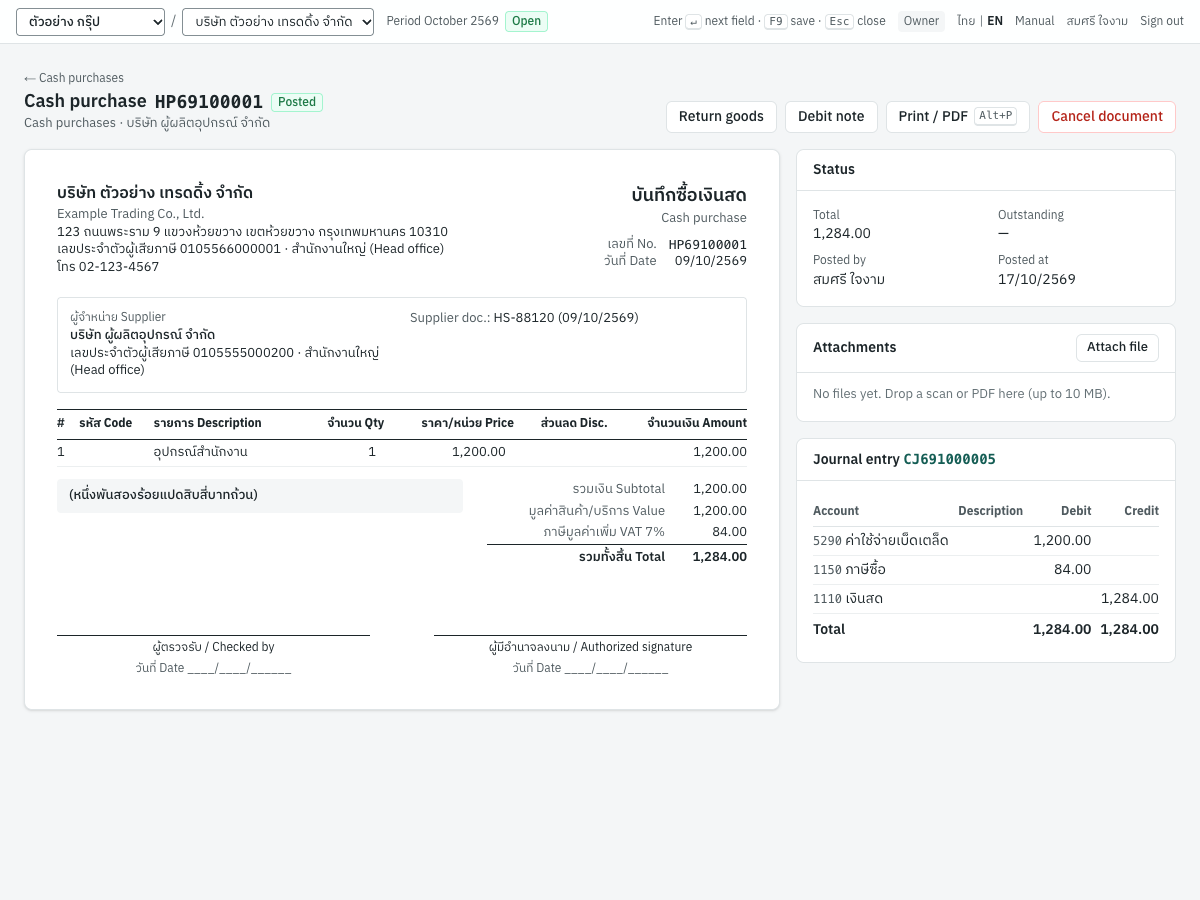
The printout is titled บันทึกซื้อเงินสด (Cash purchase). The Status card shows the total; Outstanding is —, as nothing is owed. The buttons are Return goods, Debit note, Print / PDF and Cancel document, as on a credit purchase.
A return on a cash purchase does not refund money by itself: its credit stays unused until you apply it to another purchase or record the supplier's refund (see Applying and refunding a return's credit).
Cancelling a cash purchase reverses its entry, including the payment out of the cash or bank account.
Purchase returns (GR)#
ส่งคืนสินค้า / ลดหนี้ · Menu: 1 Purchasing → Purchase returns
A purchase return records goods you send back to the supplier, or a reduction the supplier gives on an earlier purchase, against the supplier's credit note (ใบลดหนี้). It reduces what you owe, takes the returned goods out of stock, and reduces your input VAT. Every return refers to the posted credit purchase or cash purchase it corrects.
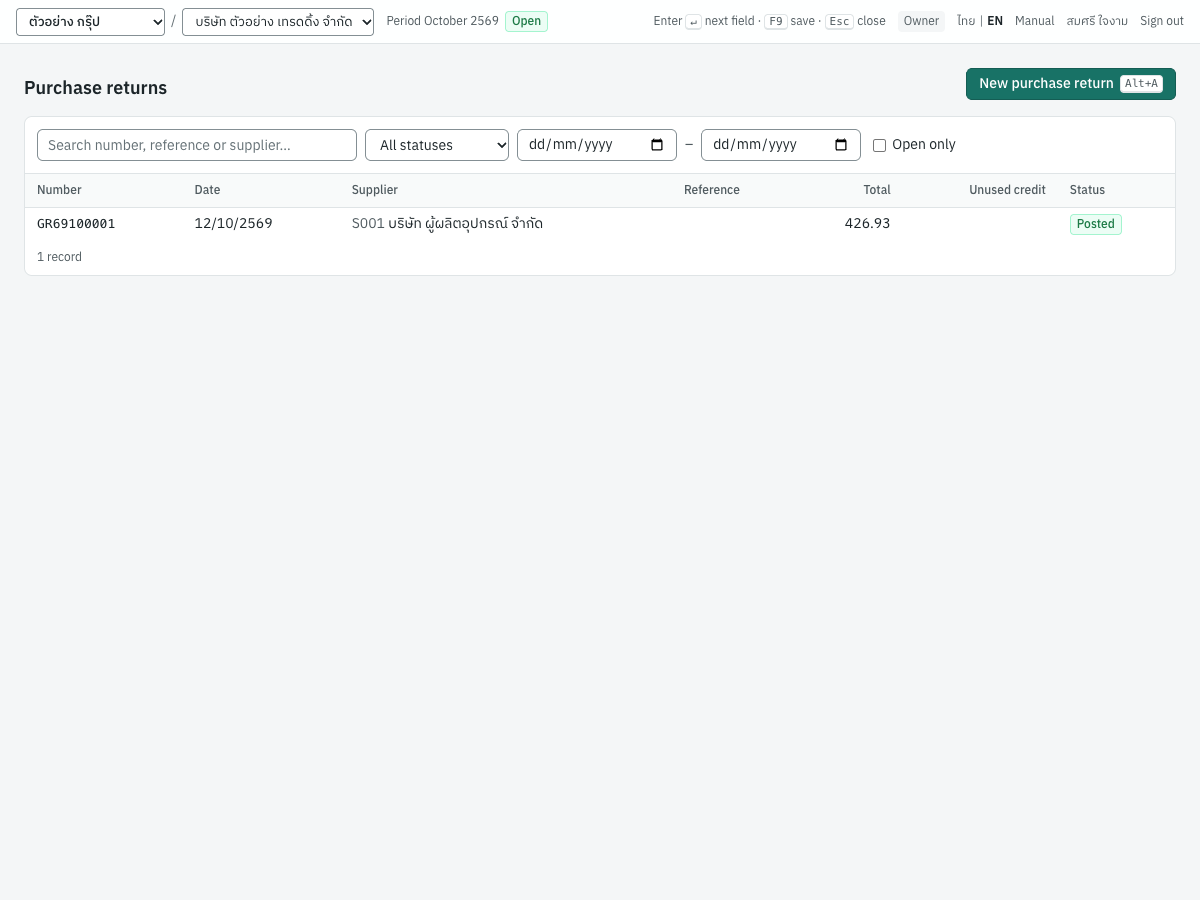
The list has the columns Number, Date, Supplier, Reference, Total, Unused credit (credit not yet applied to a purchase or refunded) and Status. Open only shows returns with unused credit.
Entering a return#
The quickest way is from the original purchase: press Return goods on it. Or:
- Press New purchase return (
Alt+A). - Choose the Supplier, then the Original purchase: the list shows the posted credit and cash purchases of that supplier, with their totals.
- Panya copies the original's lines, warehouse, prices type and currency, and locks the supplier. Change each line's Qty to what is returned, and remove the lines that are not.
- Enter the Supplier credit note no. and its date in Supplier document date.
- Enter the reason in Memo, for example เมาส์ชำรุด ส่งคืน 2 ชิ้น.
- Press Save & post (
F9).
| Field | What to enter |
|---|---|
| Supplier | Taken from the original purchase |
| Date | The date of the return. Defaults to today |
| Original purchase | Required: a posted credit or cash purchase of the supplier |
| Reference | Your reference |
| Supplier credit note no. | The number of the supplier's credit note. Required to claim input VAT: a return with VAT cannot be posted without it |
| Supplier document date | The credit note's date. The input VAT is reduced in its month; blank = the return date |
| Prices | Copied from the original. The return always follows the original's VAT: the same VAT rate as the original (even if the rate has changed since), and the same treatment (claimable on payment, or non-creditable). Only Excluding VAT and Including VAT can be swapped; a return on a purchase with VAT cannot be entered without VAT, nor the other way round |
| Lines | Copied from the original, with their warehouse. The product of a copied line cannot be changed, and each line keeps the original line's VAT flag. Quantities cannot exceed what is still returnable |
A return has no due date, no deposits, no claim month and no input VAT checkboxes.
The returns of a purchase together cannot take back more than it had: more than its total, its value subject to VAT, its VAT or its value not subject to VAT (deposits deducted on it included). The return that takes back the last of the value subject to VAT takes exactly the VAT that is left, so the input VAT report nets to zero.
A price reduction without returning goods. Delete the copied lines and add a line with a description, for example ส่วนลดตามใบลดหนี้ CN-26-0080, the amount, and an Account: 5120 ผลต่างต้นทุนสินค้า for a reduction on stocked goods, or the expense account of the original. Such a line takes no stock out.
What posting records#
Posting gives the next GR number and posts an entry in the purchases book. For GR69100001, 2 × MS-01 at 210.00 less 5% returned on RR69100001:
| Account | Debit | Credit |
|---|---|---|
2110 เจ้าหนี้การค้า (S001) | 426.93 | |
1140 สินค้าคงเหลือ | 399.44 | |
5120 ผลต่างต้นทุนสินค้า | 0.44 | |
1150 ภาษีซื้อ (Input VAT) | 27.93 |
- Stock: the returned units leave the warehouse at the product's current average cost (399.44 for the two mice), not at the supplier's price (399.00). The difference goes to
5120inventory cost variance, so the stock value stays equal to quantity × average cost. For products costed FIFO, they leave from the oldest layers. - Input VAT: a negative input VAT record of base −399.00 and VAT −27.93, numbered with the supplier's credit note
CN-26-0077, in the month of its date. If the original's VAT was claimable on payment and still unpaid, the return reduces1151undue input VAT first. - Payable: the return is applied automatically to the original credit purchase, up to what is still outstanding on it. RR69100001 lists GR69100001 under Settlements and its outstanding falls by 426.93.
- Non-stock lines credit their account.
Applying and refunding a return's credit#
When the original was a cash purchase, or was already paid, the return's credit is left unused. Its Status card shows Unused credit, and the list's Open only box finds it. Then either:
- press Apply credit to invoices on the return to settle other open purchases of the same supplier. Choose the Settlement date, enter the amount for each purchase (Max fills what is possible), and press Apply. No journal entry is posted, because the return and the purchases are on the same payables account. Purchases with VAT claimable on payment must be settled with a payment instead; or
- record the money the supplier pays back in 3 Finance → Supplier refunds (see Finance).
The credit of a foreign currency return applies only to its own purchase.
The return's screen#
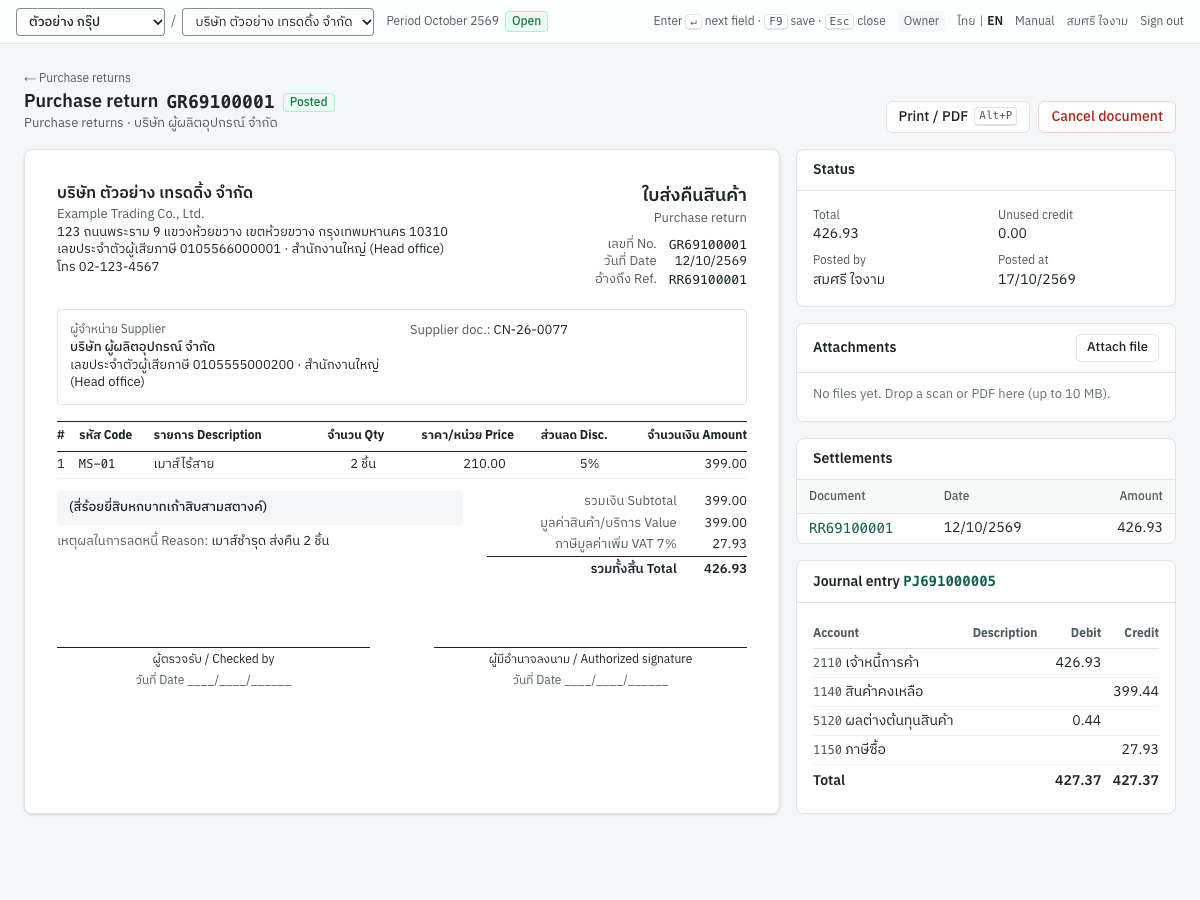
The printout is titled ใบส่งคืนสินค้า (Purchase return) and shows the original purchase as อ้างถึง Ref., the supplier's credit note and the memo. Settlements shows the purchases the credit was applied to. Cancel document reverses the return; the credit it applied is released and the purchase is outstanding again.
Messages#
| Message | Why | What to do |
|---|---|---|
| a credit note, return or debit note must reference the original document | No original purchase is chosen | Choose the Original purchase |
| a return must reference a posted purchase invoice or cash purchase | The original is not a posted credit or cash purchase | Choose another document |
| line 1: only 48 remain returnable | The quantity is more than was bought less earlier returns. Lines of this return on the same original line count together | Reduce the quantity |
| returns would total … but the original document is … | All returns together would exceed the original purchase | Reduce the amounts |
| this note credits … of VAT, but only … of the original document's VAT is left (or of value subject to VAT / of value not subject to VAT) | The returns would take back more VAT, or more of the value with or without VAT, than the purchase had | Reduce the amounts, or move them to the lines with the right VAT flag |
| the original document carries VAT: a note on it carries VAT at the original's rate | The return's Prices were set to No VAT on a purchase with VAT (or the other way round) | Keep the original's prices type |
| line 1: does not match the original document line | A copied line was changed to another product | Delete the line and choose the original again |
| insufficient stock of … in warehouse …: on hand …, requested … | The warehouse holds fewer units than you return on that date | Check the warehouse and date, or the quantity |
| enter the supplier's tax invoice (or credit note) number to claim input VAT | The return has VAT but no supplier credit note number | Enter the Supplier credit note no. |
| … has VAT due on payment; settle it with a receipt or payment instead | Applying credit to a purchase with VAT claimable on payment | Settle that purchase with a payment |
| cannot allocate … to …: outstanding balance is … | More credit is applied than the purchase has open | Reduce the amount |
Supplier debit notes (DP)#
ใบเพิ่มหนี้จากผู้จำหน่าย · Menu: 1 Purchasing → Supplier debit notes
A supplier debit note records a supplier's debit note (ใบเพิ่มหนี้): an extra charge on an earlier purchase, for example freight or a price increase invoiced afterwards. It adds to what you owe, records the extra expense, and claims the extra input VAT. It refers to the posted credit or cash purchase it adds to.
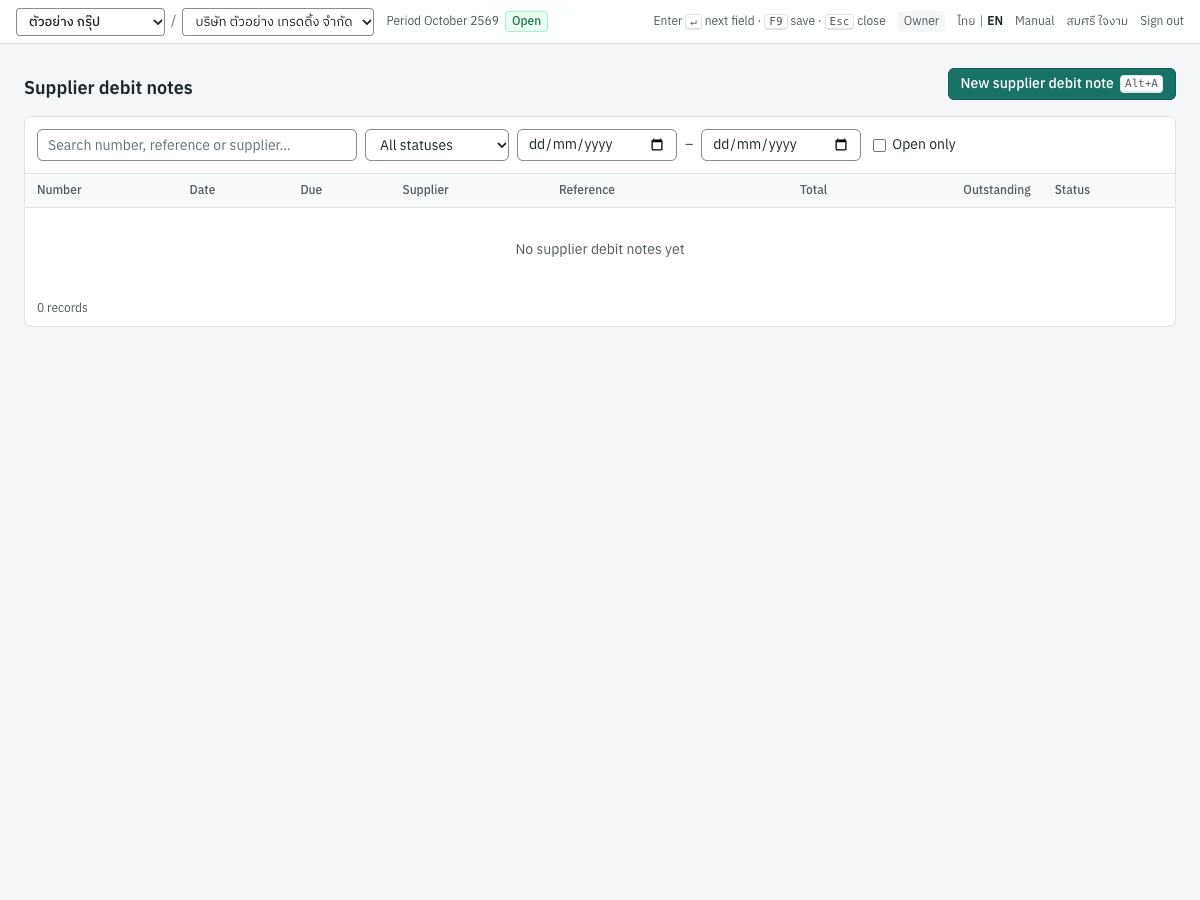
The list has the columns Number, Date, Due, Supplier, Reference, Total, Outstanding and Status, and the Open only box. In the demonstration company it is empty.
Entering a supplier debit note#
The quickest way is Debit note on the original purchase. Or:
- Press New supplier debit note (
Alt+A). - Choose the Supplier and the Original purchase. The supplier, prices type, VAT rate and currency follow the original; the lines are not copied. As on a return, only Excluding VAT and Including VAT can be swapped.
- Enter the Supplier debit note no. and Supplier document date.
- Enter the extra charge on one or more lines: a Description, an Account (for example
5260ค่าขนส่ง), the amount in Unit price, and the VAT flag. - Leave Due date blank to use the supplier's credit days, or enter one.
- Press Save & post (
F9).
A debit note cannot carry stocked products: Panya does not revalue stock already received. Enter an extra cost of stocked goods against an account, for example 5120 ผลต่างต้นทุนสินค้า. Non-stock products and services are allowed. A debit note takes no deposits. You can set a later claim month, as on a credit purchase.
What posting records#
Posting gives the next DP number and posts an entry in the purchases book. For example, if S001 charged 500.00 freight plus VAT on RR69100001:
| Account | Debit | Credit |
|---|---|---|
5260 ค่าขนส่ง | 500.00 | |
1150 ภาษีซื้อ (Input VAT) | 35.00 | |
2110 เจ้าหนี้การค้า (S001) | 535.00 |
- Input VAT: a tax record of base 500.00 and VAT 35.00, numbered with the supplier's debit note.
- If the original's VAT was claimable on payment, the VAT goes to
1151and is claimed when you pay; if it was non-creditable, the VAT is added to the expense. - The debit note is payable like a credit purchase, even on a cash purchase: it has its own due date and outstanding amount, appears in the AP aging report, and has a Pay button.
The printout is titled บันทึกรับใบเพิ่มหนี้ (Supplier debit note). Cancel it with Cancel document while it has no posted payments.
Messages#
| Message | Why | What to do |
|---|---|---|
| line 1: a supplier debit note cannot revalue stocked goods; enter the extra cost against an account | A line has a stocked product | Use a free-text line with an account instead |
| a debit note must reference a posted invoice or cash document | The original is not a posted credit or cash purchase | Choose another document |
| the debit note supplier must match the original document | The supplier differs from the original's | Choose the original's supplier |
| the original document has no VAT: a note on it carries no VAT either | The debit note charges VAT on a purchase without VAT (or leaves it out on one with VAT) | Keep the original's prices type |
| enter the supplier's tax invoice (or credit note) number to claim input VAT | The debit note has VAT but no supplier document number | Enter the Supplier debit note no. |
Where purchases appear#
| Report or screen | What it shows from purchasing | Chapter |
|---|---|---|
| Purchase report | Purchases by document, supplier or product | Reports |
| Input tax report | Every input VAT record of the month: credit and cash purchases, deposits paid, returns and debit notes, under the supplier's document numbers | Reports |
| Accounts payable aging | Open purchases and debit notes by age, reconciled to the payables account | Reports |
| Withholding tax reports | Tax withheld on payments, by ภ.ง.ด.3, 53 and 54 | Reports |
| Stock on hand, Stock card | Goods received, invoiced and returned | Inventory |
| Integrity checks | Payables, deposits paid and goods received not invoiced against their accounts | Reports |
At month-end, post every purchase draft and check the input tax report before filing ภ.พ.30. See Month-end and tax filing.