Accounting · บัญชี
Menu 5 Accounting holds the general ledger itself: the journal vouchers you enter by hand, the journal entries that every document posts, the chart of accounts, the opening balances, the accounting periods with the year-end close, and the month-end revaluation of foreign currency balances.
Most of your books are written for you. Every time you post a tax invoice, a receipt, a purchase, a payment or a stock document, Panya creates its journal entry automatically, in the right journal book and with the accounts set in 7 Setup → Default accounts. You use this menu to:
- record what no document covers: accruals, depreciation, prepaid expenses, the monthly VAT and withholding tax entries, corrections;
- look up any journal entry and trace it back to the document that made it;
- close each month so that nothing more can be posted into it, and close the year;
- restate open foreign currency receivables and payables at the period-end rate.
| Menu item | ภาษาไทย | What it is for |
|---|---|---|
| Journal vouchers | บันทึกรายการบัญชี | Enter manual journal entries (JV) and opening balance vouchers (OB) |
| Journal entries | สมุดรายวัน | Read every posted journal entry, by book, with a link to its source document |
| Chart of accounts | ผังบัญชี | The list of accounts. Detailed in Setup |
| Opening balances | ยอดยกมา | The checklist for bringing your books into Panya. Detailed in Setup |
| Periods & year end | งวดบัญชี/ปิดบัญชี | Close and reopen monthly periods, close the fiscal year, open the next one |
| FX revaluation | ปรับมูลค่าอัตราแลกเปลี่ยน | Restate open foreign currency invoices at the period-end rate |
The examples in this chapter come from the demonstration company บริษัท ตัวอย่าง เทรดดิ้ง จำกัด, whose fiscal year FY2026 runs from 01/01/2569 to 31/12/2569, and use the account codes of Panya's default chart of accounts.
Note: Date fields use your browser's date picker, which shows the Christian-era year: 31 October 2026 is typed and shown as 31/10/2026. Lists, document views and reports show the Buddhist era: 31/10/2569. Both mean the same day. Server messages show dates as year-month-day, for example 2026-10-31.
Journal vouchers (JV)#
บันทึกรายการบัญชี (JV) · Menu: 5 Accounting → Journal vouchers
A journal voucher records a journal entry that you write yourself: the accounts, the debits and the credits. It is the Panya equivalent of the Express บันทึกรายการบัญชี screen.
When to use a journal voucher#
Use a journal voucher only for entries that no Panya document makes. Typical month-end vouchers:
| Purpose | Debit | Credit |
|---|---|---|
| Accrue an expense not yet billed, such as October's office rent | 5220 ค่าเช่า | 2150 ค่าใช้จ่ายค้างจ่าย |
| Monthly depreciation | 5280 ค่าเสื่อมราคา | 1211 ค่าเสื่อมราคาสะสม - อุปกรณ์สำนักงาน |
| Use up part of a prepaid expense | the expense account, for example 5220 ค่าเช่า | 1180 ค่าใช้จ่ายจ่ายล่วงหน้า |
| Record the month's VAT after filing ภ.พ.30 | 2120 ภาษีขาย | 1150 ภาษีซื้อ and 2122 ภาษีมูลค่าเพิ่มค้างจ่าย |
| Pay the VAT due | 2122 ภาษีมูลค่าเพิ่มค้างจ่าย | 1120 เงินฝากธนาคาร - กระแสรายวัน |
| Remit withholding tax filed on ภ.ง.ด.3 or ภ.ง.ด.53 | 2130 ภาษีเงินได้หัก ณ ที่จ่ายค้างจ่าย | 1120 เงินฝากธนาคาร - กระแสรายวัน |
| Capital paid in by the shareholders | 1120 เงินฝากธนาคาร - กระแสรายวัน | 3100 ทุนจดทะเบียน |
Do not use a journal voucher for anything that involves a customer's or supplier's balance, stock, VAT or withholding tax on a transaction. Enter the document instead (invoice, purchase, receipt, payment, stock adjustment). Only documents update the receivable, payable and stock sub-ledgers and the tax reports. See The control accounts rule and What posting records.
Voucher types#
| Type | On screen | Number | Journal book | Use it for |
|---|---|---|---|---|
| General | General (JV) | JV69100001 | General (GJ) | Every ordinary manual entry |
| Opening balances | Opening balances | OB6900001 | Opening (OJ) | The general ledger balances you bring in when you start using Panya. See Opening balance vouchers (OB) |
A third kind, the closed-period adjustment, is a general or opening voucher with the Adjustment to a closed period box ticked. See Closed-period adjustments.
The voucher list#
Open 5 Accounting → Journal vouchers. The list shows every voucher, newest first. On the same date, drafts come first.
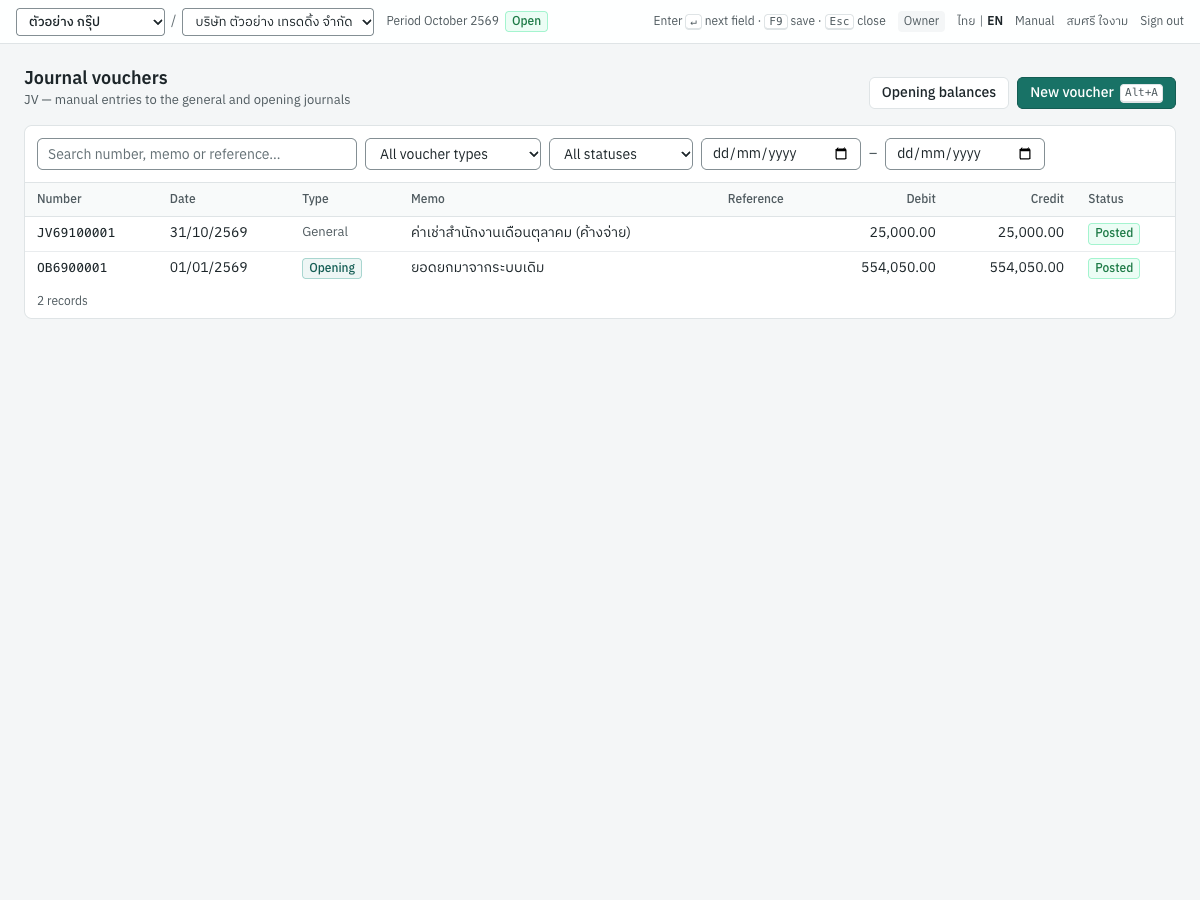
| Column | What it shows |
|---|---|
| Number | The voucher number, such as JV69100001. A draft has no number yet and shows (draft) |
| Date | The voucher date |
| Type | General, or an Opening badge. An Adjustment badge marks a closed-period adjustment |
| Memo | The memo. When the memo is empty, the voucher type is shown in grey |
| Reference | The reference you entered |
| Debit, Credit | The voucher's total debits and credits. The credit total turns red when it differs from the debit total, which only a draft can do |
| Status | Draft, Posted or Reversed |
Above the list:
- Search number, memo or reference… finds vouchers whose number, memo or reference contains what you type.
- All voucher types filters to General or Opening.
- All statuses filters to Draft, Posted or Reversed.
- The two date fields limit the list to a date range (from – to).
The list shows 50 vouchers per page, with ‹ Prev and Next › below it. Click a row to open the voucher: a draft opens in the entry form, a posted or reversed voucher opens its view.
The buttons at the top right appear only for users allowed to post journals (owner, admin and accountant):
- New voucher (
Alt+A) opens a new general voucher. When the type filter is set to Opening, it opens a new opening balance voucher instead. - Opening balances opens a new opening balance voucher. (The checklist page with the same name is in the menu: see Opening balances.)
Fields#
The entry form has a header, a grid of lines and a bar of buttons at the bottom.
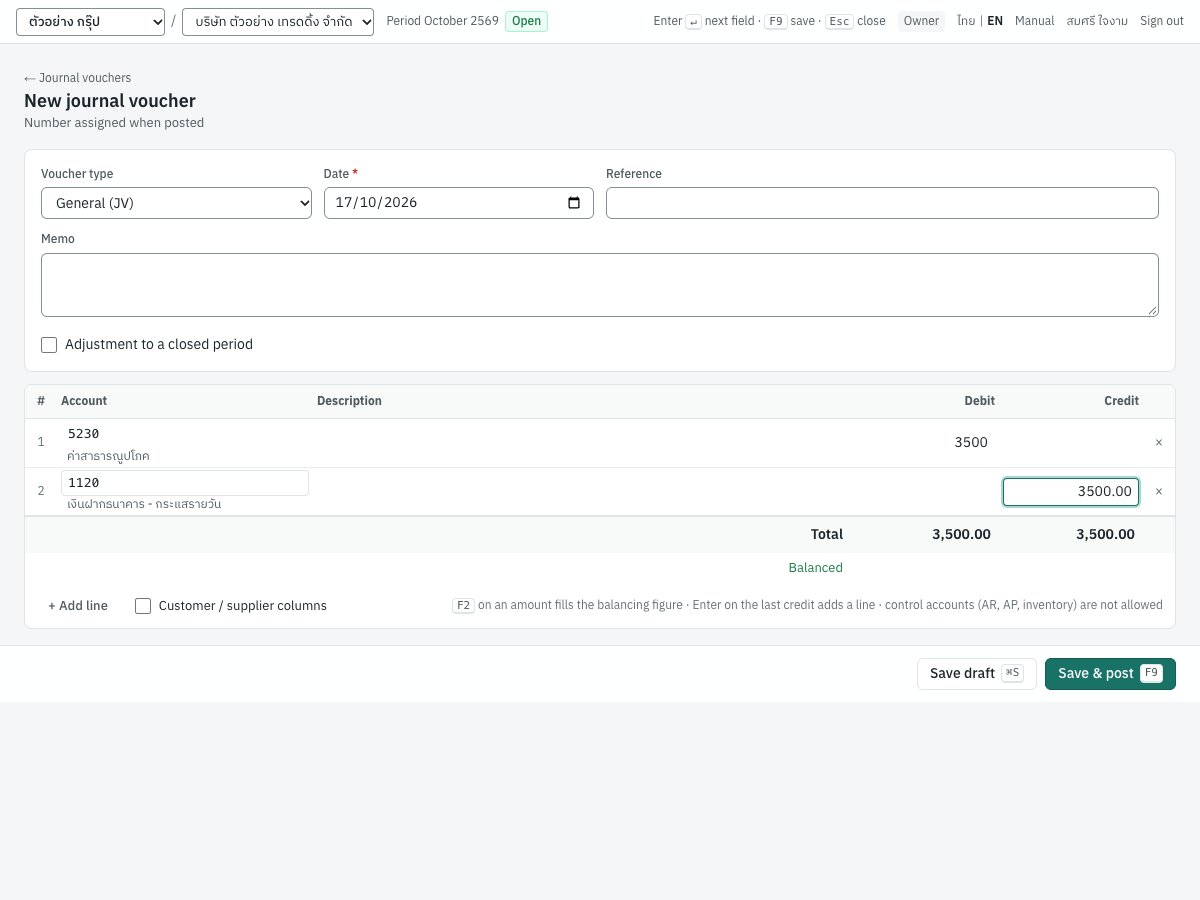
Header fields:
| Field | ภาษาไทย | What to enter |
|---|---|---|
| Voucher type | ประเภท | General (JV) or Opening balances. Default: General, or Opening when you came from an opening-balance button. Changing it changes the title, the number series and the journal book |
| Date | วันที่ | The accounting date of the entry. Default: today. When you post, it must fall in an open period of an existing fiscal year, unless the voucher is a closed-period adjustment. It also decides the month in the voucher number |
| Reference | อ้างอิง | Optional. The number of the supporting paper, such as a lease contract, a utility bill or a depreciation schedule. You can search for it in the list |
| Memo | หมายเหตุ | Optional. What the voucher is for, for example ค่าเช่าสำนักงานเดือนตุลาคม (ค้างจ่าย). It becomes the memo of the journal entry and appears in the journal entry list and the general ledger. When left empty, the entry's memo is journal voucher followed by the voucher number |
| Adjustment to a closed period | ปรับปรุงงวดที่ปิดแล้ว | Shown only to owners and admins. Tick it to post into a closed period. See Closed-period adjustments |
| Reason | เหตุผล (บันทึกไว้ในรายการบัญชีและประวัติการใช้งาน) | Appears when the box above is ticked, and is then required. The empty field reads Reason (recorded on the entry and in the audit log). It is recorded on the journal entry and in the audit log |
Line fields:
| Field | ภาษาไทย | What to enter |
|---|---|---|
| # | — | The line number, filled in by Panya |
| Account | รหัสบัญชี | The account. Type a code (52 lists every account whose code starts with 52) or part of the Thai or English name, then press Enter to take the highlighted account. Enter on an empty field opens the whole list; ↑ and ↓ move through it. Only active, postable accounts are offered: group accounts and inactive accounts are not. The account name appears under the code |
| Description | รายละเอียด | Optional text for this line. It is printed on the entry and in the general ledger. A new line starts with the description of the line above |
| Customer | ลูกค้า | Optional. Shown only when Customer / supplier columns is ticked. See Customer and supplier on a line |
| Supplier | ผู้จำหน่าย | Optional, as Customer. A line carries a customer or a supplier, not both: choosing one clears the other |
| Debit | เดบิต | The debit amount in baht. Commas are allowed (25,000). Typing a debit clears the credit on the same line. F2 fills the balancing amount |
| Credit | เครดิต | The credit amount in baht, as Debit. Enter on the credit of the last line adds a new line |
| × | — | Removes the line |
Under the lines:
- Total adds up the debits and the credits.
- Balanced appears in green when the totals agree. Otherwise Difference shows, in red, how much is missing, under the column that needs it.
- + Add line adds a line.
- Balance to 3900 Opening balance equity appears on opening balance vouchers only.
- Customer / supplier columns shows or hides the Customer and Supplier columns.
The buttons at the bottom:
| Button | Key | What it does |
|---|---|---|
| Delete draft | Shown once a draft has been saved. Asks Delete this draft voucher? and deletes it. Only drafts can be deleted | |
| Save draft | Ctrl+S (⌘S on a Mac) | Saves the voucher as a draft, without a number and without touching the books |
| Save & post | F9 | Saves and posts the voucher. Shown only to users allowed to post journals |
Entering a journal voucher#
This example accrues October's office rent of 25,000.00 baht, which the landlord bills in November. It produces voucher JV69100001 of the demonstration company.
- Open 5 Accounting → Journal vouchers and choose New voucher (
Alt+A). The cursor starts in Date. - Leave Voucher type on General (JV).
- In Date, enter the last day of the month:
31/10/2026in the date picker (31/10/2569). - In Memo, type
ค่าเช่าสำนักงานเดือนตุลาคม (ค้างจ่าย). Add the lease contract number in Reference if you file by it. - On line 1, type
5220in Account and pressEnter. ค่าเช่า appears under the code. PressEnterto move on, type a line description if you want one, then type25000in Debit. - Press
Enteruntil the cursor reaches line 2. Type2150in Account and pressEnter(ค่าใช้จ่ายค้างจ่าย). - Move to Credit on line 2 and press
F2. Panya fills in25000.00, the amount that balances the voucher. - Check that the footer shows Balanced with 25,000.00 in both columns.
- Choose Save & post (
F9). Panya numbers the voucher, posts its journal entry and shows the posted voucher, with the message JV69100001 posted.
Enter moves from field to field, as in Express. To enter more than two lines, press Enter on the credit of the last line, or choose + Add line.
Tip: If you are not ready to post, choose Save draft (Ctrl+S). A draft can be unbalanced and can be changed or deleted at any time. Posting checks everything.
Drafting a voucher with Panya AI#
ร่างจากเอกสาร (AI) · Open: ✦ Draft from document (AI) at the top right of a new journal voucher
Panya AI can propose the lines of a general voucher from a document (a bill, a bank advice, a depreciation schedule), from a sentence describing the transaction, or from both. It proposes only accounts that a general voucher may use, never a control account or an account kept by documents. The lines are a draft in the form: nothing is saved or posted until you have reviewed them and saved the voucher yourself.
The button is on a new voucher of type General (JV). It is not on an opening balance voucher or a saved draft, and it is hidden when Panya AI is not set up or you may not enter documents.
| Field | ภาษาไทย | What to enter |
|---|---|---|
| Document (PDF, JPG or PNG) | เอกสาร (PDF, JPG หรือ PNG) | Optional: the document to read, up to 10 MB and 20 pages. From 3 credits a page |
| Or describe the transaction | หรืออธิบายรายการ | Optional: for example paid October rent 15,000 baht by bank transfer. from 4 credits without a document |
- Choose New voucher in 5 Accounting → Journal vouchers, and set the Date if you know it.
- Click ✦ Draft from document (AI). The dialog Draft a journal voucher with Panya AI opens.
- Choose a document, type a description, or both.
- Click Draft the lines. Cancel closes the dialog without any request. A request that may use more than 10 credits asks you to confirm the estimate first.
- Panya fills the Date, Reference, Memo and the lines with their accounts, debits, credits and descriptions. A blue note above the form says Drafted by Panya AI: check every line before saving. (or Filled from (file name) by Panya AI: check every field before saving. when it read a document), lists anything to fix, says The file is attached when the document is saved. when there is a file, and shows what was used.
- Check every line, the date and the memo against the document. The footer must show Balanced before you can post.
- Choose Save draft or Save & post as usual. When the voucher is saved for the first time, Panya attaches the document to it.
The note can list Line 2: account … cannot be used here; choose another., No lines were read from the document., or a rule the draft does not pass yet, for example that it is not balanced. Correct the lines before you post.
Messages of the dialog:
| Message | Why | What to do |
|---|---|---|
| Attach a document or describe the transaction. | Neither a file nor a description was given | Choose a file or type a description |
| only PDF, JPG and PNG files can be read / a document for AI reading may have at most 20 pages | The file cannot be read | Use a PDF, JPG or PNG of at most 20 pages |
| Not enough AI credits: not enough AI credits: this request needs … credits and … are available; buy a credit package in Organization settings → AI credits | No free request is left and the balance is too low | Ask an owner to buy credits, or enter the voucher yourself |
| Confirm the AI estimate | The request may use more than 10 credits | Run · up to … credits, or Cancel to stop without any charge |
| the AI declined this request; nothing was charged / the AI service did not answer; nothing was charged | Panya AI gave no draft | Try again, or enter the voucher yourself |
| Panya AI is not set up | The server has no AI set up | Ask whoever runs your Panya installation |
Filling the balancing amount with F2#
Press F2 in the Debit or Credit field of any line. Panya adds up all the other lines and puts the difference on this line, on the side that balances the voucher: as a debit if the other lines have more credits, as a credit if they have more debits. Whatever the line held before is replaced. When the other lines already balance, F2 does nothing.
F2 is quickest on the last line of a voucher with several debits and one credit, for example a depreciation voucher with one line per asset group.
Customer and supplier on a line#
Tick Customer / supplier columns to tag a line with a customer or a supplier. The tag is for information: the name appears on the journal entry and in the Party column of the general ledger. It does not create, change or settle a receivable or payable, because the receivable and payable control accounts cannot be used in a journal voucher.
For example, to accrue October's professional fee for นายสมชาย ใจดี (supplier S002), debit 5270 ค่าธรรมเนียมวิชาชีพ and credit 2150 ค่าใช้จ่ายค้างจ่าย, and choose S002 in Supplier on the 2150 line. The general ledger of account 2150 then shows whose fee is accrued.
No account requires a customer or a supplier: both columns are optional.
The control accounts rule#
The receivable, payable and inventory control accounts (in the default chart 1130 ลูกหนี้การค้า, 2110 เจ้าหนี้การค้า and 1140 สินค้าคงเหลือ) cannot be used in a journal voucher. In the account list they carry the hint control · receivable — not allowed (or payable, inventory), and choosing one shows a message such as:
1130 ลูกหนี้การค้า is the receivable control account and cannot be used in a journal voucher: receivables are posted through sales documents, receipts and customer opening balances.
This keeps the customer, supplier and stock sub-ledgers (aging, statements, stock valuation) always equal to their accounts in the general ledger. Use the documents instead:
| To change | Use |
|---|---|
| What a customer owes | A credit sale, credit note, debit note or receipt (Sales, Finance), or a customer opening balance |
| What you owe a supplier | A credit purchase, purchase return, supplier debit note or payment (Purchasing, Finance), or a supplier opening balance |
| The value of stock | A stock adjustment or opening stock (Inventory) |
Accounts kept by documents#
A general journal voucher also cannot post to the default accounts whose balance other documents keep, because the integrity checks compare each of them with those documents, and later documents settle or use what the documents recorded. In the account list they carry the hint kept by documents — not allowed, and choosing one shows a message such as:
2140 เงินรับล่วงหน้าจากลูกค้า is kept by receipts and customer refunds, and a journal voucher cannot post to it: use those documents instead.
| Default account | Kept by |
|---|---|
2140 เงินรับล่วงหน้าจากลูกค้า, 1170 เงินจ่ายล่วงหน้าแก่ผู้ขาย | Receipts and customer refunds; payments and supplier refunds |
2145 เงินรับมัดจำ, 1175 เงินจ่ายมัดจำ | Deposits received and the invoices that deduct them; deposits paid and the purchases that deduct them |
1115 เช็ครับรอนำฝาก, 2115 เช็คจ่ายรอตัดบัญชี | Cheque receipts and payments and the cheque register |
2121 ภาษีขายรอเรียกเก็บ (ยังไม่ถึงกำหนด), 1151 ภาษีซื้อยังไม่ถึงกำหนด | Service invoices and purchases with VAT due on payment, and their receipts and payments |
2160 สินค้ารับแล้วรอใบแจ้งหนี้, 1135 ลูกหนี้ส่งสินค้ายังไม่ออกใบแจ้งหนี้ | Goods receipts and delivery notes, and the invoices that bill them |
1131, 2111 revaluation of foreign receivables and payables | FX revaluations |
1152 ภาษีซื้อ ภ.พ.36 รอใช้สิทธิ, 2123 ภาษีมูลค่าเพิ่ม ภ.พ.36 ค้างจ่าย | Foreign supplier payments and PP.36 filings |
The rule follows the account set in 7 Setup → Default accounts, whatever its code. An opening voucher may use these accounts, to bring in their balances on the opening date. Output VAT, input VAT and withholding tax payable stay open to journal vouchers, for example to close VAT into VAT payable at the month end or to record paying the withholding tax.
Drafts and posting#
A voucher is in one of three states:
| Status | Meaning | What you can do |
|---|---|---|
| Draft | Saved, not in the books. No number | Change anything, save again, post, or delete |
| Posted | Numbered and in the books | View, print, attach files, reverse. It can no longer be changed or deleted |
| Reversed | Posted, then cancelled by a reversing entry | View and print. The voucher and both entries stay in the books |
Saving, as a draft or before posting, checks that:
- every line with an amount has an account;
- the voucher has at least two lines;
- a closed-period adjustment has a reason.
Posting also checks that:
- the debits equal the credits;
- every line has either a debit or a credit, not both and not neither, with no negative amount and at most two decimals;
- every account is active, postable (not a group) and not a control account, and on a general voucher not an account kept by documents;
- the date falls in an open period, or the voucher is an authorised closed-period adjustment.
If any check fails, nothing is posted and Panya says why. See Voucher messages.
What posting records#
Posting creates one journal entry with exactly the lines of the voucher, dated the voucher date:
- a general voucher posts to the General book (
GJ…); - an opening balance voucher posts to the Opening book (
OJ…).
For JV69100001, the accrued rent:
| Account | Debit | Credit |
|---|---|---|
5220 ค่าเช่า | 25,000.00 | |
2150 ค่าใช้จ่ายค้างจ่าย | 25,000.00 |
That is all a journal voucher records:
- No tax records. The VAT reports (รายงานภาษีซื้อ, รายงานภาษีขาย, ภ.พ.30) and the withholding tax reports (ภ.ง.ด.3, ภ.ง.ด.53, ภ.ง.ด.54) are built only from documents. A voucher that debits
1150ภาษีซื้อ changes the account but adds nothing to the input tax report. Enter a purchase document when you have a tax invoice to claim. - No stock movements, and no change to any customer's or supplier's balance.
The voucher in the screenshot above, a utility bill of 3,500.00 paid from the current account (debit 5230 ค่าสาธารณูปโภค, credit 1120 เงินฝากธนาคาร - กระแสรายวัน), is a valid voucher. If the bill carries VAT you can claim, enter it as a cash purchase instead, so that the input VAT reaches ภ.พ.30. See Purchasing.
Lines on a cash or bank account appear in that account's bank reconciliation and in the cash movement report like any other entry.
Numbering#
A voucher gets its number when it is posted, never before: drafts are unnumbered, and a deleted draft leaves no gap.
| Series | Default format | Restarts | Example |
|---|---|---|---|
| General vouchers | JV{BB}{MM}{####} | every month | JV69100001, the first voucher of October 2569 |
| Opening balance vouchers | OB{BB}{#####} | every year | OB6900001 |
{BB} is the Buddhist year in two digits and {MM} the month. The month comes from the voucher's date, not the day you post: a voucher dated 30/09/2569 and posted in October takes the next September number.
The journal entry has its own number in its book, for example GJ691000001. The General book also receives bank transfers, FX revaluations and other entries, so the JV and GJ numbers do not run in step. Both formats can be changed in 7 Setup → Document numbering: see Setup.
Viewing a posted voucher#
Click a posted voucher in the list, or post a new one, to open its view.
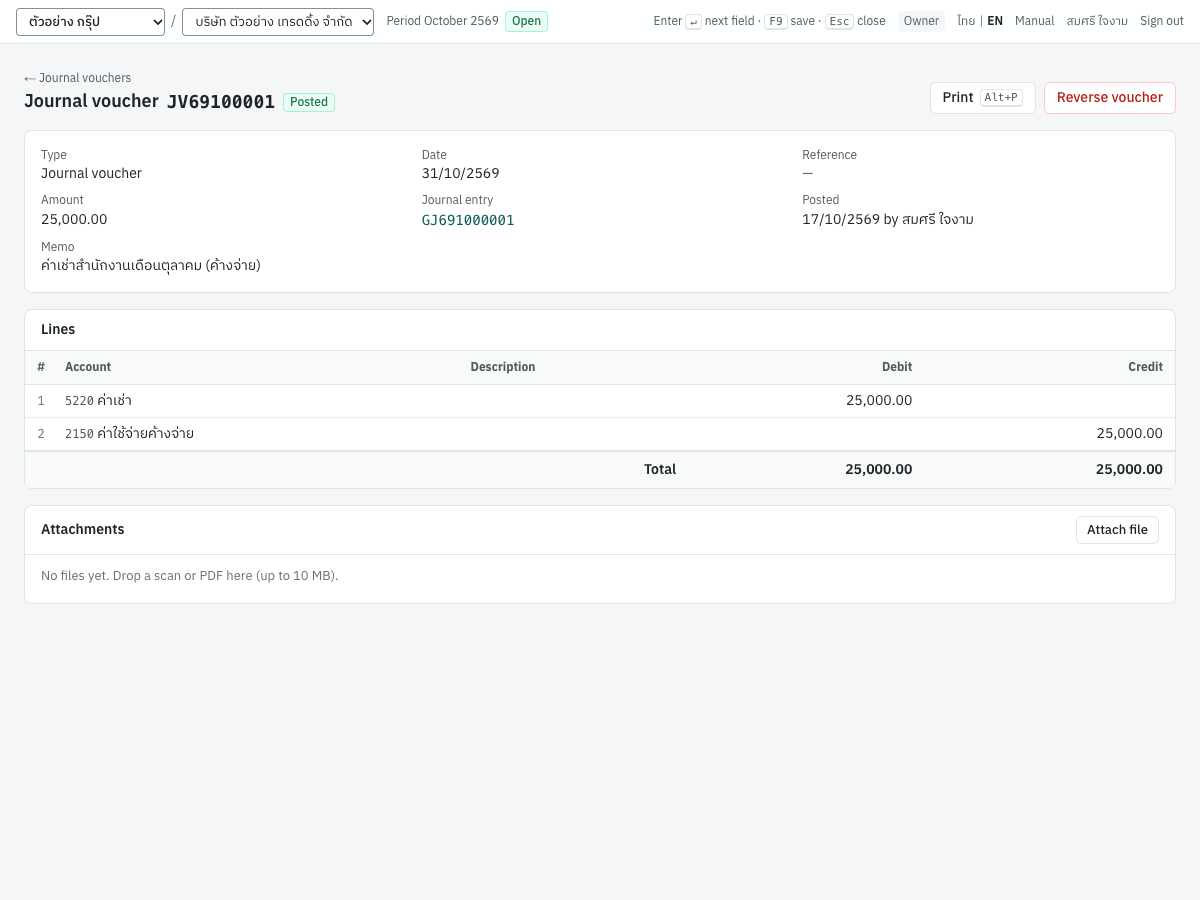
The title shows the voucher number with its status (Posted or Reversed), and an Adjustment badge for a closed-period adjustment. The panel below shows:
| Field | What it shows |
|---|---|
| Type | Journal voucher, or Opening balance voucher |
| Date | The voucher date |
| Reference | The reference, or a dash |
| Amount | The total debits |
| Journal entry | The number of the posted entry, as a link to it |
| Posted | The posting date and the user who posted it |
| Closed-period adjustment | The reason, for an adjustment only |
| Memo | The memo, if any |
Lines shows the posted lines, with a Customer / supplier column when a line carries one.
Attachments keeps the supporting papers with the voucher: choose Attach file or drop files onto the panel. PDF, images, CSV, text, Excel and Word files up to 10 MB each are accepted. Click a file name to download it; ✕ removes it. Attaching and removing need the permission to post journals. Files can be attached only after the voucher is posted.
Print (Alt+P) prints the details panel and the lines on A4. The page heading, buttons and attachments are not printed.
Reversing (cancelling) a voucher#
A posted voucher is never edited. To cancel it, reverse it: Panya posts a second entry with the debits and credits swapped, and keeps the original voucher and entry for the audit trail.
- Open the posted voucher and choose Reverse voucher. The button is shown to owners, admins and accountants.
- In Reason (recorded in the audit trail), say why, for example บันทึกผิดบัญชี. The confirm button stays disabled until you type a reason.
- In Reversal date, keep the voucher date (the default) or choose a later date. The date cannot be before the voucher date, and it must be in an open period. If the voucher's month is already closed, use a date in the current month.
- Choose Reverse voucher.
The voucher's status becomes Reversed. A warning shows the reversal and its reason, and a Reversal panel shows the reversing entry's number (a link), its date and its lines. For JV69100001 reversed on 31/10/2569:
| Account | Debit | Credit |
|---|---|---|
2150 ค่าใช้จ่ายค้างจ่าย | 25,000.00 | |
5220 ค่าเช่า | 25,000.00 |
The reversing entry is in the same book as the original, takes the next number of that book for its date, and has the memo Reversal of GJ691000001: followed by your reason.
A reversed voucher cannot be posted again or edited. To correct a voucher, reverse it and enter a new one.
Closed-period adjustments#
Once a month is closed, nothing can be posted into it. When a correction must still be dated in that month (for example an auditor's adjustment to a month already reported), an owner or admin can post a closed-period adjustment instead of reopening the month:
- Create the voucher as usual and date it in the closed month.
- Tick Adjustment to a closed period.
- Type the reason in the field beside it, for example ปรับปรุงตามผู้สอบบัญชี.
- Choose Save & post.
The voucher posts into the closed period, which stays closed for everything else. The voucher and its entry carry an Adjustment badge in every list, the reason appears as Closed-period adjustment on both, and the audit log records it as journal_voucher.post_adjustment.
Only owners and admins see the box. The date must still fall in an existing fiscal year, and that year must be open.
Important: A closed fiscal year takes no posting at all, not even a closed-period adjustment (the fiscal year containing 2026-12-31 is closed; reopen the year first): its closing entry has already moved the year's result to retained earnings. To correct a closed year, reopen the year, post the voucher (as an adjustment if its month is still closed), and close the year again. See Reopening a year.
Opening balance vouchers (OB)#
An opening balance voucher brings in the general ledger balances from your previous books: cash and bank, fixed assets and their depreciation, other assets, loans, accruals, capital and retained earnings. Open one with New opening voucher on the Opening balances page, with Opening balances on the voucher list, or by choosing Opening balances as the voucher type.
The form is the same as for a general voucher, with an information panel at the top:
- Enter each account's balance as at the day before your start date: debit for assets and expenses, credit for liabilities, equity and revenue.
- Do not enter receivables, payables or inventory here. Their control accounts are filled by customer opening balances, supplier opening balances and opening stock, which also post against
3900. - Balance the voucher through
3900ยอดยกมาเพื่อปรับปรุง (Opening balance equity).
Date the voucher on the first day of your first fiscal year in Panya. There is no period before it, so this is the earliest date Panya accepts. The amounts are the balances at the close of the previous day.
To take an opening voucher back, reverse it on that same date, the default reversal date. A later date is refused (an opening voucher is reversed on the opening date, 2026-01-01): the year's documents settle the balances it brought in.
Balance to 3900 Opening balance equity adds a line on account 3900, with the description Opening balance equity (ยอดยกมาเพื่อปรับปรุง when you work on the Thai screen) and the amount that balances the voucher, and removes empty lines. If a 3900 line already exists, it recalculates that line instead.
When all four kinds of opening balance are entered, account 3900 nets to zero. Check it on the Opening balances page.
If you start using Panya part-way through a fiscal year, you can also enter the year-to-date revenue and expense balances on the opening voucher. They then count in the year's profit and loss and in its closing entry.
The opening voucher in the demonstration company is OB6900001, dated 01/01/2569, with a total of 554,050.00. Its entry is in the Opening book (OJ…).
Tip: You can also import your old trial balance, for example Express's 5.6 งบทดลอง as an Excel or CSV file, with Import trial balance (CSV, Excel) on the Opening balances page. Panya creates a draft opening voucher (reference Imported trial balance) for you to review and post here. See Setup.
Voucher messages#
Messages shown on the form before anything is sent:
| Message | Why | What to do |
|---|---|---|
| Line 2: choose an account | A line has an amount but no account | Choose the account, or remove the line |
| A journal voucher needs at least two lines | Fewer than two lines are filled in | Add the other side of the entry |
| An adjustment to a closed period needs a reason | The adjustment box is ticked with no reason | Type the reason, or untick the box |
| Debits and credits differ by 100.00. Press F2 on an amount to balance. | Posting an unbalanced voucher | Correct the amounts, or press F2 on the line that should take the difference |
| 1130 ลูกหนี้การค้า is the receivable control account and cannot be used in a journal voucher: … | You chose a control account | Use the document that changes that balance. See The control accounts rule |
| 2140 เงินรับล่วงหน้าจากลูกค้า is kept by receipts and customer refunds, and a journal voucher cannot post to it: … | You chose an account kept by documents on a general voucher | Use those documents. See Accounts kept by documents |
Messages from posting, saving, deleting or reversing:
| Message | Why | What to do |
|---|---|---|
| journal line 3 is invalid: a line must carry a debit or a credit | Line 3 has an account but no amount | Enter the amount, or remove the line |
| journal line 1 is invalid: amounts must not be negative | A minus sign was typed | Put the amount on the other side instead |
| journal line 1 is invalid: amounts must have at most 2 decimal places | An amount has more than two decimals | Round to satang |
| journal line 2 is invalid: account 5290 is inactive | The account was deactivated after the draft was saved | Choose another account, or reactivate it in the chart of accounts |
| journal line 2 is invalid: account … is a group account and cannot be posted to | The account became a group account after the draft was saved | Choose a postable account under it |
| journal line 2 is invalid: account … is a receivable control account; use the corresponding documents instead | The account became a control account after the draft was saved | Use the document instead |
| journal line 2 is invalid: account 2140 is kept by receipts and customer refunds; use those documents instead | The draft was saved with an account kept by documents, or the account became a default account later | Use those documents instead |
| journal entry is not balanced: debits … != credits … | The voucher does not balance | Correct the amounts |
| accounting period for 2026-09-30 is closed | The date is in a closed month | Date it in an open month, ask an owner or admin for a closed-period adjustment, or reopen the month |
| no accounting period covers 2027-01-05 | No fiscal year contains the date | Check the date, or open the next fiscal year in Periods & year end |
| a posted voucher cannot be edited | Someone posted the voucher while you had it open | Reload the voucher |
| only draft vouchers can be deleted | The voucher is already posted | Reverse it instead |
| the reversal date cannot be before the voucher date | The reversal date is too early | Choose the voucher date or later |
| an opening voucher is reversed on the opening date, 2026-01-01 | An opening voucher's reversal is dated later than the opening date | Keep the voucher's own date as the reversal date |
| a reversed voucher cannot be reversed | The voucher was already reversed | Nothing to do |
| your role (staff) does not permit this action | Your role cannot enter journals | Ask an owner, admin or accountant |
Tips#
- Keep one voucher per purpose (rent accrual, depreciation, VAT) with a clear memo. The memo is what you read later in the general ledger.
- Attach the supporting paper (bill, schedule, filed return) to each posted voucher, so the auditor finds it in Panya.
- To repeat last month's accrual, open last month's voucher and enter the same lines in a new voucher. There is no copy button.
- Reverse an accrual in the following month with a new voucher when the real bill is entered, or use Reverse voucher with a reversal date in the new month.
Journal entries#
สมุดรายวัน · Menu: 5 Accounting → Journal entries
The journal entries screen lists every entry in the general ledger: the ones posted by documents and the ones from journal vouchers. It is read-only. Entries are created by posting and corrected by reversing; nobody can type into them.
The books#
Each entry belongs to one journal book, as in a Thai manual ledger. The book depends on the document, and each book has its own number series:
| Book | สมุด | Entry number | Posted by |
|---|---|---|---|
| General | สมุดรายวันทั่วไป | GJ{BB}{MM}{#####}, e.g. GJ691000001 | Journal vouchers (JV), bank transfers (BT), bank items booked in the bank reconciliation, cost recalculations caused by back-dated stock documents, FX revaluations |
| Sales | สมุดรายวันขาย | SJ691000001 | Credit sales (IV), credit notes (SR), debit notes (DN), delivery notes (DO) |
| Purchases | สมุดรายวันซื้อ | PJ691000001 | Credit purchases (RR), purchase returns (GR), supplier debit notes (DP), goods receipts (GN) |
| Receipts | สมุดรายวันรับเงิน | RJ691000001 | Receipts (RE), cash sales (HS), deposits received (AI), supplier refunds (RP), cheque deposit slips (BQ) and received cheques clearing or returned |
| Payments | สมุดรายวันจ่ายเงิน | CJ691000001 | Payments (PS), cash purchases (HP), deposits paid (AE), customer refunds (RF), PP.36 filings (PT), issued cheques clearing |
| Inventory | สมุดรายวันสินค้า | IJ691000001 | Stock adjustments (AJ) |
| Opening | ยอดยกมา | OJ{BB}{#####}, e.g. OJ6900001 | Opening balance vouchers (OB), customer and supplier opening balances (AR, AP), opening stock (OS) |
| Closing | ปิดบัญชี | CL{BB}{#####}, e.g. CL6900001 | The year-end closing entry, and its reversal when a year is reopened |
The first six series restart every month, Opening and Closing every year. A stock transfer between warehouses (TF) moves stock only and makes no journal entry. Cancelling a document posts its reversal in the same book as the original. The formats can be changed in 7 Setup → Document numbering, under Journal entries.
The entry list#
Open 5 Accounting → Journal entries. Entries are listed newest first.
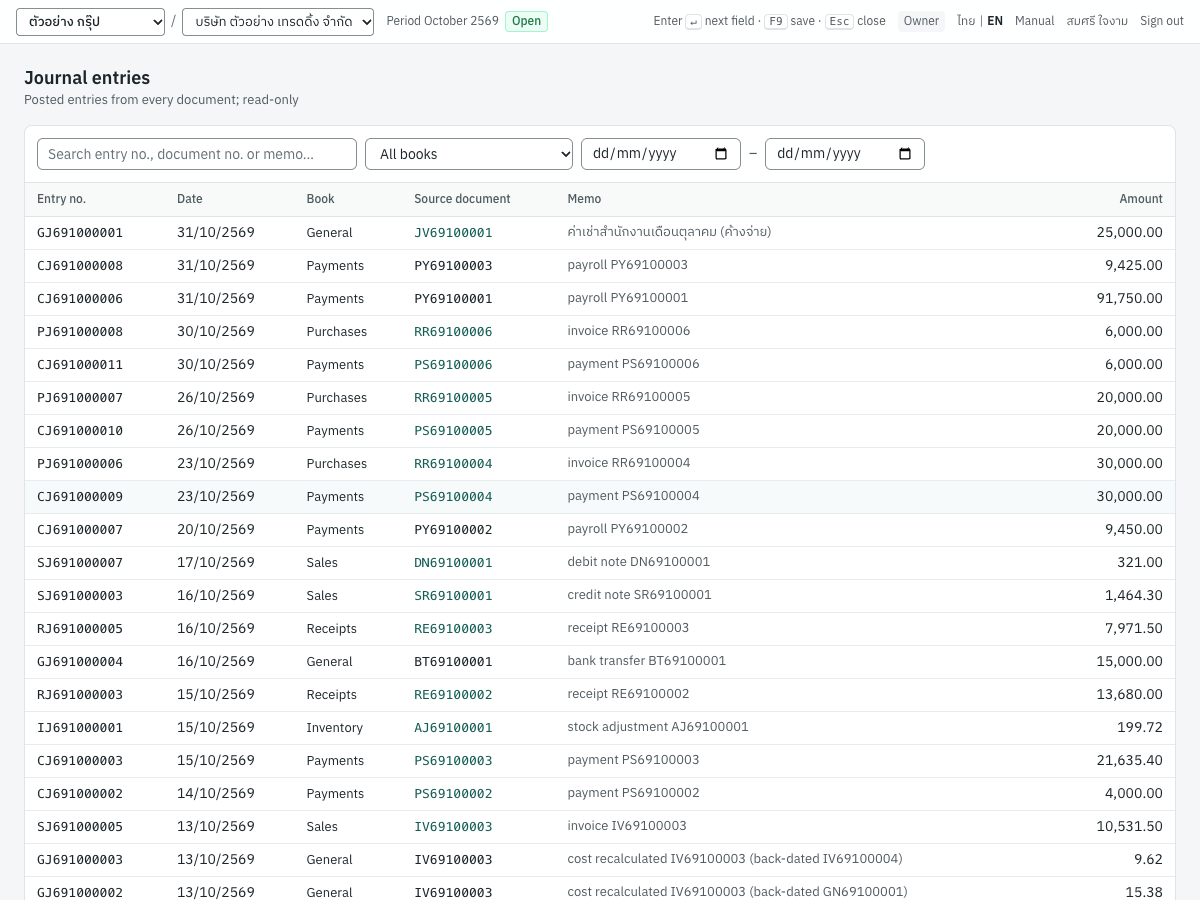
| Column | What it shows |
|---|---|
| Entry no. | The entry number, such as SJ691000005 |
| Date | The entry date: the document's date, or the cancellation date for a reversal |
| Book | General, Sales, Purchases, Receipts, Payments, Inventory, Opening or Closing |
| Source document | The number of the document that made the entry. For most documents it is a link: click it to open the document instead of the entry |
| Memo | What the entry is, for example invoice IV69100003, receipt RE69100003, or the memo of a journal voucher |
| (badges) | Reversal for a reversing entry, Reversed for an entry that has been reversed, Adjustment for a closed-period adjustment |
| Amount | The total debits, which equal the total credits |
Above the list:
- Search entry no., document no. or memo… finds entries whose entry number, source document number or memo contains what you type. Search
IV69100003to find every entry of that invoice, including cost recalculations and a reversal. - All books filters to one book, for example Payments.
- The two date fields limit the list to a date range.
The list shows 50 entries per page. Click a row to open the entry.
Opening an entry#
The entry view shows the header and the lines of one entry.
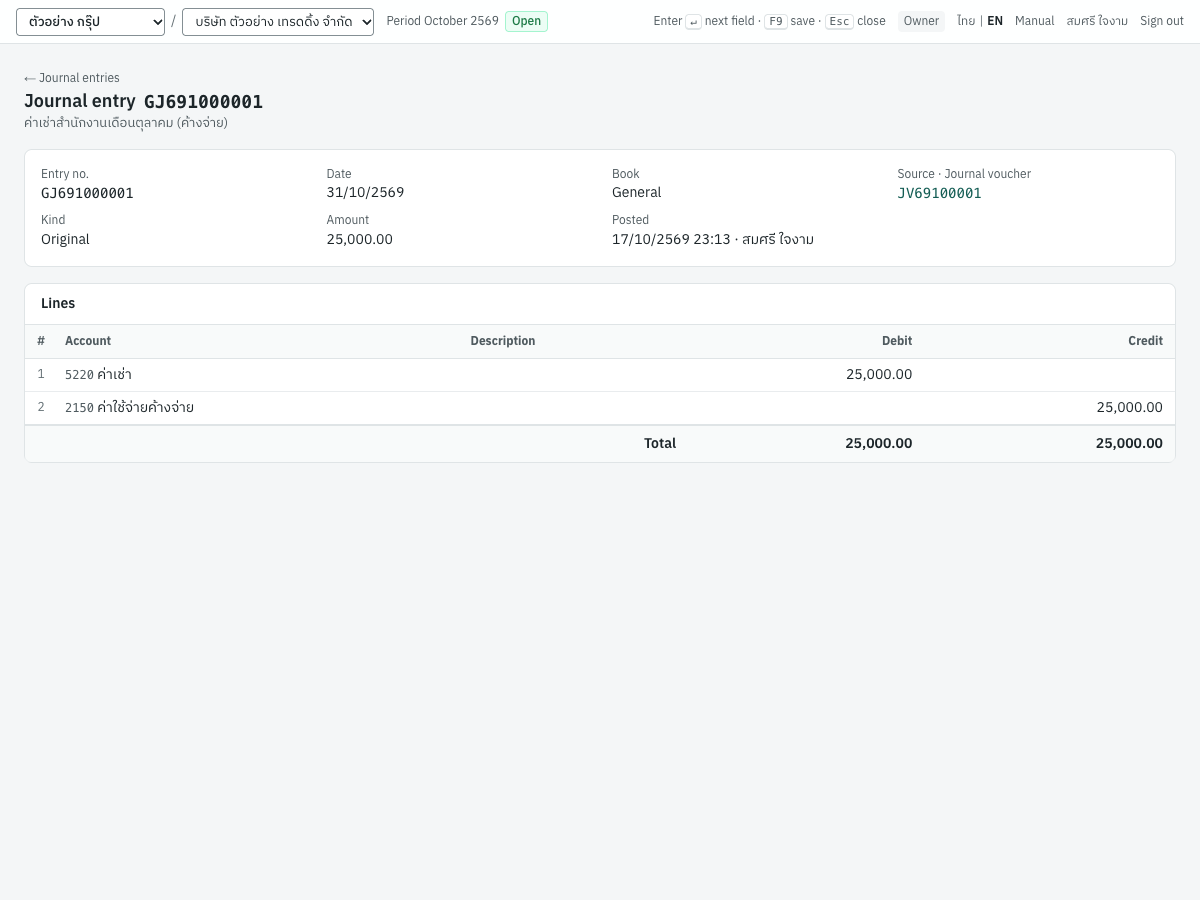
The title shows the entry number with its badges, and the memo below it. The panel shows:
| Field | What it shows |
|---|---|
| Entry no. | The entry number |
| Date | The entry date |
| Book | The book, for example General |
| Source | The kind of document (for example Journal voucher, Sales document, Receipt) and its number |
| Kind | Original, or Reversal of original entry with a link to the entry it reverses |
| Amount | The total debits |
| Posted | The date and time of posting, and the user who posted |
| Reversed by | Only on a reversed entry: a link to the reversing entry |
| Closed-period adjustment | Only on an adjustment: the reason |
Lines lists the account (code and name), the line description, the debit and the credit, with totals. Two more columns appear when they apply:
- Customer / supplier: the customer or supplier the line belongs to. Receivable and payable lines always carry one; this is what ties the general ledger to the customer and supplier sub-ledgers.
- Product: the product code on inventory and cost of sales lines.
From an entry to its source document#
Every entry knows the document that created it. Click the number under Source (or in the Source document column of the list) to open it. The other direction works too: a posted document's view shows its journal entry number as a link, and so does every entry in the general ledger report.
Links exist for sales and purchase documents, receipts, payments, journal vouchers, stock adjustments and the year-end closing (which opens Periods & year end). For other sources (bank transfers, deposits, refunds, cheques, PP.36 filings, FX revaluations and cost recalculations) the number is shown without a link, and the Source label shows the kind of document in plain words, such as Bank transfer. Open those documents from their own menus.
Reversal entries#
Panya never changes or deletes a posted entry. When a document or a voucher is cancelled, Panya posts a reversal entry:
- it has the same lines as the original with the debits and credits swapped (for stock documents, plus any cost difference the reversal causes);
- it is dated on the cancellation date you chose, which must be in an open period;
- it is in the same book and points to the same source document;
- its memo reads Reversal of followed by the original entry number and the reason.
In the list, the reversing entry carries a red Reversal badge and the original a Reversed badge. Each entry view links to the other (Reversal of original entry, Reversed by reversing entry). Together they net to zero, so the account balances are as if the document had never been posted, while both entries stay visible.
Chart of accounts#
ผังบัญชี · Menu: 5 Accounting → Chart of accounts
The chart of accounts lists every account in a tree of groups. Setting it up, adding accounts and importing a chart are explained in Setup. This section covers what matters when you write journal vouchers.
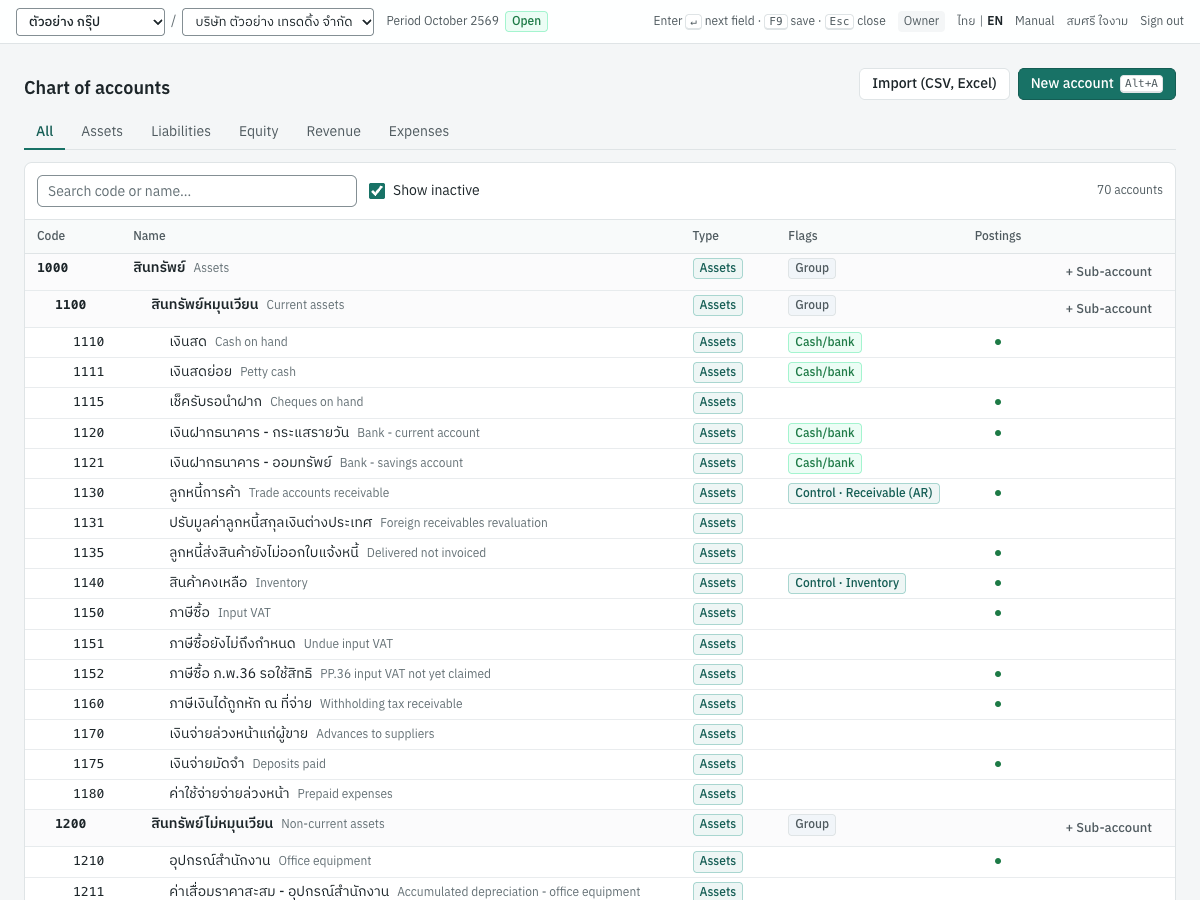
- The tabs (All, Assets, Liabilities, Equity, Revenue, Expenses) and Search code or name… narrow the list. Show inactive includes deactivated accounts.
- Flags shows Group for heading accounts, Control · Receivable (AR), Control · Payable (AP) or Control · Inventory for control accounts, Cash/bank for cash and bank accounts, and Inactive.
- A dot in Postings means the account has journal postings.
- New account (
Alt+A), + Sub-account on a group, and Import (CSV, Excel) are for users who manage settings (owner, admin, accountant). Click an account to edit it.
How the chart affects journal vouchers:
| Account | In a journal voucher |
|---|---|
| Group account (Group) | Not offered: groups are headings and take no postings |
| Inactive account | Not offered. A draft that still uses one cannot be posted |
| Control account (AR, AP, inventory) | Listed with the hint not allowed and refused. See The control accounts rule |
| Every other account, including cash and bank | Allowed |
An account with postings cannot change its type, group flag or control kind and cannot be deleted. You can still rename it, move it under another group of the same type, or deactivate it.
Opening balances#
ยอดยกมา · Menu: 5 Accounting → Opening balances
This page is the checklist for moving your books into Panya. The full procedure, with the imports of Excel and CSV files from Express or another program, is in Setup.
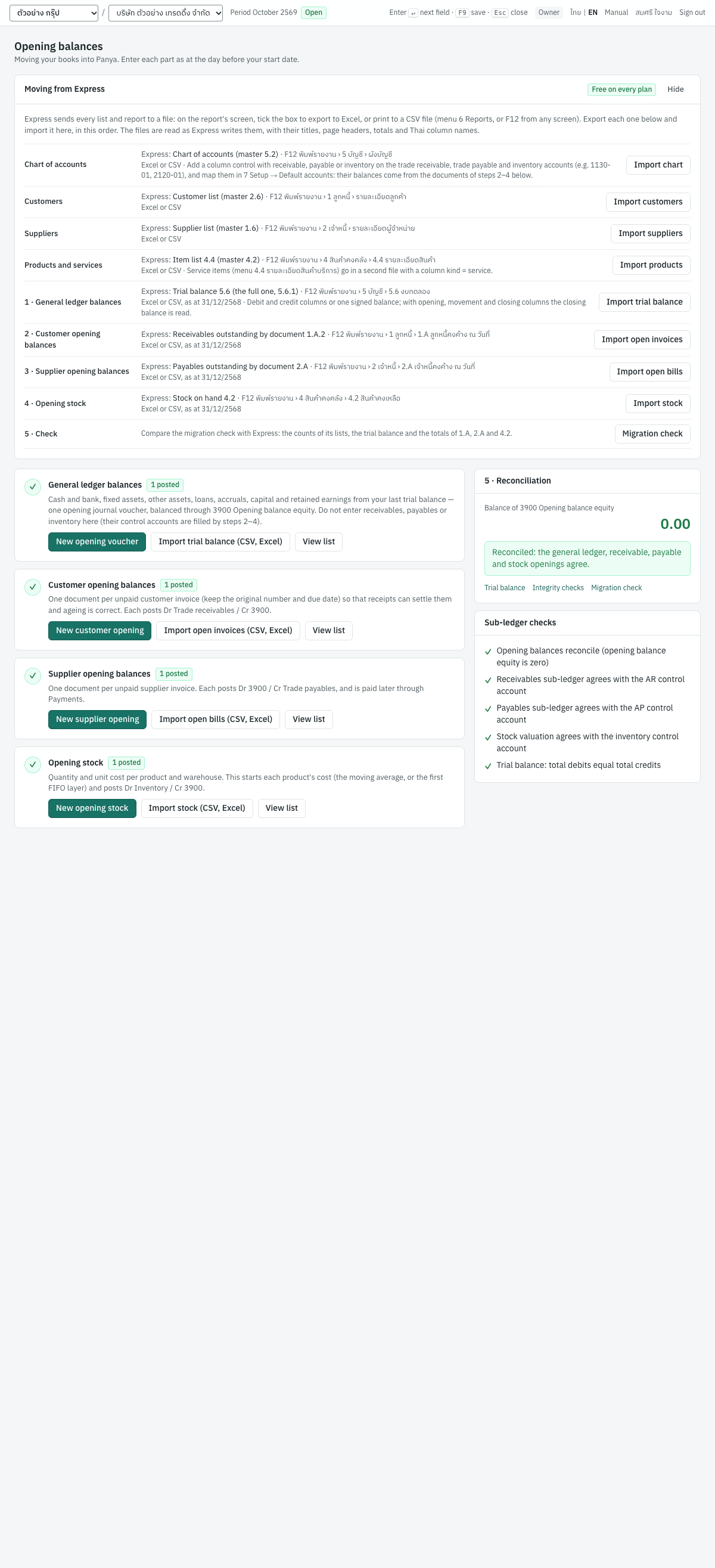
It has four steps, each with its own documents, and a reconciliation panel:
| Step | What you enter | Posts |
|---|---|---|
| 1 General ledger balances | One opening balance voucher with every balance except receivables, payables and inventory. New opening voucher, Import trial balance (CSV, Excel) | The voucher's lines, balanced through 3900 |
| 2 Customer opening balances | One document per unpaid customer invoice, with its original number and due date. New customer opening, Import open invoices (CSV, Excel) | Dr 1130 Trade receivables / Cr 3900 |
| 3 Supplier opening balances | One document per unpaid supplier invoice. New supplier opening, Import open bills (CSV, Excel) | Dr 3900 / Cr 2110 Trade payables |
| 4 Opening stock | Quantity and unit cost per product and warehouse. New opening stock, Import stock (CSV, Excel) | Dr 1140 Inventory / Cr 3900 |
Each step shows how many documents are posted and how many are still drafts; a tick replaces the step number once at least one is posted. View list opens the documents of the step.
Above the steps, the Moving from Express card names the Express list or report to export for each step and opens its import, and Migration check opens a printable check of the result. See Setup.
5 · Reconciliation shows the balance of 3900 ยอดยกมาเพื่อปรับปรุง (Opening balance equity). It is zero, in green, with Reconciled: the general ledger, receivable, payable and stock openings agree., when the four steps add up. A debit balance usually means customer or stock openings are missing; a credit balance usually means supplier openings, loans or capital are missing. Sub-ledger checks lists the related integrity checks: opening balance equity is zero, receivables, payables and stock agree with their control accounts, and the trial balance balances.
All opening entries are in the Opening book (OJ…).
Periods and year end#
งวดบัญชี/ปิดบัญชี · Menu: 5 Accounting → Periods & year end
Fiscal years and periods#
A fiscal year has twelve monthly accounting periods. Panya creates the first fiscal year when you create the company, from the fiscal year start date you entered. Each period is named by its year and month, for example 2026-10, and is either Open or Closed:
- every journal entry falls into the period that contains its date;
- an open period accepts postings;
- a closed period accepts nothing, except closed-period adjustments by an owner or admin;
- a date outside every fiscal year is refused.
A calendar fiscal year is named like FY2026 (01/01/2569 – 31/12/2569). One that starts in another month is named like FY2026/2027.
The bar at the top of every screen shows the period that contains today, for example Period 2026-10 Open, or No open period for today when no fiscal year covers today.
The periods screen#
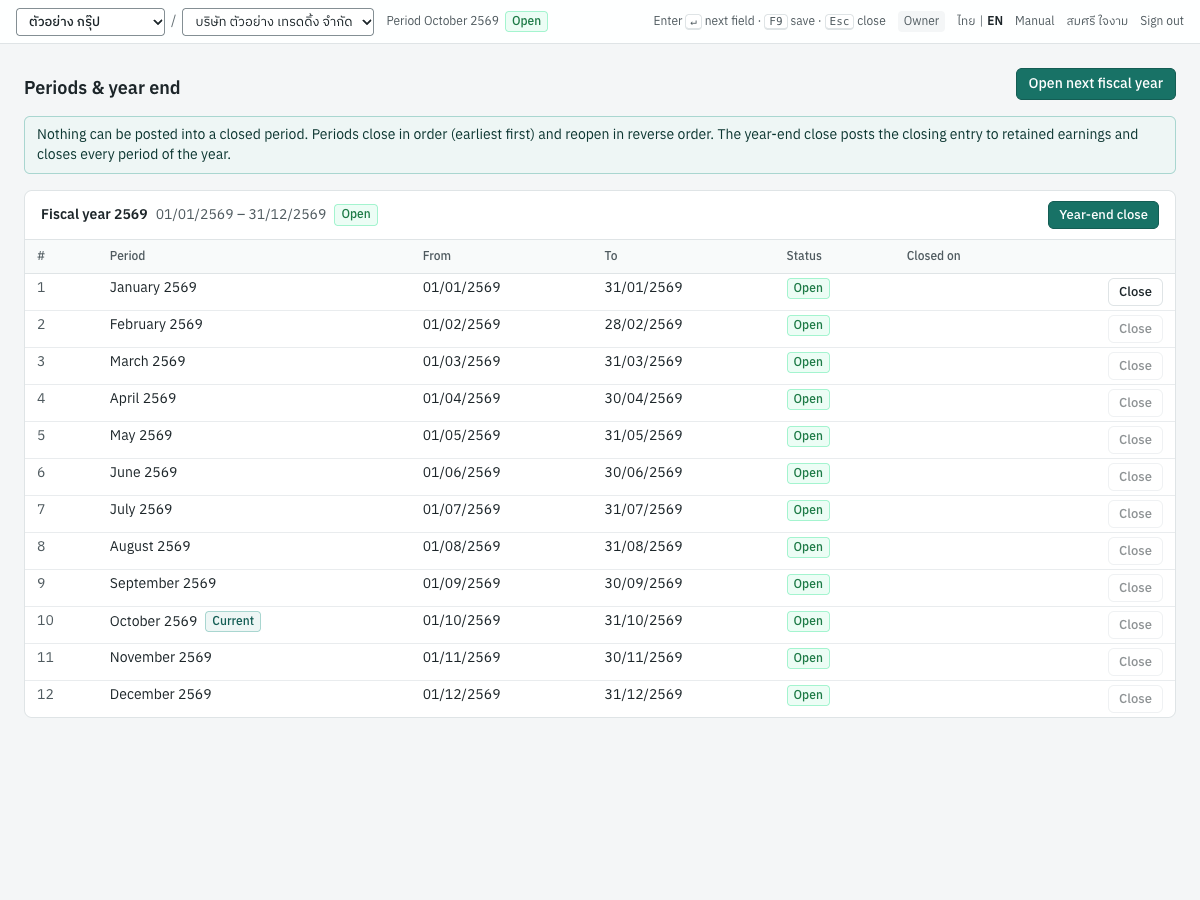
The screen shows each fiscal year as a panel, the latest on top. The panel's title shows the year's name, its dates and its status, with Year-end close (an open year) or Reopen year (a closed year). Its table lists the periods:
| Column | What it shows |
|---|---|
| # | The period number in the year, 1 to 12 |
| Period | The period name, the month and year (for example October 2569), and a Current badge on the period containing today |
| From, To | The first and last day of the period |
| Status | Open or Closed |
| Closed on | The date the period was closed |
| (button) | Close on an open period, Reopen on a closed one |
Only one Close button is active at a time: the earliest open period's, because periods close in order. Likewise only the latest closed period's Reopen is active, because periods reopen in reverse order. Hovering over a greyed button tells you why it is unavailable.
Open next fiscal year is at the top right.
Closing a period#
Close a month once everything in it is posted, checked and filed. See the checklist in Month-end and tax filing.
- Open 5 Accounting → Periods & year end.
- Choose Close on the period, for example
2026-10. It must be the earliest open period. - Read the confirmation: After closing, no document or journal can be posted dated 01/10/2569 – 31/10/2569. Drafts dated in this period stay as drafts. A user with the reopen permission can reopen the period with a reason.
- Choose Close period.
Panya confirms Period 2026-10 closed. If drafts dated in the month still exist, a second message says how many: 3 draft document(s) dated in 2026-10 can no longer be posted there. Change their date to an open month to post them, or delete them.
What closing blocks, for any date in the period:
- posting any document: sales, purchases, receipts, payments, stock, bank and journal vouchers;
- cancelling a document with a cancellation date in the period (choose a date in an open month instead);
- an FX revaluation dated in the period, or whose next-day reversal falls in it;
- the year-end close, if it is the last period of the year.
What it does not block: viewing, printing and sending documents, running reports for the period, saving drafts, and posting documents dated in an open month that settle documents from the closed month (a receipt in November can settle an October invoice).
Closing periods needs the close periods permission: owners, admins and accountants.
Reopening a period#
Reopening lets postings into the period again. Prefer a correction dated in the current month, or a closed-period adjustment, when the month has already been filed.
- Choose Reopen on the latest closed period. Later periods must be reopened first.
- Type the reason in Reason (recorded in the audit trail).
- Choose Reopen period.
Only owners and admins can reopen. The periods of a closed fiscal year cannot be reopened until the year itself is reopened. The reopening is recorded in the audit log with its reason.
Year-end closing#
The year-end close (ปิดบัญชีสิ้นปี) posts the closing entry and closes the whole year. Before running it, finish the year's work: the last month's checklist, depreciation and accruals, stock count, the year-end FX revaluation. See Closing the year in Month-end and tax filing.
- Open 5 Accounting → Periods & year end.
- Make sure the last period of the year (for FY2026,
2026-12) is still open. You may close periods 1 to 11 one by one beforehand, but the closing entry is posted into the last period. - Choose Year-end close on the year's panel.
- Read the confirmation: the close will post a closing entry dated on the last day of the year (31/12/2569) that moves every revenue and expense balance of the year to retained earnings, and close all periods of the year and the year itself.
- Choose Post closing entry & close year.
Panya confirms, for example, Fiscal year FY2026 closed · net profit followed by the amount (or net loss). The year and all its periods are now Closed.
The button is unavailable when an earlier fiscal year is still open (Close earlier fiscal years first) or when the last period is closed (The last period of the year must be open to post the closing entry).
What the closing entry records#
The closing entry is posted in the Closing book (CL6900001), dated the last day of the year, with the memo year-end closing FY2026. It brings every revenue and expense account with a balance for the year to zero, and puts the difference on retained earnings (3200 by default, set as Retained earnings in 7 Setup → Default accounts):
| Account | Debit | Credit |
|---|---|---|
Each revenue account with a credit balance, e.g. 4100 รายได้จากการขายสินค้า, 4200 รายได้จากการให้บริการ, 4910 กำไร (ขาดทุน) จากอัตราแลกเปลี่ยน | the year's balance | |
Each expense account, e.g. 5110 ต้นทุนขายสินค้า, 5210 เงินเดือนและค่าจ้าง, 5220 ค่าเช่า | the year's balance | |
3200 กำไร (ขาดทุน) สะสม, line net profit / loss for the year | net loss, if any | net profit, if any |
An account whose balance is on the other side (such as 4110 รับคืนสินค้าและส่วนลด) is closed on the opposite side. If no revenue or expense account has a balance, the year closes without a closing entry.
The closing entry does not count as income or expense: the profit and loss report leaves it out, so a closed year still reports its result. Until a year is closed, the balance sheet shows its profit as Current profit not yet closed. See Reports.
In the journal entry list, the closing entry's source is the fiscal year's name (FY2026), linked to this screen.
Reopening a year#
Reopen a closed year to correct it after the close.
- Choose Reopen year on the year's panel. Only the latest closed year can be reopened, and only when no period of a later year is closed (Reopen later years and periods first).
- Type the reason and choose Reopen year.
Panya:
- reopens the last period of the year;
- marks the year Open;
- reverses the closing entry, with a reversal entry in the Closing book dated the last day of the year.
The other periods stay closed. To post into an earlier month of the year, reopen those periods too, latest first. When the corrections are done, run Year-end close again: Panya posts a new closing entry with the corrected figures.
Only owners and admins can reopen a year.
Opening the next fiscal year#
Panya does not open a new fiscal year by itself. Open it before you post the first document of the new year, and before the year-end FX revaluation, whose reversal falls on the first day of the new year.
- Choose Open next fiscal year.
- Start date is filled in with the day after the latest year ends (01/01/2570 after FY2026) and cannot be changed: The next year must start the day after the latest year ends.
- Choose Open year.
Panya creates the year (FY2027) with twelve open monthly periods and confirms Fiscal year opened. You can open the next year at any time, even before closing the current one; both years are then open.
Opening a year needs the close periods permission (owners, admins, accountants).
Period and year-end messages#
| Message | Why | What to do |
|---|---|---|
| earlier periods must be closed first | Periods close in order | Close the earlier periods first |
| later periods must be reopened first | Periods reopen in reverse order | Reopen the later periods first |
| the fiscal year is closed; reopen the year first | The period belongs to a closed year | Reopen the year |
| the fiscal year containing 2026-12-31 is closed; reopen the year first | A closed-period adjustment is dated in a closed year | Reopen the year, post the adjustment, then close the year again |
| earlier fiscal years must be closed first | An earlier year is still open | Close the earlier year first |
| the last period of the year must be open to post the closing entry | The last month is closed | Reopen the last period, then run the year-end close |
| fiscal year is already closed | Someone closed it meanwhile | Reload the page |
| later fiscal years must be reopened first / periods of later fiscal years must be reopened first | A later year, or a period in it, is closed | Reopen those first |
| the next fiscal year must start on 2027-01-01 | A year must follow the previous one without a gap | Keep the proposed start date |
| fiscal year must start on the first day of a month | The first year's start date is not the 1st | Choose the first day of a month |
| reason is required | Reopening without a reason | Type the reason |
| account mapping 'retained_earnings' is not configured for this company | No retained earnings account is set | Set it in 7 Setup → Default accounts |
| your role (…) does not permit this action | Your role cannot close or reopen | Ask an owner or admin |
FX revaluation#
ปรับมูลค่าอัตราแลกเปลี่ยน · Menu: 5 Accounting → FX revaluation
What it does#
At the end of an accounting period, Revenue Code section 65 bis (7) requires foreign currency receivables and payables to be valued at the Bank of Thailand rate on the last day of the period. The FX revaluation does this for every posted foreign currency credit sale, debit note, credit purchase and supplier debit note still open on the date:
- the amount still open in the foreign currency (after receipts, payments and credit notes dated on or before the date) is converted at that day's rate: the buying rate for receivables, the selling rate for payables;
- the difference from its booked baht value is posted to the revaluation accounts and to exchange gain or loss, dated the period end;
- the entry is reversed on the next day.
The receivable and payable control accounts (1130, 2110) keep the booked values, so they still agree with the documents and the aging reports. The adjustment sits beside them, in 1131 ปรับมูลค่าลูกหนี้สกุลเงินต่างประเทศ and 2111 ปรับมูลค่าเจ้าหนี้สกุลเงินต่างประเทศ, so the balance sheet shows the restated value.
Because the entry is reversed the next day, when the customer pays (or you pay the supplier) the receipt or payment realises the whole exchange difference against the original booking rate, and nothing is counted twice. Foreign currency documents and their settlement are explained in Sales, Purchasing and Finance.
Before you start#
- Enter the Bank of Thailand buying and selling rates for the period-end date in 7 Setup → Exchange rates, for every currency you have open. Panya uses the latest rate on or before the date. See Setup.
- The period containing the date and the period containing the next day must both be open. At the end of the fiscal year, open the next fiscal year first: the reversal is dated on its first day.
- Post every receipt and payment dated on or before the period end, so the open amounts are right.
The revaluation screen#
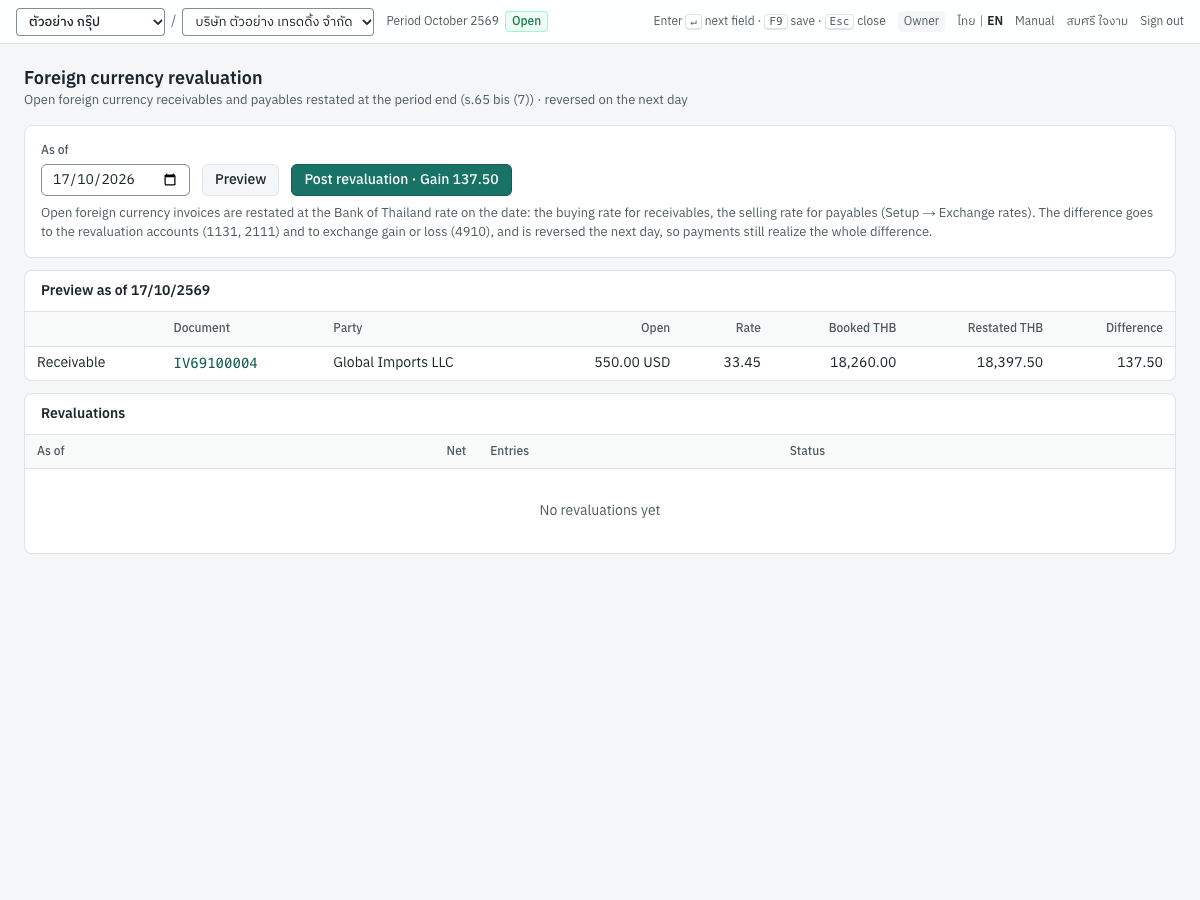
| Field or button | ภาษาไทย | What it does |
|---|---|---|
| As of | ณ วันที่ | The revaluation date. Default: the last day of the previous month. Changing it clears the preview |
| Preview | ดูตัวอย่าง | Calculates the revaluation without posting anything. Anyone who can view the books can preview |
| Post revaluation · Gain … / Loss … | ผ่านรายการปรับมูลค่า · กำไร … / ขาดทุน … | Appears after a preview with at least one document, for users allowed to post journals (owner, admin, accountant). Shows the net result that will be posted |
The Preview as of table lists each open document:
| Column | What it shows |
|---|---|
| (side) | Receivable (a customer's document) or Payable (a supplier's) |
| Document | The document number, as a link to the document |
| Party | The customer or supplier |
| Open | The amount still open, in its currency, e.g. 550.00 USD |
| Rate | The rate used: buying for receivables, selling for payables |
| Booked THB | The open amount at its booked baht value |
| Restated THB | Booked THB plus the difference |
| Difference | Open amount × (rate − the document's own rate), rounded to satang |
The open amounts are those of the As of date: receipts, payments and credit notes dated later do not count, and a document or settlement cancelled after the date still counts as it stood that day. When nothing is open in a foreign currency on the date, or every open balance is already at that date's rate, the preview says Nothing to revalue on this date: no foreign currency balance is open, or every open balance is already at this date's rate. There is nothing to post, and nothing is wrong.
The Revaluations table below lists past revaluations: As of, Net (Gain or Loss and the amount), Entries (links to the revaluation entry and its reversal), Status (Posted or Cancelled), and a Cancel button on posted ones.
Revaluing at month end#
- Open 5 Accounting → FX revaluation.
- In As of, enter the last day of the period, for example
31/10/2026(31/10/2569). - Choose Preview and check each line: the open amounts, and that the rate is the Bank of Thailand rate for the date.
- Choose Post revaluation. Panya confirms Revalued as of 31/10/2569, and the revaluation appears in the list below.
In the screenshot, credit sale IV69100004 to Global Imports LLC (C003) has 550.00 USD open, booked at 18,260.00 baht (33.20 per dollar). At the buying rate of 33.45 it is worth 18,397.50, a difference of 137.50. The preview is as of 17/10/2569; at month end you choose 31/10/2569, and if no newer USD rate has been entered by then, Panya uses the same 33.45.
What the revaluation records#
Posting makes two journal entries in the General book (GJ…). Their source is shown as FXR- followed by the date, for example FXR-2026-10-31.
The revaluation, dated 31/10/2569, memo foreign currency revaluation 2026-10-31:
| Account | Debit | Credit |
|---|---|---|
1131 ปรับมูลค่าลูกหนี้สกุลเงินต่างประเทศ (Global Imports LLC) | 137.50 | |
4910 กำไร (ขาดทุน) จากอัตราแลกเปลี่ยน | 137.50 |
The reversal, dated 01/11/2569, memo Reversal of the first entry's number, : revaluation reversed the next day:
| Account | Debit | Credit |
|---|---|---|
4910 กำไร (ขาดทุน) จากอัตราแลกเปลี่ยน | 137.50 | |
1131 ปรับมูลค่าลูกหนี้สกุลเงินต่างประเทศ (Global Imports LLC) | 137.50 |
The sides depend on whether the baht value of each open document went up or down:
| Open document | Baht value at the period-end rate | Revaluation entry |
|---|---|---|
| Receivable (customer) | Higher than booked | Dr 1131 / Cr 4910: exchange gain |
| Receivable (customer) | Lower than booked | Dr 4910 / Cr 1131: exchange loss |
| Payable (supplier) | Higher than booked | Dr 4910 / Cr 2111: exchange loss |
| Payable (supplier) | Lower than booked | Dr 2111 / Cr 4910: exchange gain |
For example, if a USD credit purchase from Cloudsoft Inc. (S003) is open and the dollar's selling rate has risen since it was booked, you owe more baht: Panya debits 4910 and credits 2111 with the supplier on the line.
The 1131 and 2111 lines carry the customer or supplier. A revaluation creates no tax records and does not change any document's open amount, the aging reports or the control accounts. If the chart has no 1131, 2111 or 4910 account, Panya adds it when you post the first revaluation.
Cancelling a revaluation#
Cancel a revaluation to redo it, for example after correcting a wrong rate:
- In the Revaluations table, choose Cancel on the revaluation.
- Confirm Cancel the revaluation as of 31/10/2569? Both its entries are offset.
Panya posts two more General-book entries, each the mirror image of one of the originals and on its date (31/10/2569 and 01/11/2569), with the memo cancelled revaluation FXR-2026-10-31. Both dates must still be in open periods. The status becomes Cancelled, and you can revalue the date again.
Only one posted revaluation is allowed per date.
Revaluation messages#
| Message | Why | What to do |
|---|---|---|
| no rate on or before 2026-10-31 for USD | No exchange rate is entered for a currency with open documents | Enter the rate in 7 Setup → Exchange rates |
| Nothing to revalue on this date (in the preview) | Nothing is open, or every difference is zero: the rate has not changed since the documents were booked | Nothing to post |
| 2026-10-31 is already revalued: cancel that revaluation first | A posted revaluation exists for the date | Cancel it first if you need to redo it |
| accounting period for 2026-11-01 is closed | The date, or the next day, is in a closed period | Reopen the period, or choose another date |
| no accounting period covers 2027-01-01 | The next day is in a fiscal year not yet opened | Open the next fiscal year in Periods & year end |
| the revaluation is already cancelled | Someone cancelled it meanwhile | Reload the page |
Double-entry safeguards#
Panya enforces the rules of double-entry bookkeeping itself, so the books cannot drift out of balance or be changed after the fact.
Every entry balances#
Every journal entry, whether from a document, a voucher, a reversal or the year-end close, has at least two lines, and its debits equal its credits to the satang. Each line is either a debit or a credit, never both, never negative, and in baht with at most two decimals. Panya checks this when it builds the entry, and its database checks it again before the entry is saved. An entry that does not balance is never saved. That is why the trial balance always balances.
Posted entries are never edited#
Once posted, a journal entry, its lines, its stock movements and its tax records are permanent. Nobody can edit or delete them: not an accountant, not an administrator, not Panya's support. Only drafts can be changed or deleted.
A mistake is corrected by a new entry, never by changing the old one:
- cancelling a document or reversing a voucher posts a reversal entry on the date you choose, and reverses the stock movements and tax records too;
- a credit note or debit note corrects an invoice that the customer already has;
- a new journal voucher corrects an account balance.
Each document has at most one original entry and one reversal, so it can never be posted twice.
Control accounts are posted only by documents#
Receivable, payable and inventory control accounts are posted only by documents, never by journal vouchers. Each customer's and supplier's balance, and each product's stock value, therefore always adds up to its control account. See The control accounts rule above.
Closed periods#
Every entry is posted into the period that contains its date, and a closed period accepts no entries. Once a month is closed and its returns are filed, its figures stay as filed. The only ways back in are recorded with a reason: a closed-period adjustment by an owner or admin, or reopening the period. See Periods and year end.
The audit trail#
Every action is recorded with the user and the time: creating, posting, reversing and deleting vouchers (journal_voucher.create, journal_voucher.post, journal_voucher.post_adjustment, journal_voucher.reverse, journal_voucher.delete), closing and reopening periods (period.close, period.reopen), opening, closing and reopening fiscal years (fiscal_year.create, fiscal_year.close, fiscal_year.reopen), and posting and cancelling FX revaluations (fx_revaluation.post, fx_revaluation.cancel). Reasons for reversals, reopenings and adjustments are kept with them. Each journal entry also shows who posted it and when.
The log cannot be edited. Read it in 7 Setup → Audit log (see Setup) or, across all companies, in the organization's audit log (see Organization administration).
Integrity checks#
6 Reports → Integrity checks runs the cross-checks behind these rules, including: every journal entry balances; the trial balance's debits equal its credits; receivables, payables and stock agree with their control accounts; opening balance equity is zero; and every posted document has its journal entry. Run it before closing a month. See Reports.
Who can do what#
| Action | Owner | Admin | Accountant | Staff | Read-only |
|---|---|---|---|---|---|
| View vouchers, journal entries, periods; preview a revaluation | Yes | Yes | Yes | Yes | Yes |
| Enter, post and delete journal vouchers (general and opening) | Yes | Yes | Yes | No | No |
| Reverse a posted voucher | Yes | Yes | Yes | No | No |
| Post a closed-period adjustment | Yes | Yes | No | No | No |
| Close periods, run the year-end close, open the next fiscal year | Yes | Yes | Yes | No | No |
| Reopen periods and fiscal years | Yes | Yes | No | No | No |
| Post and cancel FX revaluations | Yes | Yes | Yes | No | No |
| Add and edit accounts in the chart of accounts | Yes | Yes | Yes | No | No |
Roles are given to members in the organization's settings. See Organization administration.