Organization administration · ผู้ดูแลองค์กร
This chapter covers everything above the books of a single company: the organization (องค์กร) that holds your subscription, the companies (กิจการ) in it, the people who may use them and what each person may do, the plan and its file storage and how a storage plan is paid, the full data export, Panya support access, the audit logs, and your own user account.
None of the screens in this chapter post anything to the general ledger. They control who can work in which books and on what terms.
Organizations and companies#
Panya separates two levels:
- An organization (องค์กร) is your Panya subscription. It holds your companies, your users and your billing. It has one plan, one file storage for all its companies and one owner or more. A business group usually has one organization; an accounting firm usually keeps one organization with one company per client.
- A company (กิจการ) is one legal entity with its own tax ID and its own, entirely separate books: chart of accounts, accounting periods, document numbering, customers, suppliers, products, documents, ledger and tax reports. Nothing is shared between two companies, even in the same organization.
Your login belongs to you, not to an organization. With one email address and password you can be a member of several organizations, for example your own business and an accounting firm that keeps your books. Membership in one organization never gives access to another.
| Kept at organization level | Kept separately in each company |
|---|---|
| Organization name | Company name, tax ID, branch, address |
| Members and their organization roles | Which members may open it, and their role in it |
| Plan, subscription status, billing | Chart of accounts, periods, numbering, VAT and WHT settings |
| File storage used against the plan | Customers, suppliers, products, warehouses, cash and bank accounts |
| Full data export, support access | Documents, journal entries, stock, tax records, attachments |
| Organization audit log (all companies) | Company audit log |
Switching organization and company#
The bar at the top of every page shows where you are, with two drop-down lists separated by /: the organization on the left and the company on the right.
- Organization list: choose another organization you belong to, All organizations… to open the Organizations & companies page, or New organization… to create one.
- Company list: choose another company in the same organization, Organization settings… to open the organization home, or New company… (owners and admins only) to open the new-company form. On organization pages the list reads Choose a company… until you pick one.
Switching reloads the whole page, so nothing from the previous company stays on screen. Panya remembers the last company you opened in each organization. When you sign in, it opens that company again; if you have only one company it opens that one; if you are an owner or admin of an organization with no company yet, it opens the new-company form.
The square ป logo at the far left takes you to the Organizations & companies page.
The Organizations and companies page#
องค์กรและกิจการ · Open: ป logo, or organization list → All organizations…
This page lists every organization you belong to, with the companies you can open in each.
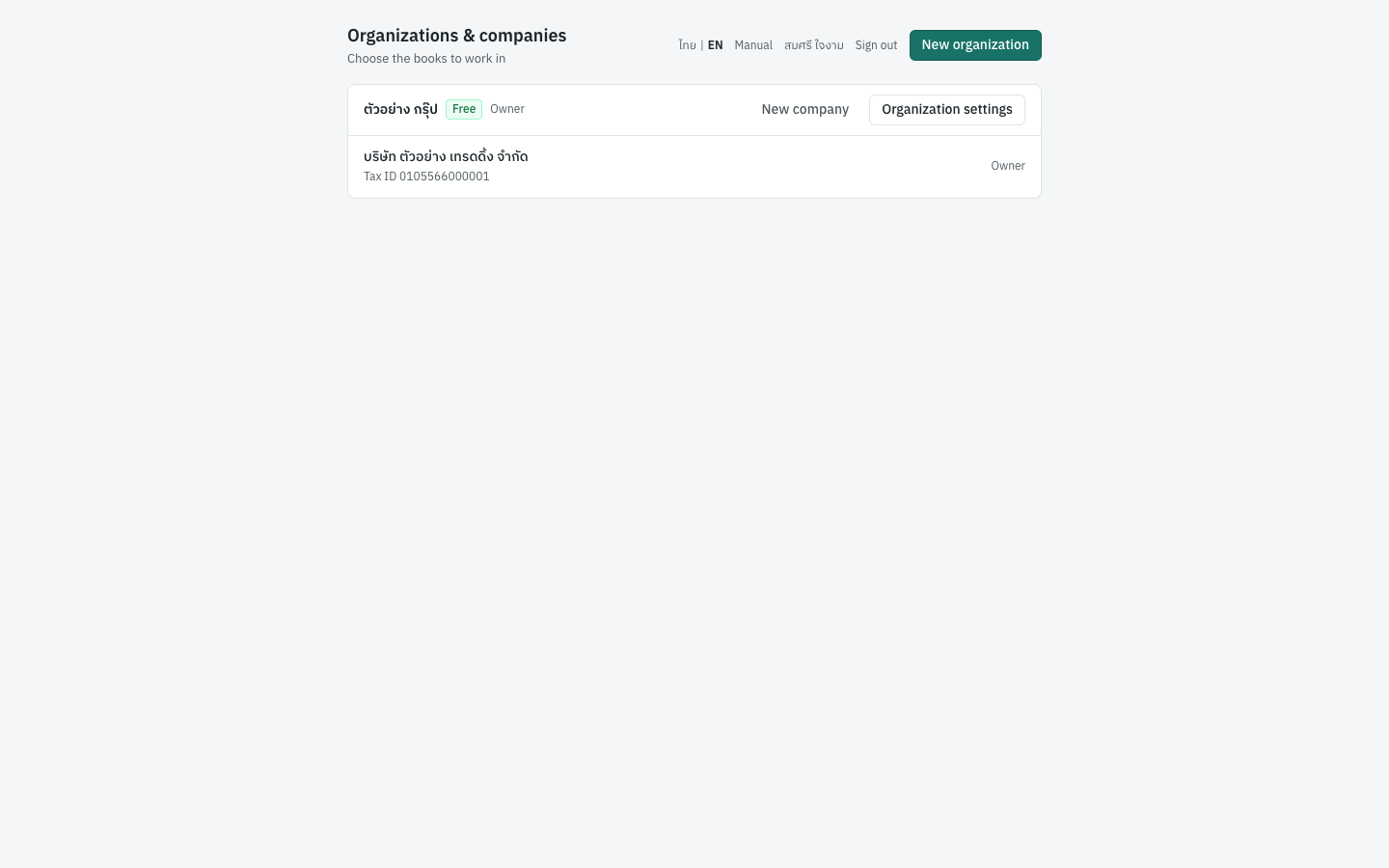
Each organization is a card:
- The heading shows the organization name, its plan as a badge (for example
Freeor10 GB), and your role in it (for exampleOwner). When the plan is not simply active, the badge adds the status, for example10 GB · past due. - New company (owners and admins only) opens the new-company form for that organization.
- Organization settings opens the organization home.
- Below the heading, each company you may open is a row with its name,
Tax ID …(orNo tax ID) and your role in it. Click a row to open the company.
If you are a member but have no company yet, the card says No company access yet. Ask an owner or admin of this organization to grant it. If you belong to no organization at all, the page says so and suggests creating one or asking an owner to add your email address.
At the top right are the ไทย | EN language switch, Manual (this manual, in a new tab), your name (opens Your account), Sign out and New organization.
Creating a new organization#
สร้างองค์กร · Open: New organization on the Organizations & companies page, or organization list → New organization…
You create an organization when you start using Panya for a new business or firm. (If you entered an organization name when you registered, Panya already created one for you.)
| Field | ภาษาไทย | What to enter |
|---|---|---|
| Organization name | ชื่อองค์กร | Your business group or accounting firm, for example ตัวอย่าง กรุ๊ป. Required. |
- Open New organization.
- Type the organization name.
- Click Create organization. (The button stays disabled while the name is empty. Cancel returns to the Organizations & companies page.)
- Panya creates the organization with you as its Owner, on the free plan with every module, and opens the new-company form so you can create the first company.
The free plan has no end date; see The free plan.
Organization settings#
ตั้งค่าองค์กร · Open: company list → Organization settings…, or Organization settings on the Organizations & companies page
The organization pages share one frame. Under the organization name the subtitle reads Organization settings · Free plan, or the name of your storage plan, for example Organization settings · 10 GB plan. At the top right you see your organization role (for example Owner), the ไทย | EN language switch, Manual, your name and Sign out. Below are the tabs; you see only the tabs your role allows.
| Tab | ภาษาไทย | Who sees it | What it is for |
|---|---|---|---|
| Companies | กิจการ | Every member | Companies you can open, usage, organization name |
| Users & access | ผู้ใช้งาน | Every member (only owners and admins can change anything) | Members, invitations, roles, company access |
| Plan & usage | แพ็กเกจ | Every member (only owners can change the plan) | Your plan and its status, file storage, storage plans, payment |
| AI credits | เครดิต AI | Every member (only owners can buy credits) | Credit balance, free requests, credit packages, AI requests |
| Data export | ส่งออกข้อมูล | Owners | Full export of all the organization's data |
| Audit log | ประวัติการใช้งาน | Owners and admins | Everything recorded across the organization |
| Support access | ทีมสนับสนุน | Owners and admins (only owners can grant) | Letting Panya support read the books for a limited time |
Two kinds of notice can appear as a strip under the top bar, on organization pages and in every company:
- A subscription notice when a payment for the storage plan is overdue, when the storage plan is due to end, or when the organization is suspended and read-only. See Subscription status and read-only mode.
- An email notice until you confirm your email address. See Confirming your email address.
Organization home#
กิจการ · Menu: Organization settings → Companies
The first tab of organization settings lists the companies, shows how much file storage is used, and lets owners and admins rename the organization.
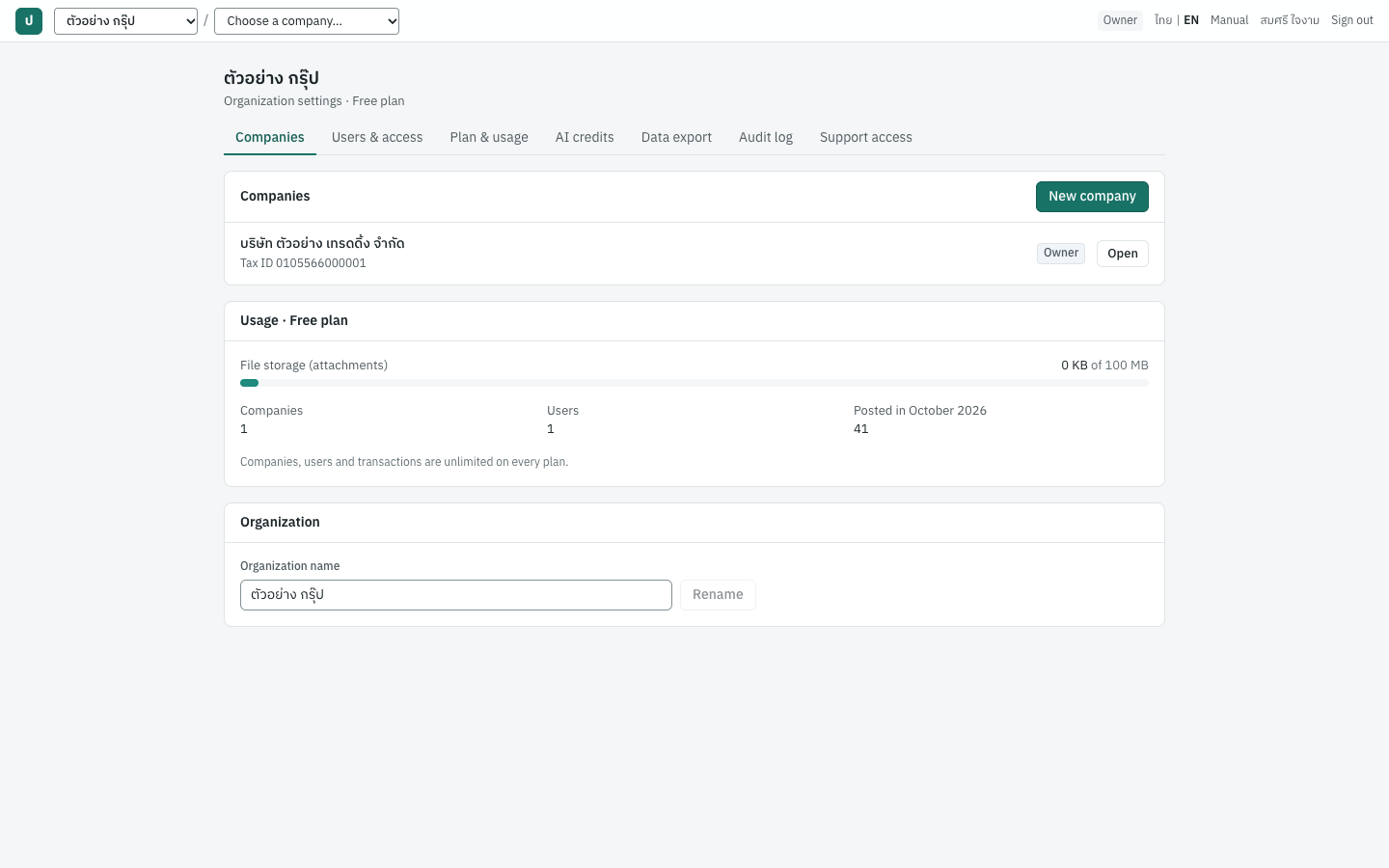
Companies#
The Companies card lists the companies you can open, sorted by name. Each row shows the company name, Tax ID … (or No tax ID), your role in that company as a badge, and Open, which opens the company.
Owners and admins see New company at the top right of the card. It opens the new-company form; there is no limit on the number of companies. The button does not appear while the organization is read-only.
Accountants, staff and read-only users see only the companies granted to them. If none has been granted, the card says You have not been given access to any company in this organization yet.
Usage#
The Usage · Free plan card (with your plan's name, for example Usage · 10 GB plan) shows the file storage meter and the number of companies, users and posted transactions this month for the whole organization. They are the same as on the Plan & usage tab; see File storage and usage. The storage meter turns amber at 80% and red when the storage is full.
Renaming the organization#
Owners and admins see the Organization card.
- Change the text in Organization name.
- Click Rename. The button is enabled only when the name has changed and is not empty.
- The message Organization renamed confirms it. The new name appears in the top bar, on invitations and in exports.
Renaming the organization does not change any company name. Company names are changed in each company under 7 Setup → Company (see Setup).
New company#
สร้างกิจการใหม่ · Menu: Organization settings → Companies → New company, or company list → New company…
Use this form to start the books of a new legal entity in the organization. Only owners and admins can create companies. Every plan allows any number of companies.
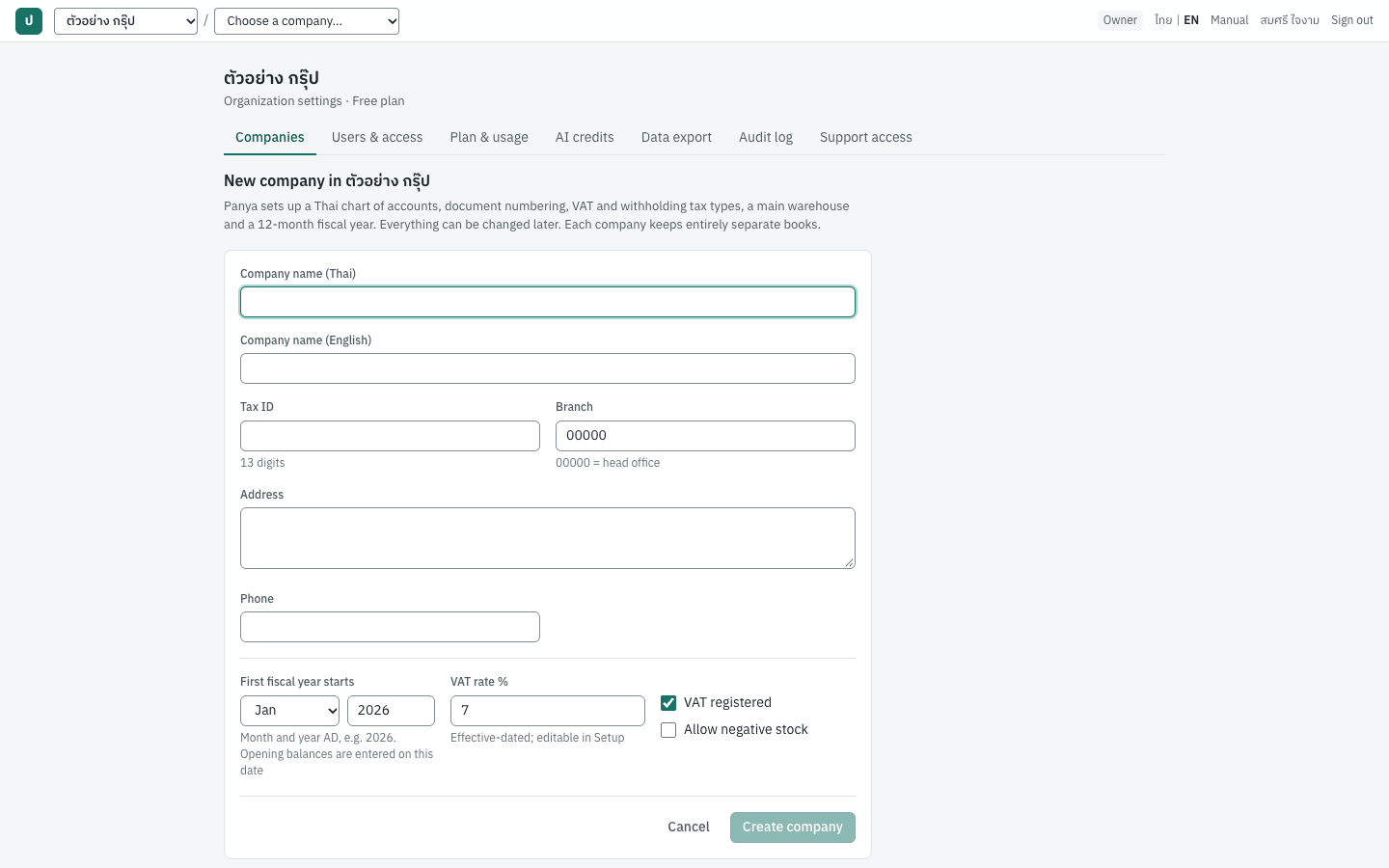
The text above the form explains what happens: Panya sets up a Thai chart of accounts, document numbering, VAT and withholding tax types, a main warehouse and a 12-month fiscal year. Everything can be changed later, and each company keeps entirely separate books.
Fields#
| Field | ภาษาไทย | What to enter |
|---|---|---|
| Company name (Thai) | ชื่อกิจการ (ภาษาไทย) | The registered name as it should print on tax invoices, for example บริษัท ตัวอย่าง เทรดดิ้ง จำกัด. Required: Create company stays disabled until it is filled. |
| Company name (English) | ชื่อกิจการ (ภาษาอังกฤษ) | Optional English name, used where documents show it. |
| Tax ID | เลขประจำตัวผู้เสียภาษี | The 13-digit tax ID, for example 0105566000001. Optional now, but needed on tax invoices and tax reports. Digits only. |
| Branch | สาขา | 5-digit branch code. Defaults to 00000, which means head office (สำนักงานใหญ่). |
| Address | ที่อยู่ | The address for documents and tax reports. Two lines; press Enter for a new line. |
| Phone | โทรศัพท์ | Optional. |
| First fiscal year starts | เริ่มรอบบัญชีแรก | A month (Jan–Dec, default Jan) and a year (default the current year, entered in the Christian era, for example 2026, from 20 years back to next year). Panya opens the fiscal year from the 1st of that month with 12 monthly periods. Opening balances are entered on this date. |
| VAT rate % | อัตราภาษีมูลค่าเพิ่ม % | Default 7. Must be at least 0 and below 100. Disabled when the company is not VAT registered. The rate is stored with an effective date and can be changed later under 7 Setup → VAT & WHT. |
| VAT registered | จดทะเบียนภาษีมูลค่าเพิ่ม | Ticked by default. Untick for a company that is not registered for VAT. |
| Allow negative stock | อนุญาตให้สินค้าติดลบ | Unticked by default: a sale or issue that would take a product below zero in a warehouse is refused. Tick only if the company records sales before the related purchases. |
Branch name, email, date display and the other company details are not on this form. Complete them afterwards in 7 Setup → Company.
Creating a company#
- In organization settings, click New company (or choose New company… in the company list).
- Type the Thai company name. Press Enter to move to the next field.
- Enter the English name, tax ID, branch code, address and phone as far as you have them.
- Choose the month and type the year in which the first fiscal year starts. For a company that keeps calendar-year books from 2026, leave
Janand type2026. - Check VAT registered and the VAT rate, and decide on Allow negative stock.
- Click Create company.
- Panya creates the company and opens its dashboard. Continue with Setup: check the company details, default accounts, numbering and taxes, then enter opening balances (see Accounting).
Cancel returns to the organization home without creating anything.
Important: Type the fiscal year in the Christian era (ค.ศ.), as the field suggests (2026, not 2569). Panya displays dates in the Buddhist era, but this field is a plain year number. A Buddhist-era year is refused with its conversion: 2569 BE is 2026 AD: enter 2026.
What Panya sets up#
Every new company starts with:
- the default Thai chart of accounts and its default account mapping (ผูกบัญชี);
- document numbering for every document type;
- the VAT rate you entered, effective from 1 April 1999, and the standard withholding tax types;
- units
PCSชิ้น,BOXกล่อง,SETชุด,KGกิโลกรัม,HRชั่วโมง andJOBงาน, and the product categoryGENทั่วไป; - the warehouse
MAINคลังสินค้าหลัก; - the cash account
CASHเงินสด (account1110) and the bank accountBANKเงินฝากธนาคาร - กระแสรายวัน (account1120); - one fiscal year of 12 open monthly periods, named by month, for example
2026-01to2026-12.
Nobody but owners and admins can open the new company until you grant access to it; see Changing company access.
Messages when creating a company#
| Message | What to do |
|---|---|
| company name is required | Type the Thai company name. |
| tax ID must be 13 digits | Enter all 13 digits, without dashes or spaces, or leave the field empty. |
| branch code must be 5 digits (00000 = head office) | Enter a 5-digit code such as 00000 or 00001. |
| VAT rate must be between 0 and 100 | Correct the VAT rate. |
| 2569 BE is 2026 AD: enter 2026 (under the year; from the API: 2569 is a Buddhist-era year (พ.ศ.): enter the year as 2026 (ค.ศ.)) | Type the Christian-era year. |
| Enter a year from 2006 to 2027 / the first fiscal year must start between 2006 and 2027 | The first fiscal year can start at most 20 years back and no later than next year (the range moves with the current year). |
| The read-only reason, The organization is suspended by Panya operations. Records remain available to read and export. | The organization is read-only; see Subscription status and read-only mode. |
Note: Panya has no button to delete a company or an organization. Create companies only when you need them.
Roles and permissions#
Every member of an organization has one organization role. Owners and admins can work in every company of the organization. Everyone else works only in the companies granted to them, with a company role on each grant.
| Role | ภาษาไทย | Reach | In short |
|---|---|---|---|
| Owner | เจ้าของ | Every company | Everything in the organization, including the subscription, full data export, support access and other owners. An organization always keeps at least one owner. |
| Admin | ผู้ดูแลองค์กร | Every company | Creates companies and manages accountants, staff and read-only users; full accounting access in every company. Cannot change the subscription, export all data or grant support access. |
| Accountant | นักบัญชี | Granted companies | Documents, journals, cancellations, period and year-end closing, settings. Cannot reopen periods or post into closed ones. |
| Staff | พนักงานบันทึกข้อมูล | Granted companies | Enters and posts sales, purchases, receipts, payments and stock documents; maintains master data. |
| Read-only | ผู้ดูข้อมูล | Granted companies | Reads documents and reports, and exports them. |
How company access works#
- Owners and admins reach every company in the organization, including companies created later. They need no grants, and the Users & access list shows All companies for them.
- Accountants, staff and read-only users reach only the companies ticked for them, and each tick carries its own role: Accountant, Staff or Read-only. The same person can be Accountant in บริษัท ตัวอย่าง เทรดดิ้ง จำกัด and Read-only in another company.
- What such a user may do inside a company is decided by the role on that company's grant, not by the organization role. The organization role of these users only decides the role pre-selected when you tick a company for them, and how they are listed.
- A company grant can only be Accountant, Staff or Read-only. Nobody becomes an Owner or Admin through a company grant.
Organization permissions#
| Action | Owner | Admin | Accountant, Staff, Read-only |
|---|---|---|---|
| See the organization home, member list and Plan & usage | Yes | Yes | Yes (only companies granted to them are listed) |
| Create companies, rename the organization | Yes | Yes | No |
| Invite users, change roles, change company access, remove users | Yes, any role | Only Accountant, Staff and Read-only users | No |
| Choose or change the storage plan, pay, cancel it | Yes | No | No |
| Buy AI credits | Yes | No | No |
| Buy user licences | Yes | No | No |
| Full data export | Yes | No | No |
| Organization audit log | Yes | Yes | No |
| See the Support access tab | Yes | Yes | No |
| Grant or withdraw support access | Yes | No | No |
Company permissions#
Each column is the role a person has in that company: Owner and Admin come from the organization role, the others from the company grant.
| Action in a company | Owner | Admin | Accountant | Staff | Read-only |
|---|---|---|---|---|---|
| View documents, master data and reports | Yes | Yes | Yes | Yes | Yes |
| Export reports to files (Excel, PDF) | Yes | Yes | Yes | Yes | Yes |
| Create and edit customers, suppliers, products, warehouses | Yes | Yes | Yes | Yes | No |
| Create and edit draft documents | Yes | Yes | Yes | Yes | No |
| Post sales, purchase, receipt, payment, bank and stock documents | Yes | Yes | Yes | Yes | No |
| Approve or reject purchase requisitions | Yes | Yes | Yes | No | No |
| Post journal vouchers, opening balances and FX revaluations | Yes | Yes | Yes | No | No |
| Cancel (reverse) posted documents | Yes | Yes | Yes | No | No |
| Close accounting periods and run year-end closing | Yes | Yes | Yes | No | No |
| Reopen closed periods | Yes | Yes | No | No | No |
| Post an adjustment into a closed period | Yes | Yes | No | No | No |
| Company settings, chart of accounts, VAT and WHT, exchange rates, numbering; company audit log | Yes | Yes | Yes | No | No |
Only a suspension narrows these permissions for everybody. While Panya operations have suspended the organization, it is read-only: every action that creates, changes or posts anything is refused, whatever the role. Viewing, printing and exports keep working. See Subscription status and read-only mode. The plan never narrows them: every plan includes every module and report exports (see Storage plans).
Panya hides buttons for actions you may not take. If an action is refused anyway, the message names your role, for example your role (staff) does not permit this action, or for organization actions your tenant role (accountant) does not permit this action.
Users and access#
ผู้ใช้งาน · Menu: Organization settings → Users & access
This tab lists the organization's members and their access. Owners and admins invite people, change roles, set company access and remove users here. Other members can open the tab to see who is in the organization, but cannot change anything.
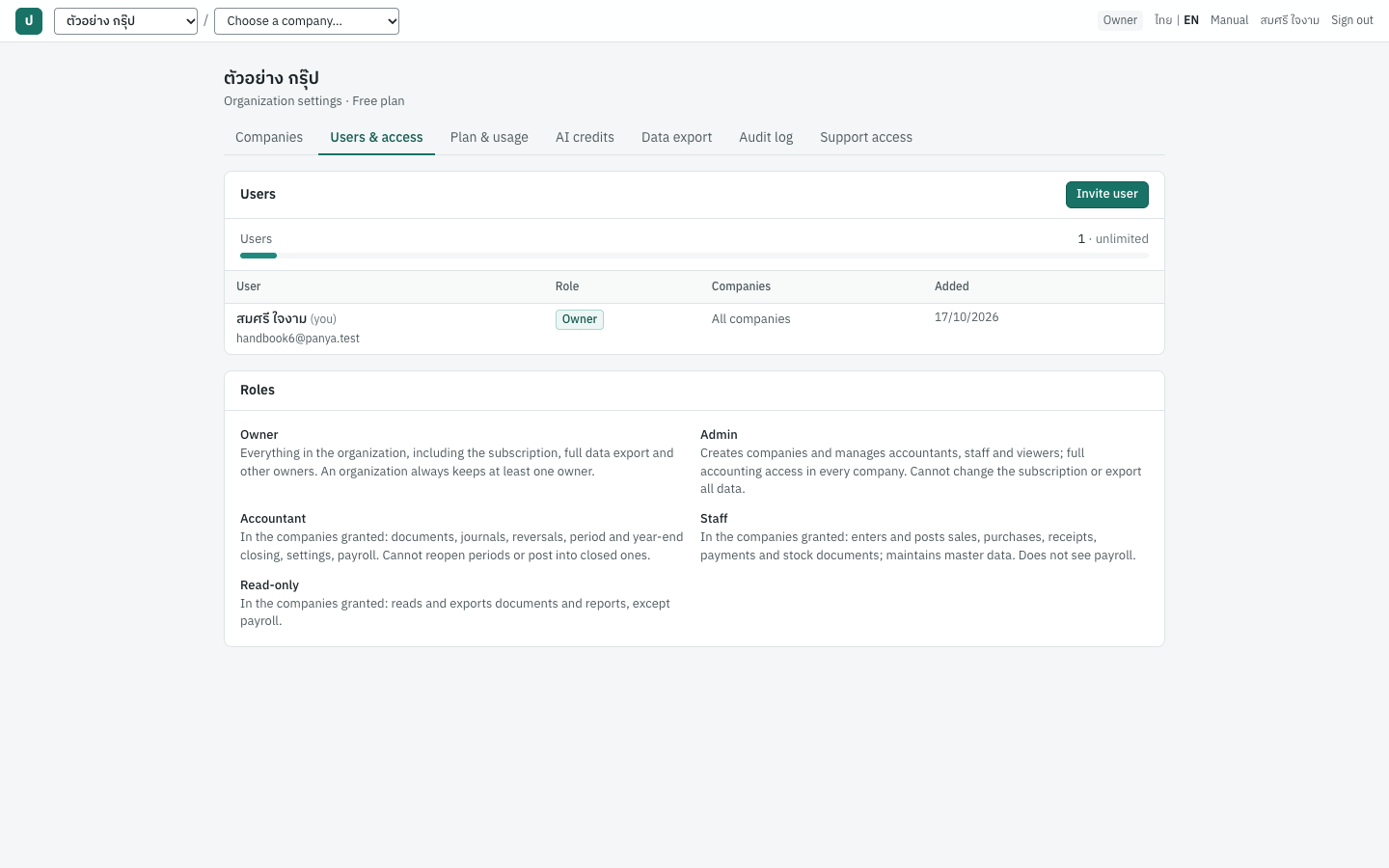
The users list#
The Users card starts with a meter, Users, counting members plus pending invitations, for example 1 · unlimited. Users are unlimited unless Panya limits the free users per organization; the meter then counts against the organization's user licences, for example 4 of 5. When invitations are open the label adds (including 2 pending invitations).
| Column | ภาษาไทย | Shows |
|---|---|---|
| User | ผู้ใช้งาน | Name, with (you) on your own row, and email address |
| Role | บทบาท | The organization role. Owners and admins see a drop-down here for members whose role they may change; otherwise a badge. |
| Companies | กิจการ | All companies for owners and admins; for others, one badge per granted company with the role, for example บริษัท ตัวอย่าง เทรดดิ้ง จำกัด · Accountant; No company access (in orange) when nothing is granted |
| Added | วันที่เพิ่ม | The date the person joined |
| (actions) | — | Company access (only for Accountant, Staff and Read-only users) and Remove |
Members are sorted by name. You never see a role drop-down or a Remove button on your own row: another owner must change or remove you.
Below the list, the Roles card repeats the description of every role.
Inviting a user#
People join an organization by invitation. The invitation goes to an email address; the person accepts it with a Panya account for that address, creating one from the invitation if they have none.
Before you start:
- Your own email address must be confirmed (see Confirming your email address).
- The organization must not be read-only.
- When the organization has user licences, members plus open invitations must be fewer than its licences. When every licence is in use, Invite user is disabled and its tooltip says All user licences are in use: buy more on Plan & usage.
The Invite a user dialog has these fields:
| Field | ภาษาไทย | What to enter |
|---|---|---|
| อีเมล | The address the person signs in with. The invitation works only for this address. | |
| Role in the organization | บทบาทในองค์กร | Default Staff. Owners can choose any role; admins can choose Accountant, Staff or Read-only. The description of the chosen role appears under the field. |
| Companies this user may open | กิจการที่ผู้ใช้งานนี้เปิดได้ | Shown for Accountant, Staff and Read-only. One row per company: tick the company and choose the role in it (Accountant, Staff or Read-only; an unticked row shows No access). Ticking a company pre-selects the organization role you chose. At least one company is required. |
For Owner and Admin the company list is replaced by a note that such users can open every company in the organization.
- Open Organization settings → Users & access.
- Click Invite user.
- Type the email address.
- Choose the role in the organization.
- For Accountant, Staff or Read-only, tick each company the person may open and choose their role in it. For example, tick
บริษัท ตัวอย่าง เทรดดิ้ง จำกัดwith Accountant. - Click Send invitation. The button stays disabled until an email address is entered and, for company roles, at least one company is ticked. Cancel or Esc closes the dialog without inviting.
- The Invitation sent dialog confirms that Panya emailed the invitation. It also shows the invitation link, so you can send it yourself, for example by LINE. Click Copy link to copy it (the message Link copied confirms), then Done.
The link works only for the invited email address and expires in 7 days. The email's subject is (your name) invited you to (organization) on Panya; its text is in English and Thai.
Tip: Open invitations are counted on the users meter with the members. Withdraw the ones that will not be accepted.
Pending invitations#
When invitations are waiting, owners and admins see the Pending invitations card:
| Column | Shows |
|---|---|
| The invited address | |
| Role | The organization role offered |
| Companies | All companies, or the names of the companies ticked |
| Invited by | Who sent the invitation |
| Expires | The expiry date, or an expired badge |
| (actions) | Resend and Withdraw, for invitations to roles you may assign |
- Resend creates a new link valid for another 7 days, emails it again and shows the Invitation sent dialog. The previous link stops working.
- Withdraw cancels the invitation at once; the message Invitation to (email) withdrawn confirms it. Anyone opening the old link is told the invitation was withdrawn.
- An expired invitation is no longer counted on the users meter. Inviting the same address again replaces it; or use Resend to renew it.
Accepted invitations disappear from this card, and the person appears in the users list.
Changing a role#
Owners can change the role of any other member; admins can switch Accountant, Staff and Read-only users among those three roles.
- In the users list, open the Role drop-down on the member's row.
- Choose the new role. The change is saved at once, and the message (name) is now (role) confirms it.
The new role applies to the member's next action. When you change someone from Owner or Admin to Accountant, Staff or Read-only, they lose their automatic access to every company: click Company access on their row and tick their companies, otherwise they see No company access.
An organization must keep at least one owner. To hand over ownership, first make the new person an Owner, then have them change your role.
Changing company access#
Use this to add or remove companies for an Accountant, Staff or Read-only user, or to change their role in a company.
- Click Company access on the user's row.
- The Company access · (name) dialog lists every company in the organization. Tick the companies the user may open and choose their role in each; untick a company to take it away.
- Click Save access. The message Company access updated for (name) confirms it.
The user sees only the companies ticked here; the change applies to their next action. Owners and admins have no Company access button because they reach every company.
Removing a user#
- Click Remove on the user's row.
- The Remove user dialog warns that the person will lose access to the organization and all its companies immediately, and that their past entries and the audit trail are kept.
- Click Remove. The message (name) removed from (organization) confirms it.
Access ends at once: the next page the person opens in your organization is refused (tenant not found or company not found), even if they were in the middle of working. Their Panya login still exists, and they keep any other organizations they belong to. Documents they entered stay unchanged, and their earlier actions stay in the audit logs under their name.
Owners can remove anyone except themselves (and never the last owner); admins can remove Accountant, Staff and Read-only users. There is no way to leave an organization on your own: ask an owner to remove you.
Messages about users and invitations#
| Message | What to do |
|---|---|
| confirm your email address first: use the link we sent you, or send it again from your account | Confirm your own email address; see Confirming your email address. |
| a valid email address is required | Correct the email address. |
| choose at least one company for this user | Tick at least one company, or choose Owner or Admin. |
| this person is already a member | The address already belongs to a member. Change their role or company access instead. |
| an invitation to this address is already pending; resend it instead | Use Resend on the Pending invitations card. |
| you cannot grant this role | Admins cannot invite owners or admins. Ask an owner. |
| you cannot change this member's role / you cannot remove this member / you cannot change this member's access | The member's role is at or above yours. Ask an owner. |
| an organization must keep at least one owner | Make another member an Owner first. |
| all 5 user seats are in use; buy more seats or remove a user | Every user licence is taken by a member or an open invitation. Withdraw an unused invitation, remove a user who no longer needs access, or have an owner buy licences; see User licences. |
Accepting an invitation#
เข้าร่วม (องค์กร) · Open: the link in the invitation email
This is what the invited person sees. The page title is Join (organization), with a line such as สมศรี ใจงาม invited (email) to join as Accountant. and, at the bottom, Valid until (date).
What the page offers depends on the person's situation:
| Situation | The page shows |
|---|---|
| Signed in with the invited address | Accept invitation |
| Signed in with a different address | You are signed in as … Sign out and sign in as … to accept this invitation. |
| Not signed in, a Panya account exists for the address | Sign in as (email) to accept, which opens the sign-in page and returns to the invitation |
| Not signed in, no account for the address | A short registration form |
The registration form:
| Field | What to enter |
|---|---|
| The invited address, filled in and locked | |
| Your name | The name other users will see |
| Choose a password | At least 10 characters |
To accept:
- Open the link from the email.
- Sign in with the invited address, or fill in the form and click Create account and join.
- Click Accept invitation if it is shown.
- Panya adds you to the organization with the role and companies in the invitation, and takes you into it: straight into the company if you have exactly one.
Accepting an invitation also confirms your email address, because the link came to that mailbox.
If the invitation can no longer be used, the page says so instead:
| Message | What to do |
|---|---|
| This invitation has already been accepted. | Nothing; sign in and open the organization. |
| This invitation was withdrawn by the organization. | Ask the organization's owner or admin for a new invitation. |
| This invitation has expired. Ask the person who invited you to send a new one. | Ask for Resend. |
| Invitation not found: This link is not valid. It may have been replaced by a newer invitation. | Use the link from the most recent invitation email. |
| this invitation is for (email); sign in with that address to accept it | Sign out and sign in with the invited address. |
| all 5 user seats are in use; buy more seats or remove a user | The organization's members already fill every user licence. Ask its owner. |
| The read-only reason, The organization is suspended by Panya operations. Records remain available to read and export. | The organization cannot take new members while it is suspended. Ask its owner. |
Company users and roles#
ผู้ใช้งาน · Menu: 7 Setup → Users & roles
Inside a company, this page shows who can open this particular company and with what role. It is a read-only view: users, roles and company access are managed for the whole organization on the Users & access tab. Everyone who can open the company can open this page.
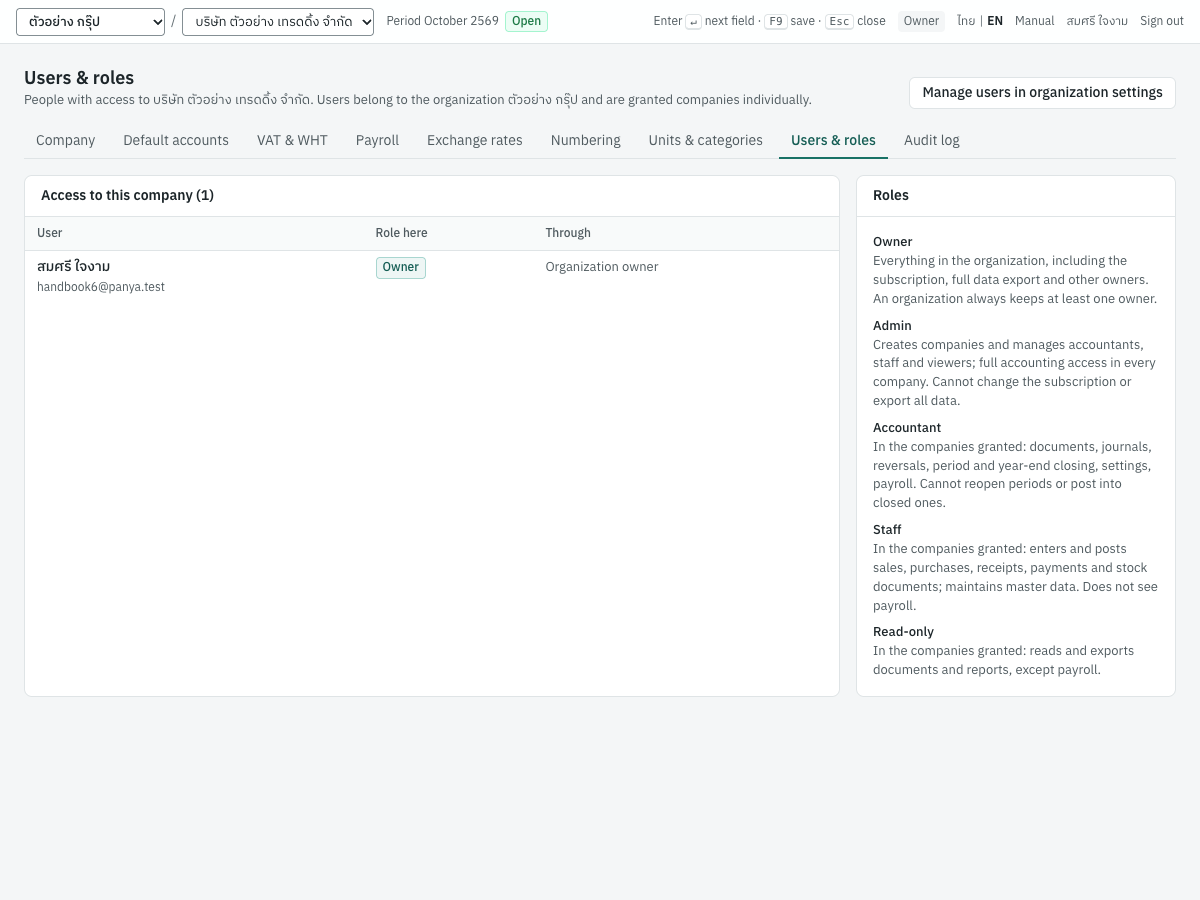
The subtitle names the company and its organization. The Access to this company card shows the number of people with access and lists them:
| Column | ภาษาไทย | Shows |
|---|---|---|
| User | ผู้ใช้งาน | Name and email |
| Role here | บทบาท | The person's role in this company |
| Through | ได้สิทธิ์จาก | Organization owner or Organization admin for people who reach every company; Company grant for people ticked for this company |
The Roles card on the right describes each role.
Owners and admins see Manage users in organization settings at the top right, which opens the organization's Users & access tab. To give someone access to this company, change their role here, or remove it, use that tab.
Plan and usage#
แพ็กเกจ · Menu: Organization settings → Plan & usage
This tab shows your plan and its status, how much file storage is used, the storage plans you can choose, and what every plan includes. Every member can open it; only owners can choose a storage plan, pay or cancel. Others see Only the organization owner can change the plan.
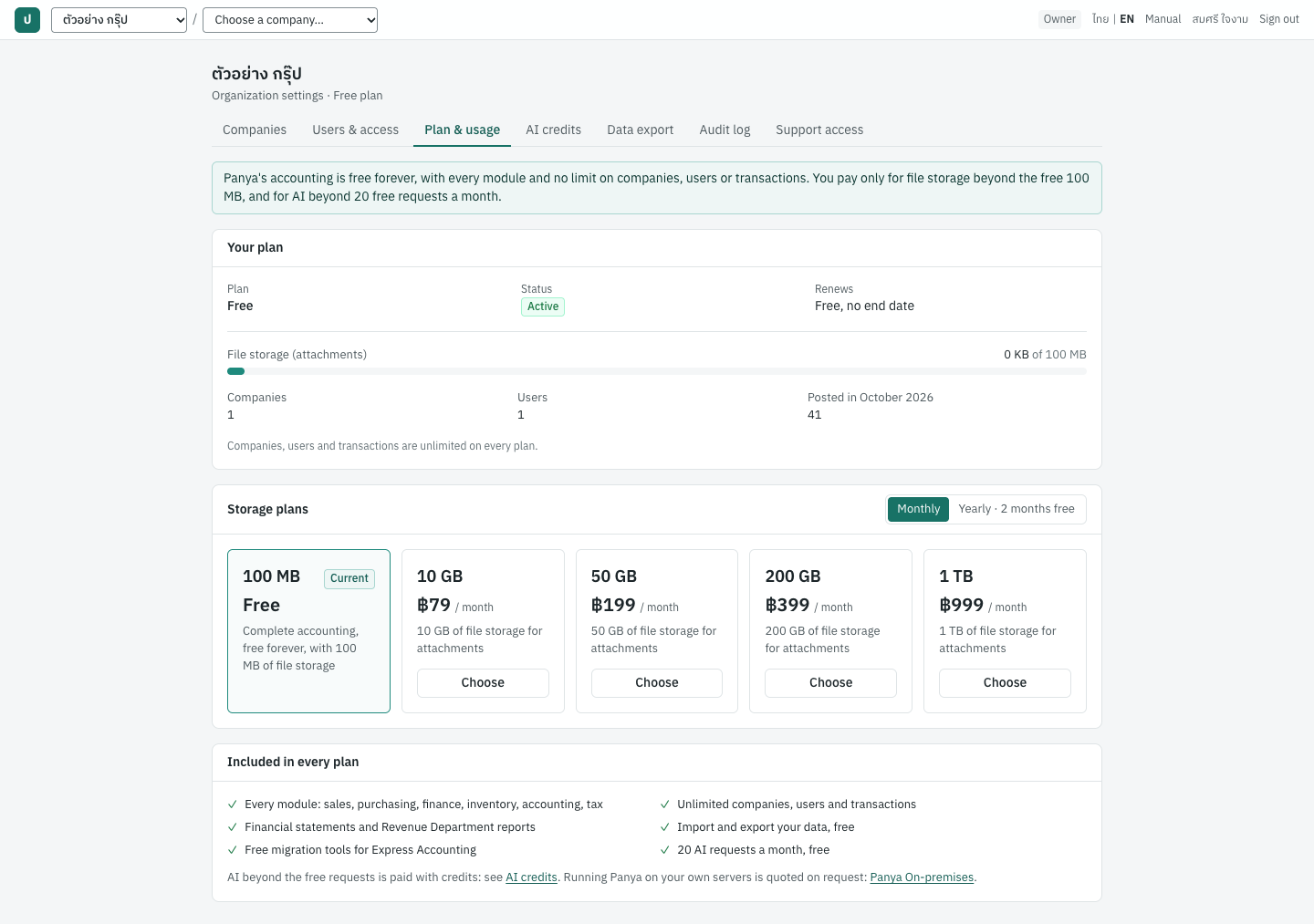
The note at the top of the tab sums up how Panya is priced: Panya's accounting is free forever, with every module and no limit on companies, users or transactions. You pay only for file storage beyond the free 100 MB, and for AI beyond 20 free requests a month. When Panya limits the free users, the note says so, for example … no limit on companies or transactions. You pay only for users beyond the 3 free, file storage beyond the free 100 MB, and AI beyond 20 free requests a month. (see User licences).
Your plan#
The Your plan card shows:
| Item | Shows |
|---|---|
| Plan | The current plan, Free or a storage plan such as 10 GB. A storage plan adds monthly or yearly. |
| Status | Active, Payment overdue, Suspended or Ended |
| Renews / Overdue since / Current period | On the free plan, Renews Free, no end date; when a payment is overdue, the date it became overdue; otherwise the current billing period, for example 18/10/2569 – 18/11/2569 |
Below are the file storage meter and the usage. The button at the top right of the card depends on the situation (owners only):
- Manage billing, when the organization pays through Stripe: opens Stripe's billing portal.
- Cancel at period end, for an active storage plan not paid through Stripe.
- Keep storage plan, after cancelling, until the period ends.
On the free plan there is no button: there is nothing to cancel.
The card also warns when something is due:
| Situation | Warning |
|---|---|
| The storage plan was cancelled | The storage plan ends on (date). Then you have the free 100 MB: if your files take more, new uploads stop until they fit. Nothing is deleted, and the books keep working. |
| A payment failed | The last payment failed. Update the payment within 7 days of (date) to keep your storage; after that you have the free 100 MB. The books keep working either way. |
| Panya operations suspended the organization | The organization is suspended by Panya operations: records can be read and exported, nothing can be entered. Contact Panya support. |
When a storage plan has lapsed, because it was cancelled and its period is over or because it was not paid within the 7 days, the organization is on the free plan. The card shows Free as the plan, the free plan's box is marked Current, and the organization picker, the page headings and the Usage card say Free too. A blue note on the card explains why, for example The 10 GB storage plan ended on 18/11/2569, so the free 100 MB applies. Choose a storage plan to get more space; nothing was deleted., or for an unpaid plan The 10 GB storage plan was not paid within 7 days, so the free 100 MB applies. Choose a storage plan to get more space; nothing was deleted.
File storage and usage#
The same meter and figures appear on the organization home and on this tab.
- File storage (attachments) shows the size of the stored files against the plan's storage, for example
1 KB of 100 MB, with a bar. It counts the attachments of all the companies in the organization. The full data exports on the Data export tab do not count: taking your data out is free. - From 80% the bar turns amber and reads, for example, 85% used. At the limit only new uploads stop.
- When the storage is full, the figures and the bar turn red and read Storage is full: new files cannot be attached. Everything else keeps working. Choose a larger storage plan or remove files.
- Companies, Users and Posted in 2026-10 count the companies, the members, and the postings of the calendar month in all companies. They are for your information only: the note under them says Companies, users and transactions are unlimited on every plan. When Panya limits the free users, it says instead, for example, Companies and transactions are unlimited on every plan; users are counted against your user licences (3 free).
When a new file would not fit, attaching it is refused with file storage is full: 95.3 MB of 100 MB used; upgrade the storage plan or remove files to add more (see Attachments). Only new uploads stop. Entering and posting documents, reports, printing, the data export and everything else keep working, and nothing is deleted. Removing files, or choosing a larger storage plan, lets uploads continue at once.
User licences#
สิทธิ์ผู้ใช้งาน · On the Plan & usage tab, when Panya limits the free users
Panya Cloud can limit the number of users each organization has for free. Until Panya sets a number, users are unlimited and nothing in this section appears. Once a number is set, every member and every open invitation takes one user licence. The organization has the free licences, the ones an owner buys, and any that Panya gives.
The User licences card appears between Your plan and Storage plans. It shows:
- the meter Users and open invitations, for example
4 of 5; - the licences and their price, for example 3 free + 2 bought. Each extra user is ฿(price) a month or ฿(price) a year., with + 1 from Panya when Panya has given licences;
- for bought licences, the date they renew, for example Bought licences renew on 18/11/2569., or end on after they were cancelled;
- when there are more users than licences: You have more users than licences. Everyone keeps working, but you cannot add people until you buy more licences or remove someone.
Nobody is ever removed or locked out because of licences. When there are more users than licences, for example after Panya set the number or after bought licences ended, everyone keeps working, and only adding people stops. Inviting is refused with all 5 user seats are in use; buy more seats or remove a user, and Invite user on the Users & access tab is disabled.
Only owners buy licences:
- On the User licences card, click Buy licences…, or Change licences… when some are bought already.
- In the User licences dialog, enter Licences to buy (beyond the free ones) and choose Monthly or Yearly under Billing period. The dialog adds them up, for example With 3 free and 0 from Panya, you will have 5 licences; 4 are in use now.
- Choose how to pay. Pay by card · ฿(total) / month opens Stripe's checkout page. With Pay by PromptPay, Stripe emails an invoice with a PromptPay QR code, due in 7 days. As the dialog says, By card, Stripe charges each period. By PromptPay, Stripe emails an invoice with a PromptPay QR code, due in 7 days. Change the number later in Manage billing. Cancel closes the dialog.
- When Stripe confirms the payment, the licences appear on the card.
Once the licences are paid through Stripe, the button disappears and the card says Licences are paid through Stripe: change their number in Manage billing. User licences and storage plans are separate purchases.
Note: A Panya installation that does not take online payment shows Confirm · ฿(total) / month instead of the payment buttons. The number applies at once, and the message 2 licences bought confirms it. Enter 0 to give bought licences up.
Storage plans#
The Storage plans card shows one box per plan: its storage, its price and a short description. Your current plan is outlined and marked Current. The switch at the top right of the card shows the prices Monthly or Yearly · 2 months free; it starts on your plan's billing period.
| Storage | Monthly | Yearly | Description |
|---|---|---|---|
| 100 MB | Free | Free | Complete accounting, free forever, with 100 MB of file storage |
| 10 GB | ฿79 / month | ฿790 / year | 10 GB of file storage for attachments |
| 50 GB | ฿199 / month | ฿1,990 / year | 50 GB of file storage for attachments |
| 200 GB | ฿399 / month | ฿3,990 / year | 200 GB of file storage for attachments |
| 1 TB | ฿999 / month | ฿9,990 / year | 1 TB of file storage for attachments |
A year costs the same as ten months. The prices on your Plan & usage tab are the ones that apply. The plans differ only in file storage: every plan, the free one included, has every module, any number of companies, users and transactions, and free imports and exports.
The boxes have these buttons for owners, except while the organization pays through Stripe (use Manage billing) or is suspended:
- Choose, on a storage plan you are not on, opens the payment dialog; see Choosing a storage plan and paying. With the switch on the other billing period, your own plan has Choose too: choosing it moves the plan to that period.
- Back to free at period end, in the free plan's box while you are on a storage plan, cancels the storage plan at the end of the period, like Cancel at period end.
The free plan#
A new organization starts on the free plan, with no trial and no end date. It is the complete accounting program, not a limited trial: nothing needs paying to keep working or to take your data out. The status is Active and the Your plan card shows Renews Free, no end date.
The Included in every plan card lists what every plan has:
- Every module: sales, purchasing, finance, inventory, accounting, tax
- Unlimited companies, users and transactions (when Panya limits the free users: Unlimited companies and transactions; 3 users free)
- Financial statements and Revenue Department reports
- Import and export your data, free
- Free migration tools for Express Accounting
- 20 AI requests a month, free
Under the list, AI beyond the free requests is paid with credits: see AI credits. opens the AI credits tab, and Running Panya on your own servers is quoted on request: Panya On-premises. opens the On-premises section of the Panya website (see Asking for an On-premises quotation).
Choosing a storage plan and paying#
Only owners can choose a storage plan. Payment is handled by Stripe, an online payment service; Panya never sees your card number. You can pay by card, or by PromptPay against an invoice, every month or every year.
- Open Organization settings → Plan & usage.
- In the Storage plans card, choose Monthly or Yearly · 2 months free.
- In the box of the plan you want, click Choose.
- The dialog, for example 10 GB storage plan, explains: The new storage applies as soon as the payment is confirmed. A smaller plan is allowed even when your files take more: new uploads stop until they fit, and nothing is deleted. It also explains the two ways to pay.
- Choose how to pay:
- Pay by card · ฿79 / month (or Pay by card · ฿790 / year) opens Stripe's checkout page. Enter the card details there and confirm. Stripe charges the card every month (or every year).
- Pay by PromptPay opens Stripe's invoice page for the first period, with a PromptPay QR code. Scan it with your banking app and pay. For each following period Stripe emails a new invoice with a PromptPay QR code, due in 7 days.
Cancel closes the dialog without changing anything.
- After a card checkout, Stripe returns you to the Plan & usage tab with the message Thank you. Your payment is being confirmed by Stripe; the plan changes here as soon as it arrives. If you leave the checkout, the message is Checkout was cancelled; nothing was charged.
- When Stripe confirms the payment, the new storage applies, the status is
Active, and the card shows the plan, monthly or yearly, and the current billing period. Reload the page if it has not changed yet.
Each payment and each change Stripe reports is recorded in the organization audit log as a system entry, for example billing.invoice.paid.
Note: A Panya installation that does not take online payment shows Confirm · ฿79 / month (or / year) instead of the two payment buttons. Confirming switches the plan at once for one month or one year, and the message Now on the 10 GB storage plan confirms it. A smaller plan is allowed here too.
Managing billing#
Once the organization pays through Stripe, the Choose buttons disappear and the card shows Manage billing, with the note Change the plan, card or cancellation in Manage billing (Stripe).
- Click Manage billing.
- Stripe's billing portal opens for your organization. There you can change the plan, update the card, see invoices, or cancel.
- Return to Panya with the portal's link back. Changes appear on the Plan & usage tab as soon as Stripe reports them.
A smaller plan is allowed even when your files take more than it holds: new uploads stop until the files fit, and nothing is deleted.
Cancelling and keeping the storage plan#
A storage plan is cancelled at the end of the period you have paid for, never in the middle of it. The free plan has nothing to cancel.
- Paid through Stripe: cancel in Manage billing.
- Otherwise: click Cancel at period end on the Your plan card, or Back to free at period end in the free plan's box. The message The storage plan ends at the end of this period confirms it.
Until the period ends, the plan's storage stays. The card warns The storage plan ends on (date). Then you have the free 100 MB: if your files take more, new uploads stop until they fit. Nothing is deleted, and the books keep working., and a strip on every page says The storage plan ends on (date); then the free 100 MB applies. To change your mind, click Keep storage plan (The storage plan will renew) or undo the cancellation in the Stripe portal.
After the end date the organization is on the free plan, with the free 100 MB, and the Your plan card shows The 10 GB storage plan ended on (date), so the free 100 MB applies. Choose a storage plan to get more space; nothing was deleted. Keep storage plan no longer works then: choose a storage plan again and pay for it. If the files take more than 100 MB, new attachments stop until files are removed or a storage plan is chosen. The books, reports and exports keep working, and nothing is deleted.
Subscription status and read-only mode#
Billing never makes the books read-only: it only decides how much file storage the organization has.
| Status | Access | File storage | Strip shown on every page |
|---|---|---|---|
| Active | Full | The plan's | None |
| Active, cancelled at period end | Full | The plan's until the end date, then the free 100 MB | The storage plan ends on (date); then the free 100 MB applies. until the end date |
| Payment overdue | Full | The plan's for 7 days, then the free 100 MB | Payment overdue · pay by (date) to keep your storage plan; after that the free 100 MB applies. during the 7 days |
| Ended | Full | The free 100 MB | None |
| Suspended | Read-only | The free 100 MB | Read-only. The organization is suspended by Panya operations. Records remain available to read and export. Viewing, printing and exports still work. |
Each strip ends with a Subscription & plan link to this tab.
Only a suspension by Panya operations, for example in a case of abuse or under a legal order, makes an organization read-only. In read-only mode:
- Everyone can still open every document and report, print, download report files, and owners can run the full data export.
- Nothing can be created, changed or posted in any company: no documents, master data, settings, journal vouchers, period closing or attachments, and documents cannot be emailed or shared as links. Buttons for these actions are hidden; if one is tried, the read-only reason is shown.
- No new company can be created, no one can be invited, and invitations cannot be accepted.
- Owners and admins can still change roles and company access, remove users, rename the organization and read the organization audit log; owners can still grant support access. The storage plan cannot be changed: the plan buttons are hidden.
No status ever deletes or changes accounting data.
Note: The company audit log (7 Setup → Audit log) is not available while the organization is read-only. Owners and admins can use the organization audit log, which covers every company.
When a payment fails#
If Stripe reports that a payment for the storage plan failed:
- The status becomes
Payment overdue. The card shows Overdue since with the date and the warning The last payment failed. Update the payment within 7 days of (date) to keep your storage; after that you have the free 100 MB. The books keep working either way. - A strip on every page says Payment overdue · pay by (date) to keep your storage plan; after that the free 100 MB applies. Work continues normally.
- Open Manage billing to update the card or pay the open invoice; for PromptPay, pay the invoice from Stripe's email.
- When Stripe confirms the payment, the status returns to
Activeand the strip disappears. - If the 7 days pass without payment, the organization is on the free plan, with the free 100 MB, until the payment arrives. The card then shows Free with the note The 10 GB storage plan was not paid within 7 days, so the free 100 MB applies. Choose a storage plan to get more space; nothing was deleted. If the files take more, only new attachments stop; the books keep working.
A suspension is set by Panya operations, not by a payment. Paying does not lift it, and the plan buttons are hidden while it lasts. Changes made by Panya staff appear in the audit log as Panya support entries with the reason they gave.
Messages about plans and billing#
| Message | What to do |
|---|---|
| file storage is full: … of … used; upgrade the storage plan or remove files to add more | Remove files, or choose a larger storage plan. See File storage and usage. |
| this organization already pays through Stripe: change the plan in the billing portal | Use Manage billing. |
| the subscription is suspended; contact Panya support to reactivate it | Contact Panya support. |
| the free plan has nothing to cancel | The organization is already on the free plan. |
| the storage plan has already ended; choose a storage plan again | The cancelled plan's period is over, so it cannot be kept. Choose a storage plan and pay for it. |
| users are unlimited; there are no seats to buy | Panya does not limit users at the moment: nothing needs buying. |
| seats are paid online: start a checkout, or use the billing portal | Use Pay by card or Pay by PromptPay in the User licences dialog, or Manage billing. |
| this organization already pays for seats through Stripe: change the number of seats in the billing portal | Use Manage billing. |
| the number of seats must be between 1 and 10000 | Enter a whole number of licences from 1 to 10,000 (from 0 without online payment). |
| the free plan needs no payment | The free plan applies by itself. To pay, choose a storage plan. |
| subscribe through checkout first | Choose a storage plan and pay before opening the billing portal. |
| plans are paid online: start a checkout, or use the billing portal | Use Pay by card or Pay by PromptPay, or Manage billing. |
| your tenant role (admin) does not permit this action | Only owners can change the plan. |
AI credits#
เครดิต AI · Menu: Organization settings → AI credits
Panya AI answers questions about the books and summarizes them (Ask Panya), reads supplier documents into purchases (Filling a purchase from a document) and drafts journal vouchers (Drafting a voucher with Panya AI). It is paid per use in Panya AI credits, with no monthly fee. This tab shows the organization's credits and free requests, sells credit packages, and lists the AI requests and every change of the balance. Every member can open it; only owners can buy credits. Others see Only the organization owner can buy credits.
What Panya AI gives back is always an answer or a draft. It never posts anything, it cannot get past the checks and permissions of the normal forms, and every request is recorded in the audit log. The bookkeeper reviews each draft, then saves and posts it through the normal form, and checks answers against the reports.
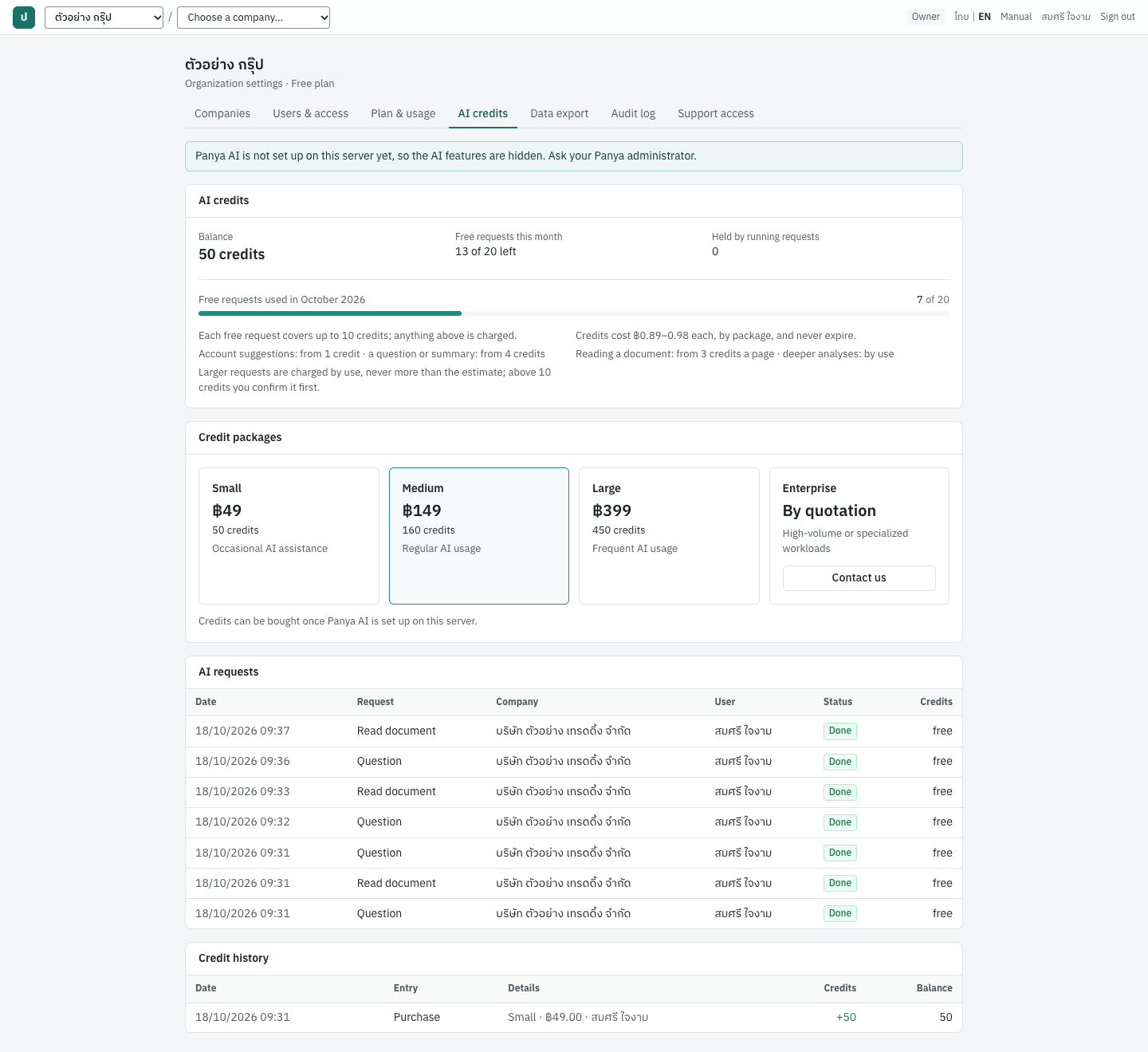
If Panya AI is not set up on the server, the tab starts with Panya AI is not set up on this server yet, so the AI features are hidden. Ask your Panya administrator.
On a Panya On-premises server the credits belong to the server's licence and are shared by every organization on it: see Panya AI on Panya On-premises.
Free requests and prices#
The AI credits card shows:
| Item | Shows |
|---|---|
| Balance | The credits the organization can use, for example 160 credits |
| Free requests this month | For example 17 of 20 left |
| Held by running requests | Credits set aside for requests running now; they are settled or given back when the request ends |
The meter Free requests used in 2026-10 counts the free requests of the month, for example 3 of 20. Under it the card sums up the prices:
- Each free request covers up to 10 credits; anything above is charged.
- Credits cost ฿0.89–0.98 each, by package, and never expire.
- Account suggestions: from 1 credit · a question or summary: from 4 credits
- Reading a document: from 3 credits a page · deeper analyses: by use
- Larger requests are charged by use, never more than the estimate; above 10 credits you confirm it first.
Every organization has 20 free requests each calendar month, shared by all its companies and users. The prices are the least a request costs: a larger one, such as a long document or a question over more of the books, is charged by what it uses. A free request covers up to 10 credits, so it covers an ordinary request, one that needs no confirmation, whole. A request that may use more than 10 credits runs only after the user has confirmed its estimate in Confirm the AI estimate. Panya sets the estimate aside before the request starts, charges what it actually used, never more than the estimate, and gives the rest back. A request that fails is not charged, and the same request sent again after a lost connection is not charged twice.
Buying credits#
The Credit packages card has four packages:
| Package | Price | Credits | For |
|---|---|---|---|
| Small | ฿49 | 50 | Occasional AI assistance |
| Medium | ฿149 | 160 | Regular AI usage |
| Large | ฿399 | 450 | Frequent AI usage |
| Enterprise | By quotation | — | High-volume or specialized workloads |
Bought credits are added to the balance and never expire. Enterprise is arranged with Panya: Contact us opens the quotation form on the Panya website (see Asking for an On-premises quotation).
Only owners can buy credits, and not while the organization is suspended.
- Open Organization settings → AI credits.
- In the package's box, click Pay by card or Pay by PromptPay. Stripe's checkout page opens.
- Pay there by card, or scan the PromptPay QR code with your banking app.
- Stripe returns you to the tab with the message Thank you. The credits are added as soon as Stripe confirms the payment (PromptPay can take a few minutes). If you leave the checkout, the message is Checkout was cancelled; nothing was charged.
- When Stripe confirms the payment, the credits are added to Balance and appear in the credit history.
Note: A Panya installation that does not take online payment shows Add credits instead of the two payment buttons, with the note Online payment is not set up on this server: credits are added at once. Clicking it adds the package's credits straight away, and the message 50 credits added (for the Small package) confirms it.
AI requests and credit history#
The AI requests card lists the latest 100 requests made in all the companies:
| Column | Shows |
|---|---|
| Date | When the request was made |
| Request | Question, Summary, Analysis, Read document, Account suggestions or Journal draft |
| Company | The company it was made in |
| User | Who made it |
| Status | Done, Running or Failed, not charged |
| Credits | What it cost: free, free + 1 when a free request covered part of it, or the credits charged |
Before the first request the card says No AI requests yet.
The Credit history card lists the latest 100 changes of the balance:
| Column | Shows |
|---|---|
| Date | When the balance changed |
| Entry | Purchase, Granted by Panya, Used, Adjustment or Refund |
| Details | The package, the amount paid, the request, a note from Panya, and who did it, as they apply |
| Credits | The change, +160 or -4 |
| Balance | The balance after the change |
Before the first entry it says No credits bought or used yet. Each request is also recorded in the organization audit log as ai.request.
Messages about AI credits#
| Message | What to do |
|---|---|
| not enough AI credits: this request needs … credits and … are available; buy a credit package in Organization settings → AI credits | The free requests of the month are used up and the balance is too low. An owner buys a package on this tab. |
| this package is sold by quotation: contact Panya | Use Contact us on the Enterprise package. |
| your tenant role (admin) does not permit this action | Only owners can buy credits. |
| The read-only reason, The organization is suspended by Panya operations. Records remain available to read and export. | While the organization is suspended, credits cannot be bought or used. |
| Panya AI is not set up on this server | Ask whoever runs your Panya installation. |
Panya On-premises#
ใบอนุญาต Panya On-premises · Menu: Organization settings → Plan & usage, on a Panya On-premises server
Panya On-premises is Panya installed on your own server under a licence from Panya (see Asking for an On-premises quotation). The books work as on Panya Cloud. What differs is the plan: the licence sets how many companies and users the whole server may have, file storage is unlimited, and there are no storage plans or user licences to buy. Panya AI works through Panya Cloud, on credits that belong to the licence (Panya AI on Panya On-premises).
The licence card#
On an On-premises server, the Plan & usage tab shows the Panya On-premises licence card instead of the plans, with a badge for its state: Valid, Expiring, Expired or Revoked.
| Item | Shows |
|---|---|
| Customer | The licensed customer |
| Licence ID | The licence's number, to quote to Panya |
| Valid from | The start date |
| Expires | The expiry date, with for example expires in 120 days or expired 3 days ago |
| Maintenance and updates until | The end of maintenance, with · ended once it is over, or Not included |
| Online check | When the server last checked the licence with Panya, or Not checked |
The meters Companies on this server and Users on this server compare what is in use with the licence, for example 3 of 5. As the note under them says, they count every organization on the server, and each person counts once, members and open invitations alike.
When every licensed company or user is in use, the card says so, for example Every licensed user is in use: new members and invitations are refused. Ask Panya for a licence with more. Nothing that exists is removed: only adding companies or people stops.
Expiry and renewal#
- 30 days before the expiry date, a strip on every page says The Panya On-premises licence expires on (date) (in 30 days). From then the books are read-only until a renewed key is installed. The card warns The licence expires on (date) (in 30 days). Ask Panya for a renewed licence key, install it and restart the server. From the expiry date the books are read-only.
- From the expiry date the server is read-only, as for a suspension: everyone can still open, print and export everything, but nothing can be entered or changed. The red strip says Read-only. The Panya On-premises licence expired on (date). Install a renewed licence key to make changes again. Viewing, printing and exports still work.
- If Panya revokes the licence, the server becomes read-only the same way: Read-only. The Panya On-premises licence was revoked. Contact Panya.
- A renewed licence key lifts the read-only state. Ask Panya for it; whoever runs your server installs it and restarts the server.
Panya AI on Panya On-premises#
Panya AI (Ask Panya, reading documents, account suggestions, journal drafts) works on an On-premises server as on Panya Cloud, at the same prices, once whoever runs your server has connected it to Panya Cloud. The server prepares each request itself and Panya Cloud runs it.
- What leaves the server. Each AI request goes to Panya Cloud, which runs it with Panya's AI provider: for a question or a summary, the company's figures for the period, with the names of the customers and suppliers in them; for a document, the file and the chart of accounts. Panya Cloud keeps the answer for one day, so that a request sent again after a lost connection is not charged twice, and then deletes it. If your figures must stay on your own servers, whoever runs the server leaves AI off.
- The credits belong to the licence. Every organization on the server shares one balance and the 20 free requests a month. The AI credits tab starts with These AI credits belong to this server's Panya On-premises licence (customer): every organization on the server shares the balance and the 20 free requests a month. Panya Cloud keeps them and runs the AI requests, so the figures and documents in a request leave this server. The AI requests card lists your organization's own requests; the Credit history lists the licence's: purchases, credits from Panya, and the credits every organization on the server used.
- Buying credits. An owner clicks Pay by card or Pay by PromptPay in a package's box, as on Panya Cloud: Panya's Stripe checkout page opens and then brings you back to the tab. The credits are added to the licence when Stripe confirms the payment. If the licence's credits cannot be paid online, the tab says Credits for this licence cannot be paid online: contact Panya to add them. Panya can also add credits to the licence.
- When the server cannot reach Panya Cloud, Ask Panya and the AI credits tab show AI is not available: Panya Cloud cannot be reached. Nothing is charged, and the books keep working.
- A revoked or expired licence gets no AI.
Messages on Panya On-premises#
| Message | What to do |
|---|---|
| the Panya On-premises licence allows no more companies; ask Panya for a licence with more companies | Every licensed company exists. Ask Panya for a licence with more. |
| all users the Panya On-premises licence allows are in use; ask Panya for a licence with more users, or remove a user | Withdraw an unused invitation, remove a user who no longer needs access, or ask Panya for more users. |
| the Panya On-premises licence expired on (date): records can be read, printed and exported, but not changed, until a renewed licence key is installed | Ask Panya for a renewed key and have it installed. |
| the Panya On-premises licence was revoked: records can be read, printed and exported, but not changed; contact Panya | Contact Panya. |
| Panya On-premises has no storage plans or seat purchases: the licence sets the companies and users, and file storage is unlimited | Storage plans and user licences are not sold on an On-premises server. |
| AI is not available: Panya Cloud cannot be reached | The server cannot reach Panya Cloud. Nothing was charged. Try again later, or ask whoever runs your server to check its Internet access. |
| the Panya On-premises licence was revoked: Panya AI is not available; contact Panya | Contact Panya. |
| the Panya On-premises licence expired on (date): Panya AI is not available until the licence is renewed | Ask Panya for a renewed licence key and have it installed. |
| AI credits cannot be paid online for this licence; contact Panya to add AI credits | Contact Panya, who adds the credits to the licence. |
Data export#
ส่งออกข้อมูล · Menu: Organization settings → Data export
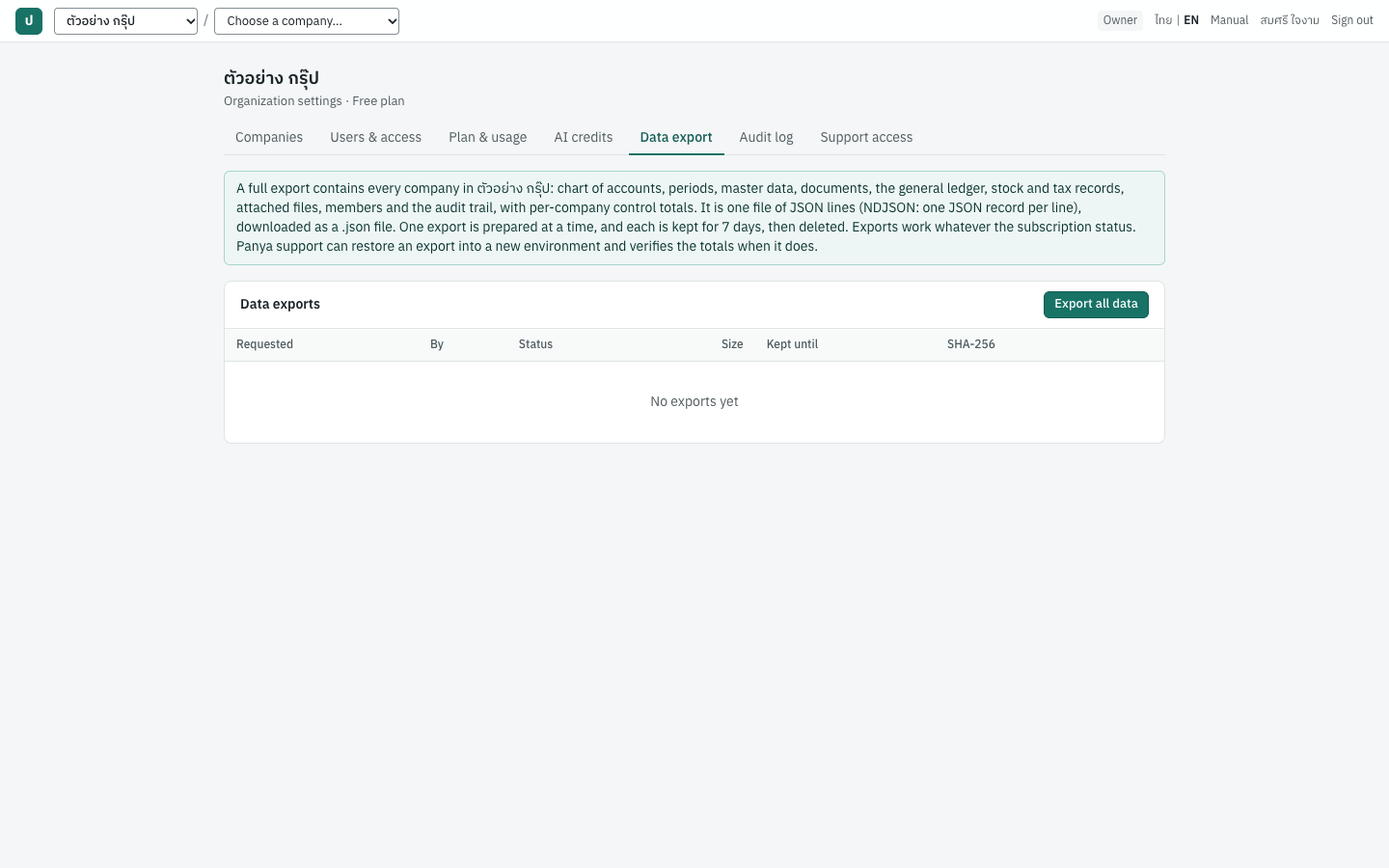
The full data export puts everything the organization owns into one file that you can download and keep: every company's books and documents, the members and the audit trail. Use it for your own archive, before you stop using Panya, or when Panya support asks for it to restore your data. Only owners see this tab.
Exports are free on every plan and work whatever the status, including while the organization is suspended and read-only, and when the file storage is full: you can always take your data with you.
Exporting all data#
- Open Organization settings → Data export.
- Click Export all data. The message Export requested. It will appear here when ready. confirms the request. One export is prepared at a time: while one is
queuedorrunning, clicking again only shows An export is already being prepared. It will appear here when ready. - The export appears at the top of the list with status
queued, thenrunning. The list refreshes by itself every two seconds while an export is being prepared; you can leave the page and come back. - When the status is
done, click Download on its row. Your browser saves a file named likepanya-export-20261017-132000.json(date and time of the export). Download it within 7 days: Panya deletes each export 7 days after it is made. - Keep the file somewhere safe. It contains all your accounting data and attachments.
The exports list#
The Data exports card lists the latest 50 exports, newest first. Before the first export it says No exports yet.
| Column | Shows |
|---|---|
| Requested | Date and time of the request |
| By | Who requested it |
| Status | queued, running, done or failed. Point at failed to see the reason. |
| Size | File size in KB or MB |
| Kept until | The day the export is deleted, 7 days after it was made. After that, request a new export. |
| SHA-256 | The first characters of the file's fingerprint; point at it to see all 64. Compare it with the downloaded file to check the copy is complete and unchanged. |
| (action) | Download, once the export is done |
Each request, completion and download is recorded in the organization audit log (export.request, export.complete, export.download).
Note: Stored exports do not count towards the file storage, and a full storage never stops an export. They are kept for 7 days only, so keep your own copy of the file. Each export includes all attachments, so it can be large: request one when you need it rather than routinely.
What the export contains#
The export is one file covering every company in the organization. It is written as JSON lines (NDJSON): one JSON record on each line, so even a large organization exports in one piece. The file is still saved with the .json extension; read it with a tool for JSON lines, as it is not a single JSON document. It holds:
- the organization, its subscription, its members (name, email, role) and their company access, and the usage records; passwords are never exported;
- the full organization audit log;
- for each company: company details, fiscal years and periods, chart of accounts and default account mapping, VAT rates, exchange rates, WHT types, document numbering, units, categories, warehouses, customers, suppliers, products, cash and bank accounts;
- every document: requisitions, quotations and orders, sales and purchase documents and their lines, receipts, payments and their settlements, WHT lines, deposits, billing notes, refunds, bank transfers, cheque deposits, ภ.พ.36 filings, stock adjustments and transfers, FX revaluations, bank statements, e-Tax submissions;
- the ledger: journal entries and lines, journal vouchers, year-end closings, stock movements and costs, and the VAT and WHT tax records;
- every attachment, including the file itself.
For each company the file also records control totals: the number of journal entries, total debits and total credits, total stock value, total tax, the number of documents, and the number and total size of attachments. They let anyone check that a restored copy matches the original.
Restoring an export#
You cannot load an export back into Panya yourself. Restoring is done by Panya support on request, for example to rebuild your data in a new environment or to make a copy of the organization:
- The restore loads every company through the same checks as normal posting, then verifies each company against the control totals in the file and the integrity checks. It is refused if anything does not match.
- It never overwrites an existing organization. A copy is created as a new organization, named for example
ตัวอย่าง กรุ๊ป (copy), not linked to any Stripe subscription; existing members belong to both. - Restored users have no password. Each person sets one with Forgot your password? on the sign-in page; see Forgotten password.
Support access#
ทีมสนับสนุน · Menu: Organization settings → Support access
Panya staff cannot see your books. Without your permission they see only what they need for billing: the organization's name, plan, subscription status and dates, and the number of companies, members and posted transactions. When you need help with your data, an owner can let Panya support read every company in the organization for a limited time. Support can only view; they cannot change, post or export anything, and each request they make is recorded in your audit log.
Owners and admins see this tab; only owners can grant or withdraw access. Others see Only an owner can allow or withdraw support access.
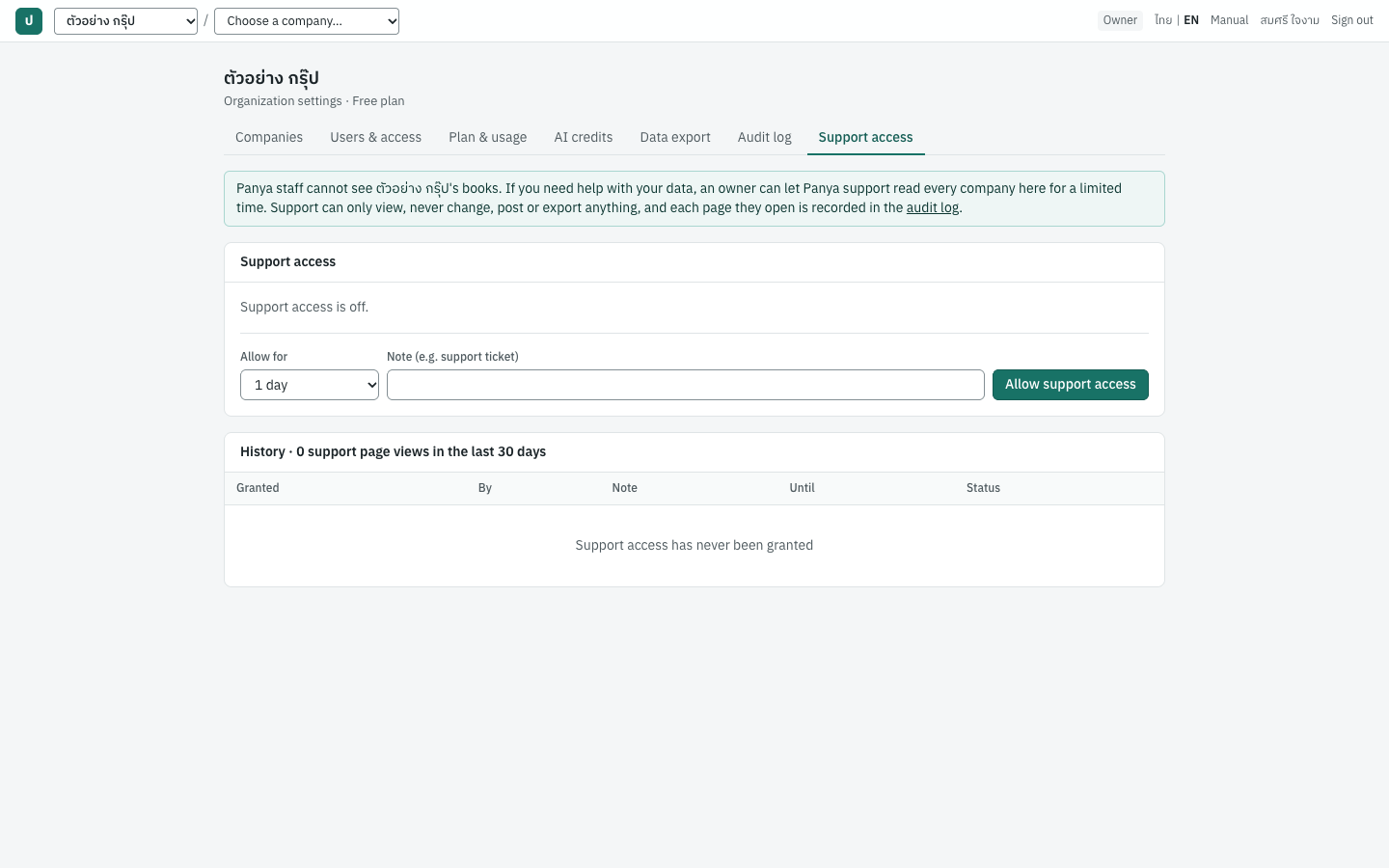
Granting support access#
| Field | ภาษาไทย | What to enter |
|---|---|---|
| Allow for | อนุญาตเป็นเวลา | 4 hours, 1 day (default), 3 days or 7 days |
| Note (e.g. support ticket) | หมายเหตุ (เช่น เลขที่เรื่องที่แจ้ง) | Optional: the support ticket number or what the help is about. It is kept in the history. |
- Open Organization settings → Support access.
- Choose how long support may read the books.
- Type a note if you have a ticket number.
- Click Allow support access. The message Panya support can now read the books confirms it.
- The card now shows
ActivePanya support can read the books until (date and time).
To change the duration while access is active, choose a new duration and click Replace access. The old grant ends and a new one starts from now; the history shows the old one as withdrawn by you.
Withdrawing support access#
Access ends by itself at the time shown. To end it earlier:
- Click Withdraw access now.
- The message Support access withdrawn confirms it, and the card says Support access is off.
Support's next request is refused.
What support can see and do#
While access is active, Panya support can:
- open every company in the organization and read its documents, master data, settings, reports and attachments, exactly as a read-only user would see them;
- not create, change, post, cancel or delete anything; the database itself refuses any change during their session;
- not download report files or the full data export;
- not open your organization settings (members, plan, exports, audit log).
On their screen a strip reminds them: Support session · (organization). Read-only. Every page you open is recorded in the organization's audit log. Access ends (date).
History and audit trail#
The History card's title counts the support requests recorded in the last 30 days, for example History · 0 support page views in the last 30 days. It lists the last 20 grants:
| Column | Shows |
|---|---|
| Granted | When access was granted |
| By | The owner who granted it |
| Note | The note, or — |
| Until | When it ends or ended |
| Status | active, withdrawn by (name), or expired |
Every grant (support.grant), withdrawal (support.revoke) and request support makes (support.view) is written to the organization audit log, shown with an orange Panya support · (name) badge for their views. The summary of each view names the support person's email and the page or record they requested. One screen usually makes several requests, so it can produce several entries. Support views also appear in the company audit log of the company concerned.
Organization audit log#
ประวัติการใช้งาน · Menu: Organization settings → Audit log
The organization audit log lists everything recorded across the organization, newest first: sign-ups and new companies, members and roles, invitations, plan changes and billing events, Panya support actions, exports, and the accounting activity of every company. Nobody can edit or delete entries. Owners and admins see this tab.
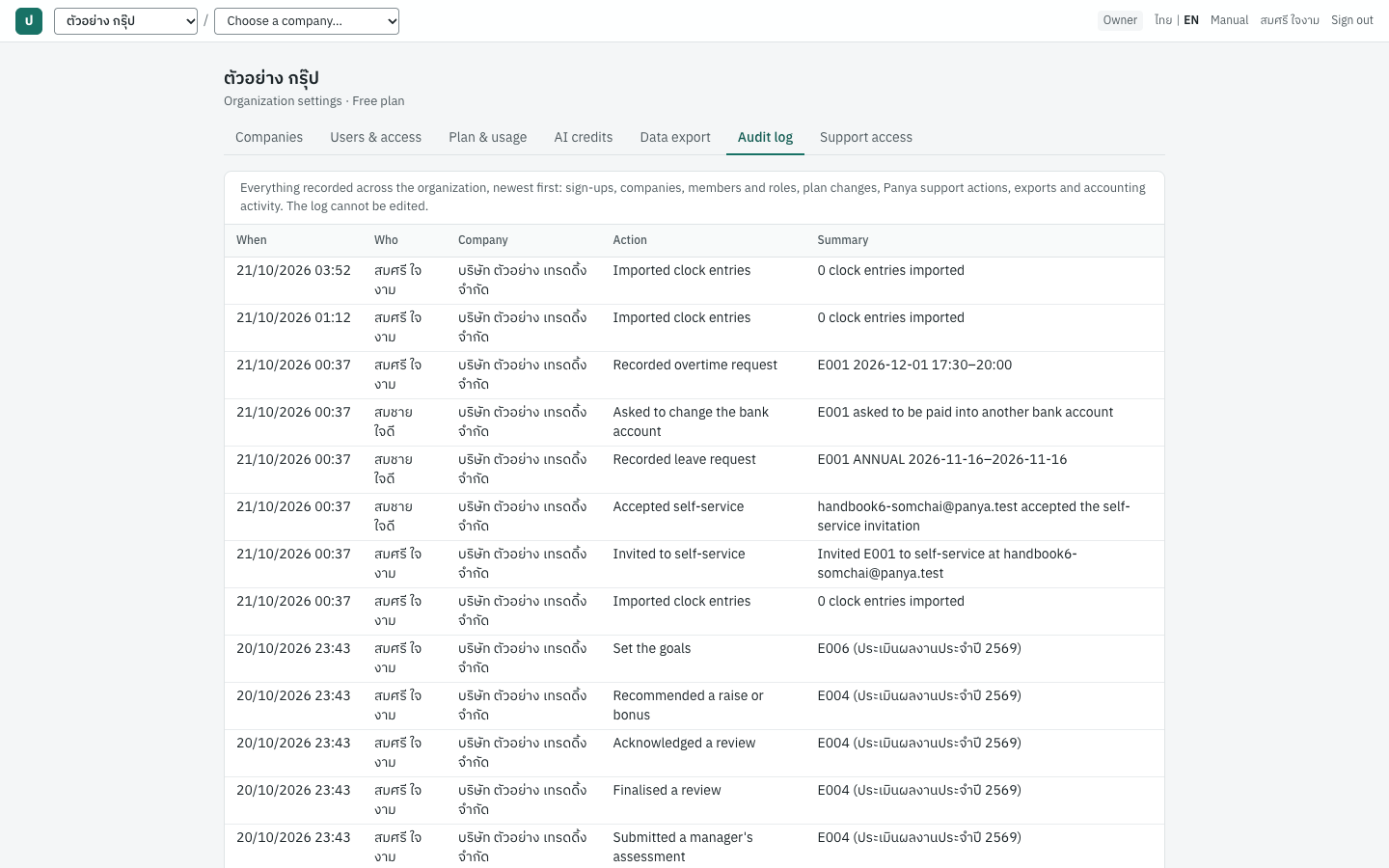
| Column | ภาษาไทย | Shows |
|---|---|---|
| When | เวลา | Date and time, in your computer's time zone, for example 17/10/2569 20:20 |
| Who | ผู้ใช้ | The user's name; an orange Panya support · (name) badge for Panya staff; system for automatic events, with (for (name)) when done on someone's behalf |
| Company | กิจการ | The company concerned, or organization for organization-level events |
| Action | การดำเนินการ | A short code for the kind of event |
| Summary | รายละเอียด | A readable description, for example Posted debit_note DN69100001 total 321.00 |
The log shows 50 entries per page. Use ‹ Newer and Older › at the bottom to page through it.
Organization-level actions you will see:
| Action | Meaning |
|---|---|
tenant.create, tenant.rename | Organization created (on the free plan) or renamed |
company.create | Company created, with its fiscal year start and VAT rate |
invitation.create, invitation.resend, invitation.revoke | Invitation sent, resent or withdrawn |
member.join | Invitation accepted |
member.role, member.company_access, member.remove | Role changed, company access set, user removed |
subscription.checkout | Stripe checkout or PromptPay subscription started |
ai.request | A Panya AI request (question, summary, document read or voucher draft), with the credits it cost |
ai_credits.checkout, ai_credits.purchase | AI credit package checkout started, credits bought |
subscription.change_plan, subscription.cancel, subscription.resume | Storage plan changed, cancelled at period end, kept |
billing.invoice.paid, billing.invoice.payment_failed, billing.subscription.updated, billing.subscription.cancelled | Payment events reported by Stripe (system) |
platform.subscription_update | Subscription changed by Panya staff, with their reason |
support.grant, support.revoke, support.view | Support access granted, withdrawn, and each support request |
export.request, export.complete, export.download | Full data export requested, ready, downloaded |
Company actions use the name of the record and what was done to it, for example sales_document.post, purchase_document.create, billing_note.issue, deposit.post, stock_transfer.post, bank_statement.import, bank_account.update, exchange_rate.create.
Company audit log#
ประวัติการใช้งาน · Menu: 7 Setup → Audit log
Each company also has its own audit log, showing only that company's entries: every change to documents, settings and members, newest first. It cannot be edited. The menu item appears only for people with permission to change company settings: owners, admins and accountants. Others who open the page see The audit log requires the Manage settings permission.
| Column | ภาษาไทย | Shows |
|---|---|---|
| When | เวลา | Date and time, in the company's date display (Buddhist era by default) |
| User | ผู้ใช้ | Who did it, or system |
| Action | การดำเนินการ | The action code, as in the organization log |
| Record | รายการ | The kind of record, for example sales_document |
| Summary | รายละเอียด | A readable description |
The footer shows which entries you are viewing and the page number, for example 1–50 · page 1, with ‹ Newer and Older ›.
Use the company log when you are working in one company, for example to see who posted or cancelled a document. Use the organization log to follow members, plans, exports and support access, or to look across all companies.
Note: While the organization is read-only, the company audit log is hidden. Owners and admins can still read everything in the organization audit log.
Your account#
บัญชีผู้ใช้ · Open: click your name at the top right of any page
Your account belongs to you as a person, across all organizations. This page shows your name and email, sets the language of the screens, lists your organizations, and lets you change your password.
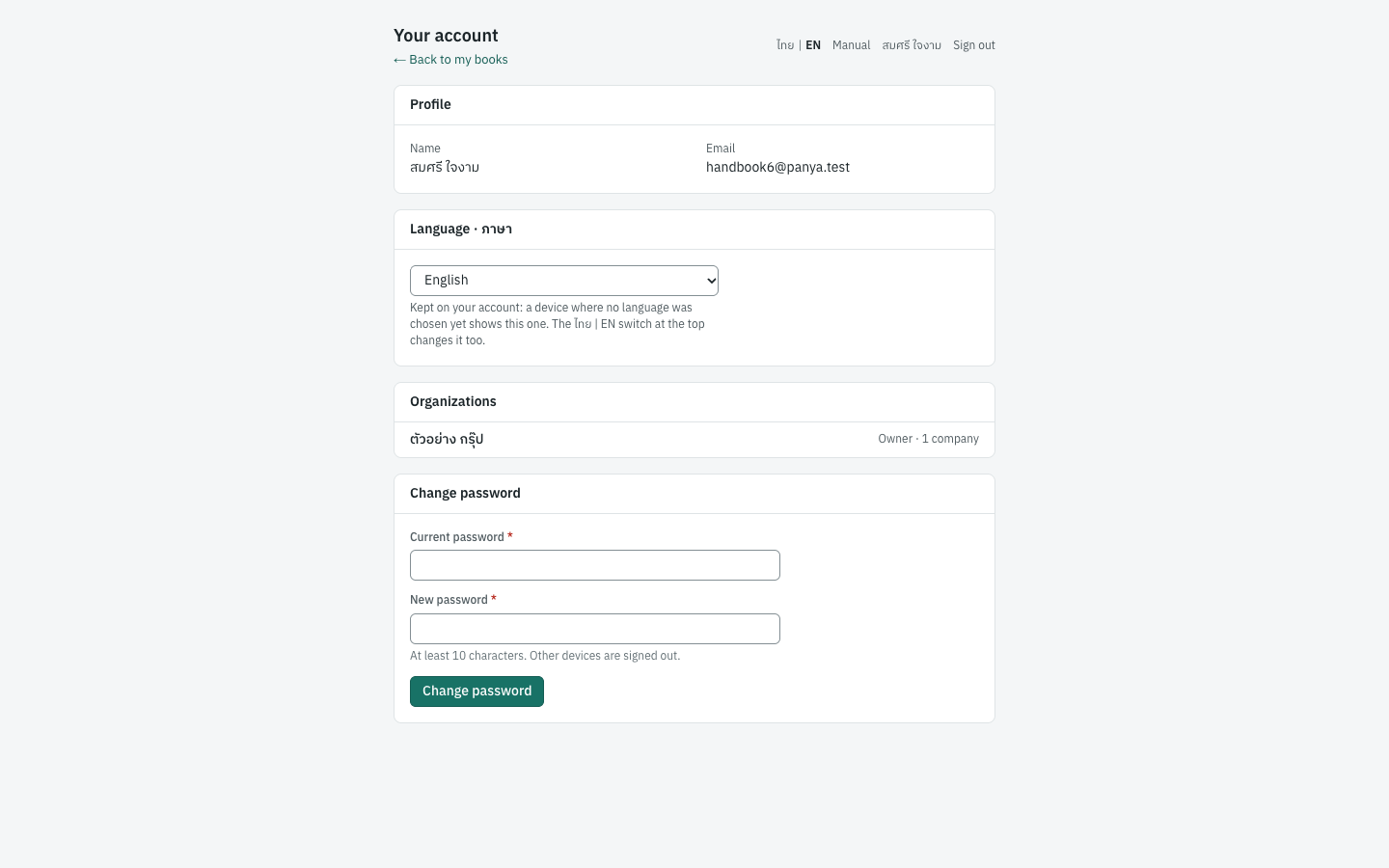
← Back to my books at the top returns you to the company you last worked in.
Profile#
The Profile card shows your Name (as other users see it in member lists, documents and the audit log) and your Email (your sign-in address). Neither can be changed on this page.
Language#
The Language · ภาษา card sets the language of Panya's screens: ไทย (Thai) or English. The card's title is the same in both languages, so you can find it whichever language the screen is in.
- Choose the language in the list.
- The screen changes to that language at once. Every screen follows it: menus, buttons, field names and messages.
The choice is kept in this browser and saved with your account, so a browser or device where you sign in and have not chosen a language yet follows it (Kept on your account: a device where no language was chosen yet shows this one. The ไทย | EN switch at the top changes it too.). Until you choose, Panya follows your browser's language.
The ไทย | EN switch at the top of every page, and on the sign-in pages, makes the same choice.
The language changes only the screens. Printed and shared documents (tax invoices, receipts, payment vouchers, 50 ทวิ certificates, billing notes, quotations, statements) always show Thai and English side by side. Document numbers, account codes, amounts and dates stay the same in both languages; dates follow the company's era setting, not the language.
Organizations#
The Organizations card lists every organization you belong to, with your role and the number of companies you can open, for example Owner · 1 company. Click an organization's name to open its organization settings.
Changing your password#
| Field | What to enter |
|---|---|
| Current password | Your present password |
| New password | At least 10 characters |
- Type your current password.
- Type the new password.
- Click Change password.
- The message Password changed. Other devices have been signed out. confirms it. You stay signed in on this device; every other browser or device where you were signed in must sign in again with the new password.
| Message | What to do |
|---|---|
| the current password is not correct | Retype your current password. If you have forgotten it, sign out and use Forgotten password. |
| password must be at least 10 characters | Choose a longer password. |
Confirming your email address#
When you register, Panya emails a link to confirm that the address is yours (subject Confirm your email address to finish signing up for Panya). The link works for 3 days. Opening it finishes signing up: you choose your password, then Panya creates the organization you named and signs you in.
On an older account that was never confirmed, you can keep books normally, but you cannot invite people or email documents. A blue strip on every page says Confirm your email address. We sent a link to (email). Inviting people and emailing documents work once it is confirmed.
- Open the email and click the link.
- To finish signing up, choose your password on the Finish signing up page and click Finish signing up: Panya signs you in.
- On an account that already has a password, the Confirm your email page says Thank you: (email) is confirmed. Click Continue to Panya.
If the email has not arrived, check the spam folder, then click Send the link again in the blue strip (Sent. Check your inbox (and spam folder).). You can ask for a new link at most once a minute; asking sooner gives too many requests. If a link has expired or was already used, the page says this confirmation link is invalid or has expired: sign in and send yourself a new one from the strip.
Accepting an invitation or resetting your password by email also confirms your address.
Signing out#
Click Sign out at the top right of any page. This ends your session on this browser only; other devices stay signed in. Panya also signs you out by itself after a period without activity (12 hours in the standard setup), and on all devices when you reset your password.
On a shared computer, always sign out when you finish.
Forgotten password#
ลืมรหัสผ่าน · Open: Forgot your password? on the sign-in page
- On the sign-in page, click Forgot your password?.
- On Reset your password, type your email address and click Send reset link.
- The page says If (email) has a Panya account, we sent it a link to choose a new password. The link works once, for one hour. (It says the same whether or not the address has an account.)
- Open the email Reset your Panya password and click the link.
- On Choose a new password, type the new password (at least 10 characters) in New password and again in Repeat the new password.
- Click Set password.
- The page says Your new password is set. For safety, every device that was signed in has been signed out. Click Sign in and sign in with the new password.
If you did not ask for a reset, ignore the email: your password stays the same.
| Message | What to do |
|---|---|
| The passwords do not match | Type the same password in both fields. |
| this reset link is invalid or has expired | The link is older than an hour or was already used. Click Request a new link. |
| too many requests | Wait a few minutes before asking again. |
| password must be at least 10 characters | Choose a longer password. |
For signing in and registering a new account, see Getting started.
A disabled account#
Panya support can disable an account's sign-in, for example when it is misused or at the owner's request. All its sessions end at once. Signing in then answers this account is disabled; contact Panya support, and Forgot your password? sends no link. Contact Panya support: they can enable the account again.
A disabled account is never deleted. Its organizations, documents and history stay as they are, and its documents keep their author.