Reports · รายงาน
Menu 6 Reports holds the financial statements, the ledgers, the receivable and payable agings, the Revenue Department tax reports, the sales, purchase, cash and stock analyses, and the integrity checks that prove the books agree with themselves.
Every report reads posted data only: the journal entries, the stock movement history and the tax register. Drafts never appear, and nothing is read from separately kept totals, so a report always agrees with the documents behind it. Amounts are in baht with two decimals. Foreign-currency documents appear at their baht value.
This chapter uses the demo company บริษัท ตัวอย่าง เทรดดิ้ง จำกัด (tax ID 0105566000001, head office 00000). Its documents are dated October 2026 (10/2569), and the screenshots were taken on 17/10/2569.
Finding the reports#
รายงาน · Menu: 6 Reports
The side menu lists the most used reports directly. Every other report is opened from the All reports page.
| Menu item | ภาษาไทย | Opens |
|---|---|---|
| All reports | รายงานทั้งหมด | The report index, with every report grouped by subject |
| Trial balance | งบทดลอง | Trial balance |
| Profit & loss | งบกำไรขาดทุน | Profit and loss |
| Balance sheet | งบแสดงฐานะการเงิน | Balance sheet |
| VAT reports | รายงานภาษีซื้อ/ขาย | VAT reports, output tax first |
| Integrity checks | ตรวจสอบความถูกต้อง | Integrity checks |
Other screens lead to reports too:
- Dashboard → Books integrity → Details opens the integrity checks. The dashboard runs the checks each time it opens and lists any that fail.
- 5 Accounting → Opening balances links to the trial balance and the integrity checks from its reconciliation panel (see 07-accounting.md).
- 1 Purchasing → Suppliers → Statement opens the AP aging for that supplier. On the customer list, Statement opens the customer's statement of account (ใบแจ้งยอดค้างชำระ), which is described in 04-sales.md.
- A payment with withholding tax has a 50 ทวิ certificate button (see 05-finance.md).
All reports#
รายงานทั้งหมด · Menu: 6 Reports → All reports
The index shows every report in seven groups. Each entry shows the report's name as a link and one line on what the report answers. Click an entry to open the report.
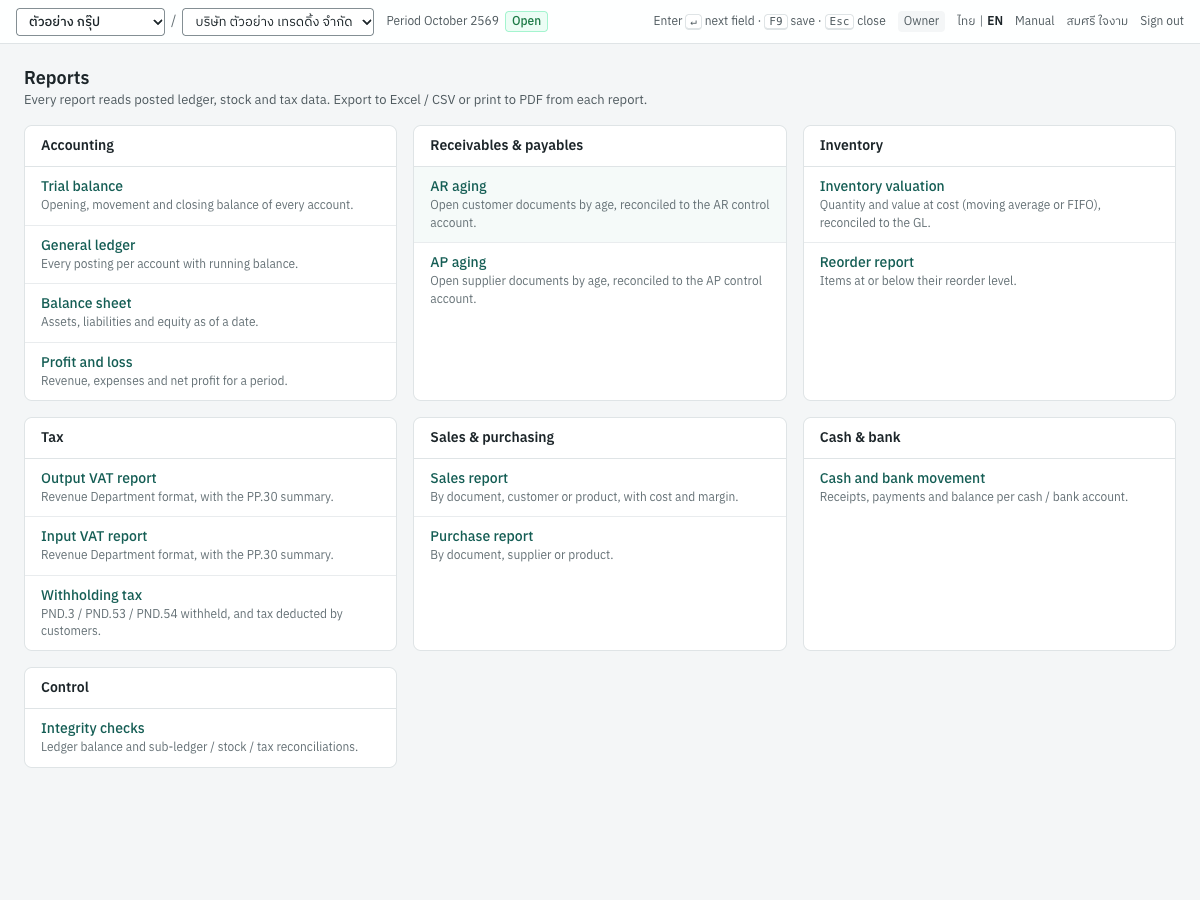
| Group | Report | ภาษาไทย | What it answers |
|---|---|---|---|
| Accounting | Trial balance | งบทดลอง | Opening, movement and closing balance of every account |
| Accounting | General ledger | บัญชีแยกประเภท | Every posting per account with its running balance |
| Accounting | Balance sheet | งบแสดงฐานะการเงิน | Assets, liabilities and equity on a date |
| Accounting | Profit and loss | งบกำไรขาดทุน | Revenue, expenses and net profit for a period |
| Receivables & payables | AR aging | รายงานอายุลูกหนี้ | Open customer documents by age, reconciled to the AR control account |
| Receivables & payables | AP aging | รายงานอายุเจ้าหนี้ | Open supplier documents by age, reconciled to the AP control account |
| Inventory | Inventory valuation | รายงานมูลค่าสินค้าคงเหลือ | Quantity and value of stock at cost (moving average or FIFO), reconciled to the GL |
| Inventory | Reorder report | สินค้าถึงจุดสั่งซื้อ | Items at or below their reorder level |
| Tax | Output VAT report | รายงานภาษีขาย | Output tax in Revenue Department format, with the PP.30 summary |
| Tax | Input VAT report | รายงานภาษีซื้อ | Input tax in Revenue Department format, with the PP.30 summary |
| Tax | Withholding tax | รายงานภาษีหัก ณ ที่จ่าย | Tax withheld on ภ.ง.ด.3, ภ.ง.ด.53 and ภ.ง.ด.54, and tax deducted by customers |
| Sales & purchasing | Sales report | รายงานการขาย | Sales by document, customer or product, with cost and margin |
| Sales & purchasing | Purchase report | รายงานการซื้อ | Purchases by document, supplier or product |
| Cash & bank | Cash and bank movement | รายงานเคลื่อนไหวเงินสด/ธนาคาร | Receipts, payments and balance of each cash and bank account |
| Control | Integrity checks | ตรวจสอบความถูกต้อง | Whether the ledger balances and the sub-ledgers, stock and tax records reconcile |
Working with reports#
Every report screen has the same frame:
- ← Reports above the title returns to the index.
- The title is the report's name, and under it a line states the range, the as-of date or the tax month shown, in the company's date format (Buddhist era by default).
- On the right are Export Excel, CSV and Print / PDF (
Alt+P). The integrity checks have Re-run checks instead of the export buttons. - Below the title is the filter bar. The report refreshes as soon as a filter changes; while the new figures load, the old ones stay on screen with Updating… next to the filters.
The filter settings are kept in the page address. Reloading the page keeps them, and you can bookmark a report with its filters or send the link to a colleague who has access to the company.
Filter types#
Reports use one of four kinds of filter.
| Field | ภาษาไทย | What to enter |
|---|---|---|
| From | ตั้งแต่วันที่ | First day of the range. Defaults to the first day of the current fiscal year. |
| To | ถึงวันที่ | Last day of the range. Defaults to today. |
| Quick range | ช่วงเวลา | Fills From and To in one step: This month (1st of the month to today), Last month (the whole previous month), This quarter (first day of the calendar quarter to today), This year (start of the fiscal year to today), Last year (the whole previous fiscal year). |
| As of | ณ วันที่ | The single date the report is drawn up on. Defaults to today. |
| Tax period | เดือนภาษี | The tax month, shown by name with the year in the company's date format (for example October 2569). Use ‹ and › to step a month back or forward, or pick from the list, which runs from next month back four years. Defaults to the current month. |
The fiscal year start comes from 7 Setup → Company → Fiscal year starts; the date format from Date display on the same screen (see 02-setup.md).
Note: The From, To and As of boxes use your browser's date picker, which may show the Christian-era year (for example 17/10/2026). The line under the report title always shows the dates in the company's format (17/10/2569).
Which filter each report uses:
| Report | Filters |
|---|---|
| Trial balance, Profit and loss | From, To, Quick range, Show zero balances |
| General ledger | From, To, Quick range, Account |
| Balance sheet | As of, Show zero balances |
| AR aging, AP aging | As of |
| Inventory valuation | As of, Warehouse |
| VAT reports, Withholding tax | Tax period, plus tabs |
| Sales report, Purchase report | From, To, Quick range, plus grouping tabs |
| Cash and bank movement | From, To, Quick range, Account |
| Reorder report, Integrity checks | none (always today's position) |
Opening documents from a report#
Reports link down to the records behind each figure:
- In the trial balance and profit and loss, click an account name to open its general ledger for the same range; in the balance sheet, for the start of the fiscal year to the as-of date. Group accounts (bold subtotals) are not links.
- In the general ledger and the cash and bank movement report, the Entry number opens the journal entry, and the Document number opens the source document. Sales and purchase documents, receipts, payments, journal vouchers, stock adjustments and stock transfers are links. Other documents (deposits AI and AE, bank transfers BT, refunds, cheque deposit slips, PP.36 filings, FX revaluations) show their number without a link; open the journal entry and go from there.
- In the agings, click a customer or supplier row to list its open documents; each document number opens the document.
- In the VAT and withholding tax reports, the document number opens the invoice, receipt or payment.
- In the sales and purchase reports grouped by document, the number opens the document.
Printing and saving as PDF#
Click Print / PDF or press Alt+P. The browser's print dialog opens; choose a printer, or Save as PDF to keep a file.
The printed page leaves out the menu, filter bar, buttons, tabs and on-screen notes, and adds a heading:
- the company name in Thai and English;
- Tax ID and the branch (Head office, or Branch followed by the branch code);
- the report name and the range or date (the withholding tax report keeps its Thai name, รายงานภาษีหัก ณ ที่จ่าย, with the English name under it);
- Printed and the date printed.
Rows are not split across pages. The VAT reports print their own Revenue Department heading in place of this one, and their PP.30 summary box is not printed. In the agings and the cash and bank movement report, documents and lines you have expanded on screen are printed too.
Exporting to Excel and CSV#
Export Excel downloads the report as an .xlsx workbook and CSV as a .csv file. Both are produced from the same data as the screen, for the current filters and tab; the table below notes what each file leaves out.
- The file starts with the report title (English / Thai), then, for most reports, a line with the range, as-of date or tax period, then a row of English column headings, then the data rows and, where the report has one, a total row.
- In the Excel file, amounts are real numbers formatted
#,##0.00and quantities#,##0.0000, so they can be summed. The worksheet is named after the report. - The CSV file is UTF-8 with a byte-order mark, so Excel opens Thai text correctly. Numbers have no thousands separators.
- Dates in both files are written
yyyy-mm-ddin the Christian era (for example2026-10-05), whatever the company's date display. - Account names are indented two spaces per level in the trial balance, balance sheet and profit and loss.
| Report | File name | Notes |
|---|---|---|
| Trial balance | trial-balance | Code, account and the six amount columns of the screen |
| General ledger | general-ledger | Per account: opening row, lines, closing row. Balances are signed (credit balances negative) instead of Dr / Cr. |
| Balance sheet | balance-sheet | Includes the current profit not yet closed, total assets and total liabilities and equity |
| Profit and loss | profit-loss | Ends with total revenue, total expenses and net profit (loss) |
| AR aging, AP aging | ar-aging, ap-aging | One row per open document (code, name, document, date, due, days overdue, the five buckets, total). The reconciliation and advances are not in the file. |
| Inventory valuation | stock-valuation | Code, product, unit, quantity, average cost, value |
| Reorder report | reorder | Code, product, on hand, reorder level, shortfall |
| VAT reports | vat-output-2026-10, vat-input-2026-10 | The tax report rows; branch as the five-digit code. The PP.30 summary is not in the file. |
| Withholding tax | wht-withheld-2026-10, wht-deducted-2026-10 | The rows of the open tab; e-WHT rows show e-WHT in the Form column |
| Sales report, Purchase report | sales-report, purchase-report | Columns Code / No., Name, Info, Qty, Net, VAT, Total, Cost, Margin; Margin is filled for sales only |
| Cash and bank movement | cash-movement | One summary row per account; the lines are not in the file |
The export buttons appear when your role includes exporting, which every built-in role does. Exports are free on every plan (see 09-organization.md), and the Reports page reads Export to Excel / CSV or print to PDF from each report. The integrity checks cannot be exported; print them instead.
Tip: To get the lines of a cash or bank account into Excel, export the general ledger for that account.
What the reports include#
- Posted documents only. Drafts are never counted.
- Cancelled documents. Cancelling a document posts a reversing entry dated on the cancellation date. Ledger reports (trial balance, general ledger, statements, cash movement) show both entries on their own dates. The VAT and withholding tax reports keep the original row in its month and add a negative row, marked Cancelled, in the month of cancellation. The agings honour the cancellation date: a document cancelled after the as-of date still counts as open on that date. The sales and purchase reports show posted documents only, so a cancelled document drops out of them for every range.
- Dates. Ledger reports use the entry date. Tax reports use the tax month of each tax record (see VAT reports).
- Foreign currency. All figures are in baht at the rate each document was posted at.
Trial balance#
งบทดลอง · Menu: 6 Reports → Trial balance
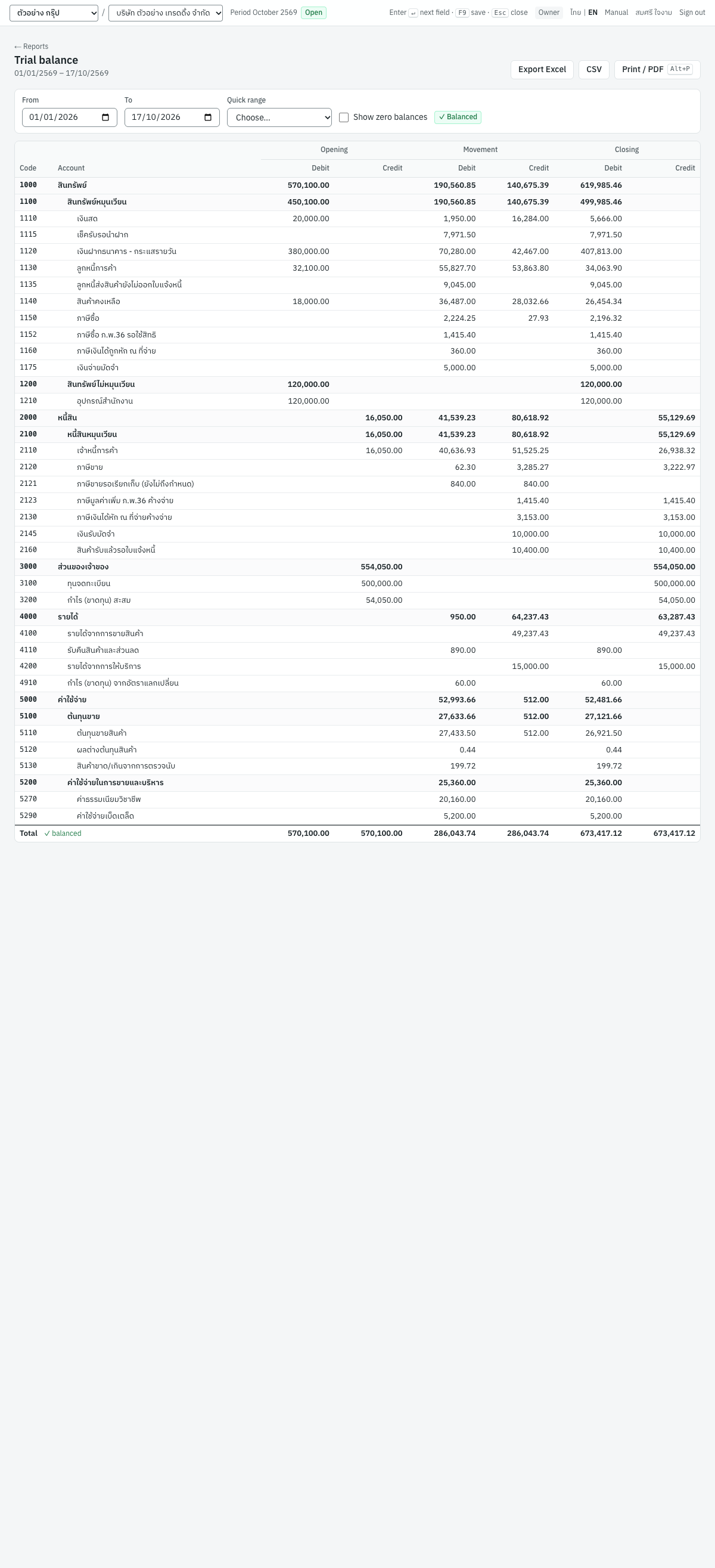
The trial balance lists every account of the chart with its balance at the start of the range, the debits and credits posted during the range, and the balance at the end. Use it to check that the books balance, to review account balances before closing a month, and as the starting point for the financial statements.
Filters#
| Field | ภาษาไทย | What to enter |
|---|---|---|
| From | ตั้งแต่วันที่ | First day of the range (default: start of the fiscal year) |
| To | ถึงวันที่ | Last day of the range (default: today) |
| Quick range | ช่วงเวลา | A preset range (see Filter types) |
| Show zero balances | แสดงบัญชีที่ไม่มียอด | Tick to list accounts with no opening balance, no movement and no closing balance. Off by default. |
Next to the filters a badge shows ✓ Balanced or ✗ Not balanced.
Columns#
| Column | ภาษาไทย | What it shows |
|---|---|---|
| Code | รหัส | Account code |
| Account | ชื่อบัญชี | Account name, indented under its group. Group accounts are bold and show the subtotal of the accounts under them. |
| Opening Debit / Credit | ยอดยกมา เดบิต / เครดิต | Balance of all postings dated before From, plus the opening entries dated on From (the Opening book: the opening voucher, customer and supplier openings, opening stock), in the debit or credit column by its side |
| Movement Debit / Credit | ระหว่างงวด เดบิต / เครดิต | Total debits and total credits posted from From to To, other than those opening entries |
| Closing Debit / Credit | ยอดคงเหลือ เดบิต / เครดิต | Opening plus movement, in the debit or credit column by its side |
Zero amounts are left blank. The Total row adds the posting accounts only, so group subtotals are not counted twice. The report is balanced when total movement debits equal total movement credits and total closing debits equal total closing credits; the total row repeats this as ✓ balanced.
Reading the demo figures#
For 01/01/2569 – 17/10/2569 the demo company shows:
- The opening columns hold the opening balances, 570,100.00 debit and credit: the opening entries
OJ6900001toOJ6900004(ยอดยกมาจากระบบเดิม, the customer and supplier openings and the opening stock) are dated 01/01/2569, the first day of the range, in the Opening book, so they count as opening balances, not as movement. 3900ยอดยกมาเพื่อปรับปรุง has no balance in any column: the opening entries put 50,100.00 on each side of it and cancelled each other out, as they should.- Totals: movement 286,043.74 debit and credit, closing 673,417.12 debit and credit — balanced.
- Closing balances you will meet again in other reports:
1130ลูกหนี้การค้า 34,063.90 (AR aging),2110เจ้าหนี้การค้า 26,938.32 (AP aging),1140สินค้าคงเหลือ 26,454.34 (inventory valuation),2120ภาษีขาย 3,222.97 and1150ภาษีซื้อ 2,196.32 (VAT reports),2130ภาษีเงินได้หัก ณ ที่จ่ายค้างจ่าย 3,153.00 and1160ภาษีเงินได้ถูกหัก ณ ที่จ่าย 360.00 (withholding tax report).
Checking a month#
- Open 6 Reports → Trial balance.
- Choose Quick range → Last month, or type From and To.
- Confirm the ✓ Balanced badge.
- Click any account whose balance looks wrong to open its general ledger for the same range.
- Press
Alt+Pto print or save the trial balance with the month's working papers.
Note: After year-end closing, the closing entry (book Closing, numbered CL…) is part of the movement, so revenue and expense accounts close at zero for that year. Use the profit and loss report for the year's result; it leaves the closing entry out.
Profit and loss#
งบกำไรขาดทุน · Menu: 6 Reports → Profit & loss
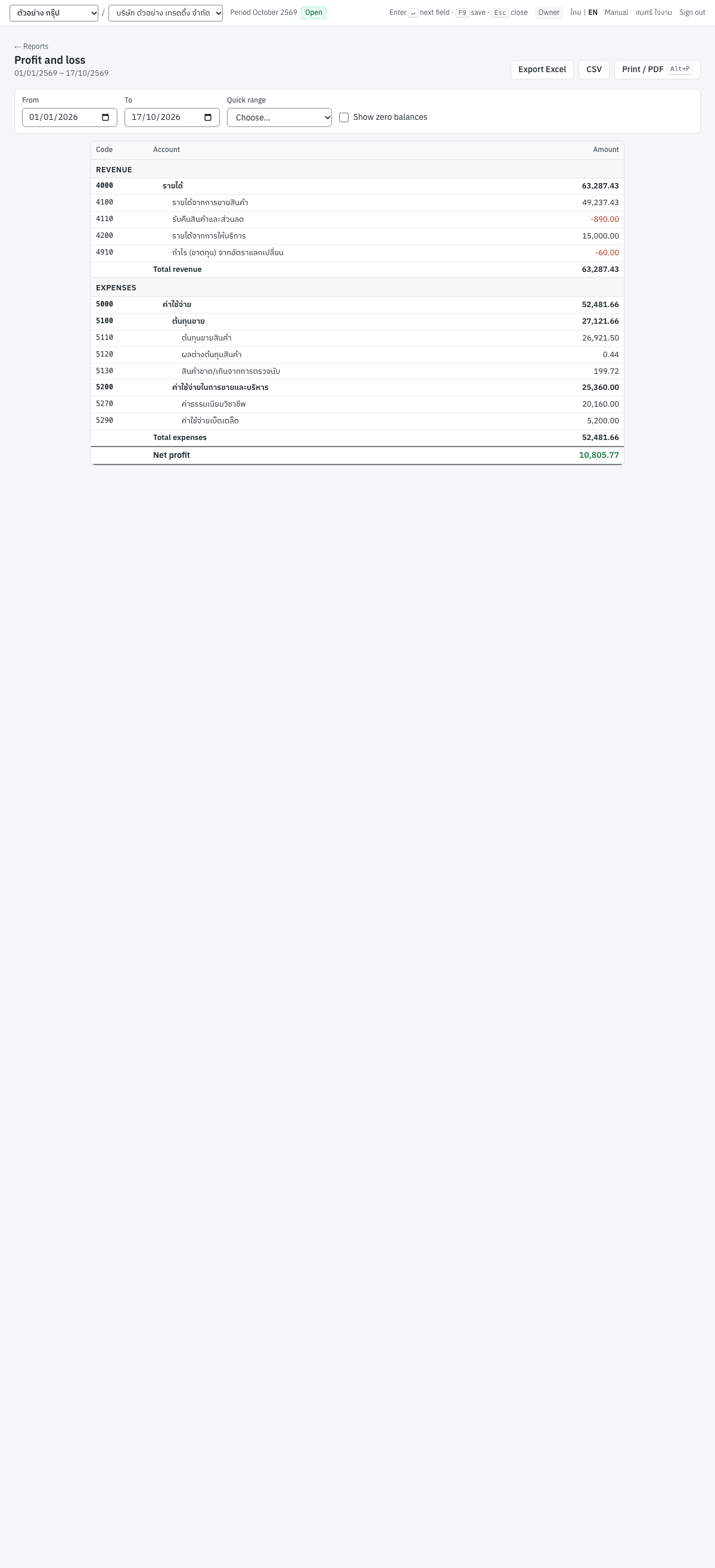
The profit and loss statement lists the revenue and expense accounts with their totals for the range and the net profit or loss. Use it for monthly results, year-to-date results, and the annual statement.
Filters#
| Field | ภาษาไทย | What to enter |
|---|---|---|
| From | ตั้งแต่วันที่ | First day of the period (default: start of the fiscal year) |
| To | ถึงวันที่ | Last day of the period (default: today) |
| Quick range | ช่วงเวลา | A preset range |
| Show zero balances | แสดงบัญชีที่ไม่มียอด | Tick to list revenue and expense accounts that had nothing posted |
Layout#
| Part | ภาษาไทย | What it shows |
|---|---|---|
| Revenue | รายได้ | Every revenue account with its credit balance for the period, under its groups. Contra accounts such as 4110 รับคืนสินค้าและส่วนลด show as negative (red). |
| Total revenue | รวมรายได้ | Sum of the revenue accounts |
| Expenses | ค่าใช้จ่าย | Every expense account with its debit balance for the period, under its groups (5100 ต้นทุนขาย, 5200 ค่าใช้จ่ายในการขายและบริหาร) |
| Total expenses | รวมค่าใช้จ่าย | Sum of the expense accounts |
| Net profit | กำไรสุทธิ | Total revenue less total expenses, in green. A loss is labelled Net loss (ขาดทุนสุทธิ) in red. |
The columns are Code, Account and Amount. Group accounts are bold and carry the subtotal of the accounts under them. Year-end closing entries are left out, so a closed year still shows its result.
Reading the demo figures#
From 01/01/2569 to 17/10/2569:
| Account | Amount |
|---|---|
4100 รายได้จากการขายสินค้า | 49,237.43 |
4110 รับคืนสินค้าและส่วนลด | -890.00 |
4200 รายได้จากการให้บริการ | 15,000.00 |
4910 กำไร (ขาดทุน) จากอัตราแลกเปลี่ยน | -60.00 |
| Total revenue | 63,287.43 |
5110 ต้นทุนขายสินค้า | 26,921.50 |
5120 ผลต่างต้นทุนสินค้า | 0.44 |
5130 สินค้าขาด/เกินจากการตรวจนับ | 199.72 |
5270 ค่าธรรมเนียมวิชาชีพ | 20,160.00 |
5290 ค่าใช้จ่ายเบ็ดเตล็ด | 5,200.00 |
| Total expenses | 52,481.66 |
| Net profit | 10,805.77 |
4910 is negative because the exchange differences on the foreign-currency documents add up to a loss of 60.00. The net profit of 10,805.77 reappears on the balance sheet as the current profit not yet closed.
Balance sheet#
งบแสดงฐานะการเงิน · Menu: 6 Reports → Balance sheet
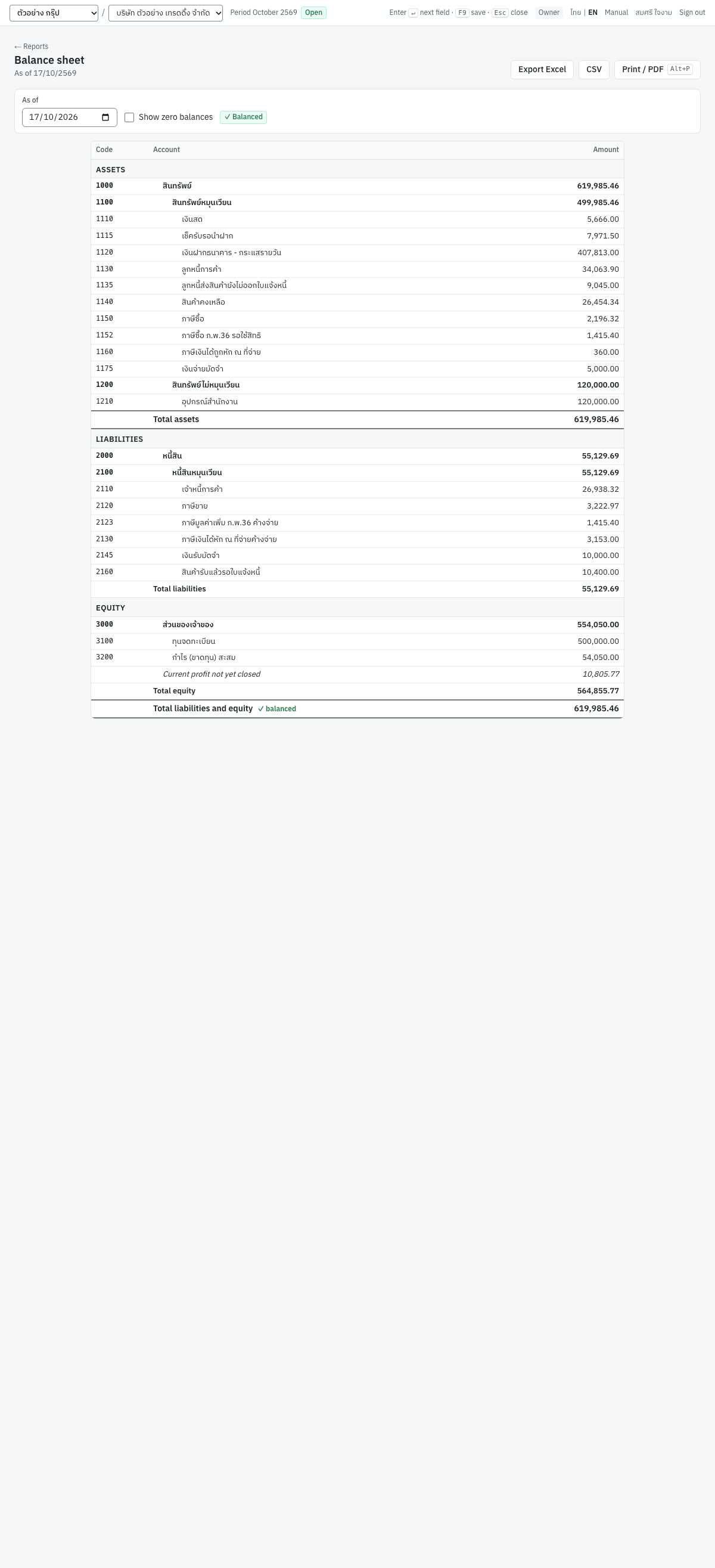
The balance sheet shows assets, liabilities and equity on a date. Profit that has not yet been closed into retained earnings is shown as its own line under equity, so the statement balances at any date during the year.
Filters#
| Field | ภาษาไทย | What to enter |
|---|---|---|
| As of | ณ วันที่ | The statement date (default: today). All postings dated on or before it count. |
| Show zero balances | แสดงบัญชีที่ไม่มียอด | Tick to list asset, liability and equity accounts with no balance |
The badge next to the filters shows ✓ Balanced when total assets equal total liabilities and equity.
Layout#
| Part | ภาษาไทย | What it shows |
|---|---|---|
| Assets | สินทรัพย์ | Every asset account with its debit balance, under its groups. Contra accounts (such as accumulated depreciation) show as negative. |
| Total assets | รวมสินทรัพย์ | Sum of the asset accounts |
| Liabilities | หนี้สิน | Every liability account with its credit balance |
| Total liabilities | รวมหนี้สิน | Sum of the liability accounts |
| Equity | ส่วนของเจ้าของ | Every equity account with its credit balance |
| Current profit not yet closed | กำไร(ขาดทุน)งวดปัจจุบันที่ยังไม่ปิดบัญชี | Revenue less expenses of the current fiscal year up to the date, not yet moved to retained earnings by a year-end closing (in italics). The result of earlier fiscal years that are not closed yet is added to retained earnings (3200), as profit brought forward |
| Total equity | รวมส่วนของเจ้าของ | Equity accounts plus the current profit not yet closed |
| Total liabilities and equity | รวมหนี้สินและส่วนของเจ้าของ | Must equal total assets; marked ✓ balanced |
Clicking an account opens its general ledger from the start of the fiscal year that contains the as-of date up to the as-of date.
Reading the demo figures#
As of 17/10/2569:
- Total assets 619,985.46, made up of current assets 499,985.46 (cash
11105,666.00, cheques on hand11157,971.50, bank1120407,813.00, receivables113034,063.90, delivered not invoiced11359,045.00, inventory114026,454.34, input VAT11502,196.32, PP.36 input VAT11521,415.40, WHT deducted1160360.00, deposits paid11755,000.00) and office equipment1210120,000.00. - Total liabilities 55,129.69, including payables
211026,938.32, output VAT21203,222.97, PP.36 VAT payable21231,415.40, WHT payable21303,153.00, deposits received214510,000.00 and goods received not invoiced216010,400.00. - Equity: share capital
3100500,000.00, retained earnings320054,050.00 and current profit not yet closed 10,805.77, total 564,855.77. - Total liabilities and equity 619,985.46 — balanced.
The current profit not yet closed equals the profit and loss net profit for 01/01/2569 – 17/10/2569 because the fiscal year starts in January and has not been closed. After the year-end closing (see 07-accounting.md) the line is zero for that year and the profit sits in 3200.
General ledger#
บัญชีแยกประเภท · Menu: 6 Reports → All reports → General ledger
The general ledger lists every posting to each account in date order with a running balance. Use it to trace a balance back to its documents, to review a bank or control account, and as the detailed ledger for the auditor. Open it from the index, or click an account in the trial balance, balance sheet or profit and loss.
Filters#
| Field | ภาษาไทย | What to enter |
|---|---|---|
| From | ตั้งแต่วันที่ | First day of the range (default: start of the fiscal year) |
| To | ถึงวันที่ | Last day of the range (default: today) |
| Quick range | ช่วงเวลา | A preset range |
| Account | บัญชี | Type an account code (matches from the start) or part of its Thai or English name; ↑/↓ to move, Enter to pick, Esc to close. Enter in the empty box opens the list. Only posting accounts are offered; inactive accounts are marked inactive. Leave empty (All accounts) for every account; All clears a chosen account. |
The line under the title shows the range and the chosen account, or All accounts.
Columns#
| Column | ภาษาไทย | What it shows |
|---|---|---|
| Date | วันที่ | Entry date |
| Entry | เลขที่รายการ | Journal entry number, a link to the entry. With the default numbering the prefix shows the book: SJ sales, PJ purchases, RJ receipts, CJ payments, GJ general, IJ inventory, OJ opening, CL closing. |
| Document | เอกสาร | Number of the source document, a link where the document has its own page |
| Description | คำอธิบาย | The line's description, or the entry's memo |
| Party | คู่ค้า | Customer or supplier on the line |
| Debit / Credit | เดบิต / เครดิต | Amount of the posting |
| Balance | คงเหลือ | Running balance with Dr or Cr |
Each account starts with a heading row (code and name) and an Opening balance row dated From, and ends with a Closing balance row dated To that shows the account's total debits, total credits and closing balance. As in the trial balance, the opening balance is all postings dated before From plus the opening entries dated on From (the Opening book: the opening voucher, customer and supplier openings, opening stock); those entries are not listed as lines. Accounts with no postings in the range and no opening balance are left out. The last row, Total movement, adds the debits and credits of all accounts shown, with the number of accounts.
Reading the demo figures#
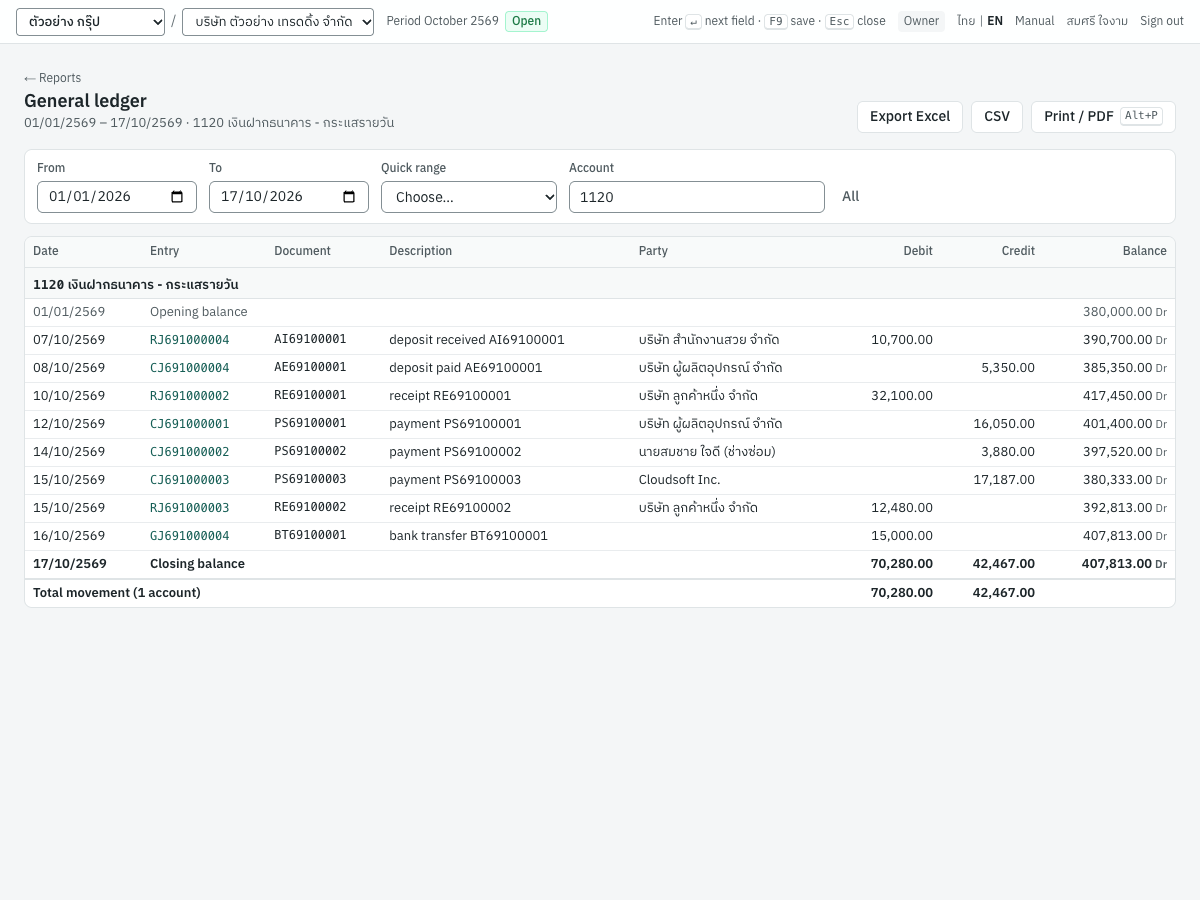
Account 1120 เงินฝากธนาคาร - กระแสรายวัน from 01/01/2569 to 17/10/2569:
| Date | Entry | Document | Description | Party | Debit | Credit | Balance |
|---|---|---|---|---|---|---|---|
| 01/01/2569 | Opening balance | 380,000.00 Dr | |||||
| 07/10/2569 | RJ691000004 | AI69100001 | deposit received AI69100001 | บริษัท สำนักงานสวย จำกัด | 10,700.00 | 390,700.00 Dr | |
| 08/10/2569 | CJ691000004 | AE69100001 | deposit paid AE69100001 | บริษัท ผู้ผลิตอุปกรณ์ จำกัด | 5,350.00 | 385,350.00 Dr | |
| 10/10/2569 | RJ691000002 | RE69100001 | receipt RE69100001 | บริษัท ลูกค้าหนึ่ง จำกัด | 32,100.00 | 417,450.00 Dr | |
| 12/10/2569 | CJ691000001 | PS69100001 | payment PS69100001 | บริษัท ผู้ผลิตอุปกรณ์ จำกัด | 16,050.00 | 401,400.00 Dr | |
| 14/10/2569 | CJ691000002 | PS69100002 | payment PS69100002 | นายสมชาย ใจดี (ช่างซ่อม) | 3,880.00 | 397,520.00 Dr | |
| 15/10/2569 | CJ691000003 | PS69100003 | payment PS69100003 | Cloudsoft Inc. | 17,187.00 | 380,333.00 Dr | |
| 15/10/2569 | RJ691000003 | RE69100002 | receipt RE69100002 | บริษัท ลูกค้าหนึ่ง จำกัด | 12,480.00 | 392,813.00 Dr | |
| 16/10/2569 | GJ691000004 | BT69100001 | bank transfer BT69100001 | 15,000.00 | 407,813.00 Dr | ||
| 17/10/2569 | Closing balance | 70,280.00 | 42,467.00 | 407,813.00 Dr |
The opening balance 380,000.00 is the opening voucher OJ6900001 (OB6900001, ยอดยกมาจากระบบเดิม) dated 01/01/2569, the first day of the range. The payments to S002 and S003 are net of the tax withheld (4,000.00 − 120.00 = 3,880.00 and 20,220.00 − 3,033.00 = 17,187.00), and the receipt RE69100002 is net of the 360.00 the customer withheld (12,840.00 − 360.00 = 12,480.00). RE69100001 and PS69100001 settle the customer and supplier balances brought forward from the old system (32,100.00 and 16,050.00). The closing balance 407,813.00 agrees with the trial balance and balance sheet.
Tip: One run shows at most 20,000 posting lines. With more, the report shows nothing but the general ledger for … has more than 20000 lines; choose an account or a shorter period, so a ledger is never cut short. For a busy company, choose an account or a shorter range rather than printing every account for the whole year.
AR aging#
รายงานอายุลูกหนี้ · Menu: 6 Reports → All reports → AR aging
The accounts receivable aging lists what each customer still owes on a date, spread over age buckets by due date, and proves that the customer balances add up to the AR control account. Use it to chase overdue invoices, to review credit limits, and at every month end.
Filters#
| Field | ภาษาไทย | What to enter |
|---|---|---|
| As of | ณ วันที่ | The aging date (default: today). Documents dated after it, and settlements dated after it, are ignored. A document or receipt cancelled after this date still counts, so a past month end can be reproduced exactly. |
| Show documents | แสดงเอกสาร | Button: expands every customer to show its open documents. It changes to Collapse all. |
Reconciliation box#
Above the table a box compares the sub-ledger with the general ledger:
| Item | ภาษาไทย | What it shows |
|---|---|---|
| AR control account (GL) | บัญชีคุมลูกหนี้ | Balance of the receivable control account (1130 ลูกหนี้การค้า) on the as-of date |
| Customer balances | ยอดลูกหนี้รายตัว | Total of the aging |
| Difference | ผลต่าง | The first less the second |
When the difference is zero the box is green and titled ✓ Receivables reconciliation — reconciled; otherwise it is red with difference found (see Integrity checks).
Columns#
| Column | ภาษาไทย | What it shows |
|---|---|---|
| Code / document | รหัส/เอกสาร | Customer code; on a document row, the document number (a link) |
| Customer | ลูกค้า | Customer name with the number of open documents in brackets; on a document row, the document type and date |
| Due | ครบกำหนด | Due date of the document (its date when it has no due date) |
| Days | วัน | Days past the due date on the as-of date, shown only when overdue (in orange) |
| Current | ยังไม่ถึงกำหนด | Amounts not yet due |
| 1–30 days, 31–60 days, 61–90 days | 1–30 วัน, 31–60 วัน, 61–90 วัน | Amounts overdue by that many days |
| Over 90 | เกิน 90 วัน | Amounts overdue more than 90 days |
| Total | รวม | The customer's open total |
| Advances received | เงินรับล่วงหน้า | Shown only when a customer has an unapplied advance: the advances on that customer's receipts dated up to the as-of date, less what later receipts used and what was refunded up to that date. The footer gives the total |
The open documents are credit sales (Invoice), customer opening balances (Opening), debit notes (Debit note), and credit notes with unused credit (Credit note, as a negative amount). Each document's open amount is its total less the receipts, credit notes and refunds applied to it up to the as-of date. Cash sales never appear, because they are paid when posted.
Click a customer row, or press Enter on it, to show or hide its documents. The footer Total adds every bucket over all customers. A customer with an unapplied advance and nothing open is listed too, with a total of 0.00 and the advance in its column.
Note: Advances are not part of the AR control account — they sit in 2140 เงินรับล่วงหน้าจากลูกค้า — so they are not in the totals or the reconciliation. Deposits received on deposit receipts (AI) are not advances and do not appear here either.
Reading the demo figures#
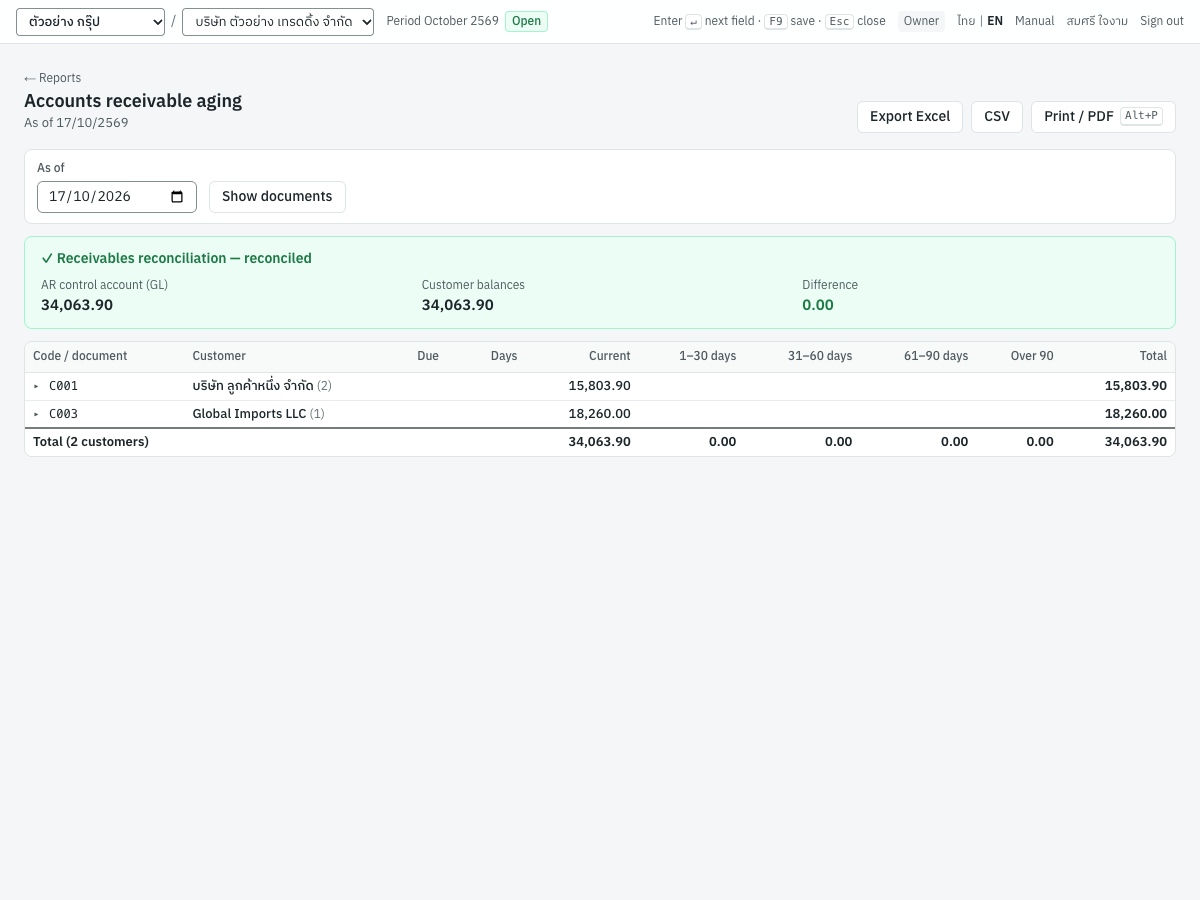
As of 17/10/2569 two customers owe money, all of it current:
| Customer | Documents | Current | Total |
|---|---|---|---|
| C001 บริษัท ลูกค้าหนึ่ง จำกัด | 2 | 15,803.90 | 15,803.90 |
| C003 Global Imports LLC | 1 | 18,260.00 | 18,260.00 |
| Total (2 customers) | 34,063.90 | 34,063.90 |
The control account 1130 is also 34,063.90, so the difference is 0.00. The USD invoice to Global Imports LLC is carried at its baht value of 18,260.00; a period-end FX revaluation posts to 1131, not to the control account, so it changes neither the aging nor the reconciliation.
Steps: month-end receivables review#
- Open All reports → AR aging and set As of to the last day of the month.
- Check that the reconciliation box is green.
- Click Show documents and review the overdue buckets.
- Click a document number to open it, or open the customer's statement (2 Sales → Customers → Statement) to send the customer a ใบแจ้งยอดค้างชำระ.
- Press
Alt+Pand keep the PDF with the month's working papers.
AP aging#
รายงานอายุเจ้าหนี้ · Menu: 6 Reports → All reports → AP aging
The accounts payable aging is the same report for suppliers: what you still owe each supplier on a date, by due date, reconciled to the AP control account. Use it to plan payments and at every month end. Statement on the supplier list (1 Purchasing → Suppliers) also opens it, for that supplier only.
The filter, buttons, columns and buckets are those of the AR aging, with these differences:
| Item | ภาษาไทย | Difference |
|---|---|---|
| Supplier | ผู้จำหน่าย | Replaces the customer column |
| AP control account (GL) | บัญชีคุมเจ้าหนี้ | Balance of 2110 เจ้าหนี้การค้า on the as-of date (credit balance shown as positive) |
| Supplier balances | ยอดเจ้าหนี้รายตัว | Total of the aging |
| Document types | ใบแจ้งหนี้, ยกมา, เพิ่มหนี้, ส่งคืน | Credit purchases (Invoice), supplier opening balances (Opening), supplier debit notes (Debit note), and purchase returns with unused credit (Return, negative) |
| Advances paid | เงินจ่ายล่วงหน้า | The supplier's unapplied advance on the as-of date: advances on its payments, less what later payments used and what the supplier refunded. Held in 1170 เงินจ่ายล่วงหน้าแก่ผู้ขาย, outside the control account |
Each document's open amount is its total less the payments, returns and refunds applied to it up to the as-of date. A payment settles a document for the money paid plus the tax withheld.
Reading the demo figures#
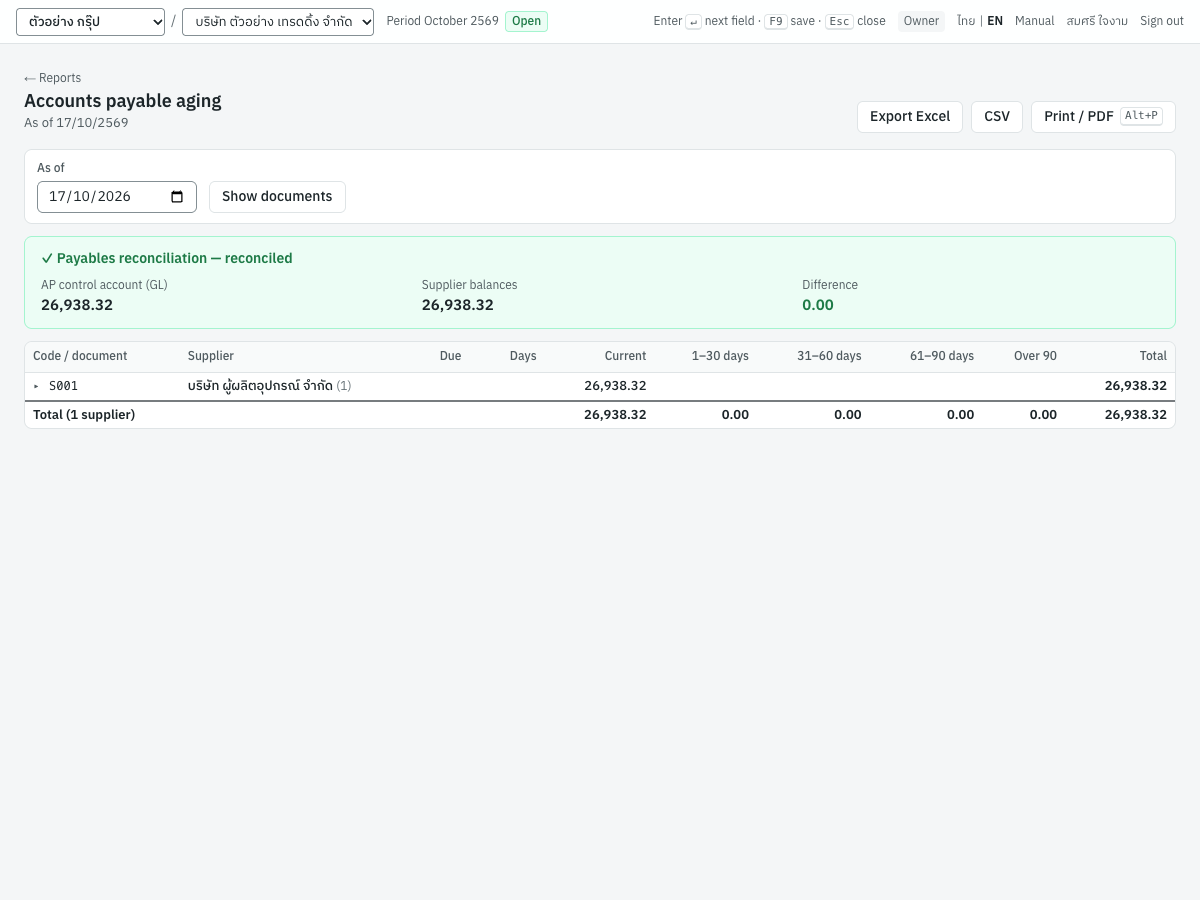
As of 17/10/2569 only S001 บริษัท ผู้ผลิตอุปกรณ์ จำกัด has an open document: 26,938.32, current. The control account 2110 is also 26,938.32, so the box is green with a difference of 0.00. The supplier invoices from S002 and S003 do not appear because payments PS69100002 and PS69100003 settled them in full.
Note: Opened from Statement on the supplier list, the aging shows only that supplier, with its documents expanded, and the footer totals that supplier. Show all suppliers returns to every supplier. The reconciliation box above always covers the whole control account.
VAT reports#
รายงานภาษีขาย / รายงานภาษีซื้อ · Menu: 6 Reports → VAT reports
The output tax report (รายงานภาษีขาย) and the input tax report (รายงานภาษีซื้อ) are the monthly VAT registers that a VAT-registered business must keep, laid out in the Revenue Department format. Above them, the PP.30 summary gives the figures for the monthly return ภ.พ.30.
The menu item opens the output tax report. All reports lists both reports separately. The two tabs Output VAT and Input VAT switch between them.
Filter and tabs#
| Field | ภาษาไทย | What to enter |
|---|---|---|
| Tax period | เดือนภาษี | The VAT month. ‹ and › step a month. |
| Output VAT / Input VAT | ภาษีขาย / ภาษีซื้อ | Tab: which register to show |
The VAT reports read the tax register only. Each tax record belongs to one tax month, decided by its tax date:
- output VAT: the date of the tax invoice, receipt or deposit that created the tax point;
- input VAT: the date of the supplier's tax invoice, or the first day of the later month chosen on the purchase for a late claim (the row still shows the invoice date);
- a cancellation: the cancellation date.
PP.30 summary#
The box PP.30 summary — October 2569 is the same on both tabs. It shows three figures at the top:
| Figure | ภาษาไทย | What it shows |
|---|---|---|
| Output VAT | ภาษีขาย | All output VAT of the month, cancellations deducted |
| Input VAT | ภาษีซื้อ | All input VAT of the month, cancellations deducted |
| Net VAT payable | ภาษีที่ต้องชำระ | Output less input, when output is larger |
| Excess input VAT (refund / credit) | ภาษีชำระไว้เกิน | Input less output, in green, when input is larger: claim a refund or carry the credit forward |
Under them it lists lines 1–9 of ภ.พ.30, numbered as on the form:
| Line | ภาษาไทย | Where it comes from |
|---|---|---|
| 1 Sales this month | ยอดขายในเดือนนี้ | All sales of the month: lines 2 + 3 + 4 |
| 2 Less zero-rated sales | ลบ ยอดขายที่เสียภาษีในอัตราร้อยละ 0 | Output VAT rows at 0%: sales entered with Prices 0% · Zero-rated |
| 3 Less exempt sales | ลบ ยอดขายที่ได้รับยกเว้น | The month's sales documents without VAT (Prices No VAT, and lines with VAT unticked). These are not in the tax register; a cancellation counts in the month it is cancelled |
| 4 Taxable sales | ยอดขายที่ต้องเสียภาษี | Line 1 less lines 2 and 3: output VAT rows at the standard rate |
| 5 Output VAT | ภาษีขายเดือนนี้ | All output VAT of the month |
| 6 Purchases with claimable input VAT | ยอดซื้อที่มีสิทธินำภาษีซื้อมาหัก | Input VAT rows, value |
| 7 Input VAT | ภาษีซื้อเดือนนี้ | All input VAT of the month |
| 8 VAT payable | ภาษีที่ต้องชำระเดือนนี้ | Line 5 less line 7, when positive |
| 9 Excess VAT | ภาษีที่ชำระเกินเดือนนี้ | Line 7 less line 5, when positive |
The summary covers the chosen month only; it does not bring forward an excess from earlier months (line 10 of the form). It is shown on screen and is not printed or exported.
Report heading#
Under the summary, the report heading follows the Revenue Department layout. Its labels, like the column headings below, keep the Thai of the Revenue Department's form, with the English next to them (ชื่อผู้ประกอบการ · Operator):
| Item | What it shows |
|---|---|
| รายงานภาษีขาย / รายงานภาษีซื้อ | Report name in Thai and English |
| เดือนภาษี | The month in Thai with the Buddhist-era year, and the period (2026-10) |
| ชื่อผู้ประกอบการ | Company name |
| เลขประจำตัวผู้เสียภาษีอากร | Company tax ID |
| ชื่อสถานประกอบการ | Company name, with the branch name in brackets when one is set |
| สำนักงานใหญ่ / สาขา | Head office, or Branch and the branch code |
| ที่อยู่ | Company address, when entered |
These come from 7 Setup → Company (see 02-setup.md).
Columns#
| Column | ภาษาไทย | What it shows |
|---|---|---|
| No. | ลำดับ | Running number |
| Date | วันที่ | Date of the tax invoice or credit note |
| Tax invoice no. | เลขที่ใบกำกับภาษี | Output: Panya's document number (invoice, cash sale, receipt, deposit, credit or debit note). Input: the supplier's tax invoice number entered on the purchase, deposit or payment. A link to the document; a cancellation row has the red badge Cancelled. |
| Customer / Supplier | ชื่อผู้ซื้อสินค้า/ผู้รับบริการ · ชื่อผู้ขายสินค้า/ผู้ให้บริการ | Name of the counterparty as it was on the document |
| Tax ID | เลขประจำตัวผู้เสียภาษี | Counterparty tax ID |
| Branch | สาขา | Head office, or the five-digit branch code |
| Value | มูลค่าสินค้าหรือบริการ | Taxable value excluding VAT; negative for credit notes, returns and cancellations |
| VAT | จำนวนเงินภาษี | VAT amount |
The รวม · Total row adds Value and VAT. If the month has nothing, the table says No output VAT in October 2569 (or input).
What appears on each report#
| Output VAT report | Input VAT report |
|---|---|
| Credit sales (IV), unless the VAT is due on payment | Credit purchases (RR) and cash purchases (HP) with claimable VAT |
| Cash sales (HS) | Deposits paid (AE), on the supplier's tax invoice |
| Deposits received (AI) | Payments (PS) that settle purchases whose VAT is claimable on payment |
| Receipts (RE) that settle invoices whose VAT is due on payment (services) | Purchase returns (GR) and supplier debit notes (DP) |
| Credit notes (SR, negative) and debit notes (DN) | PP.36 filings, on the filing day, numbered with the Revenue Department receipt |
| Cancellations (negative, marked Cancelled) | Bank charges with a tax invoice cleared on a cheque deposit slip; cancellations |
Not on the reports: documents without VAT (price type 0 · no VAT), exempt lines, delivery notes and goods receipts (they are not tax invoices), non-creditable input VAT (ภาษีซื้อต้องห้าม), VAT still undue on unpaid service invoices, and PP.36 VAT that has not yet been filed.
Reading the demo figures#
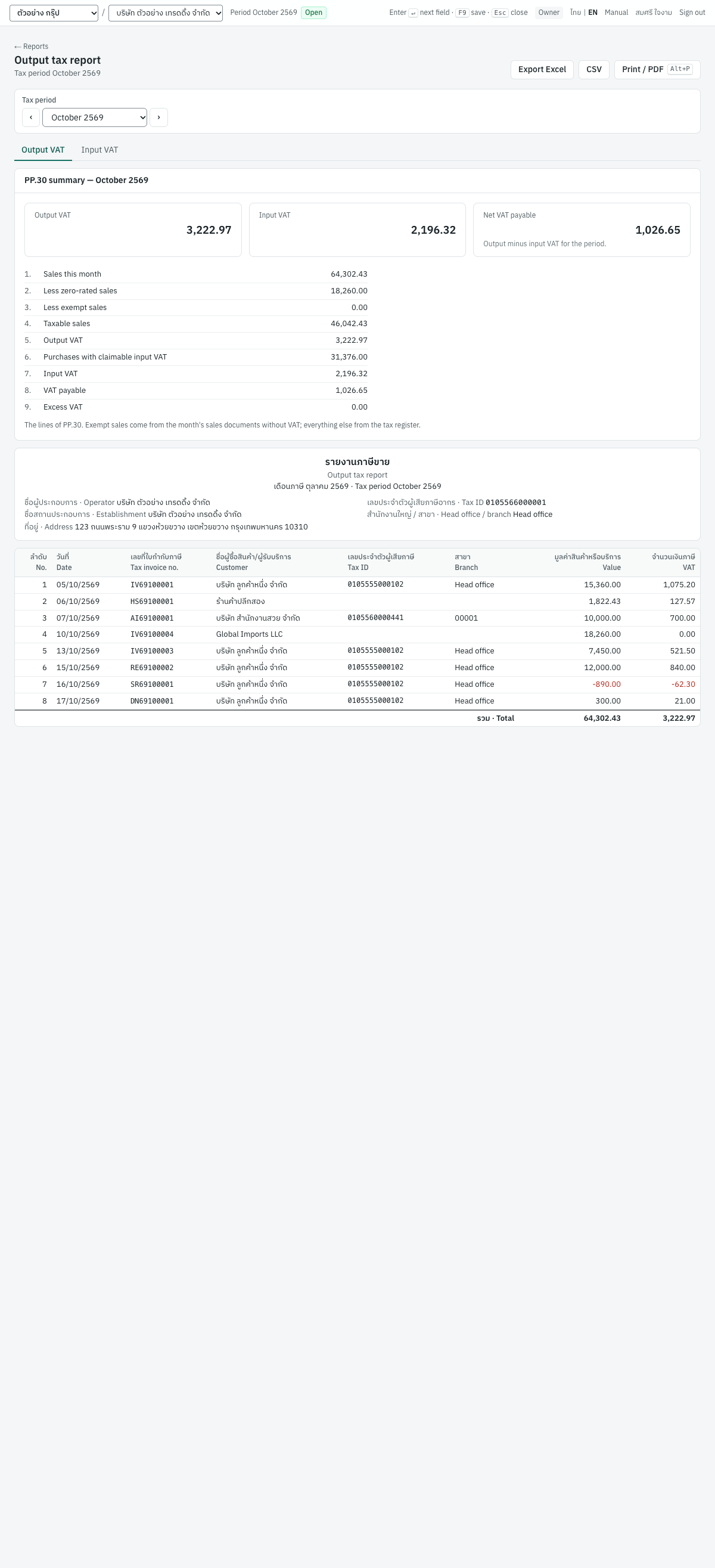
The output tax report for ตุลาคม 2569 has eight rows:
| No. | Date | Tax invoice no. | Customer | Value | VAT |
|---|---|---|---|---|---|
| 1 | 05/10/2569 | IV69100001 | บริษัท ลูกค้าหนึ่ง จำกัด | 15,360.00 | 1,075.20 |
| 2 | 06/10/2569 | HS69100001 | ร้านค้าปลีกสอง | 1,822.43 | 127.57 |
| 3 | 07/10/2569 | AI69100001 | บริษัท สำนักงานสวย จำกัด (branch 00001) | 10,000.00 | 700.00 |
| 4 | 10/10/2569 | IV69100004 | Global Imports LLC | 18,260.00 | 0.00 |
| 5 | 13/10/2569 | IV69100003 | บริษัท ลูกค้าหนึ่ง จำกัด | 7,450.00 | 521.50 |
| 6 | 15/10/2569 | RE69100002 | บริษัท ลูกค้าหนึ่ง จำกัด | 12,000.00 | 840.00 |
| 7 | 16/10/2569 | SR69100001 | บริษัท ลูกค้าหนึ่ง จำกัด | -890.00 | -62.30 |
| 8 | 17/10/2569 | DN69100001 | บริษัท ลูกค้าหนึ่ง จำกัด | 300.00 | 21.00 |
| Total | 64,302.43 | 3,222.97 |
- Row 3 is the deposit received from C004: a deposit is a tax point.
- Row 6 is the installation service invoiced on
IV69100002(SV-INSTALL, 12,000.00 + 840.00). Its VAT was due on payment, so it is reported on the receiptRE69100002of 15/10/2569, not on the invoice. - Row 4 is the export to Global Imports LLC: the USD invoice
IV69100004, zero-rated (VAT 0%), at its baht value (USD 550.00 at 33.20).
The Input VAT tab shows the input tax report for the same month.
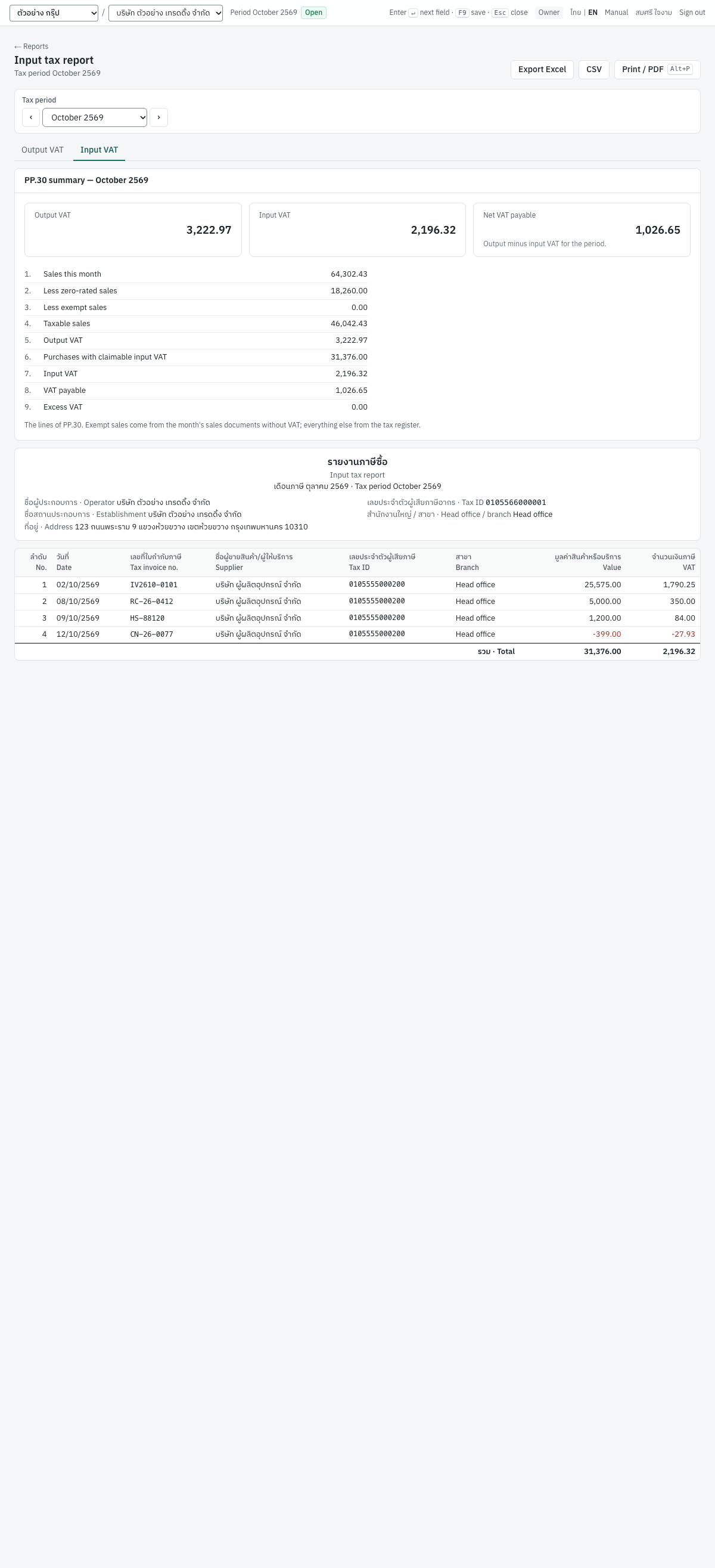
It has four rows from S001 บริษัท ผู้ผลิตอุปกรณ์ จำกัด: the supplier's tax invoice IV2610-0101 (25,575.00 / 1,790.25) on the credit purchase, RC-26-0412 (5,000.00 / 350.00) on the deposit paid, HS-88120 (1,200.00 / 84.00) on the cash purchase and the supplier's credit note CN-26-0077 (-399.00 / -27.93) on the return. Total 31,376.00 / 2,196.32.
The PP.30 summary shows output VAT 3,222.97, input VAT 2,196.32 and Net VAT payable 1,026.65.
The PP.36 VAT of 1,415.40 on the payment to Cloudsoft Inc. is not yet input VAT: it waits in 1152 ภาษีซื้อ ภ.พ.36 รอใช้สิทธิ until the PP.36 is filed under 3 Finance → PP.36 VAT (see 05-finance.md). It then appears on the input tax report of the filing month.
Tip: Before the monthly VAT clearing entry is posted, the output VAT total equals the balance of 2120 ภาษีขาย and the input VAT total equals 1150 ภาษีซื้อ (3,222.97 and 2,196.32 in the demo). If they differ, look for a manual journal posted to those accounts in the general ledger.
Filing PP.30#
ภ.พ.30 for a month is due by the 15th of the following month on paper, or by the 23rd when filed online through the Revenue Department's e-Filing. Panya prepares the figures; you file and pay with the Revenue Department.
- Make sure every sales and purchase document of the month is posted, and that any PP.36 you want to claim this month has been filed in 3 Finance → PP.36 VAT.
- Open 6 Reports → Integrity checks and confirm that the undue VAT and PP.36 checks pass.
- Open 6 Reports → VAT reports and choose the Tax period.
- On Output VAT, check each row: tax IDs, branches, and that no tax invoice is missing or duplicated. Press
Alt+Pto print or save the report. - On Input VAT, check the supplier tax invoice numbers and dates in the same way, and print or save it.
- Fill in the ภ.พ.30 from the figures below.
- File by the 15th (paper) or the 23rd (e-Filing).
- Record the month's VAT clearing and payment as described in 10-month-end.md.
| ภ.พ.30 line | Take it from | Demo (ตุลาคม 2569) |
|---|---|---|
| 1 ยอดขายในเดือนนี้ | PP.30 summary, line 1 | 64,302.43 |
| 2 ยอดขายที่เสียภาษีในอัตราร้อยละ 0 | PP.30 summary, line 2 | 18,260.00 |
| 3 ยอดขายที่ได้รับยกเว้น | PP.30 summary, line 3 | 0.00 |
| 4 ยอดขายที่ต้องเสียภาษี | PP.30 summary, line 4 | 46,042.43 |
| 5 ภาษีขายเดือนนี้ | PP.30 summary, line 5 | 3,222.97 |
| 6 ยอดซื้อที่มีสิทธินำภาษีซื้อมาหัก | PP.30 summary, line 6 | 31,376.00 |
| 7 ภาษีซื้อเดือนนี้ | PP.30 summary, line 7 | 2,196.32 |
| 8 ภาษีที่ต้องชำระเดือนนี้, or 9 ภาษีที่ชำระเกินเดือนนี้ | PP.30 summary, line 8 or 9 | 1,026.65 payable |
Zero-rated sales are on the output VAT report with VAT 0.00. Exempt sales are not, because they are not tax invoices: the summary totals them from the month's sales documents, and you can list them in the sales report, where their VAT column is 0.00. An excess carried forward from an earlier month (line 10) is not in the summary; take it from the previous month's return.
Withholding tax report#
รายงานภาษีหัก ณ ที่จ่าย · Menu: 6 Reports → All reports → Withholding tax
The withholding tax report lists, for one tax month, the tax your company withheld when paying suppliers — split by the return it is filed on — and the tax customers withheld from you. Use it to prepare ภ.ง.ด.1, ภ.ง.ด.2, ภ.ง.ด.3, ภ.ง.ด.53 and ภ.ง.ด.54, to download the RD Prep import files, and to keep track of the 50 ทวิ certificates you should receive from customers.
Filter and tabs#
| Field | ภาษาไทย | What to enter |
|---|---|---|
| Tax period | เดือนภาษี | The month the tax was withheld (the payment or receipt date). ‹ and › step a month. |
| Tax year | ปีภาษี | On the PND.1ก and PND.2ก tabs, in place of the tax period: the calendar year of the annual return. ‹ and › step a year. |
| Tab | ภาษาไทย | What it lists | Return |
|---|---|---|---|
| PND.1 | ภ.ง.ด.1 | Tax withheld from individuals (บุคคลธรรมดา) on s.40(1)/(2) income: salaries from posted payroll runs, commissions and fees for a position, at the progressive rates | ภ.ง.ด.1 |
| PND.1ก | ภ.ง.ด.1ก | The year's s.40(1)/(2) income and tax of each individual payee (see Annual returns) | ภ.ง.ด.1ก |
| PND.2 | ภ.ง.ด.2 | Tax withheld from individuals on s.40(3)/(4) income: royalties at the progressive rates, interest at 15%, dividends at 10% | ภ.ง.ด.2 |
| PND.2ก | ภ.ง.ด.2ก | The year's s.40(4) income and tax of each individual payee whose tax was withheld | ภ.ง.ด.2ก |
| PND.3 | ภ.ง.ด.3 | Tax withheld from individuals on their other income, s.40(5)–(8) | ภ.ง.ด.3 |
| PND.53 | ภ.ง.ด.53 | Tax withheld from juristic persons in Thailand (นิติบุคคล) | ภ.ง.ด.53 |
| PND.54 | ภ.ง.ด.54 | Tax withheld from foreign companies with no business in Thailand (นิติบุคคลต่างประเทศ) | ภ.ง.ด.54 |
| All withheld | หักไว้ทั้งหมด | All five together | — |
| Deducted by customers | ถูกหัก ณ ที่จ่าย | Tax customers withheld from their payments to you; the title changes to Withholding tax deducted by customers | Credited against your corporate income tax |
The form of each row follows the supplier's Entity type on the supplier record and the income type of the WHT type: an individual goes on ภ.ง.ด.1 for s.40(1)/(2) income, ภ.ง.ด.2 for s.40(3)/(4) income and ภ.ง.ด.3 for the rest; a foreign company on ภ.ง.ด.54; any other supplier on ภ.ง.ด.53. Check the entity type before paying (see 03-purchasing.md and 05-finance.md). The line under the title names the tab's form and the month, for example Withholding tax PND.3 (individuals) · Tax period October 2569; it is also printed.
Columns#
| Column | ภาษาไทย | What it shows |
|---|---|---|
| No. | ลำดับ | Running number |
| Date | วันที่ | Date of the payment or receipt |
| Document | เลขที่เอกสาร | Withheld tabs: the 50 ทวิ certificate number entered on the payment, or the payment number when it was left blank. Deducted tab: the Reference entered on the receipt, or the receipt number. A link to the payment or receipt; a cancellation row has the badge Cancelled. When it cancels a payment of an earlier month, the row also says Reversal of an earlier month: not in tax to file (on screen and in print). |
| Payee / Payer | ผู้มีเงินได้ / ผู้จ่ายเงิน | Supplier (withheld tabs) or customer (deducted tab) |
| Tax ID | เลขประจำตัวผู้เสียภาษี | Their Thai tax ID, or the foreign tax ID for a foreign supplier |
| Type | ประเภท | Withholding tax type code, such as SERVICE or FOREIGN_FEE (see 7 Setup → VAT & WHT) |
| Income code | ประเภทเงินได้ (ข้อ) | PND.1 and PND.2 tabs only: the item of the attachment (1–5) the line goes on; pointing at it shows the item's name |
| Form | แบบ | PND.1, PND.2, PND.3, PND.53 or PND.54; e-WHT when the bank withheld and remitted the tax. Not shown on the deducted tab. |
| Rate % | อัตรา | Withholding rate; a line computed at the progressive rates shows its effective rate with progressive under it |
| Income | จำนวนเงินที่จ่าย | The amount the tax was calculated on |
| Tax | ภาษีที่หัก / ภาษีที่ถูกหัก | Tax withheld |
A payment with several withholding lines (for example a service and a rent in one payment) has one row per line. The รวม · Total row adds Income and Tax.
The PND.1 and PND.2 tabs also show the form's summary box above the rows: items 1 to 5 (ประเภทเงินได้) with the number of lines, the income and the tax of each, and their total on line 6, as on the ภ.ง.ด.1 and ภ.ง.ด.2 forms. It is printed with the report. Which item a line goes on is explained in 05-finance.md.
e-WHT#
A payment made through e-Withholding Tax (Pay through e-Withholding Tax (e-WHT) on the payment) is withheld by the bank at the reduced e-WHT rate and remitted by the bank. Such rows show e-WHT in the Form column and are included in the Total. Below the total more rows appear when the month has e-WHT, or cancellations of earlier months' payments:
- Remitted by the bank through e-WHT — the e-WHT tax, which you do not file;
- Earlier months' payments cancelled this month (not in this return) — the negative tax of payments from an earlier month cancelled in this one. This month's return covers this month's payments, as the RD Prep file does, so they are not netted against it: amend the earlier month's return instead;
- To file on PND — the total less the e-WHT tax and less those earlier months' cancellations: what goes on your ภ.ง.ด.3 or ภ.ง.ด.53.
On the deducted tab the extra row is Of which through e-WHT, for receipts where the customer's bank withheld the tax. There is no 50 ทวิ for an e-WHT payment: the Revenue Department's e-WHT system is the evidence.
RD Prep import file#
On the PND.1, PND.2, PND.3 and PND.53 tabs, the line RD Prep import file (separated by |, dates dd/mm/yyyy in the Buddhist Era): offers two buttons:
| Button | Use it when |
|---|---|
| Download (UTF-8) | Your RD Prep program reads UTF-8 files (current versions) |
| Download (TIS-620) | An older RD Prep install needs Thai TIS-620 (Windows-874) text. Characters that are neither English nor Thai become ?. |
The file is named after the form and the month in the Buddhist era: PND1_256910.txt, PND2_256910.txt, PND3_256910.txt or PND53_256910.txt for ตุลาคม 2569. The layout of the ภ.ง.ด.3 and ภ.ง.ด.53 files:
- text with fields separated by
|, one line per row, the first line holding the column names; - one row for every three withholding lines of a payment (a payment with more than three lines continues on the next row), numbered in the same order as the ลำดับที่ on the 50 ทวิ certificates;
- columns ลำดับที่, เลขประจำตัวผู้เสียภาษีอากร, สาขาที่, คำนำหน้าชื่อ, ชื่อ, ชื่อสกุล, ที่อยู่, then for each of the three income types วันเดือนปีที่จ่าย, ประเภทเงินได้ (the withholding tax type name), อัตราภาษีร้อยละ, จำนวนเงินที่จ่าย, จำนวนเงินภาษีที่หัก and เงื่อนไข (always
1, หัก ณ ที่จ่าย); - dates as dd/mm/yyyy in the Buddhist era, amounts with two decimals.
The ภ.ง.ด.1 and ภ.ง.ด.2 files follow their attachments (ใบแนบ), which list one line per withholding line:
- one row per withholding line, numbered per income type (ประเภทเงินได้) in the order of the attachment, the same ลำดับที่ as on the 50 ทวิ;
- ภ.ง.ด.1: columns ลำดับที่, ประเภทเงินได้ (the item, 1–5), เลขประจำตัวผู้เสียภาษีอากร, คำนำหน้าชื่อ, ชื่อ, ชื่อกลาง (blank), ชื่อสกุล, วันเดือนปีที่จ่าย, จำนวนเงินได้ที่จ่าย, จำนวนเงินภาษีที่หัก and เงื่อนไข (always
1), the fields of RD Prep's ภ.ง.ด.1 entry screen; a commission of 1,000,000.00 paid once on 10/07/2569 gives1|4|3100100000001|นาย|สมชาย||ใจดี|10/07/2569|1000000.00|83000.00|1; - ภ.ง.ด.2: columns ลำดับที่, ประเภทเงินได้, เลขประจำตัวผู้เสียภาษีอากร, คำนำหน้าชื่อ, ชื่อ, ชื่อสกุล, ที่อยู่, เลขที่บัญชีเงินฝาก (which RD Prep fills only for deposit interest; Panya leaves it blank), วันเดือนปีที่จ่าย, อัตราภาษีร้อยละ (the effective rate of a progressive line, such as
5.5), จำนวนเงินได้ที่จ่าย, จำนวนเงินภาษีที่หัก and เงื่อนไข; a royalty of 500,000.00 gives1|1|3100100000001|นาย|สมชาย|ใจดี|1 ถนนสุขุมวิท กรุงเทพฯ||10/06/2569|5.5|500000.00|27500.00|1; - dates and amounts as above. Map the columns once on RD Prep's กำหนดตำแหน่งข้อมูล screen; the header line names them.
Names are split for RD Prep's separate fields. On ภ.ง.ด.1, ภ.ง.ด.2 and ภ.ง.ด.3 a leading นาย, นาง, นางสาว, น.ส., ด.ช., ด.ญ., Mr., Mrs. or Ms. becomes the คำนำหน้าชื่อ, the next word the ชื่อ, and the rest the ชื่อสกุล. On ภ.ง.ด.53 a leading บริษัท, ห้างหุ้นส่วนจำกัด, ห้างหุ้นส่วนสามัญ, หจก., บจก. or บมจ. becomes the คำนำหน้าชื่อ and the rest the ชื่อ. The address and branch come from the supplier record.
The file leaves out e-WHT payments (the bank filed them), payments cancelled within the same month, and cancellation rows. The demo's ภ.ง.ด.3 file for ตุลาคม 2569 is:
ลำดับที่|เลขประจำตัวผู้เสียภาษีอากร|สาขาที่|คำนำหน้าชื่อ|ชื่อ|ชื่อสกุล|ที่อยู่|วันเดือนปีที่จ่าย1|ประเภทเงินได้1|อัตราภาษีร้อยละ1|จำนวนเงินที่จ่าย1|จำนวนเงินภาษีที่หัก1|เงื่อนไข1|วันเดือนปีที่จ่าย2|ประเภทเงินได้2|อัตราภาษีร้อยละ2|จำนวนเงินที่จ่าย2|จำนวนเงินภาษีที่หัก2|เงื่อนไข2|วันเดือนปีที่จ่าย3|ประเภทเงินได้3|อัตราภาษีร้อยละ3|จำนวนเงินที่จ่าย3|จำนวนเงินภาษีที่หัก3|เงื่อนไข3
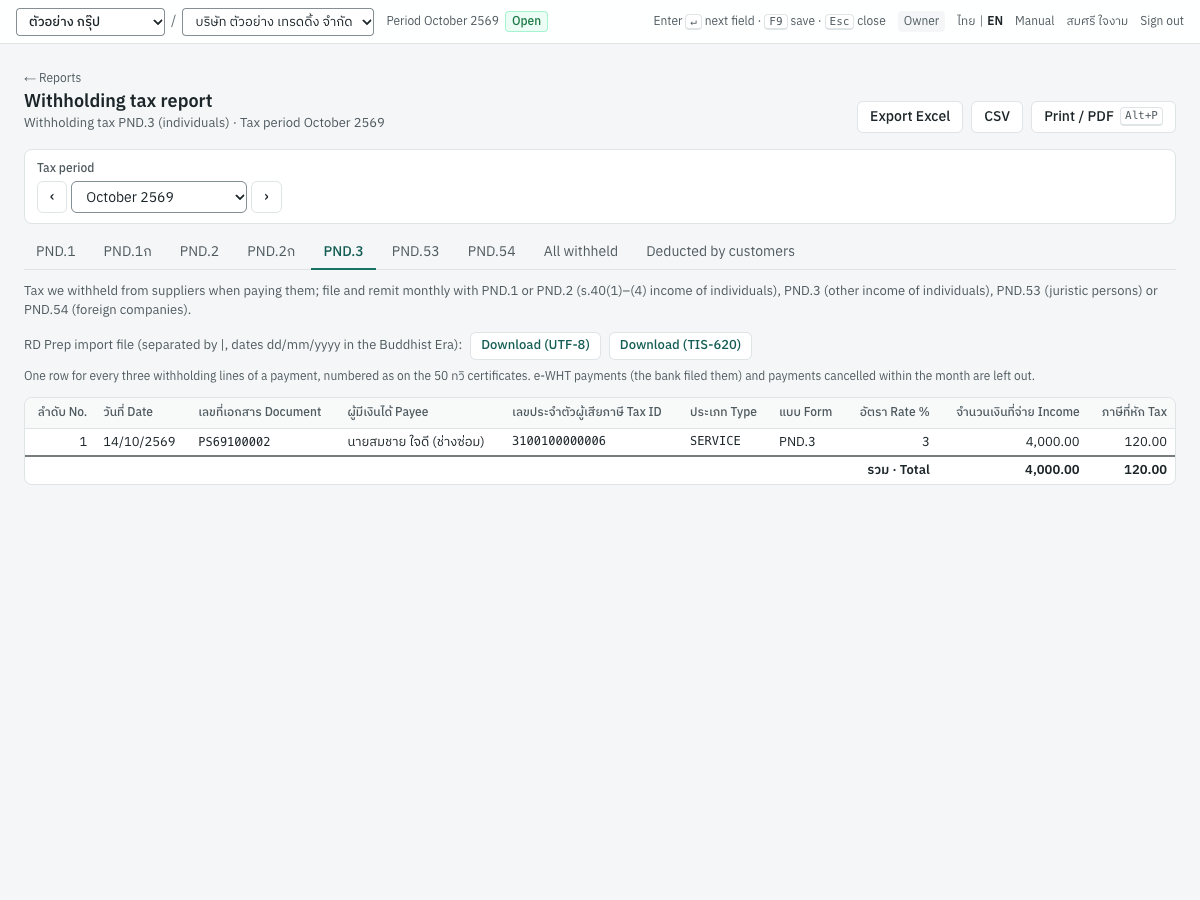
1|3100100000006||นาย|สมชาย|ใจดี (ช่างซ่อม)||14/10/2569|ค่าบริการ|3|4000.00|120.00|1||||||||||||
Tip: Because everything after the first name goes into ชื่อสกุล, a nickname in the supplier's name (such as (ช่างซ่อม) above) ends up in the surname. Keep the supplier name to title, first name and surname if you import into RD Prep, and put other details in Notes or Contact.
PND.54#
The PND.54 tab lists tax withheld from foreign suppliers (entity type Foreign company), using the foreign income types such as FOREIGN_FEE at 15% or a treaty rate.
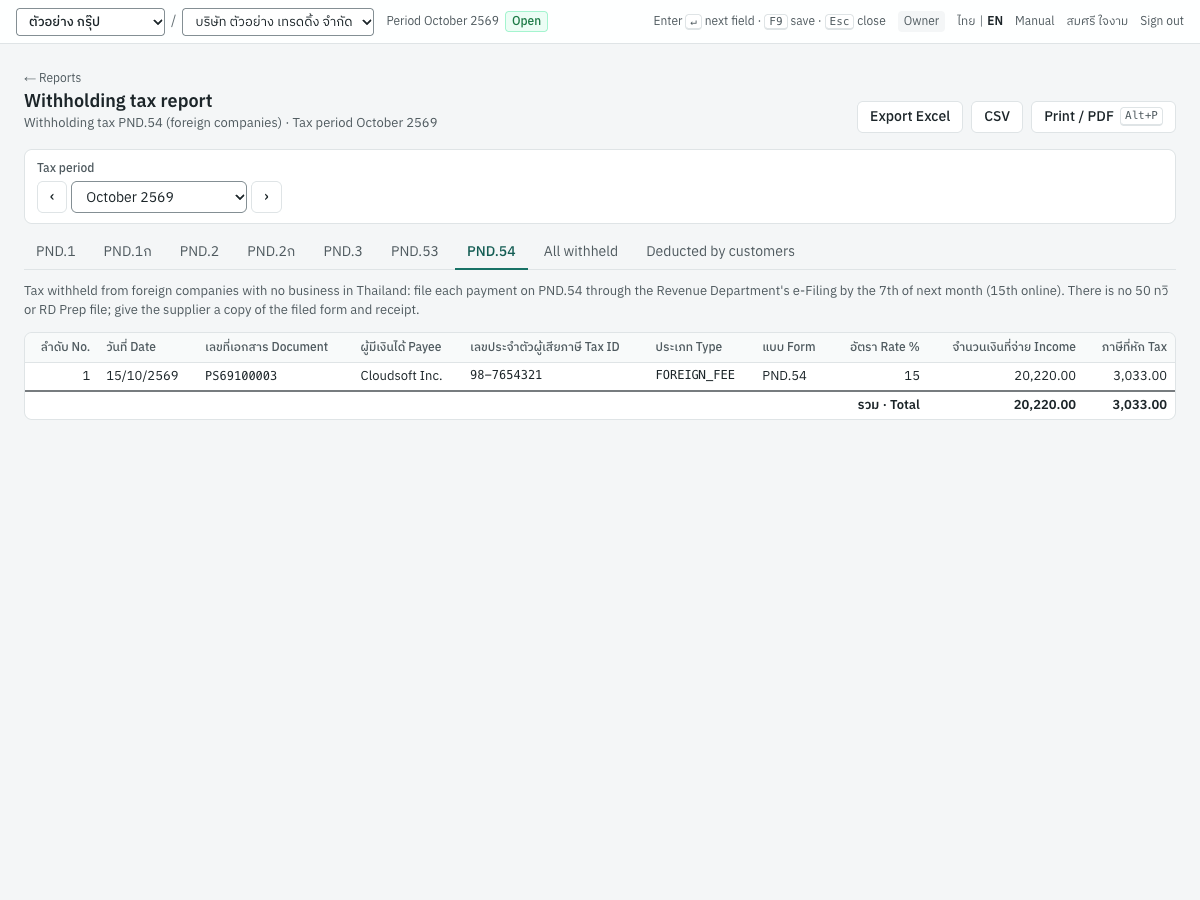
The note on the tab sums up the rules: file each payment on ภ.ง.ด.54 through the Revenue Department's e-Filing by the 7th of the next month (the 15th online). There is no 50 ทวิ certificate and no RD Prep file for ภ.ง.ด.54; give the supplier a copy of the filed form and the Revenue Department's receipt. e-WHT cannot be used for a foreign supplier.
In the demo, payment PS69100003 of 15/10/2569 to Cloudsoft Inc. (foreign tax ID 98-7654321) withheld 15% on 20,220.00 (USD 600 at the payment's rate): tax 3,033.00. The same payment self-assessed PP.36 VAT of 1,415.40, which is filed separately under 3 Finance → PP.36 VAT (see 05-finance.md).
Deducted by customers#
The Deducted by customers tab lists the tax that customers withheld from their payments to you, recorded on receipts. Keep each customer's 50 ทวิ certificate: the tax is credited against corporate income tax. These amounts accumulate in 1160 ภาษีเงินได้ถูกหัก ณ ที่จ่าย.
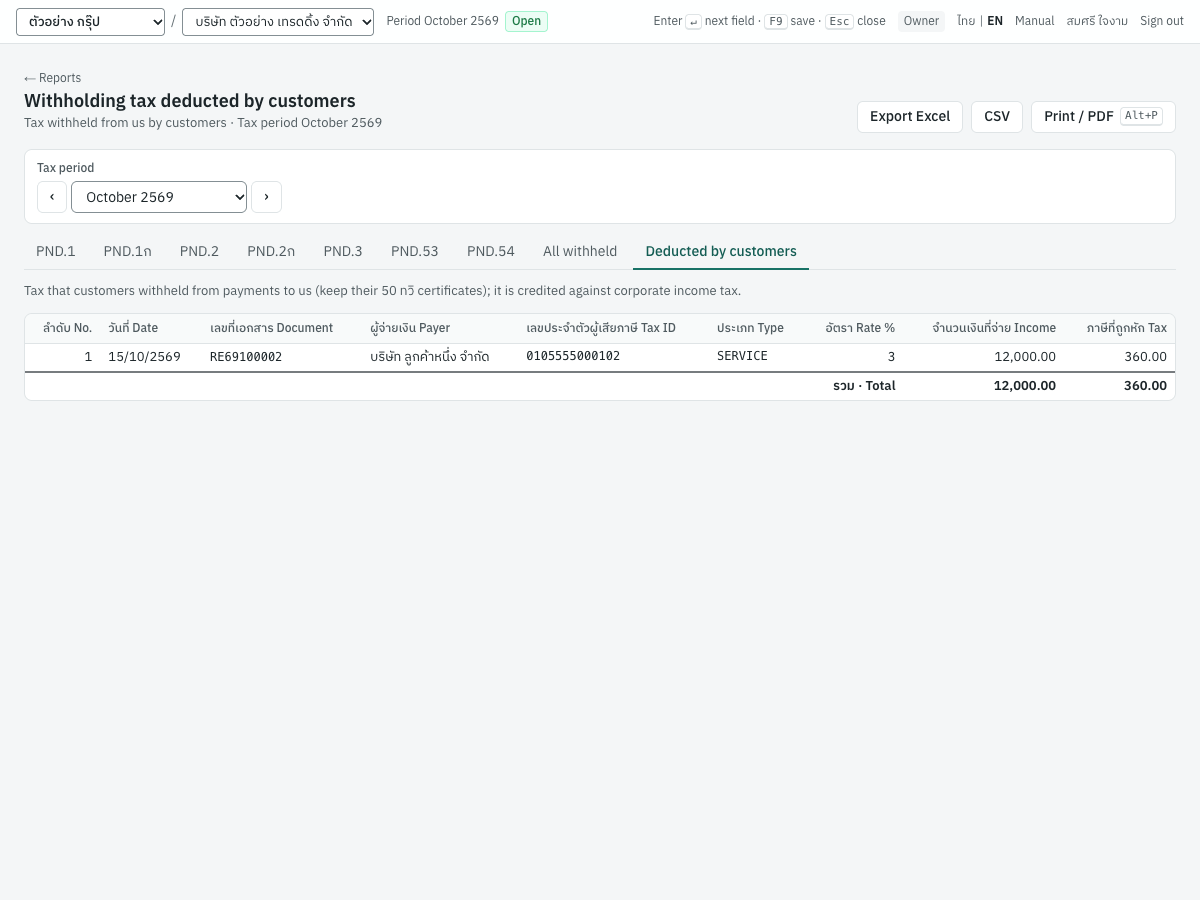
In the demo, C001 บริษัท ลูกค้าหนึ่ง จำกัด withheld 3% (SERVICE) on 12,000.00 when paying the installation invoice with receipt RE69100002: 360.00, the balance of 1160.
Reading the demo figures#
| Tab | Rows | Income | Tax |
|---|---|---|---|
| PND.3 | PS69100002 14/10/2569, นายสมชาย ใจดี (ช่างซ่อม), 3100100000006, SERVICE, 3% | 4,000.00 | 120.00 |
| PND.53 | none (No withholding tax in October 2569) | ||
| PND.54 | PS69100003 15/10/2569, Cloudsoft Inc., FOREIGN_FEE, 15% | 20,220.00 | 3,033.00 |
| All withheld | both rows | 24,220.00 | 3,153.00 |
| Deducted by customers | RE69100002 15/10/2569, บริษัท ลูกค้าหนึ่ง จำกัด, SERVICE, 3% | 12,000.00 | 360.00 |
The All withheld tax of 3,153.00 equals the balance of 2130 ภาษีเงินได้หัก ณ ที่จ่ายค้างจ่าย until the tax is remitted.
Withholding tax certificates#
The withholding tax certificate (หนังสือรับรองการหักภาษี ณ ที่จ่าย ตามมาตรา 50 ทวิ) is printed from the payment, not from this report: open the payment in 3 Finance → Payments and click 50 ทวิ certificate (see 05-finance.md). The certificate's เล่มที่ is the Buddhist-era year, and its ลำดับที่ is the payment's position on the month's ภ.ง.ด. attachment — the same order as the RD Prep file (per income type on ภ.ง.ด.1 and ภ.ง.ด.2). There is no certificate for a draft payment, an e-WHT payment or a ภ.ง.ด.54 payment.
Filing PND.3, PND.53 and PND.54#
ภ.ง.ด.1, ภ.ง.ด.2, ภ.ง.ด.3, ภ.ง.ด.53 and ภ.ง.ด.54 are due by the 7th of the following month on paper, or by the 15th when filed online. A return is filed only for a month with a payment on it.
- Post every payment of the month that withholds tax.
- Open All reports → Withholding tax and choose the Tax period.
- On the PND.3 tab, check each payee's tax ID, type, rate and amounts. Note the To file on PND figure if any payment went through e-WHT or an earlier month's payment was cancelled.
- Click Download (UTF-8) (or TIS-620), import the file into RD Prep, and submit the ภ.ง.ด.3 through e-Filing by the 15th — or file on paper by the 7th.
- Repeat on the PND.53 tab for ภ.ง.ด.53.
- On the PND.1 and PND.2 tabs, check the summary by income type and each row's Income code, then download the RD Prep file (
PND1_…orPND2_…), import it and file ภ.ง.ด.1 or ภ.ง.ด.2 the same way. - On the PND.54 tab, file each payment on ภ.ง.ด.54 through e-Filing, and send each foreign supplier a copy of the filed form and receipt.
- Print the 50 ทวิ certificates from the payments and send them to the payees.
- Press
Alt+Pon each tab to keep the report with the filing, then record the remittance as described in 10-month-end.md.
Note: A payment cancelled in a later month stays on the earlier month's report and RD Prep file; the later month's report shows a negative row marked Cancelled and Reversal of an earlier month: not in tax to file, which To file on PND leaves out. Correct the earlier filing with the Revenue Department.
Annual returns (PND.1ก and PND.2ก)#
The PND.1ก and PND.2ก tabs prepare the annual returns of s.58(2) for a tax year (the calendar year) instead of a month: one line per payee and income type with the year's income and tax, the form's summary box, and an RD Prep file.
| Return | What it lists | Paper filing by | Online filing by |
|---|---|---|---|
| ภ.ง.ด.1ก | s.40(1)/(2) income paid to individuals in the year: salaries from the payroll runs, and commissions and fees for a position paid through payments | End of February of the next year | 8 March |
| ภ.ง.ด.2ก | s.40(4) income paid in the year to individuals whose tax was withheld: interest, dividends, gains on the transfer of shares and other s.40(4) income | End of January of the next year | 8 February |
ภ.ง.ด.1ก is filed electronically; the Revenue Department takes it on paper only with a letter giving the reason.
The Tax year filter replaces the tax period on these tabs. Opened from a monthly tab with a month chosen, the tab shows that month's year; otherwise the year before until March, then the current year.
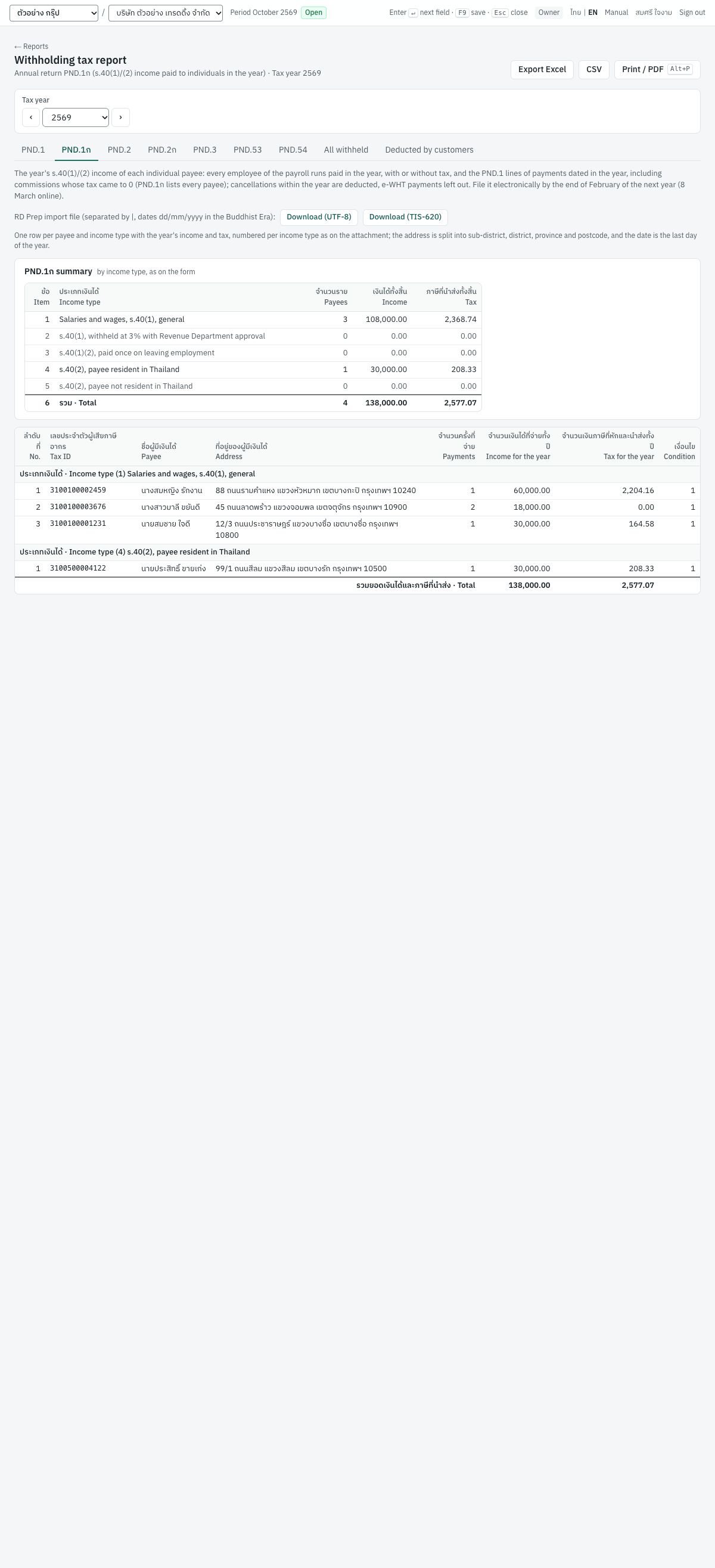
Where the figures come from. The tab adds up, per payee and income type, the PND.1 (or PND.2) withholding lines of the payments dated in the year (on ภ.ง.ด.1ก also those whose tax came to 0), and on ภ.ง.ด.1ก the pay of every employee in the payroll runs paid in the year, whether or not tax was withheld: the s.40(1) income and its tax on item 1 (item 2 for an employee approved at 3%), and severance taxed apart on item 3. A payee is known by their tax ID, or by the name when there is none.
- A payment or payroll run cancelled in the same year drops out.
- A payment or payroll run of the year cancelled after 31 December stays in, as the month's return was filed with it; a note under the table gives the number of such payments and their tax: amend that month's return.
- e-WHT payments are left out.
- On ภ.ง.ด.2ก, royalties (s.40(3), item 1 of ภ.ง.ด.2) are left out: the annual return covers s.40(4) only. A note under the table gives their tax.
Summary box. The items of the form with the number of payees (จำนวนราย), the income and the tax of each: on ภ.ง.ด.1ก items 1 to 5, as on ภ.ง.ด.1, and the total on line 6; on ภ.ง.ด.2ก items 1 (interest, 40(4)(ก)), 2 (dividends, 40(4)(ข)), 3 (gains on shares, 40(4)(ช)) and 4 (other 40(4)), and the total on line 5. It is printed with the report.
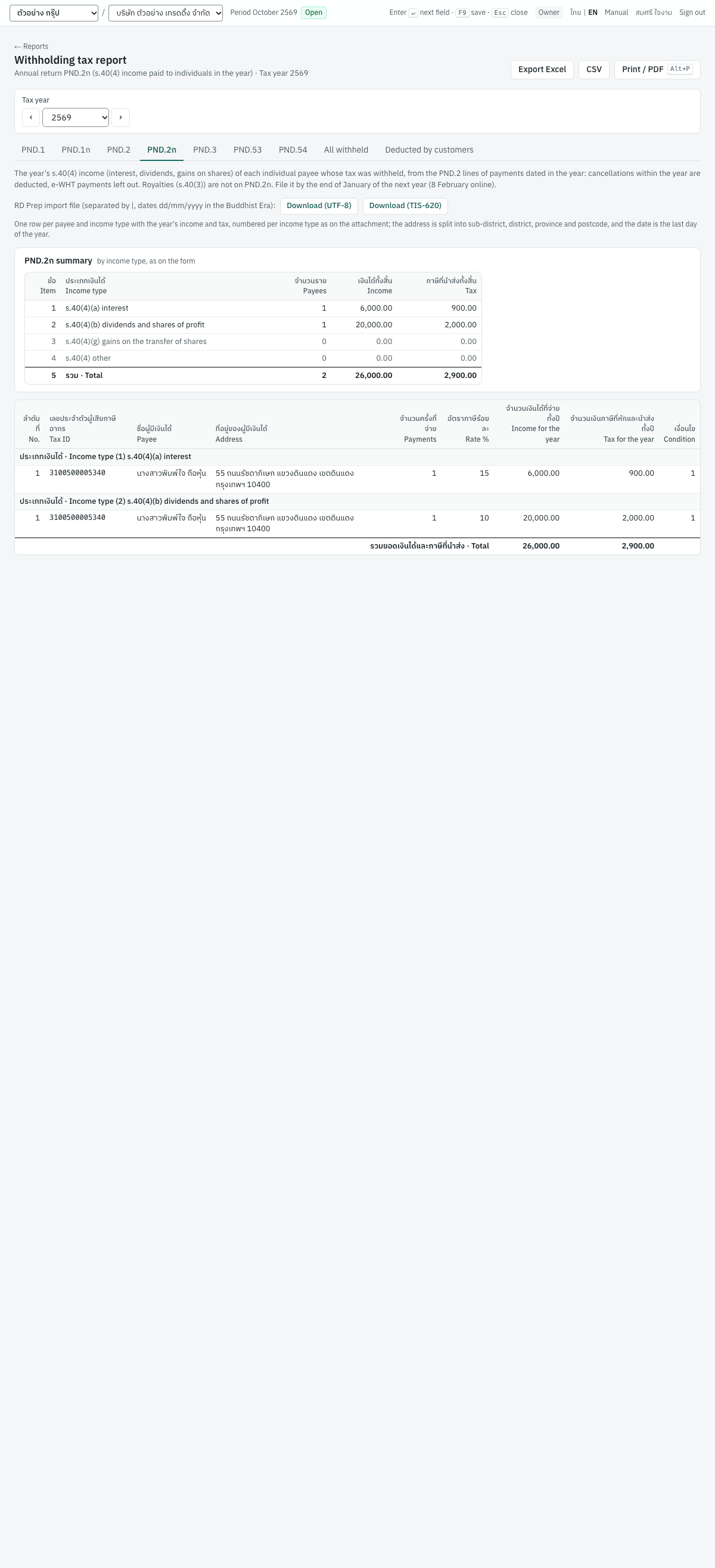
Rows. Grouped by income type, as the attachment (ใบแนบ) has one sheet per type, and numbered within each type:
| Column | ภาษาไทย | What it shows |
|---|---|---|
| No. | ลำดับที่ | The payee's number within the income type |
| Tax ID | เลขประจำตัวผู้เสียภาษีอากร | The payee's tax ID, — when the supplier has none |
| Payee | ชื่อผู้มีเงินได้ | The name on the payee's latest payment of the year, or the employee's name |
| Address | ที่อยู่ของผู้มีเงินได้ | The address on the supplier record, or on the employee record for salaries |
| Payments | จำนวนครั้งที่จ่าย | Payments in the year, less those cancelled in it |
| Rate % | อัตราภาษีร้อยละ | ภ.ง.ด.2ก only: the payments' rate, or the effective rate when they differ |
| Income for the year | จำนวนเงินได้ที่จ่ายทั้งปี | The income the tax was calculated on |
| Tax for the year | จำนวนเงินภาษีที่หักและนำส่งทั้งปี | The tax withheld |
| Condition | เงื่อนไข | Always 1, หัก ณ ที่จ่าย |
RD Prep file. With the export permission, the line RD Prep import file offers Download (UTF-8) and Download (TIS-620), as on the monthly tabs. The file is PND1A_2569.txt or PND2A_2569.txt for the tax year 2569, a header line with the column names, then one line per row:
- ภ.ง.ด.1ก: ลำดับที่, ประเภทเงินได้ (the item, 1–5), เลขประจำตัวผู้เสียภาษีอากร, คำนำหน้าชื่อ, ชื่อ, ชื่อสกุล, ที่อยู่, ตำบล/แขวง, อำเภอ/เขต, จังหวัด, รหัสไปรษณีย์, วันเดือนปีที่จ่าย (31/12 of the year: the Revenue Department's format dates the annual lines on the last day of the tax year), จำนวนเงินได้ที่จ่ายทั้งปี, จำนวนเงินภาษีที่หักและนำส่งทั้งปี and เงื่อนไข (
1); - ภ.ง.ด.2ก: the same, with เลขที่บัญชีเงินฝาก (blank) before the date and อัตราภาษีร้อยละ after it. Its ประเภทเงินได้ is the code of the Revenue Department's electronic format, which ภ.ง.ด.2 and ภ.ง.ด.2ก share:
2interest,3dividends,4gains on shares,5other 40(4), one more than the item on the paper form.
The annual returns ask for the payee's district, province and postcode, so the address is split. A word starting with ตำบล, ต. or แขวง becomes the ตำบล/แขวง; อำเภอ, อ. or เขต the อำเภอ/เขต; จังหวัด or จ. the จังหวัด (กรุงเทพฯ, or a แขวง, gives กรุงเทพมหานคร); a five-digit number at the end the รหัสไปรษณีย์; the rest stays in ที่อยู่. Commissions of 1,000,000.00 and 100,000.00 paid in 2569 to นายสมชาย ใจดี, of 99/1 ถนนสีลม แขวงสีลม เขตบางรัก กรุงเทพฯ 10500, give:
2|4|3100100000001|นาย|สมชาย|ใจดี|99/1 ถนนสีลม|สีลม|บางรัก|กรุงเทพมหานคร|10500|31/12/2569|1100000.00|93416.67|1
Check in RD Prep any address that was not split, as the district, province and postcode are required.
Note: ภ.ง.ด.1ก lists every payee of s.40(1)/(2) income, taxed or not. Employees are listed from the payroll runs, taxed or not; a commission paid through payments whose tax came to 0 (below the deductions, see 05-finance.md) is not on the month's ภ.ง.ด.1, but is on the tab and in the file with its income and a tax of 0, on the same line as the payee's taxed payments.
Filing PND.1ก and PND.2ก.
- Post the year's last payments, then open All reports → Withholding tax and the PND.2ก tab (by the end of January) or the PND.1ก tab (by the end of February), and choose the Tax year.
- Check the summary box against the year's monthly ภ.ง.ด.2 or ภ.ง.ด.1 returns as amended: royalties and payments cancelled after the year aside, the tax is the same. Read the notes under the table.
- Click Download (UTF-8) (or TIS-620), import the file into RD Prep and file through e-Filing by 8 February (ภ.ง.ด.2ก) or 8 March (ภ.ง.ด.1ก).
- Press
Alt+Pto keep the report with the filing.
Tax filing calendar#
The tax reports support these returns. For the full month-end checklist see 10-month-end.md; holiday rules are noted under the tax calendar.
| Return | Report in Panya | Paper filing by | Online filing by |
|---|---|---|---|
| ภ.ง.ด.1 | Withholding tax → PND.1 tab, RD Prep file | 7th of the next month | 15th |
| ภ.ง.ด.2 | Withholding tax → PND.2 tab, RD Prep file | 7th of the next month | 15th |
| ภ.ง.ด.3 | Withholding tax → PND.3 tab, RD Prep file | 7th of the next month | 15th |
| ภ.ง.ด.53 | Withholding tax → PND.53 tab, RD Prep file | 7th of the next month | 15th |
| ภ.ง.ด.54 | Withholding tax → PND.54 tab | 7th of the next month | 15th |
| ภ.พ.36 | 3 Finance → PP.36 VAT | 7th of the next month | 15th |
| ภ.พ.30 | VAT reports and PP.30 summary | 15th of the next month | 23rd |
| ภ.ง.ด.2ก | Withholding tax → PND.2ก tab, RD Prep file | End of January of the next year | 8 February |
| ภ.ง.ด.1ก | Withholding tax → PND.1ก tab, RD Prep file | End of February of the next year | 8 March |
For October 2569 activity, ภ.ง.ด.3 is due on 07/11/2569 on paper or 15/11/2569 online, and ภ.พ.30 on 15/11/2569 on paper or 23/11/2569 online.
Sales report#
รายงานการขาย · Menu: 6 Reports → All reports → Sales report
The sales report analyses posted sales for a range, by document, by customer or by product, with the cost of the goods sold and the gross margin. Use it for sales reviews, commission calculations and margin checks.
Filters and tabs#
| Field | ภาษาไทย | What to enter |
|---|---|---|
| From | ตั้งแต่วันที่ | First document date (default: start of the fiscal year) |
| To | ถึงวันที่ | Last document date (default: today) |
| Quick range | ช่วงเวลา | A preset range |
| By document / By customer / By product | ตามเอกสาร / ตามลูกค้า / ตามสินค้า | Tab: how rows are grouped |
The report counts posted credit sales (IV), cash sales (HS), debit notes (DN) and credit notes (SR). Credit notes are negative. Quotations, sales orders, delivery notes and deposits are not sales documents for this report.
Columns#
The first columns depend on the tab:
| Tab | Columns | ภาษาไทย |
|---|---|---|
| By document | Number (link to the document), Date, Customer, Type: Credit sale · IV, Cash sale · HS, Credit note · SR (amber), Debit note · DN | เลขที่, วันที่, ลูกค้า, ประเภท |
| By customer | Code, Customer | รหัส, ลูกค้า |
| By product | Code, Product, Unit, Qty. Lines without a product are grouped by their description. Debit notes add value but no quantity; credit notes that return goods deduct the quantity returned, and a price reduction (an allowance) deducts value only. | รหัส, สินค้า/บริการ, หน่วย, จำนวน |
Then, on every tab:
| Column | ภาษาไทย | What it shows |
|---|---|---|
| Net | มูลค่าสุทธิ | The sum of the lines excluding VAT (taxable plus exempt), after discounts. An invoice that deducted a deposit still counts its whole sale |
| VAT | ภาษี | The VAT of the lines. An invoice that deducted a deposit counts the VAT on its whole sale, the deposit's VAT included |
| Total | รวมเงิน | Net plus VAT: the whole sale, before any deposit deducted |
| Cost | ต้นทุน | Moving-average cost of the goods, recorded when they were issued; 0.00 for services |
| Margin | กำไรขั้นต้น | Net less cost |
| % | Margin as a percentage of net, one decimal |
The Total row shows the number of rows and the column totals; its % is the margin on total net. The note under the table repeats: Posted documents only. Credit notes are shown as negative amounts. Cost is the moving-average cost recorded when goods were issued; margin = net − cost.
Reading the demo figures#
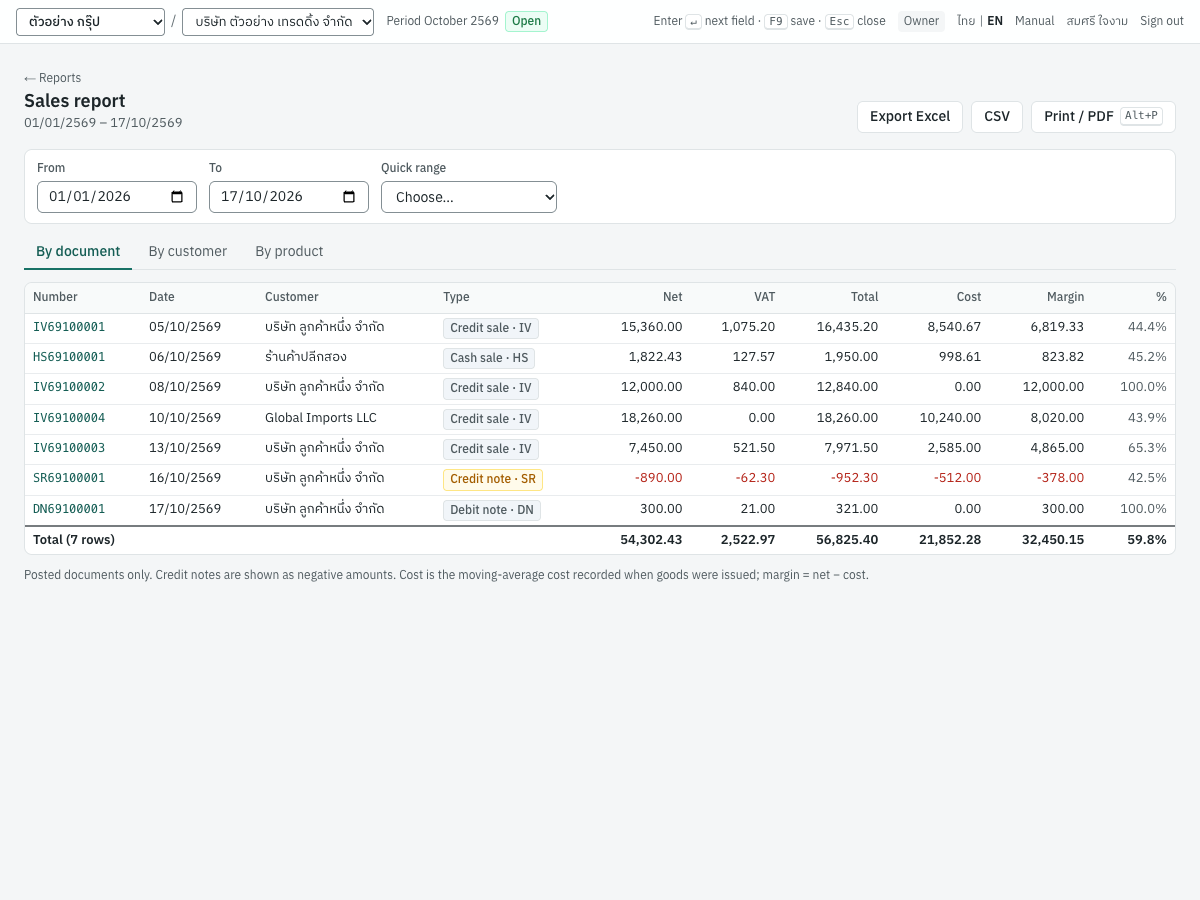
From 01/01/2569 to 17/10/2569 the report has seven documents: net 54,302.43, VAT 2,522.97, total 56,825.40, cost 21,827.28, margin 32,475.15 (59.8%).
IV69100002(installation service, 12,000.00) has no cost, so its margin is 100.0%.IV69100004to Global Imports LLC, a zero-rated export, shows its baht value 18,260.00 with VAT 0.00.SR69100001deducts 890.00 net, 62.30 VAT and the 512.00 cost of the goods returned.
How it compares with the other reports:
- VAT. 2,522.97 plus the 700.00 VAT on deposit
AI69100001(a deposit is in this report only through an invoice that deducts it) is the output VAT report's 3,222.97. - Revenue. The profit and loss shows 64,237.43 in
4100and4200before returns, 9,045.00 more than the report's 55,192.43 before credit notes. The difference is the goods delivered on delivery notes (DO) and not yet invoiced: their revenue is booked on delivery, and the balance waits in1135ลูกหนี้ส่งสินค้ายังไม่ออกใบแจ้งหนี้.
Note: A document cancelled later stays in the range of its own date, as the ledger and the VAT report keep it. A range that holds the cancellation but not the document's date shows it again as a negative row, dated on the cancellation. A document cancelled within the range is left out. The purchase report works the same way.
Purchase report#
รายงานการซื้อ · Menu: 6 Reports → All reports → Purchase report
The purchase report analyses posted purchases for a range, by document, by supplier or by product. Use it to review spending per supplier or per item.
The filters and tabs are those of the sales report, with By supplier in place of By customer. The report counts posted credit purchases (RR), cash purchases (HP), supplier debit notes (DP) and purchase returns (GR, negative). Purchase requisitions, purchase orders, goods receipts and deposits paid are not included.
| Column | ภาษาไทย | What it shows |
|---|---|---|
| Number, Date, Supplier, Type | เลขที่, วันที่, ผู้จำหน่าย, ประเภท | By document. Types: Credit purchase · RR, Cash purchase · HP, Return · GR (amber), Debit note · DP. |
| Code, Supplier | รหัส, ผู้จำหน่าย | By supplier |
| Code, Product, Unit, Qty | รหัส, สินค้า/บริการ, หน่วย, จำนวน | By product |
| Net | มูลค่าสุทธิ | Value excluding VAT. A purchase that deducted a deposit paid counts its whole value |
| VAT | ภาษี | The VAT of the lines, the deducted deposit's VAT included |
| Total | รวมเงิน | Net plus VAT: the whole purchase, before any deposit deducted |
There are no cost or margin columns. The note reads Posted documents only. Returns are shown as negative amounts.
Reading the demo figures#
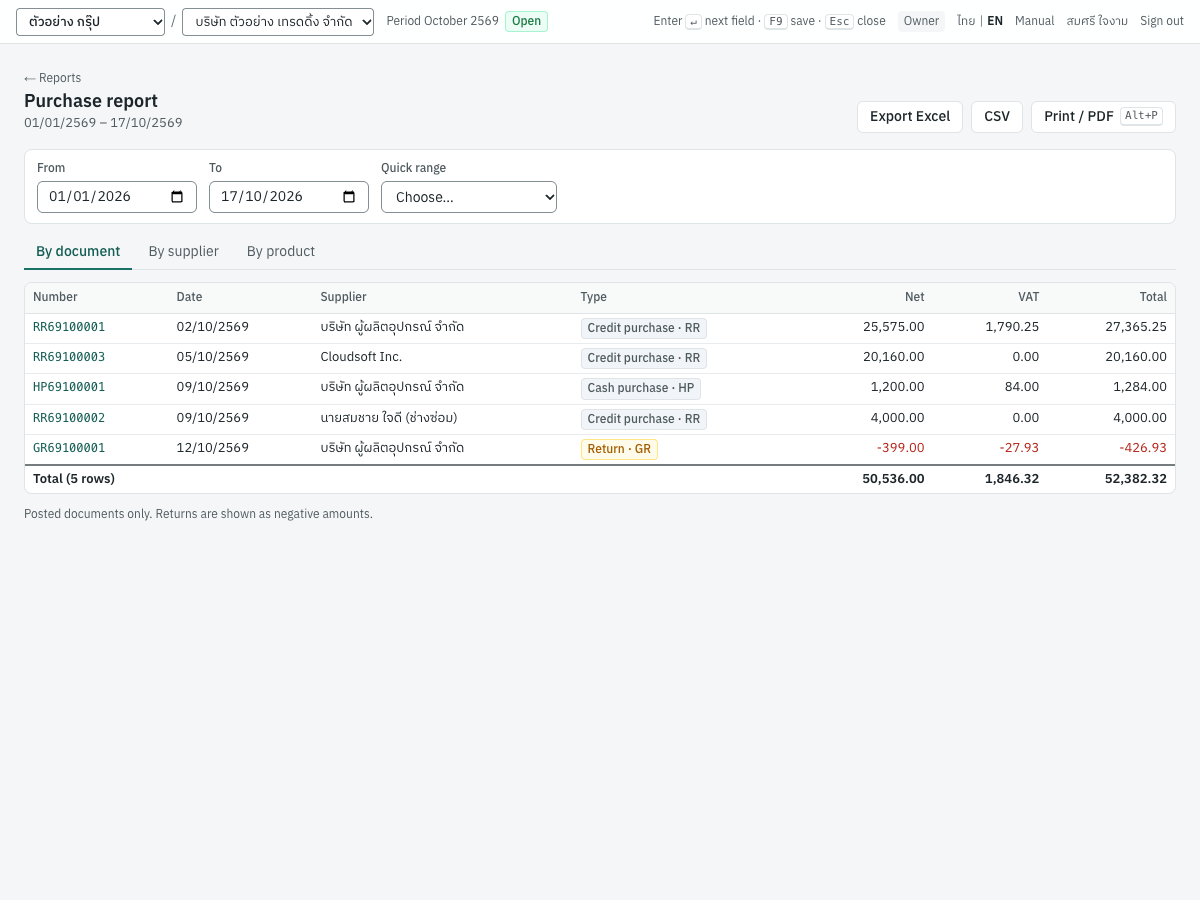
Five documents: RR69100001 S001 25,575.00 + 1,790.25; RR69100003 Cloudsoft Inc. 20,160.00 (USD, no VAT); HP69100001 S001 1,200.00 + 84.00; RR69100002 นายสมชาย ใจดี (ช่างซ่อม) 4,000.00 (an individual, no VAT); GR69100001 S001 -399.00 - 27.93. Total net 50,536.00, VAT 1,846.32, total 52,382.32.
The VAT of 1,846.32 plus the 350.00 VAT on deposit paid AE69100001 is the input VAT report's 2,196.32. Goods received on goods receipts (GN) and not yet invoiced — 10,400.00 in 2160 สินค้ารับแล้วรอใบแจ้งหนี้ — are not in the report until the supplier's invoice is posted.
Cash and bank movement#
รายงานเคลื่อนไหวเงินสด/ธนาคาร · Menu: 6 Reports → All reports → Cash and bank movement
This report shows, for each cash and bank account, the balance at the start of the range, the money received and paid during it, and the closing balance, with the individual entries on request. Use it for the daily or monthly cash position and to prepare a bank reconciliation (see 05-finance.md).
Filters#
| Field | ภาษาไทย | What to enter |
|---|---|---|
| From | ตั้งแต่วันที่ | First day of the range (default: start of the fiscal year) |
| To | ถึงวันที่ | Last day of the range (default: today) |
| Quick range | ช่วงเวลา | A preset range |
| Account | บัญชี | One cash or bank account, or All cash & bank (default) |
| Show details | แสดงรายการ | Button: expands every account to show its entries. It changes to Collapse all. |
The report covers the accounts marked as cash or bank in the chart of accounts (in the default chart 1110 เงินสด, 1111 เงินสดย่อย, 1120 and 1121 เงินฝากธนาคาร). Cheques on hand (1115) and cheques payable (2115) are not cash accounts: a cheque appears here when it clears into the bank.
Columns#
| Column | ภาษาไทย | Account row | Entry row |
|---|---|---|---|
| Code / date | รหัส/วันที่ | Account code | Entry date |
| Account / entry | บัญชี/รายการ | Account name and number of lines | Journal entry number (link) |
| Document | เอกสาร | Source document number (link where available) | |
| Description | คำอธิบาย | Line description or entry memo, and the customer or supplier | |
| Opening | ยกมา | Balance before From, plus the opening entries dated on From (the Opening book), as in the trial balance | |
| Receipts | รับ | Total debits in the range | Debit amount |
| Payments | จ่าย | Total credits in the range | Credit amount |
| Balance | คงเหลือ | Closing balance | Running balance |
Click an account row, or press Enter on it, to show or hide its entries; an account without entries shows No movement in this range. When more than one account is listed, a Total row adds them.
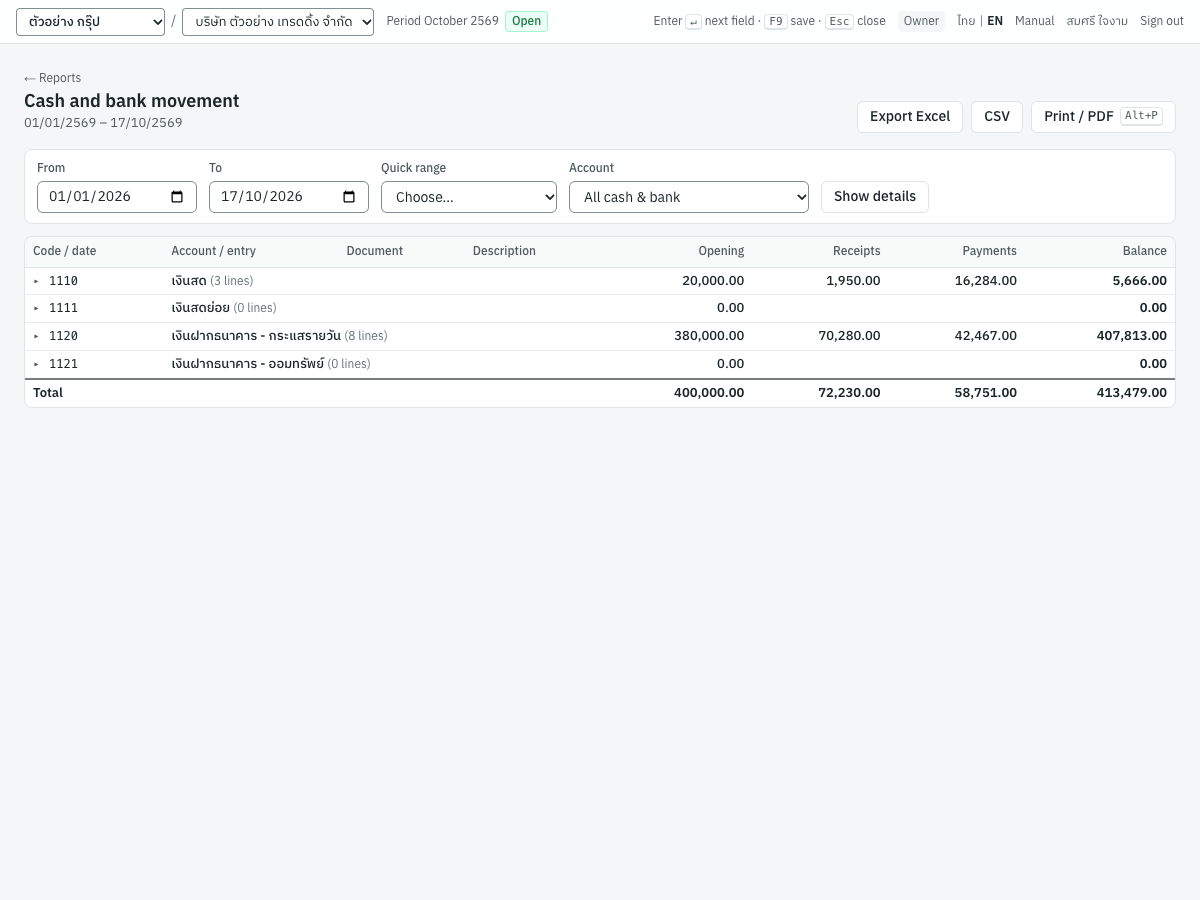
Reading the demo figures#
| Account | Lines | Opening | Receipts | Payments | Balance |
|---|---|---|---|---|---|
1110 เงินสด | 3 | 20,000.00 | 1,950.00 | 16,284.00 | 5,666.00 |
1111 เงินสดย่อย | 0 | 0.00 | 0.00 | ||
1120 เงินฝากธนาคาร - กระแสรายวัน | 8 | 380,000.00 | 70,280.00 | 42,467.00 | 407,813.00 |
1121 เงินฝากธนาคาร - ออมทรัพย์ | 0 | 0.00 | 0.00 | ||
| Total | 400,000.00 | 72,230.00 | 58,751.00 | 413,479.00 |
The openings 20,000.00 of 1110 and 380,000.00 of 1120 come from the opening voucher OJ6900001 dated 01/01/2569, the first day of the range: as in the trial balance and the general ledger, an opening entry dated on From is brought forward, not counted under Receipts, and is not listed as a line. The eight lines of 1120 are those of the general ledger example, and the openings and balances agree with the trial balance.
Inventory valuation#
รายงานมูลค่าสินค้าคงเหลือ · Menu: 6 Reports → All reports → Inventory valuation
The inventory valuation lists each stocked product's quantity, moving weighted-average cost and value on a date, and reconciles the total with the inventory account in the general ledger. Use it at month end and for the stock note in the financial statements. For movements of one product, use the stock card (see 06-inventory.md).
Filters#
| Field | ภาษาไทย | What to enter |
|---|---|---|
| As of | ณ วันที่ | The valuation date (default: today). Stock movements dated on or before it count. |
| Warehouse | คลังสินค้า | One warehouse, or All warehouses (default). Inactive warehouses are marked (inactive). |
The line under the title shows the date, the warehouse and the costing method of the products listed: Moving weighted average, FIFO, or Moving average or FIFO, by product category when both are listed. In the export, each row carries its product's method.
Reconciliation box#
| Item | ภาษาไทย | What it shows |
|---|---|---|
| Inventory control account (GL) | บัญชีสินค้าคงเหลือ | Balance of 1140 สินค้าคงเหลือ on the as-of date |
| Stock valuation, all warehouses | มูลค่าตามบัญชีสินค้า | Total value of stock in every warehouse |
| Difference | ผลต่าง | The first less the second; zero when reconciled |
The box is titled Inventory reconciliation (company-wide) and always covers the whole company, even when a warehouse is chosen.
Columns#
| Column | ภาษาไทย | What it shows |
|---|---|---|
| Code | รหัส | Product code |
| Product | สินค้า | Product name |
| Unit | หน่วย | Unit of measure |
| Quantity | จำนวน | Quantity on hand (negative in red) |
| Average cost | ต้นทุนเฉลี่ย | Company-wide value divided by company-wide quantity; blank when the company has none on hand |
| Value | มูลค่า | Value on hand |
Products with no quantity and no value are left out; services never appear. The Total row shows the number of items and the total value.
Cost is kept for the company as a whole, not per warehouse. With a warehouse chosen, the quantity is that warehouse's, and its value is that quantity at the company average cost; a note under the reconciliation says so.
Reading the demo figures#
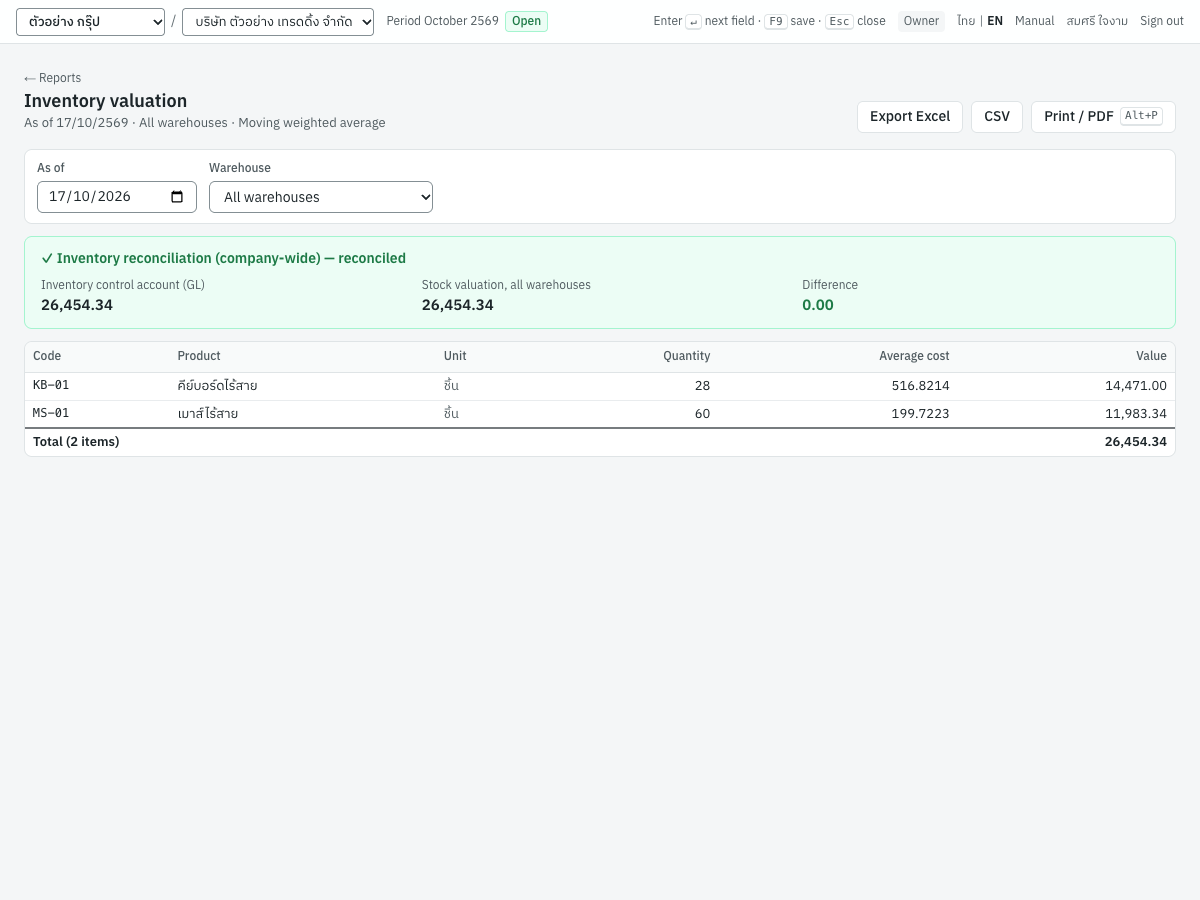
As of 17/10/2569, all warehouses:
| Code | Product | Unit | Quantity | Average cost | Value |
|---|---|---|---|---|---|
| KB-01 | คีย์บอร์ดไร้สาย | ชิ้น | 28 | 516.8214 | 14,471.00 |
| MS-01 | เมาส์ไร้สาย | ชิ้น | 60 | 199.7223 | 11,983.34 |
| Total (2 items) | 26,454.34 |
The inventory account 1140 is also 26,454.34, so the difference is 0.00. SV-INSTALL is a service and is not listed.
Reorder report#
สินค้าถึงจุดสั่งซื้อ · Menu: 6 Reports → All reports → Reorder report
The reorder report lists active stocked products whose quantity on hand, over all warehouses, is at or below their reorder level. Use it before raising purchase requisitions or purchase orders (see 03-purchasing.md).
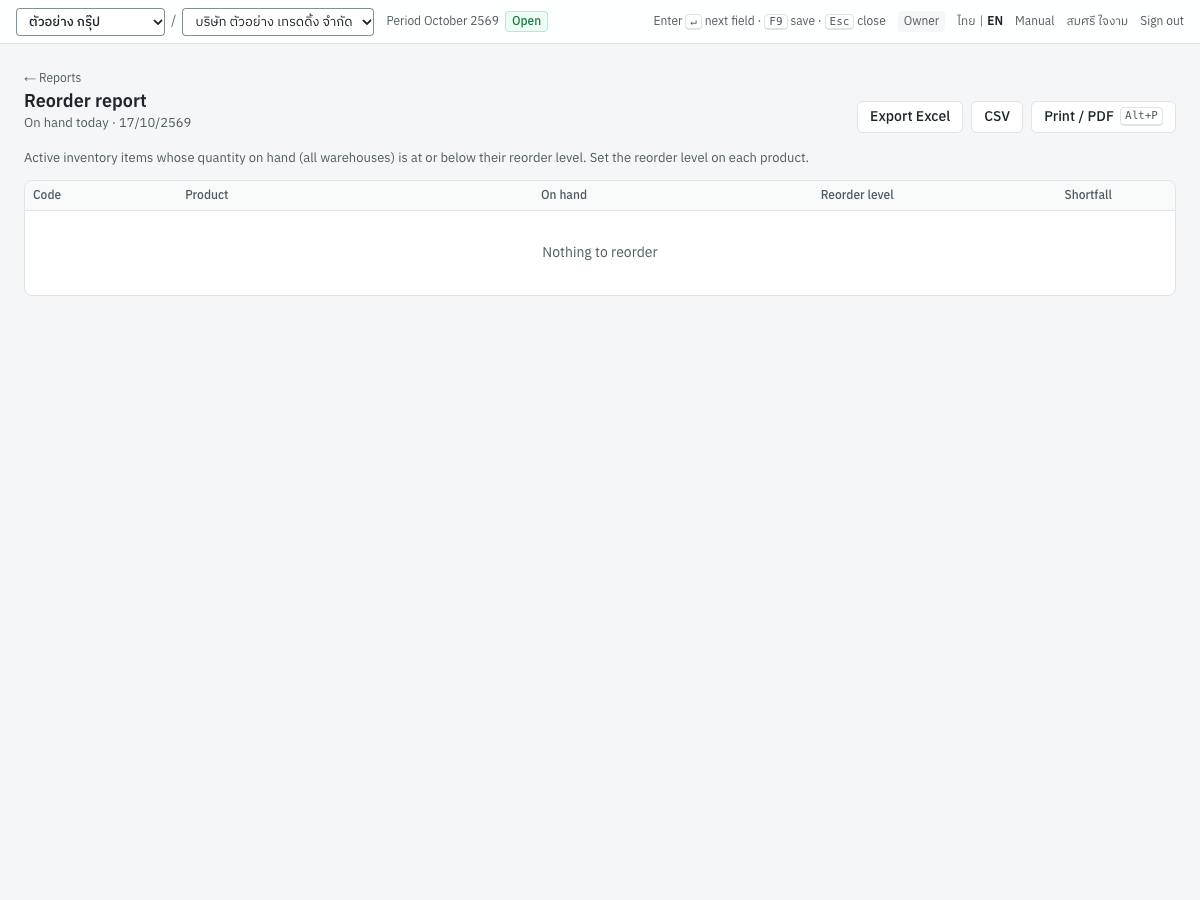
The report has no filters: it always shows today's quantities (On hand today · 17/10/2569). Only products with a Reorder level are checked; set it on the product in 4 Inventory → Products & services (see 06-inventory.md).
| Column | ภาษาไทย | What it shows |
|---|---|---|
| Code | รหัส | Product code |
| Product | สินค้า | Product name |
| On hand | คงเหลือ | Quantity on hand in all warehouses (negative in red) |
| Reorder level | จุดสั่งซื้อ | The level set on the product |
| Shortfall | ขาด | Reorder level less on hand |
| หมด | Out of stock when nothing (or less than nothing) is on hand |
In the demo, KB-01 has 28 on hand against a reorder level of 10, and MS-01 has 60 against 20, so the report shows Nothing to reorder.
Integrity checks#
ตรวจสอบความถูกต้อง · Menu: 6 Reports → Integrity checks
The integrity checks cross-check the whole set of books: that every entry balances, that each sub-ledger (customers, suppliers, stock) agrees with its control account, and that each clearing account holds exactly the documents still waiting to clear. Run them before closing a month, before filing tax returns, after entering opening balances, and whenever a report does not agree with another.
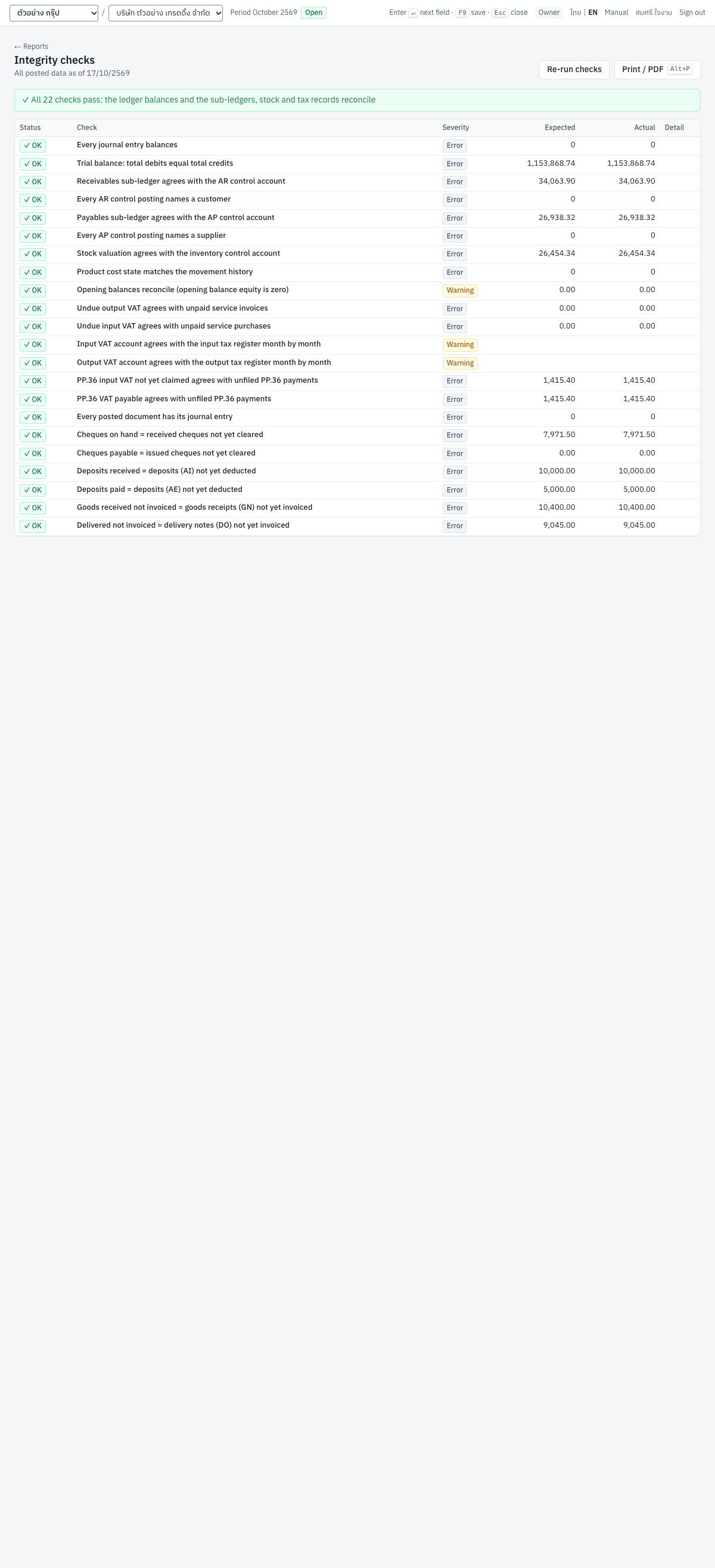
The checks always cover all posted data, whatever its date. Re-run checks runs them again; Print / PDF (Alt+P) prints the result. The dashboard's Books integrity card runs the same checks and lists any that fail.
Reading the screen#
The banner at the top sums up:
- green — ✓ All 20 checks pass: the ledger balances and the sub-ledgers, stock and tax records reconcile;
- amber — No errors, but 1 warning needs attention, when only warnings fail;
- red — ✗ 1 check failed. Reports may not agree until the cause is corrected.
| Column | ภาษาไทย | What it shows |
|---|---|---|
| Status | ผล | ✓ OK, or ✗ Failed (red for an error, amber for a warning). Failed rows are shaded. |
| Check | รายการตรวจสอบ | What is checked |
| Severity | ระดับ | Error or Warning |
| Expected | ควรเป็น | The figure the check expects |
| Actual | ที่พบ | The figure found; red when the check fails |
| Detail | รายละเอียด | Shown only when the check fails, such as difference 120.00 or ledger 7971.50, documents 7471.50 |
Counts (entries, postings, products, documents) are shown as whole numbers; the others are amounts.
Checks for features a company does not use, such as cheque clearing, appear only once their accounts are set up in 7 Setup → Default accounts, so the number of checks can differ between companies.
The checks#
| Check | What it compares | Expected / Actual |
|---|---|---|
| Every journal entry balances | Entries whose debits, credits and header total differ | 0 / number of such entries |
| Trial balance: total debits equal total credits | All debits and all credits ever posted | total debits / total credits |
| Receivables sub-ledger agrees with the AR control account | AR control account against the open customer documents | GL balance / sub-ledger total |
| Every AR control posting names a customer | Postings to the AR control account without a customer | 0 / number of postings |
| Payables sub-ledger agrees with the AP control account | AP control account against the open supplier documents | GL balance / sub-ledger total |
| Every AP control posting names a supplier | Postings to the AP control account without a supplier | 0 / number of postings |
| Stock valuation agrees with the inventory control account | 1140 against the value of all stock movements | GL balance / stock value |
| Product cost state matches the movement history | Products whose current quantity and value differ from the sum of their movements | 0 / number of products |
| Opening balances reconcile (opening balance equity is zero) | Balance of 3900 ยอดยกมาเพื่อปรับปรุง (warning only) | 0.00 / balance |
| Undue output VAT agrees with unpaid service invoices | 2121 against the VAT still undue on unpaid invoices and debit notes with VAT due on payment | GL balance / documents |
| Undue input VAT agrees with unpaid service purchases | 1151 against the VAT still undue on unpaid purchases with VAT claimable on payment | GL balance / documents |
| PP.36 input VAT not yet claimed agrees with unfiled PP.36 payments | 1152 against the PP.36 VAT of posted payments not yet in a PP.36 filing | GL balance / payments |
| PP.36 VAT payable agrees with unfiled PP.36 payments | 2123 against the same payments | GL balance / payments |
| Every posted document has its journal entry | Posted sales and purchase documents, receipts, payments and journal vouchers without an entry | 0 / number of documents |
| Cheques on hand = received cheques not yet cleared | 1115 against posted receipts by cheque still pending | GL balance / documents |
| Cheques payable = issued cheques not yet cleared | 2115 against posted payments by cheque still pending (with fees) | GL balance / documents |
| Deposits received = deposits (AI) not yet deducted | 2145 against deposits received less what invoices deducted and refunds returned | GL balance / documents |
| Deposits paid = deposits (AE) not yet deducted | 1175 against deposits paid less what purchases deducted and refunds returned | GL balance / documents |
| Goods received not invoiced = goods receipts (GN) not yet invoiced | 2160 against goods receipts less what supplier invoices cleared | GL balance / documents |
| Delivered not invoiced = delivery notes (DO) not yet invoiced | 1135 against delivery notes less what invoices billed | GL balance / documents |
In the demo all 20 checks pass. The trial balance check shows 931,243.74 on both sides — 25,000.00 more than the trial balance up to 17/10/2569, because the check also counts entries dated later (here the rent accrual voucher dated 31/10/2569).
When a check fails#
Panya posts every document with a balanced entry and keeps the control accounts (AR, AP, inventory) closed to manual journals, so most checks can only fail through a manual journal voucher posted to one of the clearing accounts, or through incomplete opening balances.
| Failed check | Likely cause | What to do |
|---|---|---|
| Opening balances reconcile (warning) | Opening balances are incomplete: a debit balance in 3900 usually means customer or stock openings are missing; a credit balance, supplier openings, loans or capital | Complete the openings in 5 Accounting → Opening balances until 3900 nets to zero (see 07-accounting.md). The warning does not stop you working. |
| Undue output VAT, Undue input VAT | A journal voucher posted to 2121 or 1151 | Open the general ledger of the account, find the JV line, and cancel that voucher. Undue VAT moves only through sales and purchase documents, receipts and payments. |
| PP.36 input VAT, PP.36 VAT payable | A journal voucher posted to 1152 or 2123, for example to record the PP.36 payment | Cancel the voucher and record the payment as a PP.36 filing in 3 Finance → PP.36 VAT. |
| Cheques on hand, Cheques payable | A journal voucher posted to 1115 or 2115, for example to record a deposit or clearing | Cancel the voucher and clear the cheques in 3 Finance → Cheques or with a cheque deposit slip (see 05-finance.md). |
| Deposits received, Deposits paid | A journal voucher posted to 2145 or 1175 | Cancel the voucher; deduct deposits on the invoice or purchase, or return them with a refund. |
| Goods received not invoiced, Delivered not invoiced | A journal voucher posted to 2160 or 1135 | Cancel the voucher; clear goods receipts and delivery notes by invoicing them. |
| Any other check (entries, trial balance, AR, AP, inventory, cost state, missing entries, missing customer or supplier) | Should not happen in normal use | Note the Expected, Actual and Detail figures, do not post further corrections, and contact support (see 09-organization.md). The AR and AP agings show which customers or suppliers differ. |
Important: Until an error is corrected, reports built on the affected accounts will not agree with each other — for example the AR aging will not match 1130, or the VAT report will not match 2120. Fix the cause before filing returns or closing the period.
Messages and indicators#
| Message or indicator | Where | Meaning and what to do |
|---|---|---|
| ✓ Balanced / ✗ Not balanced | Trial balance, balance sheet | Whether debits equal credits (assets equal liabilities and equity). Not balanced should never appear; run the integrity checks and contact support. |
| ✓ … reconciled / ✗ … difference found | AR aging, AP aging, inventory valuation | Whether the sub-ledger equals the control account. See When a check fails. |
| Updating… | Filter bar | New figures are loading for the changed filter |
| No postings in this range | Trial balance, general ledger | Nothing posted between From and To |
| No open items | Agings | Nothing open on the as-of date |
| No output VAT in October 2569 / No input VAT in … | VAT reports | No tax records in that month |
| No withholding tax in October 2569 | Withholding tax report | No withholding on that tab in that month |
| No posted documents in this range | Sales and purchase reports | Nothing posted between From and To |
| No cash or bank accounts | Cash and bank movement | No account is marked as cash or bank in the chart of accounts |
| No stock on hand | Inventory valuation | No stock on the as-of date (or in that warehouse) |
| Nothing to reorder | Reorder report | No product is at or below its reorder level |
| your role (…) does not permit this action | Export Excel, CSV | Your role does not include exporting; ask an administrator |
| support access is read-only | Export Excel, CSV | Support staff signed in to help you can view reports but not export them |
| period must be YYYY-MM | VAT or withholding tax report | The tax month in the page address is invalid; choose the month again with the Tax period filter |
Tips#
- Run the integrity checks first at every month end: when they pass, the trial balance, statements, agings, stock valuation and tax reports all agree with one another.
- Use As of on the agings to reproduce a past month end exactly; cancellations made afterwards do not change it.
- Keep the printed or PDF VAT reports, withholding tax reports, agings and trial balance of each month with the returns you filed.
- The tax reports read the tax register, the statements read the ledger. When a tax figure and an account balance differ, the general ledger of the account shows which posting is not a tax document.
- Bookmark the reports you use every month with their filters, for example the AR aging, or the VAT report on the input tab.