Employee self-service · บริการตนเอง
Self-service lets your employees sign in to Panya to see their own records: their payslips, their withholding tax certificates (50 ทวิ), their leave balances and requests, their working time and overtime. They ask for leave and overtime there, consent to the overtime you ask of them, clock in and out from their phone, and keep their contact details. Employees who manage others decide their team's leave, overtime and timesheets there too.
An employee's self-service account opens their own records in one company and nothing else: never the books, the other employees, HR or payroll. It is free and takes no seat on your plan: an employee with self-service is not a member of your organization.
This chapter covers:
- giving an employee self-service, and ending it;
- what the employee sees and does: the home page and clocking in, payslips, the 50 ทวิ, leave, working time, overtime, their details and bank account;
- managers deciding their team's requests;
- what HR and payroll see of it;
- privacy and the law;
- what Panya does not do yet.
The employees' HR records, leave and attendance are explained in HR; payslips and the 50 ทวิ in Payroll.
Giving an employee self-service#
Open the employee's HR record in 9 HR → Employees. The Self-service card at the bottom shows whether the employee has an account.

There are two ways to give one. Both need the Manage HR permission and payroll access as well (owners, admins, and accountants given HR access): the account opens the employee's payslips, 50 ทวิ and bank account, which HR access alone does not see. An HR manager without payroll access sees the card but cannot give or end the account.
| Way | ภาษาไทย | When |
|---|---|---|
| Invite by email | เชิญทางอีเมล | For most employees. Enter the employee's own email address and click Invite. Panya emails them a link that works for 7 days; they accept it with that address, creating a Panya account if they have none. Until then the card shows Invited; Send again sends a new link (the old one stops working). |
| Or a member who is the employee | หรือผู้ใช้งานที่เป็นพนักงานคนนี้ | For an employee who is already a member of your organization (an accountant who is also on the payroll, say). Choose them and click Link: the account is active at once. They keep their membership and their role. |
The link goes to the employee's address only: Panya never shows it to HR, because whoever holds it may create the account. One address is one employee's: Panya refuses an address that is already another employee's.
Self-service is for employees who are still employed: Panya refuses to invite someone who has left.
Nobody but an owner or admin gives self-service to themselves: Panya refuses to link your own user or to invite your own address (nobody gives themselves an employee's self-service: an owner or administrator does).
Each time self-service is given (an invitation sent, a member linked) or an HR record's Panya member changes, Panya emails the organization's owners, except the one who did it, and the employee at the Email on their HR record (their own address): who did it, for whom, and where to revoke it. If it is not right, revoke it.
Ending self-service#
Click Revoke self-service (or Withdraw the invitation), give a reason and confirm. The employee's portal closes at once; the reason is kept in the audit log. The HR record no longer names the account's user: a member linked this way stays a member, and if they approve their team's requests, choose them again in the record's Panya member field. You can invite the employee again later.
Removing a member from the organization ends the self-service given to them as a member (the reason says removed from the organization). Self-service they accepted from an emailed invitation stays: the email proved the address.
While the account is active, the employee's Panya member field on the HR record keeps its user: Panya refuses to change it (the employee's self-service account uses their user: revoke it first to change the user).
When the employee leaves#
Set the end date on the HR record as usual (a record made inactive without one counts as ending on the day it was). From the day after it, the employee's portal shows only their withholding tax certificates, until 31 March after the year: they need them for their tax return, which is due by the end of March (Revenue Code s.56), and the employer issues the certificate within a month of the employee leaving (s.50 ทวิ). After that the portal closes by itself.
Signing in#
The invitation email has a link to the invitation's page. It shows the company and the employee's name. Someone without a Panya account enters their name and chooses a password; someone with one signs in with the invited address. Then they click Accept invitation and land in their portal.
An employee whose only account is self-service lands in their portal each time they sign in. A member who also has self-service finds Self-service in the bar at the top of Panya, beside the language switch.
The portal is made for a phone first: its tabs are at the bottom of the screen (Home, Payslips, Leave, Time, More), at the top on a computer.
The home page#
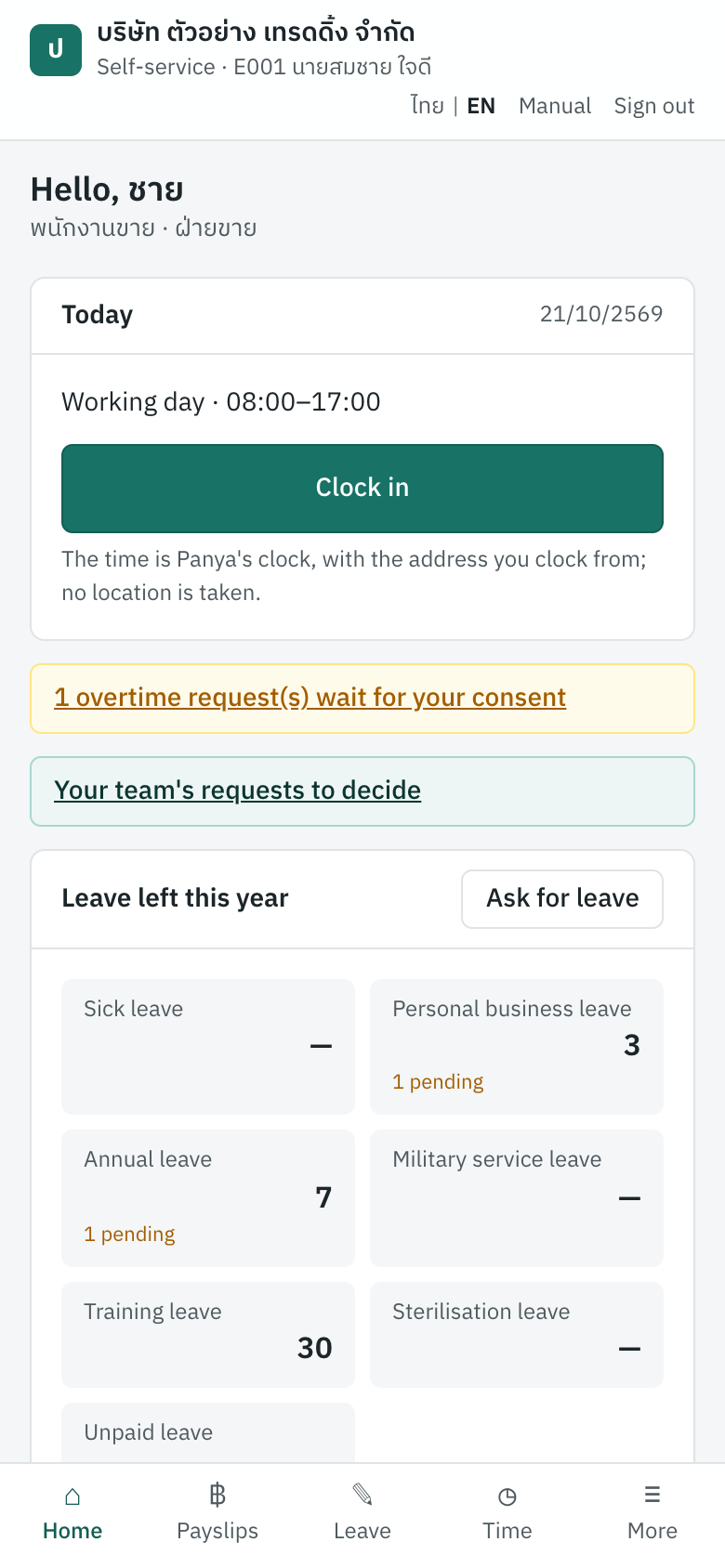
| Part | ภาษาไทย | Shows |
|---|---|---|
| Today | วันนี้ | Whether today is a working day and the shift's hours, or the holiday; today's clock entries; the Clock in / Clock out button. |
| Notices | Overtime waiting for the employee's consent; for a manager, their team's requests to decide. | |
| Leave left this year | วันลาคงเหลือปีนี้ | The days left of each leave type with a yearly quota, and the days still waiting for approval. |
| Waiting for approval | รออนุมัติ | The employee's pending leave requests. |
Clocking in from the phone#
Clock in records Panya's own time (not the phone's), with the internet address the request came from and the browser. The next press is Clock out. Panya refuses a second press within a minute (you clocked less than a minute ago), and a day already in an approved timesheet.
The button is there for employees who clock in and out (their HR record) when the company uses clocking in self-service. HR sets it in 9 HR → HR settings:
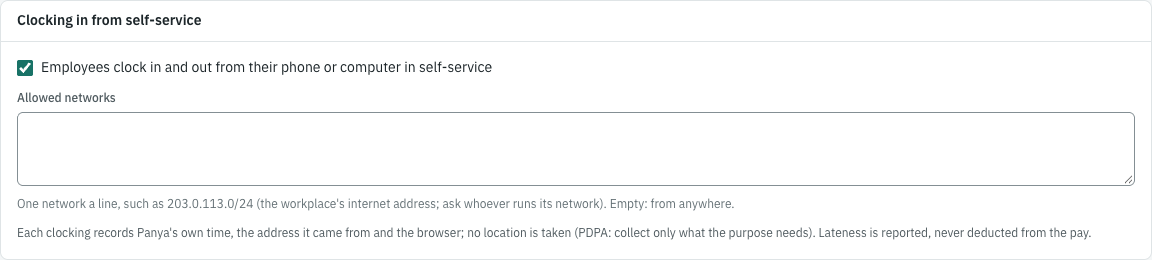
| Setting | ภาษาไทย | What it does |
|---|---|---|
| Employees clock in and out from their phone or computer in self-service | พนักงานบันทึกเวลาเข้าออกผ่านบริการตนเอง | Cleared: the button is gone; employees clock with the company's time clock (whose file HR imports). |
| Allowed networks | เครือข่ายที่อนุญาต | One network a line, such as 203.0.113.0/24: clocking works only from them (the workplace's Wi-Fi). Empty: from anywhere. Ask whoever runs the workplace's network for its internet address. At most 50. |
Panya takes no location from the phone: an internet address says enough about where the clocking came from, and the Personal Data Protection Act asks you to collect only what the purpose needs (see Privacy and the law). The entries go into 9 HR → Clock entries as Self-service, with the address; attendance and timesheets read them as any other. Lateness is reported; Panya never deducts it from the pay (Payroll).
Payslips#
Payslips lists the employee's pay of each posted payroll run, newest first, with the net pay. A draft run is not there.
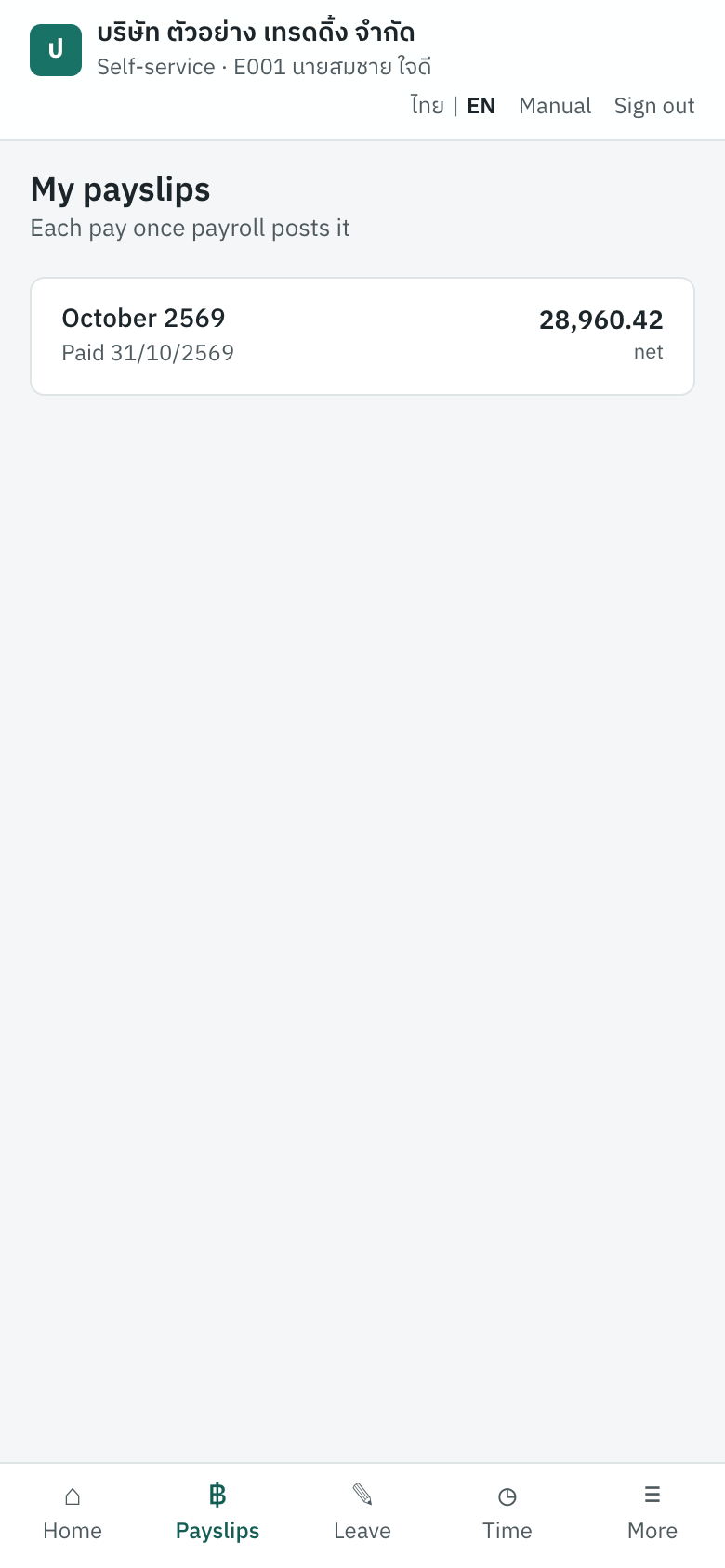
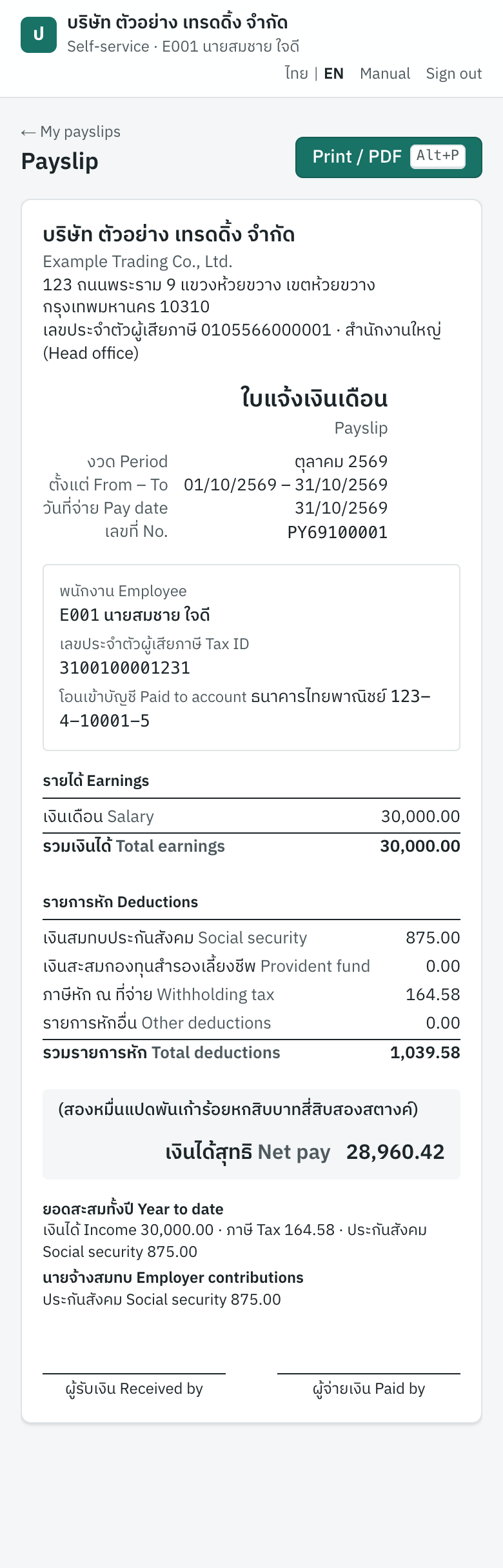
Click one to see the payslip as payroll prints it; Print / PDF prints it or saves a PDF.
When payroll posts a run, each employee in it with self-service gets an email that their payslip is ready, with the link (the email has no amounts).
The 50 ทวิ#
More → My 50 ทวิ lists the tax years the employee was paid in. Each opens the year's withholding tax certificate, as payroll's 50 ทวิ for the year prints it: copy 1 goes with the employee's tax return (ภ.ง.ด.90 or 91). The year still in progress shows what has been paid so far; its certificate is final once the year ends.
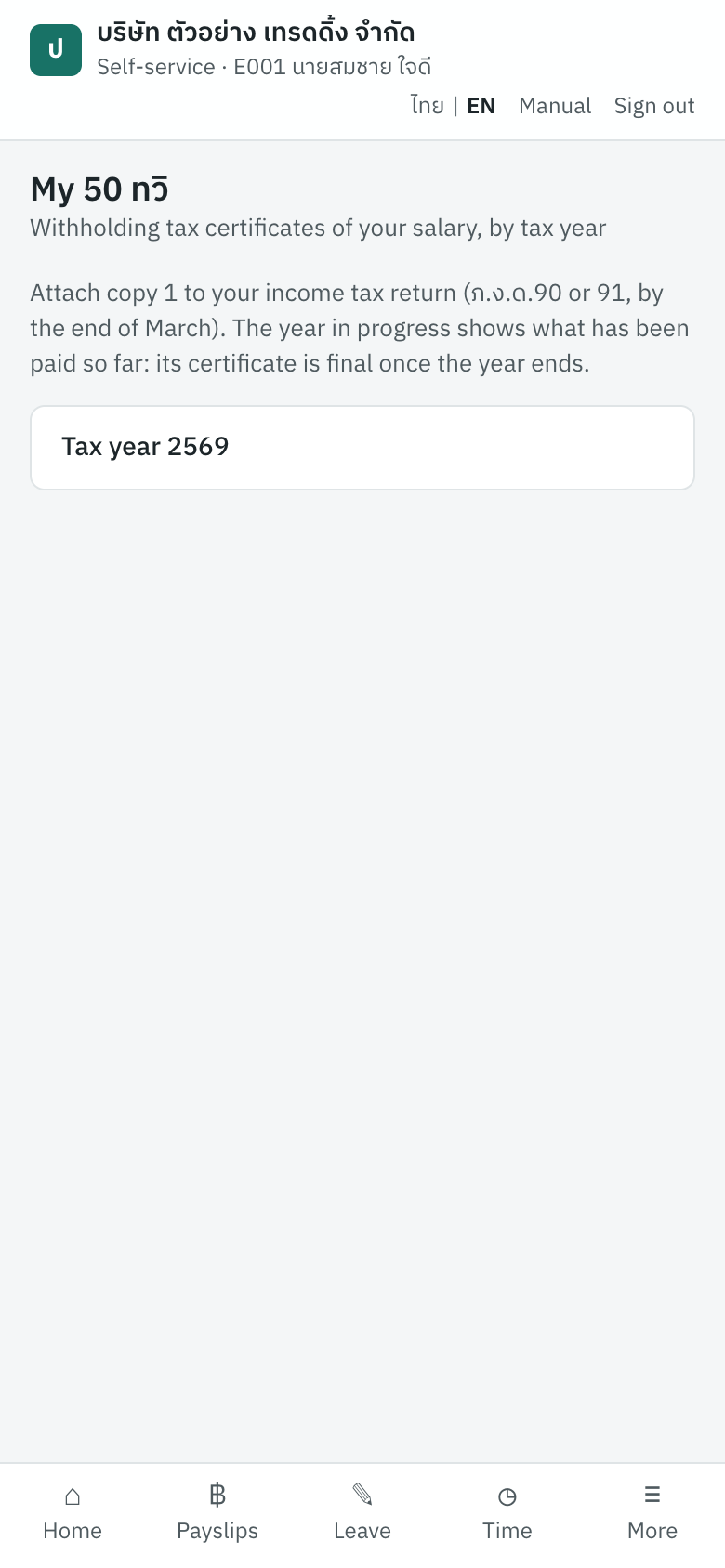
The certificate in self-service is the same as the one payroll prints and hands over. Whether a copy the employee prints themselves counts as the certificate the employer issued depends on how your company issues them: see What Panya does not do yet.
Leave#
Leave shows the employee's balances of the year (entitled, taken, left) and their requests.
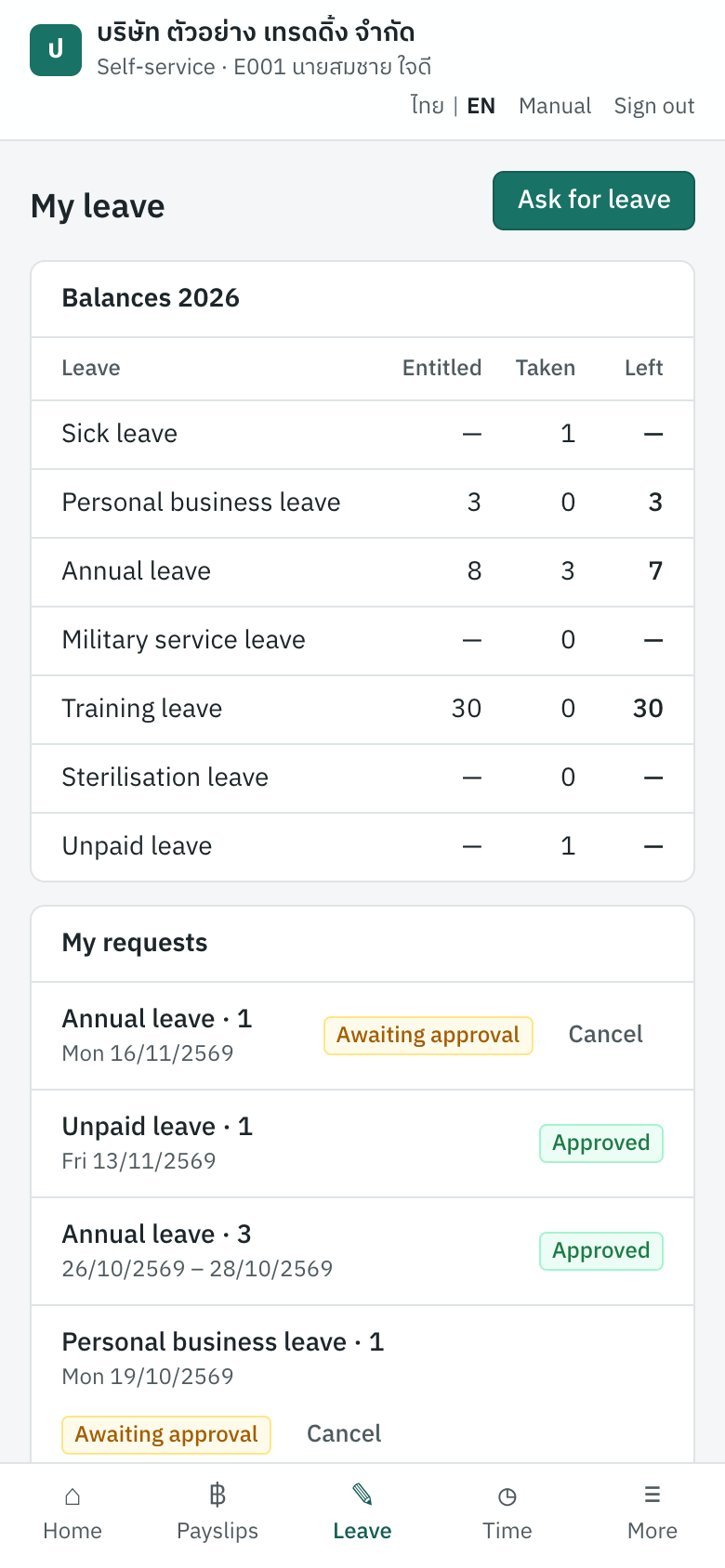
To ask for leave:
- Click Ask for leave.
- Choose the Leave, how much (a whole day, half a day or hours, as the type allows) and the dates.
- Add a reason and click Send.
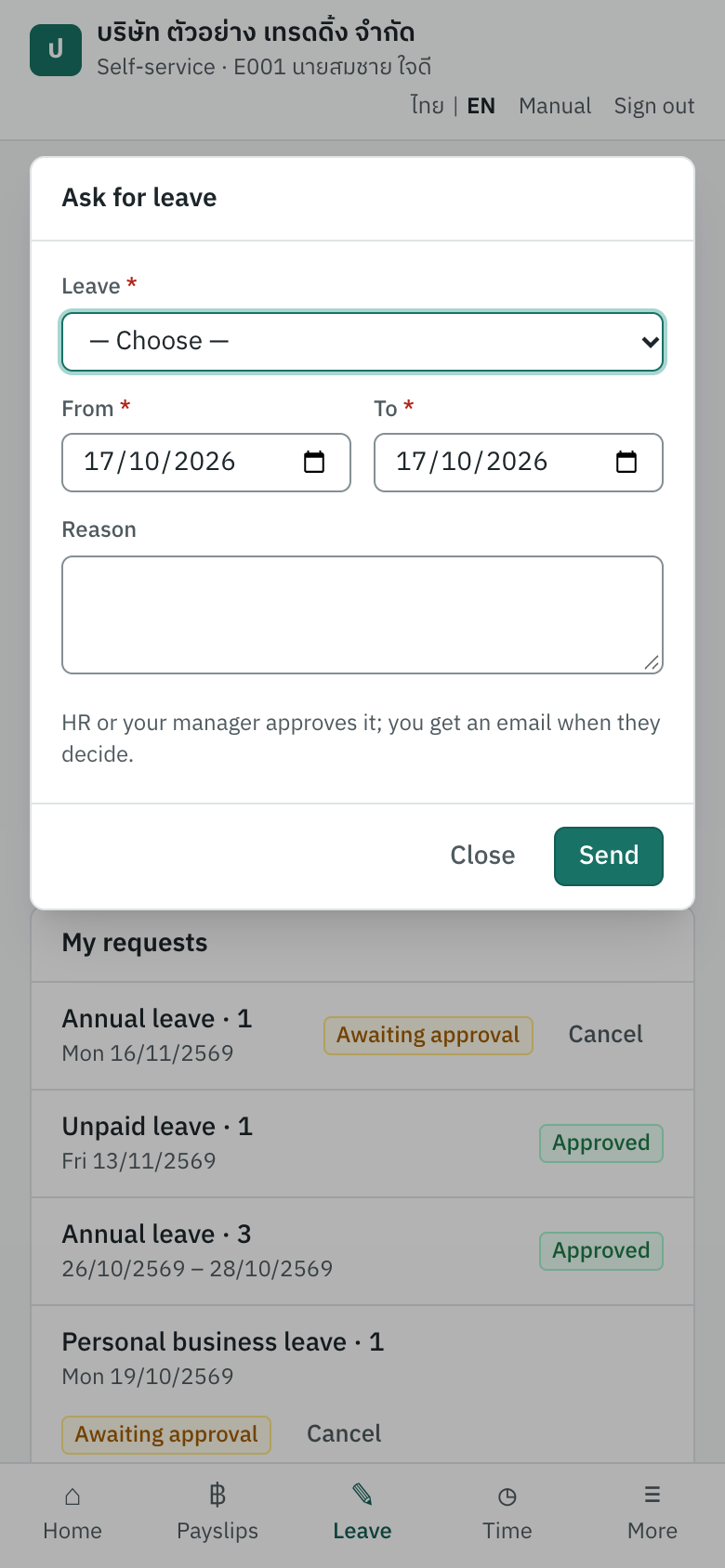
Panya checks the request as it checks one HR records (Recording a request): the type's rules, the days left, the other leave of those days. It is Awaiting approval until HR or the employee's manager decides it; the employee gets an email when they do. A pending request can be cancelled with Cancel; an approved one only by HR.
Working time#
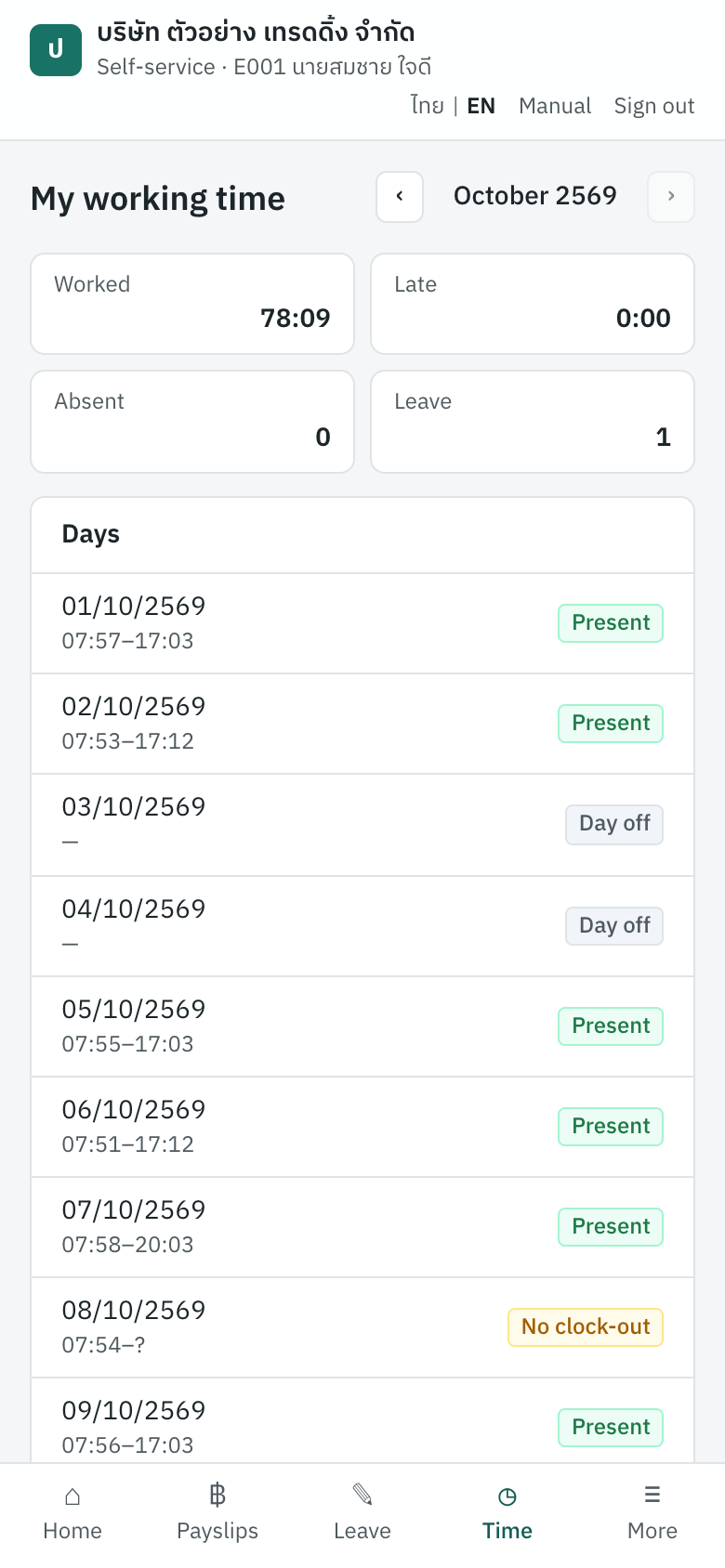
Time shows a month's days with their clock-in and clock-out, lateness, absence and leave, the clock entries and their source (self-service, the time clock or entered by HR), and the timesheets HR has built for payroll.
Overtime#
More → Overtime lists the employee's overtime requests.
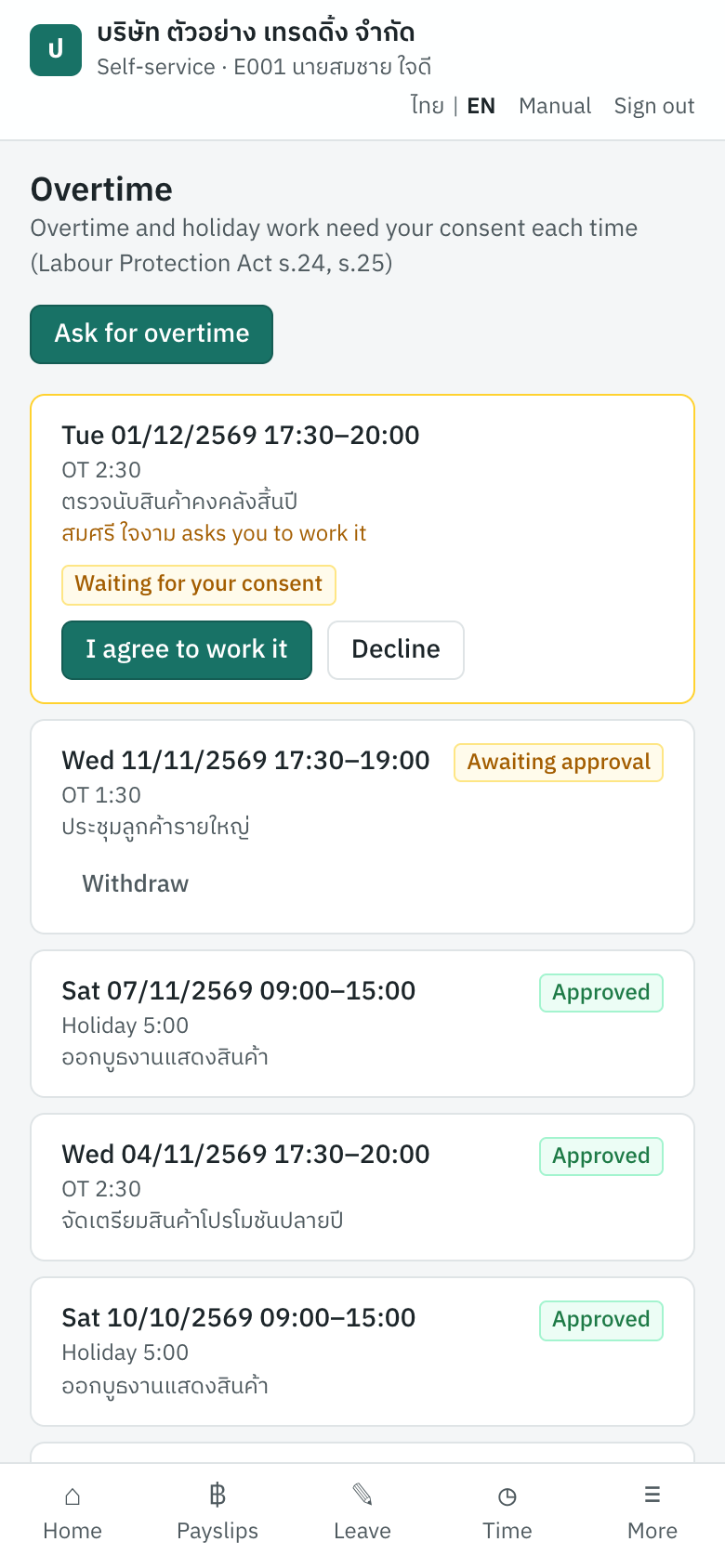
The Labour Protection Act allows overtime and holiday work only with the employee's consent given beforehand, each time (s.24, s.25). Self-service records it:
- Overtime the employee asks for. Click Ask for overtime, enter the date and the times, describe the work and tick I agree to work this overtime: the request is the consent, kept with when it was given. It waits for approval like one HR records.
- Overtime HR asks of the employee. In 9 HR → Overtime → New overtime, tick Ask the employee to consent in self-service instead of recording the consent. The request is Waiting for your consent in the employee's portal (and they get an email); I agree to work it makes it a request awaiting approval, Decline ends it. Only an employee with self-service can be asked.
A pending request the employee asked for can be withdrawn with Withdraw.
My details and the bank account#
More → My details shows the employee's contact details and the bank account their pay goes to.
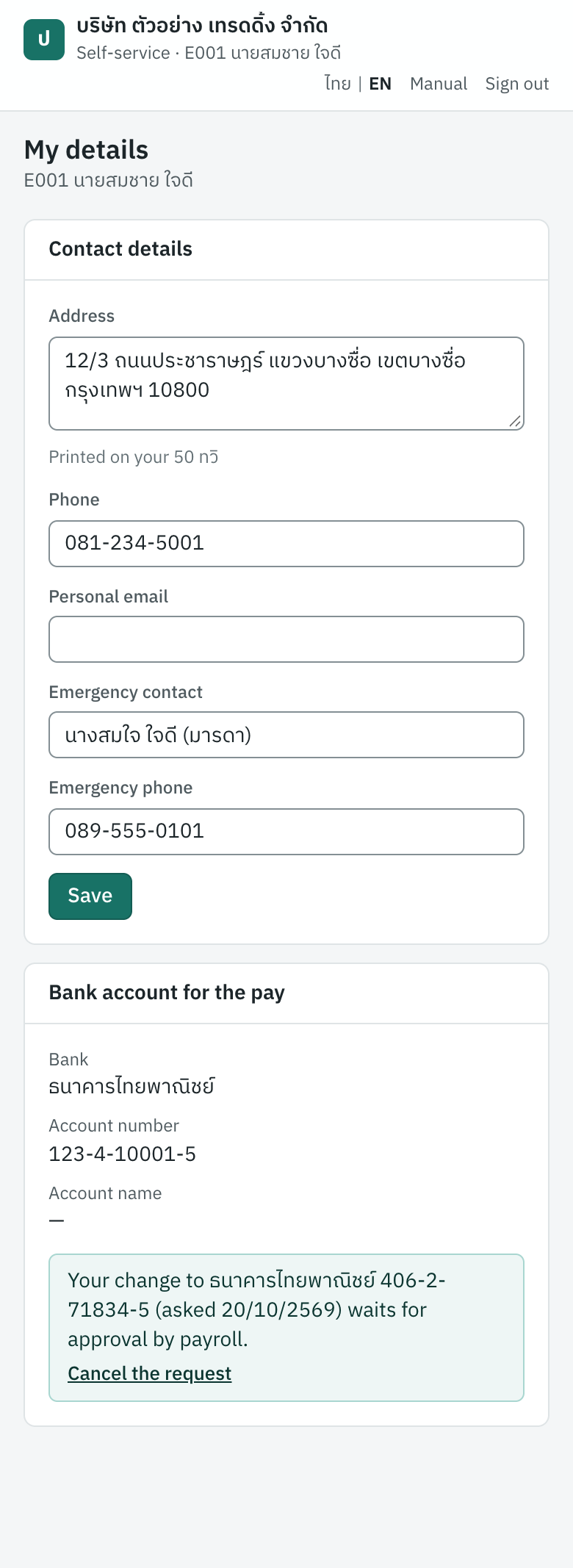
The employee changes their Address (printed on their 50 ทวิ), Phone, Personal email and Emergency contact themselves: Save puts them on the HR record. Nothing else of the record changes here.
The bank account is payroll's: Ask to change sends a request with the bank, the account number and name, and a note. It waits for someone who sees payroll and may change employees (owners, admins, accountants), in 8 Payroll → Employees:

Check the account with the employee before approving: Approve puts it on the employee's payroll record, and the next payroll run pays into it. Reject turns it down. The employee gets an email either way. One request waits at a time; the employee can cancel it while it does.
Managers: My team#
An employee whom other employees' HR records name as their manager (Reports to) gets More → My team: their team's pending leave and overtime, and the draft timesheets to approve.
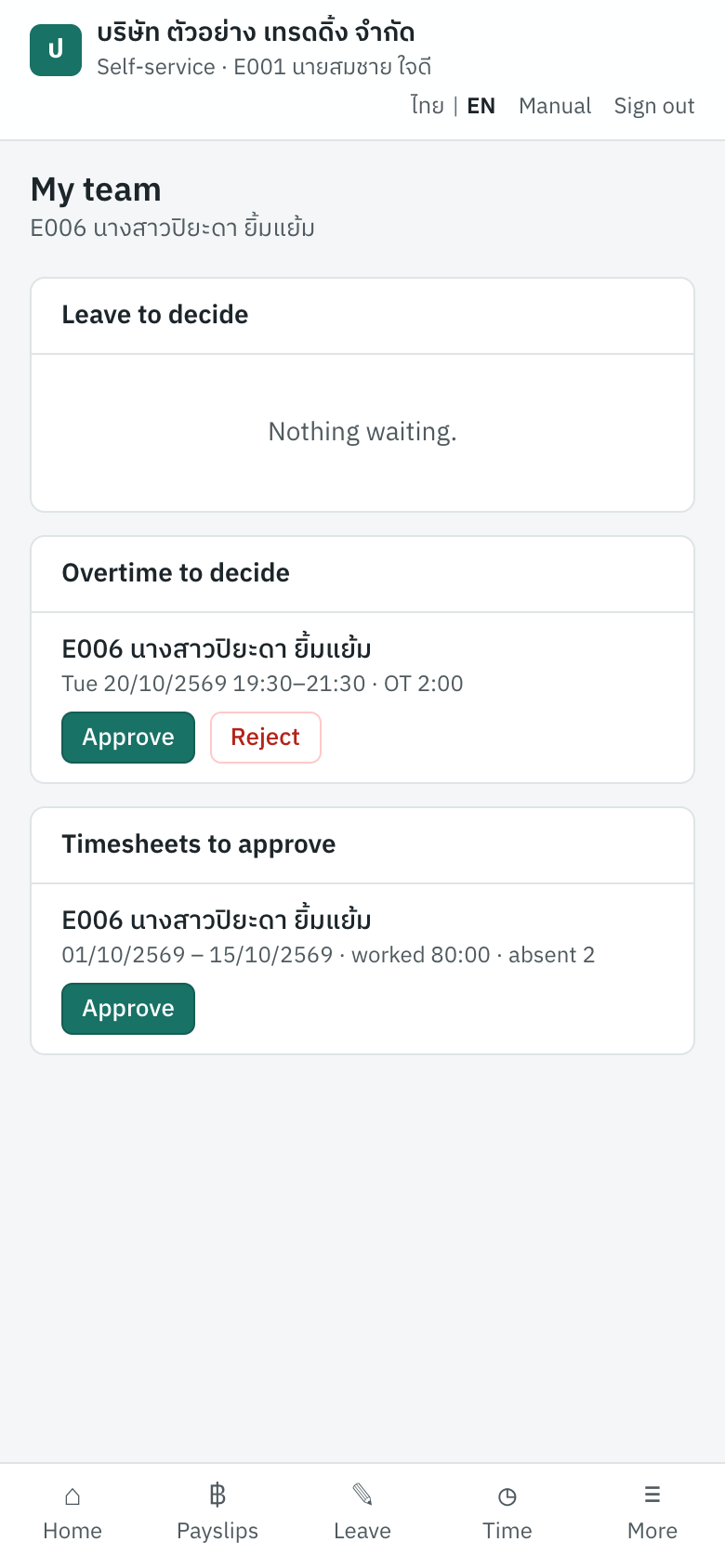
Approve and Reject decide as in 9 HR → Approvals, with the same checks: nobody decides their own requests, and a manager decides only their own team's. Opening a team member's records beyond that is HR's. A manager whose employment has ended decides nothing more: their team's requests go to HR.
Performance reviews#
When a review cycle includes the employee, More → My reviews opens their own review: their goals, their self-assessment and, once HR has finalised it, the result to acknowledge (see Performance reviews). In self-service an employee sees their own review only, even one who reviews others: the reviews of their team are on Panya's HR screens, for members.
Privacy and the law#
| What | ภาษาไทย | How |
|---|---|---|
| Only their own records | เฉพาะข้อมูลของตนเอง | Every request of the portal runs with the database narrowed to the employee (and, for a manager, their team's requests): another employee's payslip, leave or clock entries are not found, whatever is asked. The company's books, HR and payroll are not reachable at all. |
| What clocking in keeps | ข้อมูลที่เก็บเมื่อบันทึกเวลา | The server's time, the internet address and the browser; no location. An internet address can identify a person and is personal data; the Personal Data Protection Act asks that what is collected be limited to what the purpose needs (s.22). The time and the address prove the clocking; a location would add little and reveal more. |
| Telling the employees | การแจ้งพนักงาน | The company, as the data controller, tells its employees what it collects and why (PDPA s.23): add self-service and its clocking to the privacy notice you give them. |
| Consent to overtime | ความยินยอมทำงานล่วงเวลา | The Act asks for the employee's consent beforehand, each time; it prescribes no form (s.24). Self-service keeps who consented and when. |
| The audit log | ประวัติการใช้งาน | Invitations, links and revocations, clocking in, consents, changes of contact details and bank account requests are recorded with who did them. |
What Panya does not do yet#
- There is no mobile app: self-service is the web page, made for a phone's browser. Panya sends no push notifications, only emails.
- Panya takes no location or photo when clocking in; a company that needs more than its networks keeps its time clock.
- The 50 ทวิ in self-service carries no electronic signature. A certificate issued electronically needs the employer's electronic signature under the Revenue Department's rules for electronic documents; until Panya signs them, issue the certificate on paper (or as your own signed PDF) as before, and treat the copy in self-service as the employee's reference.
- Employees cannot upload documents (a medical certificate, say), change their name, ID number or tax allowances, or see their HR record beyond their contact details: HR keeps those.
- A manager decides their team's requests in self-service but does not see their team's balances, attendance or reviews there.
- An employee of two companies has one account per company, chosen at sign-in; the portal shows one company at a time.