Setup · เริ่มระบบ
Menu 7 Setup holds the settings that decide how Panya records every document: your company's details and policies, the accounts each posting uses, the VAT rate and withholding tax types, exchange rates, document numbering, units and product categories, who can work in the company and the audit log. This chapter also covers the chart of accounts (menu 5 Accounting) and how to start your books: opening balances and moving your data from Express or another program with the CSV import tools.
When Panya creates a company it fills in everything a Thai SME needs to start: a chart of accounts, default accounts, document numbers in the Express style, 7% VAT, the common withholding tax types, the units PCS, BOX, SET, KG, HR and JOB, the product category GEN, the warehouse MAIN, the cash and bank accounts CASH (1110) and BANK (1120) and a 12-month fiscal year. You can work with these defaults from the first day and change them later.
The Setup menu#
The setup pages share one frame: the page title and a row of tabs, so you can move between them without going back to the menu.
| Menu item | ภาษาไทย | What it is for | Who can change it |
|---|---|---|---|
| Company | ข้อมูลกิจการ | Name, tax ID, branch and address printed on documents; VAT registration, cheques, e-Tax, negative stock and date display | Owner, admin, accountant |
| Default accounts | ผูกบัญชี | The accounts the posting rules use | Owner, admin, accountant |
| VAT & WHT | ภาษี | VAT rate versions, withholding tax types, the e-WHT rate | Owner, admin, accountant |
| Exchange rates | อัตราแลกเปลี่ยน | Buying and selling rates for foreign currency documents | Owner, admin, accountant |
| Document numbering | เลขที่เอกสาร | The number format and reset of every document type | Owner, admin, accountant |
| Units & categories | หน่วยนับ/หมวดสินค้า | Units of measure and product categories | Owner, admin, accountant, staff |
| Users & roles | ผู้ใช้งาน | Who can open this company and with which role | Managed in the organization settings |
| Audit log | ประวัติการใช้งาน | Every change made in the company | Visible to owner, admin, accountant |
Everyone who can open the company can read the setup pages except the audit log. A user without the right permission sees the page with a blue note at the top, for example "You can view these settings; changing them requires the Manage settings permission (owner, admin or accountant)." The same happens to everyone while the organization is read-only, which only happens when Panya operations suspend it (see Plan notices and read-only mode).
Keys that work on the setup pages:
| Key | What it does |
|---|---|
Enter | Moves to the next field |
⌘S / Ctrl+S or F9 | Saves the Company and Default accounts pages |
Esc | Closes a dialog without saving |
Tab to a row, then Enter | Opens the row of a list for editing, like a click |
Setting up a new company step by step#
- Check the company details and policies: Company.
- Review the chart of accounts and add the accounts you need: Chart of accounts.
- Check the default accounts: Default accounts.
- Check the VAT rate and withholding tax types: VAT and withholding tax.
- If you invoice or buy in a foreign currency, enter its rates: Exchange rates.
- Adjust document numbers if you need another format: Document numbering.
- Set up your cash and bank accounts (3 Finance → Cash & bank accounts, see Finance) and warehouses (4 Inventory → Warehouses, see Inventory).
- Enter or import customers, suppliers and products: Importing from another program.
- Enter your opening balances: Starting your books.
Company#
ข้อมูลกิจการ · Menu: 7 Setup → Company
This page holds the details printed on your tax invoices, receipts and reports, and the policies that change how documents post. Check it before you issue the first tax invoice: a tax invoice must show the seller's name, address, tax ID and branch exactly as registered with the Revenue Department.
The screen of the demonstration company looks like this:
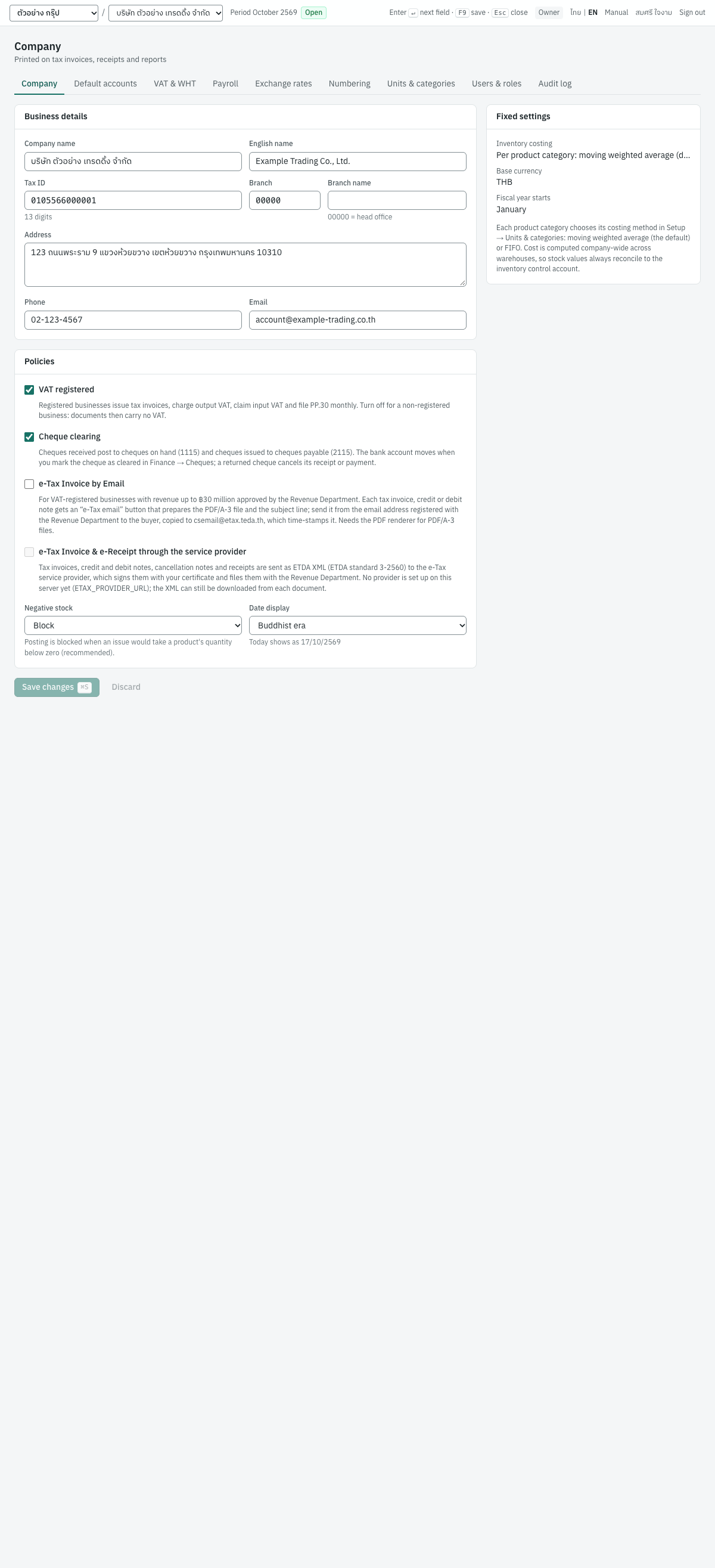
The page has three cards: Business details, Policies and, on the right, Fixed settings.
Business details#
| Field | ภาษาไทย | What to enter |
|---|---|---|
| Company name | ชื่อกิจการ | The registered name, e.g. บริษัท ตัวอย่าง เทรดดิ้ง จำกัด. Required. Printed at the top of every document and report. |
| English name | ชื่อภาษาอังกฤษ | Optional, e.g. Example Trading Co., Ltd. Printed under the Thai name on documents and reports. |
| Tax ID | เลขประจำตัวผู้เสียภาษี | The 13-digit tax ID, e.g. 0105566000001. Only digits can be typed; anything other than 13 digits shows "A Thai tax ID has 13 digits". Printed on documents, reports and tax forms. |
| Branch | รหัสสาขา | The 5-digit branch code: 00000 for the head office, 00001 for branch 1 and so on. Required. Documents print 00000 as สำนักงานใหญ่ and other codes as สาขาที่ followed by the code. |
| Branch name | ชื่อสาขา | Optional name of the branch. Under the field the page reminds you that 00000 = head office. |
| Address | ที่อยู่ | The registered address, on as many lines as you need. Printed on documents. |
| Phone | โทรศัพท์ | Printed on documents after โทร. |
| อีเมล | Your company's email address. It is included as the seller's email in e-Tax Invoice files. |
Policies#
| Setting | ภาษาไทย | What it does |
|---|---|---|
| VAT registered | จดทะเบียนภาษีมูลค่าเพิ่ม (ภ.พ.20) | On: sales documents are tax invoices that charge output VAT, purchases claim input VAT, and you file ภ.พ.30 monthly. Off: documents carry no VAT (the Prices choice on documents is locked to 0 · No VAT), and VAT you pay on imported services through ภ.พ.36 is recorded as a cost. |
| Cheque clearing | ระบบเช็ค (เช็ครับรอนำฝาก/เช็คจ่ายรอตัดบัญชี) | On: a receipt paid by cheque posts to 1115 เช็ครับรอนำฝาก and a payment by cheque to 2115 เช็คจ่ายรอตัดบัญชี. The bank account moves only when you mark the cheque as cleared in 3 Finance → Cheques; a returned cheque cancels its receipt or payment. Off: cheques post straight to the bank account. |
| e-Tax Invoice by Email | ใบกำกับภาษีอิเล็กทรอนิกส์ทางอีเมล (e-Tax Invoice by Email) | Shown only for a VAT-registered company. For businesses with revenue up to ฿30 million approved by the Revenue Department. Each posted tax invoice, cash sale, credit note and debit note with VAT, and each cancelled tax invoice, gets an e-Tax email button that prepares the PDF/A-3 file and the subject line. You send it from the email address registered with the Revenue Department to the buyer, copied to [email protected], which time-stamps it. The button appears only when your Panya service can produce PDF files. |
| e-Tax Invoice & e-Receipt through the service provider | e-Tax Invoice & e-Receipt ผ่านผู้ให้บริการ | Shown only for a VAT-registered company. Tax invoices, credit and debit notes, cancellation notes and receipts are sent as ETDA XML (ขมธอ. 3-2560) to the e-Tax service provider, which signs them with your certificate and files them with the Revenue Department. The box can be ticked only when a provider is connected to your Panya service; otherwise the XML can still be downloaded from each document. |
| Negative stock | สินค้าติดลบ | Block (recommended): posting is refused when an issue would take a product's quantity below zero. Allow: issues may exceed the quantity on hand and are costed at the last receipt cost; the next receipt re-bases the value and posts the difference to 5120 ผลต่างต้นทุนสินค้า. Products in a FIFO category never go below zero, whatever this setting says. |
| Date display | การแสดงปี | Buddhist era (default) shows 17 October 2026 as 17/10/2569; Gregorian shows 17/10/2026. The hint under the field shows today's date in the chosen style. It changes how dates are shown in lists, documents, reports and printouts; date fields where you type a date use your browser's date picker. |
The two e-Tax options exclude each other: ticking one clears the other.
Fixed settings#
These are set when the company is created and cannot be changed on this page.
| Setting | ภาษาไทย | Meaning |
|---|---|---|
| Inventory costing | วิธีคำนวณต้นทุนสินค้า | Per product category: moving weighted average (default) or FIFO. Each category chooses its method: see Units and product categories. Cost is computed for the whole company across warehouses, so stock values always agree with the inventory control account. |
| Base currency | สกุลเงินหลัก | THB. The ledger, VAT and every report are in baht; foreign currency documents are converted at their exchange rate. |
| Fiscal year starts | เริ่มรอบบัญชี | The month the fiscal year starts, from First fiscal year starts when the company was created. Later years are added in 5 Accounting → Periods & year end (Accounting). |
Changing the company settings#
- Open 7 Setup → Company.
- Change the fields.
Entermoves to the next field. While something is changed, Unsaved changes appears beside the buttons. - Click Save changes or press
⌘S/F9. The button stays grey until something has changed and the company name, tax ID and branch are valid. Panya shows Company settings saved. - To throw away your changes instead, click Discard.
Changes apply from the moment you save: documents printed afterwards show the new details. Posted documents are not changed, but a reprint of an old document shows the current company details.
Messages#
| Message | What to do |
|---|---|
| tax ID must be 13 digits | Enter all 13 digits of the tax ID, or leave it empty. |
| branch code must be 5 digits (00000 = head office) | Enter five digits, e.g. 00000. |
| N cheques are still waiting to clear; clear or return them first | You turned off cheque clearing while cheques are pending. Clear or return them in 3 Finance → Cheques first. |
| e-Tax Invoice by Email is for VAT-registered companies | You turned off VAT registration while e-Tax by email is on. Tick VAT registered again, untick the e-Tax option, save, then turn off VAT registration. |
| e-Tax through a service provider is for VAT-registered companies | As above, for the service provider option. |
| choose one e-Tax channel: by email or through the service provider | Only one e-Tax channel can be on. |
Important: Turning VAT registered on or off affects documents entered from then on. Posted documents keep the VAT they were posted with. Change it on the day your registration starts or ends, after entering and posting the documents of the earlier status.
Default accounts#
ผูกบัญชี · Menu: 7 Setup → Default accounts
Every posting rule in Panya takes its accounts from this page. A credit sale, for example, debits the account mapped to Accounts receivable and credits the accounts mapped to Sales and Output VAT. In Express this is the ผูกบัญชี setup. The default chart maps every role already, so most companies never change this page; you change it when you want a posting to go to another account of your chart, for example a separate receivable account.
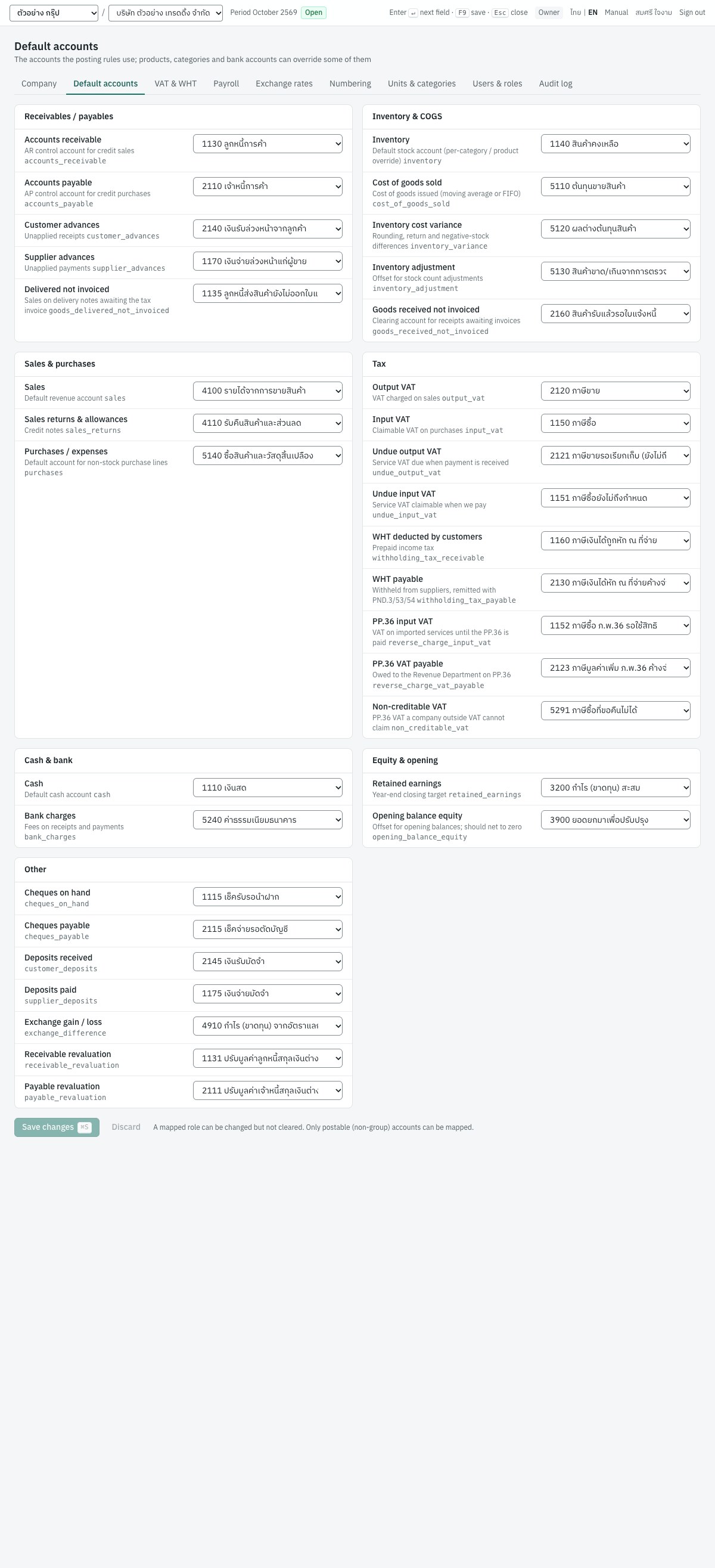
How Panya chooses the account#
For the lines of sales, purchase and stock documents Panya looks in this order and takes the first account it finds:
- The account typed on the document line (purchase lines have an Account column for non-stock items).
- The product's own account (4 Inventory → Products & services).
- The account of the product's category (Units and product categories).
- The default account on this page.
Money always posts to the ledger account of the cash or bank account chosen on the document (3 Finance → Cash & bank accounts), or to the cheque accounts while cheque clearing is on, not to a default account.
The page#
Each card groups related roles. Each row shows the role's name, a short hint, its technical name in small type (for example accounts_receivable) and a list of accounts. The list offers only active posting (non-group) accounts, grouped by type: Assets, Liabilities, Equity, Revenue, Expenses.
Badges under the list:
| Badge | Meaning |
|---|---|
| Not mapped | No account is chosen. Documents that need the role cannot be posted. A yellow warning at the top counts the roles not mapped. |
| Changed | You changed the account and have not saved yet. |
| Unusual type: … | The account's type is not the one this role normally uses, e.g. an expense account for Accounts receivable. You can still save, but check it. |
The roles and what posts to them#
Receivables / payables
| Role | ภาษาไทย | Default | What posts there |
|---|---|---|---|
| Accounts receivable | ลูกหนี้การค้า | 1130 ลูกหนี้การค้า | Debited by credit sales (IV), debit notes (DN) and customer opening balances; credited by receipts (RE) and credit notes (SR). |
| Accounts payable | เจ้าหนี้การค้า | 2110 เจ้าหนี้การค้า | Credited by credit purchases (RR), supplier debit notes (DP) and supplier opening balances; debited by payments (PS) and purchase returns (GR). |
| Customer advances | เงินรับล่วงหน้าจากลูกค้า | 2140 เงินรับล่วงหน้าจากลูกค้า | Money a receipt brings beyond the invoices it settles; used on later receipts or refunded. |
| Supplier advances | เงินจ่ายล่วงหน้าผู้จำหน่าย | 1170 เงินจ่ายล่วงหน้าแก่ผู้ขาย | Money a payment brings beyond the invoices it settles. |
| Delivered not invoiced | ลูกหนี้ส่งสินค้ายังไม่ออกใบแจ้งหนี้ | 1135 ลูกหนี้ส่งสินค้ายังไม่ออกใบแจ้งหนี้ | Delivery notes (DO) debit it with the sales value; the tax invoice that bills the delivery clears it. |
Inventory & COGS
| Role | ภาษาไทย | Default | What posts there |
|---|---|---|---|
| Inventory | สินค้าคงเหลือ | 1140 สินค้าคงเหลือ | Receipts and issues of stock items, unless the product or its category has its own inventory account. |
| Cost of goods sold | ต้นทุนขาย | 5110 ต้นทุนขายสินค้า | The cost of stock items sold. |
| Inventory cost variance | ผลต่างต้นทุนสินค้า | 5120 ผลต่างต้นทุนสินค้า | Rounding, purchase return and negative-stock differences, and the value left over when a cancellation empties a product's stock. |
| Inventory adjustment | ปรับปรุงสินค้า | 5130 สินค้าขาด/เกินจากการตรวจนับ | The offset of stock adjustments (AJ) when no other account is chosen on the adjustment. |
| Goods received not invoiced | สินค้ารับแล้วรอใบแจ้งหนี้ | 2160 สินค้ารับแล้วรอใบแจ้งหนี้ | Goods receipts (GN) credit it; the purchase invoice that bills the receipt clears it. |
Sales & purchases
| Role | ภาษาไทย | Default | What posts there |
|---|---|---|---|
| Sales | รายได้จากการขาย | 4100 รายได้จากการขายสินค้า | Revenue of sales lines whose product and category have no sales account, and of lines without a product. |
| Sales returns & allowances | รับคืนและส่วนลด | 4110 รับคืนสินค้าและส่วนลด | Debited by credit notes (SR). |
| Purchases / expenses | ซื้อ / ค่าใช้จ่าย | 5140 ซื้อสินค้าและวัสดุสิ้นเปลือง | Non-stock purchase lines that have no account of their own. |
Tax
| Role | ภาษาไทย | Default | What posts there |
|---|---|---|---|
| Output VAT | ภาษีขาย | 2120 ภาษีขาย | VAT on tax invoices, cash sales, debit notes and deposits received; reversed by credit notes. |
| Input VAT | ภาษีซื้อ | 1150 ภาษีซื้อ | Claimable VAT on purchases, supplier debit notes, deposits paid and bank fees; ภ.พ.36 VAT once filed. |
| Undue output VAT | ภาษีขายยังไม่ถึงกำหนด | 2121 ภาษีขายรอเรียกเก็บ (ยังไม่ถึงกำหนด) | VAT on service invoices marked VAT due on payment; moved to output VAT as receipts come in. |
| Undue input VAT | ภาษีซื้อยังไม่ถึงกำหนด | 1151 ภาษีซื้อยังไม่ถึงกำหนด | VAT on service purchases claimable when you pay; moved to input VAT by the payment. |
| WHT deducted by customers | ภาษีถูกหัก ณ ที่จ่าย | 1160 ภาษีเงินได้ถูกหัก ณ ที่จ่าย | Tax your customers withhold on receipts (prepaid income tax). |
| WHT payable | ภาษีหัก ณ ที่จ่ายค้างจ่าย | 2130 ภาษีเงินได้หัก ณ ที่จ่ายค้างจ่าย | Tax you withhold on payments, to remit with ภ.ง.ด.3, ภ.ง.ด.53 or ภ.ง.ด.54. |
| PP.36 input VAT | ภาษีซื้อ ภ.พ.36 รอใช้สิทธิ | 1152 ภาษีซื้อ ภ.พ.36 รอใช้สิทธิ | VAT you self-assess on payments to foreign suppliers, until the ภ.พ.36 is filed and paid. |
| PP.36 VAT payable | ภาษีมูลค่าเพิ่ม ภ.พ.36 ค้างจ่าย | 2123 ภาษีมูลค่าเพิ่ม ภ.พ.36 ค้างจ่าย | VAT owed on ภ.พ.36; cleared by the PP.36 filing (PT). |
| Non-creditable VAT | ภาษีซื้อที่ขอคืนไม่ได้ | 5291 ภาษีซื้อที่ขอคืนไม่ได้ | ภ.พ.36 VAT of a company that is not VAT registered, which it cannot claim. |
Cash & bank
| Role | ภาษาไทย | Default | What posts there |
|---|---|---|---|
| Cash | เงินสด | 1110 เงินสด | The company's main cash account. Documents post money to the account of the cash or bank account chosen on them. |
| Bank charges | ค่าธรรมเนียมธนาคาร | 5240 ค่าธรรมเนียมธนาคาร | Fees entered on receipts, payments, bank transfers and cheque deposit slips. |
Equity & opening
| Role | ภาษาไทย | Default | What posts there |
|---|---|---|---|
| Retained earnings | กำไร(ขาดทุน)สะสม | 3200 กำไร (ขาดทุน) สะสม | The year-end closing entry moves the year's profit or loss here. |
| Opening balance equity | ยอดยกมาเพื่อปรับปรุง | 3900 ยอดยกมาเพื่อปรับปรุง | The other side of every opening balance. It should net to zero once all openings are in: see Opening balances. |
Other — roles without a card of their own; each row shows the name and, in small type, the technical name:
| Role | ภาษาไทย | Default | What posts there |
|---|---|---|---|
Cheques on hand (cheques_on_hand) | เช็ครับรอนำฝาก | 1115 เช็ครับรอนำฝาก | Cheques received while cheque clearing is on, until they clear into the bank. |
Cheques payable (cheques_payable) | เช็คจ่ายรอตัดบัญชี | 2115 เช็คจ่ายรอตัดบัญชี | Cheques issued while cheque clearing is on, until they clear. |
Deposits received (customer_deposits) | เงินรับมัดจำ | 2145 เงินรับมัดจำ | Deposits received (AI), before VAT; deducted on later invoices. |
Deposits paid (supplier_deposits) | เงินจ่ายมัดจำ | 1175 เงินจ่ายมัดจำ | Deposits paid (AE), before VAT; deducted on later purchases. |
Exchange gain / loss (exchange_difference) | กำไร / ขาดทุนจากอัตราแลกเปลี่ยน | 4910 กำไร (ขาดทุน) จากอัตราแลกเปลี่ยน | Realised exchange gains and losses on foreign currency settlements, and period-end revaluation differences. |
Receivable revaluation (receivable_revaluation) | ปรับมูลค่าลูกหนี้สกุลเงินต่างประเทศ | 1131 ปรับมูลค่าลูกหนี้สกุลเงินต่างประเทศ | Period-end revaluation of open foreign currency receivables. |
Payable revaluation (payable_revaluation) | ปรับมูลค่าเจ้าหนี้สกุลเงินต่างประเทศ | 2111 ปรับมูลค่าเจ้าหนี้สกุลเงินต่างประเทศ | Period-end revaluation of open foreign currency payables. |
Changing a default account#
- Open 7 Setup → Default accounts.
- In the row of the role, choose the new account. The row shows Changed.
- Click Save N changes or press
⌘S/F9. Panya shows N default accounts updated. Discard throws away unsaved changes.
The change applies to documents posted from then on. Posted documents keep the accounts they were posted to; move balances that were posted to the old account with a journal voucher if you need to.
Some default accounts cannot move while documents still depend on what they hold, because the balance would split in two: the old account would keep what no document clears, and the new one would be cleared of what it never held.
- Inventory must be an inventory control account. It cannot change once a product that uses it (a product with no inventory account of its own or of its category) has stock movements.
- Accounts receivable, Accounts payable and the accounts that documents keep (undue VAT, advances, deposits, cheques, goods received or delivered not invoiced, revaluation, PP.36) cannot change while the current account holds a balance.
Important: Map Accounts receivable, Accounts payable and Inventory only to accounts marked as control accounts of the same kind in the chart of accounts (Receivable, Payable, Inventory). The reconciliation checks compare the customer, supplier and stock sub-ledgers with the balance of the control accounts, so a role mapped to an ordinary account makes those checks fail. The same applies to inventory accounts chosen on products and categories.
Messages#
| Message | What to do |
|---|---|
| A mapped role can be changed but not cleared. | Shown beside the buttons. A role cannot be set back to Not mapped. |
| … cannot map to a group account | Choose a posting account, not a group heading. |
| account mapping '…' is not configured for this company | Shown when posting a document that needs a role with no account. Map the role named in the message. |
| the inventory account must be an inventory control account | Choose an account marked as an Inventory control account in the chart of accounts. |
| products that take the default inventory account have stock movements: the default inventory account cannot change | Keep the account. To keep other products' stock on another inventory account, set that account on their category, or on the products, before they move. |
| account 2110 holds a balance of … that its documents will settle: the accounts_payable default account cannot change while it does | Keep the account until the documents have settled its balance and it is zero. |
VAT and withholding tax#
ภาษี · Menu: 7 Setup → VAT & WHT
The page is titled VAT & withholding tax and has three cards: the VAT rate, the withholding tax types and the e-WHT rate.
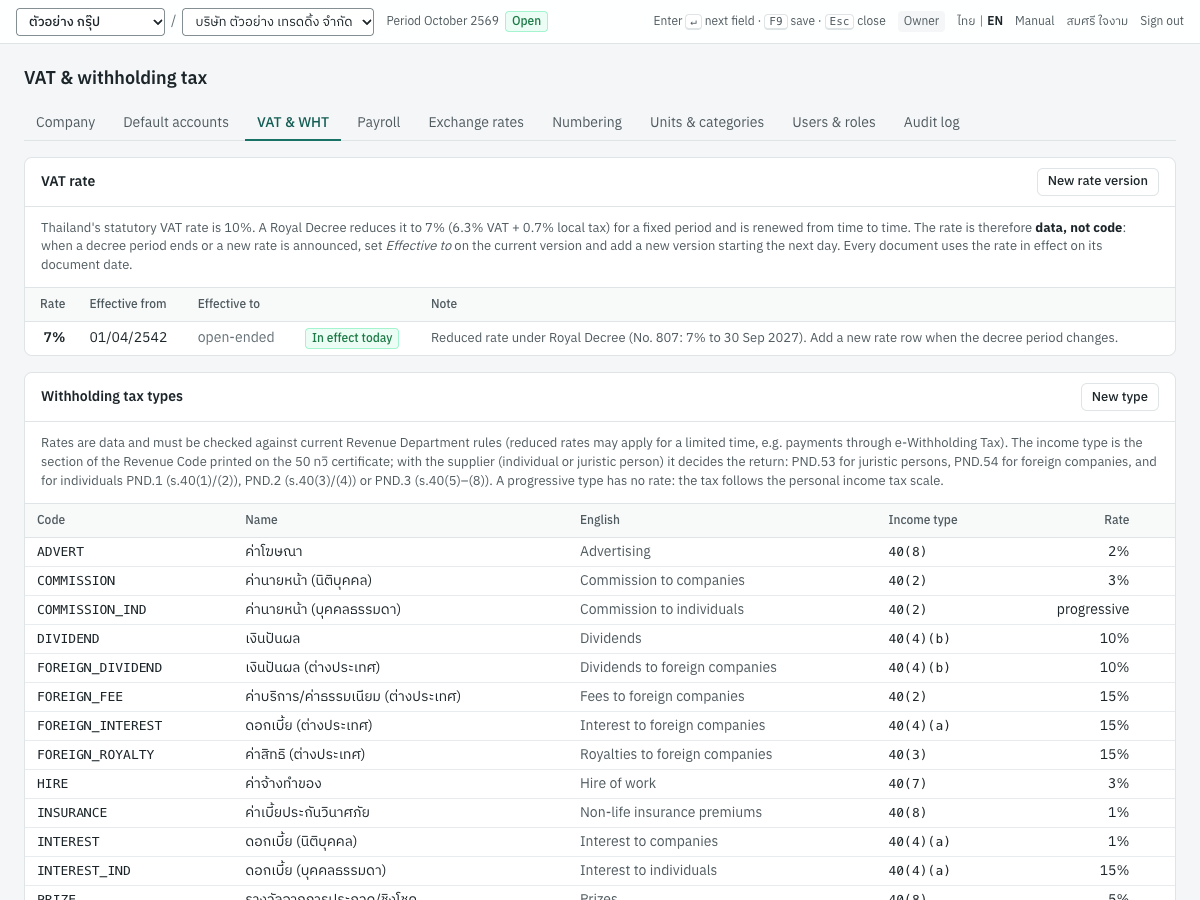
VAT rate versions#
Thailand's statutory VAT rate is 10%. A Royal Decree (พระราชกฤษฎีกา) reduces it to 7% (6.3% VAT + 0.7% local tax) for a fixed period and is renewed from time to time. Panya therefore keeps the VAT rate as dated versions. Every document uses the rate in effect on its document date, so documents dated before a change keep the old rate and documents dated after it get the new one.
A new company has one version: 7%, effective from 01/04/2542, open-ended, with the note "Reduced rate under Royal Decree (No. 807: 7% to 30 Sep 2027). Add a new rate row when the decree period changes." (The rate comes from VAT rate % on the new company form.)
The list shows each version with these columns:
| Column | Meaning |
|---|---|
| Rate | The VAT rate in percent. |
| Effective from | First day the rate applies. |
| Effective to | Last day, or open-ended. |
| (status) | In effect today, Future or Ended. |
| Note | Your note, e.g. the decree number. |
Click New rate version to add a version, or click a row to edit it. The dialog has these fields:
| Field | ภาษาไทย | What to enter |
|---|---|---|
| Rate % | อัตราร้อยละ | 0 to 99.9999, up to 4 decimals. A new VAT version starts at 7. |
| Effective from | มีผลตั้งแต่ | First day of the rate. Defaults to today. |
| Effective to | ถึงวันที่ | Last day of the rate; leave empty while open-ended. Cannot be before Effective from. |
| Note | หมายเหตุ | For example the Royal Decree number and its period. |
When the VAT rate changes, for example to 10% from 1 October 2570:
- Open 7 Setup → VAT & WHT and click the current 7% row.
- Set Effective to to
30/09/2570and click Save. - Click New rate version, enter
10, Effective from01/10/2570, leave Effective to empty, add the decree in Note and click Save.
Versions may not overlap, so always end the current version before adding the next one. When a decree only extends the 7% rate, nothing needs to change while the current version is open-ended; you may update its note.
Note: Editing a version changes the rate for documents posted from then on in its date range; posted documents keep the VAT they were posted with. Drafts take the rate in effect on their date when they are posted. Versions cannot be deleted. If no version covers a document's date, documents with VAT cannot be posted and the list shows "No VAT rate defined — documents with VAT cannot be posted".
Withholding tax types#
The Withholding tax types card lists the kinds of income you withhold tax on. You choose a type on a payment (PS) or receipt (RE) when tax is withheld; the type gives the rate, and its income type is printed on the 50 ทวิ certificate. A supplier can have a default type (for example SERVICE for นายสมชาย ใจดี, S002), which payments to that supplier propose.
Which form the tax goes on follows the supplier and, for an individual, the type's income type: payments to an individual (บุคคลธรรมดา) go on ภ.ง.ด.1 for s.40(1)/(2) income, ภ.ง.ด.2 for s.40(3)/(4) income and ภ.ง.ด.3 for the rest; to a juristic person (นิติบุคคล) on ภ.ง.ด.53; and to a foreign company not carrying on business in Thailand on ภ.ง.ด.54. See Finance for withholding on payments and receipts.
The types delivered with a new company:
| Code | ชื่อ | English | Income type | Rate |
|---|---|---|---|---|
ADVERT | ค่าโฆษณา | Advertising | 40(8) | 2% |
COMMISSION | ค่านายหน้า (นิติบุคคล) | Commission to companies | 40(2) | 3% |
COMMISSION_IND | ค่านายหน้า (บุคคลธรรมดา) | Commission to individuals | 40(2) | progressive, annualised |
DIVIDEND | เงินปันผล | Dividends | 40(4)(b) | 10% |
FOREIGN_DIVIDEND | เงินปันผล (ต่างประเทศ) | Dividends to foreign companies | 40(4)(b) | 10% |
FOREIGN_FEE | ค่าบริการ/ค่าธรรมเนียม (ต่างประเทศ) | Fees to foreign companies | 40(2) | 15% |
FOREIGN_INTEREST | ดอกเบี้ย (ต่างประเทศ) | Interest to foreign companies | 40(4)(a) | 15% |
FOREIGN_ROYALTY | ค่าสิทธิ (ต่างประเทศ) | Royalties to foreign companies | 40(3) | 15% |
HIRE | ค่าจ้างทำของ | Hire of work | 40(7) | 3% |
INSURANCE | ค่าเบี้ยประกันวินาศภัย | Non-life insurance premiums | 40(8) | 1% |
INTEREST | ดอกเบี้ย (นิติบุคคล) | Interest to companies | 40(4)(a) | 1% |
INTEREST_IND | ดอกเบี้ย (บุคคลธรรมดา) | Interest to individuals | 40(4)(a) | 15% |
PRIZE | รางวัลจากการประกวด/ชิงโชค | Prizes | 40(8) | 5% |
PROF | ค่าวิชาชีพอิสระ | Professional fees | 40(6) | 3% |
PROMO | รางวัลส่งเสริมการขาย | Sales promotion rewards | 40(8) | 3% |
RENT | ค่าเช่า | Rent | 40(5) | 5% |
ROYALTY_IND | ค่าลิขสิทธิ์ (บุคคลธรรมดา) | Royalties to individuals | 40(3) | progressive |
SERVICE | ค่าบริการ | Services | 40(8) | 3% |
TRANSPORT | ค่าขนส่ง | Transport | 40(8) | 1% |
The four FOREIGN_ types are for payments to foreign companies under section 70 (ภ.ง.ด.54): 15% on fees, royalties and interest and 10% on dividends. A double tax agreement may lower the rate; change the rate on the payment, or add a type with the treaty rate. Payments to a foreign supplier cannot use e-WHT and have no 50 ทวิ certificate.
COMMISSION_IND, ROYALTY_IND, INTEREST_IND and DIVIDEND are for individuals and are filed on ภ.ง.ด.1 and ภ.ง.ด.2. Two of them have no rate but a Computation at the progressive personal income tax rates, shown as progressive in the list. See Withholding tax on PND.1 and PND.2.
The income type is the section of the Revenue Code under which the income is taxed:
| Income type | เงินได้ | Typical payments |
|---|---|---|
| 40(1) | เงินเดือน ค่าจ้าง | Salaries and wages (paid through payroll runs, not through a WHT type) |
| 40(2) | ค่าธรรมเนียม ค่านายหน้า | Fees, commissions, brokerage |
| 40(3) | ค่าแห่งกู๊ดวิลล์ ค่าลิขสิทธิ์ | Royalties, goodwill, copyright |
| 40(4)(a) | ดอกเบี้ย | Interest |
| 40(4)(b) | เงินปันผล | Dividends and profit shares |
| 40(5) | ค่าเช่าทรัพย์สิน | Rent of property |
| 40(6) | วิชาชีพอิสระ | Liberal professions: law, medicine, engineering, architecture, accounting, fine arts |
| 40(7) | ค่าจ้างรับเหมา | Contracts of work |
| 40(8) | เงินได้จากธุรกิจ | Business and other income, e.g. services, advertising, transport |
Important: The rates and income types are data delivered with Panya. Check them against current Revenue Department rules with your accountant, and correct or add types as needed.
The list shows Code, Name, English, Income type and Rate (progressive for a type computed at the progressive rates); a type that is not active shows Inactive. Click New type to add a type, or click a row to edit it:
| Field | ภาษาไทย | What to enter |
|---|---|---|
| Code | รหัส | A short code, typed in capitals, e.g. CONSULT. Required and unique. |
| Rate % | อัตรา % | 0 to 99.9999. A new type starts at 3. For a progressive computation the field reads progressive and cannot be edited. |
| Thai name | ชื่อภาษาไทย | Required, e.g. ค่าที่ปรึกษา. |
| English name | ชื่อภาษาอังกฤษ | Optional. |
| Computation | วิธีคำนวณ | Flat rate (the default): the rate times the base. Progressive on each payment (s.50(2): royalties to individuals): the personal income tax rates on the gross amount of each payment, filed on ภ.ง.ด.2. Progressive, annualised (s.50(1): s.40(1)/(2) to individuals): the payment annualised by the Payments per year entered on the payment, less 50% expenses (at most 100,000) and the 60,000 allowance, taxed at the progressive rates and divided back, filed on ภ.ง.ด.1. The hint under the field sums it up; see Withholding tax on PND.1 and PND.2. |
| Income type | ประเภทเงินได้ | The Revenue Code section printed on the 50 ทวิ, e.g. 40(2) or 40(8). For an individual it also chooses the return: ภ.ง.ด.1 for 40(1)/(2), ภ.ง.ด.2 for 40(3)/(4), ภ.ง.ด.3 otherwise. |
| Payee is a Thai resident | ผู้รับเงินอยู่ในประเทศไทย | Ticked by default. Untick on a type for payees who are in Thailand for fewer than 180 days of the year: their s.40(1)–(4) income is withheld at 15% whatever the computation, and ภ.ง.ด.1 lines go on item 5 (40(2) มิได้อยู่ในประเทศไทย). |
| Active | ใช้งาน | Untick to stop offering the type on new payments and receipts. Types cannot be deleted; documents that used them keep them. |
Changing a type's rate affects documents entered afterwards; posted payments and receipts keep the tax they withheld.
e-WHT rate#
The third card, e-WHT rate, holds the reduced rate for payments made through a bank's e-Withholding Tax service. The bank withholds the tax with the transfer and remits it, so those payments are left out of ภ.ง.ด.3/53 and get no 50 ทวิ.
A new company has two versions, both 1% instead of 2%, 3% or 5%:
| Rate | From | To | Note |
|---|---|---|---|
| 1% | 01/01/2566 | 31/12/2568 | ท.ป.4/2528 as amended; Ministerial Regulation No. 389, B.E. 2566 |
| 1% | 01/01/2569 | 31/12/2570 | Ministerial Regulation No. 402, B.E. 2569 |
When you tick e-WHT on a payment or receipt, a WHT type at 5%, 3% or 2% withholds at the lower of its rate and the e-WHT rate in effect on the document date. The Ministerial Regulations reduce only those three rates: other types, such as 1% for transport or 10% for dividends, keep their own rate. When the measure is extended or changed, add a version with New rate version, exactly as for VAT (a new e-WHT version starts at 1). Without a version for the date, e-WHT cannot be used ("No e-WHT rate: payments cannot be made through e-WHT").
Messages#
| Message | What to do |
|---|---|
| rate must be between 0 and 100 | Enter a rate from 0 to 99.9999. |
| effectiveto must not be before effectivefrom | Correct the dates. |
| overlapping range violates … | The new version overlaps an existing one. Set Effective to on the current version first. |
| no VAT rate is configured for (date) | A document is dated where no VAT version applies. Add or extend a version. |
| a withholding tax type with this code already exists | Choose another code, or edit the existing type. |
Exchange rates#
อัตราแลกเปลี่ยน · Menu: 7 Setup → Exchange rates
Credit and cash sales, credit and cash purchases, receipts and payments can be in a foreign currency, for example an invoice in USD to Global Imports LLC (C003) or a bill in USD from Cloudsoft Inc. (S003). Panya books them in baht at an exchange rate in THB per unit of the currency. This page keeps the rates, one row per currency and date, with the Bank of Thailand's average buying and selling rates.
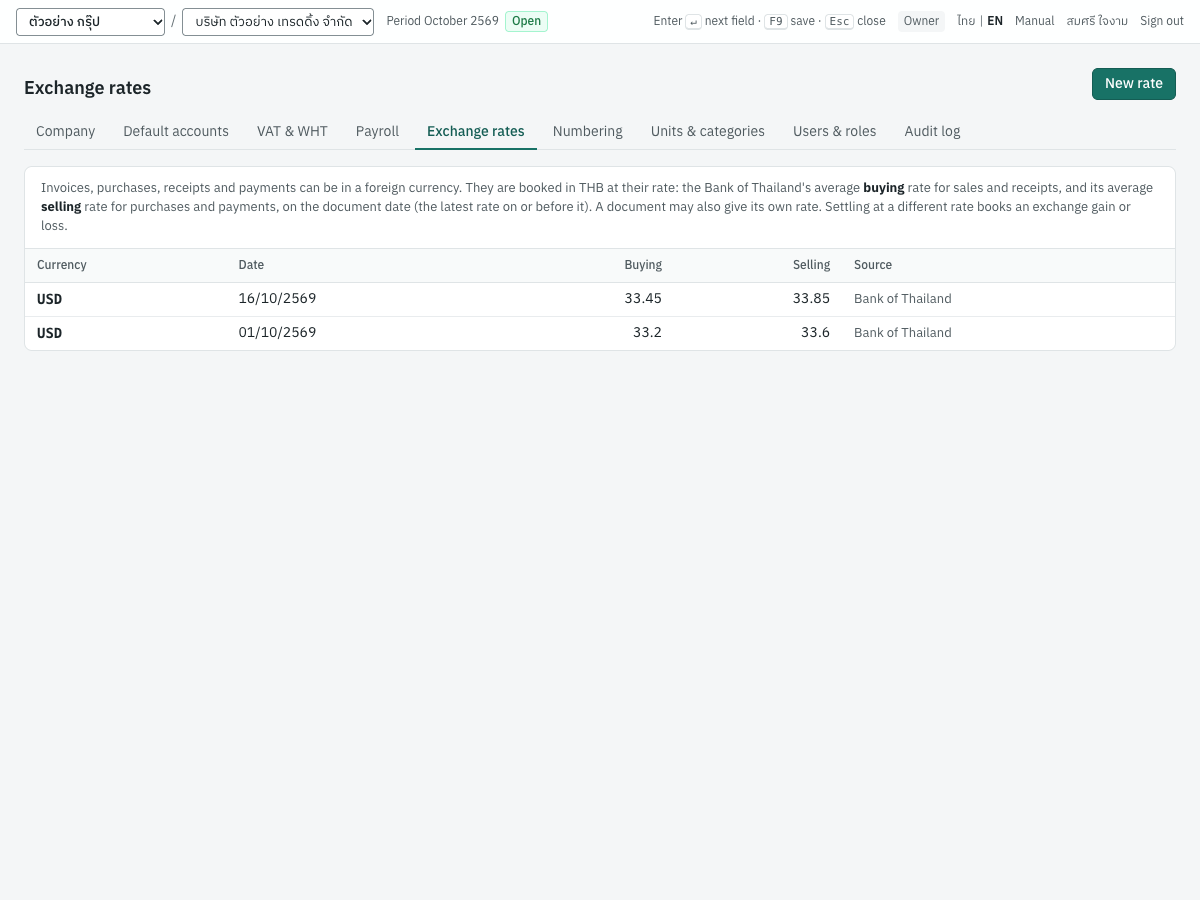
A currency appears in the Currency list of sales and purchase documents only after it has at least one rate here, so enter a rate before the first foreign currency document.
Which rate a document uses#
A document takes the latest rate on or before its date. You can type another rate on the document, and that rate wins.
| Document | Rate used |
|---|---|
| Credit sale (IV), cash sale (HS) | Buying |
| Receipt (RE) | Buying |
| Credit purchase (RR), cash purchase (HP) | Selling |
| Payment (PS) | Selling |
| Credit note (SR), debit note (DN), purchase return (GR), supplier debit note (DP) | The rate of the original document |
| Refund of a foreign currency advance to a customer (RF) | Selling |
| Refund of a foreign currency advance from a supplier (RP) | Buying |
| FX revaluation at period end | Buying for receivables, selling for payables, on the revaluation date |
With the rates in the screenshot, the USD invoice to C003 dated 10/10/2569 takes the buying rate of 01/10/2569, 33.20: 20 × USD 27.50 = USD 550.00, booked as ฿18,260.00. A document dated 16/10/2569 or later takes the rates of 16/10/2569. When a receipt or payment settles at a different rate, the difference is booked to 4910 กำไร (ขาดทุน) จากอัตราแลกเปลี่ยน. See Sales, Finance and, for revaluation, Accounting.
The list#
The list shows the newest rates first.
| Column | Meaning |
|---|---|
| Currency | Three-letter code, e.g. USD. |
| Date | The date of the rate. |
| Buying | THB per unit, for sales and receipts. |
| Selling | THB per unit, for purchases and payments. |
| Source | Where the rate came from. |
Entering a rate#
- Click New rate.
- Fill in the dialog:
| Field | ภาษาไทย | What to enter |
|---|---|---|
| Currency | สกุลเงิน | The ISO code, e.g. USD, EUR, JPY. Defaults to USD. |
| Date | วันที่ | The date of the rate. Defaults to today. |
| Buying | อัตราซื้อ | THB per unit, greater than zero, up to 6 decimals, e.g. 33.45. |
| Selling | อัตราขาย | THB per unit, e.g. 33.85. |
| Source | แหล่งที่มา | Defaults to BOT; for example Bank of Thailand. |
- Click Save. Panya shows Exchange rate saved.
To correct a rate, click its row, change it and click Save. To remove it, click Delete in the dialog and confirm. Documents copy the rate when they are saved, so editing or deleting a rate never changes a saved document.
Messages#
| Message | What to do |
|---|---|
| currency must be a three-letter ISO code | Enter three letters, e.g. USD. |
| the base currency has no exchange rate | THB needs no rate. |
| rates must be greater than zero | Enter both rates. |
| USD already has a rate on 2026-10-16 | There is already a row for this currency and date; edit that row instead. |
Document numbering#
เลขที่เอกสาร · Menu: 7 Setup → Document numbering
Each document type has its own number format and running number. Numbers are assigned when a document is posted, not when it is saved: drafts have no number, so a deleted draft never uses up a tax invoice number, and numbers run without gaps. A cancelled document keeps its number.
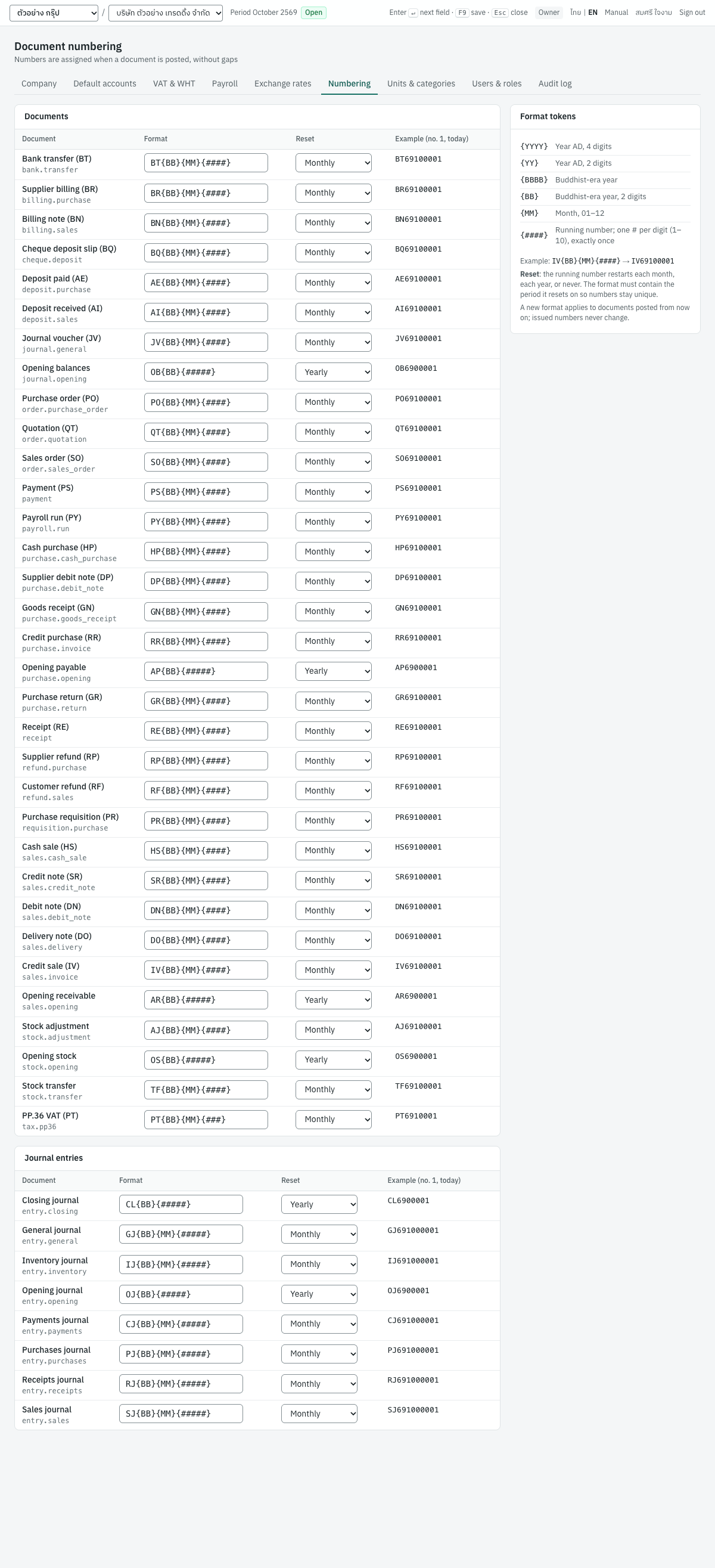
The page has two cards, Documents and Journal entries, and on the right the Format tokens card. Each row shows the document, its format, its reset policy and an example: the number the first document posted today would get.
Format tokens#
| Token | Meaning | October 2026 |
|---|---|---|
{YYYY} | Year, 4 digits, ค.ศ. | 2026 |
{YY} | Year, 2 digits, ค.ศ. | 26 |
{BBBB} | Buddhist-era year, พ.ศ. | 2569 |
{BB} | Buddhist-era year, 2 digits | 69 |
{MM} | Month, 01–12 | 10 |
{####} | Running number; one # per digit (1–10), exactly once | 0001 |
Everything else is printed as typed, so IV{BB}{MM}-{####} gives IV6910-0001 and INV{BBBB}/{#####} gives INV2569/00001. The year and month are those of the document date.
Reset policy#
| Reset | เริ่มนับใหม่ | The running number restarts |
|---|---|---|
| Monthly | รายเดือน | Each calendar month. The format needs a year token and {MM}. |
| Yearly | รายปี | Each calendar year, on 1 January. The format needs a year token. |
| Never | ไม่เริ่มใหม่ | Never; numbers keep counting. |
The format must contain the period it resets on, or numbers repeat: a monthly format without {MM} would give IV690001 in both October and November. The page warns "Monthly reset needs the year and {MM} in the format, or numbers repeat." or "Yearly reset needs a year token in the format, or numbers repeat."
Note: The yearly reset follows the calendar year even when your fiscal year starts in another month.
Default formats#
The formats follow Express's two-letter prefixes with the Buddhist year and month. Rows appear on the screen in alphabetical order of their technical names, which each row shows in small type under the document's name.
| Document as shown | Document | ภาษาไทย | Default format | Reset | First number, Oct 2569 |
|---|---|---|---|---|---|
| Bank transfer (BT) | Bank transfer | โอนเงิน (BT) | BT{BB}{MM}{####} | Monthly | BT69100001 |
| Supplier billing (BR) | Supplier billing | ใบรับวางบิล (BR) | BR{BB}{MM}{####} | Monthly | BR69100001 |
| Billing note (BN) | Billing note | ใบวางบิล (BN) | BN{BB}{MM}{####} | Monthly | BN69100001 |
| Cheque deposit slip (BQ) | Cheque deposit slip | ใบนำฝากเช็ค (BQ) | BQ{BB}{MM}{####} | Monthly | BQ69100001 |
| Deposit paid (AE) | Deposit paid | จ่ายเงินมัดจำ (AE) | AE{BB}{MM}{####} | Monthly | AE69100001 |
| Deposit received (AI) | Deposit received | รับเงินมัดจำ (AI) | AI{BB}{MM}{####} | Monthly | AI69100001 |
| Journal voucher (JV) | Journal voucher | บันทึกรายการบัญชี (JV) | JV{BB}{MM}{####} | Monthly | JV69100001 |
| Opening balances | Opening balance voucher | บันทึกยอดยกมา | OB{BB}{#####} | Yearly | OB6900001 |
| Purchase order (PO) | Purchase order | ใบสั่งซื้อ (PO) | PO{BB}{MM}{####} | Monthly | PO69100001 |
| Quotation (QT) | Quotation | ใบเสนอราคา (QT) | QT{BB}{MM}{####} | Monthly | QT69100001 |
| Sales order (SO) | Sales order | ใบสั่งขาย (SO) | SO{BB}{MM}{####} | Monthly | SO69100001 |
| Payment (PS) | Payment | จ่ายชำระหนี้ (PS) | PS{BB}{MM}{####} | Monthly | PS69100001 |
| Cash purchase (HP) | Cash purchase | ซื้อเงินสด (HP) | HP{BB}{MM}{####} | Monthly | HP69100001 |
| Supplier debit note (DP) | Supplier debit note | ใบเพิ่มหนี้ผู้จำหน่าย (DP) | DP{BB}{MM}{####} | Monthly | DP69100001 |
| Goods receipt (GN) | Goods receipt | ใบรับสินค้า (GN) | GN{BB}{MM}{####} | Monthly | GN69100001 |
| Credit purchase (RR) | Credit purchase | ซื้อเงินเชื่อ (RR) | RR{BB}{MM}{####} | Monthly | RR69100001 |
| Opening payable | Supplier opening balance | เจ้าหนี้ยกมา | AP{BB}{#####} | Yearly | AP6900001 |
| Purchase return (GR) | Purchase return | ส่งคืนสินค้า (GR) | GR{BB}{MM}{####} | Monthly | GR69100001 |
| Receipt (RE) | Receipt | รับชำระหนี้ (RE) | RE{BB}{MM}{####} | Monthly | RE69100001 |
| Supplier refund (RP) | Supplier refund | รับเงินคืนจากผู้จำหน่าย (RP) | RP{BB}{MM}{####} | Monthly | RP69100001 |
| Customer refund (RF) | Customer refund | คืนเงินลูกค้า (RF) | RF{BB}{MM}{####} | Monthly | RF69100001 |
| Purchase requisition (PR) | Purchase requisition | ใบขอซื้อ (PR) | PR{BB}{MM}{####} | Monthly | PR69100001 |
| Cash sale (HS) | Cash sale | ขายเงินสด (HS) | HS{BB}{MM}{####} | Monthly | HS69100001 |
| Credit note (SR) | Credit note | ลดหนี้ / รับคืน (SR) | SR{BB}{MM}{####} | Monthly | SR69100001 |
| Debit note (DN) | Debit note | ใบเพิ่มหนี้ (DN) | DN{BB}{MM}{####} | Monthly | DN69100001 |
| Delivery note (DO) | Delivery note | ใบส่งของ (DO) | DO{BB}{MM}{####} | Monthly | DO69100001 |
| Credit sale (IV) | Credit sale (tax invoice) | ขายเงินเชื่อ (IV) | IV{BB}{MM}{####} | Monthly | IV69100001 |
| Opening receivable | Customer opening balance | ลูกหนี้ยกมา | AR{BB}{#####} | Yearly | AR6900001 |
| Stock adjustment | Stock adjustment | ปรับปรุงสินค้า | AJ{BB}{MM}{####} | Monthly | AJ69100001 |
| Opening stock | Opening stock | สินค้ายกมา | OS{BB}{#####} | Yearly | OS6900001 |
| Stock transfer | Stock transfer | โอนย้ายสินค้า | TF{BB}{MM}{####} | Monthly | TF69100001 |
| PP.36 VAT (PT) | PP.36 filing | ภ.พ.36 (PT) | PT{BB}{MM}{###} | Monthly | PT6910001 |
Journal entry numbers#
Every posted document also creates a journal entry, numbered in the journal (book) it belongs to:
| Journal | ภาษาไทย | Default format | Reset | Entries from |
|---|---|---|---|---|
| General journal | สมุดรายวันทั่วไป | GJ{BB}{MM}{#####} | Monthly | Journal vouchers (JV), bank transfers, bank reconciliation items, FX revaluation, stock cost recalculations |
| Sales journal | สมุดรายวันขาย | SJ{BB}{MM}{#####} | Monthly | Credit sales, credit notes, debit notes, delivery notes |
| Purchases journal | สมุดรายวันซื้อ | PJ{BB}{MM}{#####} | Monthly | Credit purchases, purchase returns, supplier debit notes, goods receipts |
| Receipts journal | สมุดรายวันรับเงิน | RJ{BB}{MM}{#####} | Monthly | Cash sales, receipts, deposits received, supplier refunds, cleared cheques received |
| Payments journal | สมุดรายวันจ่ายเงิน | CJ{BB}{MM}{#####} | Monthly | Cash purchases, payments, deposits paid, customer refunds, PP.36 filings, cleared cheques issued |
| Inventory journal | สมุดรายวันสินค้า | IJ{BB}{MM}{#####} | Monthly | Stock adjustments |
| Opening journal | สมุดรายวันยอดยกมา | OJ{BB}{#####} | Yearly | Opening balance vouchers, customer and supplier openings, opening stock |
| Closing journal | สมุดรายวันปิดบัญชี | CL{BB}{#####} | Yearly | Year-end closing |
For example, the first general journal entry of October 2569 is GJ691000001. See Accounting for the journal entries list.
Changing a format#
- Open 7 Setup → Document numbering.
- In the row of the document, change the Format and, if needed, the Reset. The row turns yellow and the Example (no. 1, today) column shows the new number, or an error in red.
- Click Save in the row, or press
Enterin the format box. Panya shows "(document): numbering saved". Undo puts back the saved values.
A new format applies to documents posted from then on; numbers already issued never change. The running number continues from where it was in the current month or year, so a format changed in the middle of October carries on with the next October number.
Tip: Decide your formats before you post the first document, especially for tax invoices (IV, HS, SR, DN), whose numbers your customers and the Revenue Department see.
Messages#
| Message | What to do |
|---|---|
| Unmatched } / Unclosed { | Every { needs a matching }. |
| Unknown token {…} | Use only the tokens in the table above. |
| Add one running number, e.g. {####} | The format has no running number. |
| Only one running number is allowed | Remove the second {#…}. |
| invalid document number format '…' | The server refused the format for one of the reasons above. |
Units and product categories#
หน่วยนับ/หมวดสินค้า · Menu: 7 Setup → Units & categories
The lists used on products: units of measure, and product categories that carry default accounts and the costing method. Owners, admins, accountants and staff can change them (the Manage master data permission).
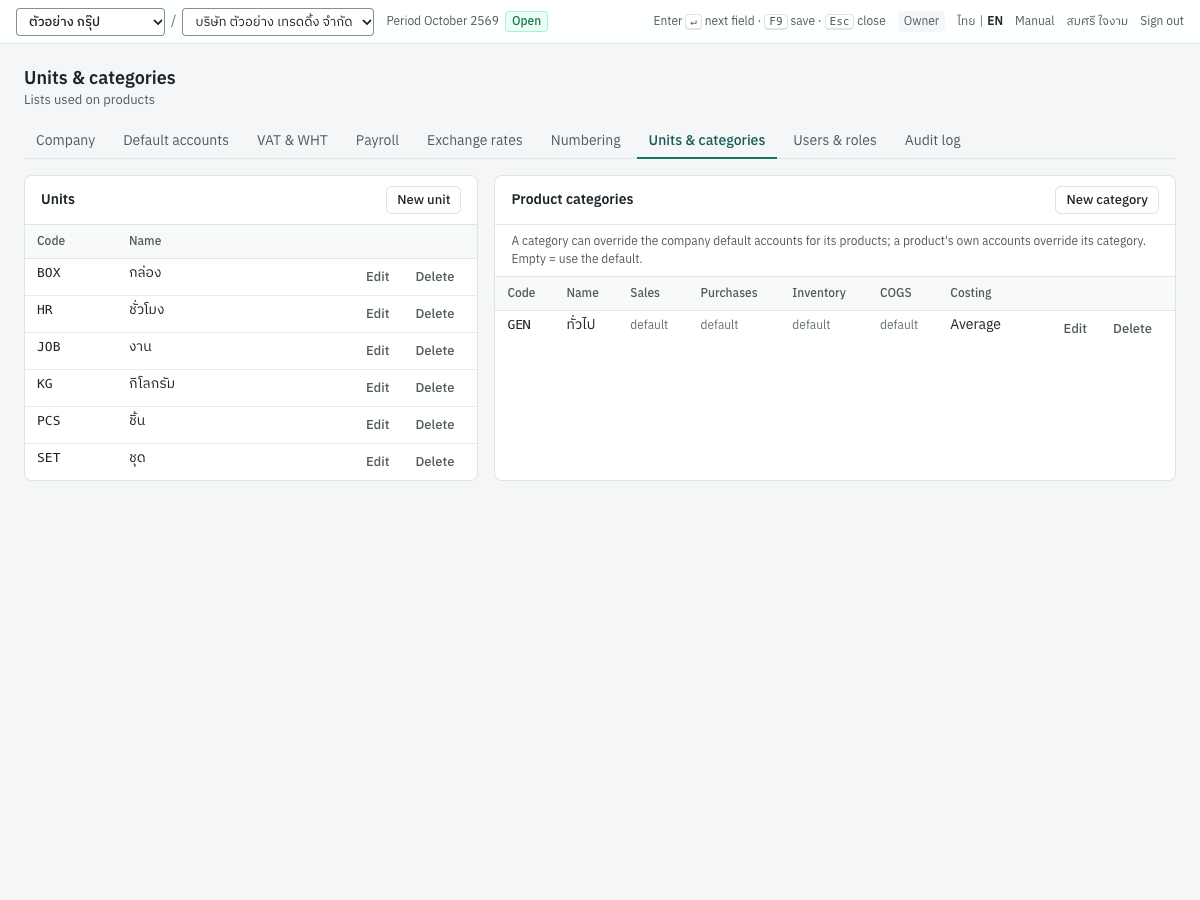
Units#
A new company has the units BOX กล่อง, HR ชั่วโมง, JOB งาน, KG กิโลกรัม, PCS ชิ้น and SET ชุด. A product has one unit, which documents copy onto their lines.
| Field | ภาษาไทย | What to enter |
|---|---|---|
| Code | รหัส | A short code, e.g. PCS. Required and unique. The product import finds units by this code. |
| Name | ชื่อ | The name printed on documents, e.g. ชิ้น, กล่อง, กก. Required. |
To add a unit click New unit, fill in the dialog and click Save. Each row has Edit and Delete buttons. A unit that products still use cannot be deleted. Documents keep the unit name they were posted with.
Product categories#
A category groups products and can give them their accounts and costing method. A new company has one category, GEN ทั่วไป, which uses the company default accounts and the moving average.
The list shows Code, Name, the four accounts (each shown as an account code, or default when empty) and Costing (Average or FIFO). Click New category, or Edit on a row:
| Field | ภาษาไทย | What to enter |
|---|---|---|
| Code | รหัส | Required and unique, e.g. IT. |
| Name | ชื่อ | Required, e.g. อุปกรณ์คอมพิวเตอร์. |
| Stock costing | วิธีคำนวณต้นทุน | Moving weighted average (default) or FIFO. FIFO issues from the oldest receipts and never lets stock go below zero. Fixed once the category's products have stock movements. |
| Sales | รายได้ | Revenue account for the category's products. Lists revenue accounts. Empty = — Company default — (4100). |
| Purchases / expense | ซื้อ / ค่าใช้จ่าย | Account for non-stock purchases of the category's products. Lists expense and asset accounts. Empty = company default (5140). |
| Inventory | สินค้าคงเหลือ | Stock account. Lists asset accounts. Empty = company default (1140). Choose an account marked Control · Inventory. |
| Cost of goods sold | ต้นทุนขาย | Lists expense accounts. Empty = company default (5110). |
A product's own accounts override its category's, and the category's override the company defaults (Default accounts). Changing a category's accounts affects documents posted afterwards. A product with stock movements cannot be moved to a category with another costing method. See Inventory for products and costing.
Messages#
| Message | What to do |
|---|---|
| products in this group already have stock movements; the costing method cannot change | The costing method is fixed once stock has moved. |
| this record is in use by documents; deactivate it instead | Shown when deleting a unit or category that products use. Move the products to another unit or category first. |
| a unit with this code already exists / a product category with this code already exists | Choose another code. |
Users and roles#
ผู้ใช้งาน · Menu: 7 Setup → Users & roles
This page shows who can open this company and with which role. Users belong to the organization and are given access to companies individually; you invite people, change roles and grant companies in the organization settings (Organization administration). Owners and admins see a Manage users in organization settings button that takes them there.
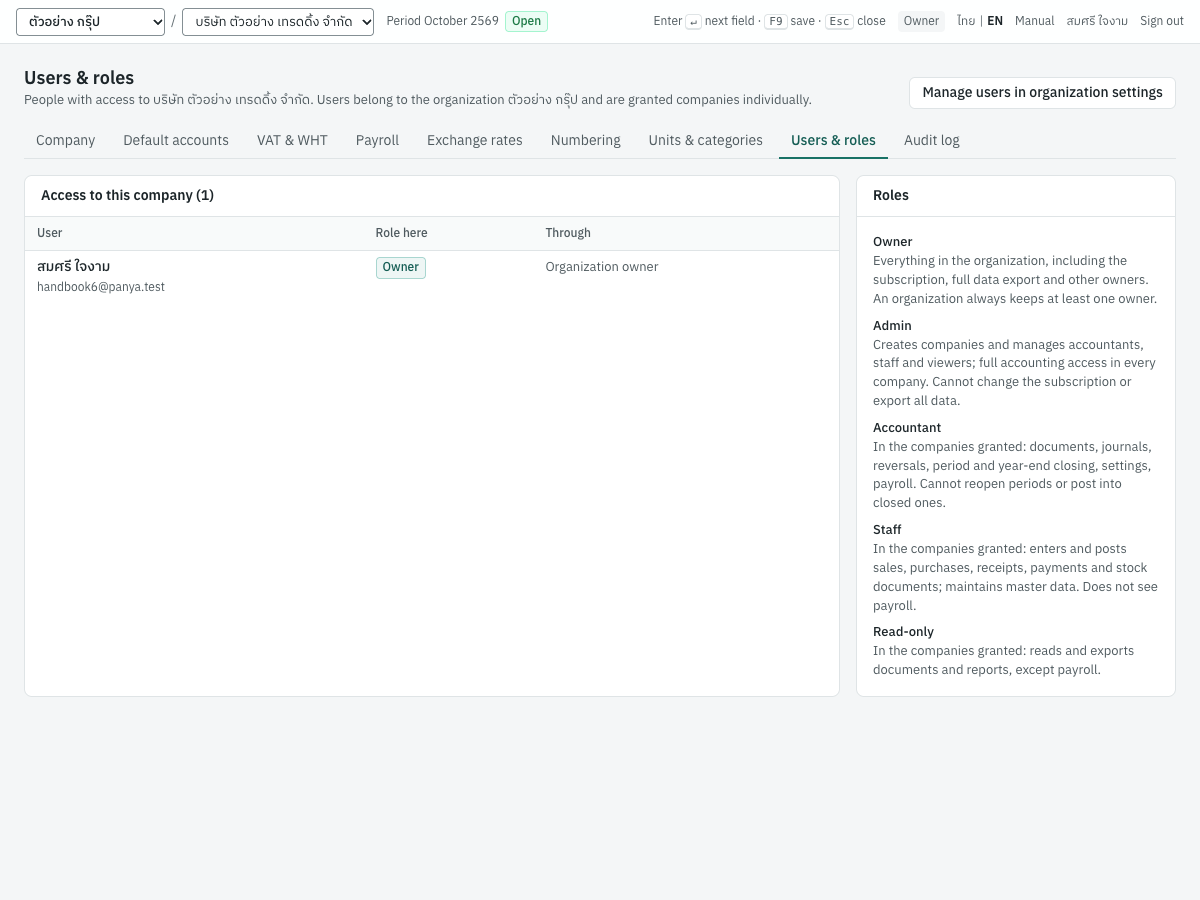
The Access to this company card lists:
| Column | Meaning |
|---|---|
| User | Name and email. |
| Role here | The role the user has in this company. |
| Through | Organization owner or Organization admin: owners and admins reach every company of the organization. Company grant: an accountant, staff member or read-only user given access to this company. |
The Roles card explains the roles:
| Role | ภาษาไทย | What the role can do |
|---|---|---|
| Owner | เจ้าของ | Everything in the organization, including the subscription, full data export and other owners. An organization always keeps at least one owner. |
| Admin | ผู้ดูแลองค์กร | Creates companies and manages accountants, staff and viewers; full accounting access in every company. Cannot change the subscription or export all data. |
| Accountant | นักบัญชี | In the companies granted: documents, journals, reversals, period and year-end closing, settings. Cannot reopen periods or post into closed ones. |
| Staff | พนักงานบันทึกข้อมูล | In the companies granted: enters and posts sales, purchases, receipts, payments and stock documents; maintains master data. |
| Read-only | ผู้ดูข้อมูล | In the companies granted: reads and exports documents and reports. |
What this means for setup:
| Task | Roles |
|---|---|
| Change company settings, default accounts, VAT and WHT, exchange rates, numbering, chart of accounts | Owner, admin, accountant |
| Change units and categories; import customers, suppliers and products | Owner, admin, accountant, staff |
| See the audit log | Owner, admin, accountant |
| Opening balance voucher, trial balance import, opening stock | Owner, admin, accountant |
| Customer and supplier opening balances | Owner, admin, accountant, staff |
Audit log#
ประวัติการใช้งาน · Menu: 7 Setup → Audit log
The audit log records every change to documents, settings and members of this company, newest first: who did it, when, and what. Nobody can edit or delete it. Only users with the Manage settings permission (owner, admin, accountant) see the menu item and the tab. The organization has its own log of member and subscription changes (Organization administration).
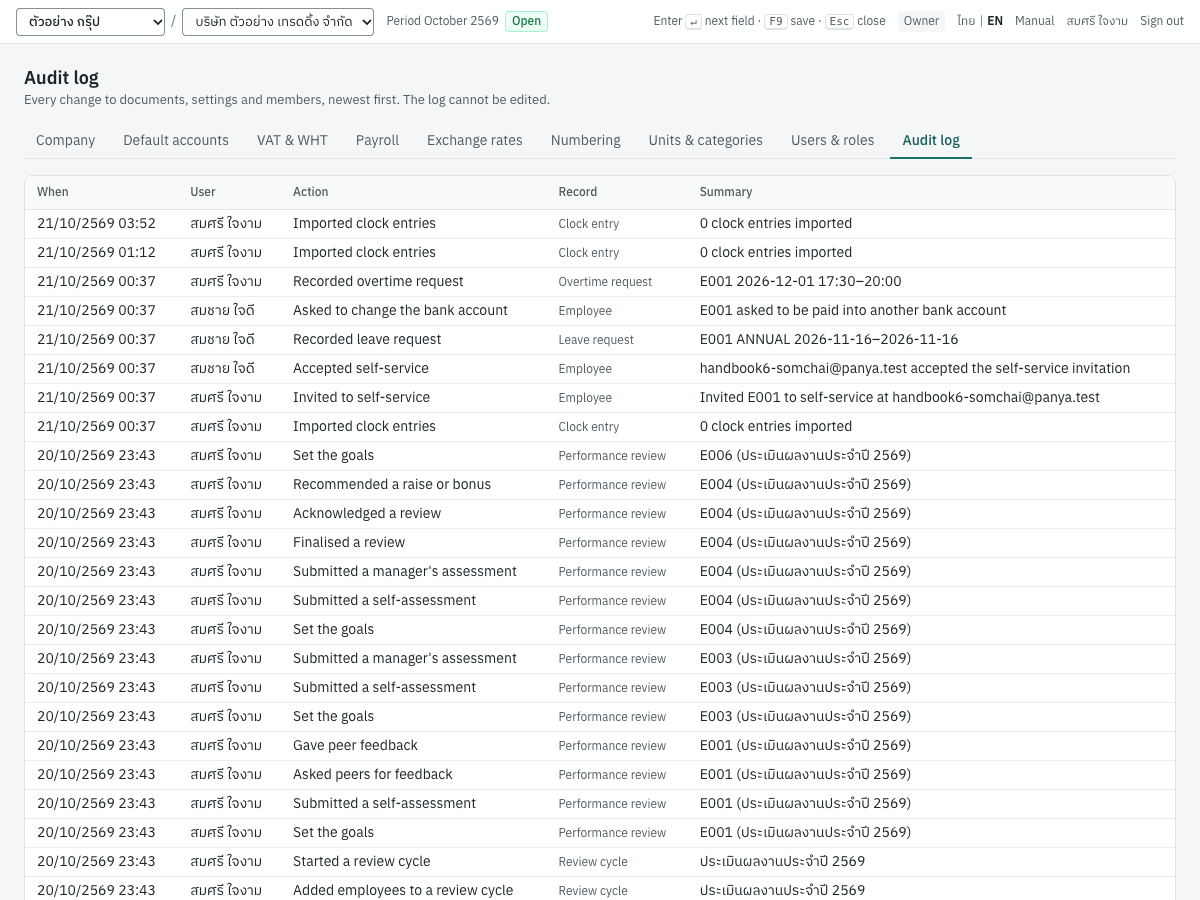
| Column | Meaning |
|---|---|
| When | Date and time, in your date display. |
| User | Who made the change; system for changes Panya made itself. |
| Action | What happened, e.g. sales_document.post, exchange_rate.create, company.update, sequence.update, account.update, import.opening_stock. |
| Record | The kind of record, e.g. sales_document, bank_account. |
| Summary | A short description, e.g. Posted invoice IV69100004 total 18260.00 or USD 2026-10-16: buying 33.45 selling 33.85. |
The log shows 50 entries per page. ‹ Newer and Older › at the bottom move between pages; the footer shows which entries you see, e.g. 1–50 · page 1.
Typical uses: finding who posted or cancelled a document, when a setting changed, or which back-dated document recalculated stock costs (inventory.recost, Back-dated IV69100004 recalculated 1 later stock movements of KB-01).
Chart of accounts#
ผังบัญชี · Menu: 5 Accounting → Chart of accounts
The chart of accounts lists every account of the general ledger. Panya creates a Thai SME chart with each new company; you can add, rename, regroup and deactivate accounts, or import your own chart from your old program.
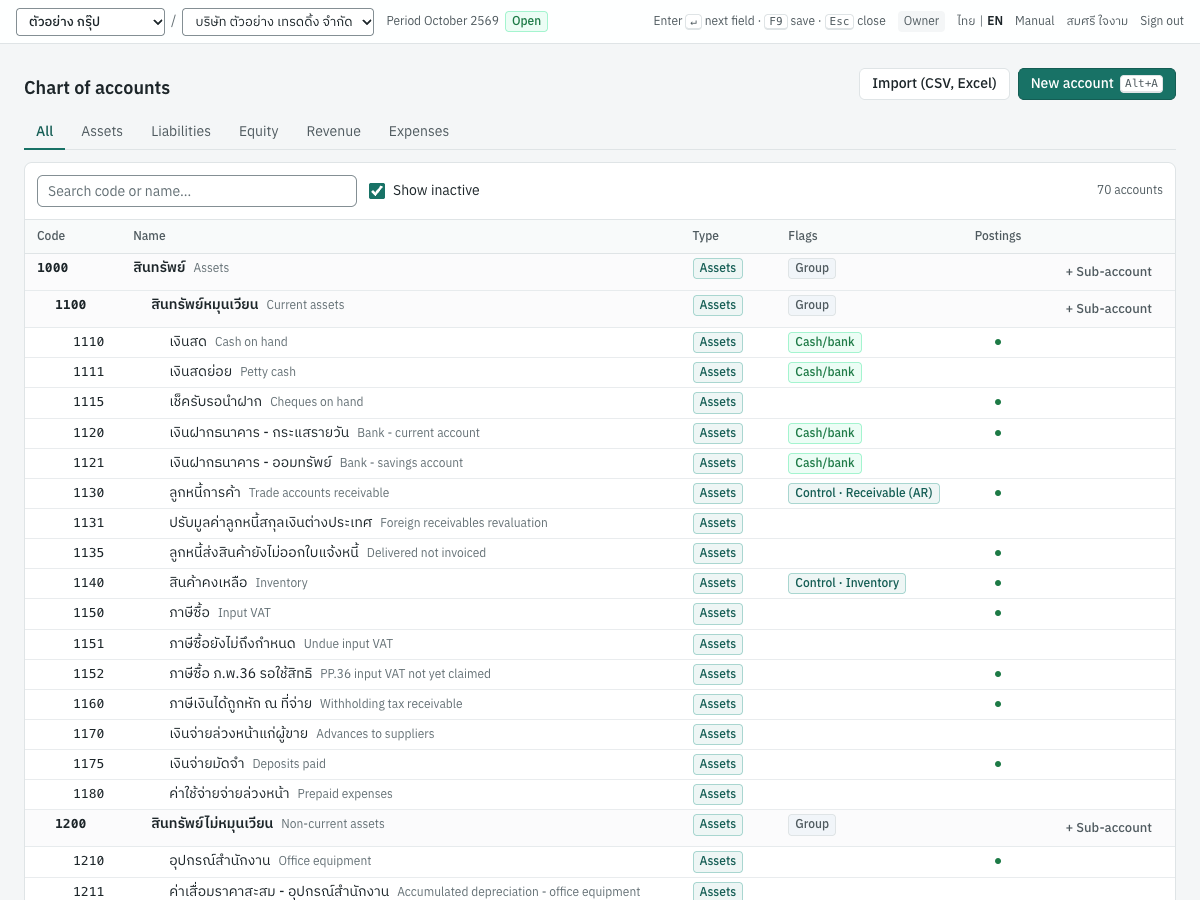
How the chart is built#
- Account types. Every account has one of five types, numbered as in Thai charts: 1 Assets (สินทรัพย์), 2 Liabilities (หนี้สิน), 3 Equity (ส่วนของเจ้าของ), 4 Revenue (รายได้), 5 Expenses (ค่าใช้จ่าย). Assets and expenses normally carry debit balances; liabilities, equity and revenue credit balances. At year end revenue and expense accounts are closed to retained earnings.
- Group accounts (หมวด) are headings such as
1100สินทรัพย์หมุนเวียน. They hold no postings; reports add up the accounts under them. A group's sub-accounts must have the same type. - Posting accounts are the accounts that documents and journal vouchers post to.
- Control accounts (บัญชีคุมยอดย่อย) are posting accounts that carry a sub-ledger: Receivable (AR) (
1130), Payable (AP) (2110) and Inventory (1140). They accept postings only from documents (invoices, receipts, payments, stock documents and openings), never from journal vouchers, so the customer, supplier and stock sub-ledgers always agree with the general ledger. - Cash/bank accounts (เงินสด/เงินฝาก) are posting accounts that can be linked to a cash or bank account in 3 Finance → Cash & bank accounts (Finance). Only accounts marked cash/bank can be linked.
The default Thai chart#
A new company starts with these 66 accounts (11 groups and 55 posting accounts). The last column shows the flags and the default account roles.
| Code | ชื่อบัญชี | English name | Type | Notes |
|---|---|---|---|---|
1000 | สินทรัพย์ | Assets | Asset | Group |
1100 | สินทรัพย์หมุนเวียน | Current assets | Asset | Group under 1000 |
1110 | เงินสด | Cash on hand | Asset | Cash/bank; cash account CASH |
1111 | เงินสดย่อย | Petty cash | Asset | Cash/bank |
1115 | เช็ครับรอนำฝาก | Cheques on hand | Asset | Cheques on hand |
1120 | เงินฝากธนาคาร - กระแสรายวัน | Bank - current account | Asset | Cash/bank; bank account BANK |
1121 | เงินฝากธนาคาร - ออมทรัพย์ | Bank - savings account | Asset | Cash/bank |
1130 | ลูกหนี้การค้า | Trade accounts receivable | Asset | Control: Receivable; Accounts receivable |
1131 | ปรับมูลค่าลูกหนี้สกุลเงินต่างประเทศ | Foreign receivables revaluation | Asset | Receivable revaluation |
1135 | ลูกหนี้ส่งสินค้ายังไม่ออกใบแจ้งหนี้ | Delivered not invoiced | Asset | Delivered not invoiced |
1140 | สินค้าคงเหลือ | Inventory | Asset | Control: Inventory; Inventory |
1150 | ภาษีซื้อ | Input VAT | Asset | Input VAT |
1151 | ภาษีซื้อยังไม่ถึงกำหนด | Undue input VAT | Asset | Undue input VAT |
1152 | ภาษีซื้อ ภ.พ.36 รอใช้สิทธิ | PP.36 input VAT not yet claimed | Asset | PP.36 input VAT |
1160 | ภาษีเงินได้ถูกหัก ณ ที่จ่าย | Withholding tax receivable | Asset | WHT deducted by customers |
1170 | เงินจ่ายล่วงหน้าแก่ผู้ขาย | Advances to suppliers | Asset | Supplier advances |
1175 | เงินจ่ายมัดจำ | Deposits paid | Asset | Supplier deposits |
1180 | ค่าใช้จ่ายจ่ายล่วงหน้า | Prepaid expenses | Asset | |
1200 | สินทรัพย์ไม่หมุนเวียน | Non-current assets | Asset | Group under 1000 |
1210 | อุปกรณ์สำนักงาน | Office equipment | Asset | |
1211 | ค่าเสื่อมราคาสะสม - อุปกรณ์สำนักงาน | Accumulated depreciation - office equipment | Asset | Contra account (credit balance) |
1220 | ยานพาหนะ | Vehicles | Asset | |
1221 | ค่าเสื่อมราคาสะสม - ยานพาหนะ | Accumulated depreciation - vehicles | Asset | Contra account (credit balance) |
2000 | หนี้สิน | Liabilities | Liability | Group |
2100 | หนี้สินหมุนเวียน | Current liabilities | Liability | Group under 2000 |
2110 | เจ้าหนี้การค้า | Trade accounts payable | Liability | Control: Payable; Accounts payable |
2111 | ปรับมูลค่าเจ้าหนี้สกุลเงินต่างประเทศ | Foreign payables revaluation | Liability | Payable revaluation |
2115 | เช็คจ่ายรอตัดบัญชี | Cheques payable | Liability | Cheques payable |
2120 | ภาษีขาย | Output VAT | Liability | Output VAT |
2121 | ภาษีขายรอเรียกเก็บ (ยังไม่ถึงกำหนด) | Undue output VAT | Liability | Undue output VAT |
2122 | ภาษีมูลค่าเพิ่มค้างจ่าย | VAT payable | Liability | Not used by automatic postings |
2123 | ภาษีมูลค่าเพิ่ม ภ.พ.36 ค้างจ่าย | PP.36 VAT payable | Liability | PP.36 VAT payable |
2130 | ภาษีเงินได้หัก ณ ที่จ่ายค้างจ่าย | Withholding tax payable | Liability | WHT payable |
2140 | เงินรับล่วงหน้าจากลูกค้า | Customer advances | Liability | Customer advances |
2145 | เงินรับมัดจำ | Deposits received | Liability | Customer deposits |
2150 | ค่าใช้จ่ายค้างจ่าย | Accrued expenses | Liability | |
2160 | สินค้ารับแล้วรอใบแจ้งหนี้ | Goods received not invoiced | Liability | Goods received not invoiced |
2200 | หนี้สินไม่หมุนเวียน | Non-current liabilities | Liability | Group under 2000 |
2210 | เงินกู้ยืมระยะยาว | Long-term loans | Liability | |
3000 | ส่วนของเจ้าของ | Equity | Equity | Group |
3100 | ทุนจดทะเบียน | Share capital | Equity | |
3200 | กำไร (ขาดทุน) สะสม | Retained earnings | Equity | Retained earnings |
3900 | ยอดยกมาเพื่อปรับปรุง | Opening balance equity | Equity | Opening balance equity |
4000 | รายได้ | Revenue | Revenue | Group |
4100 | รายได้จากการขายสินค้า | Sales of goods | Revenue | Sales |
4110 | รับคืนสินค้าและส่วนลด | Sales returns and allowances | Revenue | Sales returns & allowances |
4200 | รายได้จากการให้บริการ | Service revenue | Revenue | |
4900 | รายได้อื่น | Other income | Revenue | |
4910 | กำไร (ขาดทุน) จากอัตราแลกเปลี่ยน | Exchange gain (loss) | Revenue | Exchange difference |
5000 | ค่าใช้จ่าย | Expenses | Expense | Group |
5100 | ต้นทุนขาย | Cost of sales | Expense | Group under 5000 |
5110 | ต้นทุนขายสินค้า | Cost of goods sold | Expense | Cost of goods sold |
5120 | ผลต่างต้นทุนสินค้า | Inventory cost variance | Expense | Inventory cost variance |
5130 | สินค้าขาด/เกินจากการตรวจนับ | Inventory adjustments | Expense | Inventory adjustment |
5140 | ซื้อสินค้าและวัสดุสิ้นเปลือง | Purchases and supplies | Expense | Purchases / expenses |
5200 | ค่าใช้จ่ายในการขายและบริหาร | Selling and administrative expenses | Expense | Group under 5000 |
5210 | เงินเดือนและค่าจ้าง | Salaries and wages | Expense | |
5220 | ค่าเช่า | Rent | Expense | |
5230 | ค่าสาธารณูปโภค | Utilities | Expense | |
5240 | ค่าธรรมเนียมธนาคาร | Bank charges | Expense | Bank charges |
5250 | ค่าโฆษณา | Advertising | Expense | |
5260 | ค่าขนส่ง | Freight and transport | Expense | |
5270 | ค่าธรรมเนียมวิชาชีพ | Professional fees | Expense | |
5280 | ค่าเสื่อมราคา | Depreciation | Expense | |
5290 | ค่าใช้จ่ายเบ็ดเตล็ด | Miscellaneous expenses | Expense | |
5291 | ภาษีซื้อที่ขอคืนไม่ได้ | Non-creditable VAT | Expense | Non-creditable VAT |
2122 ภาษีมูลค่าเพิ่มค้างจ่าย is there for the journal voucher that clears output VAT against input VAT when you file ภ.พ.30 (Month-end and tax filing). 4910 is a revenue account that takes both gains (credits) and losses (debits).
The list screen#
The tabs All, Assets, Liabilities, Equity, Revenue and Expenses filter by type. Accounts are shown as a tree: each account under its group, indented, groups in bold on a shaded row, siblings in code order.
| Control | What it does |
|---|---|
| Search code or name… | Shows accounts whose code starts with what you type, or whose Thai or English name contains it. |
| Show inactive | Ticked by default; untick to hide inactive accounts. Inactive accounts are shown faded. |
| N accounts | How many accounts the list shows. |
| Column | Meaning |
|---|---|
| Code | The account code. |
| Name | Thai name, with the English name in grey. |
| Type | Assets, Liabilities, Equity, Revenue or Expenses. |
| Flags | Group, Control · Receivable (AR) / Payable (AP) / Inventory, Cash/bank, Inactive. |
| Postings | A dot when the account has postings. |
| (button) | + Sub-account on group rows: a new account under that group. |
Click a row (or Tab to it and press Enter) to edit the account. Alt+A or New account opens a new account; its type follows the tab you are on (Assets on the All tab). Import (CSV, Excel) imports accounts, also Express's chart: see Chart of accounts import. Only users with the Manage settings permission see these buttons and can open accounts.
Adding an account#
- Click New account (
Alt+A), or + Sub-account on the group the account belongs to. - Fill in the dialog New account:
| Field | ภาษาไทย | What to enter |
|---|---|---|
| Code | รหัส | Required and unique, e.g. 1122. Letters, digits, dots and hyphens; it must start with a letter or digit. Use the type's first digit (1–5) so the account sorts with its type. |
| Name (Thai) | ชื่อบัญชี | Required, e.g. เงินฝากธนาคารกสิกรไทย - ออมทรัพย์. |
| Name (English) | ชื่อบัญชี (ภาษาอังกฤษ) | Optional. |
| Type | ประเภท | Assets, Liabilities, Equity, Revenue or Expenses. Changing the type clears a parent of another type. |
| Parent group | หมวดบัญชีแม่ | The group the account sits under, or — Top level —. Only group accounts of the same type are offered. |
| Group account (heading; no postings) | บัญชีหมวด (หัวข้อ ไม่รับรายการ) | Tick for a heading that holds other accounts. |
| Cash / bank account | เงินสด/เงินฝาก | Tick for an account that a cash or bank account will use. Not available for groups. |
| Control account | บัญชีคุมยอดย่อย | None — ordinary account (default), Receivable (AR), Payable (AP) or Inventory. Not shown for groups. |
| Description | รายละเอียด | Optional notes. |
- Click Save. Panya shows Account (code) created.
Tip: For a second bank account, add a posting account under 1100 with Cash / bank account ticked, then create the bank account in 3 Finance → Cash & bank accounts and link it to the new ledger account.
Editing, deactivating and deleting#
Click the account to open Edit account (code). Besides the fields above, the dialog has an Active box.
- An account without postings can be changed freely and has a Delete button (confirm Delete account (code) (name)?).
- An account with postings shows "This account has postings: its type, group flag and control kind are locked, and it cannot be deleted. You can still rename it, move it under another group of the same type, or deactivate it." You can also change its code and its cash/bank flag.
- Deactivating (untick Active) hides the account from the account lists of documents, journal vouchers and settings; an account already chosen somewhere stays visible with (inactive). Journal vouchers and the trial balance import refuse inactive accounts. Postings and balances stay, and reports still show them.
- A group that has sub-accounts cannot become a posting account, and an account mapped in Default accounts cannot become a group.
Messages#
| Message | What to do |
|---|---|
| Code and name are required | Fill in both. |
| the parent account must be a group account | Choose a group as parent. |
| the parent account must have the same account type | Choose a group of the same type, or change the type. |
| an account cannot be placed under itself | Choose a parent that is not the account or one of its sub-accounts. |
| group accounts cannot be control or cash accounts | Untick Group account, or clear the control and cash flags. |
| the type, group flag or control kind of an account with postings cannot change | Create a new account instead, move the balance with a journal voucher, and deactivate the old one. |
| this account is mapped to a posting role | Map the role to another account in 7 Setup → Default accounts first. |
| a group with sub-accounts cannot become postable | Move or delete its sub-accounts first. |
| accounts with postings cannot be deleted; deactivate it instead | Untick Active. |
| an account with this code already exists | Another account already has this code. Choose another. |
| the code of this account is not allowed | The code contains characters other than letters, digits, dots and hyphens, or does not start with a letter or digit. |
| this account is still used by … and cannot be removed (for example by a product) | The account is still used, for example by a default account, a product, a category or a cash/bank account. Change that first. |
Starting your books#
Starting with Panya means bringing in what your old books held on the day you change over: the balances of the general ledger, the unpaid customer and supplier invoices, and the stock on hand. In Panya these are entered as four kinds of opening documents, each balanced against 3900 ยอดยกมาเพื่อปรับปรุง (opening balance equity):
| Part | Document | Code | Posts |
|---|---|---|---|
| General ledger balances | Opening balance voucher | OB | Every balance except receivables, payables and inventory, balanced through 3900 |
| Unpaid customer invoices | Customer opening balance | AR | Dr 1130 / Cr 3900, one per invoice |
| Unpaid supplier invoices | Supplier opening balance | AP | Dr 3900 / Cr 2110, one per invoice |
| Stock on hand | Opening stock | OS | Dr 1140 / Cr 3900 |
Receivables, payables and inventory are control accounts: their balances must come from documents that name the customer, supplier or product, so receipts can settle the invoices, the ageing reports work and the stock card has a starting cost. When all four parts are in and agree with your old trial balance, 3900 nets to zero.
The opening date#
Date every opening document on the first day of your first fiscal year in Panya, and enter the balances as they stood at the end of the day before. You chose that date as First fiscal year starts when you created the company; it is also the default Opening date of the import tools. The demonstration company's first fiscal year starts on 1 January 2569, so its openings are dated 01/01/2569 and carry the balances at 31 December 2568.
Opening documents must fall in an open accounting period, so they cannot be dated before the first fiscal year.
Note: If you start using Panya in the middle of a fiscal year, keep the first fiscal year at the start of your accounting year (for example January 2569), because the start month cannot be changed later. Then enter last year's closing balances on the first day of the year and enter the year's documents so far. The opening voucher must be dated on that first day (an opening voucher is dated on the opening date, 2026-01-01), so balances at the end of a later month, such as 30/09/2569, cannot be posted as an opening voucher. Agree the approach with your accountant.
Order of work#
- Finish the setup above: company, chart of accounts, default accounts, cash and bank accounts, warehouses.
- Enter or import customers, suppliers and products (Importing from another program).
- Export your old program's trial balance, AR and AP outstanding lists and stock balance report as at the day before the opening date, as Excel or CSV files (from Express, see Moving from Express).
- Enter or import the four parts on the Opening balances screen, in any order.
- Check that
3900is zero and that the trial balance agrees with your old one: the Migration check shows both on one page. - Start entering the new period's documents.
Opening balances#
ยอดยกมา · Menu: 5 Accounting → Opening balances
This screen guides you through the four parts and checks that they agree. (The Opening balances button on the 5 Accounting → Journal vouchers list opens a new opening balance voucher directly.)
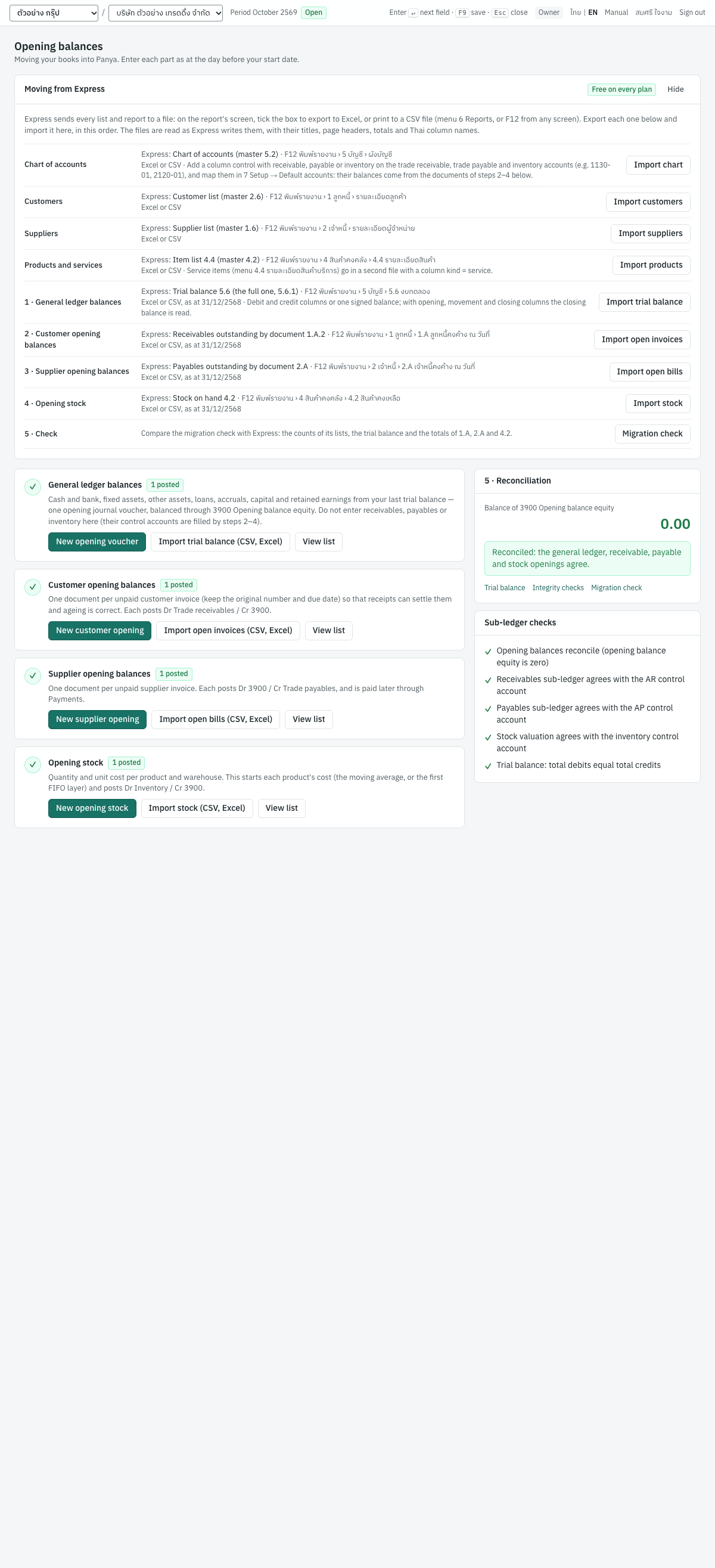
At the top, the Moving from Express card names the Express list or report to export for each step and opens its import; see Moving from Express. Below it, the left side has a card for each part:
| Step | Card | Buttons |
|---|---|---|
| 1 | General ledger balances | New opening voucher, Import trial balance (CSV, Excel), View list |
| 2 | Customer opening balances | New customer opening, Import open invoices (CSV, Excel), View list |
| 3 | Supplier opening balances | New supplier opening, Import open bills (CSV, Excel), View list |
| 4 | Opening stock | New opening stock, Import stock (CSV, Excel), View list |
Each card shows how many documents of that kind are posted (1 posted) and how many are still drafts (1 draft, in yellow). A step with posted documents shows a tick instead of its number. Buttons appear according to your role: the opening voucher and the trial balance import need the journal-posting permission (owner, admin, accountant), customer and supplier openings the permission to enter and post documents (staff and above). Opening stock also needs the journal-posting permission, although staff see its buttons.
The right side checks the result:
- 5 · Reconciliation shows the balance of
3900Opening balance equity, with Dr or Cr. Green0.00and "Reconciled: the general ledger, receivable, payable and stock openings agree." means you are done. Otherwise a warning explains the likely cause: a debit balance means more credit-side openings (liabilities, payables, equity) than debit-side ones were entered, often customer or stock openings still missing; a credit balance means the opposite, often supplier openings, loans or capital still missing. Links open the Trial balance and Integrity checks reports and the Migration check. - Sub-ledger checks lists, with a tick or a cross: Opening balances reconcile (opening balance equity is zero), Receivables sub-ledger agrees with the AR control account, Payables sub-ledger agrees with the AP control account, Stock valuation agrees with the inventory control account and Trial balance: total debits equal total credits. A failed check shows its detail underneath. See Reports for the integrity checks.
The examples below use the demonstration company. Its trial balance at 31 December 2568 was:
| Account | Debit | Credit |
|---|---|---|
1110 เงินสด | 20,000.00 | |
1120 เงินฝากธนาคาร - กระแสรายวัน | 380,000.00 | |
1130 ลูกหนี้การค้า (C001, invoice IV6812-0045) | 32,100.00 | |
1140 สินค้าคงเหลือ (KB-01 and MS-01) | 18,000.00 | |
1210 อุปกรณ์สำนักงาน | 120,000.00 | |
2110 เจ้าหนี้การค้า (S001, invoice INV-2512-88) | 16,050.00 | |
3100 ทุนจดทะเบียน | 500,000.00 | |
3200 กำไร (ขาดทุน) สะสม | 54,050.00 | |
| Total | 570,100.00 | 570,100.00 |
Opening balance voucher (OB)#
บันทึกยอดยกมา · Menu: 5 Accounting → Opening balances → New opening voucher
The opening balance voucher carries the balances of every account except receivables, payables and inventory: cash and bank, fixed assets and accumulated depreciation, other assets, loans, accruals, VAT and withholding tax balances, capital and retained earnings. It is a journal voucher of type Opening balances, posted to the opening journal. Only users who may post journal vouchers (owner, admin, accountant) can enter it.
Fields#
The form is the journal voucher form (Accounting) with a blue box that repeats the rules.
| Field | ภาษาไทย | What to enter |
|---|---|---|
| Voucher type | ประเภท | Opening balances (already chosen when you come from the Opening balances screen). |
| Date | วันที่ | The opening date, e.g. 01/01/2569: the start of the company's first fiscal year. An opening voucher dated on any other day is refused when posted (an opening voucher is dated on the opening date, 2026-01-01). |
| Reference | อ้างอิง | Optional, e.g. งบทดลอง 31/12/2568. |
| Memo | หมายเหตุ | Optional, e.g. ยอดยกมาจากระบบเดิม. |
| Account | รหัสบัญชี | Type the code or press Enter for the list. Group accounts are not offered; control accounts are marked not allowed and refused. |
| Description | รายละเอียด | Optional text for the line. |
| Customer / Supplier | ลูกค้า / ผู้จำหน่าย | Optional; shown when Customer / supplier columns is ticked. |
| Debit, Credit | เดบิต, เครดิต | The balance: debit for assets and expenses, credit for liabilities, equity and revenue. F2 in an amount fills the amount that balances the voucher. |
Entering the voucher#
- On 5 Accounting → Opening balances, click New opening voucher.
- Enter the date
01/01/2569and a memo. - Enter one line per account. For the demonstration company:
1110debit 20,000.00,1120debit 380,000.00,1210debit 120,000.00,3100credit 500,000.00,3200credit 54,050.00.Enteron the last credit amount adds a line. - Click Balance to 3900 Opening balance equity. Panya adds a
3900line with the difference, here debit 34,050.00. The footer shows Balanced. - Click Save & post (
F9), or Save draft (⌘S) to finish later.
Instead of typing, you can import the trial balance: see Opening trial balance import.
What posting records#
The voucher gets the number OB6900001 and its journal entry is numbered in the opening journal (OJ…).
| Account | Debit | Credit |
|---|---|---|
1110 เงินสด | 20,000.00 | |
1120 เงินฝากธนาคาร - กระแสรายวัน | 380,000.00 | |
1210 อุปกรณ์สำนักงาน | 120,000.00 | |
3900 ยอดยกมาเพื่อปรับปรุง | 34,050.00 | |
3100 ทุนจดทะเบียน | 500,000.00 | |
3200 กำไร (ขาดทุน) สะสม | 54,050.00 | |
| Total | 554,050.00 | 554,050.00 |
The voucher writes no VAT or withholding tax records and moves no stock. The 3900 debit of 34,050.00 is the net of the receivable, payable and stock openings still to come (32,100.00 + 18,000.00 − 16,050.00).
Customer opening balances (AR)#
ยอดยกมาลูกหนี้ · Menu: 5 Accounting → Opening balances → New customer opening
Enter one customer opening balance per unpaid customer invoice at the opening date. Keep the old invoice number and due date, so that receipts (RE) can settle the invoices one by one and the AR ageing is correct. The list of customer openings opens from View list on the Opening balances screen; it has the same search, status, date and Open only filters as the credit sales list, and an Outstanding column.
Fields#
| Field | ภาษาไทย | What to enter |
|---|---|---|
| Customer | ลูกค้า | Type the code or name, or press Enter for the list, e.g. C001. |
| Date | วันที่ | The opening date, e.g. 01/01/2569. |
| Due date | วันครบกำหนด | The old invoice's due date. Blank = date + the customer's credit days. Cannot be before the date. |
| Legacy document no. | เลขที่เอกสารเดิม | The old invoice number, e.g. IV6812-0045. Shown in the Reference column of the list. |
| Description | รายละเอียด | Text for the line, e.g. ยอดยกมา IV6812-0045. |
| Amount | จำนวนเงิน | The amount still owed, including VAT. |
| Memo | หมายเหตุ | Optional, e.g. the old invoice date. |
An opening has no products, quantities, discounts or VAT, and is always in baht. You may enter several lines; their total is the amount owed.
Entering a customer opening#
- Click New customer opening.
- Choose the customer
C001บริษัท ลูกค้าหนึ่ง จำกัด, date01/01/2569, due date31/01/2569, legacy document no.IV6812-0045. - Enter the description and the amount 32,100.00.
- Click Save & post (
F9). Preview journal shows the entry first; Save draft (⌘S) keeps it unnumbered.
What posting records#
The opening gets the number AR6900001 (yearly running number) and a journal entry in the opening journal:
| Account | Debit | Credit |
|---|---|---|
1130 ลูกหนี้การค้า (C001) | 32,100.00 | |
3900 ยอดยกมาเพื่อปรับปรุง | 32,100.00 |
No VAT record is written: the VAT on the old invoice was reported in your old books. The opening appears in the AR ageing and on the customer's statement and is settled by a receipt like any invoice.
An opening entered on this form carries no VAT. If the old invoice was for a service whose VAT is due only when the customer pays (ภาษีขายรอเรียกเก็บ), import it with the undue_vat column instead (Customer and supplier open invoice import): the opening then keeps that VAT, its receipt makes it due like any such invoice's, and the output VAT record is written in the receipt's month. The VAT balance itself comes in on the opening voucher, on 2121.
Supplier opening balances (AP)#
ยอดยกมาเจ้าหนี้ · Menu: 5 Accounting → Opening balances → New supplier opening
Enter one supplier opening balance per unpaid supplier invoice. It is paid later through 3 Finance → Payments. The fields and steps are the same as for customer openings, with Supplier instead of the customer.
For the demonstration company: supplier S001 บริษัท ผู้ผลิตอุปกรณ์ จำกัด, date 01/01/2569, due date 20/01/2569, legacy document no. INV-2512-88, amount 16,050.00.
What posting records#
Number AP6900001, journal entry in the opening journal:
| Account | Debit | Credit |
|---|---|---|
3900 ยอดยกมาเพื่อปรับปรุง | 16,050.00 | |
2110 เจ้าหนี้การค้า (S001) | 16,050.00 |
No input VAT record and no withholding tax are recorded. When you pay the bill, withhold tax on the payment if it applies.
If the old bill was for a service whose input VAT you claim only once you pay it (ภาษีซื้อยังไม่ถึงกำหนด), import it with the undue_vat column (Customer and supplier open invoice import). The opening then keeps that VAT. The payment moves it from 1151 to input VAT 1150 and writes the input VAT record in the payment's month; enter the supplier's tax invoice or receipt number in the payment's Reference. The VAT balance itself comes in on the opening voucher, on 1151.
Opening stock (OS)#
สินค้ายกมา · Menu: 5 Accounting → Opening balances → New opening stock, or 4 Inventory → Stock adjustments → Opening stock
Opening stock records the quantity and cost of each product on hand per warehouse. It starts each product's moving-average (or FIFO) cost. Only users who may post journal vouchers (owner, admin, accountant) can enter it; others see "Opening stock needs the journal-posting permission." Enter one document per warehouse.
Fields#
| Field | ภาษาไทย | What to enter |
|---|---|---|
| Date | วันที่ | The opening date, e.g. 01/01/2569. |
| Warehouse | คลัง | The warehouse counted, e.g. MAIN. |
| Reference (e.g. count sheet) | อ้างอิง (เช่น ใบตรวจนับ) | Optional, e.g. the count sheet number. |
| Product | รหัสสินค้า | A stock item (inventory product). |
| Description | รายละเอียด | Optional. |
| Qty | จำนวน | The quantity on hand. Must be positive. |
| Unit cost | ทุน/หน่วย | The cost per unit. Required. |
Entering opening stock#
- Click New opening stock.
- Enter the date
01/01/2569and the warehouseMAIN. - Enter the lines:
KB-01คีย์บอร์ดไร้สาย, 20 at 500.00;MS-01เมาส์ไร้สาย, 40 at 200.00. - Click Save & post (
F9).
What posting records#
Number OS6900001, journal entry in the opening journal:
| Account | Debit | Credit |
|---|---|---|
1140 สินค้าคงเหลือ | 18,000.00 | |
3900 ยอดยกมาเพื่อปรับปรุง | 18,000.00 |
Stock movements: KB-01 +20 at 500.00 = 10,000.00 and MS-01 +40 at 200.00 = 8,000.00 into MAIN. The stock card of each product starts with this receipt. If a product's category has its own inventory account, that account is debited instead of 1140. See Inventory.
Checking the result#
With the four documents above, 3900 holds: debit 34,050.00 (voucher) + debit 16,050.00 (supplier) − credit 32,100.00 (customer) − credit 18,000.00 (stock) = 0.00. The Opening balances screen shows green 0.00 and all sub-ledger checks ticked, and the trial balance at 1 January 2569 matches the old one.
Correcting an opening#
A draft can be changed or deleted. A posted opening is corrected like any other document: cancel it (with a reason; its entry is reversed) and enter it again. A customer or supplier opening that receipts or payments have settled cannot be cancelled until those are cancelled. See Getting started for drafts, posting and cancelling.
Importing from another program#
Panya imports lists and opening balances from Excel and CSV files, so you can move from Express Accounting or another program without retyping. The lists and reports Express exports work as they are: Panya finds the row of column names, skips the report's titles, page headers, subtotals and totals, and understands Express's Thai column names. Imports are free on every plan.
| What | Where | Who can import |
|---|---|---|
| Chart of accounts | 5 Accounting → Chart of accounts → Import (CSV, Excel) | Owner, admin, accountant |
| Customers | 2 Sales → Customers → Import (CSV, Excel) | Owner, admin, accountant, staff |
| Suppliers | 1 Purchasing → Suppliers → Import (CSV, Excel) | Owner, admin, accountant, staff |
| Products and services | 4 Inventory → Products & services → Import (CSV, Excel) | Owner, admin, accountant, staff |
| Opening trial balance | 5 Accounting → Opening balances → Import trial balance (CSV, Excel) | Owner, admin, accountant |
| Customer open invoices | 5 Accounting → Opening balances → Import open invoices (CSV, Excel) | Owner, admin, accountant, staff |
| Supplier open bills | 5 Accounting → Opening balances → Import open bills (CSV, Excel) | Owner, admin, accountant, staff |
| Opening stock | 5 Accounting → Opening balances → Import stock (CSV, Excel) | Owner, admin, accountant |
Import them in this order: chart of accounts, then customers, suppliers and products, then the trial balance, open invoices and bills, and stock. Then run the migration check.
Moving from Express#
ย้ายข้อมูลจาก Express · Menu: 5 Accounting → Opening balances, the Moving from Express card
The Moving from Express card at the top of the Opening balances screen, marked Free on every plan, is the guide for moving your books from Express. For each step it names the Express list or report to export, with its menu path in Express, and has a button that opens the matching import. Hide folds the card away; Show opens it again.
The card begins: Express sends every list and report to a file: on the report's screen, tick the box to export to Excel, or print to a CSV file (menu 6 Reports, or F12 from any screen). Export each one below and import it here, in this order. The files are read as Express writes them, with their titles, page headers, totals and Thai column names.
| Step | Express list or report | Express menu | Button |
|---|---|---|---|
| Chart of accounts | Chart of accounts (master 5.2) | F12 พิมพ์รายงาน › 5 บัญชี › ผังบัญชี | Import chart |
| Customers | Customer list (master 2.6) | F12 พิมพ์รายงาน › 1 ลูกหนี้ › รายละเอียดลูกค้า | Import customers |
| Suppliers | Supplier list (master 1.6) | F12 พิมพ์รายงาน › 2 เจ้าหนี้ › รายละเอียดผู้จำหน่าย | Import suppliers |
| Products and services | Item list 4.4 (master 4.2) | F12 พิมพ์รายงาน › 4 สินค้าคงคลัง › 4.4 รายละเอียดสินค้า | Import products |
| 1 · General ledger balances | Trial balance 5.6 (the full one, 5.6.1) | F12 พิมพ์รายงาน › 5 บัญชี › 5.6 งบทดลอง | Import trial balance |
| 2 · Customer opening balances | Receivables outstanding by document 1.A.2 | F12 พิมพ์รายงาน › 1 ลูกหนี้ › 1.A ลูกหนี้คงค้าง ณ วันที่ | Import open invoices |
| 3 · Supplier opening balances | Payables outstanding by document 2.A | F12 พิมพ์รายงาน › 2 เจ้าหนี้ › 2.A เจ้าหนี้คงค้าง ณ วันที่ | Import open bills |
| 4 · Opening stock | Stock on hand 4.2 | F12 พิมพ์รายงาน › 4 สินค้าคงคลัง › 4.2 สินค้าคงเหลือ | Import stock |
| 5 · Check | Migration check |
Under each report the card says Excel or CSV, and for the four balances the date to print them at, the day before the opening date, for example Excel or CSV, as at 31/12/2568. Three steps carry a note:
- Chart of accounts: Add a column control with receivable, payable or inventory on the trade receivable, trade payable and inventory accounts (e.g. 1130-01, 2120-01), and map them in 7 Setup → Default accounts: their balances come from the documents of steps 2–4 below. Express's chart has no such column; see Chart of accounts import.
- Products and services: Service items (menu 4.4 รายละเอียดสินค้าบริการ) go in a second file with a column kind = service.
- General ledger balances: Debit and credit columns or one signed balance; with opening, movement and closing columns the closing balance is read.
The last line, 5 · Check, says Compare the migration check with Express: the counts of its lists, the trial balance and the totals of 1.A, 2.A and 4.2.
The chart, customer, supplier and product buttons open the list with its import dialog already open; the other buttons open the dialog on the Opening balances screen. Each button appears only for users who may do that import.
To move from Express:
- In Panya, finish the company setup and check the Opening date: the first day of your first fiscal year (see The opening date).
- In Express, open each list or report of the card in turn (F12 from any screen opens พิมพ์รายงาน). Print the four balance reports as at the day before the opening date. Send each one to an Excel file, or print it to a CSV file.
- In Panya, click the step's button, choose the file and click Import. Work from the top of the card down.
- Review and post the draft opening voucher that the trial balance import creates.
- Click Migration check and compare its counts and totals with the Express reports.
How an import works#
- Export or save the file: an Excel workbook or a CSV file, straight from Express or another program.
- Click the import button. The dialog explains the file it expects (An Excel (.xlsx, .xls) or CSV file with a row of column names. Lists and reports exported from Express work as they are: …), lists the columns it accepts, notes how the matching Express list is read, and shows an example file.
- For opening imports, check the Opening date. It defaults to the first day of your first fiscal year.
- Choose the file, up to 7 MB. The dialog shows its name and size, for example รายละเอียดลูกค้า.xlsx · 24 KB.
- Click Import.
Panya checks the whole file first. If any row is rejected, nothing is imported and the message lists the problems, for example "2 row(s) rejected, nothing imported: row 8: tax ID must be 13 digits; row 12: code C001 already exists". Row numbers are the rows of the file or sheet as you see them in Excel, title rows included; row 0 means the file as a whole. Up to 20 problems are listed. Correct the file and import it again.
When the file is accepted, the dialog shows the result and what it read, for example Read 25 rows of sheet “Sheet1”, below the column names on row 4; 6 other rows (titles, page headers, totals) were skipped. Check that the number of rows is the number of records in the list, then click Done.
Files Panya reads#
| File | What Panya reads |
|---|---|
| Excel | .xlsx, .xlsm, .xlsb, .ods and .xls (Excel 5.0/95 and 97–2003), and the HTML or Excel 2003 XML tables that some programs save with an .xls name. In a workbook with several sheets, Panya reads the sheet whose column names fit the import. |
| CSV and text | .csv, .txt and .tsv, separated by commas, tabs or semicolons, in UTF-8 (with or without a byte-order mark), UTF-16 (Excel's Unicode text) or the Thai Windows-874 code page (TIS-620) that Express and older Windows programs write. You do not need to save the file again as CSV UTF-8. |
A file printed as a report is read as it is:
- Panya looks for the row of column names within the first 60 rows. The title rows above it, such as the company name, the report name and the date, are skipped.
- A header written over two rows is read as one, for example a trial balance with ยอดยกมา, ยอดเคลื่อนไหว and ยอดคงเหลือ above pairs of เดบิต and เครดิต columns.
- The page headers repeated on every page, page numbers (หน้า 1, Page 2 of 5, พิมพ์วันที่ …), blank rows, and subtotal, carried-forward and total rows (รวม, ยอดรวม, ยอดยกไป, ยอดยกมา, Total) are skipped.
- A row with only one filled cell is a group heading. In a report grouped by customer, supplier or warehouse, the code in the heading, for example รหัสลูกค้า : C001 บริษัท ลูกค้าหนึ่ง จำกัด, applies to the rows under it.
- Column names may be in English or Thai, in any order. Capital letters, spaces and the signs
_ . : # * -do not matter, and a part in brackets may be left off (เครดิต (วัน) is read as เครดิต). Columns Panya does not know are ignored.
Messages about the file:
| Message | What to do |
|---|---|
| The file is larger than 7 MB. Export a shorter period or split the list. | Export fewer records at a time, for example one warehouse or one group of accounts per file. |
| the file is empty | Choose the right file, and check that the export wrote any rows. |
| this Excel file is in the old Excel 2.1–4.0 format; open it in Excel and save it as .xlsx | Open the file in Excel and save it as an Excel workbook (.xlsx). |
| the file could not be read as an Excel workbook (.xlsx, .xls); if it is password protected, save it without the password | Open the file in Excel, remove the password, and save it again. |
| the file has no table to import | The file is a web page without a table. Export the list again as Excel or CSV. |
| the header row needs 'code' and 'name' columns (each import names the columns it needs) | No row in the first 60 has the columns the import needs. Check that the file is the right list, and rename a column in the file if its name is not one Panya knows. |
Numbers, dates and codes#
| Value | Accepted |
|---|---|
| Amounts | Thousands separators (10,700.00), a baht sign or บาท, Thai digits (๑๐,๗๐๐.๐๐). Where negatives are allowed: -1,234.50, (1,234.50), 1,234.50-, or Cr after the amount, as in a trial balance with one signed column (Dr is a debit). An empty cell or - is zero. |
| Dates | 2026-01-31, 31/01/2569, also with - or ., and Thai digits. A year above 2400 is Buddhist era. Two-digit years are read as Express shows them: 40–99 are Buddhist era (13/07/66 is 13 July 2566) and 00–39 are 2000–2039. Date cells of an Excel file are read as dates. |
| Credit days | 30, 30 วัน or 30 days, from 0 to 3650 |
| Tax ID | Spaces and dashes are removed. A 12-digit ID, which is what a 13-digit ID starting with 0 becomes in an Excel number cell, gets its leading 0 back. |
| Branch | 00000, 0, 1, สาขาที่ 00001, or สำนักงานใหญ่ / head office for 00000. Up to five digits are padded with zeros: 1 is 00001. |
| Codes | Account, customer, supplier, product and warehouse codes must match Panya's exactly, for example C001, MAIN, 1130-01. |
Chart of accounts import#
Adds accounts to the chart. Existing accounts are not changed. Express's chart of accounts (ผังบัญชี) works as it is.
| Column | Also accepted (Express names in Thai) | Required | Content |
|---|---|---|---|
code | account, account code, รหัส, รหัสบัญชี, เลขที่บัญชี | Yes | New account code: letters, digits, . and -, for example 1130-01 |
name | account name, ชื่อ, ชื่อบัญชี, ชื่อภาษาไทย | Yes | Thai name |
type | account type, หมวดบัญชี, หมวด, ประเภทบัญชี, ประเภท | No | asset, liability, equity, revenue, expense; สินทรัพย์ (ทรัพย์สิน), หนี้สิน, ทุน (ส่วนของผู้ถือหุ้น), รายได้, ค่าใช้จ่าย (ต้นทุนขาย); or Express's หมวด 1–5, also written 1 ทรัพย์สิน |
name_en | english name, ชื่ออังกฤษ, ชื่อบัญชี (อังกฤษ) | No | English name |
level | account level, ระดับ, ระดับบัญชี | No | Express's level, from 1: without a parent column, an account's parent is the nearest account above it whose level is one less |
parent | parent code, บัญชีคุมยอด, เลขที่บัญชีคุมยอด, บัญชีแม่ | No | Code of a group account of the same type, in the chart or anywhere in the file |
group | is_group, บัญชีกลุ่ม, บัญชีหมวด, ประเภท | No | yes, y, true, 1, x or ใช่, or Express's บัญชีคุม, for a group account |
cash | is_cash, เงินสด, บัญชีเงินสด | No | Yes-value for a cash or bank account |
control | control kind, คุมยอด, ประเภทบัญชีคุม | No | receivable (ar, ลูกหนี้, ลูกหนี้การค้า), payable (ap, เจ้าหนี้, เจ้าหนี้การค้า) or inventory (stock, สินค้า, สินค้าคงเหลือ) |
description | คำอธิบาย, หมายเหตุ | No | Notes |
How the import completes the chart:
- Type: without a type, an account takes its parent's type, or else the type its code's first digit gives, as Express numbers its accounts by หมวด:
1asset,2liability,3equity,4revenue,5and6expense. - Parent: from the
parentcolumn, or else from ระดับ (level): the nearest account above it whose level is one less (a level 2 account goes under the level 1 account before it). A parent may come after its children in the file. - Groups: an account of the file that has accounts under it becomes a group account, and so does one marked บัญชีคุม in Express's ประเภท column. In Express, บัญชีคุม means a summary account; in Panya a group account (บัญชีหมวด).
- Control accounts: Panya's control accounts (บัญชีคุม) are the receivable, payable and inventory accounts whose balances come from documents. Express's chart does not mark them, so add a
controlcolumn to the file and fill it on those accounts, for examplereceivableon1130-01andpayableon2120-01. Then map them in Default accounts.
Example, part of an Express chart with a control column added:
เลขที่บัญชี,ชื่อบัญชี,ระดับ,หมวดบัญชี,ประเภท,control
1000-00,สินทรัพย์,1,1,บัญชีคุม,
1100-00,สินทรัพย์หมุนเวียน,2,1,บัญชีคุม,
1130-01,ลูกหนี้การค้า,3,1,บัญชีย่อย,receivable
Rejected rows: code and name are required; account (code) already exists (in the chart or earlier in the file); account code '…' may contain only letters, digits, '.' and '-'; unknown account type '…'; unknown control kind '…'; level '…' is invalid; account (code): no account of the level above comes before it; account (code) has no type: give it a type (หมวด) or a parent; group accounts cannot be control or cash accounts; parent (code) does not exist; parent (code) is not a group account; parent (code) has another account type; the parent chain loops back to this account; no accounts found. A file without code and name columns is refused with "the header row needs 'code' and 'name' columns".
To replace Panya's chart with your old one, import your accounts, map the Default accounts to them, and deactivate the delivered accounts you do not use.
Customer and supplier import#
Express's customer list (รายละเอียดลูกค้า) and supplier list (รายละเอียดผู้จำหน่าย) work as they are.
| Column | Also accepted (Express names in Thai) | Required | Content |
|---|---|---|---|
code | รหัส, รหัสลูกค้า, รหัสผู้จำหน่าย, รหัสลูกหนี้, รหัสเจ้าหนี้, customer code, supplier code | Yes | New code, e.g. C005 |
prefix | title, คำนำหน้า, คำนำหน้าชื่อ | No | Express keeps it apart: บริษัท and ชื่อ ตัวอย่าง จำกัด become บริษัท ตัวอย่าง จำกัด; นาย and สมชาย ใจดี become นายสมชาย ใจดี |
name | ชื่อ, ชื่อลูกค้า, ชื่อผู้จำหน่าย, ชื่อบริษัท, customer name, supplier name | Yes | Name |
tax_id | tax id, เลขประจำตัวผู้เสียภาษี, เลขประจำตัวผู้เสียภาษีอากร | No | 13 digits; cleaned as in Numbers, dates and codes |
branch | branch_code, สาขา, สาขาที่, รหัสสาขา | No | 5 digits, 00000 = head office; cleaned as above |
address | ที่อยู่, ที่อยู่ 1, ที่อยู่ 2, ที่อยู่ 3, รหัสไปรษณีย์ | No | Several address columns and the postcode are joined into one address |
contact | contact_name, ผู้ติดต่อ, ชื่อผู้ติดต่อ | No | Contact person |
phone | tel, โทรศัพท์, เบอร์โทร, มือถือ | No | Phone |
email | อีเมล, อีเมล์ | No | |
credit_days | credit days, เครดิต, จำนวนวันเครดิต, เครดิตเทอม | No | 0 to 3650; empty = 0 |
credit_limit | credit limit, วงเงิน, วงเงินเครดิต | No | Customers only: the credit limit, an amount |
type | entity_type, ประเภท, ประเภทบุคคล, หมวดภาษีหัก ณ ที่จ่าย | No | Suppliers: juristic (company, นิติบุคคล, บริษัท, หจก.) or individual (person, บุคคลธรรมดา), or Express's WHT category: S53 (ภ.ง.ด.53) is juristic, S03 (ภ.ง.ด.3) individual |
Without a type, a supplier is an individual when the prefix is a personal title (นาย, นาง, นางสาว, คุณ…) or, with no prefix, when its 13-digit tax ID does not start with 0; otherwise it is juristic. Check the type of each supplier: it decides between ภ.ง.ด.3 and ภ.ง.ด.53.
Customer example:
code,name,tax_id,branch,credit_days
C005,บริษัท ลูกค้าใหม่ จำกัด,0105555000999,00000,30
Supplier example (an individual is reported on ภ.ง.ด.3, a juristic person on ภ.ง.ด.53):
code,name,tax_id,branch,credit_days,type
S004,บริษัท ขนส่งด่วน จำกัด,0105555000777,00000,30,juristic
S005,นางสาวสมหญิง รักงาน,3100100000002,,0,individual
Rejected rows: code and name are required; duplicate code (code) in file; code (code) already exists; tax ID must be 13 digits; branch must be 5 digits; credit days '…' is invalid; credit limit '…' is invalid; unknown type '…'.
The import does not set a supplier's default withholding tax type, and foreign suppliers (such as Cloudsoft Inc., S003) cannot be imported: add them in 1 Purchasing → Suppliers, where you also enter their country. See Purchasing and Sales.
Product import#
Express's item list (4.4 รายละเอียดสินค้า) works as it is. Import Express's service items (4.4 รายละเอียดสินค้าบริการ) as a second file with a kind column set to service (or บริการ).
| Column | Also accepted (Express names in Thai) | Required | Content |
|---|---|---|---|
code | sku, item code, รหัส, รหัสสินค้า, รหัสสินค้า/บริการ | Yes | New product code |
name | ชื่อ, ชื่อสินค้า, ชื่อสินค้า/บริการ | Yes | Name |
name_en | english name, ชื่อภาษาอังกฤษ, ชื่อสินค้า (อังกฤษ) | No | English name |
kind | item_kind, type, ประเภท | No | inventory (stock, สินค้า; the default), non_inventory (non stock, ไม่นับสต็อก) or service (บริการ, สินค้าบริการ) |
barcode | บาร์โค้ด, รหัสบาร์โค้ด | No | Barcode |
unit | หน่วย, หน่วยนับ, หน่วยย่อย | No | The code or name of a unit, e.g. PCS or ชิ้น. A unit that does not exist yet is created, with that text as its code and name |
sale_price | price, ราคาขาย, ราคาขาย 1 | No | Selling price, not negative, up to 4 decimals |
purchase_price | cost, ราคาซื้อ, ราคาทุน, ราคาทุนมาตรฐาน | No | Purchase price, not negative |
vatable | vat, ภาษี, ประเภทภาษี | No | no, n, false, 0, ไม่มี, ยกเว้น or exempt for a product without VAT (Express's VAT type 0); anything else means VAT applies |
reorder_level | reorder, จุดสั่งซื้อ | No | Reorder level |
Example:
code,name,kind,unit,sale_price,purchase_price
KB-02,คีย์บอร์ด,inventory,PCS,890,520
SV-02,ค่าบริการ,service,HR,1500,
Rejected rows: code and name are required; code (code) already exists; unknown kind '…'; sale_price '…' is not a number; sale_price must not be negative (likewise for purchase_price); reorder level '…' is invalid.
Imported products have no category and no accounts of their own; set them afterwards in 4 Inventory → Products & services if needed (Inventory). Check the units the import created in 7 Setup → Units & categories. Quantities on hand are entered as opening stock.
Opening trial balance import#
Turns your old trial balance into a draft opening balance voucher, which you review and post. Express's trial balance (5.6 งบทดลอง) works as it is.
| Column | Also accepted (Express names in Thai) | Required | Content |
|---|---|---|---|
code | account, account code, รหัส, รหัสบัญชี, เลขที่บัญชี | Yes | Account code in Panya |
debit | dr, เดบิต, เดบิท, ยอดเดบิต | One of these | Debit balance |
credit | cr, เครดิต, ยอดเครดิต | Credit balance | |
balance | ยอดคงเหลือ, คงเหลือ, ยอดสุทธิ, ยอดยกไป, ยอดยกมา, closing balance | One signed balance instead: debit positive, credit negative or marked Cr | |
description | name, ชื่อบัญชี, คำอธิบาย | No | Text for the line |
Reading a trial balance as Express prints it:
- With several pairs of debit and credit columns, such as ยอดยกมา, ยอดเคลื่อนไหว and ยอดคงเหลือ (opening, movement and closing), Panya reads the rightmost pair: the closing balance.
- Express prints the totals of its summary accounts as rows of their own. A row on a group account that has an account of the file under it is a subtotal and is skipped. A group account with nothing under it in the file is refused with account (code) is a group account.
- Rows with a zero balance are skipped.
The demonstration company's trial balance at 31 December 2568 as a file:
code,name,debit,credit
1110,เงินสด,20000,
1120,เงินฝากธนาคาร - กระแสรายวัน,380000,
1130,ลูกหนี้การค้า,32100,
1140,สินค้าคงเหลือ,18000,
1210,อุปกรณ์สำนักงาน,120000,
2110,เจ้าหนี้การค้า,,16050
3100,ทุนจดทะเบียน,,500000
3200,กำไร (ขาดทุน) สะสม,,54050
What the import does:
- Checks that every account exists, is a posting account, is active and is not
3900, and that the file balances. - Leaves the control accounts (
1130,2110,1140) off the voucher. - Puts the other balances on a draft opening voucher dated the opening date, with reference Imported trial balance, and balances it with a
3900line (balancing: AR, AP and inventory entered as sub-ledger openings). For the file above: five lines plus3900debit 34,050.00, exactly the voucher shown in Opening balance voucher (OB). - Shows "Created a draft opening voucher with 6 lines. Review and post it." and a table of the control-account balances left out, each with a link:
113032,100.00 → Customer openings,114018,000.00 → Opening stock,2110−16,050.00 → Supplier openings (credit balances show as negative). Enter those in detail; when their totals match,3900nets to zero.
Rejected rows: account (code) does not exist; account (code) is a group account; account (code) is inactive; account (code) is opening balance equity; leave it out; '…' is not a number; '…' has more than 2 decimal places; the trial balance does not balance (debits − credits = …); no non-control balances found.
Tip: Your old chart's codes must exist in Panya. Import your chart of accounts first, or change the codes in the file to Panya's.
Customer and supplier open invoice import#
Posts one customer or supplier opening document per row, dated the opening date. Import open invoices (CSV, Excel) is for customers, Import open bills (CSV, Excel) for suppliers. Express's outstanding receivables (1.A ลูกหนี้คงค้าง ณ วันที่) and payables (2.A เจ้าหนี้คงค้าง ณ วันที่) work as they are, also when they are grouped by customer or supplier: the code in each group's heading applies to the documents under it, the outstanding column is read rather than the invoice amount, and the total lines are skipped.
| Column | Also accepted (Express names in Thai) | Required | Content |
|---|---|---|---|
customer / supplier | party, code, รหัสลูกค้า, รหัสผู้จำหน่าย, รหัสลูกหนี้, รหัสเจ้าหนี้, รหัส | Yes, or a group heading | Code of an active customer or supplier |
amount | ยอดคงค้าง, คงค้าง, ยอดค้างชำระ, ยอดค้างรับ, ยอดค้างจ่าย, outstanding, balance, จำนวนเงิน | Yes | Amount still owed; positive, at most 2 decimals |
doc_no | invoice, document, เลขที่, เลขที่เอกสาร, เลขที่ใบกำกับ, เลขที่ใบกำกับภาษี, เลขที่ใบรับสินค้า | No | The old document number, kept as the reference |
supplier_doc_no | supplier invoice, เลขที่บิล, เลขที่ใบแจ้งหนี้ | No | Suppliers: the supplier's own invoice number, used as the reference when there is no doc_no |
doc_date | date, invoice date, วันที่, วันที่เอกสาร, ลงวันที่, ลวท | No | The old document date, written into the memo |
due_date | due, ครบกำหนด, วันครบกำหนด, กำหนดชำระ | No | The due date, kept for ageing |
credit_days | credit days, เครดิต | No | Without a due date: the due date is the document date plus these days |
undue_vat | undue vat, undue output vat, undue input vat, vat not yet due, ภาษีขายยังไม่ถึงกำหนด, ภาษีซื้อยังไม่ถึงกำหนด, ภาษียังไม่ถึงกำหนด | No | VAT-registered companies: the VAT, included in the amount, of an unpaid service invoice (customers) or bill (suppliers) that is due or claimable only on payment. The opening keeps it for the receipt or payment; the trial balance brings its balance into 2121 or 1151 |
memo | description, หมายเหตุ, รายละเอียด | No | Memo |
Customer example for the demonstration company:
customer,doc_no,due_date,amount
C001,IV6812-0045,31/01/2569,"32,100.00"
Supplier example:
supplier,doc_no,due_date,amount
S001,INV-2512-88,20/01/2569,16050
An unpaid service bill of 10,700 whose input VAT of 700 is claimed on payment:
supplier,doc_no,supplier_doc_no,amount,undue_vat
S002,RR6812-0031,INV-2512-17,10700,700
With undue_vat, the opening has a line for the VAT's base (here 10,000, the VAT at the rate of the opening date) and, when the amount holds more, a line without VAT for the rest; its total stays the amount.
Each row becomes a posted opening (AR6900001, AP6900001 …) with the old number as reference and a line Opening balance (old number). A due date before the opening date, or an empty one, becomes the opening date: such invoices age as due from the opening date. The result reads "Posted N opening documents totalling … View them".
Rejected rows: customer code is missing (or supplier); customer (code) does not exist; customer (code) is inactive; the amount must be positive (enter credits as credit notes or advances); '…' is not a number; doc_date '…' is not a date; credit days '…' is invalid; the undue VAT does not fit an amount of … at 7% (suppliers: the undue input VAT does not fit …); the undue VAT must not be negative (or the undue input VAT …); undue VAT needs a VAT-registered company (or undue input VAT …); no documents found.
Note: A customer's credit balance (money you owe the customer) cannot be imported as an opening. Enter it as a credit note or an advance.
Opening stock import#
Posts one opening stock document (OS) per warehouse, dated the opening date, with reference Imported opening stock. Express's stock on hand (4.2 สินค้าคงเหลือ) works as it is, also when it is grouped by warehouse: the warehouse code in each group's heading, for example คลัง : MAIN …, applies to the products under it.
| Column | Also accepted (Express names in Thai) | Required | Content |
|---|---|---|---|
product | code, sku, รหัสสินค้า, รหัส | Yes | Code of an active stock item |
qty | quantity, จำนวนคงเหลือ, คงเหลือ, จำนวน, ปริมาณ | Yes | Quantity, greater than zero |
unit_cost | cost, ต้นทุนต่อหน่วย, ราคาทุนต่อหน่วย, ทุน/หน่วย, ต้นทุนเฉลี่ย, ราคาทุน | One of these | Cost per unit, not negative |
value | amount, มูลค่า, มูลค่าคงเหลือ, มูลค่ารวม, ต้นทุนรวม | Total value; when both are given the value is used, as it is what the inventory account holds | |
warehouse | คลัง, รหัสคลัง, คลังสินค้า | No | Warehouse code, or a group heading; empty = the first active warehouse in code order |
The demonstration company's opening stock:
product,warehouse,qty,unit_cost
KB-01,MAIN,20,500
MS-01,MAIN,40,200
The result reads "Posted opening stock worth 18,000.00 in 1 document."
Rejected rows: product (code) does not exist or is inactive; product (code) is not a stock item; warehouse '…' does not exist; product (code) appears twice for the same warehouse; quantity '…' is invalid; unit cost is not a number; the cost must not be negative; no stock lines found.
Migration check#
ตรวจสอบการย้ายข้อมูล · Menu: 5 Accounting → Opening balances → Migration check
The migration check shows, on one page you can print, what the company now holds and whether the openings agree. Use it after the imports, and keep a printed copy with your Express reports as the record of the migration. Migration check is the last step of the Moving from Express card, and a link under the 5 · Reconciliation card. Everyone who can open the company can see it.
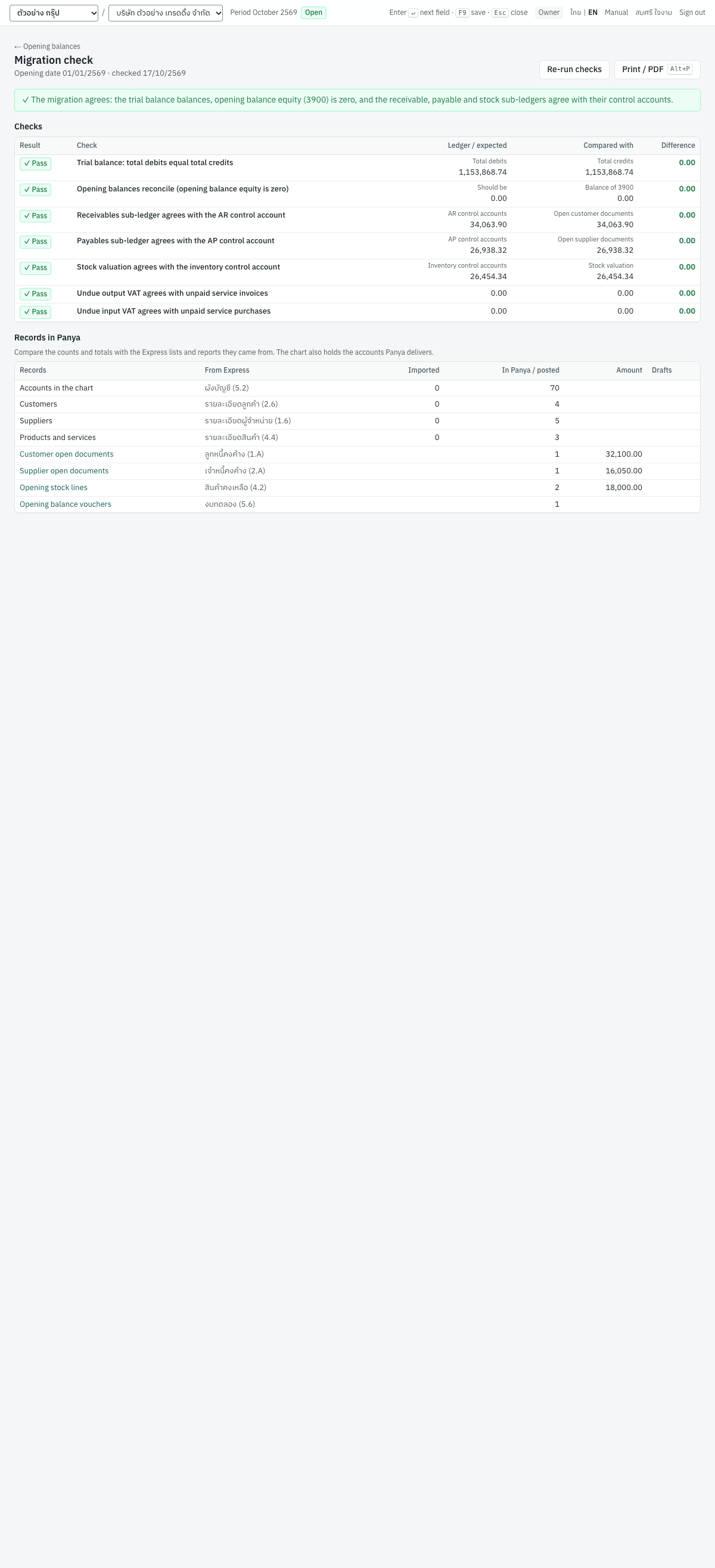
The subtitle gives the opening date and today's date, for example Opening date 01/01/2569 · checked 18/10/2569. At the top right, Re-run checks checks again and Print / PDF (Alt+P) prints the page. ← Opening balances goes back.
A green line ✓ The migration agrees: the trial balance balances, opening balance equity (3900) is zero, and the receivable, payable and stock sub-ledgers agree with their control accounts. means the migration is complete. Otherwise a red line says, for example, ✗ 2 of 5 checks failed. Correct the openings, then re-run the checks.
The Checks table has one row per check, marked ✓ Pass or ✗ Fail, with the two amounts compared and the Difference (red when it is not zero). A failed check also says where the difference usually comes from:
| Check | Ledger / expected | Compared with | Usual cause of a difference |
|---|---|---|---|
| Trial balance: total debits equal total credits | Total debits | Total credits | Every entry is balanced when posted; see Integrity checks for the entry that is not. |
| Opening balances reconcile (opening balance equity is zero) | Should be (0.00) | Balance of 3900, Dr or Cr | Customer or stock openings missing (a debit), or supplier openings, loans or capital missing (a credit), or a draft opening voucher not posted |
| Receivables sub-ledger agrees with the AR control account | AR control accounts | Open customer documents | A trial-balance line on a receivable account that is not marked as a control account in the chart |
| Payables sub-ledger agrees with the AP control account | AP control accounts | Open supplier documents | The same on a payable account |
| Stock valuation agrees with the inventory control account | Inventory control accounts | Stock valuation | Stock entered on the opening voucher instead of as opening stock, or an inventory account that is not a control account |
| Undue output VAT agrees with unpaid service invoices | Balance of 2121 | Undue VAT still open on customer documents | Undue VAT on the trial balance whose customer openings were imported without undue_vat |
| Undue input VAT agrees with unpaid service purchases | Balance of 1151 | Undue VAT still open on supplier documents | Undue VAT on the trial balance whose supplier openings were imported without undue_vat |
The Records in Panya table lists what to compare with Express, as its note says: Compare the counts and totals with the Express lists and reports they came from. The chart also holds the accounts Panya delivers.
| Records | From Express | Shows |
|---|---|---|
| Accounts in the chart | ผังบัญชี (5.2) | Imported by the chart import, and In Panya / posted: the active accounts |
| Customers | รายละเอียดลูกค้า (2.6) | Imported, and active customers |
| Suppliers | รายละเอียดผู้จำหน่าย (1.6) | Imported, and active suppliers |
| Products and services | รายละเอียดสินค้า (4.4) | Imported, and active products |
| Customer open documents | ลูกหนี้คงค้าง (1.A) | Posted customer openings and their Amount; compare with the total of 1.A |
| Supplier open documents | เจ้าหนี้คงค้าง (2.A) | Posted supplier openings and their amount; compare with the total of 2.A |
| Opening stock lines | สินค้าคงเหลือ (4.2) | Posted opening stock lines and their value; compare with the total of 4.2 |
| Opening balance vouchers | งบทดลอง (5.6) | Posted opening vouchers |
The document rows link to their lists. Drafts shows, for example, 1 not posted when some openings are still drafts: post them, then re-run the checks.
Differences from Express#
Panya follows Express's conventions, so most of your habits carry over:
- Document prefixes are the same (IV, HS, SR, RE, RR, HP, GR, PS, JV), with the Buddhist year and month:
IV69100001. - The price types on documents are the same: 2 excluding VAT, 1 including VAT, 0 no VAT.
- Express enters customer and supplier openings dated before the start date; in Panya they are dated on the opening date, with the old number as reference.
- Express's year-end close deletes the old year's settled transactions; Panya's year-end close keeps every document and entry.
Unlike Express, Panya numbers documents when they are posted, not when they are saved, and posted documents are never edited: they are cancelled and re-entered. See Getting started.